
Log in to RDP without credentials
Change local security policy
To change the local security policy, do as follows:
Connect to your Windows server.
Go to Control Panel > User Accounts > Credential Manager > Windows Credentials.
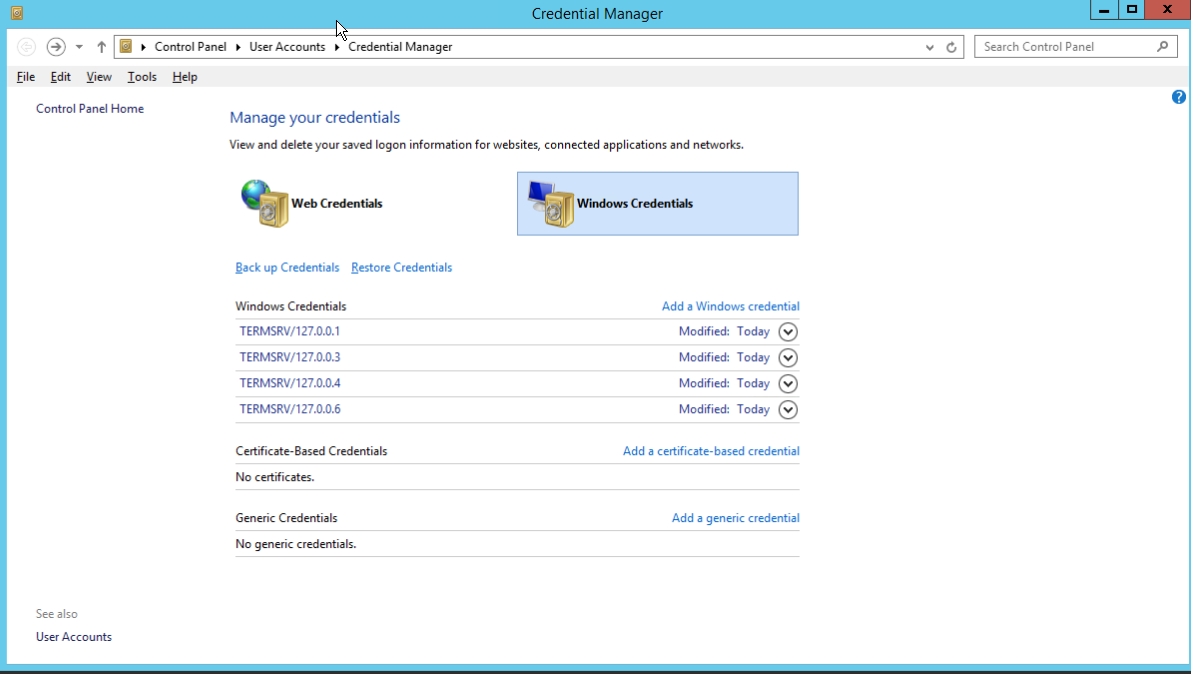
Click Add a Windows credential and fill in all fields with your user credentials.
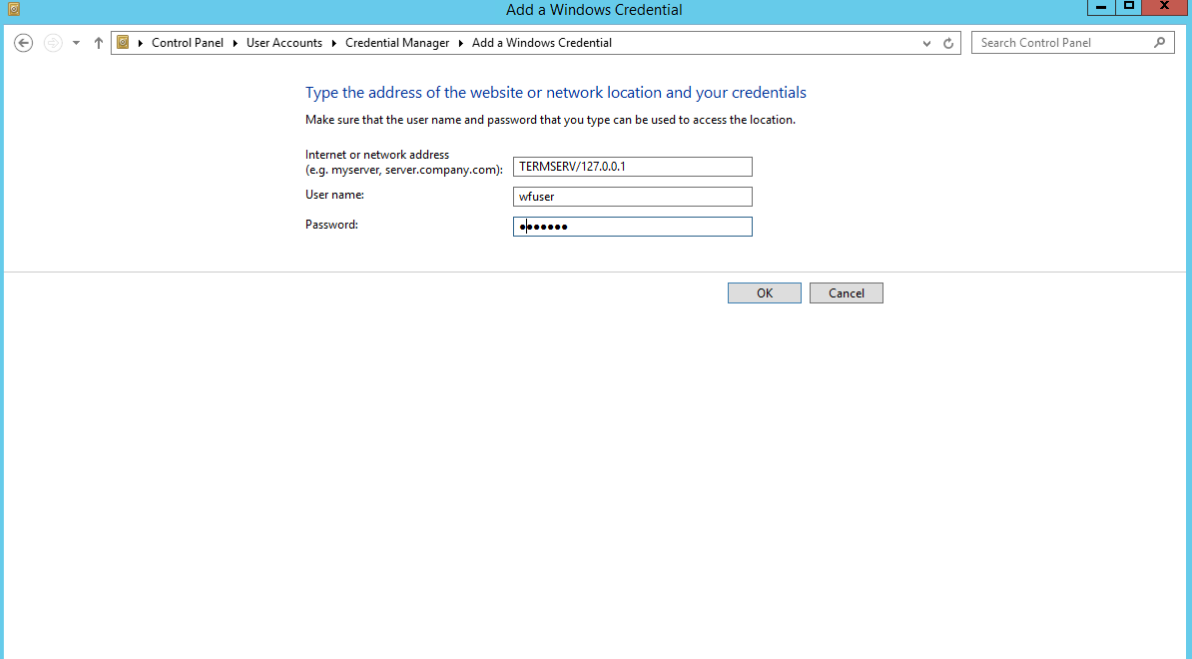
Click OK.
Click the Start button and go to Local Security Policy > Local Policies > User Rights Assignments > Allow log on through Remote Desktop Services.
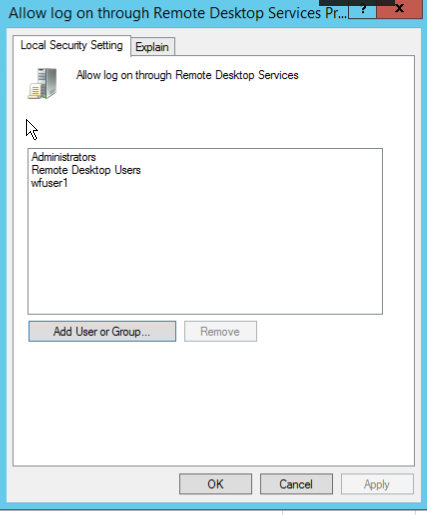
Select Add User or Groups, specify your user in the field, and select Check Names.
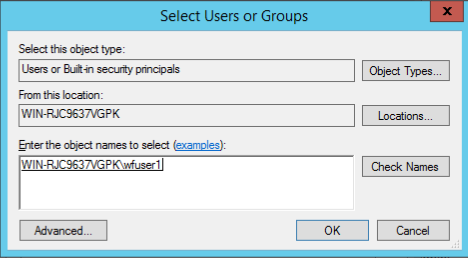
Click OK.
Change group policy
To change a group policy, follow the steps:
Repeat step 1 from Change local security policy.
Click the Start button, go to Edit Group Policy > Administrative Templates > System > Credentials Delegation > Allow delegating saved credentials (or Allow delegating saved credentials with NTLM-only server authentication in case of the NTLM-only server authentication), and select the Enabled option.
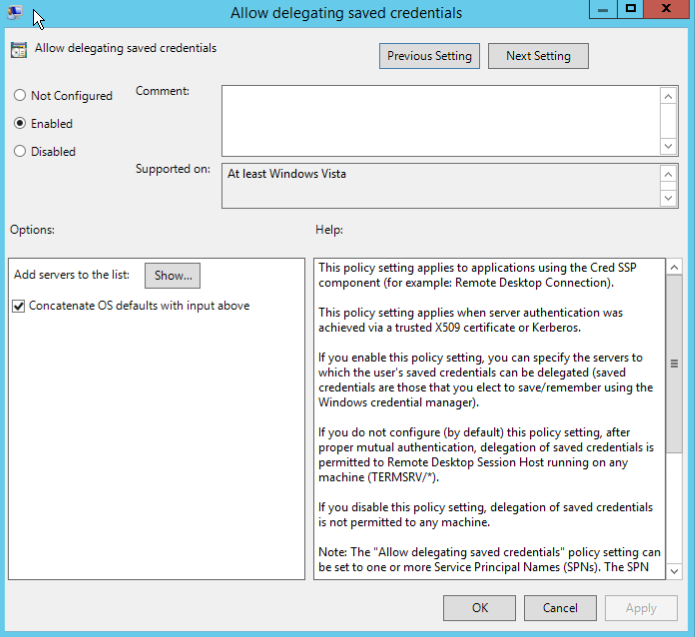
Go to Options > Add servers to the list, click the Show button. In the Value field, specify your server name.
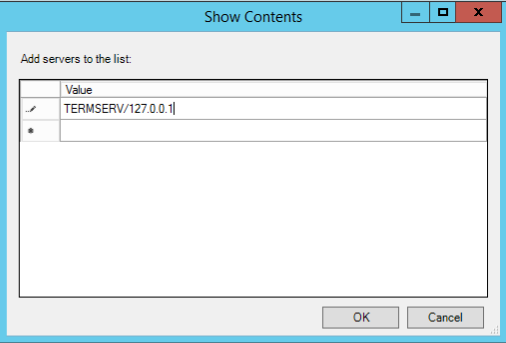
Click OK.
If you want to add your servers to the list, use * instead of your machine name. In this case, the value looks as TERMSERV/*.