
Automate complex grids
In case automation of complex trees or tables with a large number of elements takes much time for both inspecting and executing scripts, use the following SAP UI controls attributes:
native_idrowcolumn
The native_id attribute immediately interacts with a selected element, for example, a table cell of the Nth column in a complex grid, without waiting for information from the whole list of elements.
- Open SAP GUI desktop client and select the screen you need to automate. Open Inspector and click Capture.
- Hover over the needed element and press Escape.
:::warning
Do not click on the element!
:::
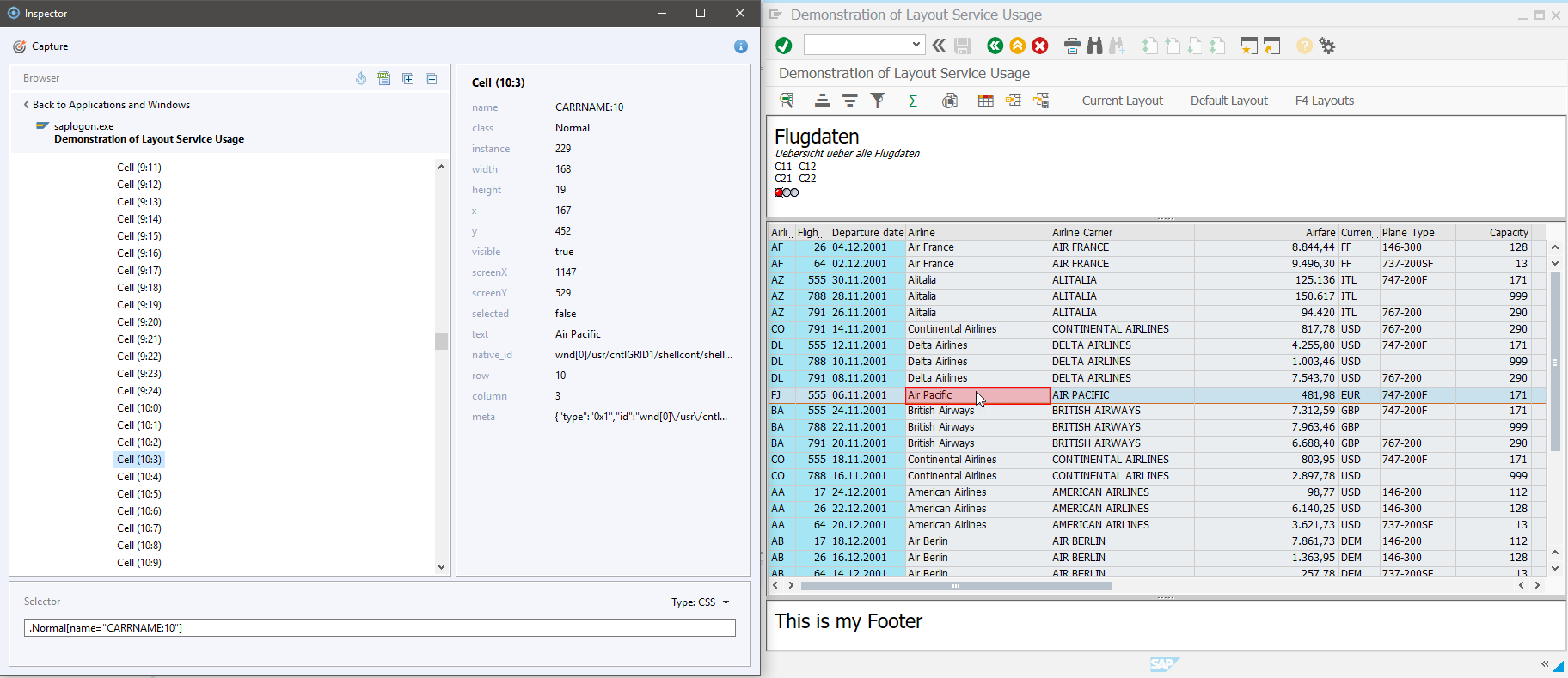
- Build up your selector manually.
Copy
native_id{style="letter-spacing: 0.0px;"} in the native_id field and paste it afterNATIVE_IDin the Selector field.After the
NATIVE_IDblock, addCELLto your and specify the cell coordinates using thecolumnandrowvalues.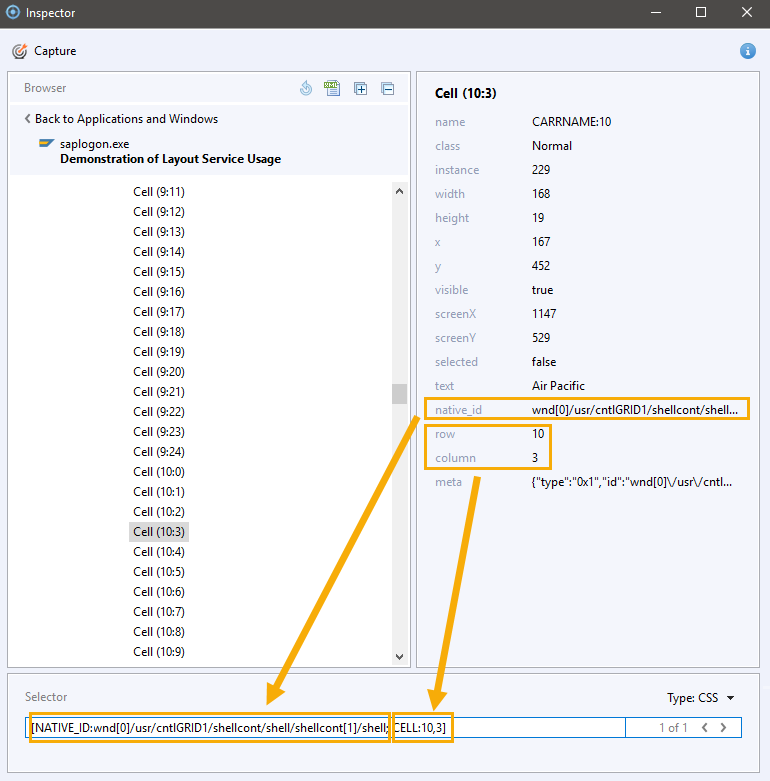
Your selector will look as follows:
[NATIVE_ID:wnd[0]/usr/cntlGRID1/shellcont/shell/shellcont[1]/shell; CELL:10,3]
Using native_id, you can build selectors for the following UI
elements:
- table cells: use
native_id+ cell:row,column, for example,[NATIVE_ID:wnd[0]/usr/tabsTAXI_TVERVIEW/tblSAPMV45ATCTRL_U_ERF_AUFTRAG; CELL:1,38] - tree items: use
native_id+name(refer to thenameattribute in the element data), for example,[NATIVE_ID:wnd[0]/usr/cntlTREE_CONTAINER/shellcont/shell; NAME: Root:0] - SAP UI controls, for example, buttons: use
native_idonly, for example,[NATIVE_ID:wnd[0]/usr/btnNEW]