
Set up RPA dev environment
Requirements
- Windows OS (32-bit or 64-bit version) with Administrator access
- Internet Explorer 11
- At least 1 GB of free space
Download and run RPA installer
Download the RPA installer zip archive: https://rpa-grid.s3.amazonaws.com/releases/10.1.0.2/RPAInstaller-10.1.0.2.zip
Unzip the RPAInstaller-{version}.zip to your local temp folder.

Run RPAInstaller.exeand follow the RPA Setup Wizard steps.
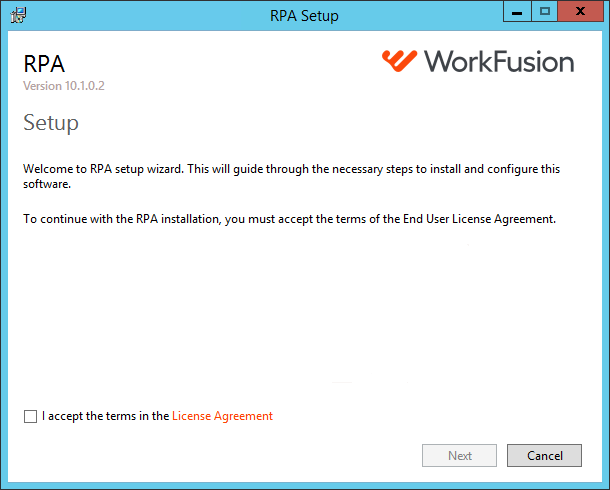
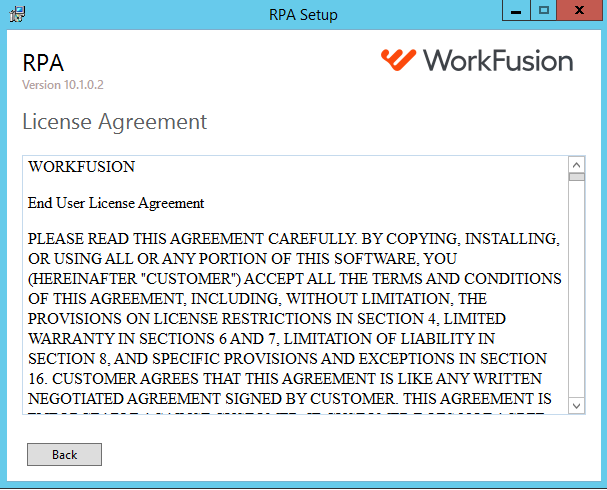
Accept the License Agreement and proceed.
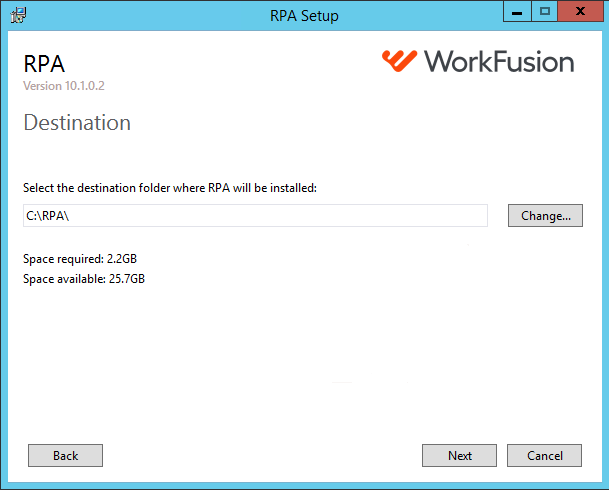
Set the Destination Folder for RPA Server installation.
caution
Do not select existing folders with sensitive content (C:\Windows) or root folders (C:\ D:\) because their content will be deleted when you choose to uninstall.
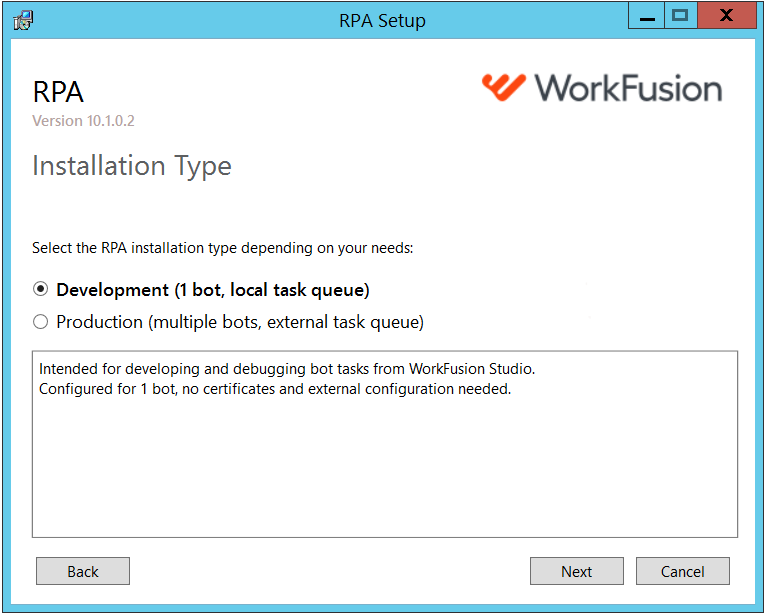
On the Installation Type screen, select Development.
Specify the user on the Bots Configuration screen. Under the selected installation type, only one bot is configured.
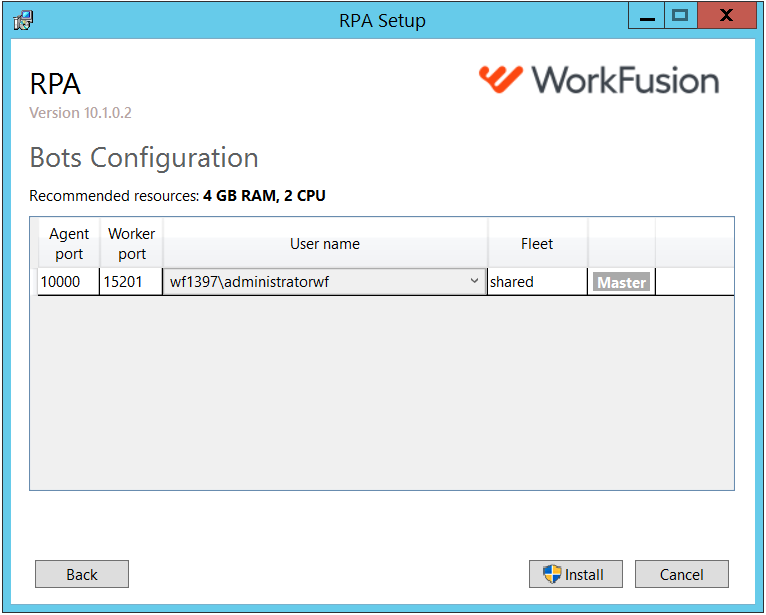
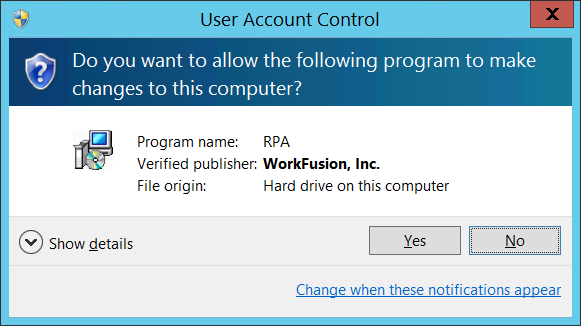
Press Install and allow the program to make changes to your device.
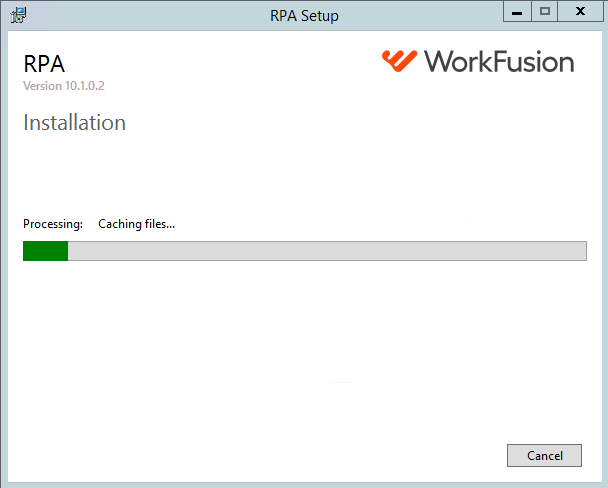
Wait for the installation process to complete.
Check Internet Explorer settings
To use your IE browser for automation, go through the checklist in Configuring Internet Explorer for RPA.
Configure Java Applet settings
If you need to automate Java applets, go through the checklist in Configuring Java Applets for RPA.
Configure WorkFusion Studio
Before you start WorkFusion Studio, link it to PRA package.
- Go to WorkFusion Studio installation directory and open the configuration folder.
- Open config.ini and add the
workfusion.rpa.package.pathproperty that defines the path to the RPA package, e.g.:workfusion.rpa.package.path=c:/RPA
note
The default path to the RPA package is C:/RPA. If you selected another directory, make sure to specify it correctly.
Check installation
To check that the environment is set up as expected, either run RPA configs or samples from Examples Library in WorkFusion Studio. If configuration is done properly, a browser or a desktop application opens, and the script works as expected.
Run RPA configs from WorkFusion Studio
As soon as you configure RPA environment, you can test it by executing RPA scripts from our bot-samples.zip package in WorkFusion Studio.
- Start WorkFusion Studio and create a new WorkFusion Project.
- Create a new bot task configuration and paste the code from one of the example package files.
- Click the Run button and make sure the bot task config execution is succeeded.
Run samples from Examples Library
You can also check WorkFusion Studio performance by running samples from Examples Library.
- Start WorkFusion Studio.
- Go to Help > Welcome to WorkFusion Studio and select any example to run, for example, Dates translation.
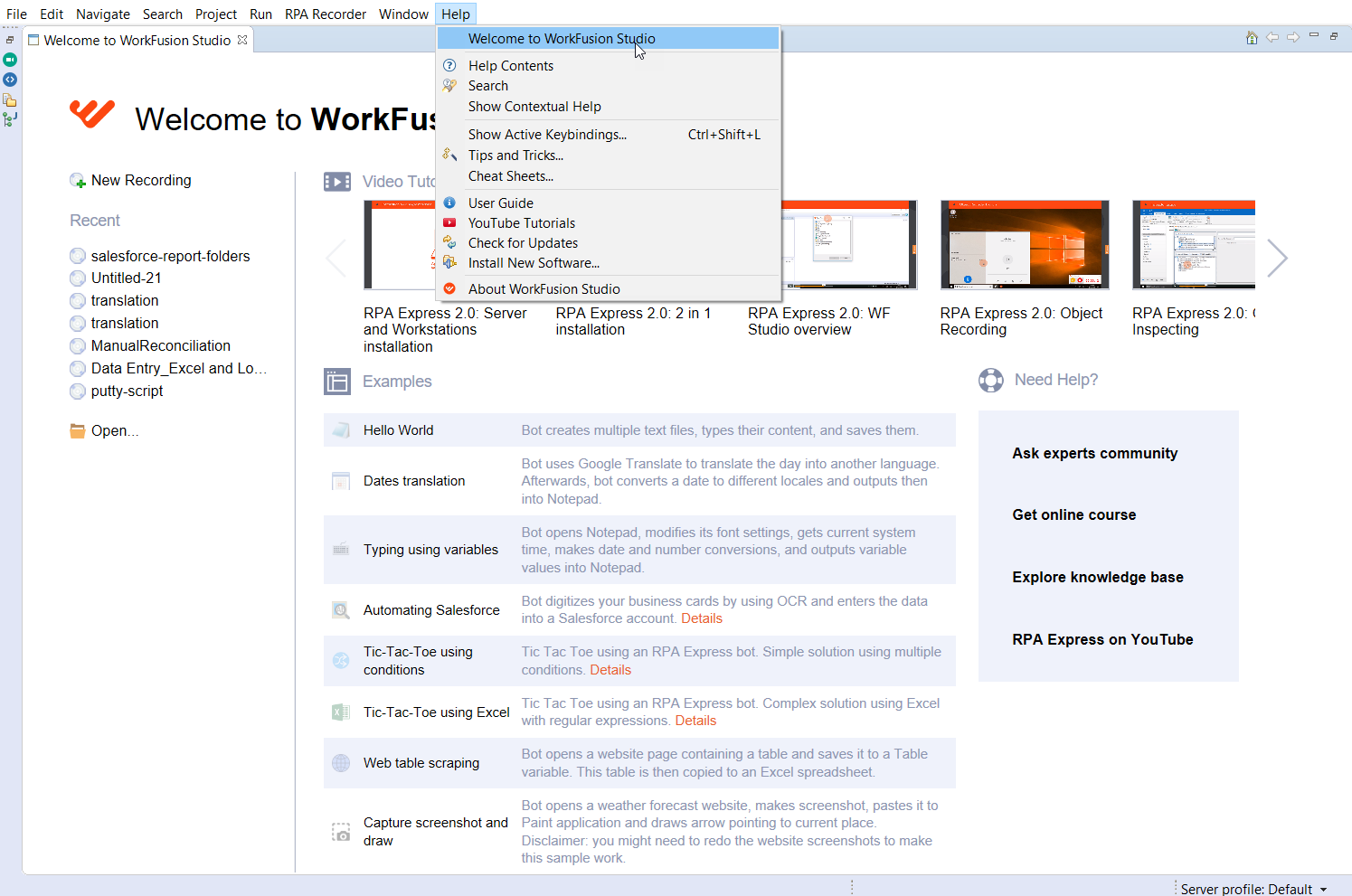
- Click the Play recording button.
Check Worker logs
As soon as your RPA script is executed, view the WorkFusion Studio Console where successful actions and errors are displayed.
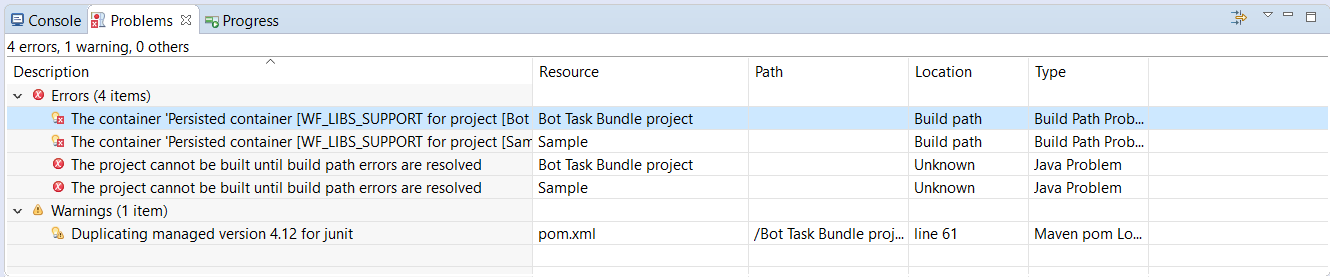
Errors could be caused by:
- incorrect RPA script (window selector or timeout)
- desktop application failure, etc.
In most cases, you need to close the console and open the appropriate batch file again, or modify the script code.