Enable components
Where to find server components
When launching Intelligent Automation Cloud Developer by clicking on its icon on the desktop, it opens with server components and setup options found on the Components tab in the bottom left corner.
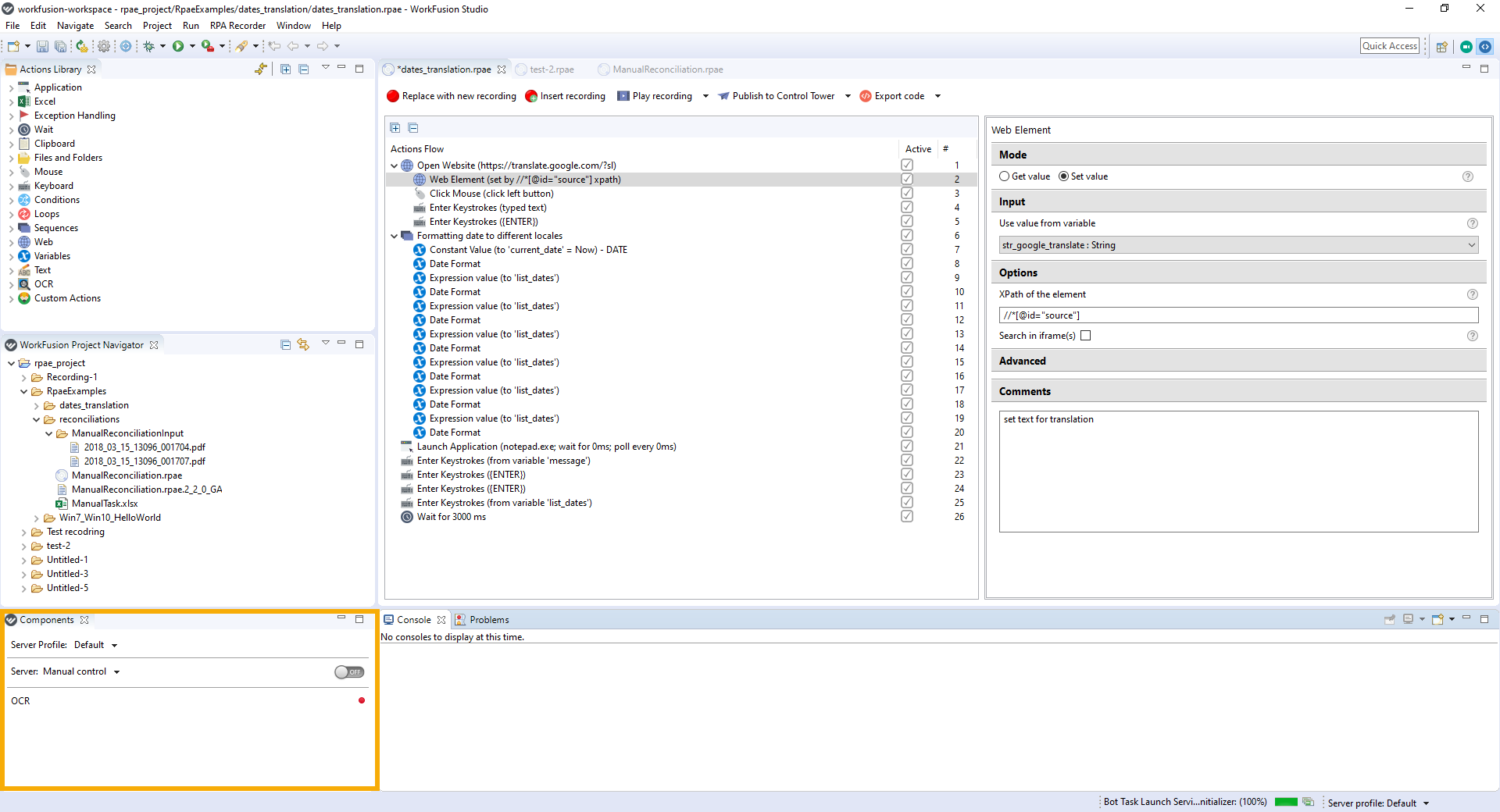
If by any chance there is no Components tab, open it manually.
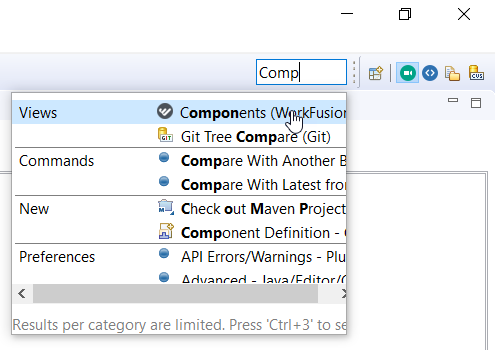
- Start typing
Componentsin the Quick Access field (or click "Ctrl + 3" to start typing). - Select Components (WorkFusion Studio) in the list of options.
Components options
On the Components tab, you can perform the following actions.
- Enable server components
- View server components
- Modify server settings
Enable server components
By default, the server is disabled. To enable the server and its components, do as follows.
- Move the slider to the ON position. Keep in mind that it can take several minutes to start the server depending on hardware resources of the server machine. While the server components are starting, the slider is grayed out and inactive.
- As soon as the server is started, you are able to view links to Control Tower, WorkSpace, and File Storage. Click on the corresponding link to open in your default browser.
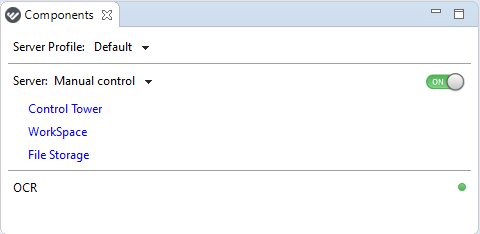
The server status is shown with the appropriate color of the slider:
- green—the server is up and running
- red—the server is down
- yellow—either some components are not up, or your Business Edition license is about to expire (the details are in a tooltip available on hovering)
note
To close Intelligent Automation Cloud Developer completely, stop server components by moving the slider to the OFF position and close the application.
View server components
On the Components tab, you can view the following components.
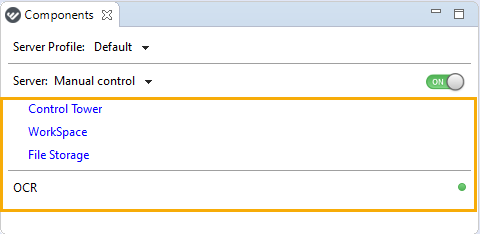
- Control Tower
- WorkSpace
- File Storage
- OCR—always enabled with the current status shown:
- green—OCR is up, the number of pages is in a tooltip available on hovering
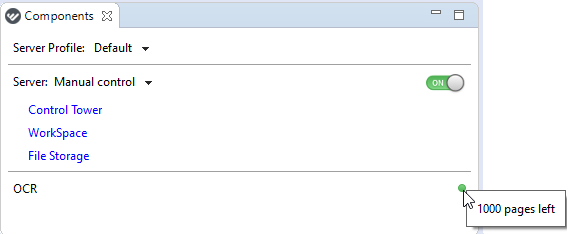
- red—OCR is not running, or all the pages are used up, the details are in a tooltip
- green—OCR is up, the number of pages is in a tooltip available on hovering
Server management
From the Components tab, you can edit server settings and set up the way a server behaves.
Manage server profiles
By default, the default server profile is chosen. To view/enter any changes into the server profile, or add a new server profile, do as follows.
- Click on the Server Profile drop-down and select Manage Profiles.
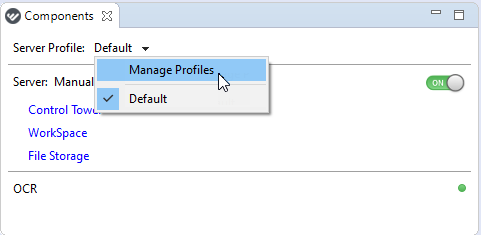
- Within Server Profiles, make necessary edits, and click Apply and Close to save.
Manage server control
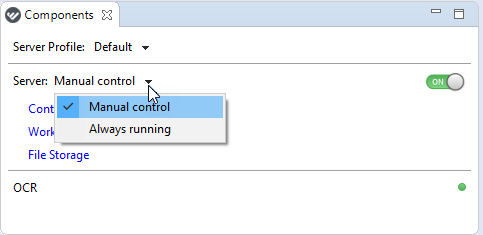
To view available options, click on the drop-down next to the server.
- Manual control—is enabled by default. Server components are started when you enable the server manually and stopped when you intentionally stop them. In case of closing WorkFusion Studio, server components continue running in the background mode, if they were not stopped by you.
- Always running—if selected, server components are started automatically after the system reboot, though you can still manually enable and disable them.