
Issues related to OCR server performance
If you suspect your issue is related to poor OCR server performance, act as follows:
Analyze Kibana dashboards
Check whether the issue is reproduced at the moment of the investigation. In Kibana, examine the Cluster Utilization, System Overview, Host Overview dashboards for CPU, memory, inputs, and outputs.
For more information, refer to the following troubleshooting guides as there are already generic instructions on inspecting the server condition via Kibana:
If you notice any disruptions, request the Support team for assistance in further investigation.
Use Postman, your browser, or any preferable tool and make the /api/v1/health-check request against the OCR endpoint. This can bring you a bunch of information, but pay special attention to the following:
- Endpoint components
- Error count and errors
- Status
- Warning count and warnings
For details on the request, refer to the OCR API documentation.
Review event longs
To find out whether the issue resulted from an OCR crash or Business Process (BP) failure, check the OCR BP event logs.
tip
Such BP components as OCR and ML sub-processes can have caches with already processed documents so that the BP doesn't have to handle those documents once again unnecessarily. If your issue is about OCR not processing, its resolution can involve clearing caches.
Also, follow the steps:
Go to the Results tab of the appropriate BP and get the document results from the OCR output and input. Click the filter settings:

Set the filters to target the parameters associated with the document. Mind that some of them can be BP-specific:
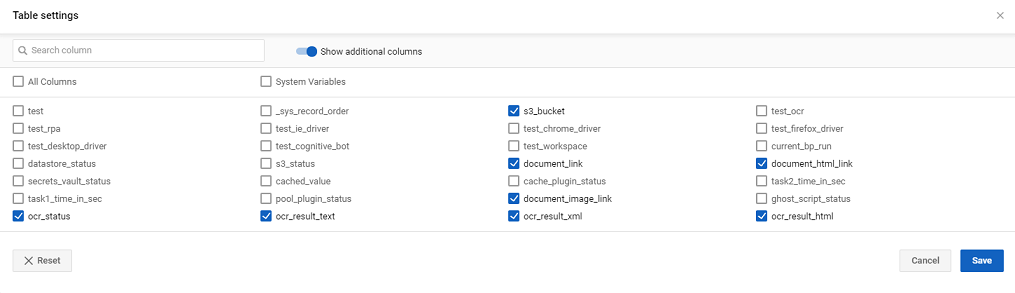
Check the OCR step processing time and evaluate the OCR input. Compare it to the regular processing time before the issue occurred and determine if the issue is related to the OCR server performance or if it's strictly BP-related.
tip
OCR API works with retries and delivers non-unique results (three OCR attempts). To find the request and eliminate the issue, for instance, multiple requests, review Nginx or logs.
Check OCR server
First, check the OCR server configuration corresponds to system requirements.
Next, get results from OCR API. Below, you can find helpful API endpoints and links to related articles:
Display the response from the
/api/v1/metrics/activeLicenserequest. For details, refer to the OCR API article.To see if OCR is stuck due to an expired license, exceeded volume, or for another reason, use the following fields:
allowedCoresCount
availableBarcodeModules
availableEngineModules
availableExportFormats
availableLanguageSets
availableTextTypes
availableVisualComponents
category
expirationDate
limited
minimumCoresCountPerInstance
serialNumber
volume
volumeRefreshingPeriod
volumeRemaining
warnings
Check if the document count exceeds the limitations or processes too much at once. Send a request to
/api/v1/metrics/countwith the following parameters:status: either one of theTaskStatusvalues or an aggregate, such asDONE,PROCESSING,ALL.period:BEGINNINGtoNOW-MINUTES. The default is 60 minutes.
For details, refer to the OCR API documentation.
Review the overall statistics by sending
api/v1/metrics/stats. For details, refer to the OCR API documentation. The available information is as follows:- Time period
- Minimum processing time
- Descriptive statistics
note
Sometimes, the OCR server batch-processes an upload, which cannot be done quickly. All documents are then queued for an extended period of time. In a larger environment, you can track the OCR workload at endpoints by sending the api/v1/cloud/listLicenses request. For details, refer to the OCR API documentation.
Analyze output
If you confirm the issue, change the OCR server configuration accordingly. When you discover no critical fallbacks on the server, you may want to read the topic about performance improvements. Otherwise, continue the investigation.
View also: