
Issues caused by incorrect RPA configuration
The article lists a number of the most common issues stemming from incorrect RPA configuration and tips to troubleshoot them.
Windows Defender blocks execution of D:/rpa/java/bin/java.exe
The following symptoms indicate the issue:
You see the Windows Defender screen appear during process execution.
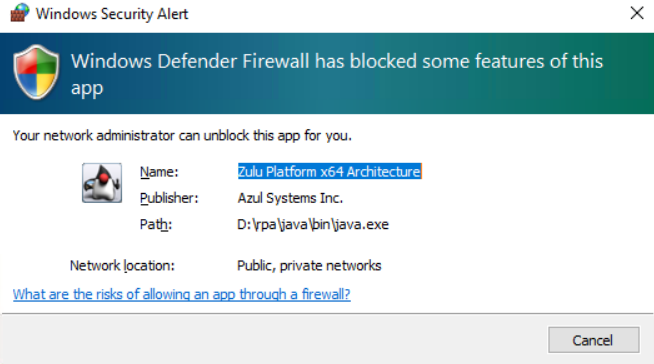
In the Windows event logs, you see the following message:
  A rule has been added to the Windows Defender Firewall exception list.

      Added Rule:
          Rule ID:    TCP Query User{ADA6DD42-7CF4-4132-92DB-7AAA2F96F462}D:\rpa\java\bin\java.exe
          Rule Name:  Zulu Platform x64 Architecture
          Origin: Local
          Active: Yes
          Direction:  Inbound
          Profiles:   Public
          Action: Block
          Application Path:   D:\rpa\java\bin\java.exe
          Service Name:
          Protocol:   TCP
          Security Options:   None
          Edge Traversal: None
          Modifying User: S-1-5-80-3088073201-1464728630-1879813800-1107566885-823218052
          Modifying Application:  C:\Windows\System32\svchost.exe
To resolve the issue, add /rpa/java/bin/java.exe to the whitelist of Windows Firewall.
Worker is down
To resolve the issue, follow the steps below:
In
bot-agent-unit.yml, find a process with the ID similar to this one:rpa.worker.${unit_id}.Add the
retriesattribute between the directory and tags:directory: "../worker" retries: 180 tag: "worker"
where:
180is the maximum number of retries for the Worker.
Out-of-memory error for Worker
To resolve any RPA issue due to the cause, change the Xms and Xmx Worker memory setting in worker.bat or bot-agent-unit.yml.
Desktop automation fails due to
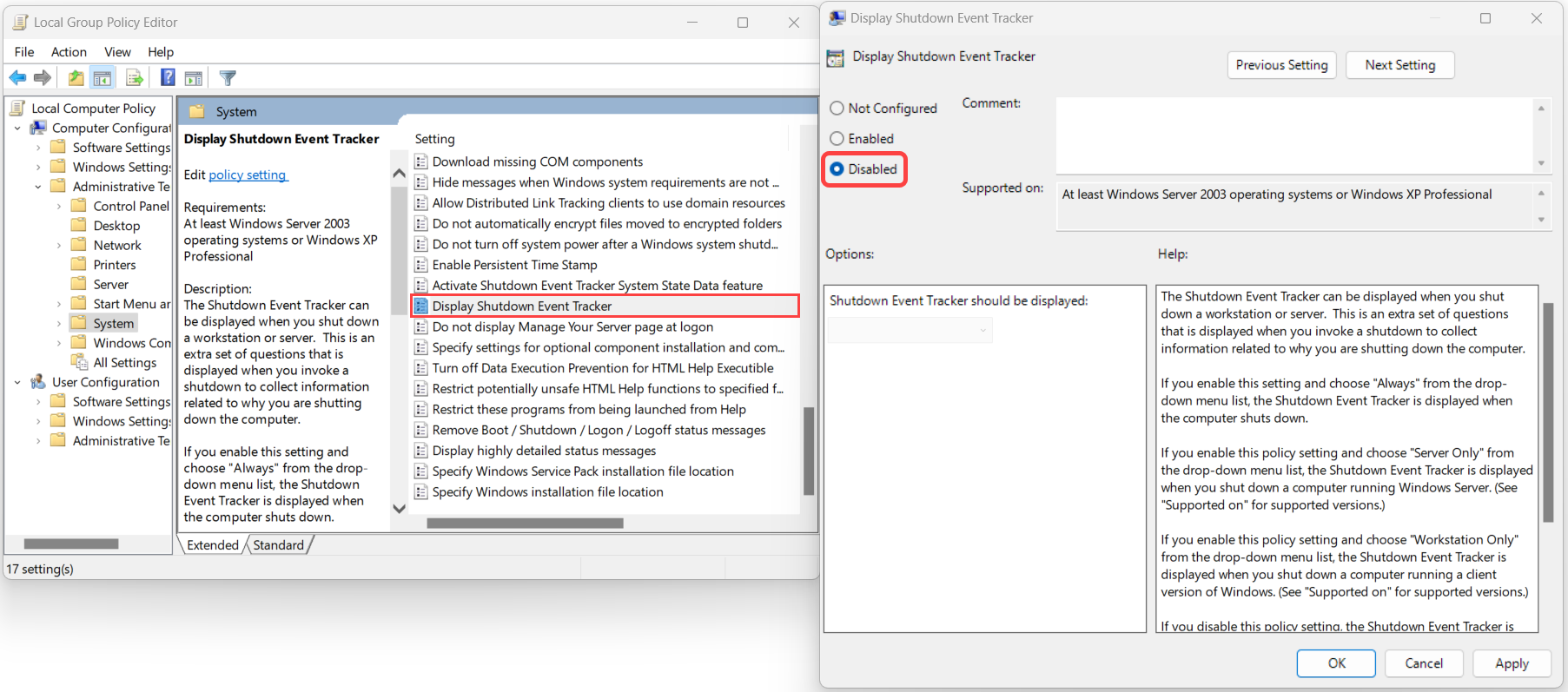
The desktop automation fails due to the Display Shutdown Event tracker window appearing in front of the application.
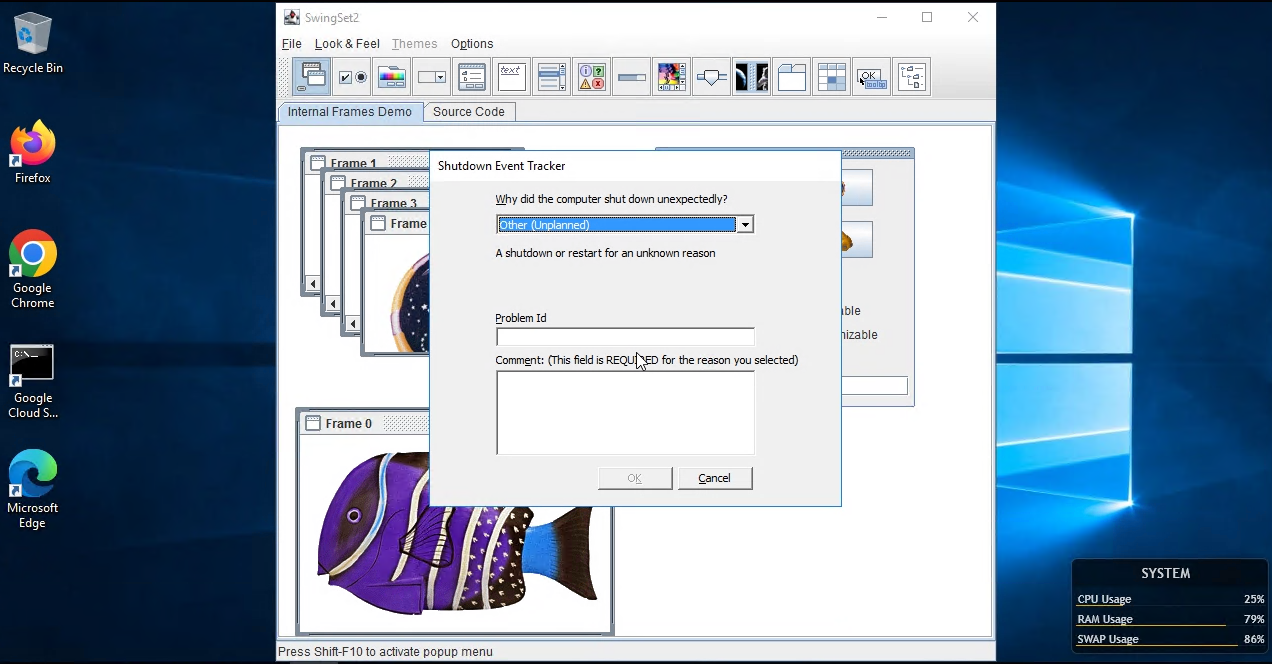
To resolve the issue, do as follows:
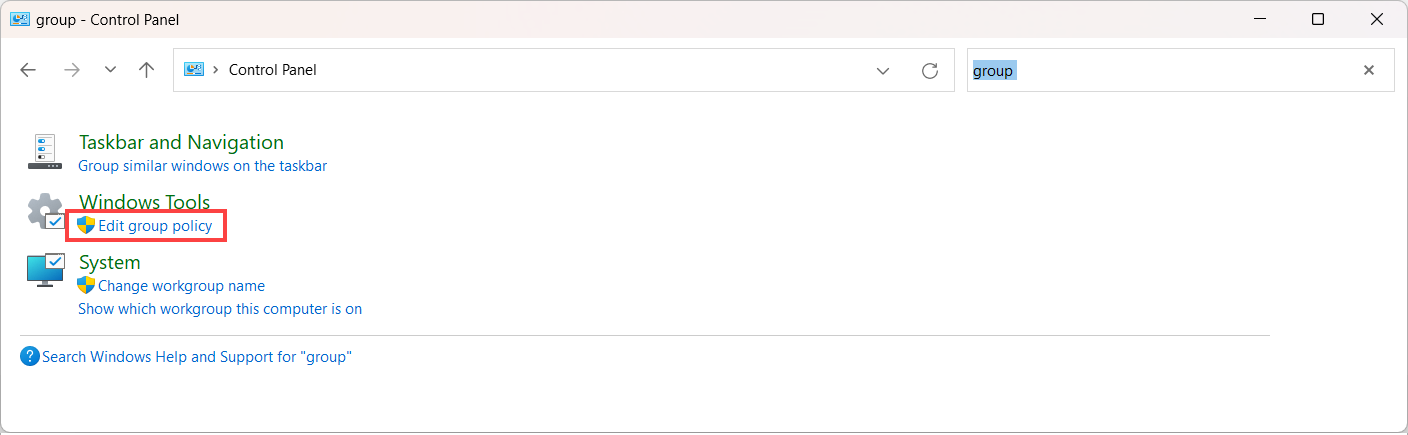
Open Control Panel > Windows Tools and select Edit group policy.
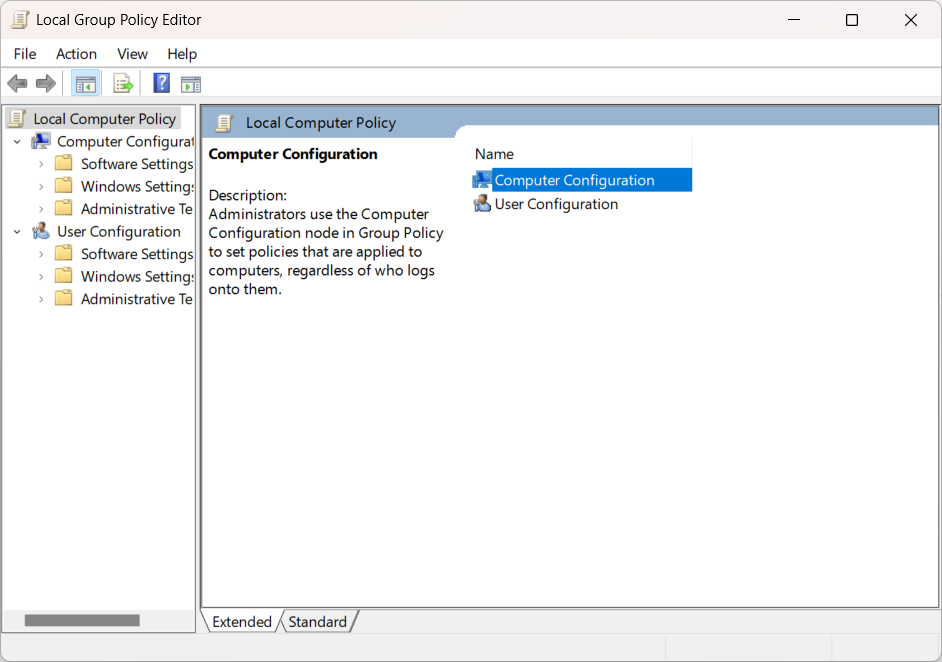
In the Local Group Policy Editor window, select Local Computer Policy > Computer Configuration > Administrative Templates > System.
Double-click Display Shutdown Event Tracker, set it to Disabled, and click OK.
View also: