
Raise tickets in WorkFusion Service Desk
Before proceeding, read the WorkFusion online support policy topic.
Choose support channel
The following table illustrates various channels to request and get WorkFusion support.
| SELF-SERVICE | ASSISTED SERVICE |
|---|---|
Product documentation: Support pages and FAQs: Automation Academy course: | IA Cloud issues:
Automation Academy Issues:
|
Escalation paths
For any questions regarding WorkFusion Support processes, customers and partners may also reach out to the following contact points to determine the right approach in each particular case.
| Title | Name | |
|---|---|---|
| VP, Global Support | Daniel Brustein | dbrustein@workfusion.com |
| Director, Customer Success | Josh Maddock | jmaddock@workfusion.com |
| Director, Support Operations | Alexander Murygin | amuryhin@workfusion.com |
Access Customer Portal
To access WorkFusion Service Desk, follow the link. Alternatively, you can get to the portal through the corporate workfusion.com website.
Once you are at the portal welcome page, proceed as detailed in the steps below.
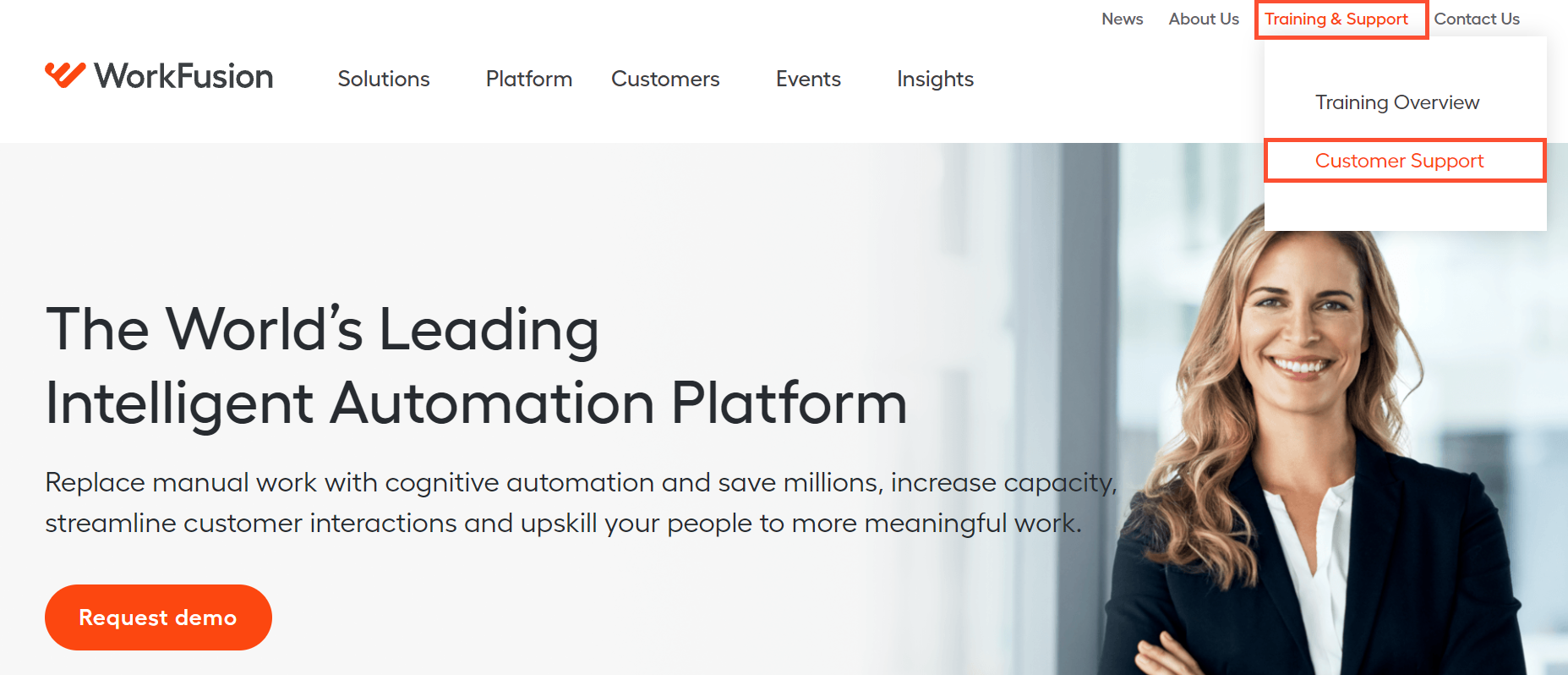
Click Training & Support > Customer Support.
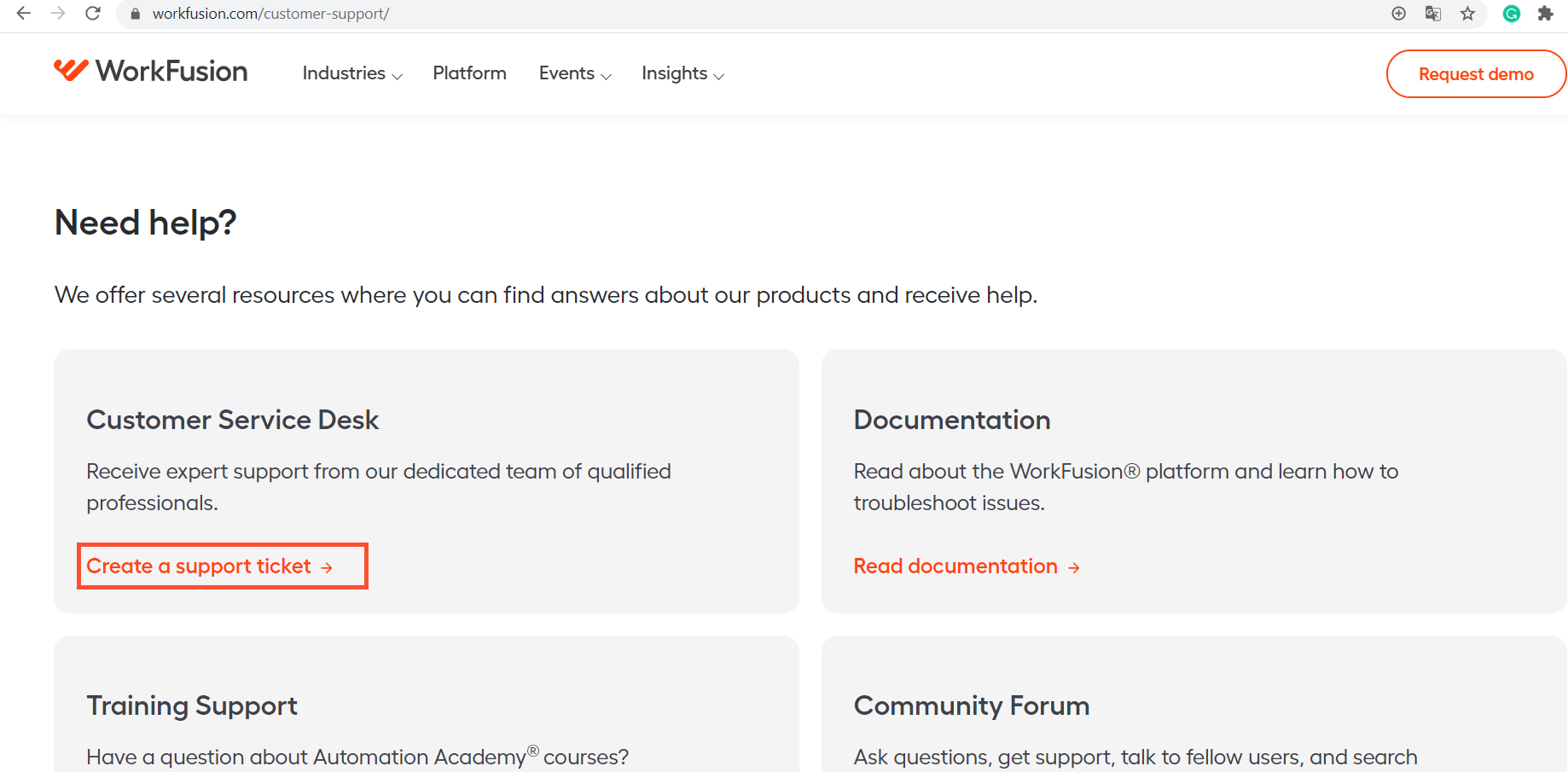
Click Create a support ticket.
Log in using your credentials.
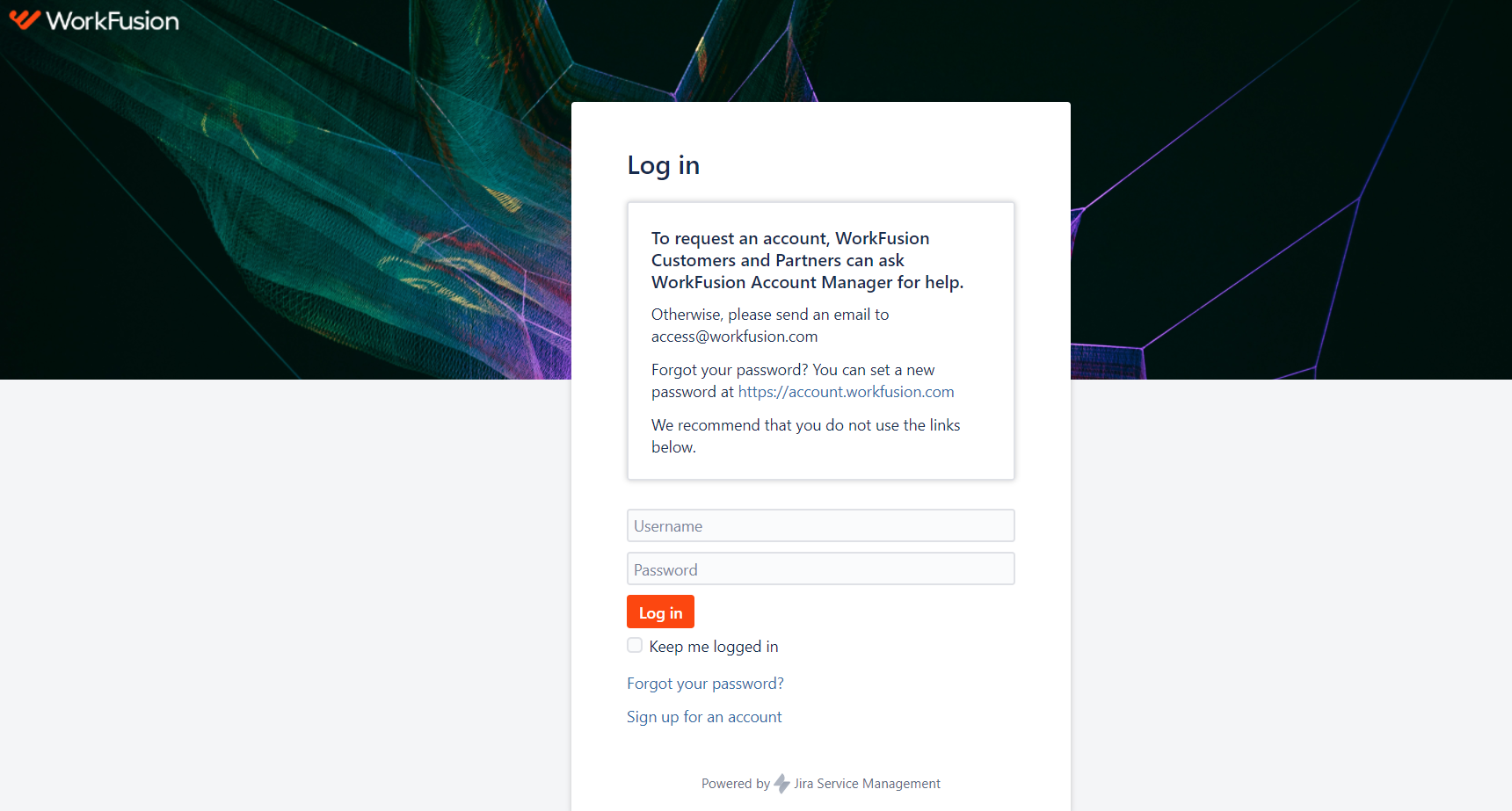
To get an account, make a request to your WorkFusion Account Executive or send an email to access@workfusion.com.
Before raising a ticket, search the Support section at this documentation portal for possible solutions. The WorkFusion team may have already resolved a similar issue and shared a self-service manual to address it.

To raise a ticket, get to the Service Desk project:
Navigate to the All portals section.
Click the link with the name of your company Service Desk.
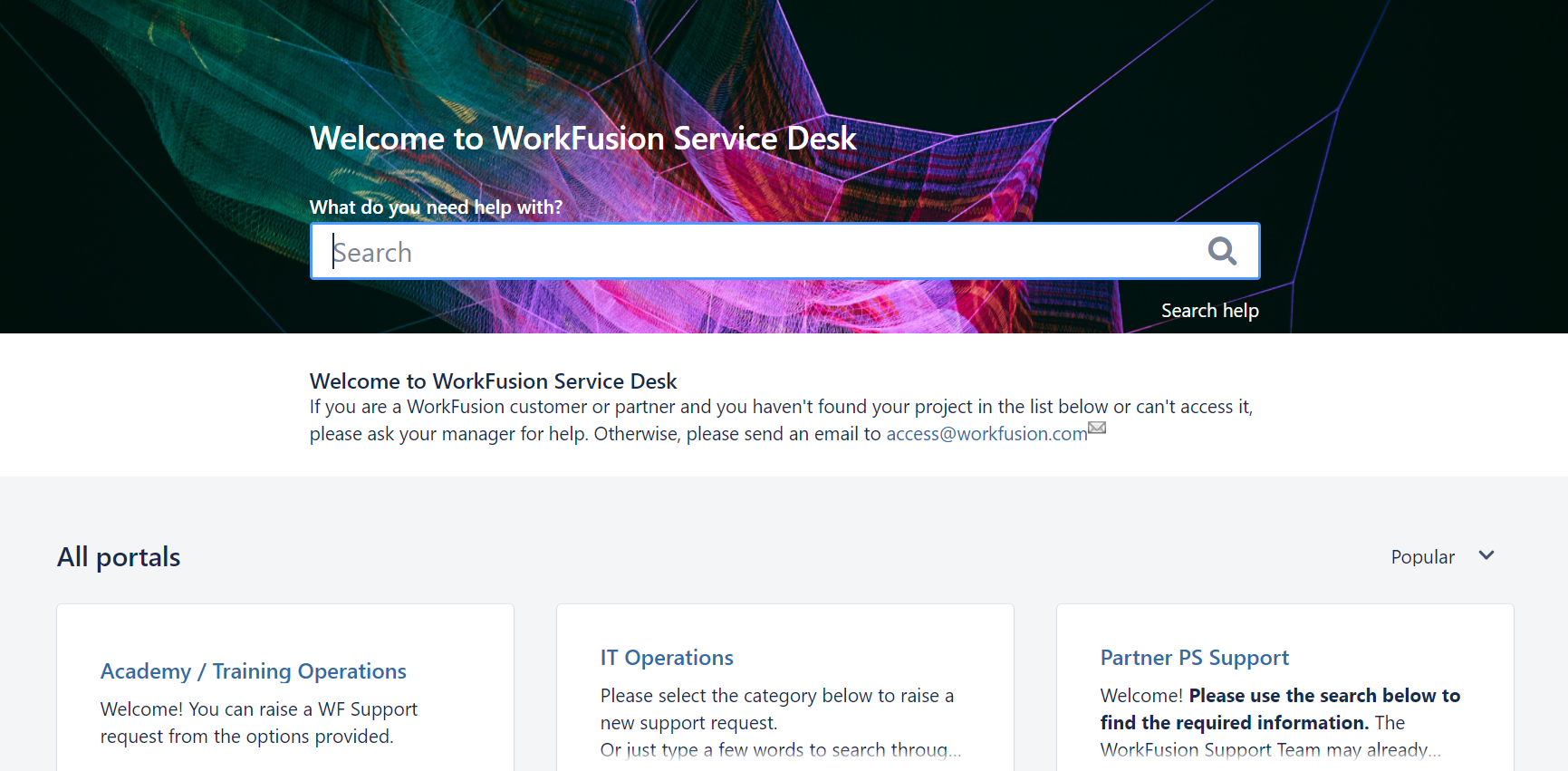
To raise a ticket, click Support Request.
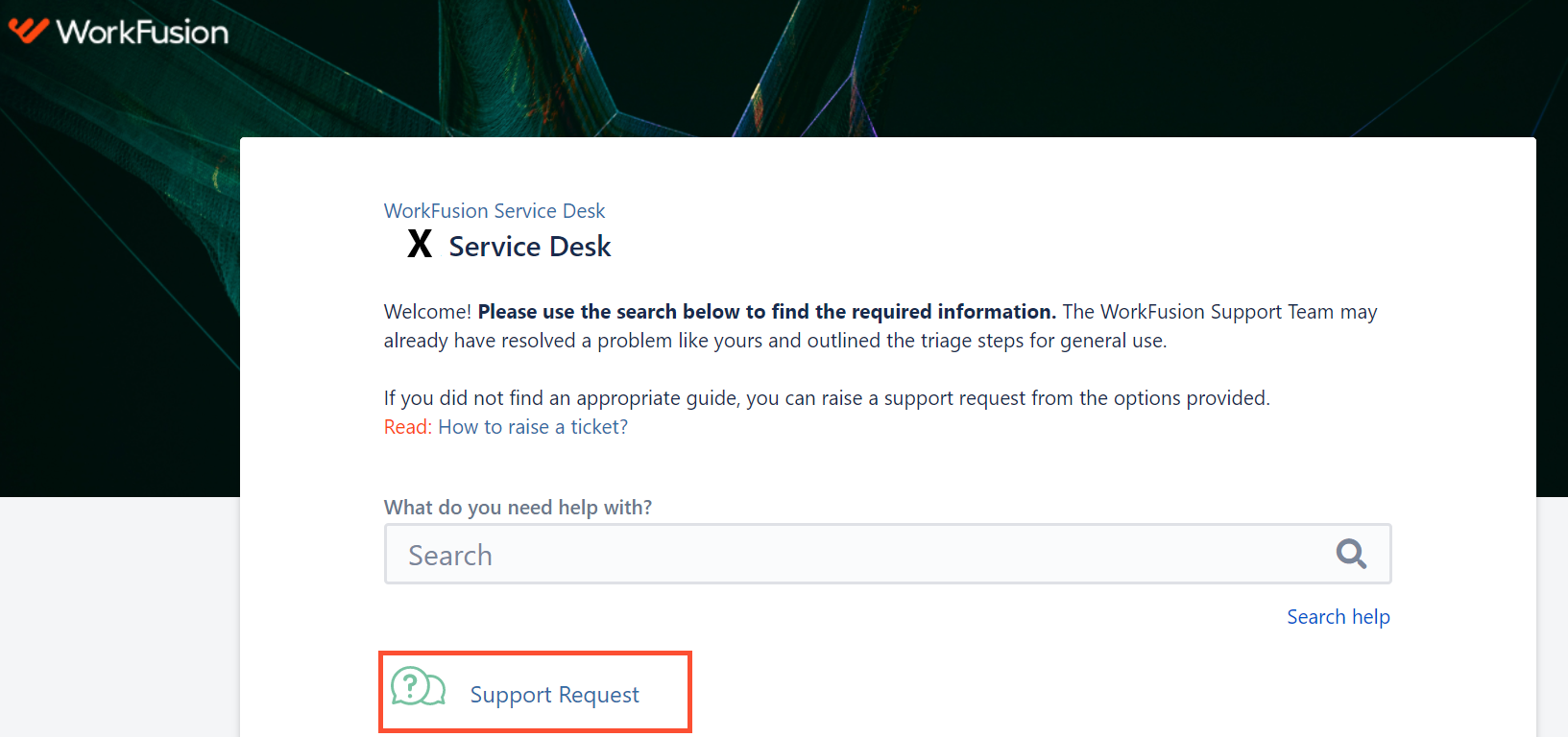
Fill in all necessary fields to make your request clear for support engineers. If the info lacks essential details, the specialists will have to reach back to you, asking the same things. This can increase the time required to move your issue toward resolution.
caution
If you cannot access the Service Desk, ask for help:
- Your Manager
- WorkFusion Account Executive
- WorkFusion Customer Success Manager
Alternatively, send an email to access@workfusion.com
tip
To reset your passwords for the Customer Portal (Jira Service Desk), Documentation Portal, and Automation Academy, go to https://account.workfusion.com/.
Raise request
Let's walk through the ticket fields you need to fill in to raise a request without any difficulties.
Priority
Set your issue priority from the drop-down menu based on the descriptions in the table below.
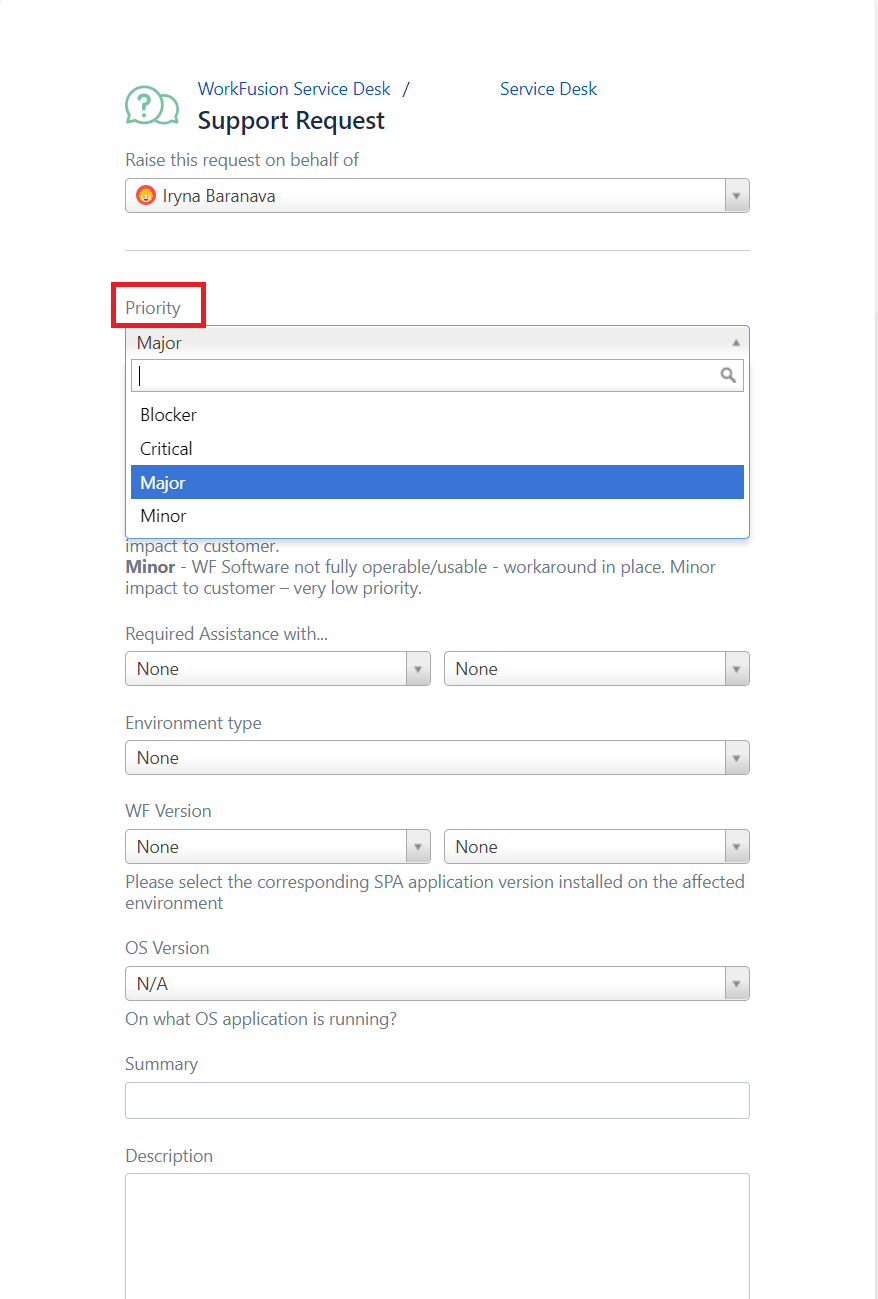
| Priority | Description |
|---|---|
| Blocker | The production environment is unusable: business-critical impact on the Customer and extreme service degradation. Failure of business-critical jobs that have no workarounds. |
| Critical | An environment runs a high risk of becoming unusable or unstable. Frequent system outages that significantly impact user productivity. Failure of Business Processes, delay in processing queued tasks, inability to access specific functionality, and there are no workarounds. |
| Major | There is a significant impediment to performance. It is possible to access all functionality, but there are problems in specific circumstances for which there may be a workaround. |
| Minor | Impediment to performance is minor. The problem results in minimal or no interruptions to normal operations and no business impact. Typically associated with installation and configuration inquiries, informational and license requests, and so on. |
Required assistance with...
Based on the table below, select what you need help with.
| Business Process | Product Infrastructure | General Request |
|---|---|---|
|
|
|
Once you choose a value for the Required Assistance with field, specify your issue in the drop-down menu alongside. Possible options are listed in the table below the figure.
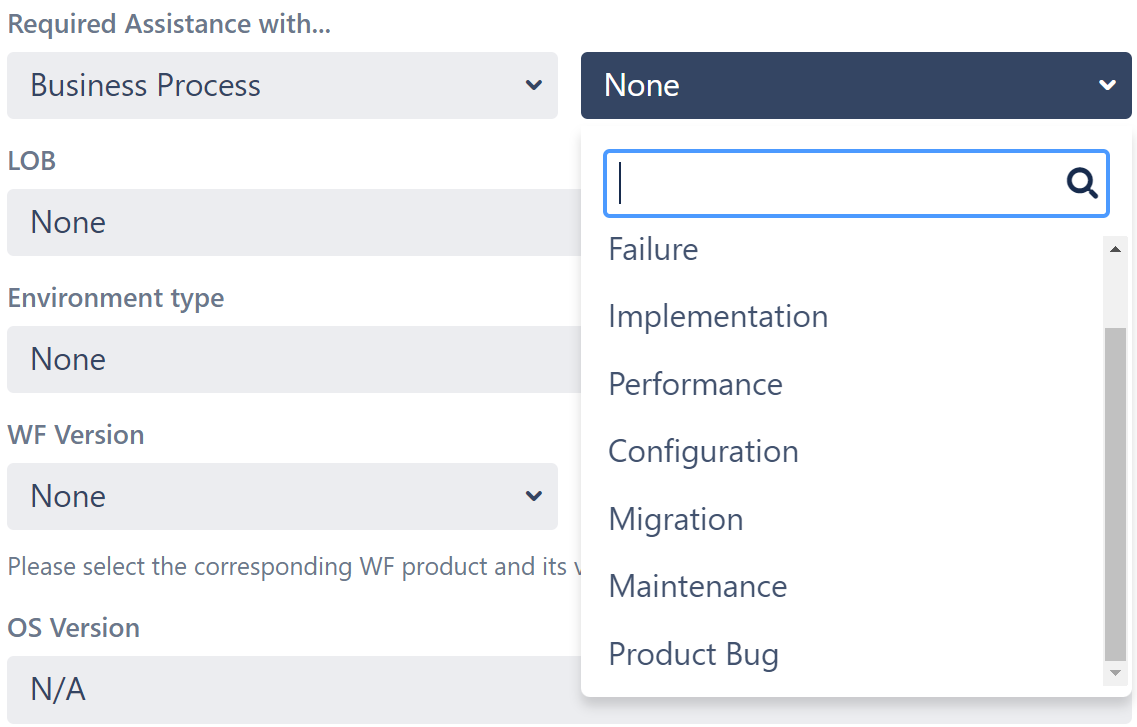
| Business Process | Product Infrastructure | General Request |
|---|---|---|
|
|
|
Environment type
Review the environment types and select an appropriate one:
| Short name | Full name |
|---|---|
| PROD | Production |
| STAGE | Stage |
| UAT | User Acceptance Test |
| QA | Quality Assurance |
| DEV | Development |
| POC | Proof of Concept |
| N/A | Not Applicable |
WorkFusion version
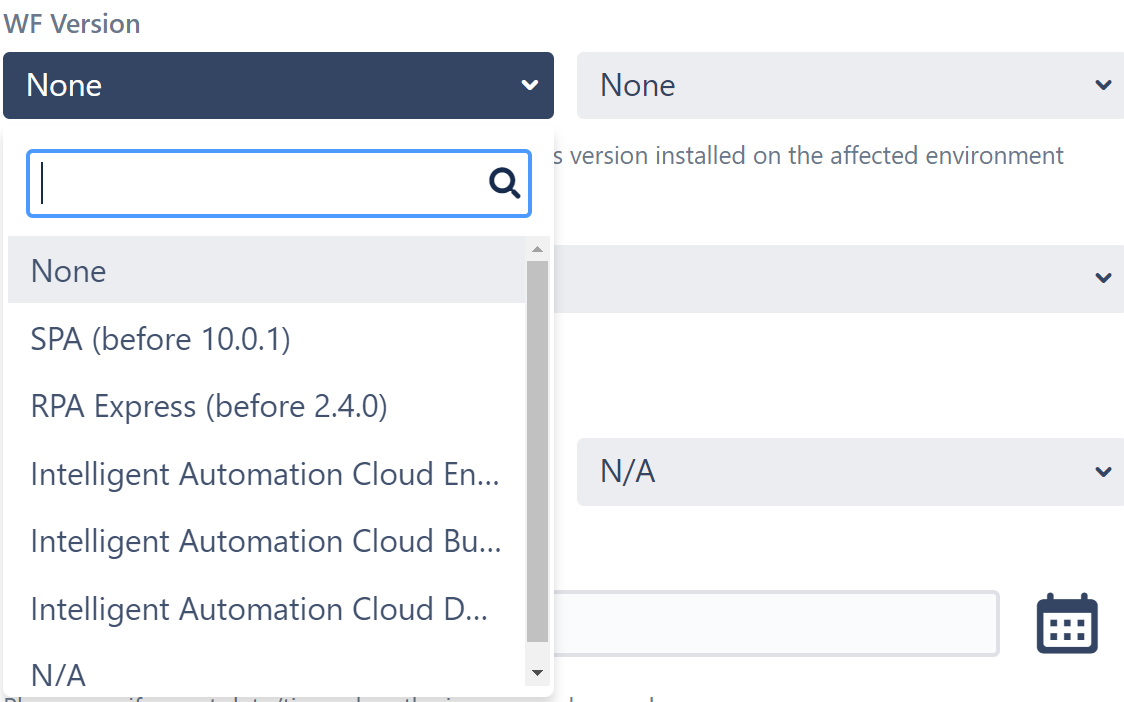
Select the WorkFusion application installed in the affected environment.
Specify the WorkFusion application version in the drop-down menu alongside.
important
Starting from IA Cloud v10.0, the WorkFusion product has another name. Known software editions are as follows:
- Intelligent Automation Cloud Enterprise, formerly Smart Process Automation (SPA)
- Intelligent Automation Cloud Business, formerly RPA Express Pro
- Intelligent Automation Cloud Developer, formerly SPA Sandbox
For more information, refer to the website.
OS version
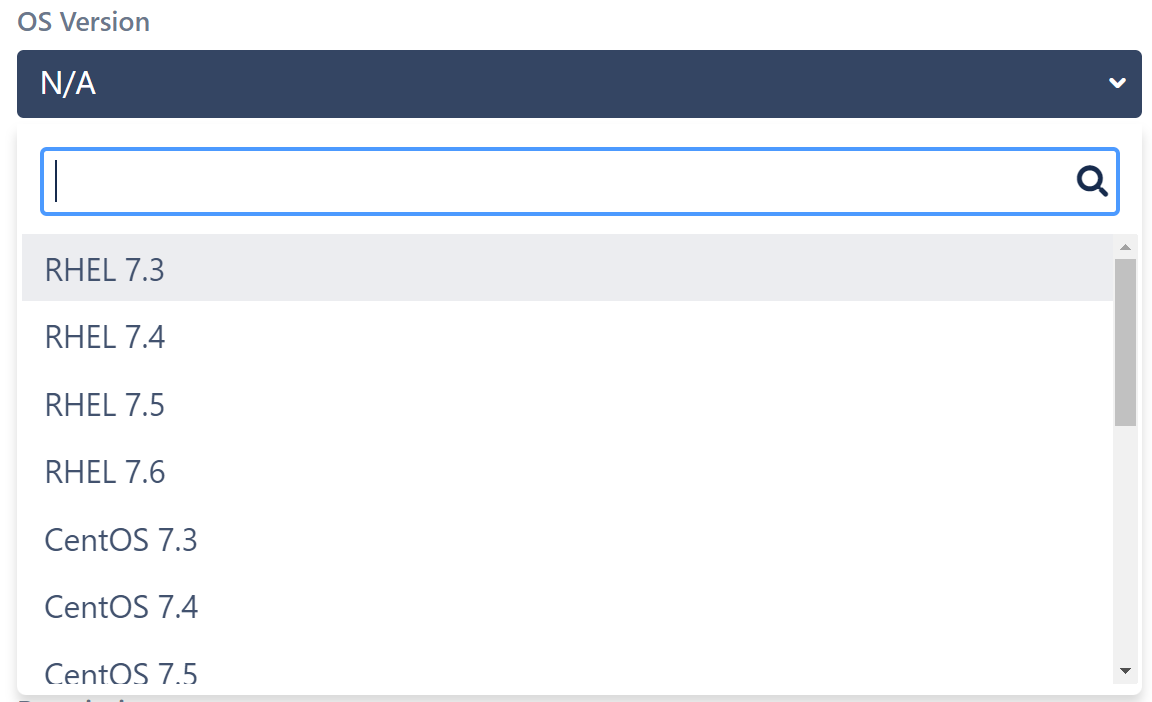
For the field, choose the operating system the WorkFusion application is running on:
- RHEL 7
- CentOS 6
- Debian 7
- Ubuntu Server 12.04, and so on
Digital Worker (optional)
Select a Digital Worker if you encounter any issues in a pre-packaged automation solution.
Summary
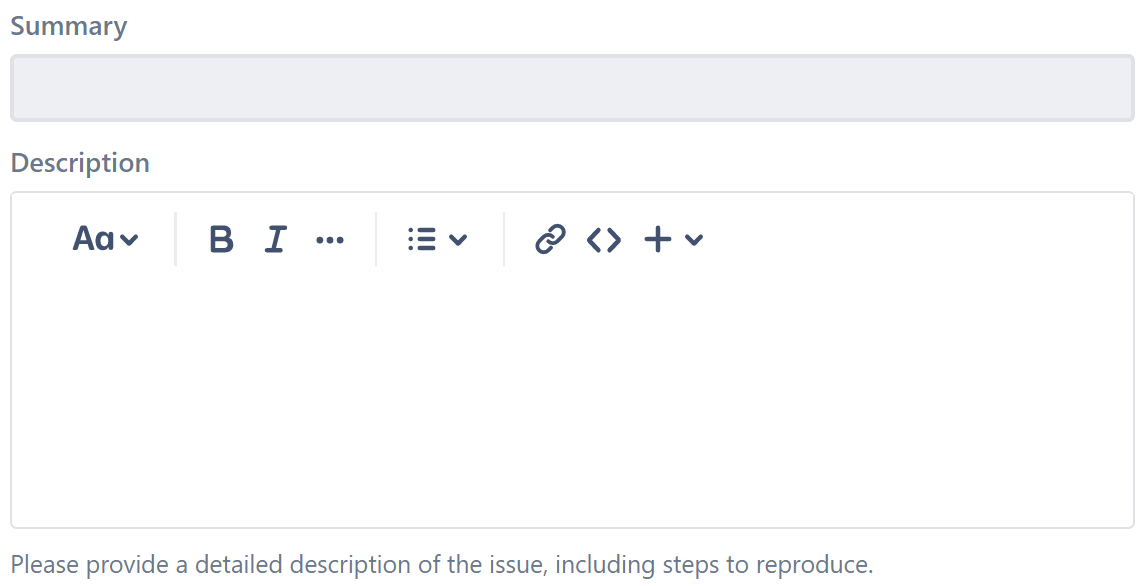
Provide a short clear summary and title of the issue.
Description
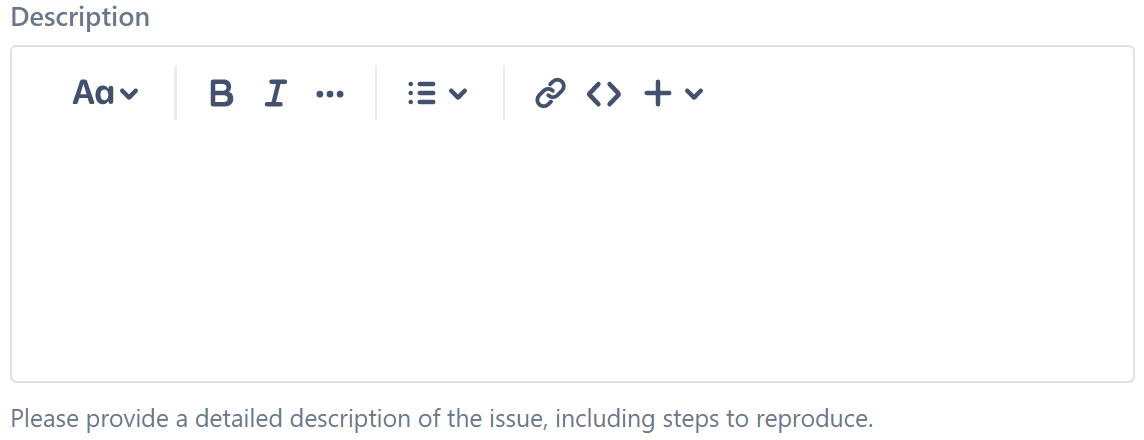
To describe the issue in detail, provide the following:
- Description itself
- Steps to reproduce
- Logs (if applicable)
- Screenshots
important
According to the WorkFusion support policy, one ticket is reserved for one issue. If you have several issues or questions, create a separate ticket for each.
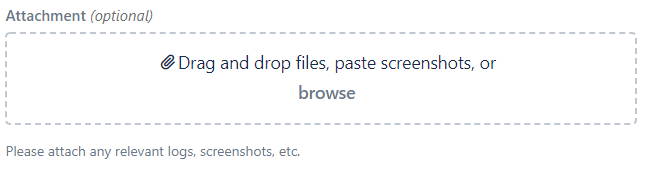
Attachment (optional)
Paste screenshots, attach log files, required input or output of the Business Process, and any other applicable documents.
note
The size of attached files cannot exceed 50 MB.
LOB (optional)
Select the predefined LOB (Line of Business) of the organization you belong to. Note that if there are no LOBs in your company, the field is empty.
Business Impact (optional)
Briefly describe the impact on your business operations, especially for Critical and Blocker priority issues. For business impact info, the Support team needs to understand what is the impact in quantifiable numbers, for instance, SLA breached after X hours, increase in customer complaints by X%, loss of $X revenue, and so on.
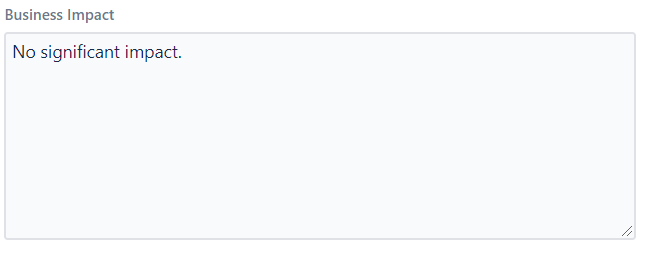
No significant impact is already a predefined value in the field you can update as required.
Support Service Terms of Use
Select Agree to confirm agreement with Support Service Terms of Use. They set forth the terms governing the provision, access, and use of WorkFusion support services by authorized users of the WorkFusion software on or through https://jira.workfusion.com.
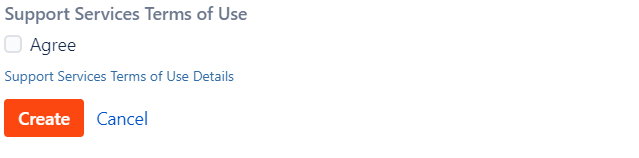
Once you filled in all necessary fields, click the Create button to submit the information and create a ticket in Jira Service Desk.
Support specialists will reach out as soon as possible to assist with your issue.
For additional information on working with the Service Desk, refer to the View Service Desk FAQs topic.
View issue description examples
Bad example
Summary: The BP is not working.
Description: Nothing’s working! Help!
Good example
Summary: BPs not running in Control Tower, and Marathon services not producing any logs.
Description: We have Business Processes that are stuck in the Running state in our test CT. We’ve reviewed Marathon to view Workers and, in that research, noticed that Marathon services (task-dispatcher-service, bot-manager, so on) aren’t producing any logs. The log files are all zero bytes.
Secondly, we reviewed Kibana and found that consumers are available to receive work, but the BP still won’t run.
When we try to stop the BP within Control Tower, we are getting the attached error. So, we could use some help with troubleshooting.
One more good example
Summary: TDS service does not manage the RabbitMQ queue. RPA tasks aren't executed on the node.
Description:
Symptoms: In the RPA Business Process, the RPA step is not performed, nothing happens on the RPA node. At the same time, there are no mistakes, preloading the RPA unit does not help.
Possible reasons: It looks like the TDS (task-dispatcher-service) service does not send a message from the Bot Task queue to the queue for the RPA Worker of the process. Please, pay attention to the attached queue dump file (obtained from Kibana). Please, pay attention to line 135 and line 23.
Details:
- Critical status, process and PROD environment, business team pushes the IT team about this since this is blocking operations.
- Process name [BP Name]
- Looks like the problem occurred last Friday
And one more good example
Summary: Required OCR License for PROD
Description:
Dear Support Team, please, provide an OCR license according to the following requirements:
- Company name: xxxx
- Number of pages to include: 100k
- Platform type: Linux
- Status of the server: Prod
- Category of languages: All
- Token returned by prepareLicense API (content of the
license_request.txtfile on the OCR server). Please, find attached.
Track ticket progress
You have two options to track the issue resolution progress:
- To watch the Customer Portal for updates
- To monitor email notifications on your issue
warning
The Intelligent Automation Cloud Support team has one communication channel—Customer Portal (Jira Service Desk). Any updates from the portal (status change, new comments added, and so on) are sent to customer emails as notifications only. Email notifications are not considered as a means of communication, and the only way to provide updates for support specialists is through the Comments tab within a particular ticket.
All users also need to make sure that the WorkFusion sender domain (jira@workfusion.com) is added to the email whitelist since certain filters and firewalls sometimes can prevent notifications from reaching inboxes. This needs to be checked with the customers' local IT departments.
To check a submitted ticket or tickets where you were a participant, follow the steps below:
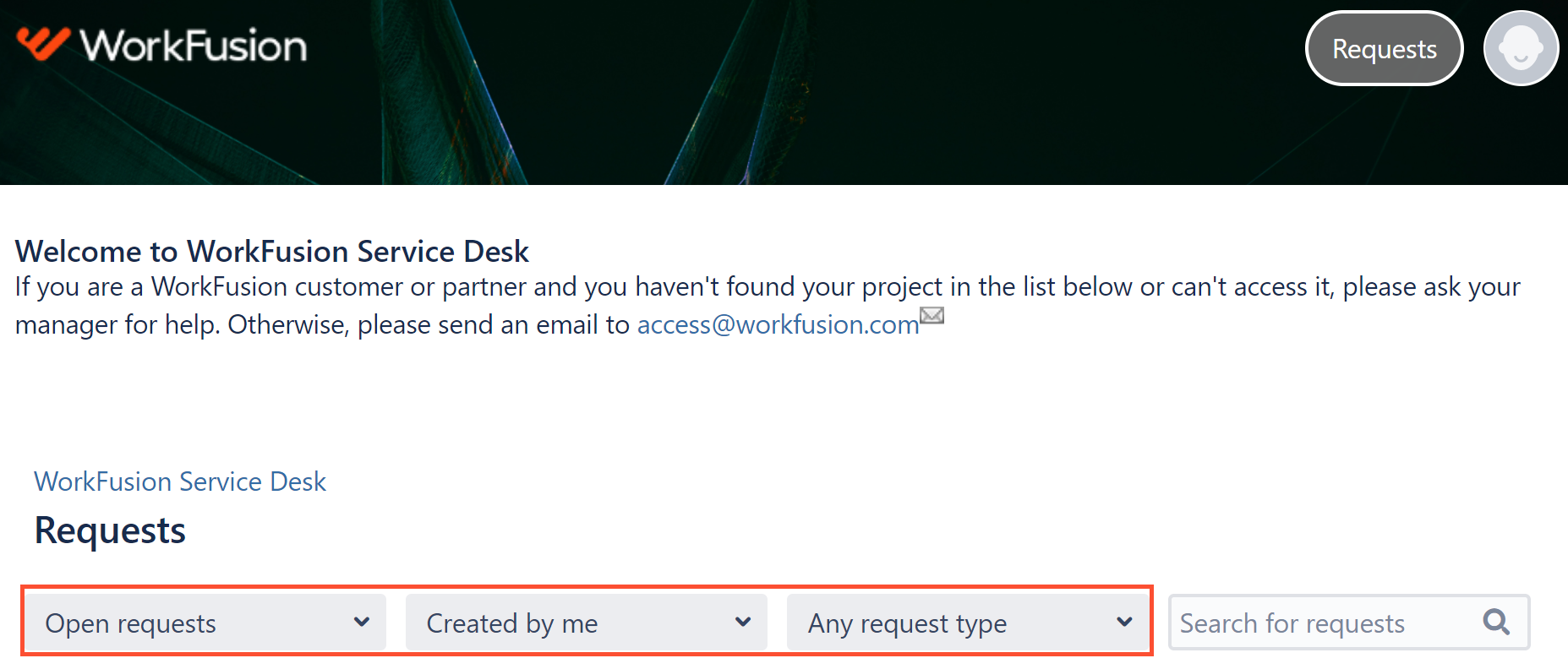
- Go to the top right corner of your portal and select Requests > My requests.
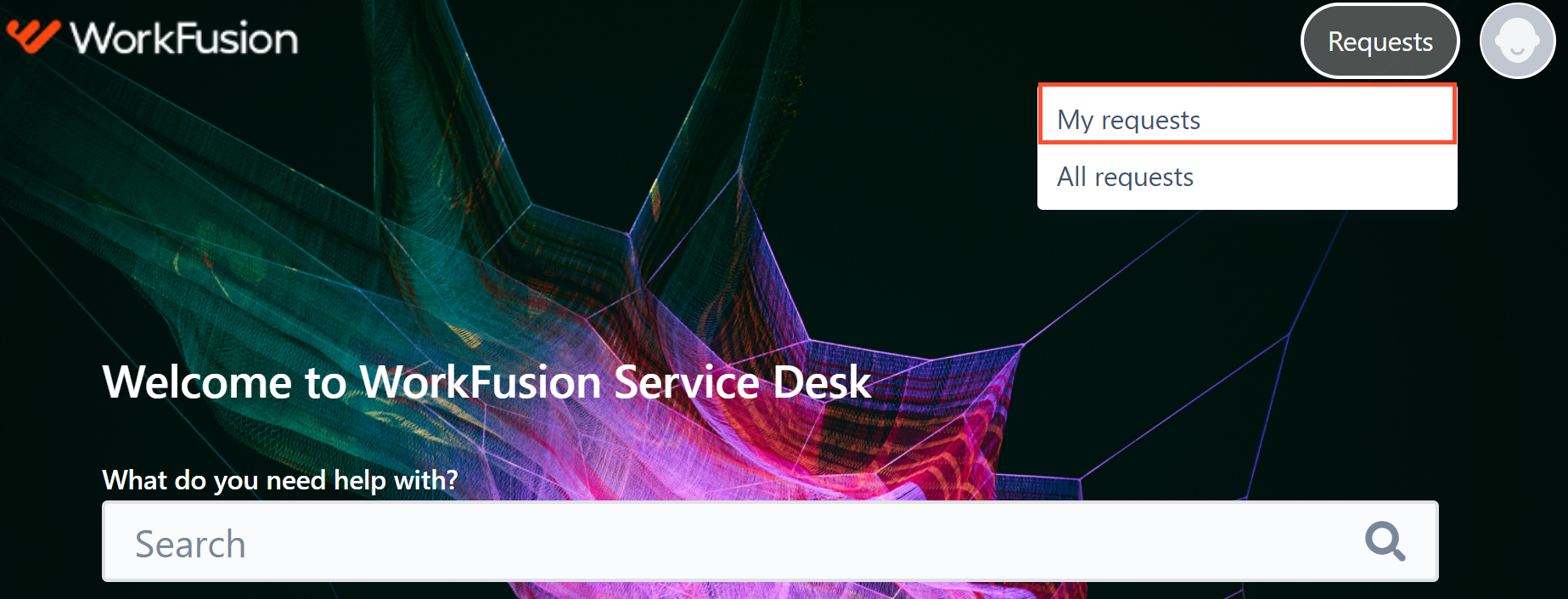
- On the Requests page, filter appropriate options to display desired tickets.
- Once you click a ticket, find the following information:
- Current ticket status
- Comment field for inputs
- Latest ticket-related activity
- Comment history
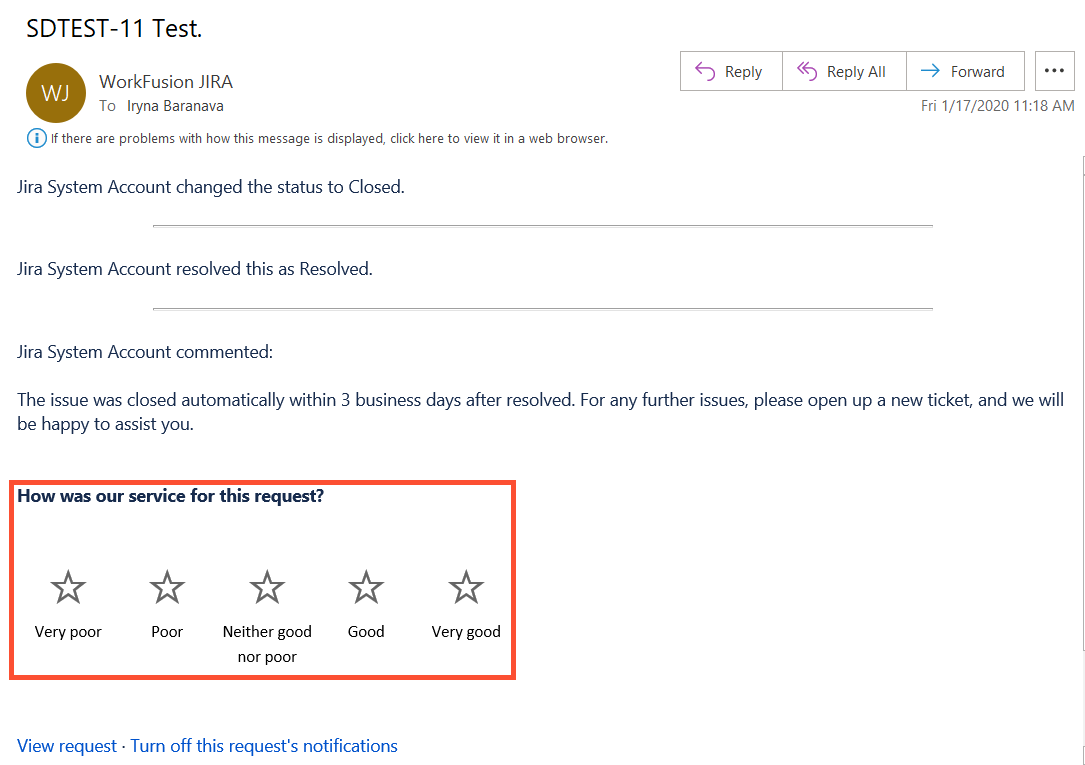
After your request is resolved and moved to the Closed status, you will receive an email notification asking to rate the customer support service.
note
Once a ticket is in the Resolution Suggested status and a support specialist doesn't receive any reply from the requester in three business days, the ticket is closed automatically.