Troubleshoot Analytics issues
Analytics page error: Cannot get trusted ticket
Expand to learn more
Symptoms
The Analytics page in Control Tower shows the Cannot get trusted ticket error.
Resolution
To fix the issue, follow the steps below:
- In the
\$WorkFusionServer\\config\\tabsvc.ymlfile, find thewgserver.trusted\_hostsrow. It should contain the Master server’s hostname (IP). - If not, change the row and restart the Tableau services to apply the configuration.
- If the row is configured properly, but the issue persists, restart the Tableau services.
Dashboards do not display data
Expand to learn more
Symptoms
Dashboards do not display data for a recent period (last days, weeks, and so on), whereas old data is displayed normally.
Resolution
It is necessary to check the Extracts status on the Tableau server.
- Log in to the Tableau Server via the browser (https://tableau_hostname/).
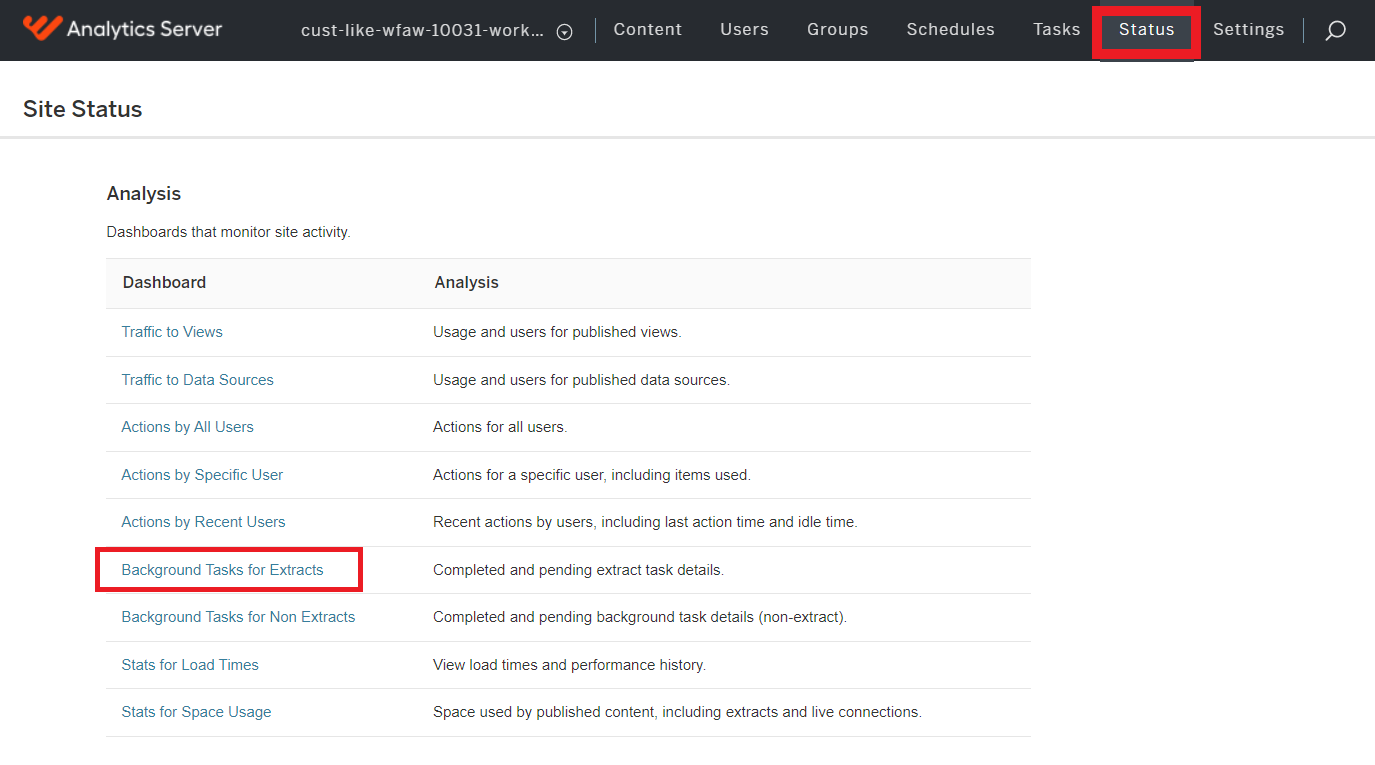
- Go to Status > Background Tasks for Extracts and check the Extracts status.
- In case it skipped the status, go to Workbooks > Refresh Schedules and run Extracts manually.
- In case of DB connection issues, check the connection settings and credentials in the Workbooks Data Sources.
No license found for Tableau Server during offline key activation
Expand to learn more
Symptoms
Unable to activate the Tableau Server key TSVR-xxxx in the offline mode.
Resolution
As a short-term workaround, the WorkFuison Support team can provide a temporary NFR Tableau license to the customer. The temporary license duration is 120 days.
The long-term solution is as follows: as the TSVR-xxxx key cannot be activated, most probably, due to its recent update, a request to the Tableau Support should be submitted to replace the existing license key with a new one. Request assistance of the WorkFusion Support Team to get an updated TSUH-xxxx key. After offline activation, the key should work without issues.
Some quick checks can confirm that the environment is licensed and operates as expected.
Tableau Data Sources could not connect to MS SQL with custom port
Expand to learn more
Symptoms
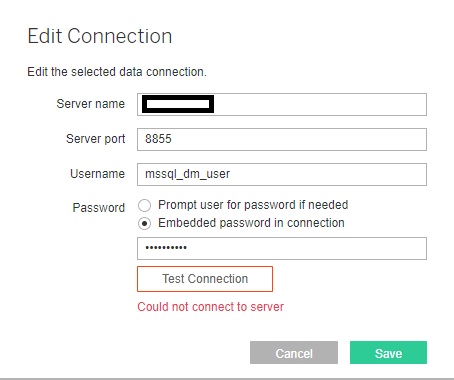
When a non-default (non-1433) MS SQL port is used in the environment, Tableau Data Sources cannot connect to the server.
Resolution
Remove the non-default port from the Port field and add it to the Server name field (comma-separated).
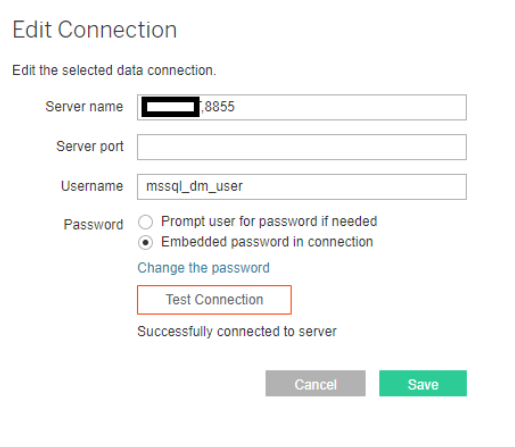
Tableau connection issues
Expand to learn more
Symptoms
When using highly loaded Tableau servers, logins to Control Tower can fail due to long response times from the Tableau service.
Resolution
To avoid the issue, new properties were introduced:
tableau.rest.api.connect.timeouttableau.rest.api.read.timeout
The Tableau properties to set up the connection timeout and read timeout are set in the workfusion.properties file in the \${workfusion\_folder\_tomcat}/conf/folder.
These are the default values for the new properties:
# The underlying URLConnection's connect timeout (in milliseconds).
# A timeout value of 0 specifies an infinite timeout.
tableau.rest.api.connect.timeout=30000

# The underlying URLConnection's read timeout (in milliseconds).
# A timeout value of 0 specifies an infinite timeout.
tableau.rest.api.read.timeout=30000
Clean up disk
Expand to learn more
Symptoms
The logs of the Analytics component can take too much space and pile up. If you don't clean them up regularly, you can suddenly find yourself out of disk space, and with the services stopped.
Resolution
To avoid such a situation, it is recommended to schedule the cleaning script for running on the Analytics server:
tsm maintenance cleanup -l --log-files-retention <number-of-days-to-keep-logs> # for example, set "7" to keep logs for one week
No data in Speed dashboard
Expand to learn more
Symptoms
In v.10.2.4.1 and v.10.2.4.2, the Speed dashboard in Control Tower shows no data.
warning
Running ETL after cleaning can take a lot of time and increase database load!
In case Data Purge was performed, cleaned data will not appear in Analytics.
Resolution
To resolve the issue, do as follows:
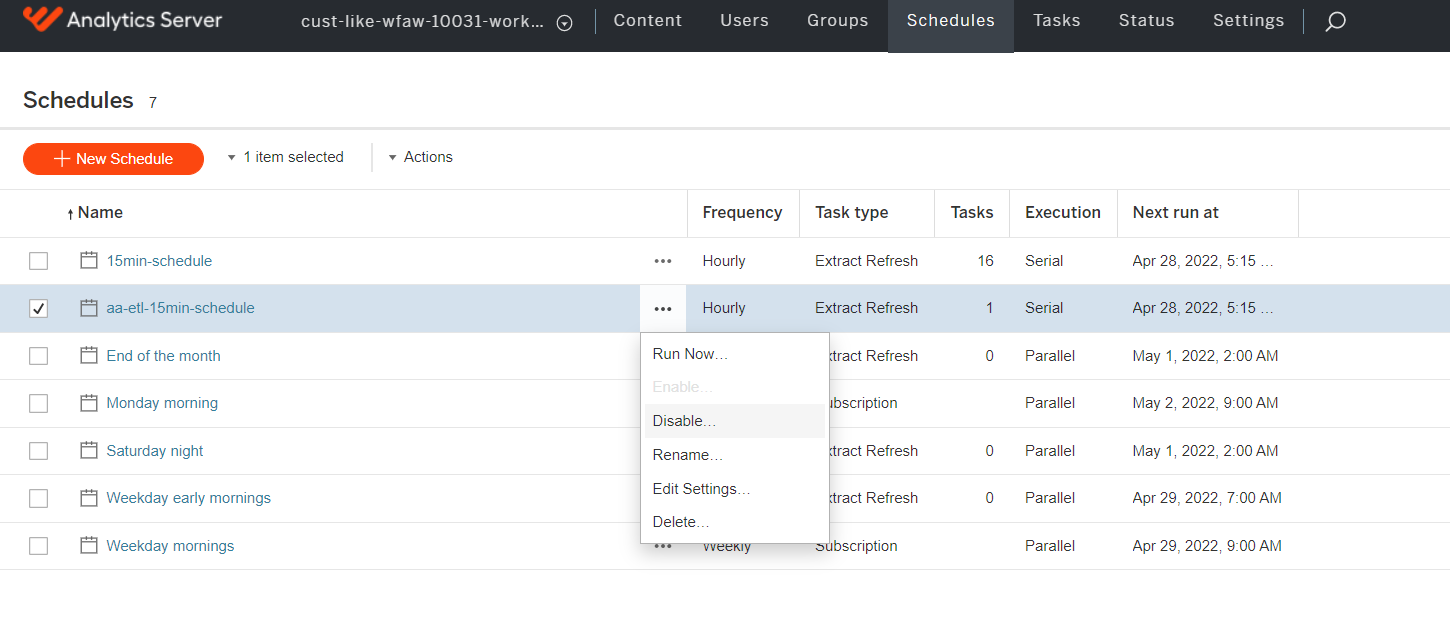
Stop ETL schedulers. On the BI server, select the project named as your site. Go to the Schedules tab, select the 15min-schedule and aa-etl-15min-schedule schedules, and click ... > Disable to disable the analytics schedules.
Make sure no active tasks are running. To do this, go to Status > Background Tasks for Extracts.
Run the following script to fix the issue:
use workfusion go declare @schema nvarchar(100) = 'dm'; declare @table_name nvarchar(128); declare @sql nvarchar(max); declare cur cursor local fast_forward read_only for select t.name from sys.tables t where t.schema_id = schema_id(@schema) and t.name not in ('etl_tables', 'DATABASECHANGELOGLOCK', 'DATABASECHANGELOG', 'etl_log', 'etl_datamart_2_template', 'dp_log', 'dp_config', 'config_username','numbers'); open cur; while 1=1 begin fetch next from cur into @table_name; if @@fetch_status != 0 break; select @sql = 'truncate table ' + @schema + '.' + @table_name + ';' print @sql; exec sp_executesql @sql; end; close cur; deallocate cur; update dm.etl_tables set last_id = NULL, last_date = NULL, last_rv = NULL where target_name not in ('wh_bep_metric', 'wh_bep_agent'); alter table dm.ct_task_execution alter column accept_date datetime2; alter table dm.ct_task_execution alter column submit_date datetime2; drop index idx_wh_transaction_item_work_type_end_date on dm.wh_transaction_item; alter table dm.wh_transaction_item alter column process_execution_start_date datetime2; create nonclustered index idx_wh_transaction_item_work_type_end_date on dm.wh_transaction_item (work_type, end_date) include (transaction_e2e_id, processing_time, odf_transaction_uuid, process_status, process_execution_start_date); go /************************************** DESCRIPTION: ETL for ct_task_execution table **************************************/ create or alter view dm.etl_ct_task_execution_v as select ahq.id , coalesce(w.id,0) as 'worker_id' , ahq.hit_id as 'task_instance_id' , ahq.accepttime as 'accept_date' , ahq.submittime as 'submit_date' , ahq.completionDate as 'last_modified_date' from ct.awshitquestion ahq left join ct.awshitassignment as aha on ahq.hit_id = aha.hit_id left join ct.worker as w on aha.workernativeid = w.nativeworkerid where ahq.hit_id is not null ; GOEnable back the schedulers from Step 1 on the same page by clicking ... > Enable.
Run the schedules by clicking ... > Run Now. First, run aa-etl-15min-schedule, then 15min-schedule.
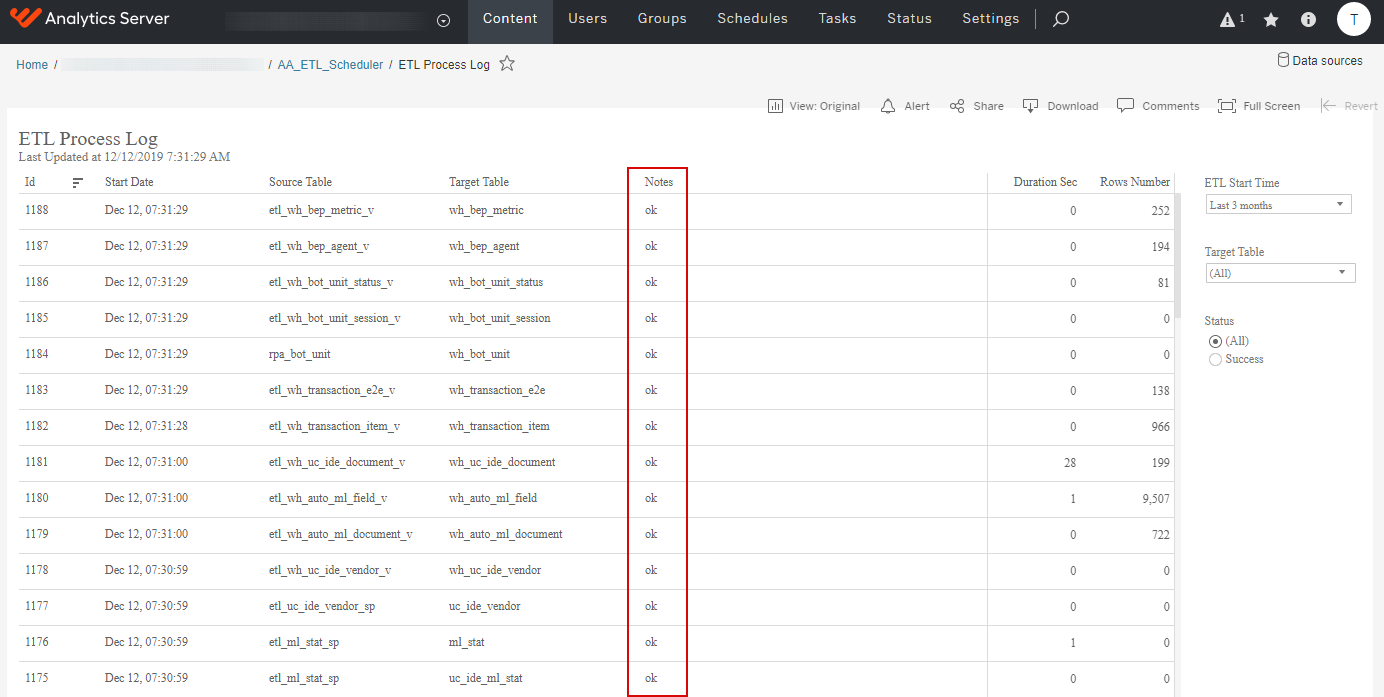
Check the result in the ETL Process Log view.