
Set up multi-document Manual Task
The multi-document Manual Task enables automation for cases when multiple documents represent a single transaction and have to be processed together, both manually and by Machine Learning models. For example, a letter mentions an invoice and has this invoice attached. Thus, a letter contains an invoice number, and the attached invoice contains all the remaining information, such as the amount to pay.
The main feature of the enhanced process is the ability to classify and extract information from multiple documents in the same task.
tip
- To learn the basics about Information Extraction (IE), refer to the Information Extraction guide.
- The enhanced version of the information extraction task is compatible with Open Development Framework (ODF). To learn about ODF, start with How your organization can benefit from ODF.
- To learn how to customize the Manual Task interface and preprocess input data according to your needs, see Input data pre-processing and Manual Task customization.
Input format
Input data is a Transaction object serialized to JSON. When you upload multiple documents to a Manual Task in ODF, the Transaction object containing the documents is created automatically. However, the Manual Task is fully backward-compatible: if the input is in the old single-document format, the task is rendered as usual.
Input data example
{
  "meta": {},
  "id": "beb47611-9adc-4ff5-9396-3d1f82306ef4",
  "docs": [
    {
      "meta": {},
      "doc_id": "8a3c923c-ddee-4ef3-a9c0-77df0a829929",
      "doc_name": "86086897_6898.tif",
      "doc_text": "https://wfinst-307-db1.workfusion.com/gorila-ml-ocr/f3d71463-05fb-4a87-8abd-31467928634f/dff7bedd-dcad-4127-89da-e34e3c299af4/86086897_6898-xmlForCorrectedImage-raw_processed.xml",
      "doc_tagged_text": "https://wfinst-307-db1.workfusion.com/gorila-ml-ocr/f3d71463-05fb-4a87-8abd-31467928634f/dff7bedd-dcad-4127-89da-e34e3c299af4/86086897_6898-xmlForCorrectedImage-raw_processed.xml",
      "doc_original_link": "https://wfinst-307-db1.workfusion.com/intake-bucket/cmt-test/86086897_6898.tif",
      "doc_origin": {
        "meta": {},
        "doc_id": "8a3c923c-ddee-4ef3-a9c0-77df0a829929",
        "doc_name": "86086897_6898.tif",
        "doc_type": "",
        "doc_original_link": "https://wfinst-307-db1.workfusion.com/intake-bucket/cmt-test/86086897_6898.tif"
      },
      "doc_type": "invoice",
      "doc_extracted_fields": {
        "buyer_company_name": "l.ORTMAPD TOBACCO COMPANY Ih'C.",
        "buyer_country": null,
        "buyer_city": "GREENSBORO NC",
        "buyer_postal_code": "27404",
        "buyer_street_address": "714 GREEN VALLEY RD,",
        "supplier_company_name": "Bozell Worldwide, Inc.",
        "supplier_city": "NKW YORX. NY",
        "supplier_country": null,
        "supplier_street_address": "0 WEST 23PC STREET",
        "supplier_postal_code": "10010-5201",
        "document_id": "PR04-007551",
        "document_date": "04/05/2019",
        "total_amount": "1,975.00",
        "line_item": [
          {
            "line_item_name": "Non-Coaccissionable Charges",
            "tabnumber": "0",
            "line_item_price": "1,975.00"
          },
          {
            "line_item_name": "Co\\u00ABouBBionabl\\u00AB Chargee",
            "tabnumber": "1",
            "line_item_price": "0.00"
          },
          {
            "line_item_name": "Agency Commission",
            "tabnumber": "2",
            "line_item_price": "0.00"
          }
        ]
      }
    },
    {
      "meta": {},
      "doc_id": "26a5ad4b-90e4-422d-bffa-a5d912c27e1b",
      "doc_name": "2040756722_2040756723.tif",
      "doc_text": "https://wfinst-307-db1.workfusion.com/gorila-ml-ocr/f3d71463-05fb-4a87-8abd-31467928634f/4eff5398-5aa5-417c-b528-39ce495c07f1/2040756722_2040756723-xmlForCorrectedImage-raw_processed.xml",
      "doc_tagged_text": "https://wfinst-307-db1.workfusion.com/gorila-ml-ocr/f3d71463-05fb-4a87-8abd-31467928634f/4eff5398-5aa5-417c-b528-39ce495c07f1/2040756722_2040756723-xmlForCorrectedImage-raw_processed.xml",
      "doc_original_link": "https://wfinst-307-db1.workfusion.com/intake-bucket/cmt-test/2040756722_2040756723.tif",
      "doc_origin": {
        "meta": {},
        "doc_id": "26a5ad4b-90e4-422d-bffa-a5d912c27e1b",
        "doc_name": "2040756722_2040756723.tif",
        "doc_type": "",
        "doc_original_link": "https://wfinst-307-db1.workfusion.com/intake-bucket/cmt-test/2040756722_2040756723.tif"
      },
      "doc_type": "budget",
      "doc_extracted_fields": {
        "total_amount": "199.165.38",
        "header_of_document": "MAGAZINE",
        "client_name": "P.M. INC.",
        "date": "12/09/88"
      }
    },
    {
      "meta": {},
      "doc_id": "26a5ad4b-90e4-422d-bffa-a5d912c27e1b",
      "doc_name": "invoice_5-1.tif",
      "doc_text": "https://wfinst-307-db1.workfusion.com/doc-upload/418bc4c7-0c09-4eab-bde5-10efbc256df5/48ee48ee-984a-4760-9469-ed185e8d5a9f/invoice_5-1-xmlWithoutRecognitionVariants.xml",
      "doc_tagged_text": "https://wfinst-307-db1.workfusion.com/doc-upload/418bc4c7-0c09-4eab-bde5-10efbc256df5/48ee48ee-984a-4760-9469-ed185e8d5a9f/invoice_5-1-xmlWithoutRecognitionVariants_tagged.xml",
      "doc_original_link": "https://wfinst-307-db1.workfusion.com/doc-upload/invoice_5-1.tif",
      "doc_origin": {
        "meta": {},
        "doc_id": "26a5ad4b-90e4-422d-bffa-a5d912c27e1b",
        "doc_name": "invoice_5-1.tif",
        "doc_type": "",
        "doc_original_link": "https://wfinst-307-db1.workfusion.com/doc-upload/invoice_5-1.tif"
      },
      "doc_type": "budget",
      "doc_extracted_fields": {
        "total_amount": "199.165.38",
        "header_of_document": "MAGAZINE",
        "client_name": "P.M. INC.",
        "date": "12/09/88"
      },
      "meta_info_json": {
        "pages": "https://wfinst-307-db1.workfusion.com/doc-upload/tod/images/preprocessed/links/97994d9b-6065-4ab7-a86b-aa65c1a6ae8a.json",
        "ocrXmlUrl": "https://wfinst-307-db1.workfusion.com/doc-upload/418bc4c7-0c09-4eab-bde5-10efbc256df5/48ee48ee-984a-4760-9469-ed185e8d5a9f/invoice_5-1-xmlWithoutRecognitionVariants.xml",
        "imageUrl": "https://wfinst-307-db1.workfusion.com/doc-upload/invoice_5-1.tif"
      }
    }
  ]
}
caution
All fields except meta are required. The meta field is used to pass custom information about a transaction or document.
By default, ODF expects to see the transaction data in the _sys_transaction_json field. That means that the Unique code of the root IE answer should be _sys_transaction_json.
Output format
A Manual Task does not change the data format. The output it provides is the same JSON. Tagged text is passed in the doc_tagged_text attribute for the corresponding document. The tagged document format is the same as in the standard IE process. If some document was not reviewed by the user, doc_tagged_text remains unchanged (link or text provided in the original input data).
Manual Task configuration
note
The configuration flow described below is valid only for the legacy task design method. From 10.2.5, the recommended way to design a multi-document Manual Task is to use Task Designer Operation.
To configure a multi-document Manual Task, follow the steps below:
Create a Manual Task and navigate to the Design tab.
On the Design tab, add a Sub Answer, setting the Answer Type value to Select One and specifying multiple document types as options. The first Sub Answer of the Select One type is used as the document type classifier.
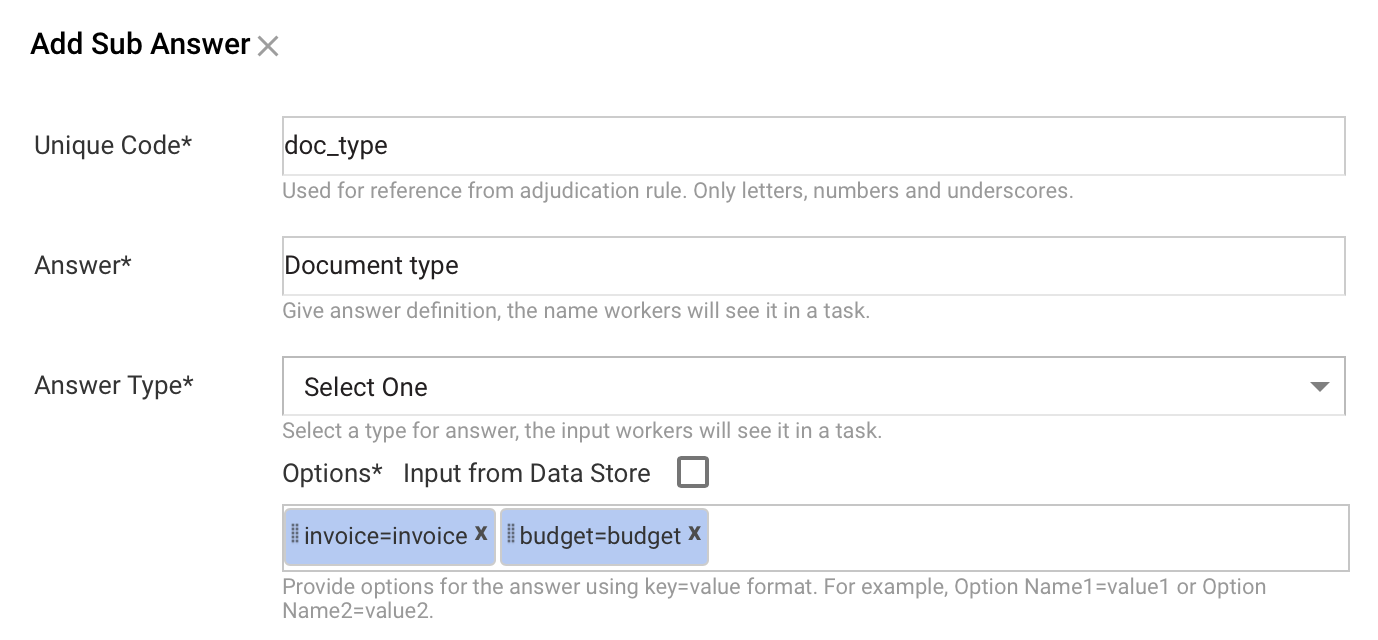
The document types you configure are used in the Link fields for specific document type sections. The Other document type is always configured automatically, so there is no need to configure a separate type for not classified documents.
Configure Information Extraction fields.
Dynamic fields per document type
If a different set of fields is required for each document type, use Answer Category to link fields to corresponding document types. A field can be assigned to a specific document type or be common for all document types.
In the following example, you have to process documents of two types: Invoice and Budget.
To configure dynamic fields, do as follows:
Configure the Select One field to classify documents.
Configure all fields for all document types.

To assign a field to a specific document type, set a corresponding category as shown below. Answer Category should be the same as configured in Step 1.
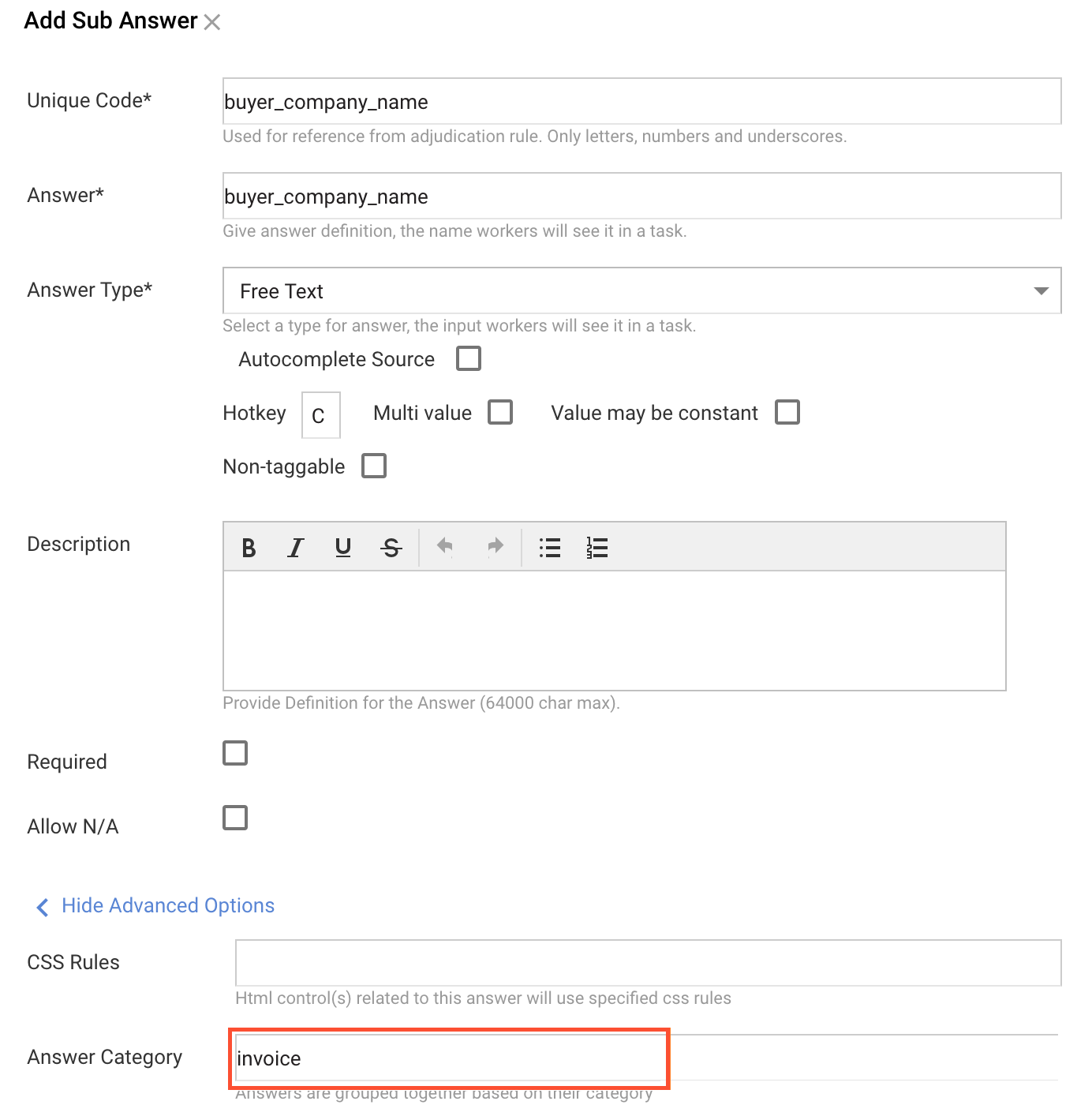
To assign multiple categories to the field, enter answer categories separated by a comma.
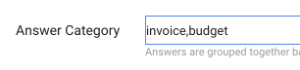
As a result, all fields configured for the Invoice type are active, but the fields linked to Budget are not available.

When multiple categories are assigned to a field, it has all of them listed.

Mind that to conditionally show or hide Questions or Answers in a Manual Task, you can use Code Editor. Use the unique code from the Manual Task editor as the identifier and CSS selectors to access the element:
$(your_selector_here).on(“change”, function()

{your logic here}
);
Global fields
If a business case requires a field on a transaction level (for example, Final Decision), this field must have the same value across all documents in the transaction.
Global fields are available for the Check One Answer Type only and can be enabled in the Manual Task using the following script:
<script type="text/javascript">
    IEMultiDocumentModule.globalFieldsTypes = ["final_desision", "some_other_field_you_want_to_make_global"]
</script>
Enhanced results view
Enhanced results view allows for a quick review of classification and extraction results for the entire transaction. This view is available on the Design tab of your Manual Task.
The results view has two grouping modes:
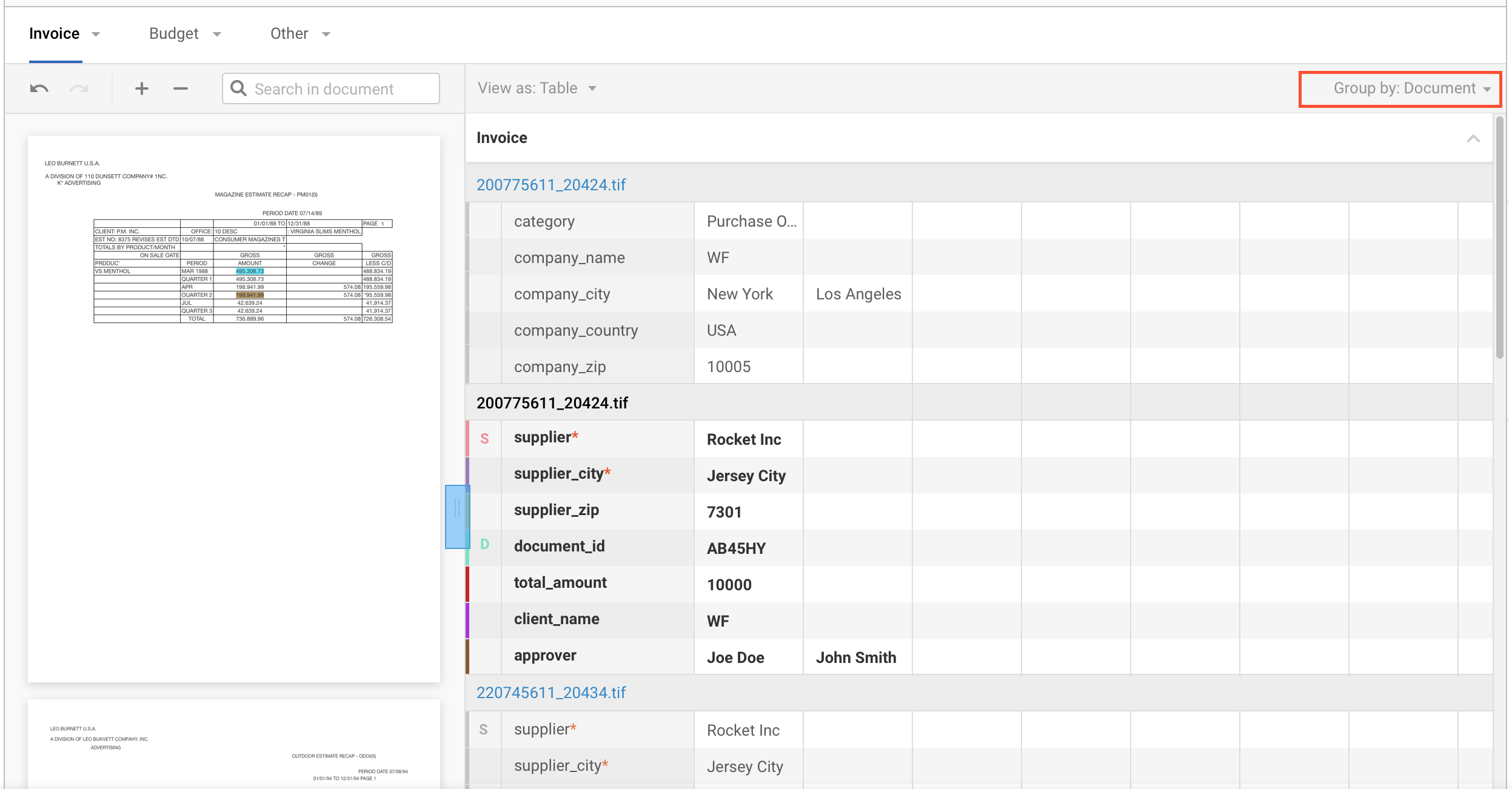
Group results by document presents results separately for each document. Documents are grouped by type.
Group results by field combines the results for all document types. It is especially useful for tasks where the goal is to extract the most valuable data from transactions as opposed to extracting all available data.
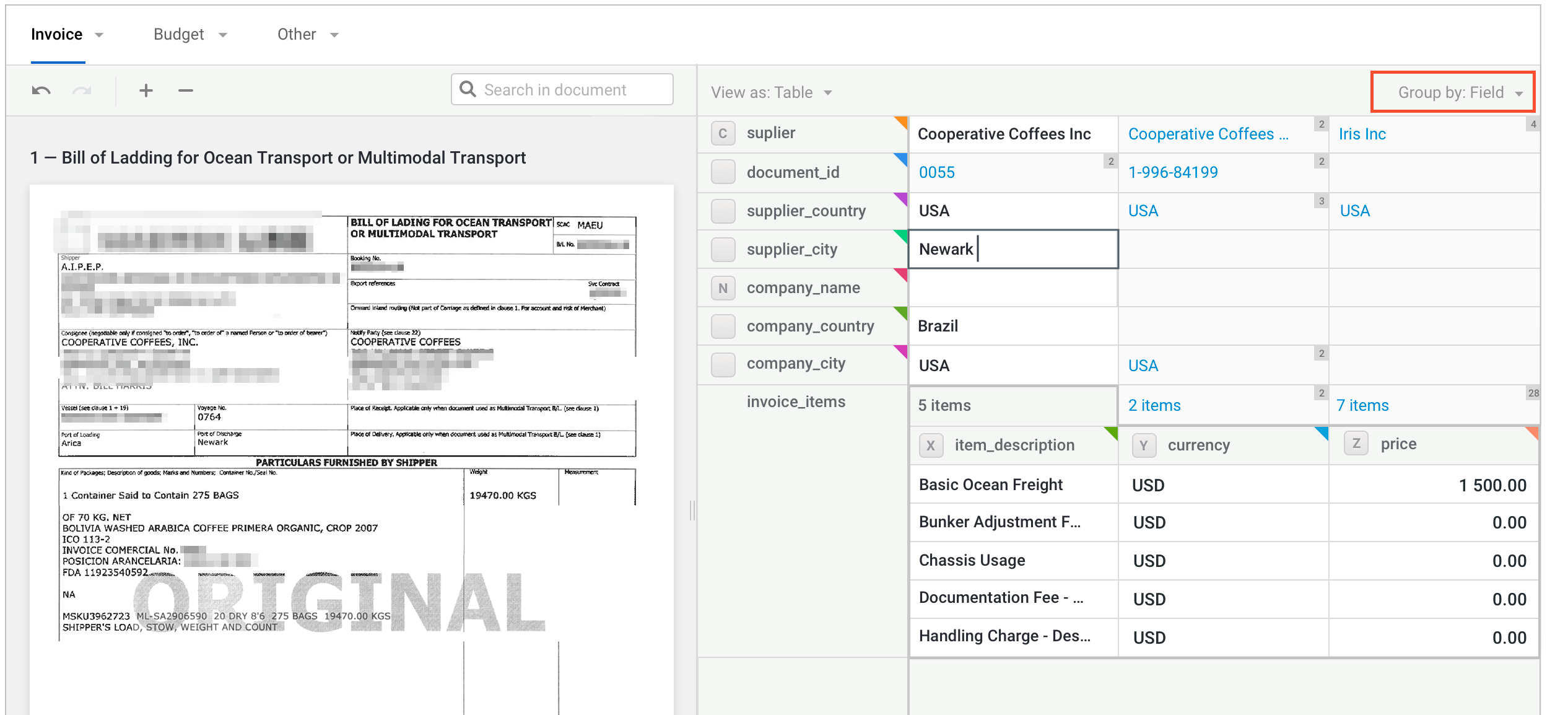
On the results table view, you can do the following:
Directly switch between documents.
Directly tag data using hotkeys and mouse click.
Use tag validation.

Use tag suggestions.

Work progress autosave
All work progress is stored in the browser's IndexedDB ieAutosaveState. Data is split into an input JSON file and data for each document separately. Submission UUID is used as a unique key in the database. A separate DB is created for each domain (this is the default browser behavior), so there are no conflicts when working on multiple instances at the same time.
The task state is saved after every user action, such as switching to another document, tagging or removing a tag, assigning an answer by hand, correcting the final result, and so on.
Input data preprocessing
You may need to preprocess data before rendering a task. For example, change date formats, generate some documents on the fly, or calculate trigger investigation probability in Negative News Screening Digital Worker.
To allow such customization, the multi-document module exposes a public method: IEMultiDocumentModule.mapInputData(data). This method is executed during the module initialization phase before documents are rendered. In Negative News, IEMultiDocumentModule.mapInputData(data) generates a dynamic summary across all the news provided.
The default implementation of IEMultiDocumentModule.mapInputData(data) returns the data unchanged:
ieMultiDocumentModule.mapInputData = function(data){return data;}
Data mapping
Custom data mapping code
<script type="text/javascript">
IEMultiDocumentModule.mapInputData = function(data){
    var minDate = moment();
    var maxDate = moment("1900-01-01");

    data.forEach(function(document){
        var origDate = moment(document.date, ["ddd, D MMM YYYY HH:mm:ss Z", "YYYY-MM-DD"]);
        if (origDate.isBefore(minDate)){
            minDate = origDate;
        } else if (origDate.isAfter(maxDate)){
            maxDate = origDate;
        }

        document.date = origDate.format('MMM DD, YYYY');
        document.ml_prediction = JSON.parse(document.ml_prediction);
        if(typeof document.meta == 'undefined'){
            document.meta = {};
        }
        document.meta.priority = "default";
        if(document.ml_prediction.probability_1 > 0.8){
            document.meta.priority = "high";
        } else if(document.ml_prediction.probability_1 > 0.6){
            document.meta.priority = "medium";
        } else if(document.ml_prediction.probability_1 > 0.4){
            document.meta.priority = "low";
        }

        document.doc_type = "article";
    });

    // correct sorting logic based on ML confidence
    data.sort(
        function(a, b) {
            return b.ml_prediction.probability_1 - a.ml_prediction.probability_1;
        }
    );

    return data;
}
</script>
Sort documents by title
Code for sorting documents by title
<script type="text/javascript">
    IEMultiDocumentModule.mapInputData = function(data){
        data.docs.sort((first, second) =>{
            if(first.doc_name < second.doc_name) { return -1; }
            if(first.doc_name > second.doc_name) { return 1; }
            return 0;
        })
        return data;
    }
</script>
Manual Task customization
Assign specific colors to fields
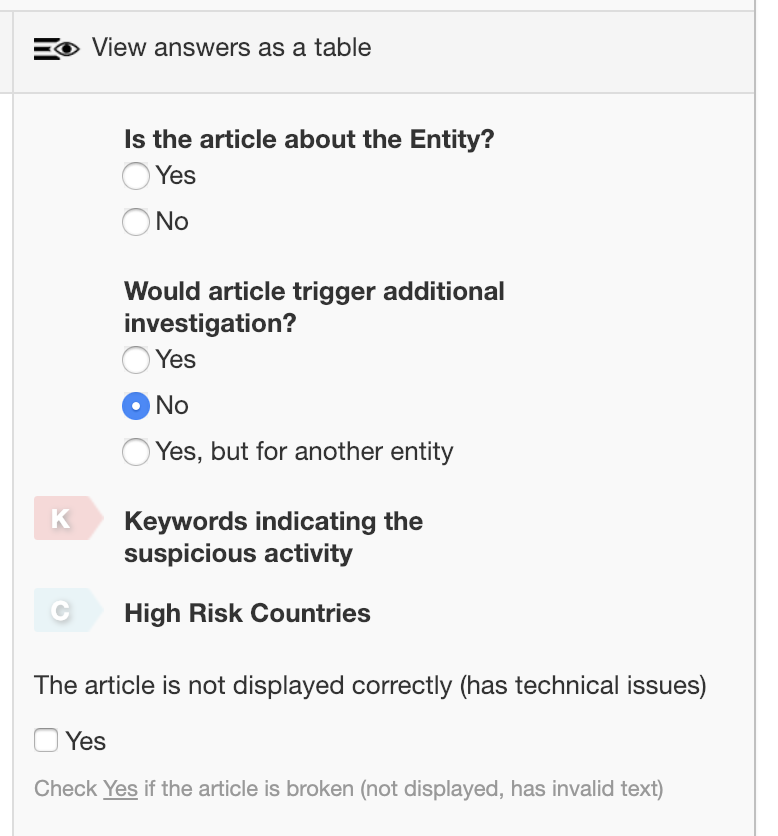
Colors are assigned to Information Extraction answer fields randomly from the predefined palette. To always assign specific colors to specific fields, use the following code:
<script type="text/javascript">
    //add predefined colors to IE colors generator.
    AnswerCache.predefinedColors = {
                                    "keywords": "#FBD8D8",
                                    "country": "#E6F5F7"
                                };
</script>
The result is as follows:
note
The other field colors are assigned automatically using the built-in palette.
Customize document menu
In the default implementation, documents are expected to be classified by the document type. To display documents of different types in a user-friendly way, the top horizontal menu is used:
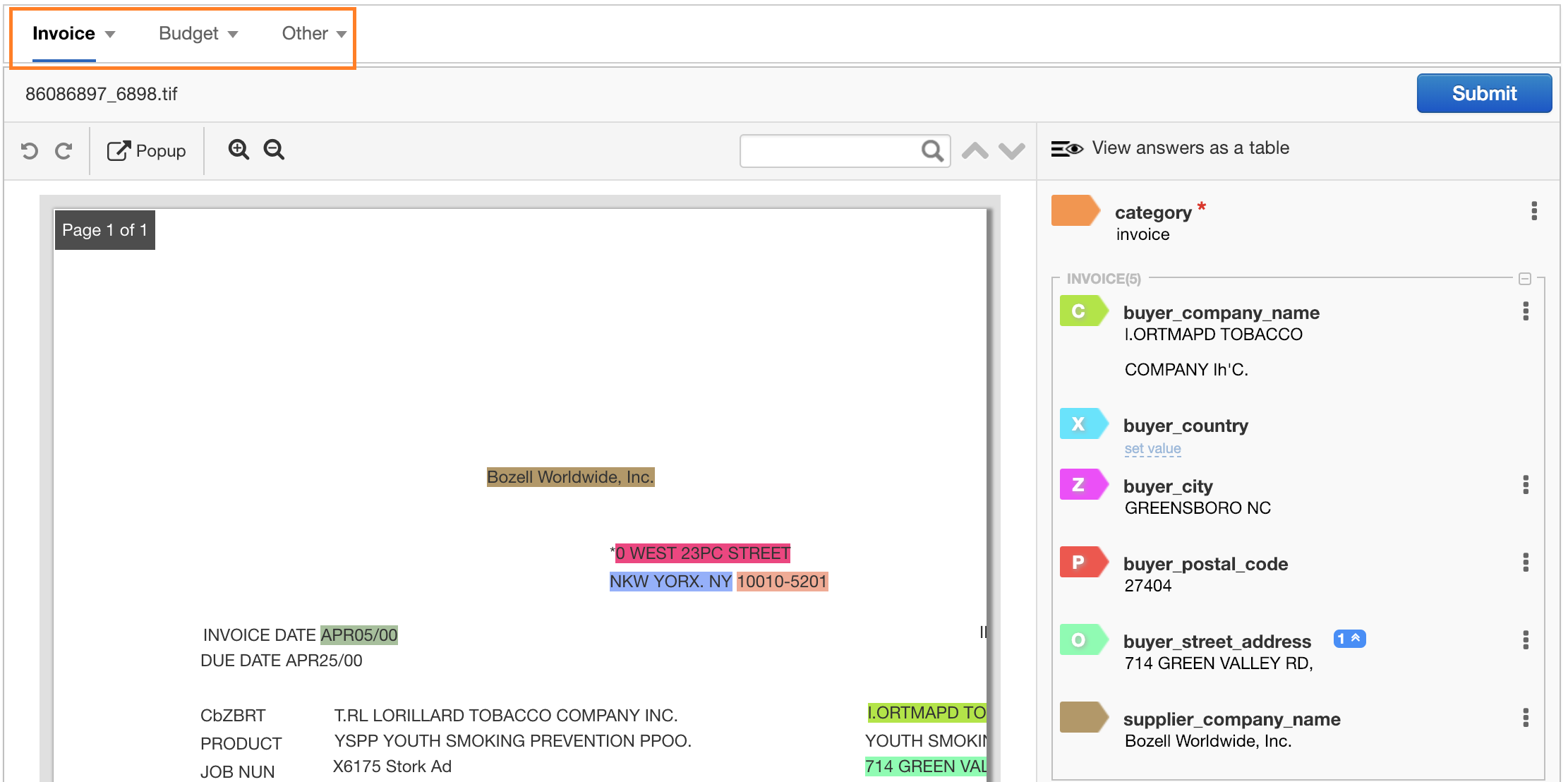
To offer better readability in particular cases, the menu UX needs to be customized.
For example, in the Negative News Review Manual Task below, all the documents comprised in the transaction are of the same type. So, the menu is customized to be rendered on the left panel:
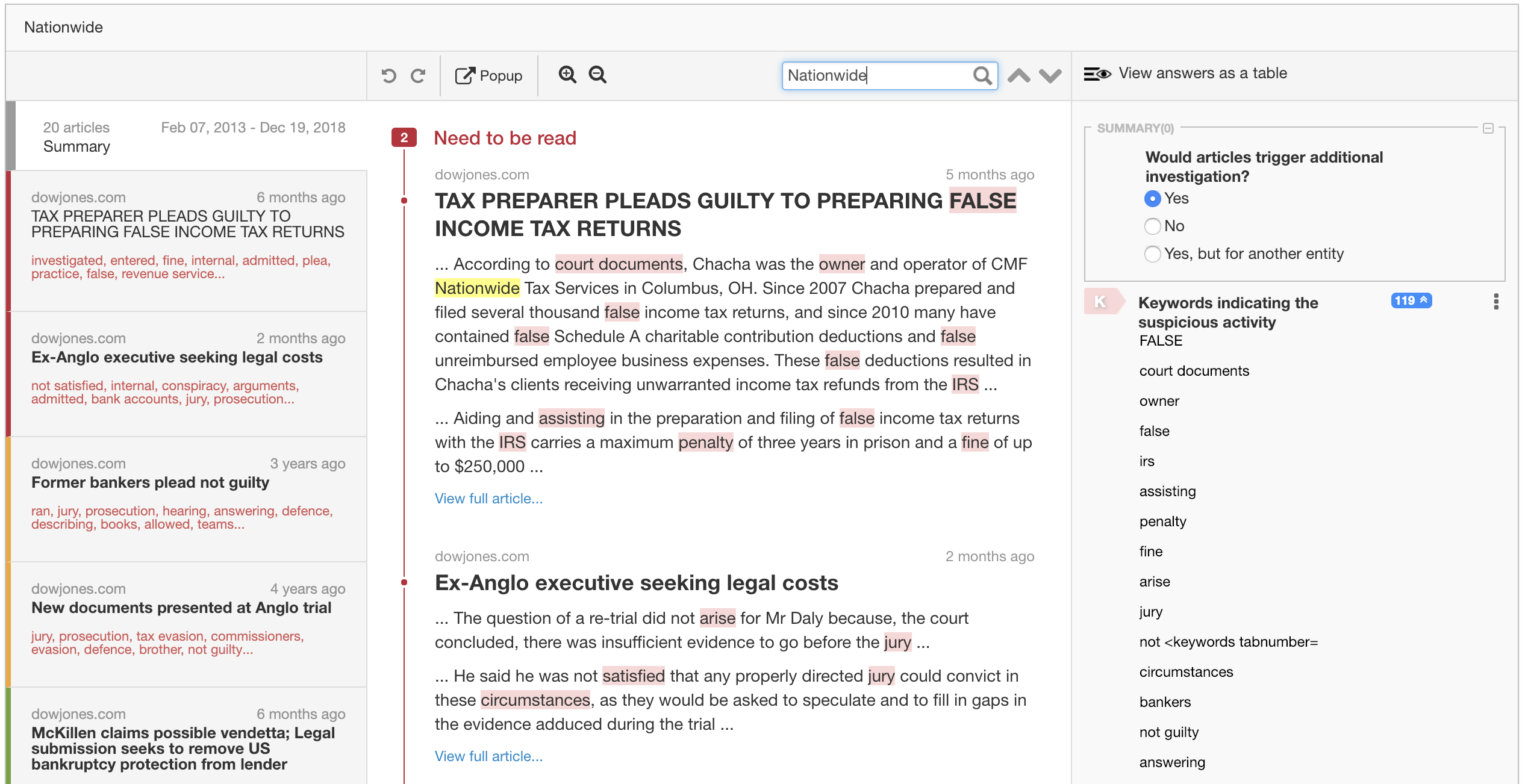
To customize the enhanced version of IE Manual Task, override or extend the following public methods:
MultiDocumentMenuClass.drawDocumentsMenu(documents)MultiDocumentMenuClass.createMenuGroups($menu, documents)MultiDocumentMenuClass.createMenuItem(document, $menu)