
Apply surface-based Robotics driver
Overview
To automate console and core applications where there is no way to get a window or element locator, you can use WorkFusion's image-based (or surface-based) driver for automating desktop and web applications.
tip
For faster image capturing and defining offsets, you can use the RPA Recorder for:
- making screenshots
- media files panel
- exporting code
Surface Selector - byImage()
The Robotics API has been extended with a byImage(String imageUrl, int offsetX, int offsetY) selector which enables you to locate interface elements by their screenshots.
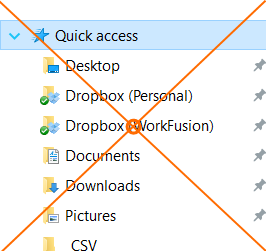
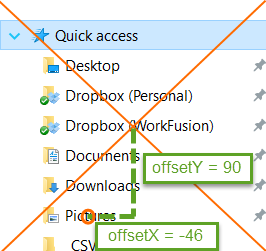
The bot will perform click, hover, or other actions directly into the geometrical center of the screenshot (with an offset in pixels if defined):
- offset X coordinate is positive from center to the right
- offset Y coordinate is positive from center to bottom
| Center click | Click with offset |
|---|---|
 |  |
Robotics API example
$(byImage("https://server-name/1478701332260-click.png")).doubleClick();
Images should be uploaded to a server and should be accessible through HTTP.
note
Mind that non-Latin symbols are not allowed when providing the image file path in the byImage selector.
Surface Capability - imageSimilarityThreshold
For surface-based automation, it is possible to set the image similarity threshold capability, which can help solve complicated cases where images should strictly match (or alternatively be alike by 60%).
The imageSimilarityThreshold capability can take double values from 0.0 to 1.0.
imageSimilarityThreshold syntax
<robotics-flow>
        <robot name="driver" driver="universal">

            <capability name="imageSimilarityThreshold" value="0.6"/>

            <script><![CDATA[
                ...
The setImageMatchingOptions method allows to define the templateSimilarity value. You can use this method multiple times to override the parameter.
setImageMatchingOptions([
    templateSimilarity: 0.7
])
Typing without Window switching
When using the surface-based approach, you can add the following method if you want to type into any currently active window without explicitly switching to it:
- in the
<script>section, add theenableTypeOnScreen()method - to disable this behavior, use the
disableTypeOnScreen()method
Enabling this typing option is not stable because random popup windows can appear while bot execution. We recommend using the window() method for each new window.
Typing on screen example
<?xml version="1.0" encoding="UTF-8"?>
<config xmlns="http://web-harvest.sourceforge.net/schema/1.0/config" scriptlang="groovy">

    <robotics-flow>
        <robot driver="universal" start-in-private="false">
            <script><![CDATA[

                // type into any currently active window without explicitly switching to it
                enableTypeOnScreen()

                open("notepad.exe")
                sendKeys("What is RPA?");
                pressEnter();


                openFirefox("https://www.wikipedia.org/");
                $(byXpath("//input[@id='searchInput']")).val("Robotic process automation").pressEnter();
                def wiki_text = $(byXpath("//div[@id='bodyContent']//p")).getText();

                // explicitly switch to window before typing
                disableTypeOnScreen()

                window("[CLASS:Notepad]");
                sendKeys(wiki_text);
                pressCtrlA();
                pressBackSpace();

            ]]></script>
        </robot>
    </robotics-flow>
    <export include-original-data="true"></export>
</config>
Multiple image search
$$(byImage) returns a collection of similar images.
Multiple image search
<?xml version="1.0" encoding="UTF-8"?>
<config xmlns="http://web-harvest.sourceforge.net/schema/1.0/config" scriptlang="groovy">

    <robotics-flow>
        <robot driver="universal">
            <capability name="imageSimilarityThreshold" value="0.6"/>
            <script><![CDATA[

                def expectedResult = "clicked"
                def pagePath = "http://rpa-grid.s3.amazonaws.com/integration-test/images/surfacebased/index.html"
                def image_1 = "http://rpa-grid.s3.amazonaws.com/integration-test/images/surfacebased/test_rodger.png"
                def image_2 = "http://rpa-grid.s3.amazonaws.com/integration-test/images/surfacebased/test_ship.png"

                inChrome() {
                    open(pagePath)
                    objectCollection = $$(byXpath("/html/body/p[2]/img")).size()
                    assert objectCollection > 0
                }

                inDesktop() {
                    def imageCollection = $$(byImage(image_1)).size()
                    assert imageCollection == objectCollection

                    def imageElements = $$(byImage(image_1))
                    imageElements.each {
                        it.click()
                    }
                }

                inChrome() {
                    $$(byXpath("/html/body/img")).each {
                        assert it.getAttribute("value") == expectedResult
                    }
                }

                inDesktop() {
                    def imageCollection = $$(byImage(image_2)).size()
                    assert imageCollection == objectCollection
                }

             ]]></script>
        </robot>
    </robotics-flow>

<export include-original-data="true"></export>
</config>
Examples
Here, you can find several examples on how to use the surface-based robotics driver.
Clicking on Win10 calculator
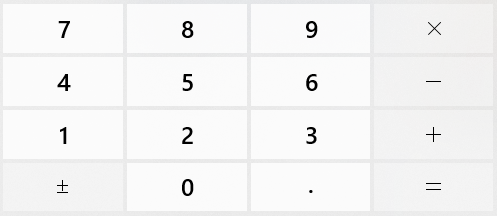
The example below shows clicking on Win10 calculator. The following images are used:
- https://rpa-grid.s3.amazonaws.com/integration-test/images-win-10/calculator/calculator2.png
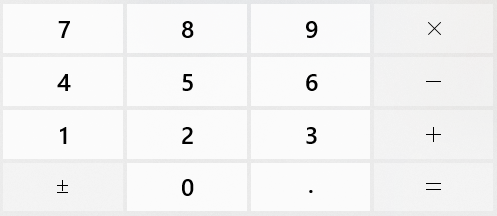
- https://rpa-grid.s3.amazonaws.com/integration-test/images-win-10/calculator/menu.png


Win 10 calculator sample
<?xml version="1.0" encoding="UTF-8"?>
<config xmlns="http://web-harvest.sourceforge.net/schema/1.0/config" scriptlang="groovy">

    <robotics-flow>
        <robot name="driver" driver="desktop">
            <capability name="imageSimilarityThreshold " value="0.2"/>
            <script><![CDATA[
                String imagePath = "https://rpa-grid.s3.amazonaws.com/integration-test/images-win-10/calculator";

                open("calc.exe");
                setOption("typeOnScreen", true);

                $(byImage("${imagePath}/calculator2.png", -10, 25)).click(); // 2
                $(byImage("${imagePath}/calculator2.png",  175, -75)).click(); // *
                $(byImage("${imagePath}/calculator2.png", -10, -30)).click(); // 5
                $(byImage("${imagePath}/calculator2.png",  230, 75)).click(); // =
                $(byImage("${imagePath}/menu.png")).click(); // show menu

                // copy result
                sys.defineVariable("calculationResult", selectAllTextAndCopy());

                // close
                pressAltF4();
            ]]></script>
        </robot>
    </robotics-flow>

    <export include-original-data="false">
        <single-column name="result" value="${calculationResult}"/>
    </export>

</config>
Getting location and size
There is also an ability to get the size of the rectangle found on screen by robot and its location:
- getSize()
- getLocation()
- getRect()
- getWidth()
- getHeight()
- getPoint()
- getX()
- getY()
- GetDimension()
Getting location and size
<?xml version="1.0" encoding="UTF-8"?>
<config xmlns="http://web-harvest.sourceforge.net/schema/1.0/config" scriptlang="groovy">

    <robotics-flow>
        <robot name="driver" driver="desktop">
            <capability name="imageSimilarityThreshold " value="0.3"/>
            <script><![CDATA[
                String imagePath = "https://rpa-grid.s3.amazonaws.com/integration-test/images-win-10/calculator";

                open("calc.exe");
                setOption("typeOnScreen", true);

                // execute coordinate-based methods
                sys.defineVariable("rectangle_width", $(byImage("${imagePath}/calculator2.png")).getRect().getWidth());
                sys.defineVariable("location", $(byImage("${imagePath}/calculator2.png")).getLocation());
                sys.defineVariable("size", $(byImage("${imagePath}/calculator2.png")).getSize());

                // close
                pressAltF4();
            ]]></script>
        </robot>
    </robotics-flow>

    <export include-original-data="false">
        <single-column name="rectangle_width" value="${rectangle_width}"/>
        <single-column name="location" value="${location}"/>
        <single-column name="size" value="${size}"/>
    </export>

</config>
Using image-based selectors in RPA API
See some samples on how to use image-based selectors in RPA API.
Image-based RPA examples
def imagePath = "https://your-server/some-folder/";

$(byImage("${imagePath}/image1.png")).click();
$(byImage("${imagePath}/image1.png"), 40, -60).doubleClick();
$(byImage("${imagePath}/image1.png")).tripleClick();
$(byImage("${imagePath}/image1.png")).click(n);
$(byImage("${imagePath}/image1.png")).contextClick();

$(byImage("${imagePath}/image2.png")).hover();

$(byImage("${imagePath}/image3.png")).isExists();
$(byImage("${imagePath}/image4.png"), -25, 77).getLocation();
$(byImage("${imagePath}/image5.png"), 10, 77).getCoordinates();

actions()
   .dragAndDrop(
       $(byImage("${imagePath}/source-folder.png")),
       $(byImage("${imagePath}/target-folder.png")))
   .build().perform();

actions().dragAndDrop($(byImage("${imagePath}/source.png")), xOffset, yOffset).build().perform();
actions().clickAndHold($(byImage("${imagePath}/image.png"))).build().perform();
actions().release($(byImage("${imagePath}/image.png"))).build().perform();

actions().moveToElement($(byImage("${imagePath}/image.png"))).build().perform();