Universal RPA driver
The new Universal driver provides a lot of benefits for rapid RPA script development:
- No need to switch between drivers and create multiple robot plugins.
- The universal driver can be used in 99% of use cases. Almost all Robotics use cases don't need complex driver-juggling, with transactions handling and support.
To use the Universal Driver, complete the following conditions:
In the robot plugin, set the
driver="universal"attribute.Add a capability inside the robot plugin:
<capability name="SEARCH_ALL_WINDOWS" value="true" />.Make sure that RPA Manager and RPA Node are configured properly:
- Add a quota on RPA Manager to the
/opt/workfusion/apps/rpa_manager/grid-router/quota/user.xmlfile.
<browser name="universal" defaultVersion="1.0"> <version number="1.0"> <region name="hub1"> <host name="localhost" port="4444" count="5"/> </region> </version> </browser>- Add a universal browser to the
nodeX.jsonconfiguration.
{ "platform": "WINDOWS", "browserName": "universal", "version": "1.0", "maxInstances": 1, "seleniumProtocol": "WebDriver" }- Add a quota on RPA Manager to the
Universal driver example
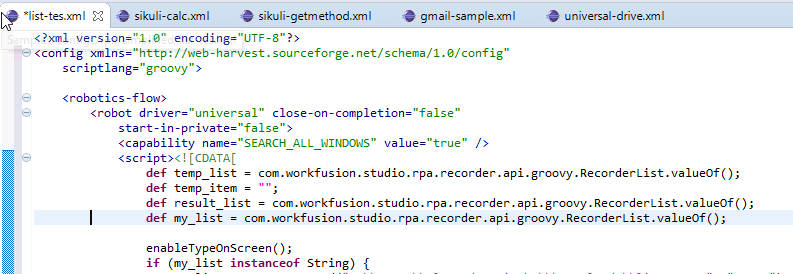
<?xml version="1.0" encoding="UTF-8"?>
<config xmlns="http://web-harvest.sourceforge.net/schema/1.0/config" scriptlang="groovy">

    <robotics-flow>
        <robot driver="universal" close-on-completion="true" start-in-private="false">
            <capability name="SEARCH_ALL_WINDOWS" value="true" />
            <script><![CDATA[

                // opening Notepad
                openAndFocus("notepad.exe", 3000, 250);
                sendKeys("What is RPA?");
                pressEnter();

                // opening FireFox browser
                openFirefox("https://www.wikipedia.org/");
                $(byXpath("//input[@id='searchInput']")).val("Robotic process automation").pressEnter();
                def wiki_text = $(byXpath("//div[@id='bodyContent']//p")).getText();

                // switching back to Notepad
                window("[CLASS:Notepad]");
                sendKeys(wiki_text);
                pressCtrlA();
                pressBackSpace();

            ]]></script>
        </robot>
    </robotics-flow>

    <export include-original-data="true"></export>

</config>
Explicitly set driver type in Universal driver
While using the Universal driver in complex use cases, the driver auto-switching algorithm can fail to automatically detect which application (web or desktop) should accept the current action.
For example:
$(byXpath("//input[@id='searchInput']")).click()                 // web

switchTo().window('[CLASS:SunAwtFrame; TITLE:SwingSet2]')
$(byXpath("//*[@text='Eyes']/following-sibling::*")).click()     // desktop
To handle such cases, you can use an explicit driver switching methods, which accept a closure with all actions for this driver:
inDesktop{}inChrome{}inFirefox{}inEdge{}inIE{}
For instructions that are outside the closure, the default auto-switching mechanism is applied.
Explicit driver closures improve the stability and readability of your code.
Using driver type closures
<robotics-flow>
    <robot name="universalDriver" driver="universal" close-on-completion="true">
        <script><![CDATA[

            // open a web-application in Firefox and log in
            inFirefox() {
                open('https://invoiceplane.workfusion.com')
                $('#login').click()
                $('#email').val('wf-robot@mail.com')
                $('#password').val('freedom4ROBOTS')
                $(byName('btn_login')).click()
            }

            // open a web-page in Chrome and click
            inChrome() {
                open('https://www.w3schools.com/')
                switchTo().frame('iframeResult')
                $('#demo h1').shouldHave(text('XMLHttpRequest'))
                $(byText('Change Content')).click()
            }

            // open a web-page in Internet Explorer, enter text, and click
            inIE() {
                open('http://rpa-grid.s3.amazonaws.com')
                $(byXpath('//input[@name='name']')).sendKeys('test')
                $(byXpath('//button[@type='submit']')).click()
            }

            // open notepad and type text into it
            inDesktop() {
                open('notepad.exe')
                switchTo().window('[CLASS:Notepad]')
                sendKeys('foo')
            }

        ]]></script>
    </robot>
</robotics-flow>
Universal driver code generated in Studio
To view an example of an RPA Bot Task with Universal Driver, you can:
Create a new recording in RPA Recorder.
Click Export code to bot task.
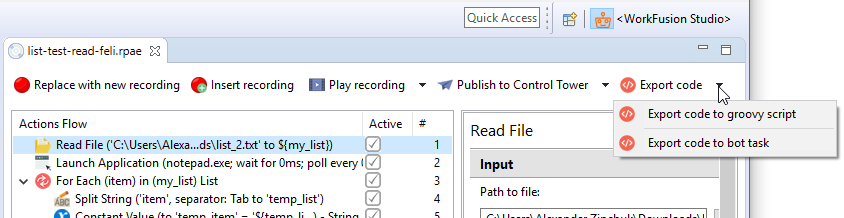
As a result, a valid Bot Task with Universal Driver is generated: