
Issues related to Manual Task rendering in Workspace
In Workspace (WS), the following issues are possible in connection with Manual Task rendering.
Task rendering takes more time than expected
When a Manual Task is related to information extraction and requires extracting a lot of values, make sure it has a reasonable number of labels because label rendering takes a lot of resources and computing power.
To capture performance metrics, go to the Performance tab in your browser (for instance, Chrome), run a performance recording, and re-render the Manual Task.
The result can be similar to the one below:
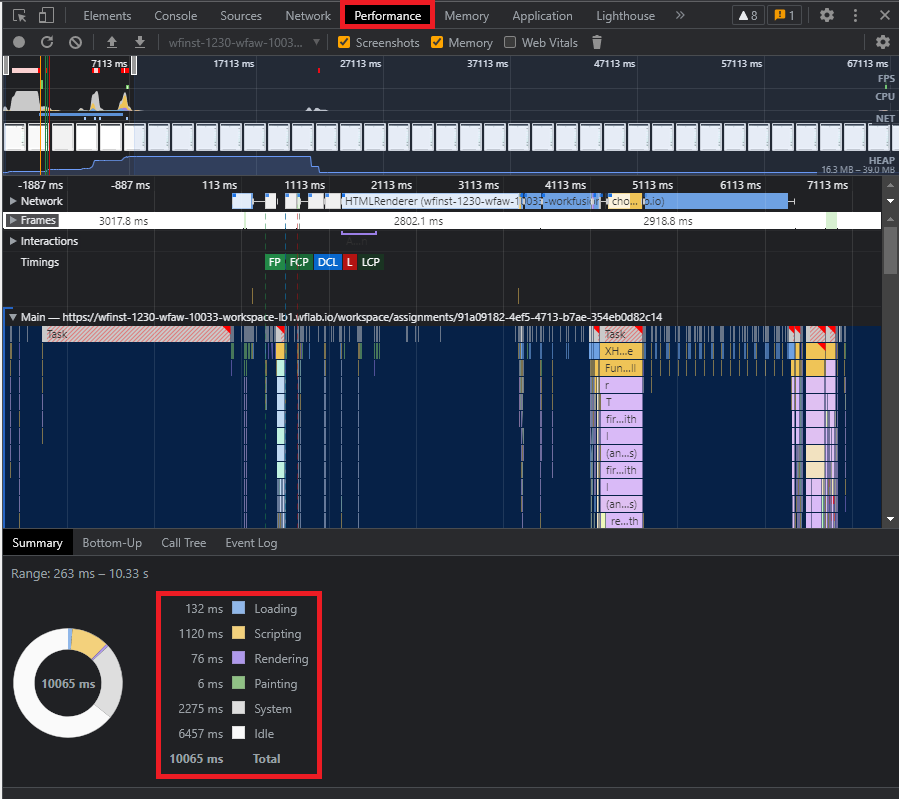
Based on the recording you made, find out whether the slow rendering issue is related to loading, scripting, rendering process itself, painting, the system, or maybe the idle state.
After that, go to Control Tower and investigate the data that can cause rendering performance issues.
Issues with rendering process itself
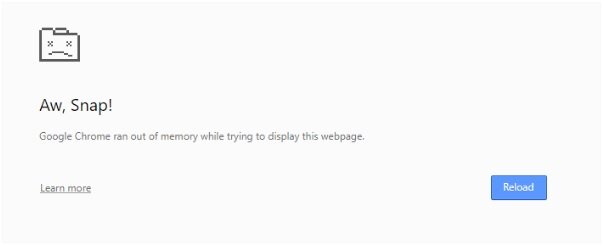
When you get the alert "Aw Snap Google Chrome Ran Out of Memory ..." (Chrome example) similar to the one below, check the available memory for your browser because a Manual Task response can cause an out-of-memory issue.
Different browsers have different memory limitations. Therefore, navigate to your Developer Tools (in Chrome and Firefox, press Ctrl+Shift+I), open an assignment, and go to the Memory tab. Then, take a snapshot (at the bottom of the tab):

Define what might be causing the issue and which element might take too much memory space. Usually, it's the Manual Task content, for instance, a large multi-page document. In Manual Tasks created with Operations than Manual Task Designer Operation, the rendering issues can be due to the content on the Answers tab.
Therefore, go back to Control Tower and search for the root cause, focusing on bulky input data to get rendered.
Task not available and warning message displayed
In WS, a task can be unavailable, or an assignment attempt can fail, for different reasons. Conduct an in-depth investigation to find out the exact cause: for instance, one user assigns a task to himself, and the other one just submitted the same task in a different browser. The exception shows only the following:

Other than that, on the WS side, there might be the "Task unavailable" or "Unknown error" page displayed on the front end. Therefore, any cause related to rendering issues have to be tracked in logs.
Special symbols
A parsing error in FreeMarker templates in Control Tower. This case is rare and can happen in extreme circumstances only, in particular, in connection with Manual Task customizations or acquisition of additional data, for instance, in supplementary JS scripts.
Search for illegal character exceptions in WS logs, unsupported charsets, and so on. This can indicate the content causing problems.
Expired tasks
By default, Manual Tasks are set to expire in 30 days. When the preset expiration period ends and no worker takes up the task within the period, the respective manual review assignment disappears from Workspace. To extend the expiration time for Manual Tasks for as long as you need, follow the steps below:
Log in to Control Tower, navigate to Manual Tasks, open the task for which you want to extend the expiration period.
Navigate to the Run tab and click Advanced Options.
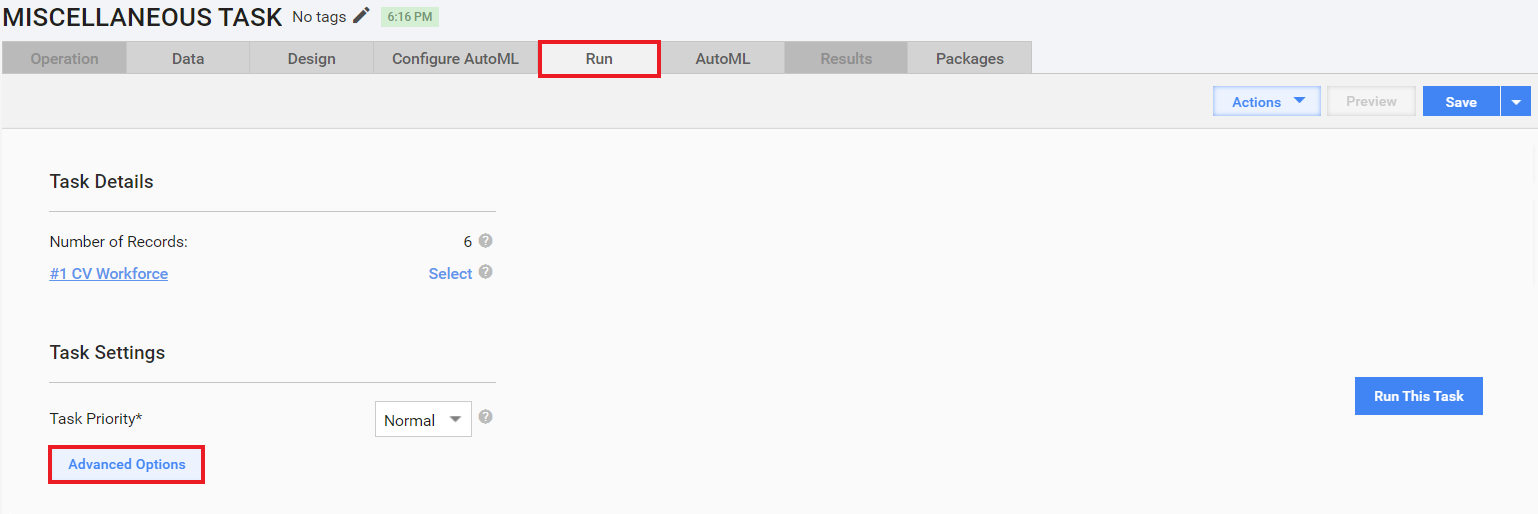
On the Properties tab, change the values in the Task Expires in boxes.

Read also: