
Issues caused by incorrect RPA configuration
The article lists a number of the most common issues stemming from incorrect RPA configuration and tips to troubleshoot them.
RPA recordings are not uploaded to S3
To resolve the problem, set /config/bot-agent/rpa.recording.enabled on the ZooKeeper node to true and restart the WorkFusion services.
Web automation fails with 'DriverCallTimeoutException' error
To avoid the Business Process failure, configure the following property in {RPA_INSTALLATION_FOLDER}/worker/worker.bat:
Drpa.timeouts.http=<value_in_milliseconds>
Desktop automation fails with 'NativeTimeoutException' error
To avoid the Business Process failure, configure the following property in {RPA_INSTALLATION_FOLDER}/worker/worker.bat:
Drpa.timeouts.mfw=<value_in_milliseconds>
Windows Defender blocks execution of D:/rpa/java/bin/java.exe
The following symptoms indicate the issue:
You see the Windows Defender screen appear during process execution.
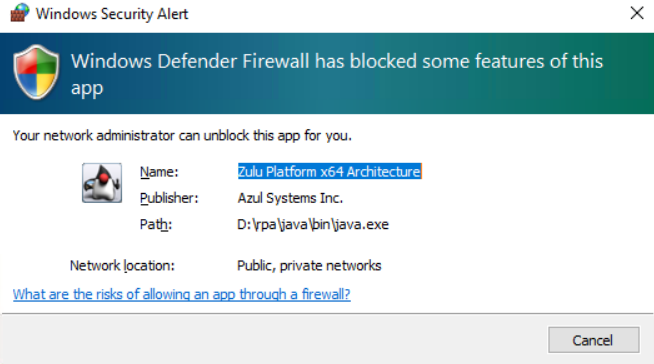
In the Windows event logs, you see the following message:
  A rule has been added to the Windows Defender Firewall exception list.

      Added Rule:
          Rule ID:    TCP Query User{ADA6DD42-7CF4-4132-92DB-7AAA2F96F462}D:\rpa\java\bin\java.exe
          Rule Name:  Zulu Platform x64 Architecture
          Origin: Local
          Active: Yes
          Direction:  Inbound
          Profiles:   Public
          Action: Block
          Application Path:   D:\rpa\java\bin\java.exe
          Service Name:
          Protocol:   TCP
          Security Options:   None
          Edge Traversal: None
          Modifying User: S-1-5-80-3088073201-1464728630-1879813800-1107566885-823218052
          Modifying Application:  C:\Windows\System32\svchost.exe
To resolve the issue, add /rpa/java/bin/java.exe to the whitelist of Windows Firewall.
Out-of-memory error for Worker
To resolve any RPA issue due to the cause, change the Xms and Xmx Worker memory setting in worker.bat or bot-agent-unit.yml.
Worker closed during process execution by CTRL+C
To enable the Worker console to ignore the CTRL+C signal, set the associated variable to true. You can do this in bot-agent-unit.yml/worker.bat in the standard way through the -D switch. For example, insert the following line:
-Drpa.worker.ignore.ctrlc=true
Desktop automation fails due to
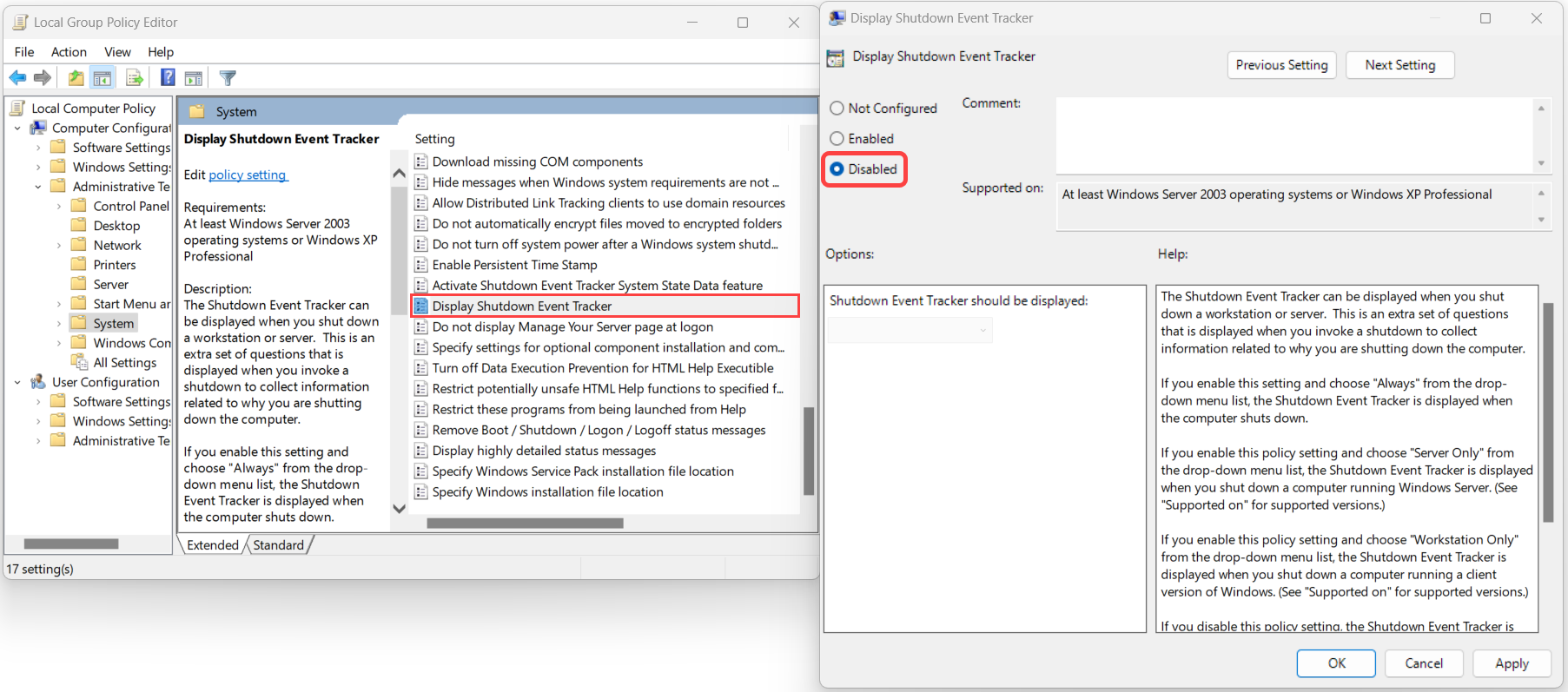
The desktop automation fails due to the Display Shutdown Event tracker window appearing in front of the application.
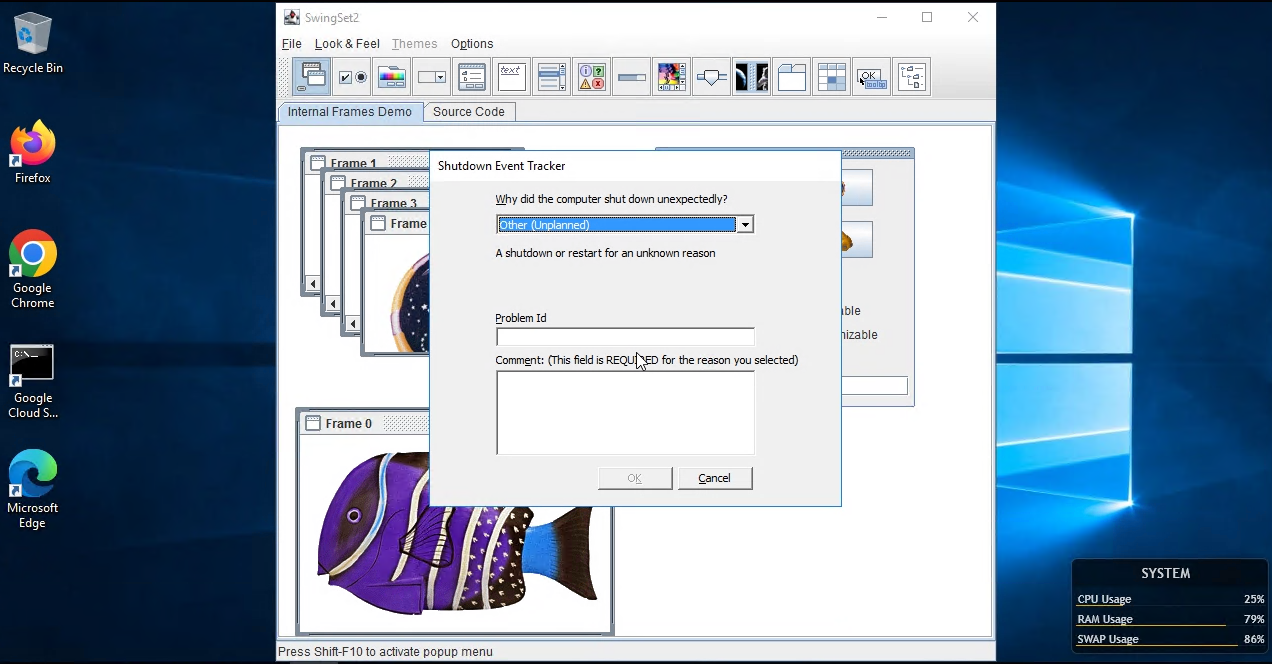
To resolve the issue, do as follows:
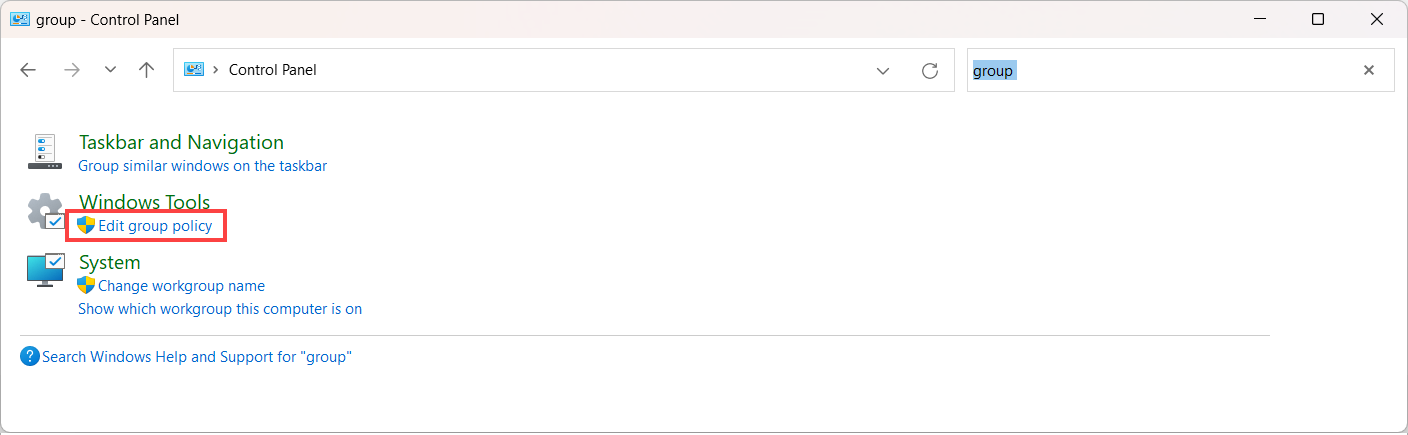
Open Control Panel > Windows Tools and select Edit group policy.
In the Local Group Policy Editor window, select Local Computer Policy > Computer Configuration > Administrative Templates > System.
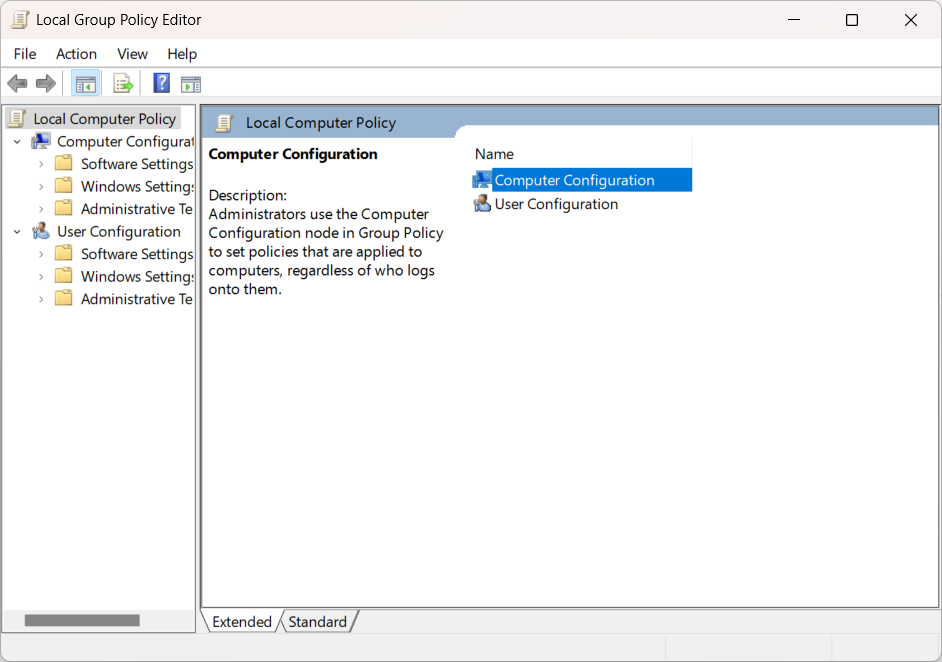
Double-click Display Shutdown Event Tracker, set it to Disabled, and click OK.
View also: