
← Back to Investigate BP performance degradation
Identify steps causing BP performance degradation
When you detect that your Digital Worker performance is degrading, do the following:
Compile a list of Business Processes (BPs) that are part of your Digital Worker and get the UUIDs for all Business Process runs.
Find out approximately when the issue started or when your Digital Worker had no such issue.
Calculate the excessive execution time (if any) as compared to the standard process duration. Use any metrics or empirical data, for example, the average number of processed records per hour before or after the potential performance issue.
Identify potential causes
To find out the potential causes of the performance degradation, follow the steps below.
Analyze task performance metrics
To access and review task performance metrics, follow the steps below:
In Kibana, open the Tasks trace by Business Process identifier dashboard and choose the interval that had the issue. Select the last hour the incident occurred or the last 2- to 4-hour interval.
Open the same dashboard, but for a period when your Digital Worker had no such issue. Compare the two charts. If you see any significant discrepancy between them for any BP UUIDs, repeat the same sequence of actions but for the Task trace by Business Process steps dashboard. In the filter, specify only the affected BP UUIDs, or use the dashboard without any filters.
Check the charts in Kibana for the following common issues and refer to the indicated articles for resolutions:
The Client: Task Transition time is too high. For details, read Issues related to CT performance.
A task spends too much time waiting for Workers, or it takes too long for Workers to process the task at Control Tower steps. In this case, refer to the Control Tower steps articles.
A task spends too much time waiting for Workers, or it takes too long for Workers to process the task at OCR steps. In this case, refer to the OCR steps articles.
A task spends too much time waiting for Workers, or it takes too long for Workers to process the task at ML steps. In this case, refer to the AutoML steps articles.
A task spends too much time waiting for Workers, or it takes too long for Workers to process the task at RPA steps. In this case, refer to the RPA steps article.
Analyze memory and CPU usage
Open the System overview dashboard and check the CPU/Memory usage trend chart for the last 12 to 24 hours. If you see high numbers for specific hosts, switch to the Host overview graphs for the particular hosts and check trends.
Analyze event log
Open the Event log for your BP and check all error messages. Pay attention to what type of error stack traces you see and check corresponding troubleshooting sections.
While investigating, be aware of the hit IDs in the second column of the event log view. Always track execution within the scope of the same hit ID, though mind that failed executions are retried. The default value for retries is three times.
warning
When a user logs into a Control Tower instance using a time zone different from the Greenwich Mean Time (GMT), the Business Process event log and any exported event log sheets are in GMT, irrespective of the user time zone.
Check record completion in BP
Open Control Tower for currently running BPs and open BP workflows for them. Check the count of non-completed records at every step.
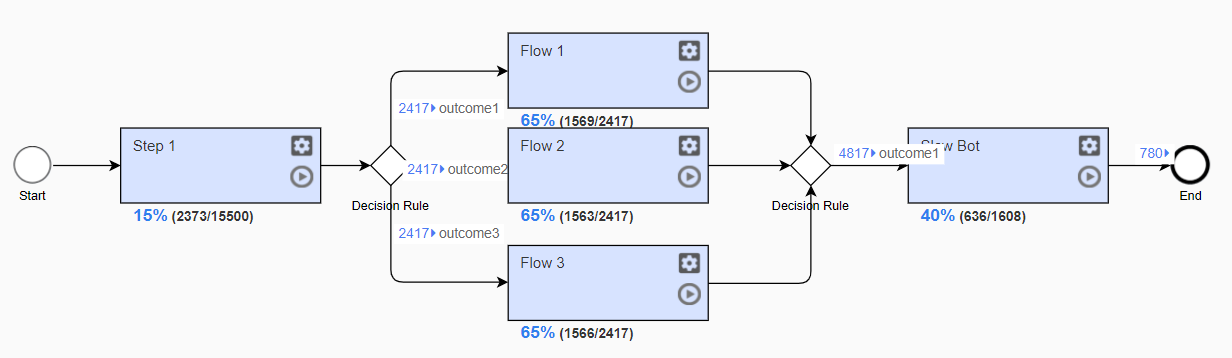
If you see many such records at a particular step or type of steps (ML, OCR, MT, or other), go to the corresponding troubleshooting section in this manual.
Check environment health
Launch the Test Integration BP and check the results. For details, refer to the Environment health check article.
Raise support ticket
If you failed to identify the component causing your issue based on the steps above, raise a ticket in WorkFusion Service Desk and provide the following information:
Describe the degradation you are experiencing: all records or only some of them are affected, the delay time.
Attach screenshots of the Tasks trace by Business Process identifier dashboard.
Specify any errors detected in previous steps.
Describe what has changed recently from the infrastructure, data, or Digital Worker perspective.
Specify the Digital Worker name.