Migrate AutoML models from legacy environment
Following the steps below, you can migrate AutoML models from environments with version 9.2 or 9.3 SPA to those with any Intelligent Automation Cloud Enterprise version (v.10.1+) without retraining.
Prerequisites
Before you proceed with migration, comply with the following prerequisites:
- You have v10.1+ Intelligent Automation Cloud Enterprise installed.
- You have a model trained on v9.2.x or 9.3.x SPA.
- If a model was built with ML SDK, its Java Maven project sources are available.
- On your Nexus, you need to have Archetype version 9.2.0.20 for SPA 9.2.x or 9.3.0.9 for SPA 9.3.x.
Migration flow
The migration flow depends on whether you import a trained model or an artifact (not trained yet).
Migrate trained model
In the output folder of a trained model, create a model-info.json file with the following content:
{
    "modelId": "%egid%",
    "code": "%hypermodel_code%",
    "version": "%hypermodel_version%""
}
With the code, you define the following variables:
modelId: egid, training identifier. Corresponds to the folder name of thevds-resourcesbucket.code: hyper model code from theHyperModelclass.version: hyper model version from theHyperModelclass.
See the model-info.json example below:
{
    "modelId": "message_d47e401f-e465-4a69-912d-3a905239a950",
    "code": "k1-details-information-extraction",
    "version": "1.7"
}
Migrate artifact (hyper model)
To migrate an artifact (hyper model), proceed as follows:
Applicable only for ML SDK (custom) models: Configure your Maven to work with the v10.1+ Intelligent Automation Cloud environment. For details, see the Local environment guide.
In
pom.xml, switch the version ofhypermodel-parent(approximate location is line 8) to the following:9.2.0.20for SPA 9.2.x9.3.0.9for SPA 9.3.x
Add the following line as the third argument to
HypermodelArtifactBuilder(approximate location is line 80):
<argument>${project.groupId}:${project.artifactId}:${project.version}</argument>
In the
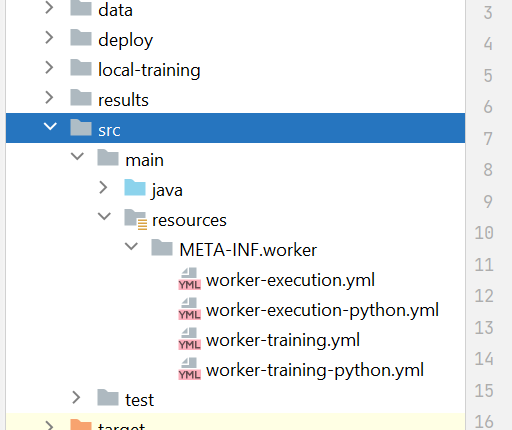
src/main/resourcesfolder, createMETA-INF/workersub-folders.Download, extract, and put the following files in the
src/main/resource/META-INF/workerfolder:See the figure below for the folder location:
To create an artifact for deployment, run the following command:
mvn clean install
Import migrated model to Intelligent Automation Cloud instance
Create a package for import and apply it to the corresponding instance. For more details, refer to the Import Asset Bundle via Control Tower UI page.