Checker model
Checker model should be used by an ML Engineer to improve Information Extraction model results, if needed.
WorkFusion AutoML uses estimated accuracy and cut-off rules to deliver customer quality results. The use of cut-off rules is always the choice of balance between precision or recall. In most cases, to improve the precision of the model, you need to sacrifice recall. This means, everything below a certain threshold is rejected and everything above is accepted. In real world scenarios, some accepted records can also contain errors as it's nearly impossible to separate correct and incorrect records using a threshold and at the same time not to drop recall dramatically.
The concept behind the checker model is to try and identify incorrect values by training a separate meta-model, and then use it to post-process—that is validate and remove—incorrectly predicted values produced by the original model. Estimated accuracy model is then trained considering this information.
Checker model is a binary classification model which labels each token of the input document as either correct (pos/1) or incorrect (neg/0). Training data includes features of the original model collected from FE files combined with BIESO scores produced by the original model.
BIESO is a labeling approach for multi-word named entities where a model tags each token of the named entity with one of the following tags:
- B: First token of a multi-word entity
- I: Inner token
- E: Last token of a multi-word entity
- S: A single token entity
- O: A non-entity token
BIESO score represents model predictions for each token resulting in 1.
| Token | B | I | E | S | O |
|---|---|---|---|---|---|
date | 0.05 | 0.05 | 0.05 | 0.05 | 0.8 |
19 | 0.5 | 0.1 | 0.2 | 0.1 | 0.1 |
For more information, refer to the original paper.
Workflow Overview
Checker model is applied both at training and execution stages.
Training
The following steps take place during model training with a checker model:
- Feature extraction.
- Cross-validation.
- Train.
- Classify.
- Raw statistics calculation.
- Checker model training. Use features, scores from cross-validation and correctness information of IE model as input training data to checker model.
- Checker model statistics calculation.
- Applying Post-Processors. The first Post-Processor should apply the checker model and filter results.
- Processed statistics calculation.
- Estimated accuracy model training.
Execution
- Feature Extraction
- Information Extraction model classification.
- Values Post-Processing.
- Checker model Post-Processor.
- All other Post-Processors.
- Estimated accuracy model extraction.
Using Checker Model
Checker model is disabled by default and can be enabled for each field separately.
To enable the checker model from the Business Process, use the checkerModelEnabled Boolean parameter, it should be added in Start Train and Eval bot configuration in Cognitive BP during answer
info creation in the createAnswerInfo method.
In AutoML SDK model training runner, use the GenericPipelineConfiguration.CHECKER_MODEL_ENABLED parameter and put it to FieldInfo#properties. Cut-off rules can be applied to the checker model using the checkerModelPrecisionThreshold parameter (0.85 by default), this parameter is defined for each field separately.
For implementation details, see the following examples.
Model Training Runner
Add the following code to your Model Training Runner.
new FieldInfo.Builder(Fields.INVOICE_NUMBER)
    .type(FieldType.INVOICE_NUMBER)
    .multiValue(false)
    .property(GenericPipelineConfiguration.CHECKER_MODEL_ENABLED, "true")
    .build()
Business Process
In Control Tower, navigate to Advanced > Bot Configuration, and then use the following code to enable the checker model.
Bot Configuration: Start Train and Evaluation Step
// applied for each field changes should be done
// in createAnswerInfo(AnswerInfoDTO answer) method

Map properties = new HashMap();
properties.putAll(getOptionsMap(answer));
properties.put("checkerModelEnabled", "true");
properties.put("checkerModelPrecisionThreshold", "0.95"); // Optional
res.put("properties", properties);
Here's a Business Process example with a Checker model.
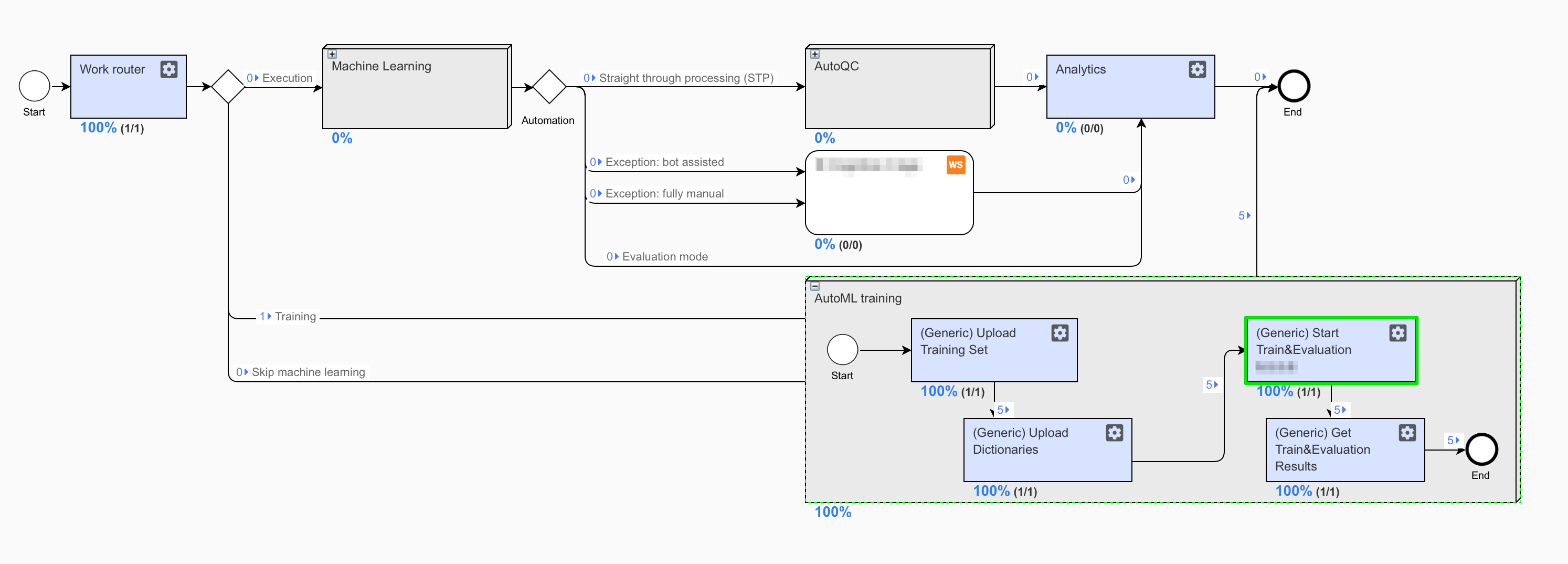
Note that:
- Checker model works only with Liblinear.
- Any error or exception during checker model training doesn't affect the original model training.
- Checker model training will be skipped in case of insufficient data.
- Checker model is applied using
com.workfusion.vds.sdk.nlp.component.processing.CheckerModelPostProcessor.