Manage tasks in Mesos/Marathon
Marathon is an orchestration platform for multi-service systems and applications. The Mesos/Marathon framework's primary goal is to abstract the infrastructure from separate servers to a level where each server is viewed as a storage of system resources. With this approach, the 3-server cluster is regarded as a single resource pool.
The following framework components are located on Master servers:
- Application. Active-Standby applications, for example, Control Tower.
- Mesos Agent. The instance to execute and report applications and their tasks.
- Mesos Master. The instance to supervise the Agents.
- Marathon. The orchestrator that selects the servers to run the tasks on.
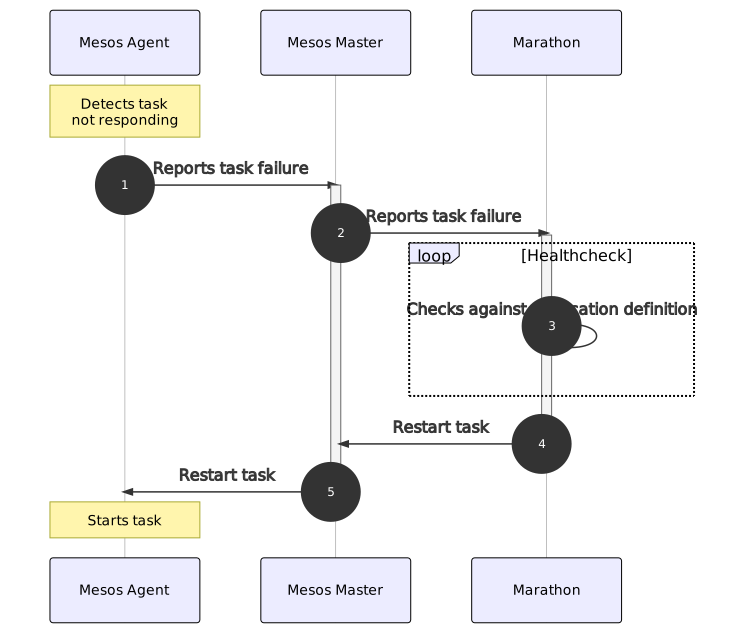
The Mesos/Marathon framework maintains the desired state of the system established during the installation. The framework controls each application to be live and running as a single instance. If Marathon detects a stopped or removed one, it restores the system to its required state, thus providing fault tolerance. Meanwhile, such an application may remain down for up to 10 minutes.
Marathon UI
To access the Marathon interface, go to the address specified during the installation, for example, https://YOUR_HOST.marathon-lb1.workfusion.com.
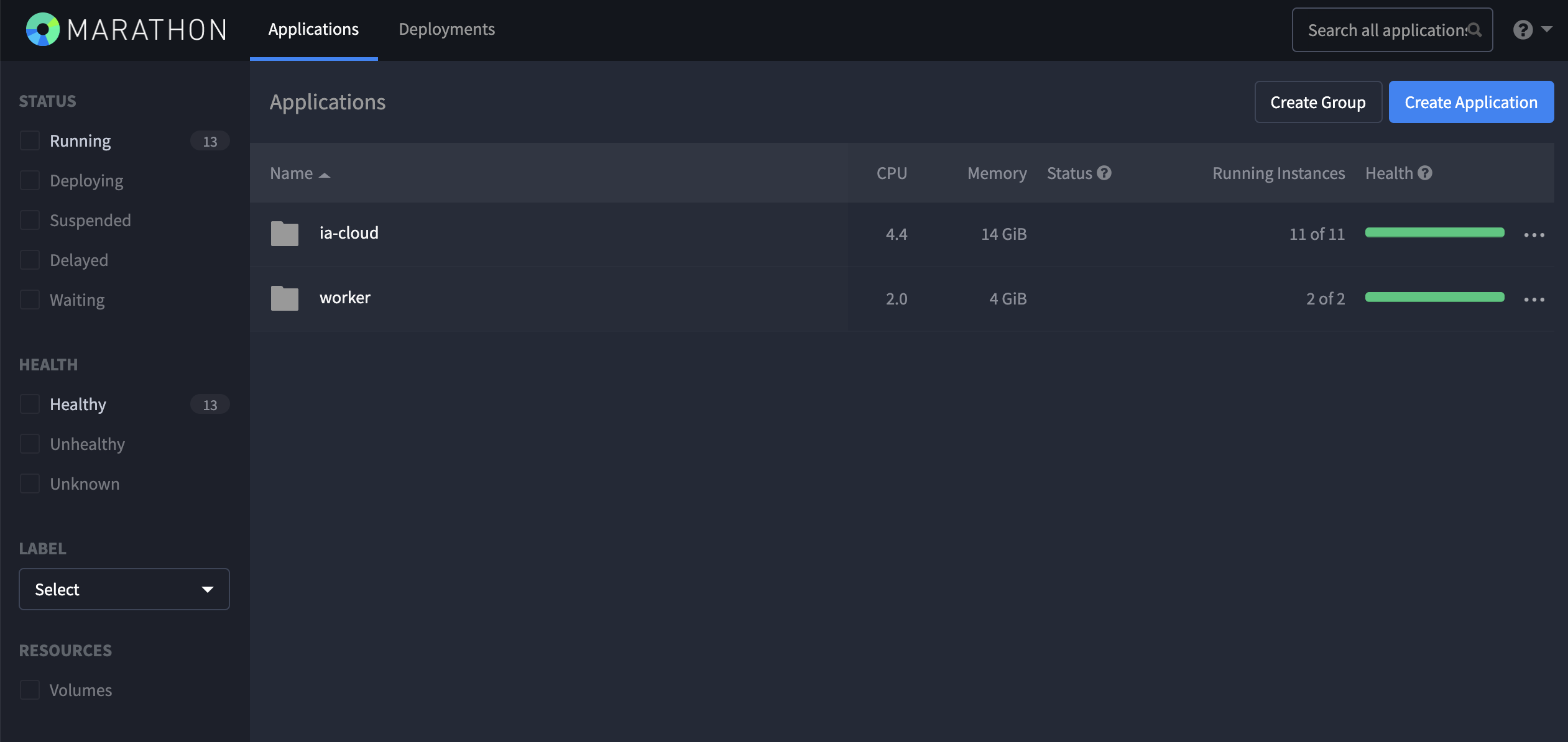
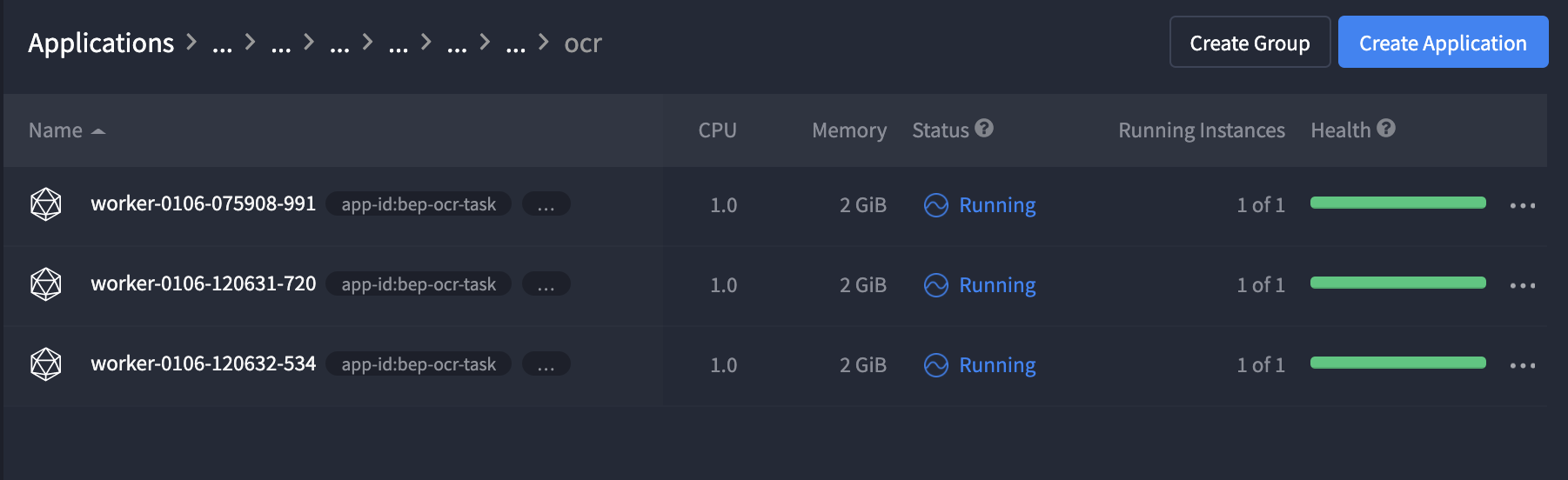
On the UI, you can see the following folders:
ia_cloud: contains the list of Active-Standby applications deployed during the Product installation.
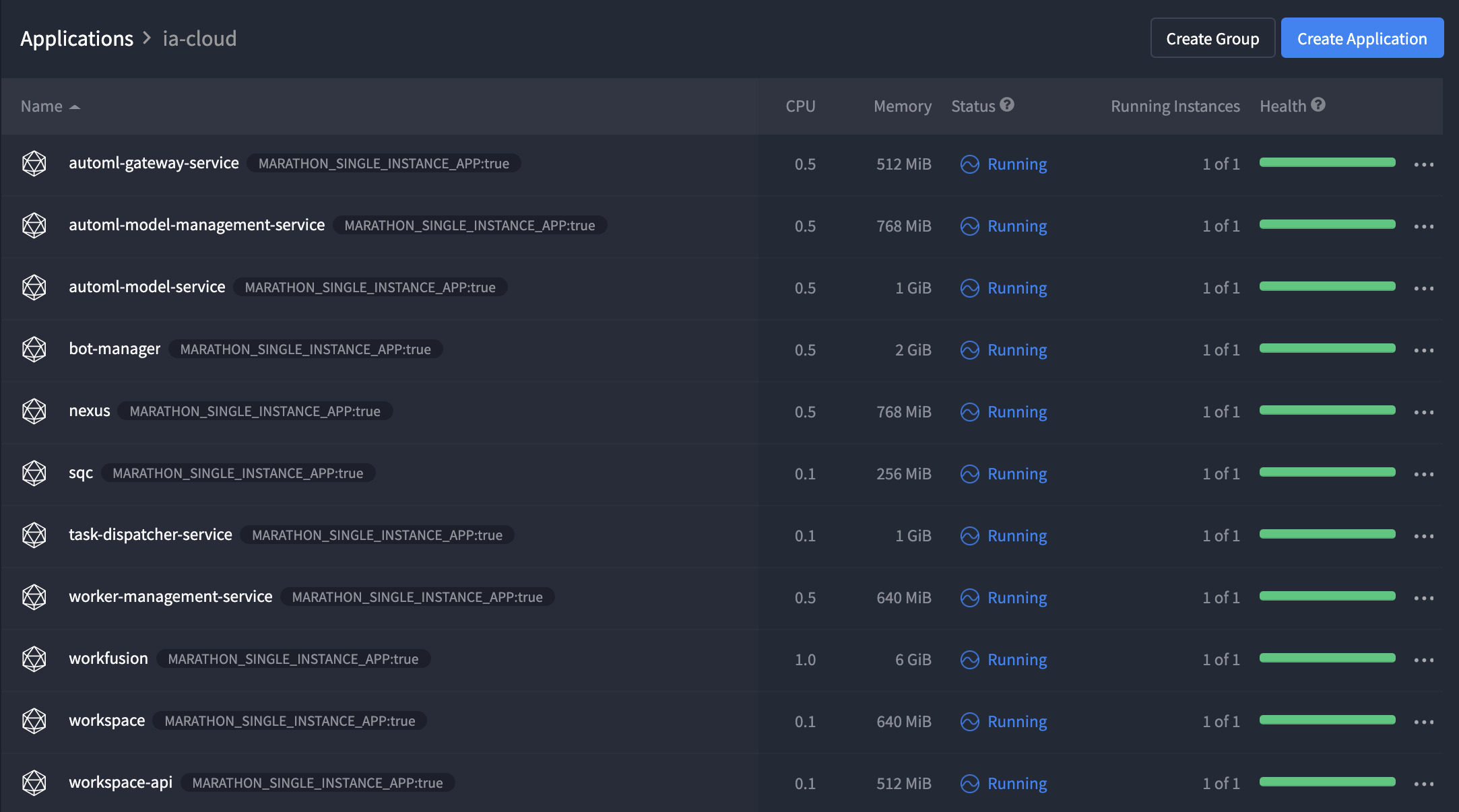
Each application contains one task, an executable process that receives and runs the requests. The id of each task is unique and generated automatically by Marathon.
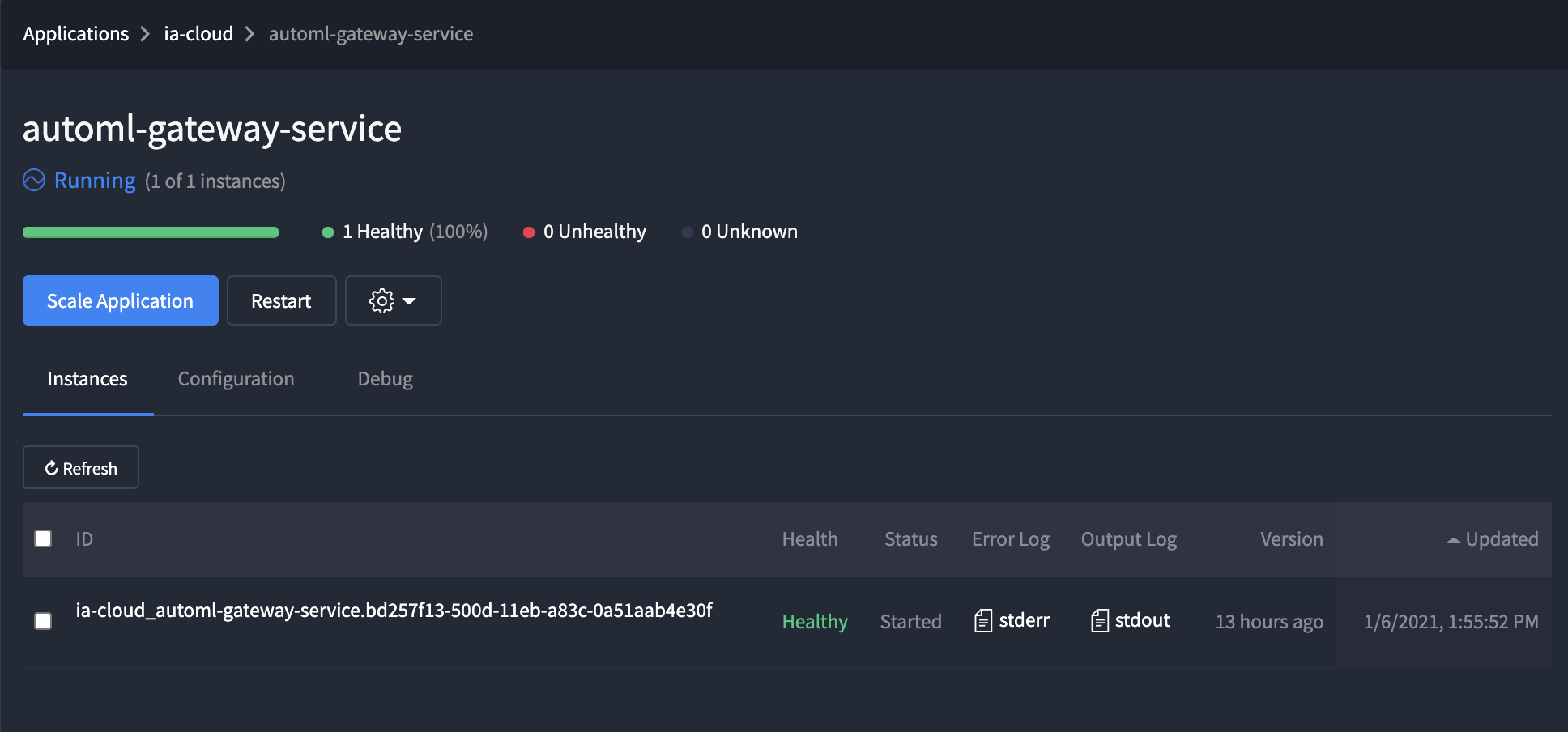
An application has its application definition: a set of rules that define conditions of a live task and are used by Mesos Agent to detect failed ones. Specifically, Mesos/Marathon verifies a task's health against the
healthCheckssection of the specification file (see further). The health check is created from the parameters specified in config.yaml and ports.yaml by the installer during the setup and must not be changed manually at any time.workers: contains workers, specific application types deployed and run by the Worker Management Service, when a Business Process is started.
It is critical to run each application in one instance to avoid system and database failures.
Task configuration
A specification file is generated from the Ansible template for each controlled application and is sent to Marathon as the JSON file with applicable rules. Marathon checks the state of each application against the specification and restores the system's state.
The specifications for apps are almost similar, and only the health check and memory parameters are different.
See Marathon specification
{
    "id": "/ia—cloud/workfusion",
    "cmd": "exec {{ workfusion_home }}/run-workfusion.sh",
    "cpus": {{ component_resources.ct.cpus }},
    "mem": {{ component_resources.ct.ram_mb }},
    "disk": 0,
    "instances": 1,
    "constraints": [
        [
            "bep—worker",
            "CLUSTER",
            "false"
        ]
    ],
    "acceptedResourceRoles": [
        "*"
    ],
    "healthChecks": [
        {
            "command": {
                "value": "curl —s —w '%{http_code}' —o /dev/null http://127.0.0.1:{{ workfusion_port }}/workfusion/api/liveness | grep 200"
                },
            "gracePeriodSeconds": 480,
            "intervalSeconds": 20,
            "maxConsecutiveFailures": 0,
            "protocol": "COMMAND",
            "ipProtocol": "IPv4",
            "timeoutSeconds": 20
        }
    ],
    "portDefinitions": [],
    "taskKillGracePeriodSeconds": 20,
    "labels": {
        "MARATHON_SINGLE_INSTANCE_APP": "true"
    },
    "killSelection": "YOUNGEST_FIRST",
    "unreachableStrategy": {
        "inactiveAfterSeconds": 0,
        "expunceAfterSeconds": 0
    },
    "upgradeStrategy": {
        "maximumOverCapacity": 0,
        "minimumHealthCapacity": 0
    }
}
The specification contains the following application parameters:
id: Application id in Marathon.cmd: The command for running the application startup script.cpus: Number of CPU cores to be allocated for the application tasks.mem: Amount of memory to be given for the application tasks.disk: Amount of dick space to be provided.instances: Number of application tasks to be run simultaneously.constraints: Mesos Agent parameters to select servers where the application runs.healthChecks: Health check to detect the status of the task by Mesos Agent.
To view the application configuration in Marathon, select an application, and go to the Configuration tab.
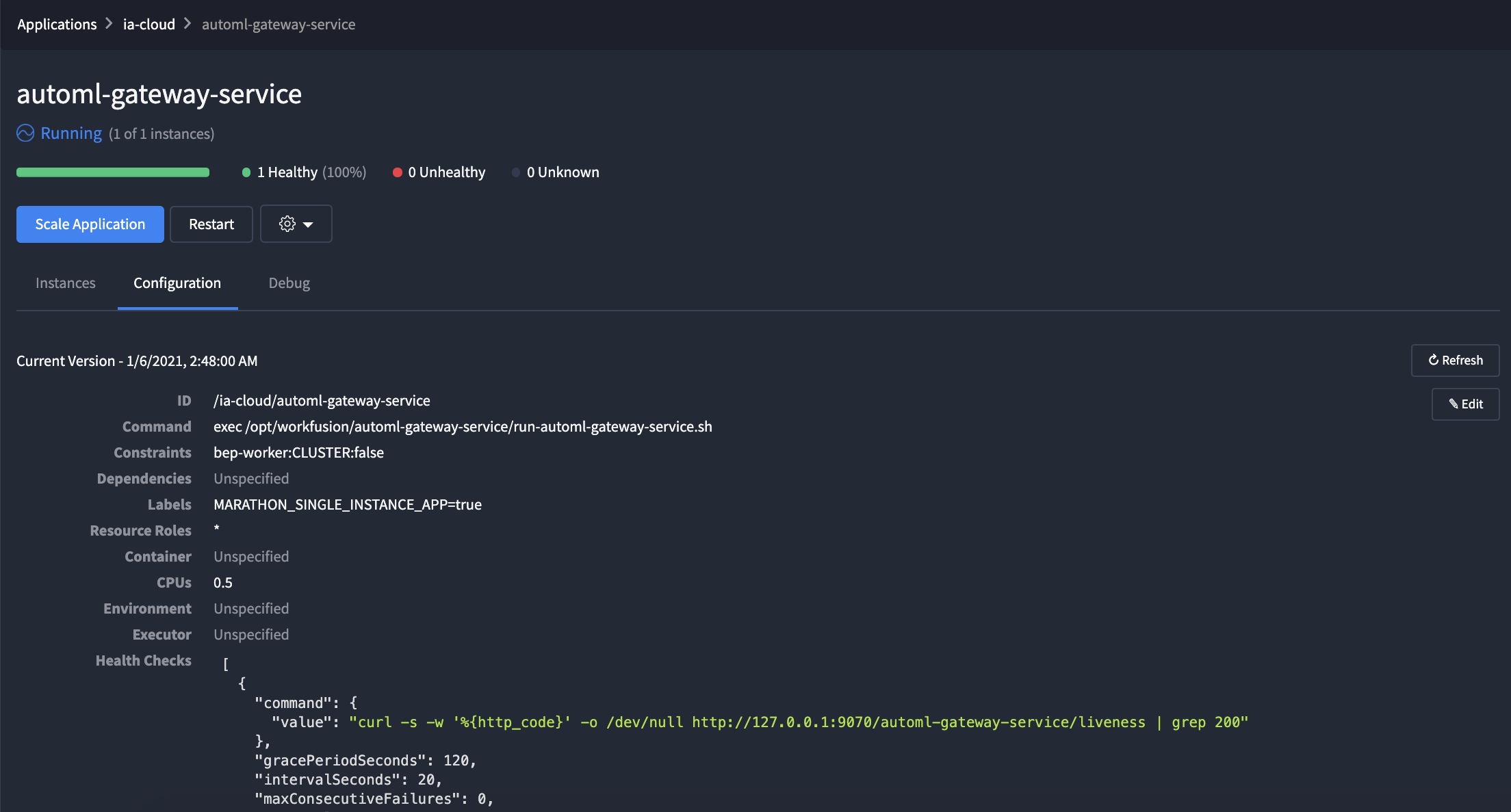
Though the Configuration window contains changeable parameters, we don't recommend altering them via the UI with the Edit button; it will affect the Product operation and future upgrades. Remember to perform all the changes, for example, expanding allocated memory or disk space, only with the installer.
Tasks lifecycle
The applications' and workers' tasks are started automatically with the Product. Mesos/Marathon framework checks that the system operates as defined in the specification and automatically restores its state in case of failure. Thus, in most cases, you don't need to change the tasks operating correctly.
Manage tasks
However, in cases, like troubleshooting or investigating a frozen BP, you may need to restart or suspend them. For that, next to the required application, click More ("...") and, in the menu, select the required item.
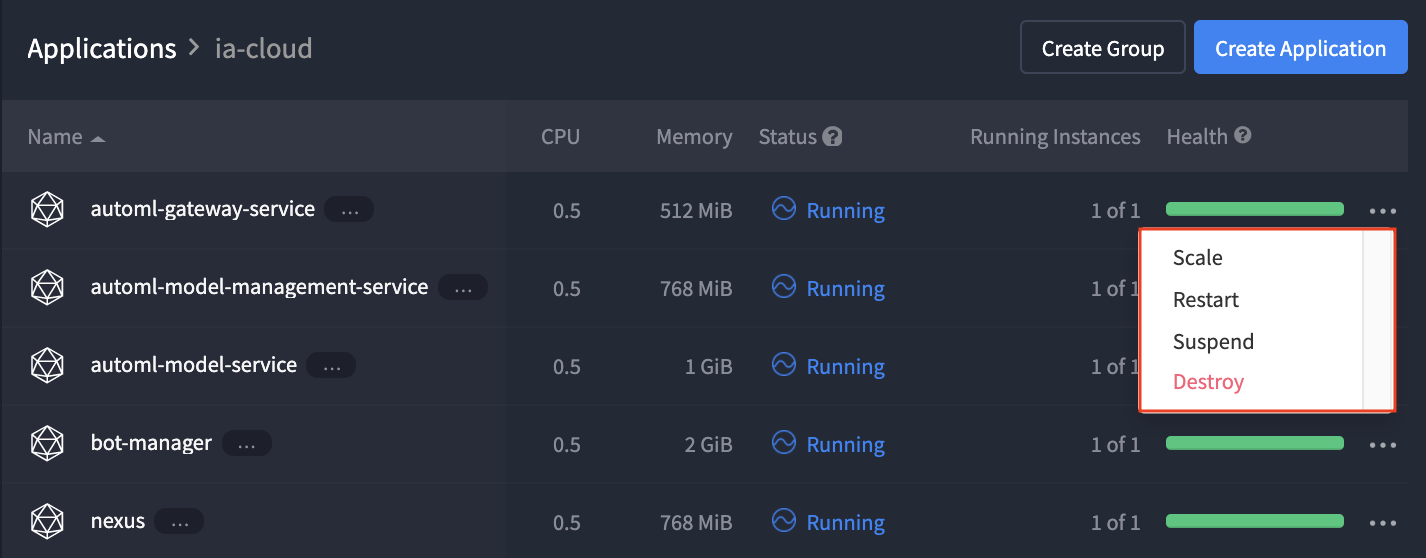
- Scale: changes the amount of running task instances. For example, to suspend an application, set the amount to zero. Remember that each application must have only one task.
- Restart: restarts an application. We recommend using it for investigation or troubleshooting. Same as scaling the application to zero task instances and after that scaling it back to one instance.
- Suspend: scales an application to zero task instances. The application remains in the list while the corresponding task stops.
- Destroy: irreversibly removes an application along with its task. As Marathon can't detect a missing application or worker and they won't automatically start, we do not recommend destroying it via the UI.
The changes performed in the interface are not final, and you can restore the default settings by running the command wfmanager deploy APPLICATION_NAME on the Master server.
Mesos UI
You can use the Mesos interface to browse and download worker reports and logs.
Enabling Mesos interface
By default, the interface is disabled.
To enable Mesos UI according to your installation mode:
- Standard setup
- Multipoint non-HA setup
- Multipoint HA setup
On the Master server, go to INSTALL_DIR, and run the following commands as WFUSER:
./install.sh configure mesos -e mesos_ui_enabled=true --limit master
On the MASTER1 server, go to INSTALL_DIR, and run the following commands as WFUSER:
./install.sh configure mesos -e mesos_ui_enabled=true --limit master[0] -c local
On the MASTER1 server, go to
INSTALL_DIR, and run the following commands asWFUSER:./install.sh configure mesos -e mesos_ui_enabled=true --limit master[0] -c localOn the MASTER2 server, go to
INSTALL_DIR, and run the following commands asWFUSER:./install.sh configure mesos -e mesos_ui_enabled=true --limit master[0] -c localOn the MASTER3 server, go to
INSTALL_DIR, and run the following commands asWFUSER:./install.sh configure mesos -e mesos_ui_enabled=true --limit master[2] -c local
For security reasons, you can allow access only from particular IP addresses, for example, developer or operator workstations, using this capability:
| Source server(s) | Destination server(s) | Destination port | Service name | Access type |
|---|---|---|---|---|
| Operators workstations | Master server(s) | 5050 | mesos-master | external |
| Operators workstations | Agent server(s) | 5051 | mesos-agent | external |
Viewing reports
On Mesos web UI, you can browse reporting information about the Mesos cluster. You can access the interface from https://YOUR_HOST.mesos-lb1.workfusion.com.
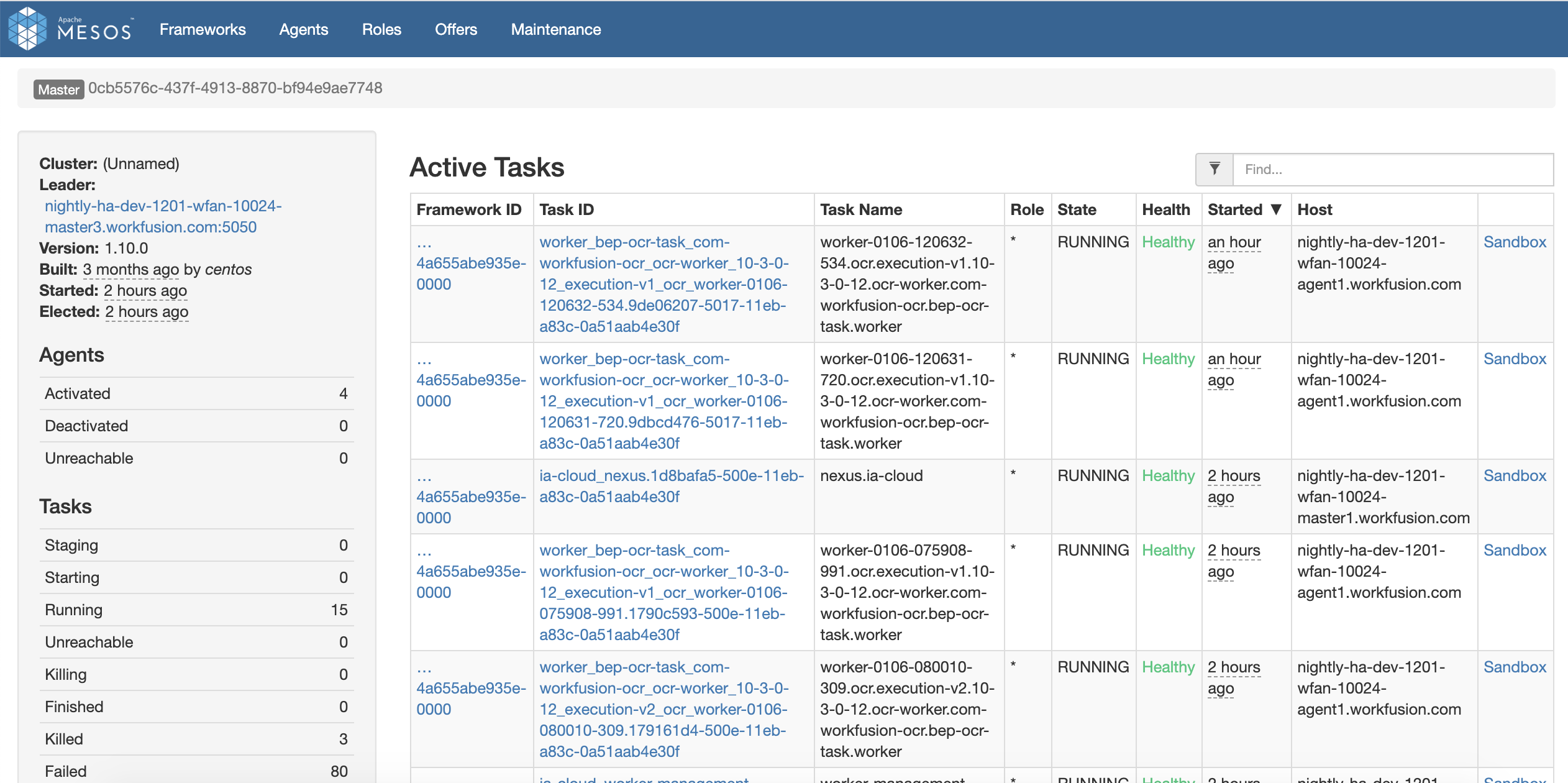
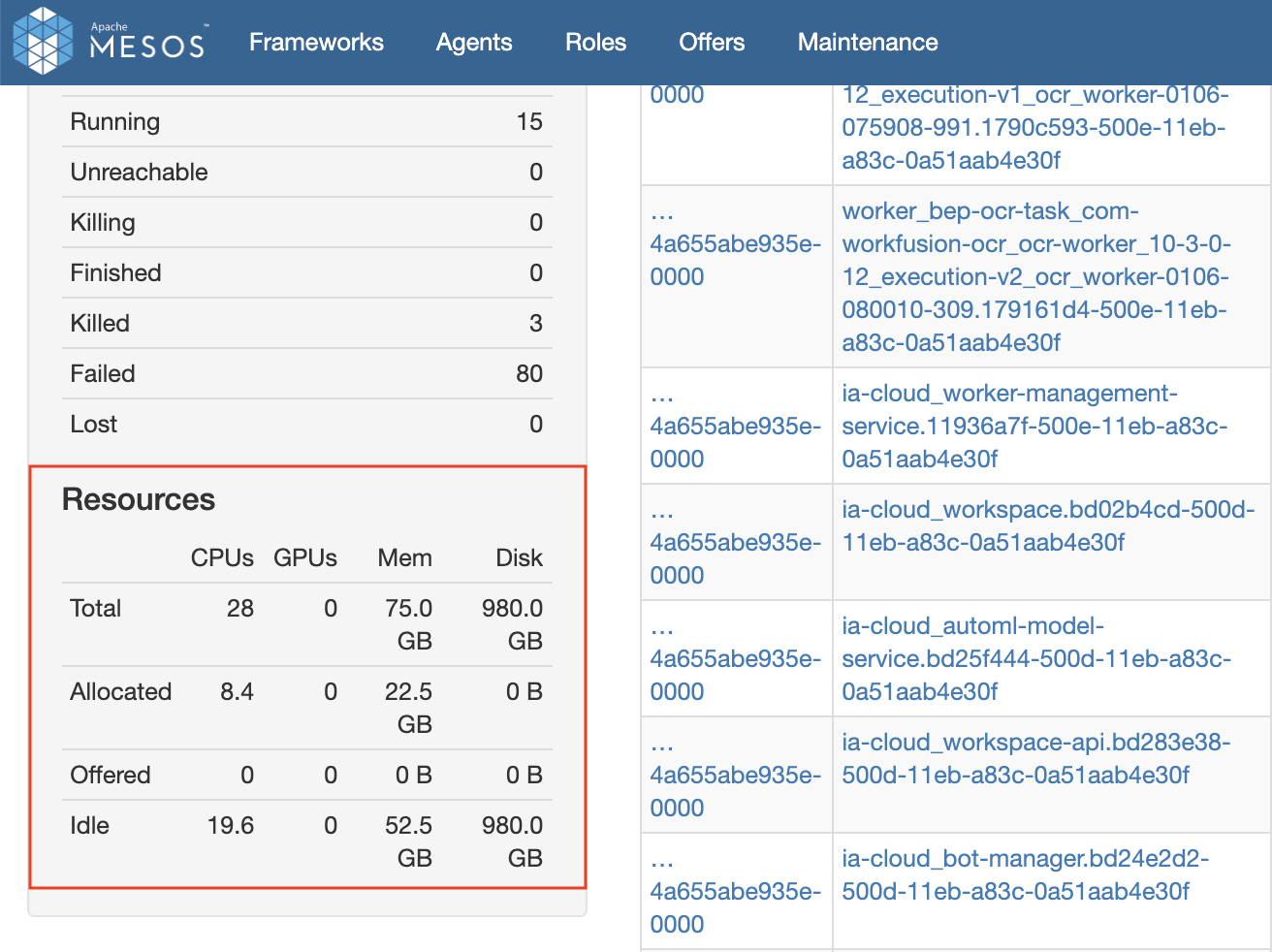
On the main page, you can see the report on the resources available in the cluster.
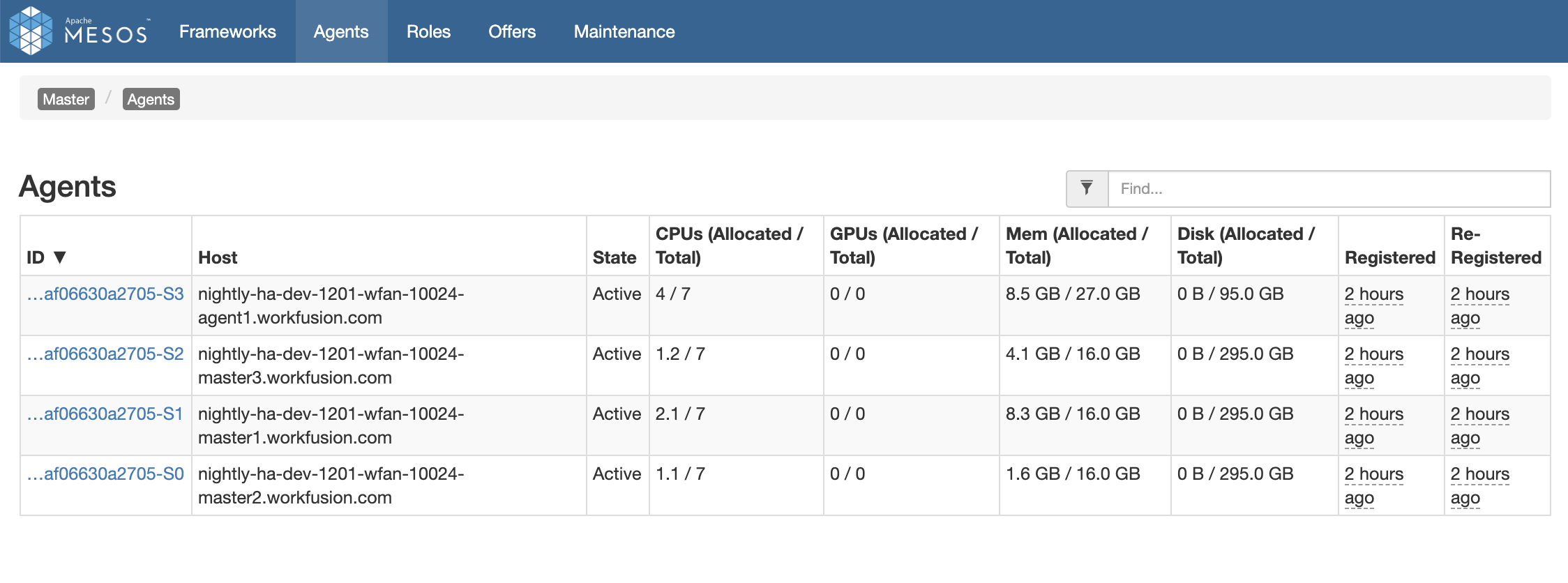
On the Agents tab, see the detailed Mesos Agents information.
Viewing tasks logs
The logs are written for each executable task. As Marathon or Mesos doesn't display them, you can view the server's logs, where the required application is running, or in Kibana. For more information, see Collect and view logs.
High availability
Mesos/Marathon framework incorporates Marathon, Mesos Master, Mesos Agent, and Zookeeper and runs in the high-availability operation mode by default. For the detailed description, see the Official documentation.
The above processes are present on all three Master Servers, both in the high-availability and the basic mode. In the high-availability mode, the framework includes one active Master (called the leader or leading Master) elected with Zookeeper and several backups if it fails. If the server with the leader fails, the other Mesos Masters re-elect the leader. The Agent servers only have Mesos Agents, which are all equal to each other.

For example, all applications are running on Master 1. If this server fails, the other Masters detect one missing and,
- If Master 1 was the leader, the re-election process triggers, and another Master server becomes the leader instead.
- If Master 2 or 3 was the leader, in this case, no election occurs, but the Active-Standby applications that previously resided on Master 1 are redeployed to another live server.
The same is also true for the Mesos Agent components. When the framework detects a failed Agent, it sets all its tasks to status "unreachable". When Marathon detects the unreachable tasks, it selects the less loaded Agent servers according to the Mesos internal policies and automatically redeploys tasks to another live server. Thus, fault resilience is implemented on the framework level:
- If an executable task fails, it is restarted on another server.
- If a server fails, all its tasks are redeployed to another one.
With that, Marathon also verifies that the task runs against the health check: