Getting started with Cloud Manager
Cloud Manager is software for managing multi-cloud environments. It is a multi-tenant application that enables tenants to log in to a cloud portal and monitor and manage provisioned cloud environments. By default, all provisioned environments have auto shutdown enabled for infrastructure cost optimization.
Cloud Manager supports the following functionality:
Login service
User management
Cloud management
Metrics display
Idle timeout environment shutdown
Currently, Cloud Manager supports only standalone accounts for both internal and external users. They are created in Keycloak and assigned to tenants. There are ongoing efforts to enable single sign-on (SSO) for customer accounts.
From Cloud Manager, tenants can do the following:
- Stop and start environments
- Monitor the environment state
- Get insights into system details
Log in
To start working with Cloud Manager, go to https://cm.workfusion.io. Existing tenants should log in via their specific pages: https://cm.workfusion.io/tenant_name/login.
On the login page, provide the tenant or domain name and click Continue.
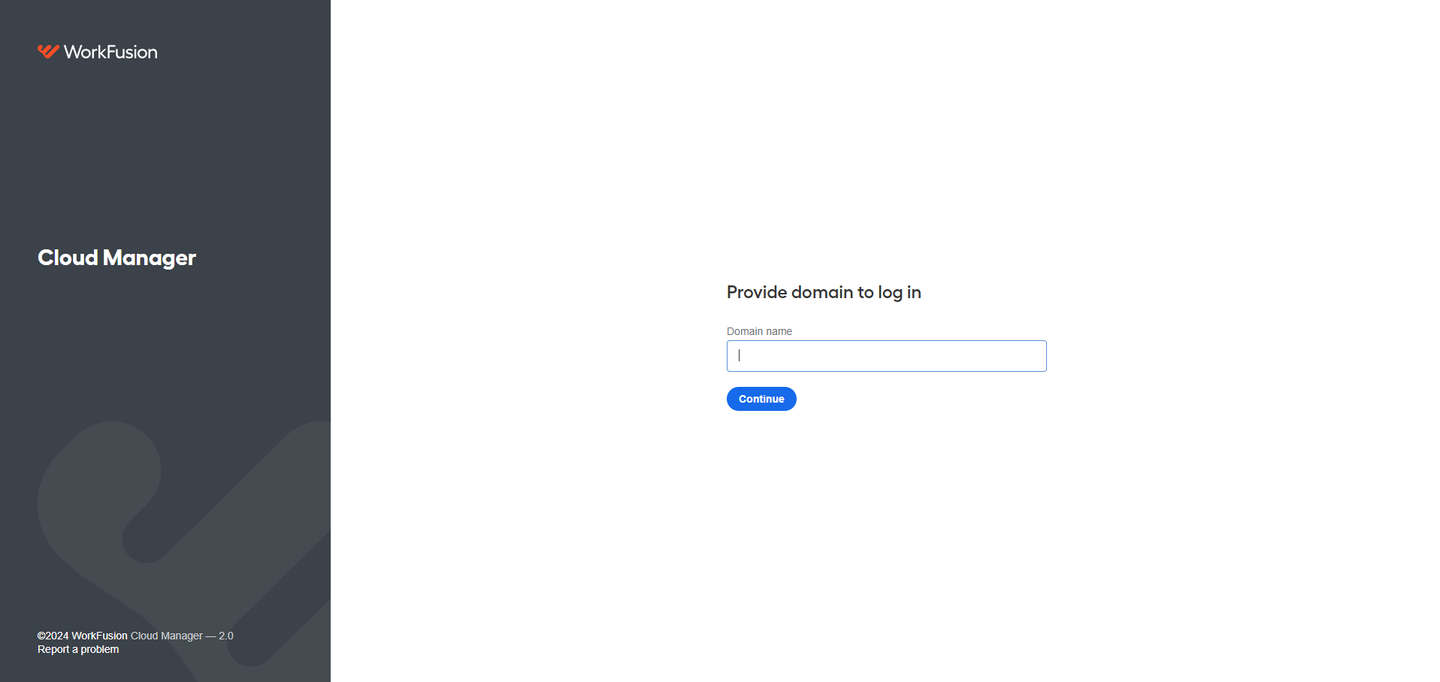
If you don't know which tenant or domain you belong to, reach out to your Cloud Management Administrator on the WorkFusion's side.
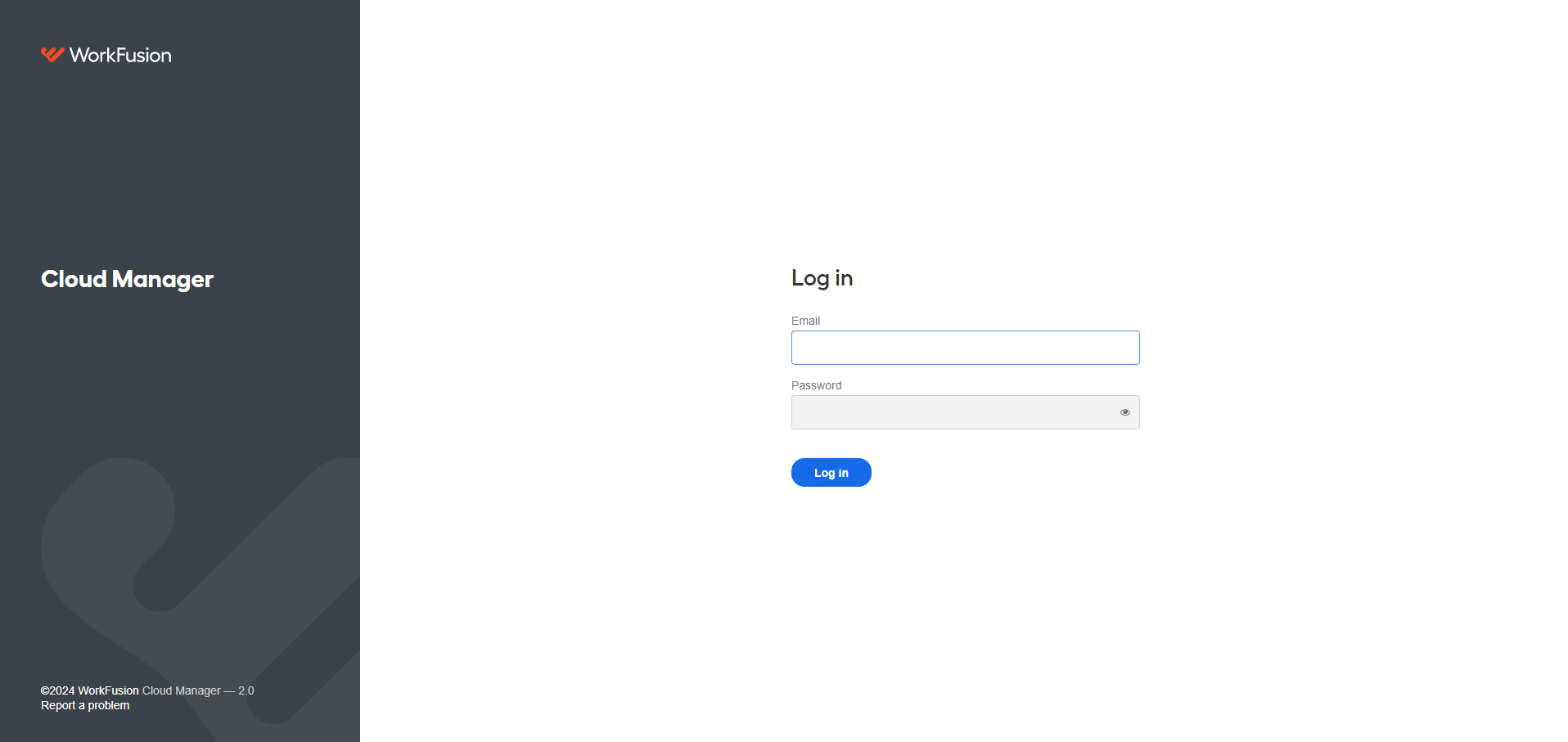
To log in to Cloud Manager, provide your credentials:
The username is your email address.
The password is the Cloud Manager credentials for the user.
You get the credentials with the tenant or domain information. If you don't know the credentials, reach out to your Cloud Management Admin.
Manage environment
After successful login, you can see all the environments belonging to your tenant or domain in Cloud Manager.
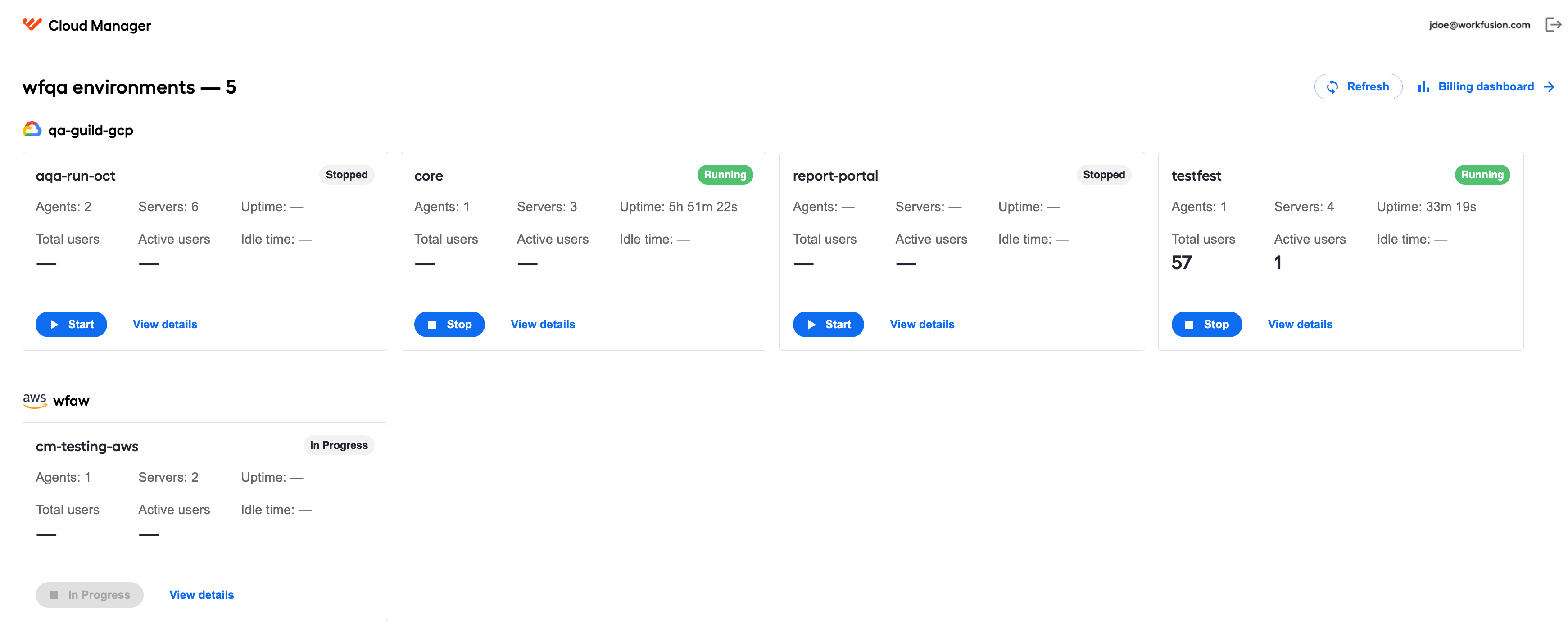
The following actions are available:
Click Start to start an environment.
Click Stop to stop an environment.
Click the logout button in the top right corner to end your session.
Click Billing dashboard to access billing usage data vizualizations.
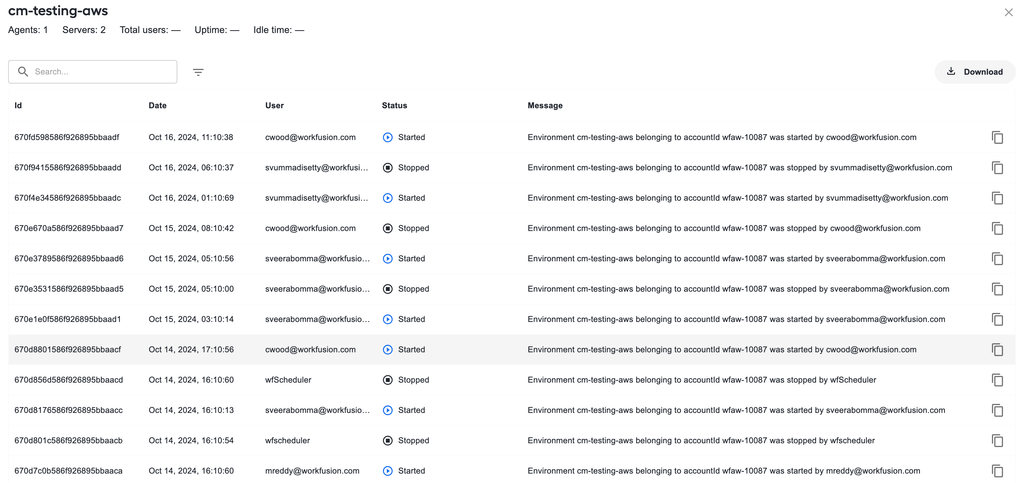
Click View details to review the audit log listing all user actions in the environment, including auto shutdown.
Monitor state
In the top right corner of each environment panel, you can see the environment's state:
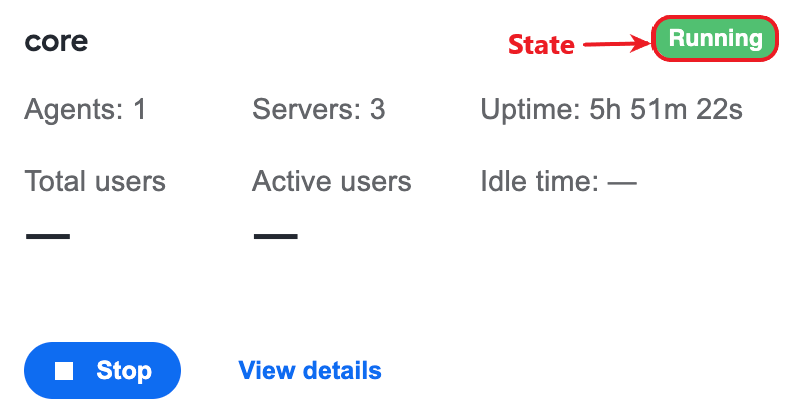
Running: all the servers, Agents, and BI machines that are part of the WorkFusion Product are running and serving users. You can stop them at any moment.
Stopped: all the servers, Agents, and BI machines that are part of the WorkFusion Product are stopped. You can start them at any moment.
Inconsistent: some nodes in the installed WorkFusion Product are running, and some are in the stopped state. This might be because the instances were stopped manually, which you should check with your Cloud Management Admin.
In Progress: it is an intermittent state when the environment transitions from STOPPED to START. When the environment start is initiated, it takes some time for the cloud provider to boot up all instances. Until the services are up, the user sees the In Progress state.
When an environment is in the Running or Inconsistent state, clicking the state button shows the status of all WorkFusion platform components.
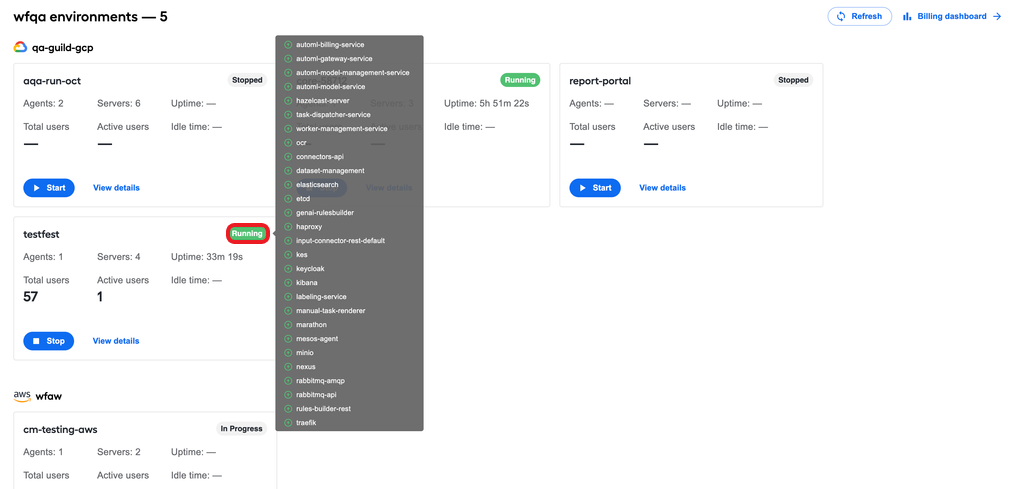
Enable or disable environment auto shutdown
Cloud Manager monitors all running environments that are using the infrastructure. If a user is idle and an environment is not utilized or has no real workload, the environment is shut down. Fifteen minutes prior to the shutdown, the environment's owner gets a warning email. The inactivity is monitored every 15 minutes over a period of 8 windows to assess the need for shutdown.
If, upon the notification, the user resumes work, the environment continues running. Otherwise, Cloud Manager stops the environment to save the operational and infrastructure costs.
By default, the auto shutdown is enabled for all environments. To temporarily disable the auto shutdown feature for an environment, submit a ticket to WorkFusion's CloudOps.