
OCR REST API
API reference
General information
Primary APIs:
/api/v1/cloud/submitImage/api/v1/cloud/processDocument/api/v1/cloud/getTaskStatus
tip
See also:
- ABBYY FREngine11 user guide attached OCR API
- ABBYY user guide with short examples: OCR API Part I and OCR API Part II
Authentication
Like some other components of IA Cloud Enterprise, Optical Character Recognition (OCR) uses JWT for authentication. To access most OCR resources, you need to retrieve the JWT token. For that, you can access any Workfusion instance, provide a user login/password and retrieve a short-living JWT token:
curl -X POST -H Content-Type:application/json -d '{"username":"'<USER>","password":"<PASSWORD>"}' http://<workfusion_hostname>/workfusion/api/v1/jwt/login
You can use that token to access any OCR resource, for example:
curl --form "file=@FILENAME" -H "Authorization:Bearer <JWT_TOKEN>" "http://<ocr-hostname>/api/v1/cloud/processImage"
Using command line
Process image: specifies an appropriate location of a file (FILENAME) and OCR parameters to processImage API call.
curl -s --form "file=@FILENAME" "http://ocr.hostname:8080/api/v1/cloud/processImage?correctSkew=true&xml:writeRecognitionVariants=false&profile=documentConversion&exportFormat=txt&language=English&correctOrientation=true"Output: copies a task ID for the next command.
<?xml version="1.0" encoding="UTF-8" standalone="yes"?><response><task id="5693d8f77b78005fcbbfbe84" message="OK" processEndTime="2016-01-11T16:32:00" processStartTime="2016-01-11T16:31:56" registrationTime="2016-01-11T16:32:28" resultUrl="http://ocr.hostname:8080/api/v1/cloud/download?taskId=5693d8f77b78005fcbbfbe84&result=1" resultUrl2="http://ocr.hostname:8080/api/v1/cloud/download?taskId=5693d8f77b78005fcbbfbe84&result=2" resultUrl3="http://ocr.hostname:8080/api/v1/cloud/download?taskId=5693d8f77b78005fcbbfbe84&result=3" statusChangeTime="2016-01-11T16:32:28" status="Completed"/></response>Gets status by the task ID:
curl -s "http://ocr.hostname:8080/api/v1/cloud/getTaskStatus?taskId=5693d8f77b78005fcbbfbe84"Output: If
message="OK", you can download results from links inresultUrl,resultUrl2,resultUrl3(depends on the export format).<?xml version="1.0" encoding="UTF-8" standalone="yes"?><response><task id="5693d8f77b78005fcbbfbe84" message="OK" processEndTime="2016-01-11T16:32:00" processStartTime="2016-01-11T16:31:56" registrationTime="2016-01-11T16:32:28" resultUrl="http://ocr.hostname:8080/api/v1/cloud/download?taskId=5693d8f77b78005fcbbfbe84&result=1" resultUrl2="http://ocr.hostname:8080/api/v1/cloud/download?taskId=5693d8f77b78005fcbbfbe84&result=2" resultUrl3="http://ocr.hostname:8080/api/v1/cloud/download?taskId=5693d8f77b78005fcbbfbe84&result=3" statusChangeTime="2016-01-11T16:32:28" status="Completed"/></response>
API Usage
API sequence call
Uploads file with
submitImage.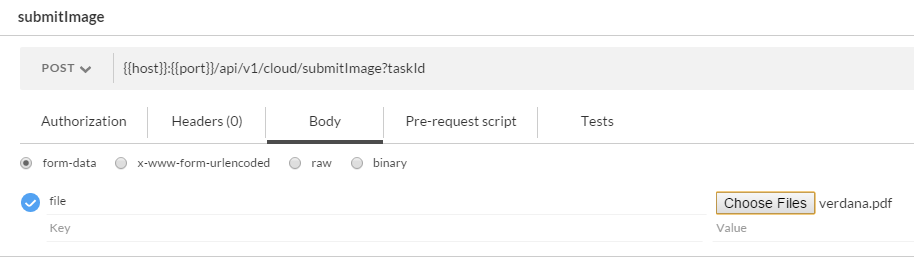
Copies
taskIdfrom the response:<?xml version="1.0" encoding="UTF-8" standalone="yes"?> <response> <task id="5b06b1b295ac0b000144fb7e" processEndTime="" processStartTime="" registrationTime="2018-05-24T12:36:02" resultUrl="http://ocr2-dev2.crowdcomputingsystems.com:8080/api/v1/cloud/download?taskId=5b06b1b295ac0b000144fb7e& result=1" resultUrl2="http://ocr2-dev2.crowdcomputingsystems.com:8080/api/v1/cloud/download?taskId=5b06b1b295ac0b000144fb7e& result=2" resultUrl3="http://ocr2-dev2.crowdcomputingsystems.com:8080/api/v1/cloud/download?taskId=5b06b1b295ac0b000144fb7e& result=3" statusChangeTime="2018-05-24T12:36:02" status="Submitted"/> </response>Starts image processing with
processDocument.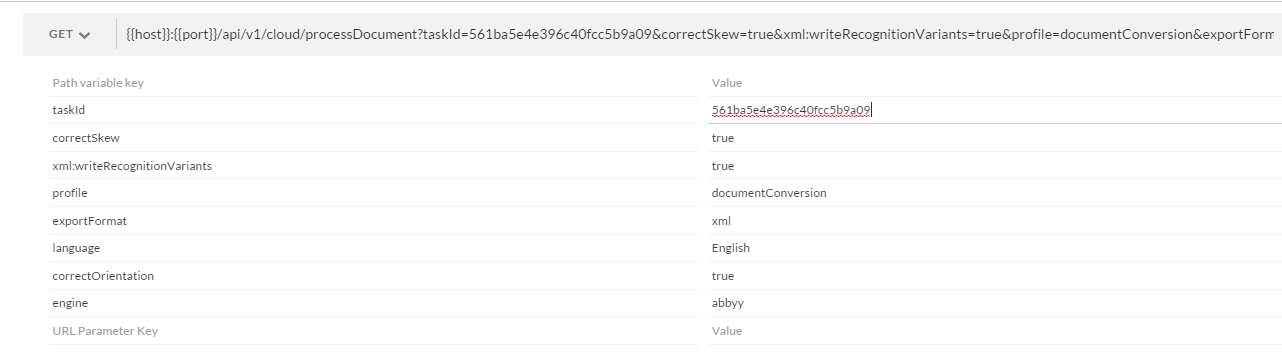
Checks task status with
getTaskStatus(specify correcttaskId).
If the task is complete (
status="Completed"), open results from theresultUrl,resultUrl2orresultUrl3fields (replace&with&).
Custom request parameters
We implement custom or additional request parameters. See the following sections.
GET /processDocument
exportFormat: OCR API export format:html: HTML pagepdfSearchable: text can be searched in this type of filexml: file contains characters or words along with their location in the original document (coordinates or frames)xmlForCorrectedImage: the same asxml, except location is taken from a processed or adjusted documenttxt: plain text (default)
For multiple export formats, you can use combinations delimited by a comma:
pdfSearchable,xmlForCorrectedImage,html. You can use maximum of three types at once.Attention: You can use maximum three types at once.
customRegions(JSON variable)[ { "type":"BT_Table", "page":1, "left":0, "top":0, "right":2000, "bottom":2000 }, { "type":"BT_Table", "page":1, "left":0, "top":2000, "right":4000, "bottom":4000 }, { "type":"BT_Table", "page":2, "left":0, "top":0, "right":4000, "bottom":4000 } ]The example to select one table region for all pages.
[ { "type": "BT_Table", "left": 0, "top": 0, "right": 2000, "bottom": 2000 } ]correctSkew(default true): if true, the page skew will be detected and automatically corrected.correctOrientation(default true): if true, the page orientation will be detected and if it differs from normal, will be automatically rotated.skipPreprocessing(default false) skips preprocessing stage. It will increase performance up to 30%.useOnlyCustomRegions(default false) skips original analyzing stage / extract information from custom regions only.alphabetExtension: string with specials symbols to extend already defined alphabet.useDefaultPattern(default false): if true, it requires to apply the default pattern (from the OCR application bundle).removeNoiseModelsremoves noise on the image (optional, valid value - comma separated values: CorrelatedNoise, WhiteNoise). Important: This method can be used for color and 8-bit gray images only.removeGarbageSizeremoves garbage (excess dots that are smaller than a certain size) from the image (optional, valid value > 0 and -1 for automatically detect garbage size).allowedRegionTypes: allowed region types for identified blocks classification. If allowedRegionTypes=Empty, all types will be processed. For example, to suppress classifying any block as picture (BT_RasterPicture) specify the parameter value as BT_Table, BT_Text, BT_Barcode, BT_VectorPicture, BT_Separator, BT_SeparatorGroup, BT_Checkmark, BT_CheckmarkGroup. NOTE: Narrowing down type of regions can break page layout. Do not use it if you're not sure you need it.discardColorImage: if you work with black-and-white images or the color of images is not important, set the discardColorImage to true.enhanceLocalContrastspecifies whether the local contrast of the image should be increased. Such preprocessing may increase the quality of recognition. It is effective for:- photos or scans of documents with texture or pictures in the background
- photos or scans of documents with highly colorful background or text highlighting
languagespecifies predefined language, for example, English. You can also define multiple languages and use comma as a separator: English,German,Polish.lowResolutionMode(true,false) improves recognition of images with low resolution, for example, faxes.
Pre-processing parameters:
invertImage(defaultfalse) inverts an image.discardColorImage(defaultfalse) leaves only black-and-white plane in the prepared image.removeColorObjectsremoves color objects from the image, colors values: Blue, Green, Red, Yellow.removeColorObjectsType(defaultBackground) removes color objects from the image, modes values: Background, Full, Stamp.convertTo(value=TIFF): automatic detection of the file type and conversion to TIFF (convert before processing). Accepts images: PDF, PNG, JPG, JPEG.pages: selection of pages from PDF files for recognition, for example,pages=1,2,3,10-15.changeDPIcontains the new value of DPI. Available values: from 50 to 3,200, for example,changeDPI=300.useAutoDetectedDPIFromRange({"min": 50,"max": 3200}) is DPI detection from the defined range to detect best resolution and apply it before further processing. Note: changeDPI is not applicable whenuseAutoDetectedDPIFromRangeis defined. When engine cannot define best DPI then original DPI is used.priority: (0-10) defines priority in the image processing queue.
POST /processImage
file: file in one of the following formats: PDF, PNG, JPG, JPEGexportFormat: OCR API export format:html: HTML pagepdfSearchable: text can be searched in such a filexml: file contains characters or words along with their location in the original document (coordinates and frames)xmlForCorrectedImage: the same as XML, except location is taken from a processed or adjusted documenttxt: plain text (default)
For multiple export formats, you can use combinations delimited by the comma:
pdfSearchable,xmlForCorrectedImage,html. You can use maximum of three types at once.xml:writeRecognitionVariantsmakes XML and xmlForCorrectedImage formats to contain all variants of character or word OCR considered as a possible recognition.customRegions(JSON variable).correctSkew(default true): if true, the page skew will be detected and automatically corrected.correctOrientation(default true): if true, the page orientation will be detected and if it differs from normal, will be automatically rotated.skipPreprocessing(default false).useOnlyCustomRegions(default false) skips original analyzing stage / extract information from custom regions only.alphabetExtension: string with specials symbols to extend already defined alphabet.pattern: file upload for a pattern to be applied to recognize special symbols. Note:- You should also add the symbol to
alphabetExtension. - You can use either the explicit pattern uploaded with the field or
useDefaultPattern=true. Both cannot be used at a time.
- You should also add the symbol to
useDefaultPattern(default false): if true, it requires to apply the default pattern (from the OCR application bundle).dictionary: file where each line contains a word or combination of characters which can be used to improve OCR recognition. The set of words extends, not limits, the default dictionary.removeNoiseModelsremoves noise on the image (optional, valid value - comma separated values: CorrelatedNoise, WhiteNoise). Important: This method can be used for color and 8-bit gray images only.removeGarbageSizeremoves garbage (excess dots that are smaller than a certain size) from the image (optional, valid value > 0).allowedRegionTypes: allowed region types for identified blocks classification. IfallowedRegionTypes=Empty, all types will be processed. For example, to suppress classifying any block as picture (BT_RasterPicture) specify the parameter value as BT_Table, BT_Text, BT_Barcode, BT_VectorPicture, BT_Separator, BT_SeparatorGroup, BT_Checkmark, BT_CheckmarkGroup. To narrow down type of regions even more you can use the following set: BT_Table, BT_Text, BT_Separator, BT_SeparatorGroup. NOTE: Narrowing down type of regions can break page layout. Do not use it if you're not sure you need it.enhanceLocalContrastspecifies whether the local contrast of the image should be increased. Such preprocessing may increase the quality of recognition. It is effective for:- photos or scans of documents with texture or pictures in the background
- photos or scans of documents with highly colorful background or text highlighting
languagespecifies predefined language, for example, English.lowResolutionMode(true,false) improves recognition of images with low resolution, for example, faxes.
Pre-processing parameters:
invertImage(default false) inverts image colors.discardColorImage(default false) leaves only black-and-white plane in the prepared image.important
The parameter discards a color plane of Document. Therefore, it is incompatible with the
removeColorObjectsparameter.removeColorObjectsremoves color objects from the image, colors values: Blue, Green, Red, Yellow.removeColorObjectsTypespecifies the type of the objects to be removed. Supported types:Full,Background,Stamp.Full: all color objects on the imageBackground: color objects in the backgroundStamp: only color stamps and signatures.
important
The method can be used for color images only. Also, you can use only one type per request.
convertTo(value=TIFF): autodetection of the file type and conversion to TIFF (convert before processing). Accepts images: PDF, PNG, JPG, JPEG.pages: selection of pages from PDF files for recognition (example:pages=1,2,3,10-15).changeDPIcontains the new value of dpi, changeDPI available values from 50 to 3200 (example:changeDPI=300).useAutoDetectedDPIFromRange: ({"min": 50,"max": 3200}) DPI detection from defined range to detect best resolution and apply it before further processing. Note:changeDPIis not applicable whenuseAutoDetectedDPIFromRangeis defined. When engine cannot define best DPI then original DPI is used.priority(0-10) defines priority in the image processing queue.
Custom APIs
GET /summary
Returns the total number of tasks with status QUEUED. Can produce JSON and XML.
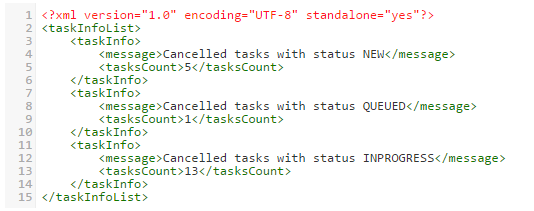
GET /cancelTasks
Change status for all NEW, QUEUED and INPROGRESS tasks to CANCELLED.
Response example:
tip
Add the new parameter that defines which tasks to cancel. For example, the upload date or task ID.
POST /trainPattern
Trains a user pattern for the symbol.
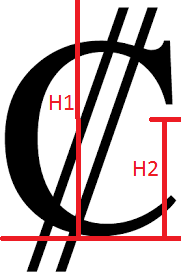
file: image file with a symbolbaseLinecontains the distance from the base line to the top edge of the cropped image of the character. The base line is the line on which the characters are located.- The top edge of the image is determined by the character orientation. H1 on the picture.
smallSymbolHeightspecifies the height of small characters in pixels on the source image. H2 on the picture.symbol: symbol associated with picturesmergePattern: pattern uploaded as a file. If provided, the training output pattern will be combined with the uploaded.
Request example:
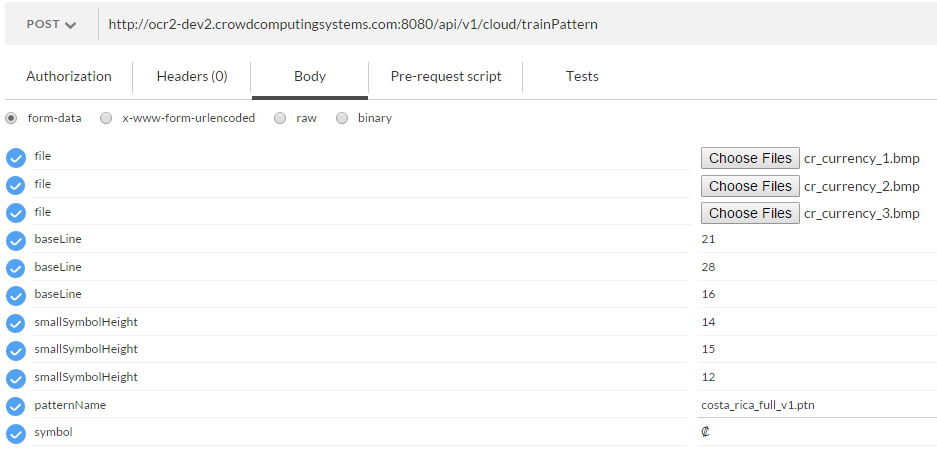
Response is a downloadable pattern file in a proprietary binary format.
note
When using a custom pattern, you need to specify alphabetExtension with the trained symbol in processImage or processDocument.
POST /submitPattern
The method attaches a pattern file for recognition of special symbols to an existing task created with submitImage. To be consequently processed with the processDocument action.
Parameters:
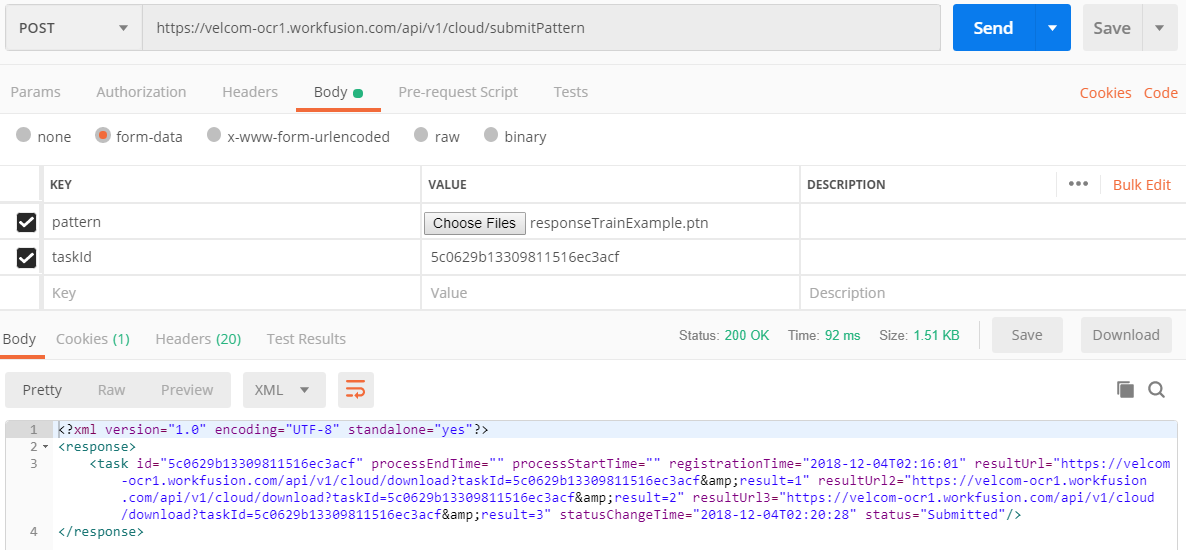
pattern: the pattern file to uploadtaskId: mandatory
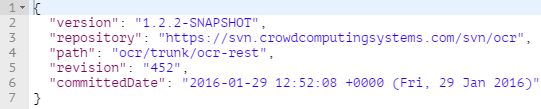
GET /api/project-info
GET /activeLicense

Returns the current active license and all available information about this license.
Result example
{
   "availableTextTypes":    [
      "ATT_Normal",
      "ATT_Typewriter",
      "ATT_Matrix",
      "ATT_Index",
      "ATT_OCR_A",
      "ATT_OCR_B",
      "ATT_MICR_E13B",
      "ATT_MICR_CMC7",
      "ATT_Advanced"
   ],
   "availableBarcodeModules":    [
      "ABM_1D",
      "ABM_PDF417",
      "ABM_Aztec",
      "ABM_QRCode",
      "ABM_MaxiCode",
      "ABM_DataMatrix",
      "ABM_Autolocation"
   ],
   "availableEngineModules":    [
      "AEM_ProcessAsPlainText",
      "AEM_Process",
      "AEM_Analyze",
      "AEM_Recognize",
      "AEM_Synthesize",
      "AEM_ExtendedCharacterInfo",
      "AEM_OpenPDF",
      "AEM_UserPatterns",
      "AEM_BalancedMode",
      "AEM_FastMode",
      "AEM_BCR",
      "AEM_Classification"
   ],
   "availableExportFormats":    [
      "AEF_RTF",
      "AEF_HTML",
      "AEF_XLS",
      "AEF_PDF",
      "AEF_Text",
      "AEF_PDFImageOnly",
      "AEF_XML",
      "AEF_PPT",
      "AEF_PDFA",
      "AEF_PDFMRC",
      "AEF_ALTO",
      "AEF_EPUB",
      "AEF_FB2",
      "AEF_ODT",
      "AEF_XPS"
   ],
   "availableVisualComponents": [],
   "availableLanguageSets":    [
      "ALS_Standard",
      "ALS_DataCapture",
      "ALS_Artificial",
      "ALS_Programming",
      "ALS_User",
      "ALS_Chinese",
      "ALS_Hebrew",
      "ALS_Thai",
      "ALS_Vietnamese",
      "ALS_Arabic",
      "ALS_Japanese",
      "ALS_Korean"
   ],
   "volumeRefreshingPeriod": "VRP_Infinite",
   "volume": 10000,
   "volumeRemaining": 10000,
   "serialNumber": "SWAT-1101-1004-1541-1060-5817",
   "allowedCoresCount": 2,
   "minimumCoresCountPerInstance": 0
}
The meaning of the fields in the response:
| Attribute | Explanation |
|---|---|
availableTextTypes | Set of the text types available in the license |
availableBarcodeModules | Set of the ABBYY FineReader Engine barcode modules available in the license |
availableEngineModules | Set of the ABBYY FineReader Engine modules available in the license |
availableExportFormats | Set of the export formats available in the license |
availableVisualComponents | Set of visual components available in the license |
availableLanguageSets | Set of the language sets available in the license |
volumeRefreshingPeriod | Information about the limitation period if the license limits the number of processed pages or characters during this period |
volume | Total number of pages or characters that can be processed during a period if the license has such a limitation |
volumeRemaining | Remaining number of pages or characters that can be processed till the end of the current period if the license has such a limitation. When this property value reaches 0, analysis, recognition and export operations will not be possible. |
serialNumber | Serial number of the license |
allowedCoresCount | Number of CPU cores that can be used simultaneously. If the value of this property is 0, the number of CPU cores is unlimited. |
minimumCoresCountPerInstance | Minimum number of CPU cores which is allocated by ABBYY FineReader Engine at initialization |
GET /listLicenses

Returns a list of all licenses connected to the current ABBYY Engine.
List of licenses
[{
   "availableTextTypes":    [
      "ATT_Normal",
      "ATT_Typewriter",
      "ATT_Matrix",
      "ATT_Index",
      "ATT_OCR_A",
      "ATT_OCR_B",
      "ATT_MICR_E13B",
      "ATT_MICR_CMC7",
      "ATT_Advanced"
   ],
   "availableBarcodeModules":    [
      "ABM_1D",
      "ABM_PDF417",
      "ABM_Aztec",
      "ABM_QRCode",
      "ABM_MaxiCode",
      "ABM_DataMatrix",
      "ABM_Autolocation"
   ],
   "availableEngineModules":    [
      "AEM_ProcessAsPlainText",
      "AEM_Process",
      "AEM_Analyze",
      "AEM_Recognize",
      "AEM_Synthesize",
      "AEM_ExtendedCharacterInfo",
      "AEM_OpenPDF",
      "AEM_UserPatterns",
      "AEM_BalancedMode",
      "AEM_FastMode",
      "AEM_BCR",
      "AEM_Classification"
   ],
   "availableExportFormats":    [
      "AEF_RTF",
      "AEF_HTML",
      "AEF_XLS",
      "AEF_PDF",
      "AEF_Text",
      "AEF_PDFImageOnly",
      "AEF_XML",
      "AEF_PPT",
      "AEF_PDFA",
      "AEF_PDFMRC",
      "AEF_ALTO",
      "AEF_EPUB",
      "AEF_FB2",
      "AEF_ODT",
      "AEF_XPS"
   ],
   "availableVisualComponents": [],
   "availableLanguageSets":    [
      "ALS_Standard",
      "ALS_DataCapture",
      "ALS_Artificial",
      "ALS_Programming",
      "ALS_User",
      "ALS_Chinese",
      "ALS_Hebrew",
      "ALS_Thai",
      "ALS_Vietnamese",
      "ALS_Arabic",
      "ALS_Japanese",
      "ALS_Korean"
   ],
   "volumeRefreshingPeriod": "VRP_Infinite",
   "volume": 10000,
   "volumeRemaining": 10000,
   "serialNumber": "SWAT-1101-1004-1541-1060-5817",
   "allowedCoresCount": 2,
   "minimumCoresCountPerInstance": 0
}]
GET /api/v1/metrics/count
Request example:
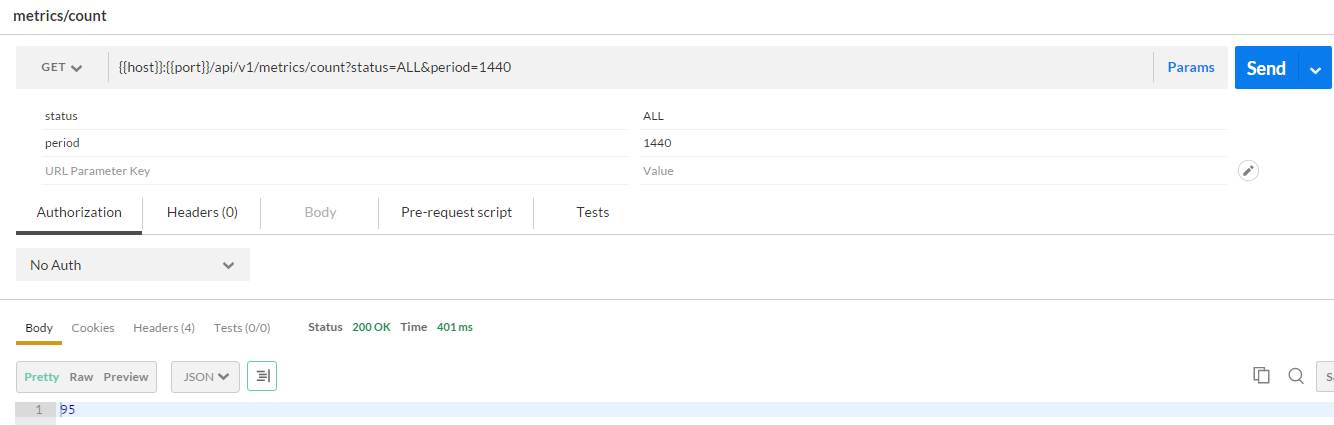
The parameters are as follows:
status: either one ofTaskStatusvalues or aggregate:DONE,PROCESSING,ALLperiod: number of minutes to subtract from the current time. By default, the range isNOW-MINUTEStoNOW. When the period is negative, the range isBEGINNINGtoNOW-MINUTES. The default is 60 minutes.
GET /api/v1/metrics/stats
Request example:
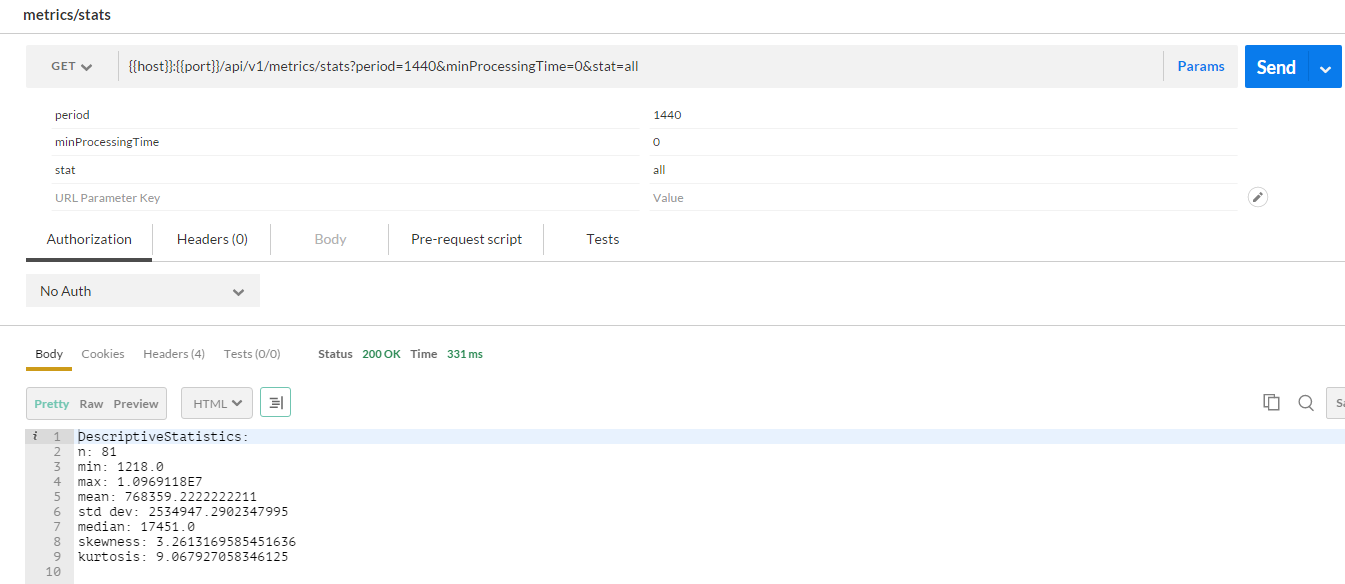
The parameters are as follows:
period: number of minutes to subtract from the current time. By default, the range isNOW-MINUTEStoNOW. The default is 60 minutes.minProcessingTime: tasks with processing time less than this value is discurded. The default is 1,000 (1 second).stat: descriptive statistic:min,max,n(number of values),std,percentileN(where N is any number 0-100), or all.
Multi-worker processing
When process starting to work with specific task it changes task status, so other processes can't also start working with that task thus one task can be processed only by one process-worker.
When server during task processing is terminated we not able to send that task to the queue immediately, but we have service that runs on a schedule and puts such tasks to the queue.
Server specification and usage guidance
Currently, it's a low-parameters instance. Don't submit many documents. License allows only 10K pages to be recognized.
How to use OCR API
OCR is a technology for converting document images into editable text.
There is ability to recognize document by several ways:
- via processImage API
- via processDocument API
An example of picture recognition by several ways is provided below.
Recognition via processImage API
Authentication should be set if needed
POST host:port/api/v1/cloud/processImage
Start image processing with processImage.
- Upload a document or an image as a file.
- Add parameters for correct recognition.
- Send a request.
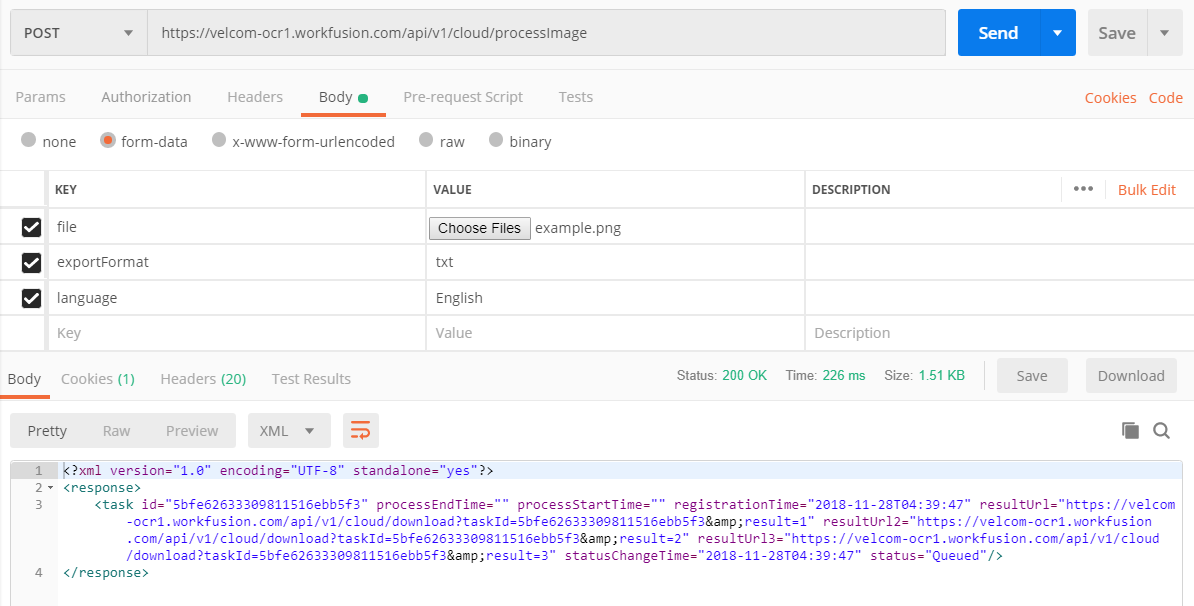
A response has a lot of useful information: taskId, processing time, result Urls, status of recognition.
taskId: used during the next requests in the following steps (copytaskIdfrom a response).ResultUrl: a recognition result is available by this link after completion of recognition.
GET host:port/api/v1/cloud/getTaskStatus?taskId=value
Check task status with getTaskStatus (specify correct taskId).
The taskId value is determined in the previous step.
Set the taskId parameter and send a request.
As a result, the task status with resultUrls are provided in a response.
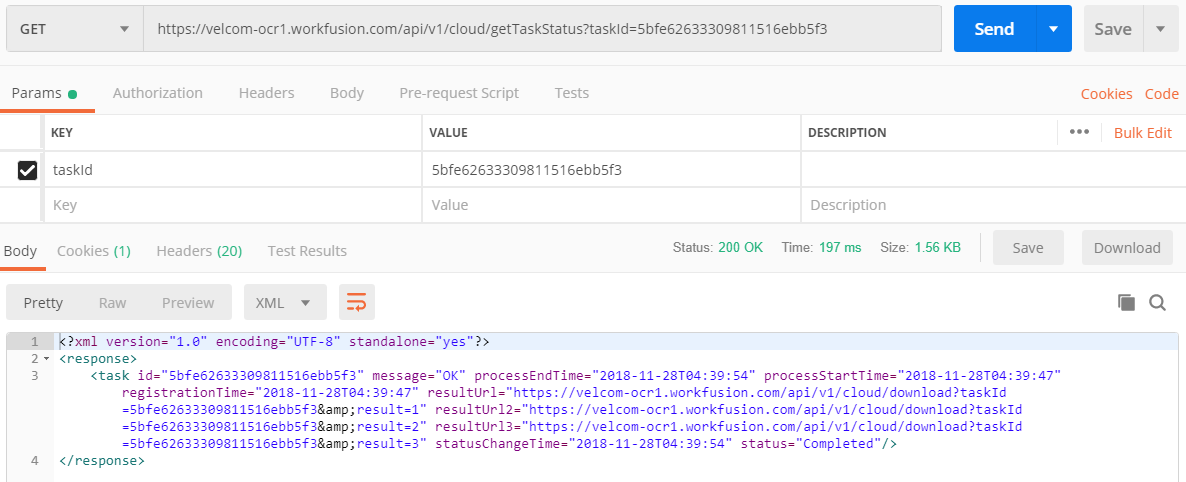
If the task is complete (status="Completed"), open results from the resultUrl, resultUrl2, or resultUrl3 fields (replace & with &).
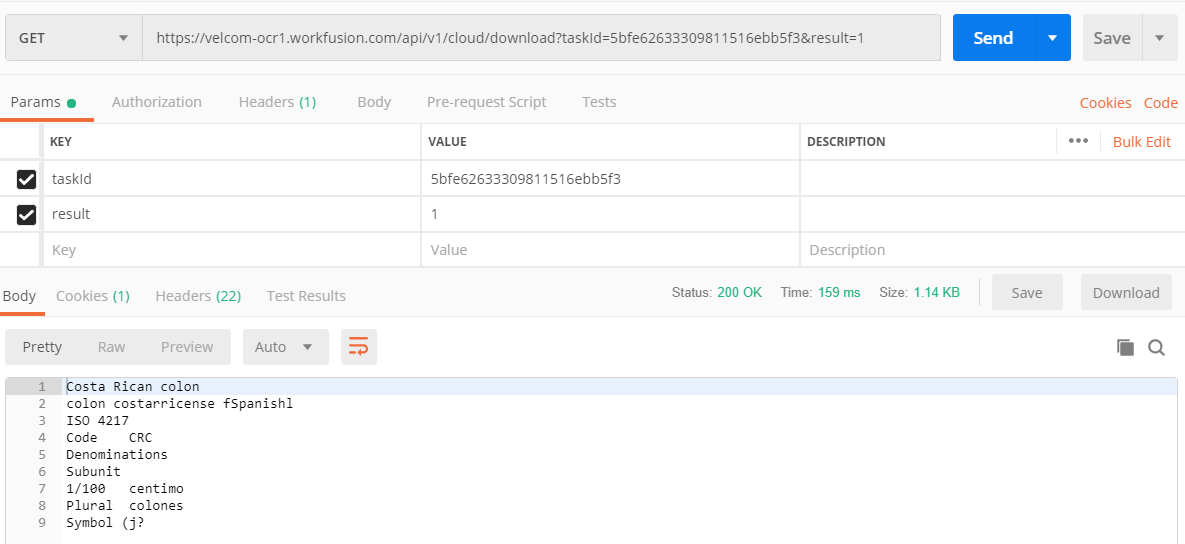
GET host:port/api/v1/cloud/download?taskId=value
If a task is complete (status="Completed"), you can download results from links in resultUrl, resultUrl2, resultUrl3 (depends on the export format).
Recognition via processDocument API
POST host:port/api/v1/cloud/submitImage
Upload a file with submitImage, copy taskId from a response.
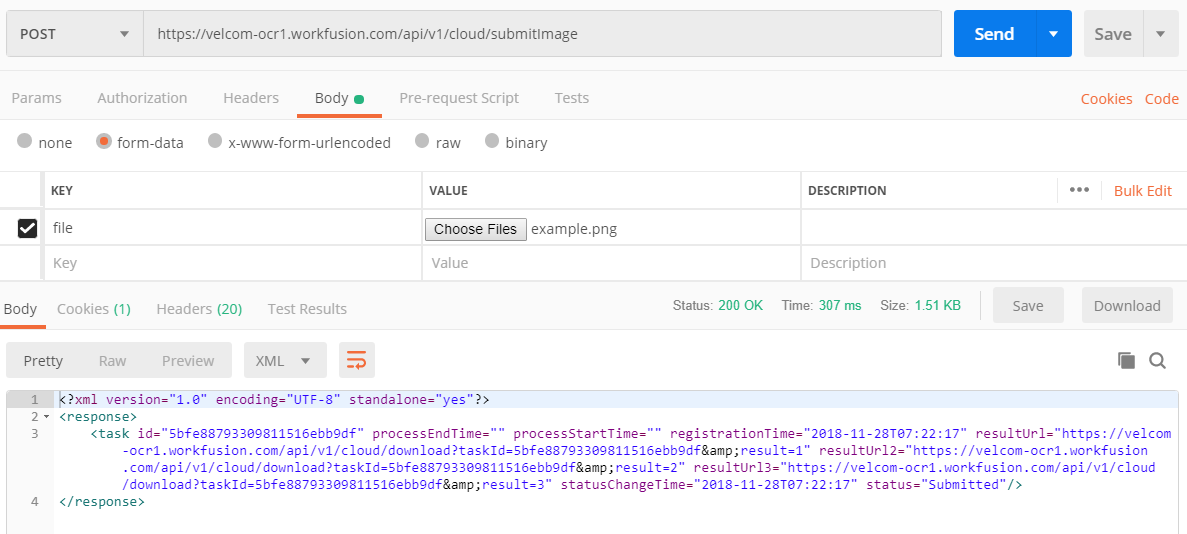
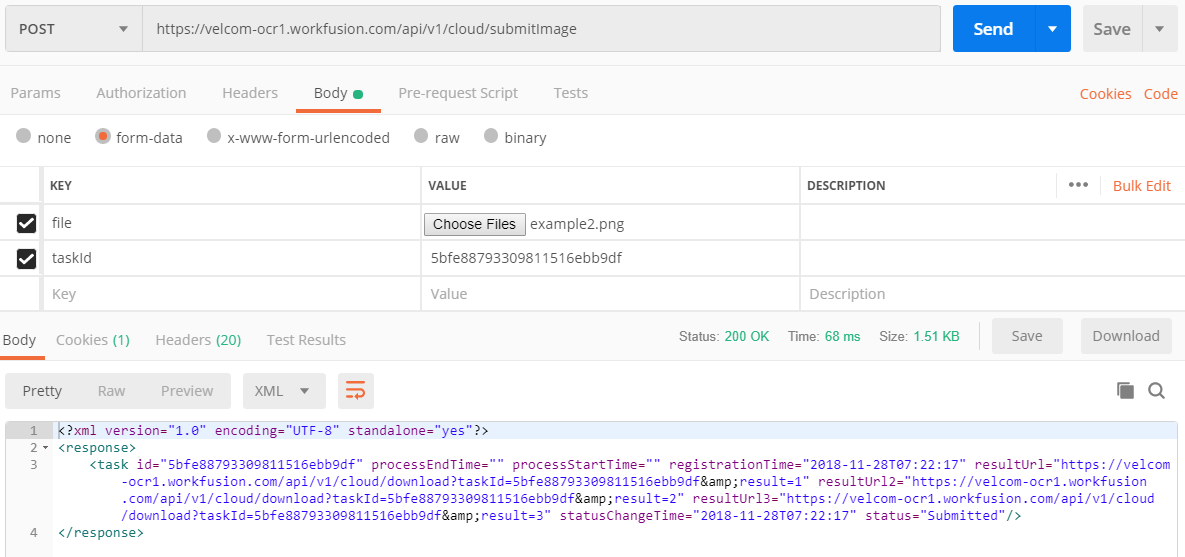
If you need to upload several files for recognition, do as follows:
- Submit an image.
- Copy ID.
- Add the
taskIdparameter to submitImage API. - Submit one more image.
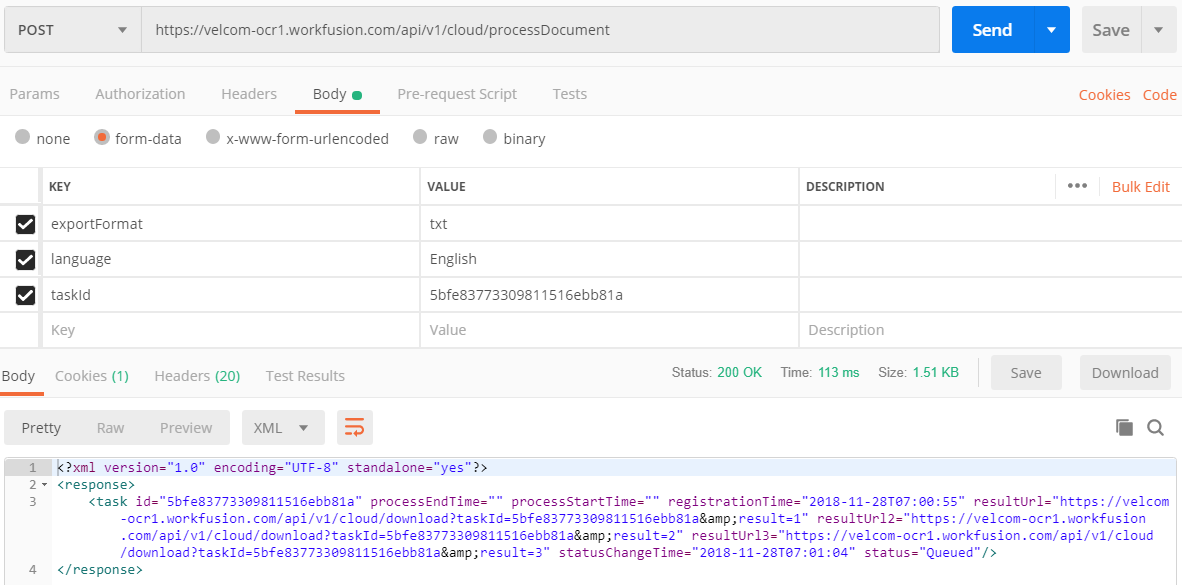
POST host:port/api/v1/cloud/processDocument
Start image processing with processDocument.
- The
taskIdvalue is determined in the previous step. Set thetaskIdparameter. - Add parameters for correct recognition.
- Send a request.
GET host:port/api/v1/cloud/getTaskStatus?taskId=value
Check a task status with getTaskStatus (specify correct taskId).
If a task is complete (status="Completed"), open results from the resultUrl, resultUrl2, or resultUrl3 fields (replace & with &).
GET host:port/api/v1/cloud/download?taskId=value
If a task is complete (status="Completed"), you can also download results from links in resultUrl, resultUrl2, resultUrl3 (depends on the export format).
OCR pattern creation
Extended recognition with a custom trained pattern can be used for:
- Texts set in decorative fonts
- Texts containing unusual characters, for example, mathematical symbols
- Long documents of low print quality (more than a hundred pages)
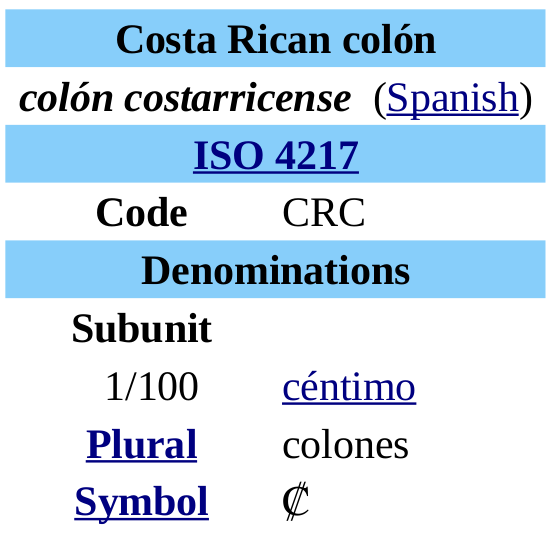
For example:
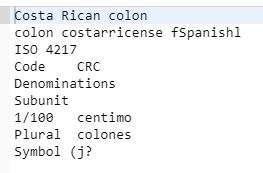
The OCR product provides a possibility to create and train a user pattern that will be used for the further recognition.
The pattern training works as follows. Symbols are recognized in the training mode, and, subsequently, a pattern is created. The pattern is used as a source of additional information during recognition to aid recognition of the remaining text.
At first, prepare images and data for training. Then, prepare several examples of symbols in different views and define symbol parameters: baseLine, smallSymbolHeight.
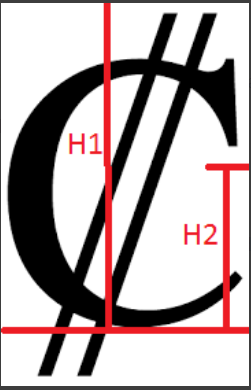
baseLine contains the distance from the base line to the top edge of the cropped image of the character. The base line is the line on which the characters are located.
The top edge of the image is determined by the character orientation: H1 on the picture.
smallSymbolHeightspecifies the height of small characters in pixels on the source image. H2 on the picture.
See the examples below:
| Image | Value |
|---|---|
 |
|
 |
|
 |
|
 |
|
 |
|
 |
|
 |
|
 |
|
 |
|
 |
|
You need to experiment with the baseLine and smallSymbolHeight parameters to optimize recognition.
To determine baseLine and smallSymbolHeight parameters, consider the symbol position on the text line within the actual document. For example, if you consider a checkbox in a tax form, it is much bigger than normal letters, and the base line is slightly higher (1 pixel for W-8BEN-E) than the bottom line of the checkbox. So don't guess the parameters looking at the symbol in isolation, consider the document layout.
Greater pictures of symbols are more efficient for training, preferably around 40-50 pixels.
Generally, you need multiple input images for training.
POST host:port/api/v1/cloud/trainPattern
Set all available examples of a symbol with parameters and required parameters to an API request.
file: image file with the symbol.baseLine: value from the previous step.smallSymbolHeight: value from the previous step.symbol: symbol associated with pictures.
(symbol=₡)
Send and download the trainPattern result as a PTN file.
mergePattern
mergePattern: file upload for a pattern; if provided, the training output pattern is combined with the uploaded pattern.
Prepare images and data for training as was described in OCR pattern creation.
POST host:port/api/v1/cloud/trainPattern
Set all available examples of symbol with parameters and required parameters to an API request.
file: image file with the symbolbaseLine: value from the previous stepsmallSymbolHeight: value from the previous stepsymbol: symbol that is associated with pictures
(symbol=₡)
Use the mergePattern parameter to combine the existing pattern with trained in advanced.
In the current case, ae.ptn is a trained pattern for recognition of the Æ symbol.
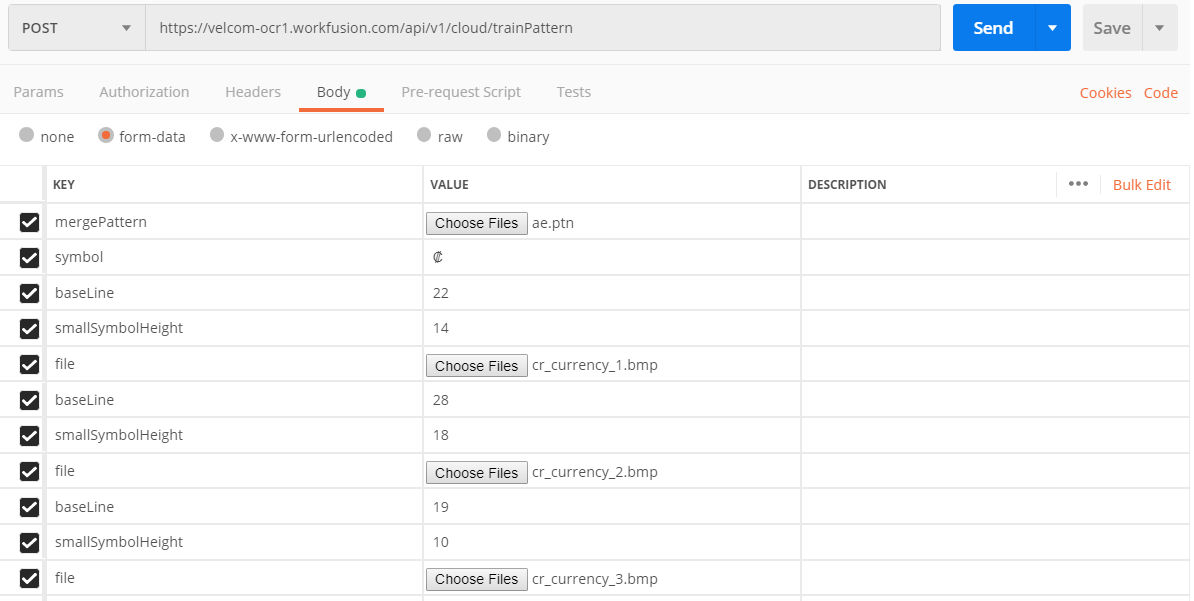
Send and download the trainPattern result as a PTN file.
As a result, the trained pattern is available for recognition of two symbols.
Apply the pattern for the first symbol as described below.
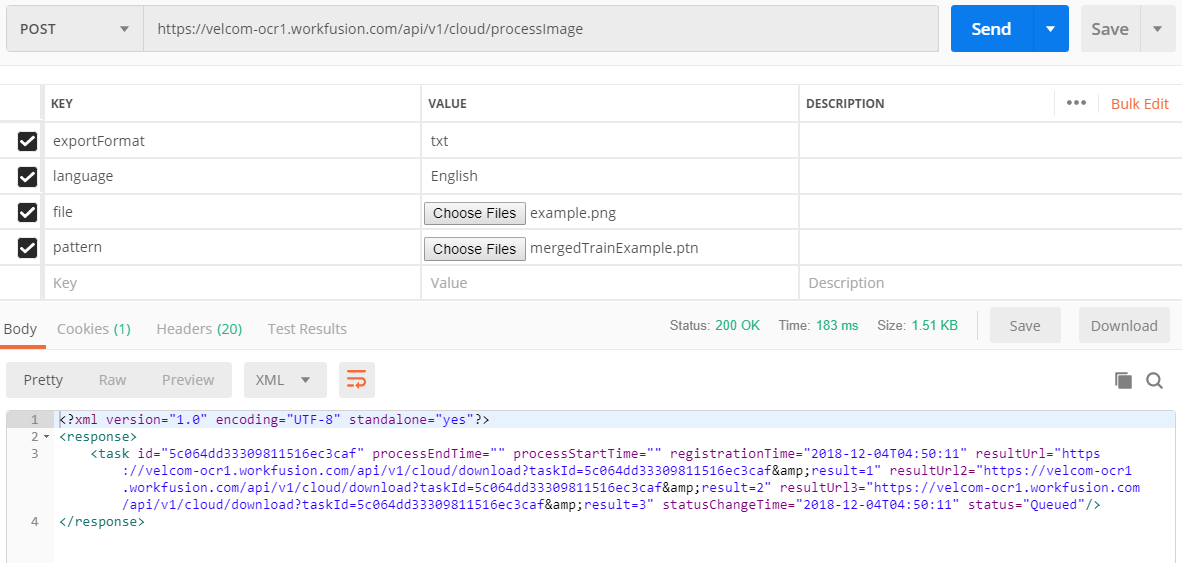
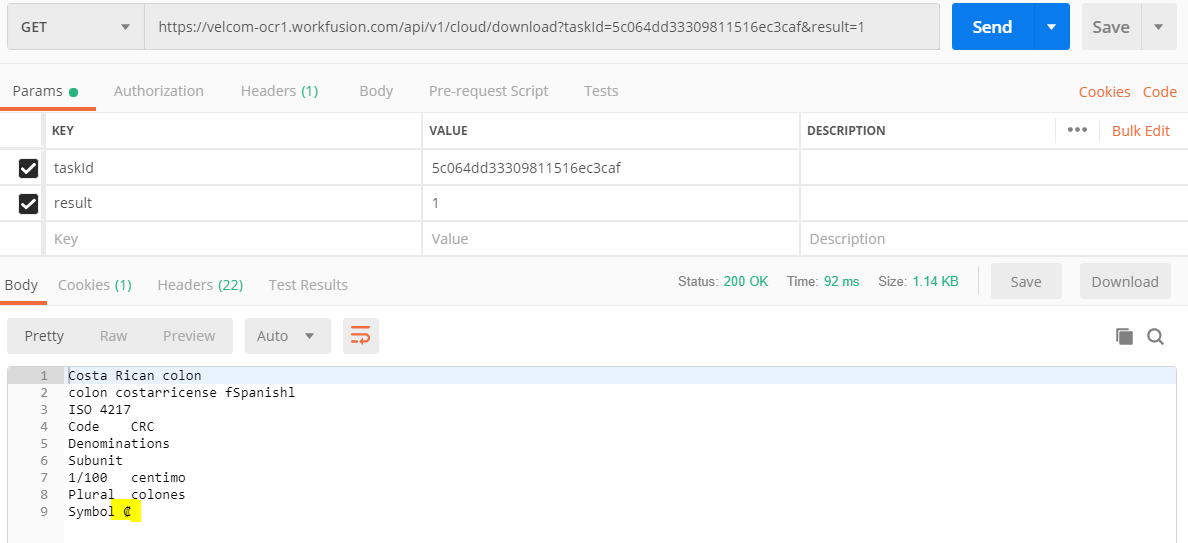
pattern: file upload for a pattern to be applied to recognize special symbols.
note
- You need the symbol to be added to
alphabetExtension(alphabetExtension = Æ). - You can use either an explicit pattern uploaded with the field or
useDefaultPattern=true, not both.
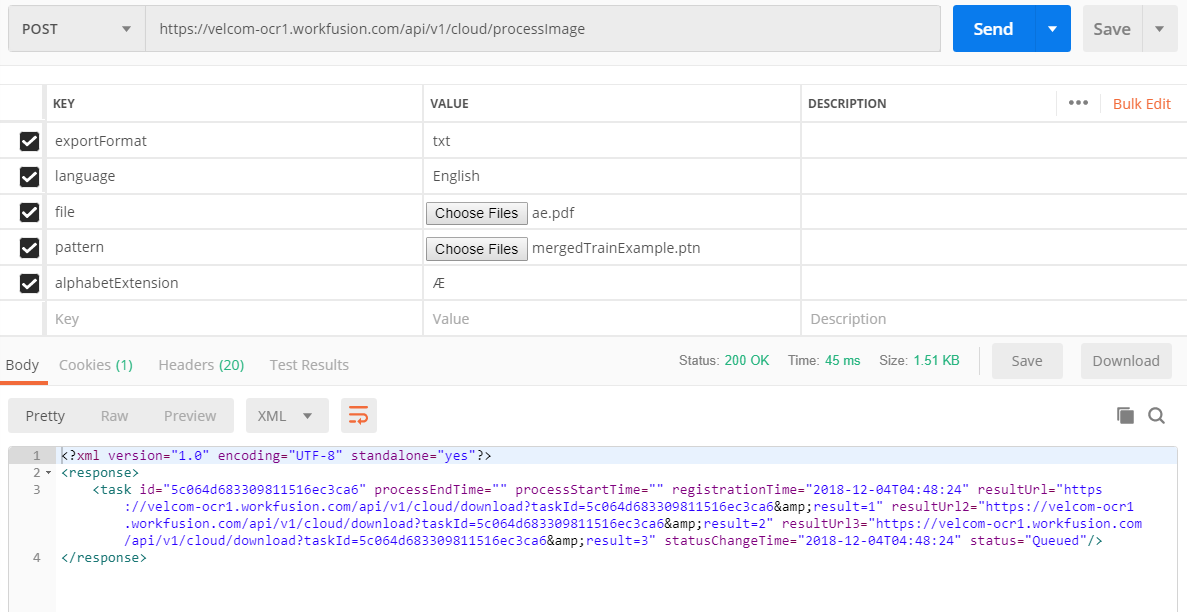
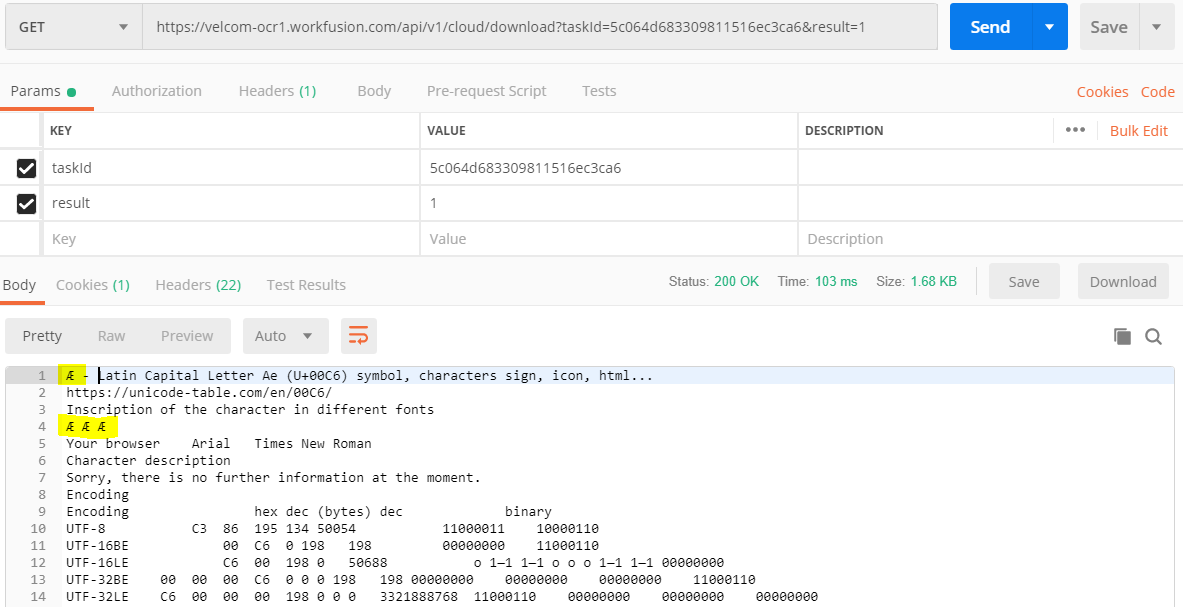
processImage: apply OCR pattern
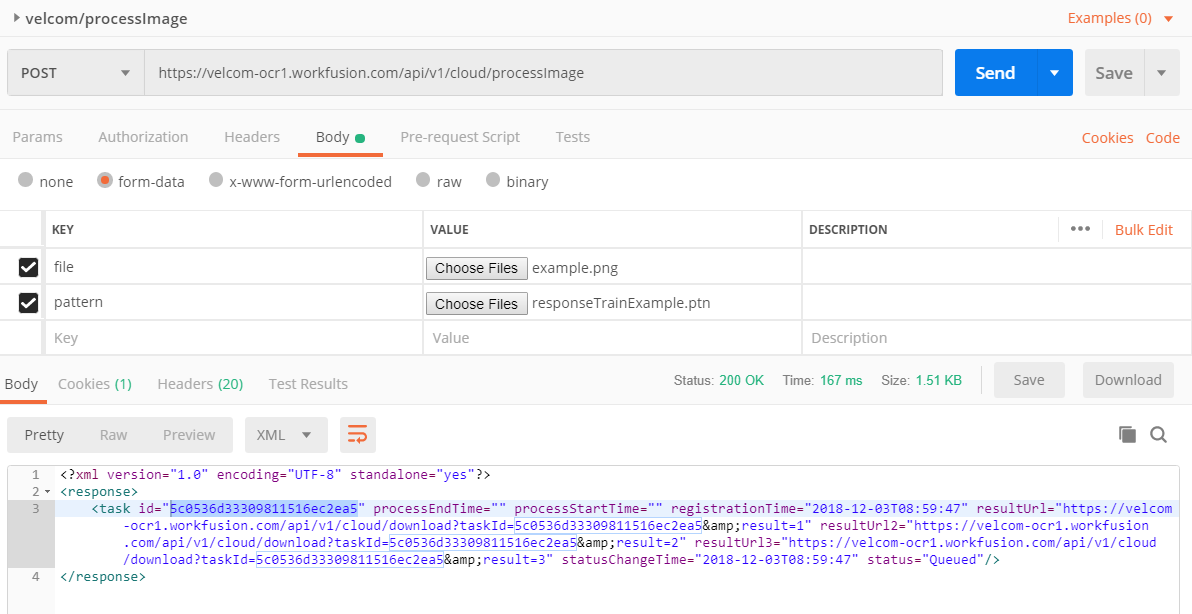
POST host:port/api/v1/cloud/processImage
Add the trainPattern file to the ProcessImage request.
pattern: a file parameter for better recognition.
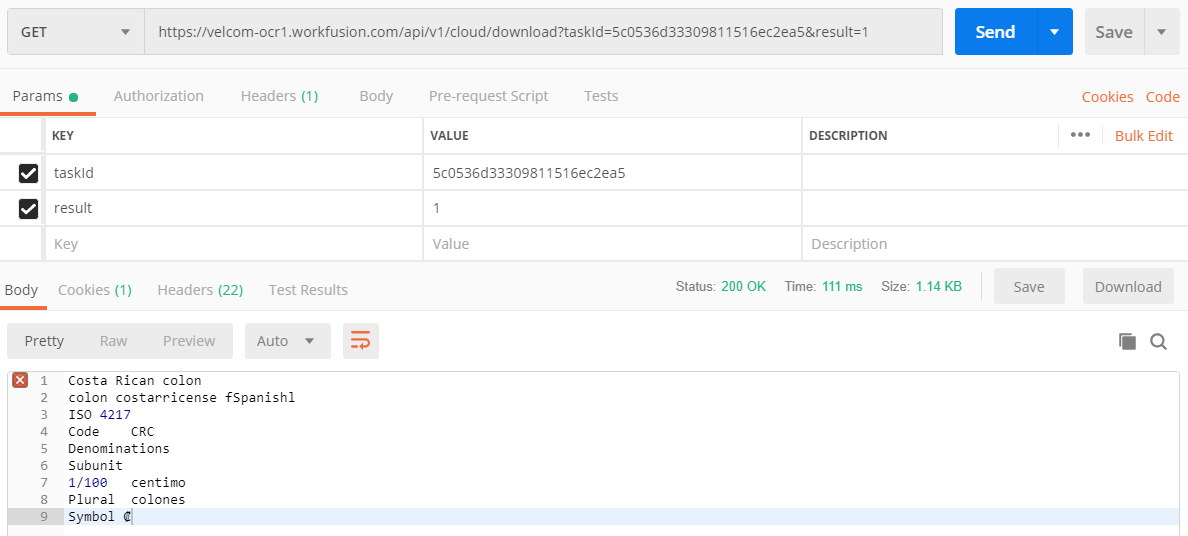
Download results where trainPattern is applied > symbol ₡ iss recognized as expected.
processDocument: apply OCR pattern
First, submit an image for recognition.
POST host:port/api/v1/cloud/submitImage
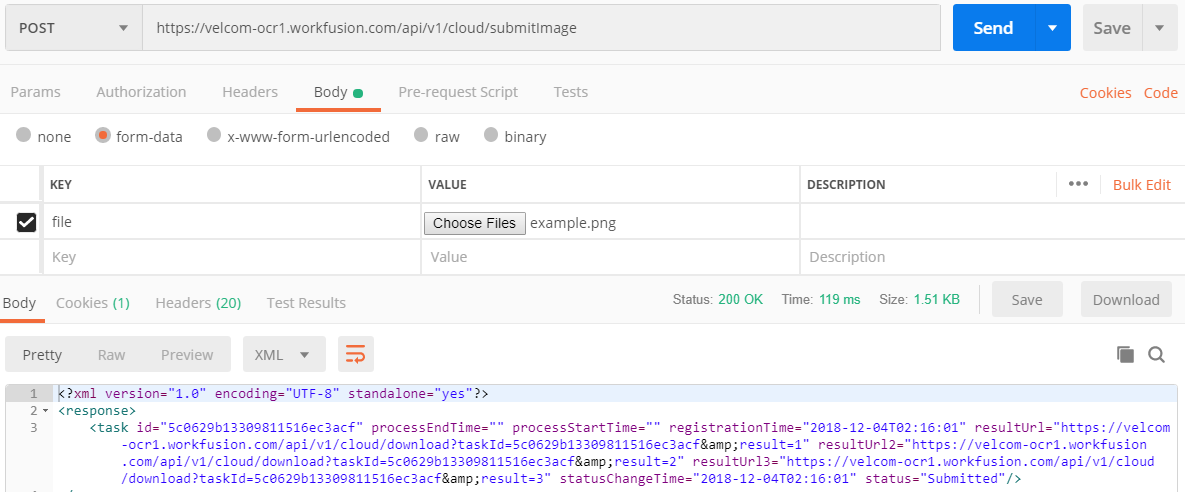
Copy ID for the subsequent steps.
After that, apply submitPattern trained and downloaded before.
POST host:port/api/v1/cloud/submitPattern
The taskId value is determined in the previous step.
Set the taskId parameter and a pattern file.
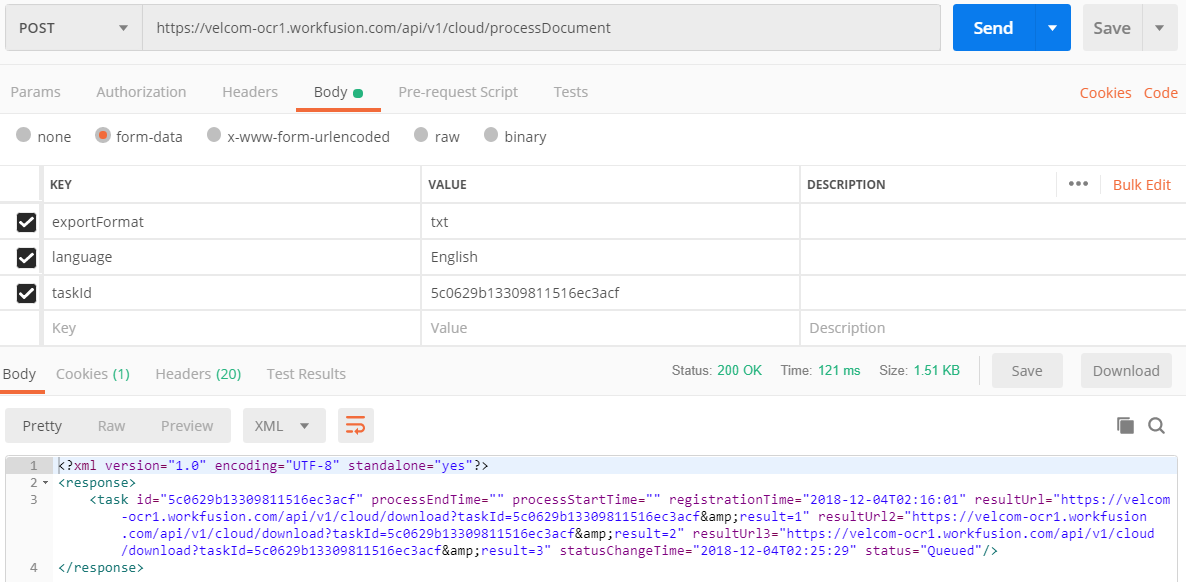
POST host:port/api/v1/cloud/processDocument
Start image processing with processDocument. The trained pattern was uploaded in the previous step.
Set the
taskIdparameter.Add parameters for correct recognition.
Send a request.
Download results where
trainPatternis applied > symbol ₡ was recognized as expected.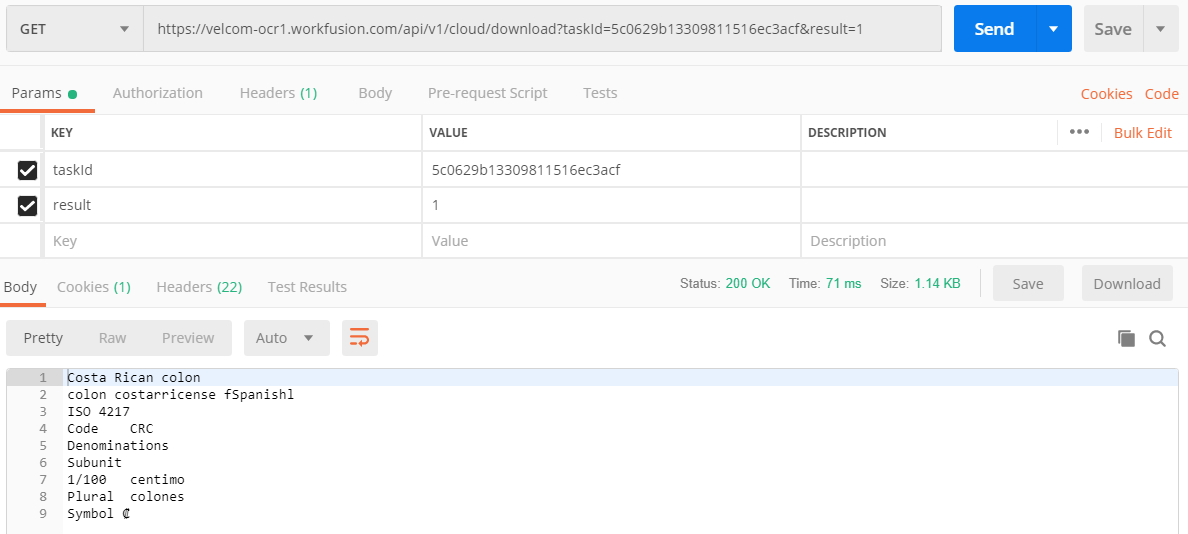
Practical usage tips
Recognition quality
- Use custom
dictionary. - Fetch plain text from pdf and set it to the
originalTextparameter. - Don't use the
removeGarbageSizeparameter for PDF searchable and carefully use it for scanned PDF or image. Sometimes, it can degrade results. - Train and use pattern for some repeatable unrecognized cases. By default, the
costa_rica_currencypattern. - PDF searchable document is preferable to recognition than high DPI image created from it.
- Recommended resolution for source image: 300 DPI for typical texts (10 pt or larger) and 400-600 DPI for texts in smaller fonts (9 pt or smaller).
Performance improvements
- Use
skipPreprocessing=trueat least for PDF searchable documents. It saves up to 30% processing time - Use
xml:writeRecognitionVariants=falseif you don't need char or word variants in the output XML file. It saves up to 30% processing time, memory and disk space.