Resolve Worker out-of-memory failures
In certain cases, for instance, when you are processing large-size files, Workers can fail due to an out-of-memory error. A potential solution to address these errors is to increase the default Worker memory setting and enable automatic Heap Dump generation.
The article contains instructions on increasing the default memory settings and enabling Heap Dump generation for Control Tower (CT) and RPA Workers.
CT Workers
To increase the memory and tune Heap Dump generation for CT Workers, follow the steps below:
Log in to the BEP Master server via SSH.
Go to
$INSTALL_DIR/vds-data/workers/app/com.workfusion.spa.ct/worker-app/<version>/and back up theworker.ymlfile.In the
worker.ymlfile, increase the value for theheapparameter from 1024 to 2048 or more.After
-XX:+ExitOnOutOfMemoryError, add the following parameters:XX:HeapDumpOnOutOfMemoryErrorXX:HeapDumpPath=/opt/workfusion/heap_dumps/heapdump.hprofXloggc:/opt/workfusion/heap_dumps/gc.logXX:-PrintGCDetailsverbose:gcXX:+PrintGCDateStamps
Note that the values for
XX:HeapDumpPathandXloggccan be different from those in the example above, for instance:-XX:HeapDumpPath=/opt/heapdump.hprofandXloggc:/opt/gc.log.
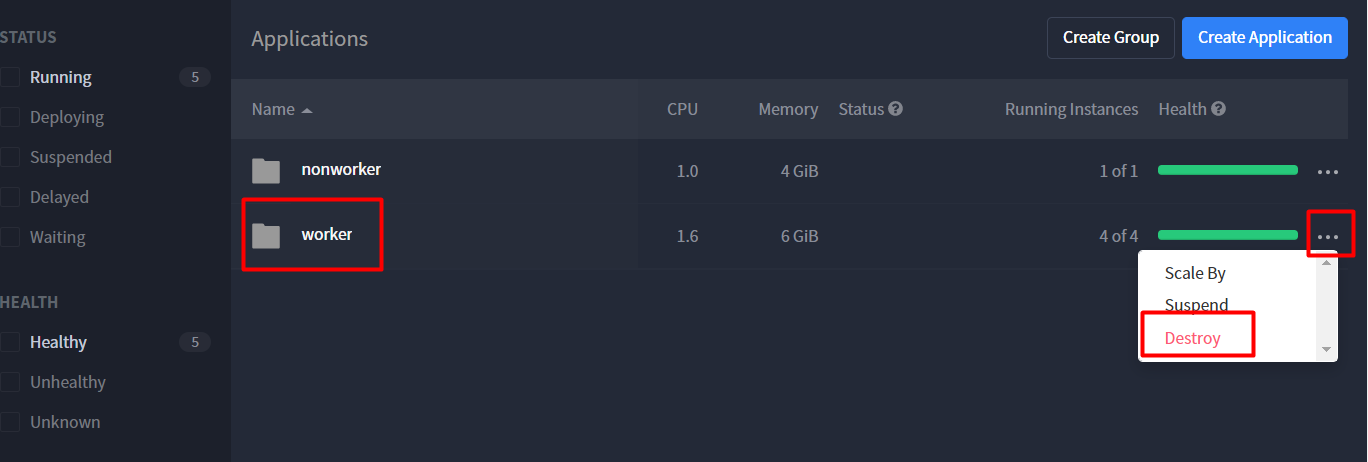
In Marathon UI, destroy CT Worker jobs. After that, new Workers start with modified parameters.
RPA Workers
To increase the memory and tune Heap Dump generation for RPA Workers, follow the steps below:
In
RPA\bot-agent\conf\bot-agent-unit.ymlon the RPA server, increase the following parameters:XmsXmxXX:MaxMetaspaceSize=
For heap dump generation, add the following parameters:
XX:+HeapDumpOnOutOfMemoryErrorXX:HeapDumpPath=../logs/unit${unit_id}
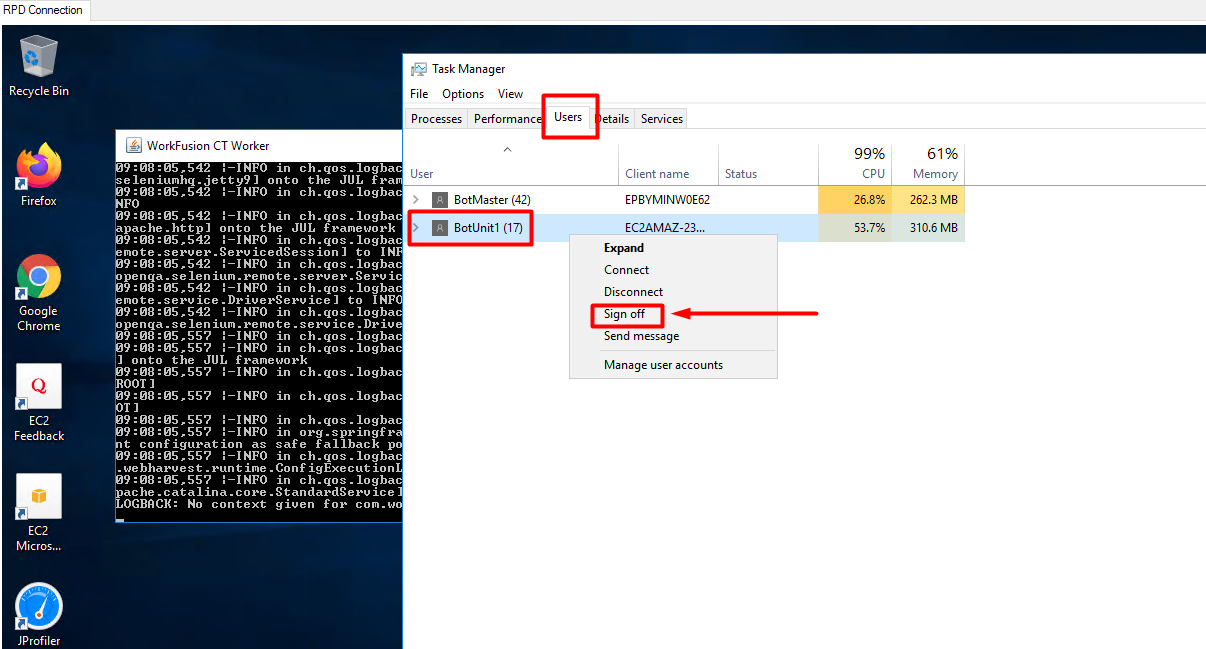
Restart the Bot Unit with the Worker. To do that, navigate to Task Manager > Users, right-click the corresponding Bot Unit, and choose Sign Off. After that, the RDP window restarts.