
Restore previous version
The guide describes the rollback from the 10.1.6.1 to 10.1.6 version of WorkFusion Intelligent Automation Cloud Enterprise.
Prerequisites
- You have WorkFusion Intelligent Automation Cloud 10.1.6.1 up and running.
- No Business Processes are running.
- SSH access to Linux hosts is enabled.
- Make sure to have the
rootprivileges to assign setcap capabilities to a customer-facing web server (HAProxy).
Stop IA Cloud Enterprise services
Connect to the server with the installation package via SSH and run the following commands as <wf_user>:
$ cd INSTALL_DIR/wf_installer_new
$ export ANSIBLE_PRIVATE_KEY_FILE="<path_to_ssh_key>"   # Path to the SSH key for connection to all Linux servers as WFUSER.
$ export ANSIBLE_REMOTE_USER="<wf_user>"                # Application user specified in config.yml.
$ export ANSIBLE_VAULT_PASS="<ansible_vault_password>"  # Password for decrypting config.yml
$ ./install.sh stop_services full -e skip_bi=true
Rollback MSSQL database
To rollback the database on the MSSQL server:
- Set the workfusion database offline.
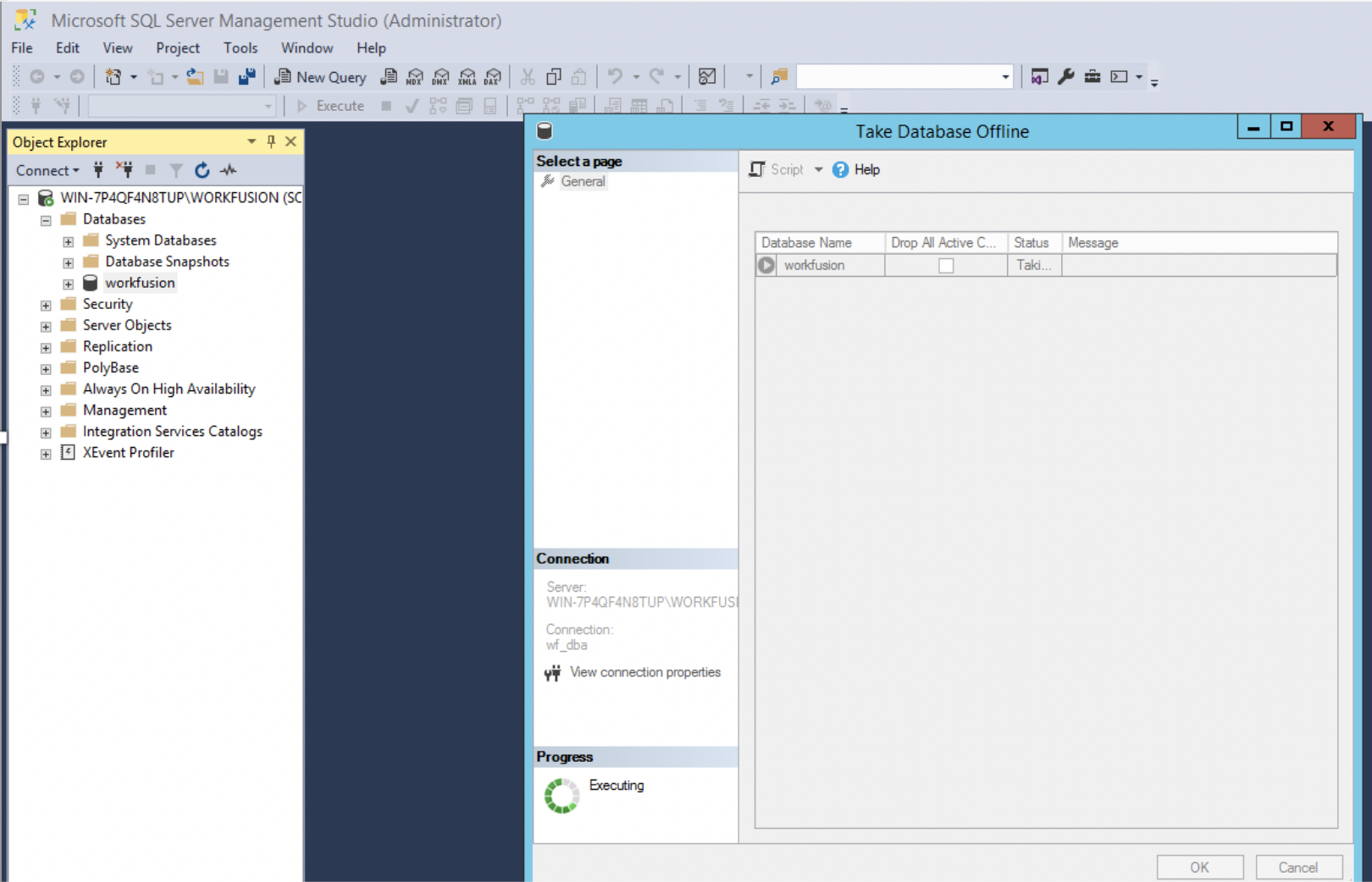
- Restore the workfusion database from backup.
Rollback filesystem
Restore content of the shared network folders if you use any existing NAS.
If using NFS deployed on the IA Cloud server, the shared network folders' content will be restored automatically during the following steps.
Rollback IA Cloud Enterprise
To restore the previous version of IA Cloud, connect to the server with the installation package via SSH and run the following commands as <linux_installation_user>:
$ cd INSTALL_DIR/wf_installer_new
$ export ANSIBLE_PRIVATE_KEY_FILE="<path_to_ssh_key>"   # Path to SSH key for connection to all Linux servers as <wf_user>.
$ export ANSIBLE_REMOTE_USER="<wf_user>"                # Application user specified in config.yml.
$ export ANSIBLE_VAULT_PASS="<ansible_vault_password>"  # Password for decryption of config.yml.
$ ./install.sh restore full -e backup_dir=/path/to/backup_dir
Set up server with Workfusion service
By default, the Workfusion service runs on the APP server.
To set up a server with the Workfusion service, as a user with the root privileges, enable HAProxy to run under application user on privileged ports (below 1025):
$ sudo /usr/sbin/setcap CAP_NET_BIND_SERVICE=+eip /opt/workfusion/haproxy/bin/haproxy
Restart servers
Restart all Linux servers at once and wait for about 10 minutes to stabilize the components' startup and environment.
Rollback RPA
To rollback the RPA server, uninstall current RPA:
$ cd INSTALL_DIR/wf_installer_new
$ ./install.sh uninstall rpa
Perform a clean installation of the RPA v.10.1.6 from the directory with previous installation package:
$ cd INSTALL_DIR/wf_installer
$ ./install.sh install rpa
$ ./install.sh check rpa
Rollback custom Analytics dashboards
To restore custom Analytics dashboards, see Restore custom dashboards.
Check rollback
Once the rollback is completed, check the WorkFusion Platform with Business Process (BP) and Manual Task.
Post rollback steps
After the rollback, remove the folder with new the installation package INSTALL_DIR/wf_installer_new.