
Activate OCR license
warning
Starting from v. 10.1.4.1, Windows OCR is no longer supported.
You can have Windows-based OCR only if you upgrade from earlier product versions with Windows OCR installed. You can use this page to increase the number of OCR licenses (the number of documents for OCR processing) in your environment.
WorkFusion provides the license with all supported languages depending on your ABBYY FineReader Engine version:
- FRE 11: see the list of languages.
- FRE 12: see the list of languages.
Activate license
FRE SDK is located in the following directory:
- Linux—
INSTALL_DIR/ABBYY_FRE11 - Windows—
INSTALL_DIR/FineReaderEngine
The license_request.txt file appears in the INSTALL_DIR/ocr/ directory on the server with the installed OCR component: MASTER (v.10.2+) or OCR (v.10.1.6).
To activate the license, follow the steps below:
Create a Service Desk ticket and attach
license_request.txtto it. The template for creating a ticket is as follows:Please provide an OCR license according to the following requirements:
Company name: ___
Number of pages to include: ___ *)Platform type:___(Linux/Windows)
Status of the server (Production, nonProduction) ____
Attach thelicense_request.txtfile.
*) The number of OCR pages must be estimated during POC based on the customer workload. For example, if 1,000 pages are processed per day, the monthly amount is 30,000 pages.
As stated further, non-prod licenses have predefined values of 10K, 50K, 100K pages depending on the complexity of the customer workload. Wherever practical, request the minimum possible license. The account manager is always aware of the number of pages included in the contract—it’s a part of the negotiation with the customer.The license cost depends on the number of pages and its category. Make sure your contract with WorkFusion covers it.
The same single license is used for all OCR servers if you have several of them.
In response to your ticket, WorkFusion sends you the
license_response.txtfile. Copy the file to the directory withlicense_request.txton the OCR server, for example,/opt/workfusion/ocr.caution
Mind that
license_response.txtis valid for three days only and should be activated within this period. If you failed to activate the license within the term, request the WorkFusion Support team to re-issue the license response file.On the OCR server, go to the
INSTALL_DIR/ocr/directory and runactivate_wf.sh(oractivate_ocr.batin<fre_sdk_dir>for Windows):$ cd /opt/workfusion/ocr $ ./activate_wf.shIf everything is ok, the command returns a success result:
{"message":{"content":"License Activation Succeeded"}}
note
Mind that the newly activated license complements the previous one and adds new OCR pages to the remaining amount.
If you migrate from Intelligent Automation Cloud versions 8.5 and earlier, follow the steps below to reuse the available number of pages in your new environment.
Get the number of unused pages from pre 8.5 versions
Perform the following operations on all OCR servers for all activated licenses.
To reuse the available number of pages, do as follows:
Run License Manager as any user.
$ export LD_LIBRARY_PATH=$LD_LIBRARY_PATH:INSTALL_DIR/apps/ABBYY/FREngine11/Bin
INSTALL_DIR/apps/ABBYY/FREngine11/Bin/LicenseManager.Console
Select the activated license.
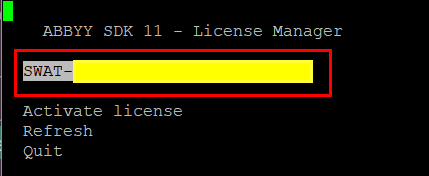
The license serial number and other license parameters can differ from the examples.
Open the license parameters.
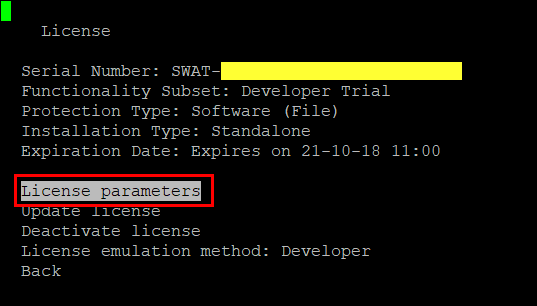
Make a screenshot of the first page. Make sure that the Volume → Regular Text → Remains line is visible.
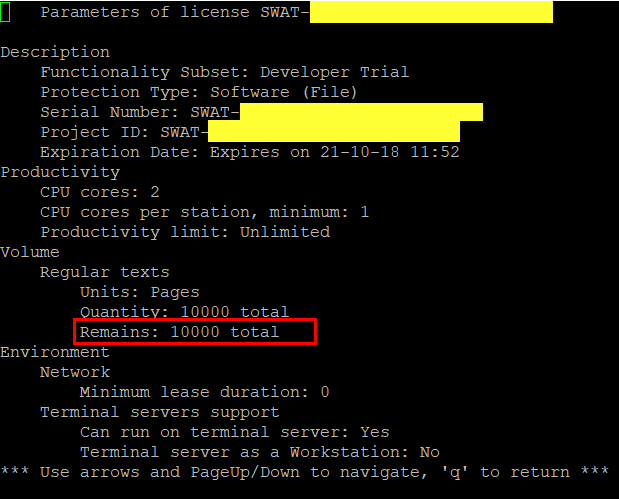
Request and activate the license by sending an email to your account manager in WorkFusion, or create a Service Desk ticket according to the template (see earlier). Remember to attach all license screenshots if Remains is greater than 0.
Verify license
To check the state of a license after activation, connect to the OCR server via SSH and then use the activeLicense API.
If authentication is disabled (the auth-disabled profile is configured), no authentication header is needed, and the command looks as follows:
$ curl -s http://localhost:9002/api/v1/cloud/activeLicense | python -m json.tool
If authentication is enabled, the command is as follows:
$ curl -s -H "Authorization: <credentials>" http://localhost:9002/api/v1/cloud/activeLicense | python -m json.tool
Replace <credentials> with your credentials according to the OCR Service configuration. The header can look like this:
Authorization: Basic your_username_pwd_base64for basic authenticationAuthorization: Bearer your_jwt_tokenfor JWT authentication