
Simplified Robotics API
Overview
RPA developers can create lighter weight, clearly readable robotics scripts using WorkFusion Simplified API, and temporary files are automatically cleaned up after bot execution.
The Robotics Simplified API provides a wrapper library with a lightweight and succinct jQuery-like syntax, encapsulating best practices into the most frequent functions and hiding the complexity from the end user. As a result, the amount of code is significantly reduced and the code itself becomes clearly readable.
| Simplified API reference Javadocs | Packages list |
|---|---|
| Latest release |
Compare API samples
Simplified API sample
<config xmlns="http://web-harvest.sourceforge.net/schema/1.0/config" scriptlang="groovy">
    <robotics-flow>
        <robot name="roboticsDriver" driver="firefox" close-on-completion="true" start-in-private="true">
            <script><![CDATA[
                timeouts(40 * 1000);
                open("https://mail.google.com");

                $("#identifierId").val("tuk.tuk.rpa@gmail.com").pressEnter();
                $(byXpath("//*[@name='password']")).val("work4WorkFusion!1");
                $("#passwordNext").click();

                $(byText("COMPOSE")).click();
                $(By.name("to")).val("tuk.tuk.rpa@gmail.com").pressTab();
                $(by("placeholder", "Subject")).val("Robotics API demo").pressTab();

                $(".editable").val("We are not afraid of ajax anymore.").pressEnter();
                $(byText("Send")).click();

                $(withText("Your message has been sent.")).shouldBe(VISIBLE);
            ]]></script>
        </robot>
    </robotics-flow>

    <export include-original-data="false"/>
</config>
Original Selenium API sample
<config xmlns="http://web-harvest.sourceforge.net/schema/1.0/config">

    <script><![CDATA[
        import com.thoughtworks.selenium.*;
        import com.thoughtworks.selenium.webdriven.WebDriverBackedSelenium;
        import org.openqa.selenium.*;
        import org.openqa.selenium.remote.RemoteWebDriver;
        import org.openqa.selenium.interactions.Actions;
        import java.util.concurrent.TimeUnit;
    ]]></script>

    <robotics-flow>
        <robot name="roboticsDriver" driver="internet explorer"
         close-on-completion="true" start-in-private="true">
            <script><![CDATA[
                ieDriver = roboticsDriver.getWrappedObject();

                ieDriver.manage().timeouts()
                    .implicitlyWait(1, TimeUnit.MINUTES)
                    .pageLoadTimeout(1, TimeUnit.MINUTES);

                ieDriver.get("https://mail.google.com");

                ieDriver.findElement(By.id("identifierId")).sendKeys(new String[]{"tuk.tuk.rpa@gmail.com"});
                ieDriver.findElement(By.id("identifierNext")).click();

                ieDriver.findElement(By.xpath("//*[@name='password']")).sendKeys(new String[]{"work4WorkFusion"});
                ieDriver.findElement(By.id("passwordNext")).click();

                ieDriver.findElement(By.xpath("//div[text()='COMPOSE']")).click();

                WebElement to = ieDriver.findElement(By.name("to"));
                to.click();
                to.sendKeys(new String[]{"tuk.tuk.rpa@gmail.com"});

                WebElement subject = ieDriver.findElement(By.name("subjectbox"));
                subject.click();
                subject.sendKeys(new String[]{"Test message"});

                WebElement body = ieDriver.findElement(By.xpath("//div[@aria-label='Message Body']"));
                body.click();
                body.sendKeys(new String[]{"Hello World!"});

                ieDriver.findElement(By.xpath("//div[text()='Send']")).click();
            ]]></script>
        </robot>
    </robotics-flow>

    <export include-original-data="false">
    </export>

</config>
The simplified API code is clear and can be understood without deep knowledge of Robotics API:
open("https://workfusion.com");              // Open website in driver's browser
$(byName("username")).val("johny");          // Enter text into field
$("#submit").click();                        // Click submit button
$(".loading_progress").should(DISAPPEAR);    // Wait until element disappears
$("#username").shouldHave(text("Welcome!")); // Wait until element gets text
Examples
Here you can find some examples of using the Robotics Simplified API:
Automating webpage with AJAX and iframe
<?xml version="1.0" encoding="UTF-8"?>
<config xmlns="http://web-harvest.sourceforge.net/schema/1.0/config"
    scriptlang="groovy">

    <robotics-flow>
        <robot driver="firefox" close-on-completion="true" start-in-private="true">
            <script><![CDATA[

                timeouts(40 * 1000);

                open("https://www.w3schools.com/xml/tryit.asp?filename=tryajax_first");
                switchTo().frame("iframeResult");

                $("#demo h1").shouldHave(text("The XMLHttpRequest Object"));
                $(byText("Change Content")).click();

                $(byXpath("//div[@id='demo']/p[1]")).shouldHave(text("AJAX is not a programming language."));
                $("#demo p:nth-child(3)").shouldHave(text("AJAX is a technique for accessing web servers from a web page."));

            ]]></script>
        </robot>
    </robotics-flow>

    <export include-original-data="true"></export>

</config>
Automating Invoiceplane - web CRM
<?xml version="1.0" encoding="UTF-8"?>
<config xmlns="http://web-harvest.sourceforge.net/schema/1.0/config" scriptlang="groovy">

    <var-def name="client_name">Abbble Inc.</var-def>
    <var-def name="invoice_date">10/02/2016</var-def>
    <var-def name="products_and_prices">{"products_and_prices":[{"product":"Wooden Table","quantity":"2","price":"140"},{"product":"Printer Ink","quantity":"1","price":"30"},{"product":"Paper Rim","quantity":"3","price":"60"}]}</var-def>

    <robotics-flow>
        <robot name="roboticsDriver" driver="firefox" close-on-completion="true" start-in-private="true">
            <script><![CDATA[

                timeouts(40 * 1000);
                Map rpaVariables = new HashMap();

                open("https://invoiceplane.workfusion.com");

                $("#login").click();
                $("#email").val("wf-robot@mail.com");
                $("#password").val("freedom4ROBOTS");
                $(byName("btn_login")).click();

                $(byXpath("//*[@id='ip-navbar-collapse']/ul[1]/li[4]/a")).click();
                $(byLinkText("Create Invoice")).click();
                $(byClassName("select2-selection--single")).click();

                try {
                    $(byXpath("//*[contains(text(), '" + client_name.toString() + "')]")).click();
                } catch(e) {
                    $(byXpath("//*[@id='select2-client_name-results']/li[2]")).click();
                }

                $("#invoice_date_created").val(invoice_date.toString());
                $("#invoice_group_id").sendKeys(Keys.DOWN, Keys.ENTER);
                $("#invoice_create_confirm").click();

                Map items = new com.google.gson.Gson().fromJson(products_and_prices.toString(), Map.class);
                List itemsList = items.get("products_and_prices");
                invoice_number = $("#invoice_number").getAttribute("value");

                for (int i = 0; i < itemsList.size(); i++) {
                    Map item = itemsList.get(i);
                    $(byXpath("//*[@id='item_table']/tbody[last()]/tr//input[@name='item_name']")).sendKeys(item.get("product"));
                    $(byXpath("//*[@id='item_table']/tbody[last()]/tr//input[@name='item_quantity']")).sendKeys(item.get("quantity"));
                    $(byXpath("//*[@id='item_table']/tbody[last()]/tr//input[@name='item_price']")).sendKeys(item.get("price"));
                    $(byXpath("//*[@id='item_table']/tbody[last()]/tr//input[@name='item_discount_amount']")).sendKeys("0");

                    if (i < itemsList.size() - 1) {
                        $(".btn_add_row").click();
                    }
                }

                $("#btn_save_invoice").click();

            ]]></script>
        </robot>
    </robotics-flow>

    <export include-original-data="true">
        <single-column name="invoice_number" value="${invoice_number}"/>
    </export>

</config>
Desktop automation: Notepad, Clipboard, Download file
<?xml version="1.0" encoding="UTF-8"?>
<config xmlns="http://web-harvest.sourceforge.net/schema/1.0/config" scriptlang="groovy">

    <robotics-flow>
        <robot name="C3PO" driver="desktop" close-on-completion="true">
            <script><![CDATA[
                String downloadLink = "https://pub_demo.s3.amazonaws.com/trainings/new.txt";
                String filePath = "C:\\temp\\test.txt";
                String filePathOnAgent = downloadFileOnAgent(downloadLink, filePath);

                open("notepad.exe");
                switchTo().window("[CLASS:Notepad]");
                sendKeys("foo");

                // select all and copy
                pressCtrlA();
                pressCtrlC();
                sys.defineVariable("clipboard", clipboardText());

                // paste
                sendKeys(Keys.HOME);
                pressCtrlV();

                // select all and copy
                sys.defineVariable("entire_text", selectAllTextAndCopy());

                // undo - redo
                pressCtrlZ();
                pressCtrlShiftZ();

                // open file downloaded from s3
                sendKeys(Keys.chord(Keys.CONTROL, "o"));

                // select "Do not save" option
                switchTo().window("[TITLE:Notepad]");
                $("[CLASS:Button; INSTANCE:2]").click();

                switchTo().window("[TITLE:Open]");
                sendKeys(filePathOnAgent);
                pressEnter();

                switchTo().window("[CLASS:Notepad]");
                sys.defineVariable("downloaded_text", selectAllTextAndCopy());
                sleep(3000);

             ]]>
            </script>
        </robot>
    </robotics-flow>

    <export include-original-data="false">
        <single-column name="clipboard" value="${clipboard}"/>
        <single-column name="entire_text" value="${entire_text}"/>
        <single-column name="downloaded_text" value="${downloaded_text}"/>
    </export>
</config>
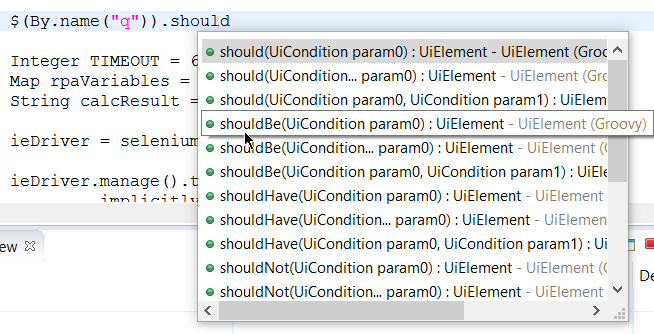
Simplified API has a lot of classes and methods. We suggest you to stop reading, open your WorkFusion Studio and start typing.
Type $ or $(selector), and IDE suggest you all the available options.
Automatically imported classes
com.workfusion.rpa.helpers refer to the RPA class that represents a simplified API for RPA. Static methods and variables from this class and the following classes are automatically included in Bot configs:
The following classes are also automatically imported into Bot configs. They are accessible by their short-class-name, for example, RemoteWebDriver:
RemoteWebDriverActionActionsMouseKeyboardWaitFluentWaitWebDriverWaitExpectedConditionExpectedConditionsCoordinatesApiUtilsPointedCoordinatesRobotsMouseUiElementUiElementCollectionUiConditionUiCollectionCondition
Classes from the following packages also are automatically imported into Bot configs:
org.openqa.selenium
Important API methods
tip
See the Simplified API cheatsheet to learn robotics API using examples.
WorkFusion Studio supports autocomplete for all the simplified API methods.
Main simplified methods:
driver()for accessing the current driver instance.keyboard()for the current driver keyboard.mouse()for the current driver mouse.$(By)finds the first element matching given descriptor. With a UIElement instance, you can either do action with it (click,copySelectedText) or check a condition:shouldHave(text("abc")). Both will trigger the search of the elements in DOM or desktop.$$(String)finds all elements matching given descriptor.
Other important simplified methods:
sendKeys(CharSequence...)sends a string to current window using keyboardopen(String)opens a specified URL or applicationwindow(String)switches to a window with a specified title or descriptortimeouts(long)sets the maximum amount of time to wait for condition, page load, script to execute, element search
The following additional methods are implemented for desktopDriver:
executeGroovyScript(String)clipboardText()copySelectedText()selectAllTextAndCopy()sendToAgent(String)downloadFileOnAgent(String downloadLink, String filePath)downloadTextFileFromAgent(String)deleteFileOnAgent(String)
Methods to manipulate files, folders, and Excel:
- Finding window handles by criteria
- Identifying process ID when starting program
- Clicking on element with offset
- Excel class
- Files and folders - Resource class
- Script class
- Working with S3 inside robot plugin
Method chaining examples
Note that practically all Simplified API methods support chaining because they return a driver, keyboard, mouse, window, UiElement, or UiElementCollection. Therefore you can use the following examples with chaining:
Selecting elements, checking conditions
$$(".errorMessage").first().shouldBe(visible, enabled)
$$("td").shouldHaveSize(5)
$$(".edit").getTexts()
$("#myInput").waitUntil(hasPartialValue("John"), 5000)
Mouse driver, browser actions
mouse().doubleClick(20, 40).contextClick(100, 78)
openLinkInNewWindow(byCssSelector(".container a.create-new")).switchTo()
Windows handling, keyboard driver, typing
switchTo().window("[CLASS:Notepad]").maximize()
keyboard().sendKeys(Keys.TAB)
window().close()
Console automation, typing and copying text
window("[CLASS:PuTTY]")
sendKeys("vim 123.txt", Keys.ENTER)
copyPuttyWindowText()
Finding window handles by criteria
To improve automation performance and stability, window handles can be found by criteria, for example, a class, a title, and so on. To narrow down the window search, the getWindowHandles method is used.
API
Set<String> windowHandles = Window.windowHandles("[CLASS:Notepad]");
The following window attributes are used for search:
parentPIDprocessNamecommandLineclassTitle/Regexp title
Examples
Class
<?xml version="1.0" encoding="UTF-8"?>
<config xmlns="http://web-harvest.sourceforge.net/schema/1.0/config" scriptlang="groovy">

    <robotics-flow>
        <robot driver="universal">
            <script><![CDATA[

                openAndFocus("notepad.exe", 1000, 100);
                openAndFocus("notepad.exe", 1000, 100);
                openAndFocus("notepad.exe", 1000, 100);
                openAndFocus("mspaint.exe", 1000, 100);
                openAndFocus("mspaint.exe", 1000, 100);

                Set<String> handlesNotepad = Window.windowHandles("[CLASS:Notepad]");
                assert handlesNotepad.size() == 3

                Set<String> handlesPaint = Window.windowHandles("[CLASS:MSPaintApp]");
                assert handlesPaint.size() == 2

            ]]></script>
        </robot>
    </robotics-flow>

    <export include-original-data="false"/>

</config>
Parent PID
<?xml version="1.0" encoding="UTF-8"?>
<config xmlns="http://web-harvest.sourceforge.net/schema/1.0/config" scriptlang="groovy">
<robotics-flow>
<robot driver="universal">
<script></script>
</robot>
</robotics-flow>
<export include-original-data="false"/>
</config>
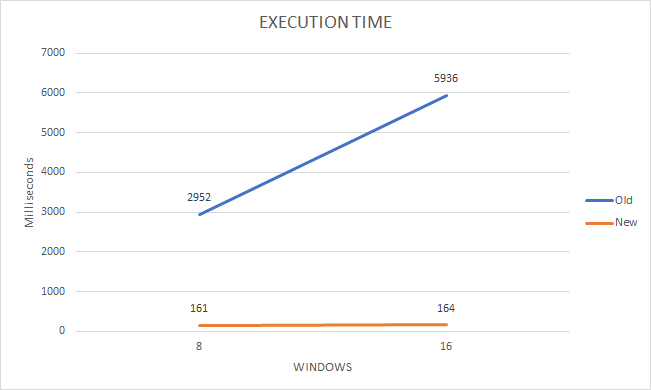
Performance metrics
Previous implementation
<?xml version="1.0" encoding="UTF-8"?>
<config xmlns="http://web-harvest.sourceforge.net/schema/1.0/config" scriptlang="groovy">
    <robotics-flow>
        <robot driver="universal">
            <script><![CDATA[
                timeouts(10 * 1000)
                inDesktop(){
                    Set<String> handles = driver().getWindowHandles()
                    List<String> handlesFiltered = new ArrayList<String>()
                    for(String handle : handles){
                        try {
                            window(handle)
                                if (driver().getTitle() == "Untitled - Notepad") {
                                    handlesFiltered.add(handle)
                                }
                        } catch (Exception e) {}
                    }
                }
        ]]></script>
        </robot>
    </robotics-flow>

    <export include-original-data="true"></export>

</config>
Current implementation
<?xml version="1.0" encoding="UTF-8"?>
<config xmlns="http://web-harvest.sourceforge.net/schema/1.0/config" scriptlang="groovy">
<robotics-flow>
<robot driver="universal">
<script></script>
</robot>
</robotics-flow>
<export include-original-data="true"></export>
</config>
Execution results
| Total windows | Filtered windows | Execution time previously (ms) | Execution time now (ms) | Speed growth |
|---|---|---|---|---|
| 8 | 3 | 2,952 | 161 | 18 |
| 16 | 3 | 5,936 | 164 | 36 |
Identifying process ID when starting program
The process identifier, normally referred to as the process ID or PID, is a unique decimal number used to uniquely identify an active process. This number may be treated as a parameter in various function calls to manipulate processes while automating desktop applications. That makes it much easier in complex use cases, when you need to know and save the ID of the process created by the open ('app.exe') command, for example, in order to detect all children of the opened application and perform some actions with them.
API
Integer pid = open("notepad.exe")
Integer pid = openAndFocus("notepad.exe", 1000, 100)
Description
- Works for desktop automation only.
- Returns null value for web drivers.
- Open method returns only parent process, child processes might exist in your case.
Examples
The feature can be used in combination with window filtering by process ID.
Expand to see the example
<?xml version="1.0" encoding="UTF-8"?>
<config xmlns="http://web-harvest.sourceforge.net/schema/1.0/config" scriptlang="groovy">
<robotics-flow>
<robot driver="universal">
<script></script>
</robot>
</robotics-flow>
<export include-original-data="false"/>
</config>
Clicking on element with offset
When automating desktop applications, clicks are often done not only in the center of the selected element but somewhere else (the corner, or the corner with offset). Click offset is a click on the given element with the relative position (x, y) from the top left corner of that element. Clicking on elements with offset facilitates automating complex controls like trees (Outlook) or tables with checkboxes (SAP).
API
def elem = $(By.cssSelector("[TOOLTIP:ToolTip demo]"));
elem.click(elem.right() + 30, elem.bottom() - 15);
elem.click(elem.left() + 10, elem.top() - 15);
elem.click(-10, 15);
Description
- Works for desktop automation only.
- It throws exception.
- Valid for any mouse click (double, triple, wheel).
- Point 0,0 is in the top left corner of the element.
Examples
The feature can be used in combination with window filtering by process ID.
Expand to see the example
<?xml version="1.0" encoding="UTF-8"?>
<config xmlns="http://web-harvest.sourceforge.net/schema/1.0/config" scriptlang="groovy">
<robotics-flow>
<robot driver="universal">
<script></script>
</robot>
</robotics-flow>
<export include-original-data="true"/>
</config>
Excel class
The Excel class is intended for automating Excel spreadsheet manipulations, such as getting/setting cell values, switching between sheets, saving, etc. All the Excel Actions are executed in the background, so the application window does not appear on the screen.
See the Excel action group in RPA Recorder for better understanding the Excel API. For a quick start, do as follows.
- Create a script with files/folders manipulations in RPA Recorder.
- Export this script as a Bot task or export to Groovy code and analyze the auto-generated code which uses the Resource API.
To start using Excel methods, it is needed to understand cell, row, and column position concept:
- Scheme with description: Excel
- Javadocs: Cell Position, Row/Column Position
- When you get/set a cell/row/column, the currently active cell is changed
Examples
Excel class usage
This example performs the following actions:
- Downloads an excel file from S3 file storage
- Switches to the sheet by its name and sets an active cell
- Gets row and column values
- Searches for a cell with a particular value
- Copies a range between sheets
- Saves as a new file and closes the file
Expand to see the example
<?xml version="1.0" encoding="UTF-8"?>
<config xmlns="http://web-harvest.sourceforge.net/schema/1.0/config"
    scriptlang="groovy">

    <robotics-flow>
        <robot driver="universal" close-on-completion="true"
            start-in-private="false">
            <capability name="SEARCH_ALL_WINDOWS" value="true" />
            <script><![CDATA[
                def s3Path = "https://pub_demo.s3.amazonaws.com/trainings/Tickers.xlsx"
                def filePath = downloadFileOnAgent(s3Path)
                def newFilePath = "D:/temp/new-excel.xlsx"

                openExcel(filePath)
                switchSheet(filePath, "Fact")

                if (getActiveCell(filePath) != 'A1') {
                    setActiveCell(filePath, ExcelCellPosition.START_OF_DOCUMENT)
                }

                // Getting Row and Column values

                def firstColumn = getColumn(filePath, 'A', 2, 5)
                def secondRow = getRow(filePath, ExcelColumnRowPosition.CURRENT)

                // Searching for a cell with a particular value

                def temp = getCell(filePath, 'B1')
                int counter = 0
                int maxRowsCount = 100
                while (temp != 'Schlumberger Limited' && counter < maxRowsCount) {
                    temp = getCell(filePath, ExcelCellPosition.CELL_BELOW)
                    counter++
                }
                def price = getCell(filePath, ExcelCellPosition.CELL_TO_THE_RIGHT)
                deleteCell(filePath, ExcelCellPosition.CURRENT)

                // Copying a range between sheets

                def tempRange = getRange(filePath, 'A4')
                switchSheet(filePath, 1)
                setRange(filePath, 'A4', tempRange)

                // Saving as new file and closing file

                saveExcel(filePath, newFilePath)
                closeExcel(filePath)

                sys.defineVariable("firstColumn", firstColumn)
                sys.defineVariable("secondRow", secondRow)
                sys.defineVariable("price", price)


            ]]></script>
        </robot>
    </robotics-flow>
    <export include-original-data="true">
        <single-column name="firstColumn" value="${firstColumn}"/>
        <single-column name="secondRow" value="${secondRow}"/>
        <single-column name="price" value="${price}"/>
    </export>
</config>
Copying range between 2 files
This example performs the following actions:
- Downloads two excel files from S3 file storage
- Opens the first file and copies a range to a temp variable
- Opens the second file and sets a range using the temp variable value
- Saves the second excel as a new file and closes all files
Expand to see the example
<?xml version="1.0" encoding="UTF-8"?>
<config xmlns="http://web-harvest.sourceforge.net/schema/1.0/config"
    scriptlang="groovy">

    <robotics-flow>
        <robot driver="universal" close-on-completion="true"
            start-in-private="false">
            <capability name="SEARCH_ALL_WINDOWS" value="true" />
            <script><![CDATA[
                def s3Path = "https://pub_demo.s3.amazonaws.com/trainings/Tickers.xlsx"
                def s3Path2 = "https://pub_demo.s3.amazonaws.com/trainings/other-excel.xlsx"
                def sourceFile = downloadFileOnAgent(s3Path)
                def destinationFile = downloadFileOnAgent(s3Path2)
                def newFilePath = "D:/temp/copied-excel.xlsx"

                // opening the 1st excel file

                openExcel(sourceFile)
                switchSheet(sourceFile, "Fact")

                // Copying a range

                def tempRange = getRange(sourceFile, 'A1')

                // opening another excel file and pasting the range from the 1st one

                openExcel(destinationFile)
                setRange(destinationFile, 'A2', tempRange)

                // Saving the 2nd excel as new file and closing all files

                saveExcel(destinationFile, newFilePath)
                closeExcel(destinationFile)
                closeExcel(sourceFile)

            ]]></script>
        </robot>
    </robotics-flow>
    <export include-original-data="true"/>
</config>
Excel class methods
The Excel class has the following methods.
| Type | Method | Description |
|---|---|---|
| void | closeExcel(String filePath) | Closes excel file and removes it from script context |
| void | deleteCell(String filePath, ExcelCellPosition position) | Clears cell value |
| void | deleteCell(String filePath, String coordinate) | Clears cell value |
| String | getActiveCell(String filePath) | Gets active cell |
| String | getCell(String filePath, ExcelCellPosition position) | Gets cell value and returns it as string |
| String | getCell(String filePath, String coordinate) | Gets cell value and returns it as string |
| List<String> | getColumn(String filePath, ExcelColumnRowPosition position) | Gets column values as List |
| List<String> | getColumn(String filePath, ExcelColumnRowPosition position, Integer rowFrom, Integer rowTo) | Gets column values as List |
| List<String> | getColumn(String filePath, String columnLettes) | Gets column values as List |
| List<String> | getColumn(String filePath, String columnLettes, Integer rowFrom, Integer rowTo) | Gets column values as List |
| List<List<String>> | getRange(String filePath, String coordinateFrom) | Gets range values |
| List<List<String>> | getRange(String filePath, String coordinateFrom, String coordinateTo) | Gets range values |
| List<String> | getRow(String filePath, ExcelColumnRowPosition position) | Gets row values as List |
| List<String> | getRow(String filePath, ExcelColumnRowPosition position, String columnFrom, String columnTo) | Gets row values as List |
| List<String> | getRow(String filePath, int rowNum) | Gets row values as List |
| List<String> | getRow(String filePath, int rowNum, String columnFrom, String columnTo) | Gets row values as List |
| void | openExcel(String filePath) | Reads excel file by path, stores this in script context |
| void | saveExcel(String filePath) | Saves excel file |
| void | saveExcel(String filePath, String newFilePath) | Saves excel as new file |
| void | setActiveCell(String filePath, ExcelCellPosition position) | Sets active cell |
| void | setActiveCell(String filePath, String coordinate) | Sets active cell |
| void | setCell(String filePath, ExcelCellPosition position, String value) | Sets cell value |
| void | setCell(String filePath, String coordinate, String value) | Sets cell value |
| void | setCells(String filePath, String coordinate, List<String> values, boolean isVertical) | Sets cell value |
| void | setRange(String filePath, String coordinateFrom, List<List<String>> values) | Gets range values |
| void | setRange(String filePath, String coordinateFrom, String coordinateTo, List<List<String>> values) | Gets range values |
| void | switchSheet(String filePath, int index) | Selects as active sheet by index |
| void | switchSheet(String filePath, String name) | Selects as active sheet by index |
Files and folders - Resource class
The Resource class is intended for general manipulations with files and folders, for example, creating a folder under the path specified, or a file with a specific content in a defined location, or copy/move a folder or a file to the location specified.
See the Files and Folders action group in RPA Recorder for better understanding the Resource API. For a quick start, do as follows.
- Create a script with file or folder manipulations in RPA Recorder.
- Export this script as a Bot task or export to Groovy code and analyze the auto-generated code which uses the Resource API.
Examples
Resource class usage
This example performs the following actions:
- Downloads a text file from S3 file storage.
- Checks that the new file was downloaded to a temp folder. The check result is saved in the
is_existingvariable. - Appends the downloaded text file content with a new content.
- Reads the result into the
content_utf8variable. - Creates a new directory with a new file (randomly generated name).
- Overwrites this file content with a new string containing the current timestamp.
Expand to see the example
<?xml version="1.0" encoding="UTF-8"?>
<config xmlns="http://web-harvest.sourceforge.net/schema/1.0/config" scriptlang="groovy">

    <robotics-flow>
        <robot driver="desktop" close-on-completion="true" name="desktopDriver">
            <script><![CDATA[

                def s3Path = 'https://pub_demo.s3.amazonaws.com/trainings/new.txt';
                def newDir = 'D:\\temp\\new\\';
                def filePath = downloadFileOnAgent(s3Path);
                def newFileName = newDir + UUID.randomUUID() + '.txt';
                def now = new Date().format( 'yyyyMMdd:hh:mm:ss');

                is_existing = Resource.exist(filePath);

                if (is_existing) {
                    Resource.append(filePath, '___ New Content ___', 'utf-8');
                    content_utf8 = Resource.read(filePath, 'utf-8');
                    Resource.delete(filePath);
                }

                Resource.createDirectoryOverwrite(newDir);
                Resource.createFileSkip(newFileName);
                Resource.overwrite(newFileName, "File overwritten at ${now}", 'utf-8');

             ]]></script>
        </robot>
    </robotics-flow>

    <export include-original-data="true">
        <single-column name="is_existing" value="${is_existing}"/>
        <single-column name="content_utf8" value="${content_utf8}"/>
    </export>

</config>
Actions with files and folders
This example performs the following actions:
- Getting all files and folders recursively and exporting as a list
- Getting all TXT files recursively and copying them to the destination folder
- Getting all folders changed in the last five days and moving them to the destination folder
Expand to see the example
<?xml version="1.0" encoding="UTF-8"?>
<config xmlns="http://web-harvest.sourceforge.net/schema/1.0/config" scriptlang="groovy">

    <robotics-flow>
        <robot driver="desktop" close-on-completion="true" name="desktopDriver">
            <script><![CDATA[
                import com.workfusion.rpa.helpers.resources.Filter
                import java.time.temporal.ChronoUnit

                def sourceFolder = 'D:\\_temp\\configs\\'
                def destinationFolder = 'D:\\_temp\\txt\\'


                // Getting all files and folders recursively and exporting as a list

                def filterAll = Filter.filesAndFolders().includeSubFolders().get()
                def allFolderFiles = Resource.listFolder(sourceFolder, filterAll)
                sys.defineVariable("allFolderFiles", allFolderFiles)


                // Getting all TXT files recursively and copying them to destination folder

                def filterByExtension = Filter.files().includeSubFolders().pattern('.*.txt').get()
                def onlyTxtFiles = Resource.listFolder(sourceFolder, filterByExtension)
                onlyTxtFiles.each { filename ->
                    Resource.copyOverwrite(filename, destinationFolder)
                };


                // Getting all folders changed in the last 5 days and moving them to destination folder

                def filterByDate = Filter.folders()
                                         .includeSubFolders()
                                         .modifiedInLast(Integer.valueOf("5"), ChronoUnit.DAYS)
                                         .get()
                def onlyNewFolders = Resource.listFolder(sourceFolder, filterByDate)
                onlyNewFolders.each { foldername ->
                    Resource.moveSkip(foldername, destinationFolder)
                };
             ]]></script>
        </robot>
    </robotics-flow>

    <export include-original-data="true">
        <multi-column list="${allFolderFiles}" split-results="true">
            <put-to-column name="paths"/>
        </multi-column>
    </export>

</config>
Resource class methods
The Resource class has the following options:
- You can choose what to do in case some conflicts occur while the actions are executed, for example, overwrite or skip (keep an existing) file or folder, or fail the process execution.
- You can create text files with the encoding that enables writing, saving, and displaying all characters properly.
- When using the
listFolder() method, you might need to import the following classes:com.workfusion.rpa.helpers.resources.Filterjava.time.temporal.ChronoUnit
| Type | Method | Description |
|---|---|---|
| void | append(String path, String value, String encoding) | Opens a file using the path specified, adds a given string value to the end of the file |
| boolean | createDirectoryFail(String path) | Creates a folder under a path specified in the input field. If such folder already exists, exception is thrown |
| boolean | createDirectoryOverwrite(String path) | Creates a folder under a path specified in the input field. If such folder already exists, it will be overwritten |
| boolean | createDirectorySkip(String path) | Creates a folder under a path specified in the input field. If such folder already exists, no action is taken |
| boolean | createFileFail(String path) | Creates a file under a path specified in the input field. If such file already exists, exception is thrown |
| boolean | createFileOverwrite(String path) | Creates a file under a path specified in the input field. If such file already exists, it will be overwritten |
| boolean | createFileSkip(String path) | Creates a file under a path specified in the input field. If such file already exists, no action is taken |
| boolean | delete(String path) | Deletes a file or a folder under a path specified with entire content |
| boolean | exist(String path) | Checks if a file or a folder already exists and returns a Boolean result |
| void | overwrite(String path, String value, String encoding) | Opens a file using the path specified, deletes file content, adds a given string value to the file |
| String | read(String path, String encoding) | Reads content from a specified file and returns a string value. |
| List<String> | listFolder(String path) | Reads content of a defined folder including files and sub-folders, and returns the result (full paths to the items) as a List |
| List<String> | listFolder(String path, Filter filter) | Reads content of a defined folder, filters the content (Filter object), and returns the result (full paths to the items) as a List |
| void | moveFail(String resourceFrom, String pathTo) | Moves a file or a folder from one location to another. If such file or folder already exists, exception is thrown |
| void | moveOverwrite(String resourceFrom, String pathTo) | Moves a file or a folder from one location to another. If such file or folder already exists, it will be overwritten |
| void | moveSkip(String resourceFrom, String pathTo) | Moves a file or a folder from one location to another. If such file or folder already exists, no action is taken |
| void | copyFail(String resourceFrom, String pathTo) | Copies file or folder from one location to another. If such file or folder already exists, exception is thrown. |
| void | copyOverwrite(String resourceFrom, String pathTo) | Copies file or folder from one location to another. If such file or folder already exists, no action is taken. |
| void | copySkip(String resourceFrom, String pathTo) | Copies file or folder from one location to another. If such file or folder already exists, no action is taken. |
Script class
Executes Script on RPA agent side, not in Сontrol Tower. The same as:
driver.executeScript(...)
Examples
GroovyScript
This example performs the following actions:
- Executes GroovyScript (sum operation) and stores result in the
result1variable. - Executes GroovyScript with timeout. Action fails if execution time exceeds 31 seconds.
Expand to see the example
<?xml version="1.0" encoding="UTF-8"?>
<config xmlns="http://web-harvest.sourceforge.net/schema/1.0/config"
scriptlang="groovy">
<robotics-flow>
<robot driver="desktop">
<script></script>
</robot>
</robotics-flow>
<export include-original-data="true">
</export>
</config>
JavaScript
This example performs the following actions:
- Opens Selenium localhost page.
- Executes JavaScript.
- Stores script output in the
resultvariable.
Expand to see the example
<?xml version="1.0" encoding="UTF-8"?>
<config xmlns="http://web-harvest.sourceforge.net/schema/1.0/config" scriptlang="groovy">
<robotics-flow>
<robot driver="universal">
<script></script>
</robot>
</robotics-flow>
<export include-original-data="false">
</export>
</config>
AutoitScript
This example executes AutoitScript with timeout. The action fails if execution time exceeds 10 seconds.
Expand to see the example
<?xml version="1.0" encoding="UTF-8"?>
<config xmlns="http://web-harvest.sourceforge.net/schema/1.0/config" scriptlang="groovy">
<robotics-flow>
<robot driver="universal">
<script></script>
</robot>
</robotics-flow>
<export include-original-data="true"></export>
</config>
GroovyScript with params
This example performs the following actions:
- Executes GroovyScript with timeout and additional parameters
- Returns script results to the
resultvariable
Expand to see the example
<?xml version="1.0" encoding="UTF-8"?>
<config xmlns="http://web-harvest.sourceforge.net/schema/1.0/config" scriptlang="groovy">

    <robotics-flow>
        <robot driver="desktop">
            <script><![CDATA[
                import com.workfusion.rpa.helpers.ScriptParams

                def param = 2
                String script = 'def sum = 2 + param1; return sum.toString();'
                def result = executeGroovyScript(script, 31000L, new ScriptParams("param1", param))

             ]]></script>
        </robot>
    </robotics-flow>
    <export include-original-data="true">
    </export>

</config>
Script class methods
The Script class has the following methods.
| Type | Method | Description |
|---|---|---|
| static <T> T | executeAutoitScript(String code) | Executes AutoIt Script |
| static <T> T | executeAutoitScript(String code, long timeout) | Executes AutoIt Script with execution timeout |
| static <T> T | executeAutoitScript(String code, long timeoutInMillis, Object... args) | Executes AutoIt Script with execution timeout and additional arguments |
| static <T> T | executeGroovyScript(String code) | Executes Groovy Script |
| static <T> T | executeGroovyScript(String code, long timeoutInMillis) | Executes Groovy Script with execution timeout |
| static <T> T | executeGroovyScript(String code, long timeoutInMillis, ScriptParams arguments) | Executes Groovy Script with execution timeout and additional arguments |
| static <T> T | executeGroovyScript(String code, ScriptParams arguments) | Executes Groovy Script with additional arguments |
| static <T> T | executeJavaScript(String code, Object... args) | Executes JavaScript with additional arguments |
S3 inside robot plugin
There is a special class for working with S3 on the RPA Bot side (Windows RPA Server).
Call example
<robotics-flow>
<robot driver="universal">
<script></script>
</robot>
</robotics-flow>
Downloading file
The method for downloading a file from S3 to the RPA Bot side returns absolute path to a local file.
The attributes are enumerated in the table below.
| Parameter | Required | Description |
|---|---|---|
s3EndpointUrl | yes | URL to S3 |
signerType | yes | S3 signature types (S3SignerType) |
accessKey | yes | Access key to S3 bucket |
secretKey | yes | Secret key to S3 bucket |
bucket | yes | Bucket name |
s3Key | yes | Path to file on bucket |
targetPath | yes | Path to destination file |
timeout | no | Timeout, i.e., how long to wait for response (in milliseconds) |
Expand to see the example
<?xml version="1.0" encoding="UTF-8"?>
<config xmlns="http://web-harvest.sourceforge.net/schema/1.0/config" scriptlang="groovy">
<secure-store-get alias="s3-keys" />
<robotics-flow>
<robot driver="universal">
<script></script>
</robot>
</robotics-flow>
<export include-original-data="true">
<single-column name="FileLocation" value="${FileLocation.toString()}"/>
</export>
</config>
Uploading file
The method for uploading a file to S3 on the RPA Bot side returns a link to the uploaded file.
The attributes are given in the table below.
| Parameter | Required | Description |
|---|---|---|
s3EndpointUrl | yes | URL to S3 |
signerType | yes | S3 signature types (S3SignerType) |
accessKey | yes | Access key to S3 bucket |
secretKey | yes | Secret key to S3 bucket |
bucket | yes | Bucket name |
s3Key | yes | Path to file on bucket |
sourcePath | yes | Path to source file |
strategy | yes | ENUM (S3OverwriteStrategy) for values OVERWRITE, SKIP, and FAIL |
timeout | no | Timeout, i.e., how long to wait for response (in milliseconds) |
Expand to see the example
<?xml version="1.0" encoding="UTF-8"?>
<config xmlns="http://web-harvest.sourceforge.net/schema/1.0/config" scriptlang="groovy">
<var-def name="sikuliScreenshotAllScreen">
<![CDATA[
import org.sikuli.script.*;
Screen screen = new Screen();
return screen.capture(screen.getBounds()).getFile();
]]>
</var-def>
<var-def name="script_code">
<![CDATA[
import java.net.InetAddress;
InetAddress inetAddress = InetAddress.getLocalHost();
return inetAddress.getHostAddress();
]]>
</var-def>
<secure-store-get alias="s3-keys" />
<robotics-flow>
<robot driver="universal">
<script></script>
</robot>
</robotics-flow>
<export include-original-data="true">
<single-column name="s3_file_location" value="${s3FileLocation.toString()}"/>
</export>
</config>
Creating folder
The method for creating a folder in S3 on the RPA Bot side returns a link to the created folder.
The attributes are given in the table below.
| Parameter | Required | Description |
|---|---|---|
s3EndpointUrl | yes | URL to S3 |
signerType | yes | S3 signature types (S3SignerType) |
accessKey | yes | Access key to S3 bucket |
secretKey | yes | Secret key to S3 bucket |
bucket | yes | Bucket name |
s3Key | yes | Path to folder on bucket |
Expand to see the example
<?xml version="1.0" encoding="UTF-8"?>
<config xmlns="http://web-harvest.sourceforge.net/schema/1.0/config" scriptlang="groovy">
<secure-store-get alias="s3-keys" />
<robotics-flow>
<robot driver="universal">
<script></script>
</robot>
</robotics-flow>
<export include-original-data="true">
<single-column name="FolderLocation" value="${FolderLocation.toString()}"/>
</export>
</config>
Deleting folder or file
The method for deleting a folder or a file in S3 on the RPA Bot side has the following attributes.
| Parameter | Required | Description |
|---|---|---|
s3EndpointUrl | yes | URL to S3 |
signerType | yes | S3 signature types (S3SignerType) |
accessKey | yes | Access key to S3 bucket |
secretKey | yes | Secret key to S3 bucket |
bucket | yes | Bucket name |
s3Key | yes | Path to folder or file on bucket |
Expand to see the example
<?xml version="1.0" encoding="UTF-8"?>
<config xmlns="http://web-harvest.sourceforge.net/schema/1.0/config" scriptlang="groovy">
<secure-store-get alias="s3-keys" />
<robotics-flow>
<robot driver="universal">
<script></script>
</robot>
</robotics-flow>
<export include-original-data="true"/>
</config>
Getting directory list
The method for getting a list of folders and files from S3 bucket returns a list of JSON objects with information about an S3 object (a file or a folder).
The attributes are given in the table below.
| Parameter | Required | Description |
|---|---|---|
s3EndpointUrl | yes | URL to S3 |
signerType | yes | S3 signature types (S3SignerType) |
accessKey | yes | Access key to S3 bucket |
secretKey | yes | Secret key to S3 bucket |
bucket | yes | Bucket name |
s3Key | yes | Path to root folder or file on bucket |
Expand to see the example
<?xml version="1.0" encoding="UTF-8"?>
<config xmlns="http://web-harvest.sourceforge.net/schema/1.0/config" scriptlang="groovy">
    <secure-store-get alias="s3-keys" />

    <robotics-flow>
        <robot driver="universal">
            <script><![CDATA[
                securityMap     = secureEntryMap.getWrappedObject();
                securityEntry   = securityMap.get("s3-keys");
                accessKey       = securityEntry.getKey().toString();
                secretKey       = securityEntry.getValue().toString();

                inDesktop(){
                    s3EndpointUrl   = "https://s3.amazonaws.com";
                    signerType      = "S3SignerType";
                    bucket          = "testbucket";

                    s3Key           = "screenshots/";

                    directoryList = S3.directoryListS3(s3EndpointUrl, signerType, accessKey, secretKey, bucket, s3Key);

                    if(directoryList.size()>0) {
                        columnSet = new ArrayList(directoryList.get(0).keySet());
                    } else {
                        columnSet = new ArrayList();
                    }

                    sys.defineVariable("directoryList", directoryList);
                    sys.defineVariable("columnSet", columnSet)
                 }
            ]]></script>
        </robot>
    </robotics-flow>

    <export include-original-data="true">
        <multi-column list="${directoryList}" split-results="true">
            <loop item="column_name">
                <list>
                    <var name="columnSet"/>
                </list>
                <body>
                    <put-to-column-getter name="${column_name}" property="${column_name}" />
                </body>
            </loop>
        </multi-column>
    </export>
</config>