Overview
What you need to install IA Cloud Enterprise
The full installation path of the Product consists of the following steps:
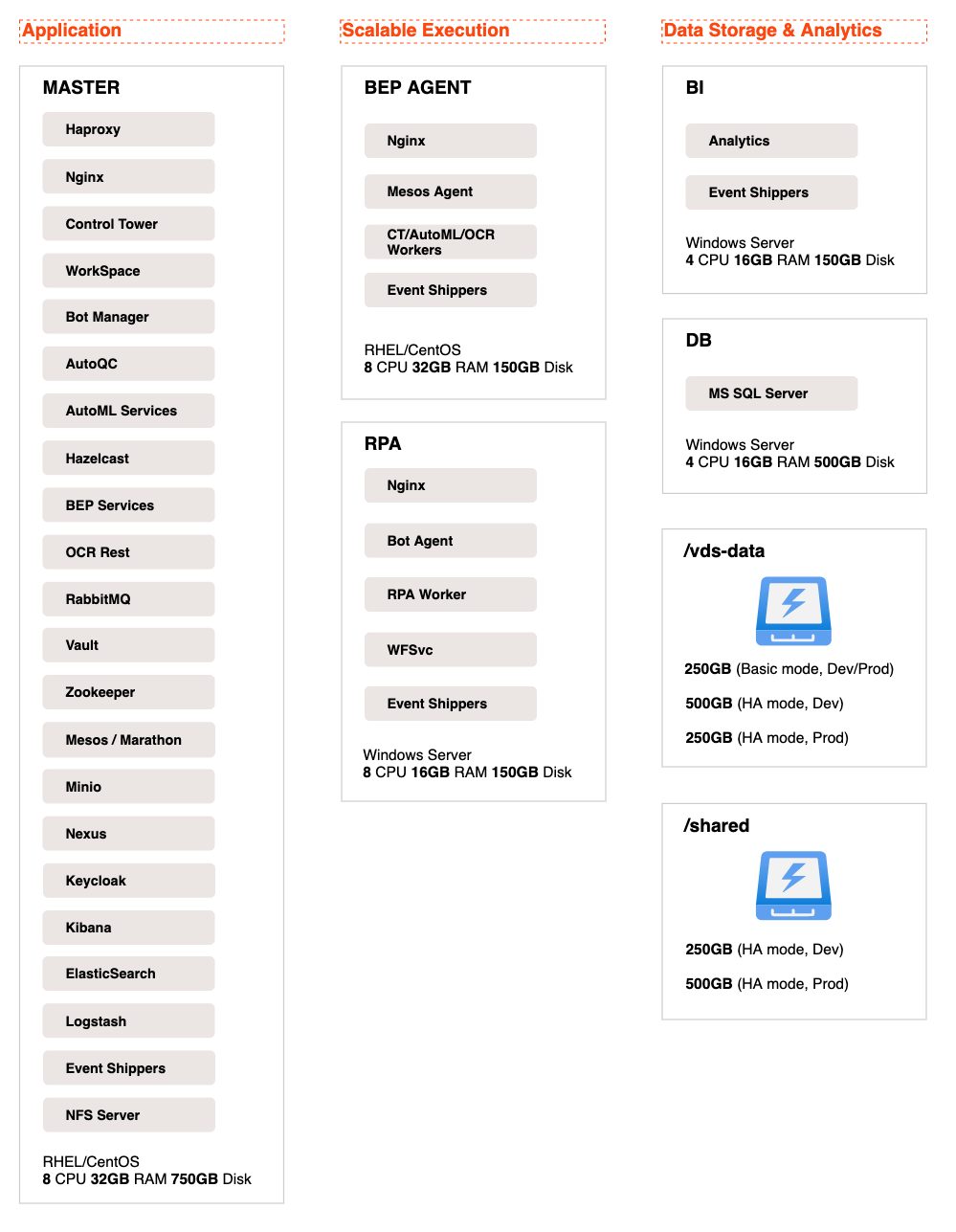
- Deploy the required amount of servers and tell us whether you are going to use the high-availability feature or not.
- Prepare disks and mount shared directories
- Configure your load balancer (for high-availability setup only).
- Create the "workfusion" database on your MS SQL server and populate it with the required logins, usernames, and passwords.
- Create Linux and Windows users on the servers.
- Prepare a list of DNS names of the required network components.
- On each deployed server, open the required ports.
- Prepare the certificates.
- Prepare servers for the installation.
- Check that you have prepared the environment for the installation correctly with our little checker.
- Install Intelligent Automation Cloud Enterprise.
important
If you need our assistance in installation, after you prepare the environment according to System requirements, we kindly ask you to download the archive with checklists, complete them all, and send the checklists to us.
Installation options
You can install Intelligent Automation Cloud in two different ways:
Single-point setup
The simplest and recommended way, when the installation of all components is performed from a single server. It is the best option if your company's policies allow SSH connection from any server to all others.
Multi-point setup
The traditional way, when the installation of each component is performed on the corresponding server. Select this installation method, if the security policies restrict SSH connection between servers or Windows Remote Management (WinRM) to run management scripts remotely.
note
There is also the mixed way of installation, if:
- You can connect from one server to all others via SSH.
- You are not allowed to use Windows Remote Management (WinRM).
In this case, use the single-point way to install all Linux components, and then the multi-point one, when it comes down to the Windows servers setup.
High-availability feature
Another option that you have to decide on is the installation mode:
Standard basic.
-
The high availability features make your installed system completely fault resilient and protected from the data loss in case of minor outages. Note that in this case, you will need several servers for each installed component and an installed load balancer. For more information, see the Hardware and the Load balancer article of the System requirements section.
HA Architecture
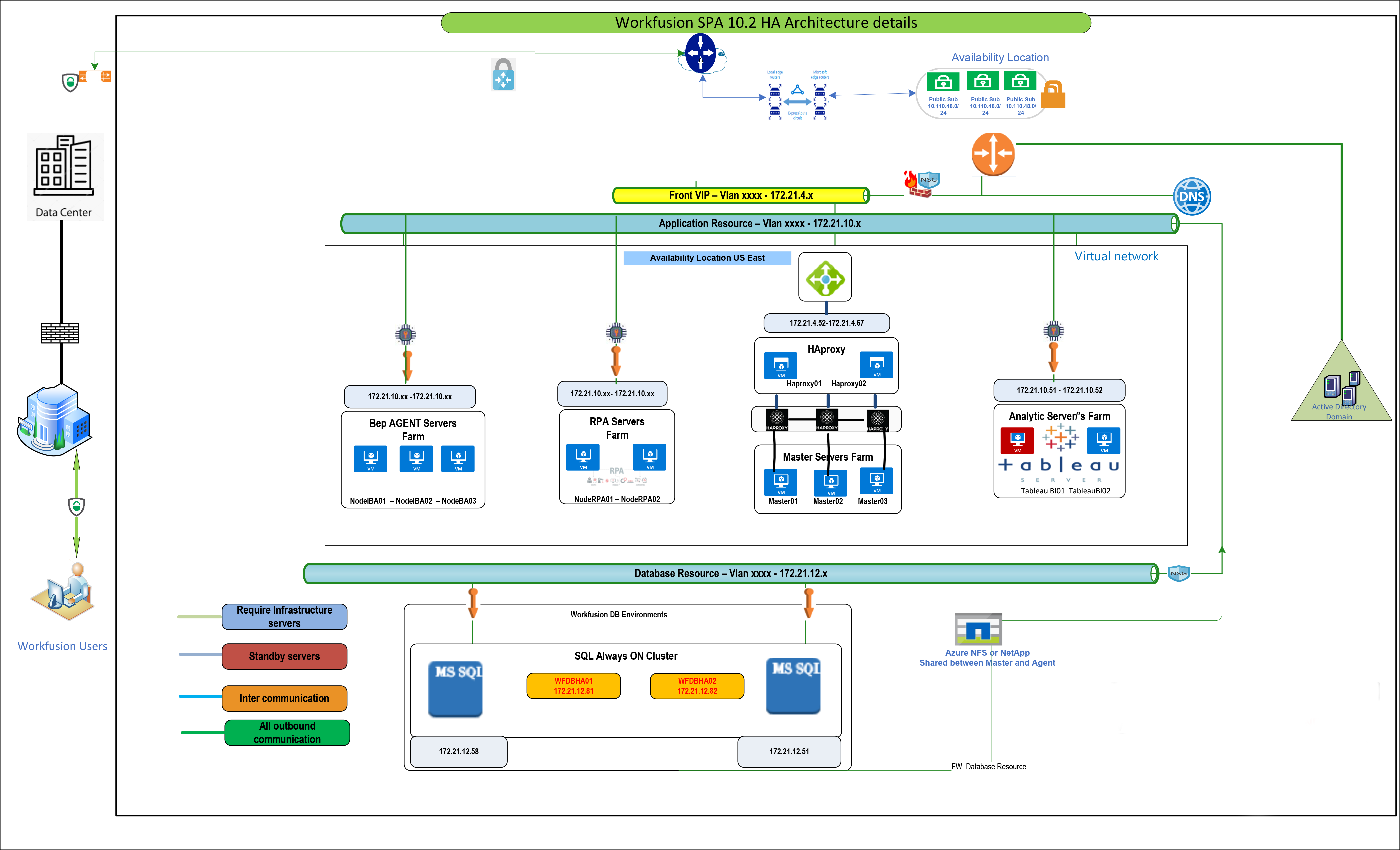
The HA architecture implies having several instances of each server, where one is primary, and the others are emergency ones. To provide the availability of services and connectivity among servers, the load balancer is used. The data is replicated via a shared file system. If a server or a component is disabled for any reason, data can still be read from another server.
HA covers both servers' and components' failures. Depending on the type of redundancy in software to be provided for High Availability, the following strategies for servers and components are applied:
- Active-Active: the component is running on both primary and secondary servers in parallel with the data replicated among them. If a server fails, the other takes its place.
- Active-Warm Standby: the component runs on the primary server. The other servers are warm standby, which means all of them are working, while the component is installed on them but not running. In the case of a failure on the primary server, the software component is started with failover scripts on the secondary node. The data is regularly mirrored to a secondary system using replication or shared disk. This approach generally provides a recovery time of a few minutes.
For the detailed HA configuration, see the table...
| Component | HA mode |
|---|---|
| MS SQL (on the customer's side) | Active-Active (Always On). See requirements for the database. |
| Shared file system (on the customer's side) | Replication. See requirements. |
| Control Tower | Active-Warm Standby |
| Workspace | Active-Warm Standby |
| Kibana | Active-Active |
| botmanager | Active-Warm Standby |
| AutoQC | Active-Warm Standby |
| Tableau | Active-Warm Standby |
| RPA/Bot Agents | Active-Active |
| OCR | Active-Active |
| BEP Worker | Active-Active |
| Marathon | Active-Active |
| Keycloak | Active-Active |
| AutoML (Gateway and Model) | Active-Warm Standby |
| Mesos Master | Active-Active |
| Master Service | Active-Warm Standby |
| RabbitMQ | Active-Active (Mirroring) |
| Nexus | Active-Warm Standby |
| Minio S3 | Active-Active |
| Secrets Vault | Active-Active |
| Zookeeper | Active-Active |
| Elastic Search | Active-Active |
| Hazelcast | Active-Active |
| BEP Task Dispatcher | Active-Warm Standby |
A load balancer (LB) is aimed at providing the availability of services, distributing traffic communication across servers, and is used to increase the capacity and reliability of applications. The load balancer must be installed on the customer's side. It accepts all the traffic and forwards the application requests to HAProxy, which is installed on an Master server. After that, HAProxy routes the incoming traffic among Intelligent Automation Cloud servers.
note
HAProxy is always installed on the Master server, even if you are not planning to run Intelligent Automation Cloud Enterprise in the HA mode.
Deployment diagram