Migrate users and qualifications from previous IA Cloud versions
Previously, when upgrading to IA Cloud v10.2+ from earlier versions without a unified user management system, you had to manually re-configure all user roles, permissions, qualifications, and related mappings configured in Control Tower (CT).
Starting from 10.2.1, a migration tool is available as part of the IA Cloud installer, enabling you to seamlessly migrate users, groups, qualifications, roles, and related mappings.
How it works
The migration tool completes user migration automatically in the course of upgrading. The figure below illustrates the interactions of the tool with IA Cloud components.
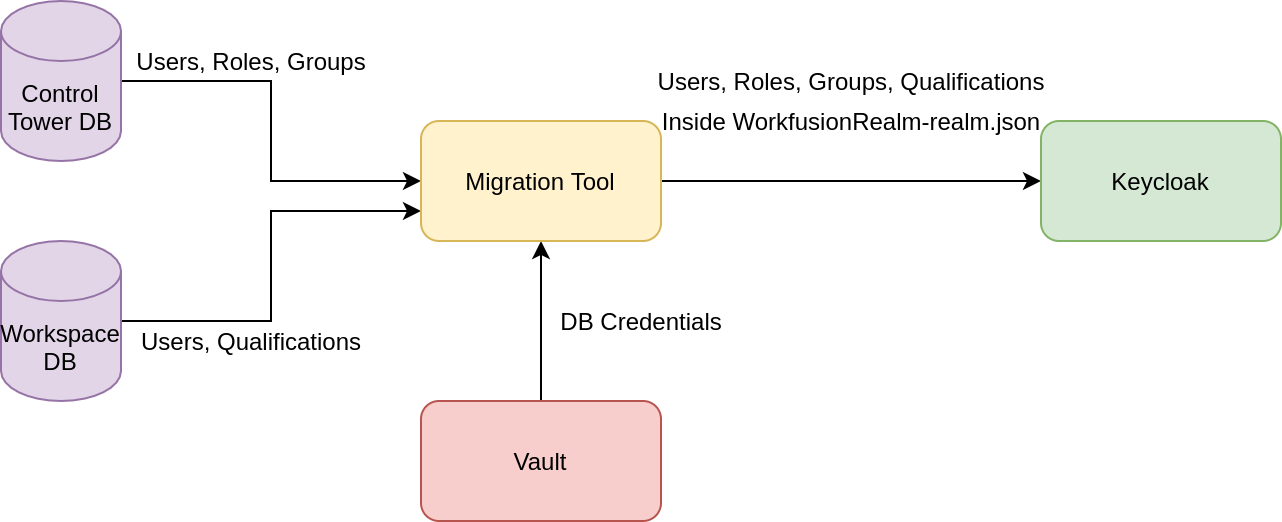
The underlying migration flow is as follows:
- Data is obtained from CT and WorkSpace (WS) databases.
- The data is converted into a proper format for importing to Keycloak.
- The
WorkfusionRealm-realm.jsonfile is updated to inject group, role, user, and qualification declarations.
Once the upgrade is over, check the migration results in a dedicated log at INSTALL_DIR/logs/user-migration.log.
Log example:
2020-11-27 09:45:56,341 INFO [main] c.w.u.m.m.t.j.JdbcUserExtractor [JdbcUserExtractor.java:148] Users with the following usernames were merged: [autotest18, autotest19, autotest16, autotest17].
2020-11-27 09:45:56,350 INFO [main] c.w.u.m.m.t.m.UserDataConfigurationMapper [UserDataConfigurationMapper.java:65] Converting user related data.
2020-11-27 09:45:56,440 INFO [main] c.w.u.m.m.t.s.RealmSerializer [RealmSerializer.java:49] Serializing realm data.
2020-11-27 09:45:56,780 INFO [main] c.w.u.m.m.t.App [App.java:30] Migration results: 403 user(s), 4 role(s), 5 group(s)
What you get after migration
Users from a previous IA Cloud version are fully migrated into the new user management system together with their roles, permissions, and related mappings, subject to the following considerations.
Merging WS and CT users with identical names
If users with the same username existed in CT and WS before migration, the tool merges the CT and WS users into one. The merged user utilizes the CT password. When needed, the Administrator can create a separate account for accessing WS.
You can find information about such merges in the migration log, for instance:
2020-11-27 09:45:56,341 INFO [main] c.w.u.m.m.t.j.JdbcUserExtractor [JdbcUserExtractor.java:148] Users with the following usernames were merged: [autotest18, autotest19, autotest16, autotest17].
Supplementing CT roles
Suppose a CT role had the MANAGE_USERS permission. In that case, it is supplemented with the following roles from the realm-management client in Keycloak: view-users, manage-identity-providers, query-clients, query-users, manage-clients, manage-users, query-groups, view-identity-providers, view-clients.
If a CT role had the PM_VIEW_STATISTICS or PM_EXECUTE_ACTIONS permissions, it is supplemented with the Admin role from the wf-kibana client in Keycloak.
Skipping disabled groups
Keycloak doesn't support the enabled or disabled states for groups in IAC versions prior to 10.2. So, the migration tool skips all disabled groups from Control Tower.
Enabling a shared email for CT and WS users
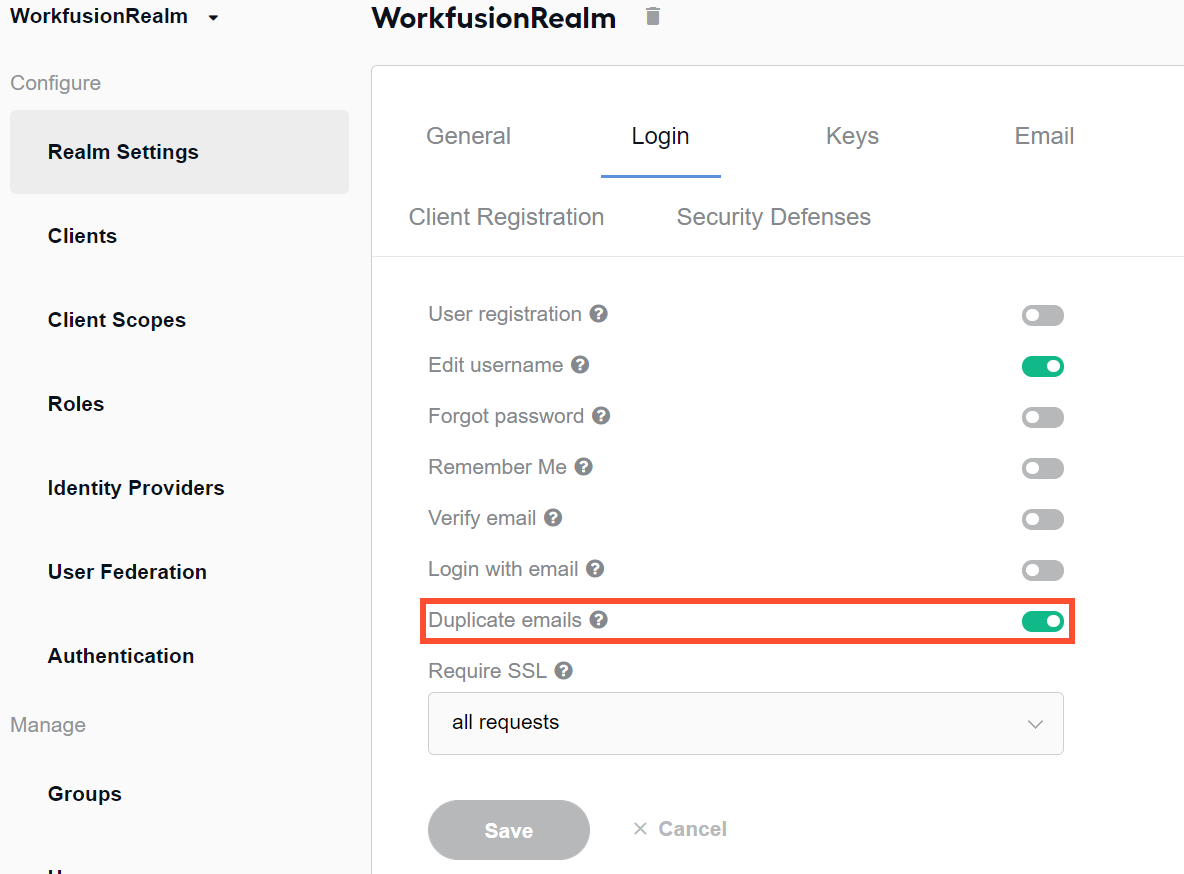
Users from CT and WS with different usernames can have the same email. To enable the feature after migration, go to WorkFusion realm > Realm settings > Login and make sure the Duplicate Emails toggle is on.
Migrating qualifications
Qualifications for Manual Tasks (MT) in WorkSpace are migrated as user groups, and Qualification names—as qualifications/<qualification_name>. Each worker becomes a user in a proper group based on their Qualifications.
For instance, Worker 1 had Qualification 1, and Worker 2 had Qualifications 2 and 3 in CT. After migration, the Qualifications are available on the Groups tab as user groups under the names qualifications/Qualification_1, qualifications/Qualification_2, and qualifications/Qualification_3, accordingly. Worker 1 becomes a user in the group named qualifications/Qualification_1, and Worker 2 becomes a user in the two groups—qualifications/Qualification_2 and qualifications/Qualification_3. To сheck the workers are in their proper groups, follow the instruction.
Mind the difference between the qualification and user group logic. Qualifications employ the AND logic: if an MT has several qualifications, it is visible only to the users who have all of them. User groups work based on the OR logic: if an MT has several qualifications, it is visible to the users who have any of them.
tip
For instructions on how to migrate business processes with manual tasks that use qualifications from IA Cloud Enterprise version 10.1.x to version 10.2.1 and higher, refer to How to migrate qualifications.
Migrating Crowds
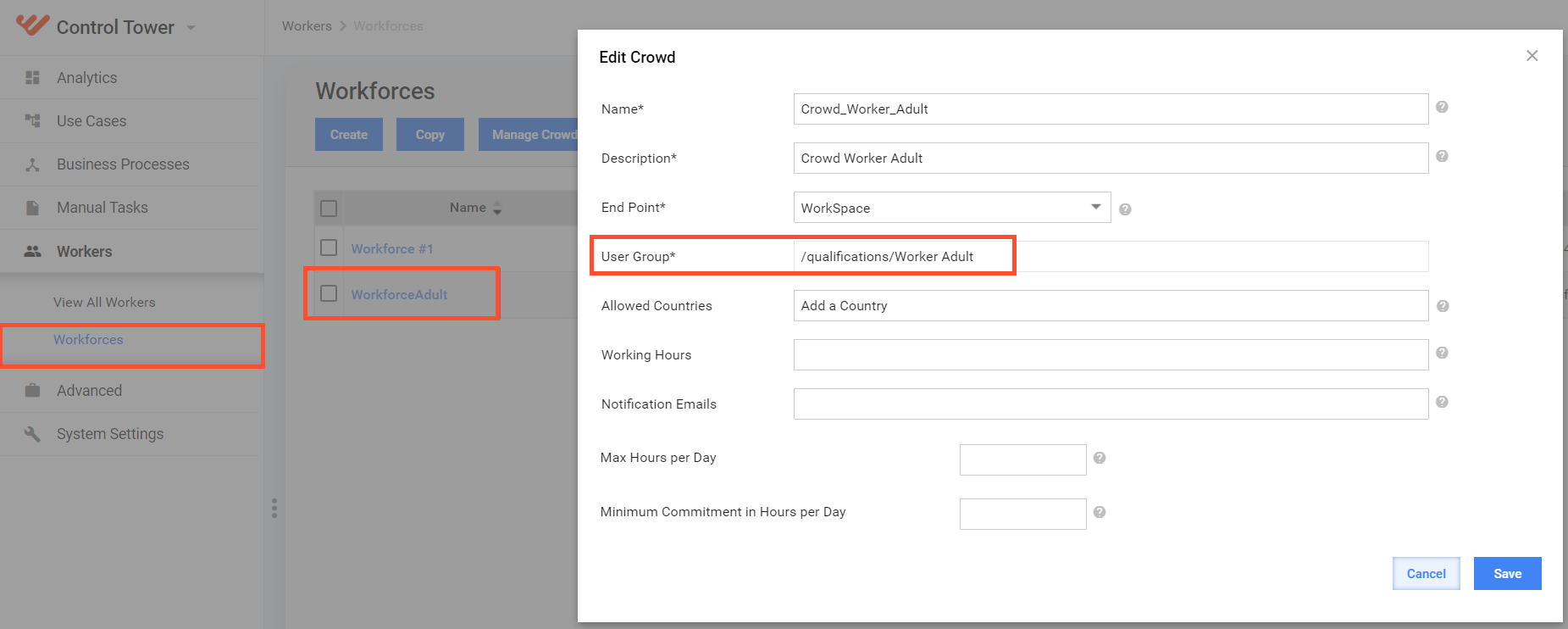
Qualified Crowds are migrated as user groups. The resulting groups have their names assigned by the rule—qualifications/<qualification_name>. For instance, a Crowd named Worker Adult becomes the qualifications/Worker Adult user group.
To verify Crowd migration, navigate to Workers > Workforces > Manage Crowds, select the required list item, and click Actions > Edit Crowd. On the Edit Crowd page, the User group field must contain the name of the migrated Crowd (for the example above, qualifications/Worker Adult).
Note that automatic migration is only possible for Crowds with one qualification. Crowds with multiple qualifications or agreements are not covered. To migrate them, modify the related Business Process so that each Crowd has only one qualification.
Migrating password hashes
Password hashes of Control Tower and WorkSpace users are automatically migrated using BCrypt defined in the bcrypt-support-plugin module. When a user changes a password, BCrypt is substituted for PBKDF2-SHA256, which is used in Keycloak by default.
For more information about data import with Keycloak, refer to the Keycloak official documentation.
How to migrate LDAP and IDP users
The described tool also enables automatic migration of LDAP (Active Directory) and IDP users configured for previous IAC versions in the course of upgrading. However, to use them, comply with the additional requirements detailed in the sub-sections below
Migrating LDAP users
Configure LDAP access according to the instruction, selecting the custom ldap-with-local-users-override provider. The latter is designed specifically for the migration case and is not supposed to be used for any purposes other than migration.
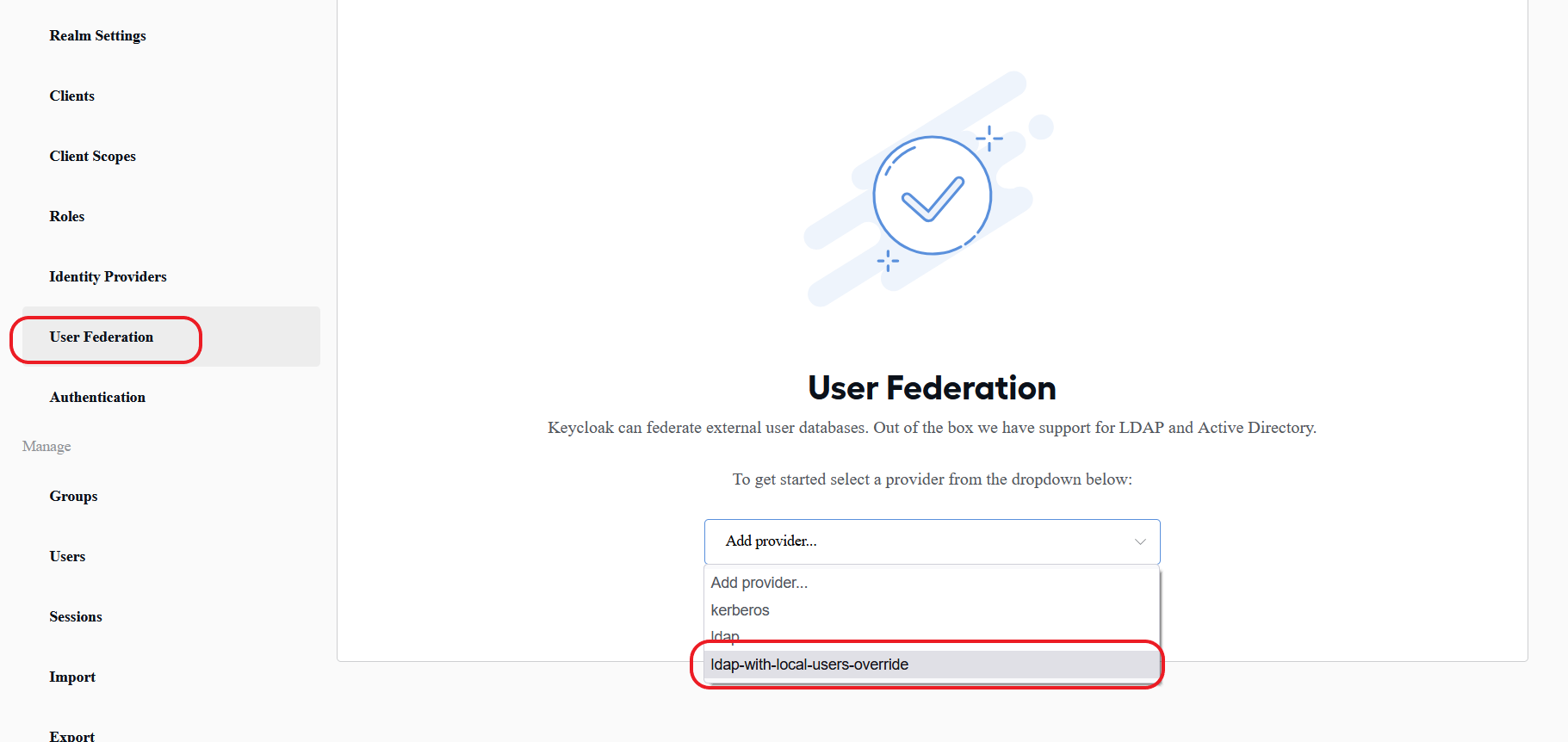
For details on the ldap-with-local-users-override provider, refer to the Configure LDAP guide.
Mind that you will have the possibility to log in both with LDAP users and local Keycloak ones. The Keycloak users will prevail.
Migrating IDP users
For migrating IDP users, meet the following prerequisites:
- Configure IDP access according to the instruction.
- Go to the Settings page of the configured SAML provider and select Link Trusted Provider for the First login flow.
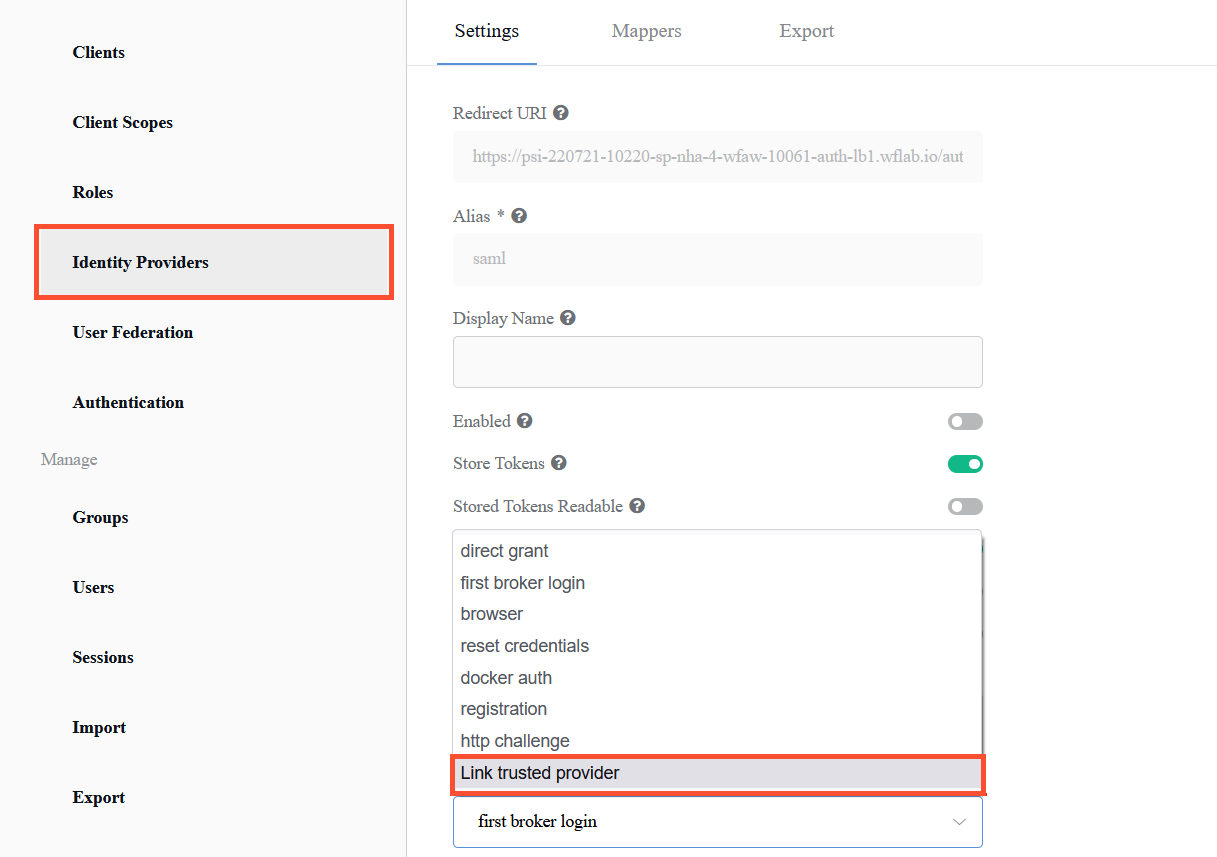
The flow is designed specifically for the migration case and is not supposed to be used for any purposes other than the migration process. For a new installation, use First broker login. For details on the Link Trusted Provider flow, refer to the Configure Identity Providers instruction.
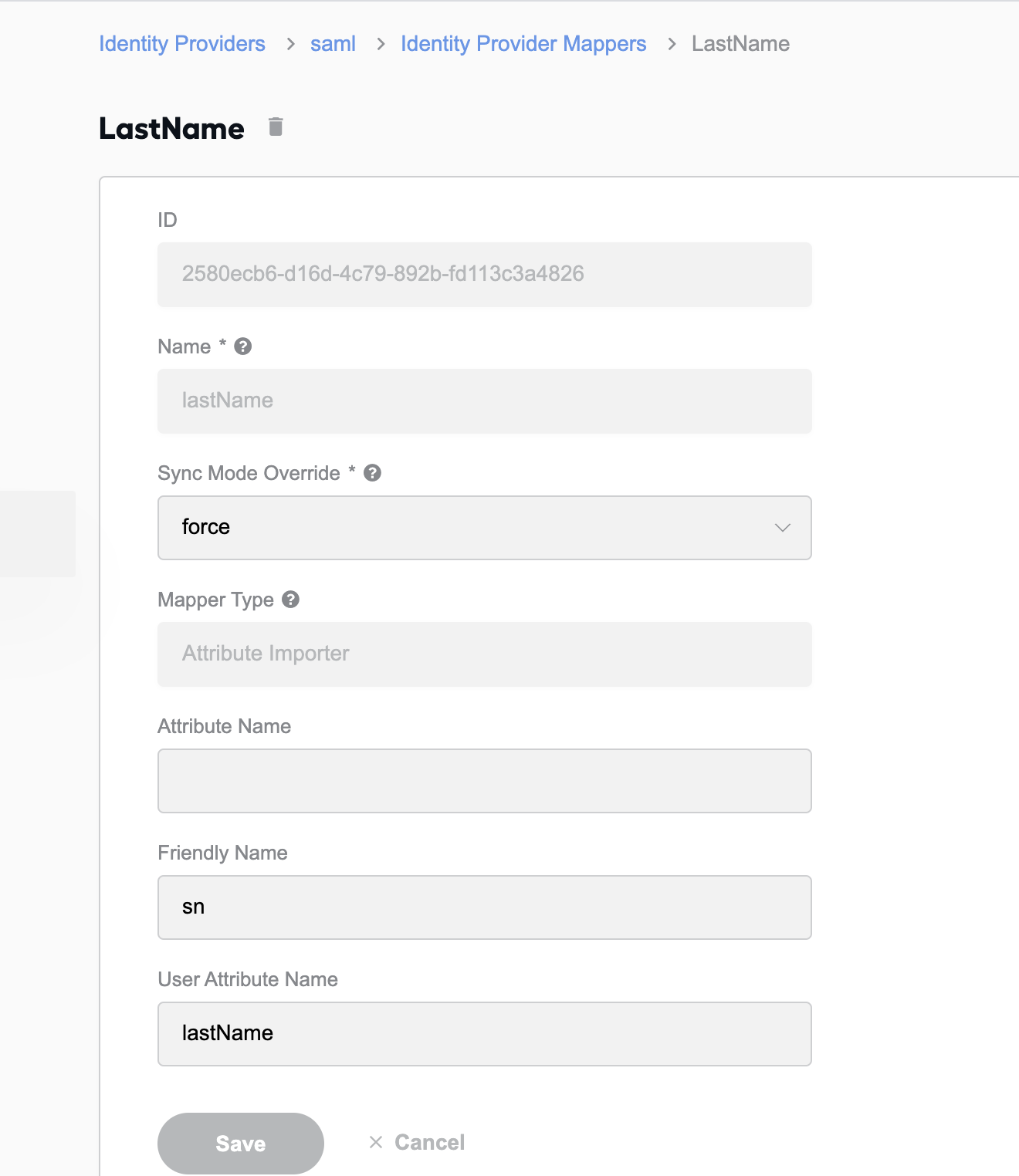
- Go to the Mappers section and add the following mappers:
email
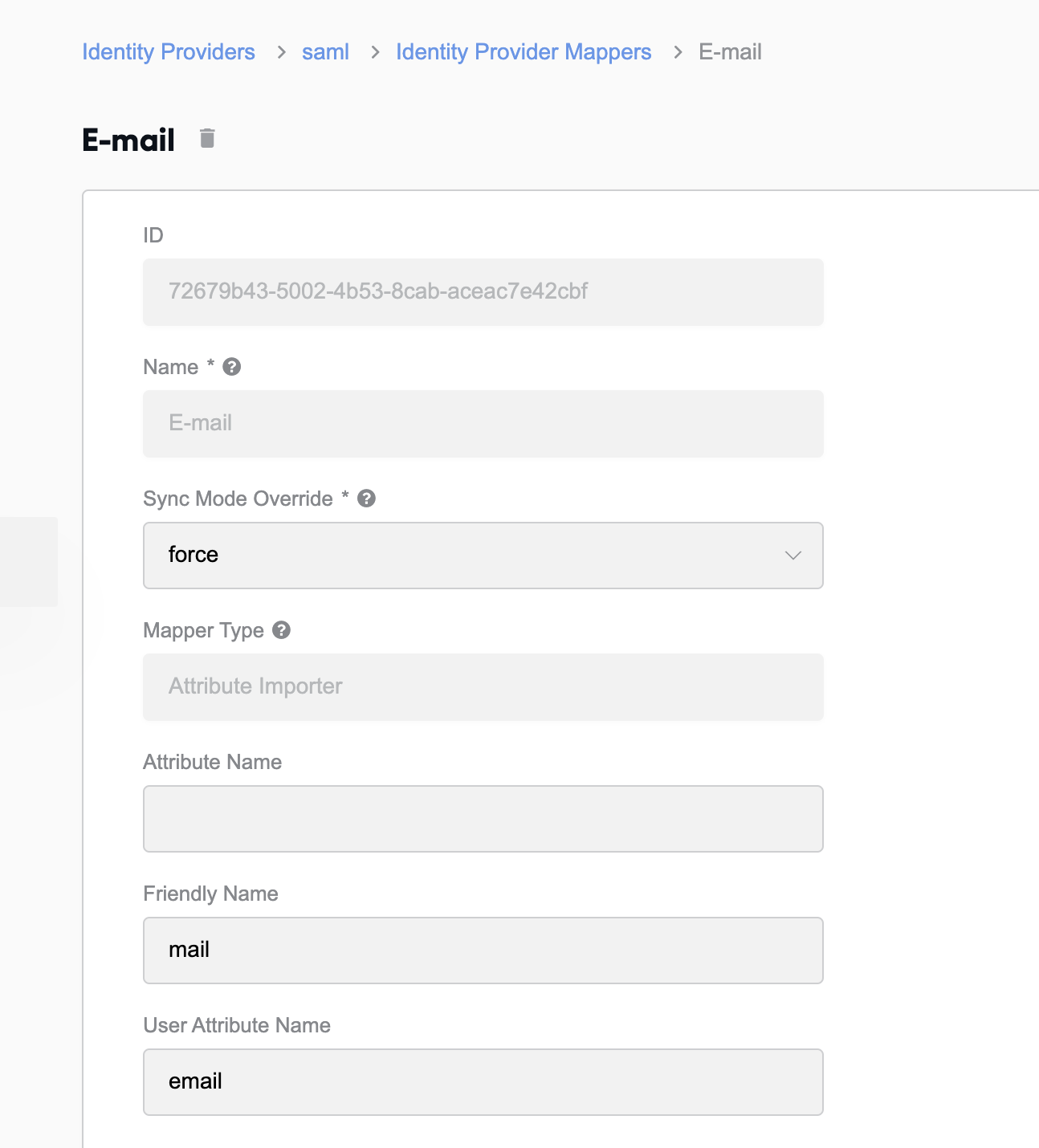
first name
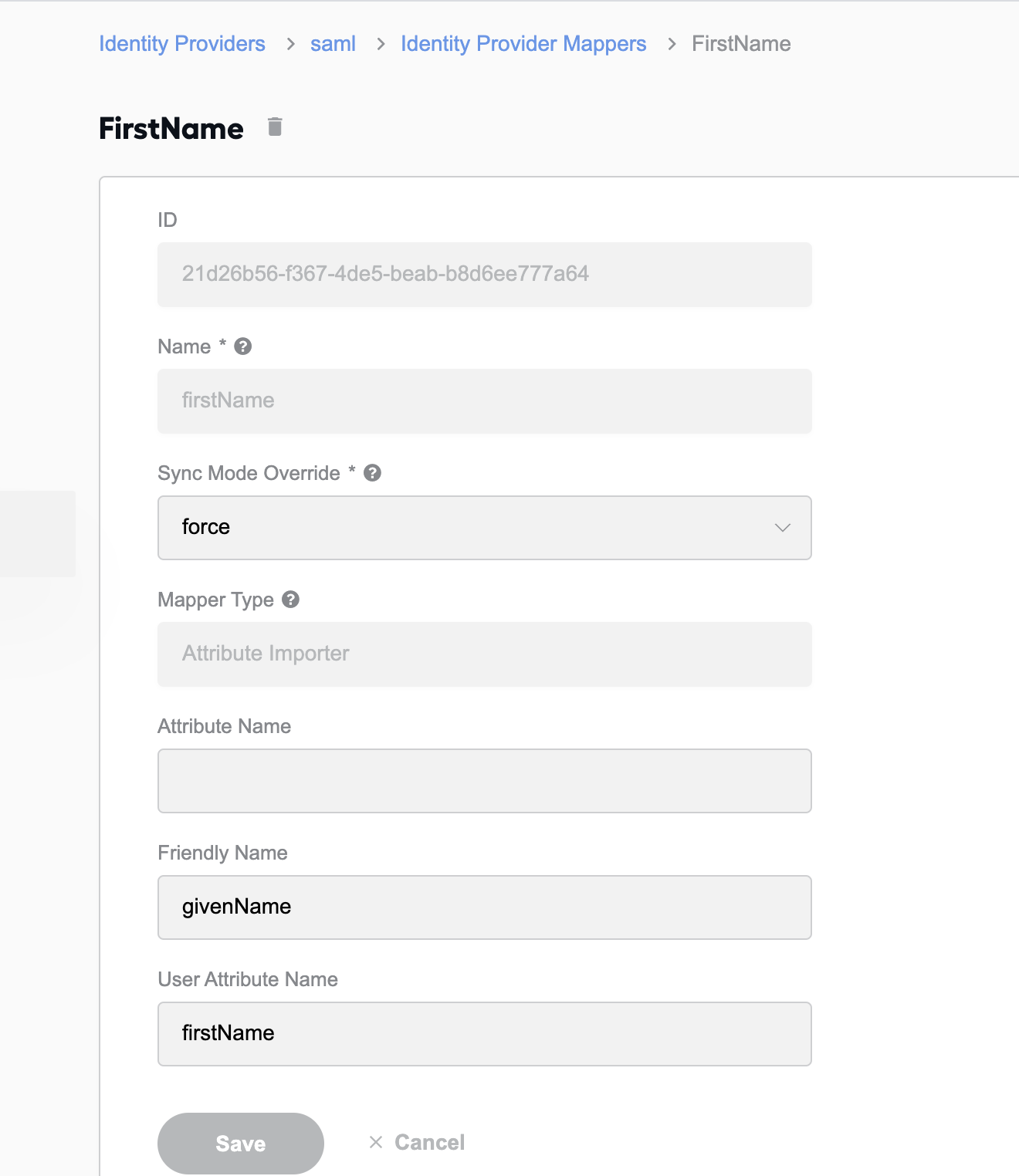
last name
- Set up the SMTP server settings.
How to migrate Business Processes with qualified MTs
The migration tool enables automatic migration of existing users, crowds, and qualifications, but not Business Processes (BPs).
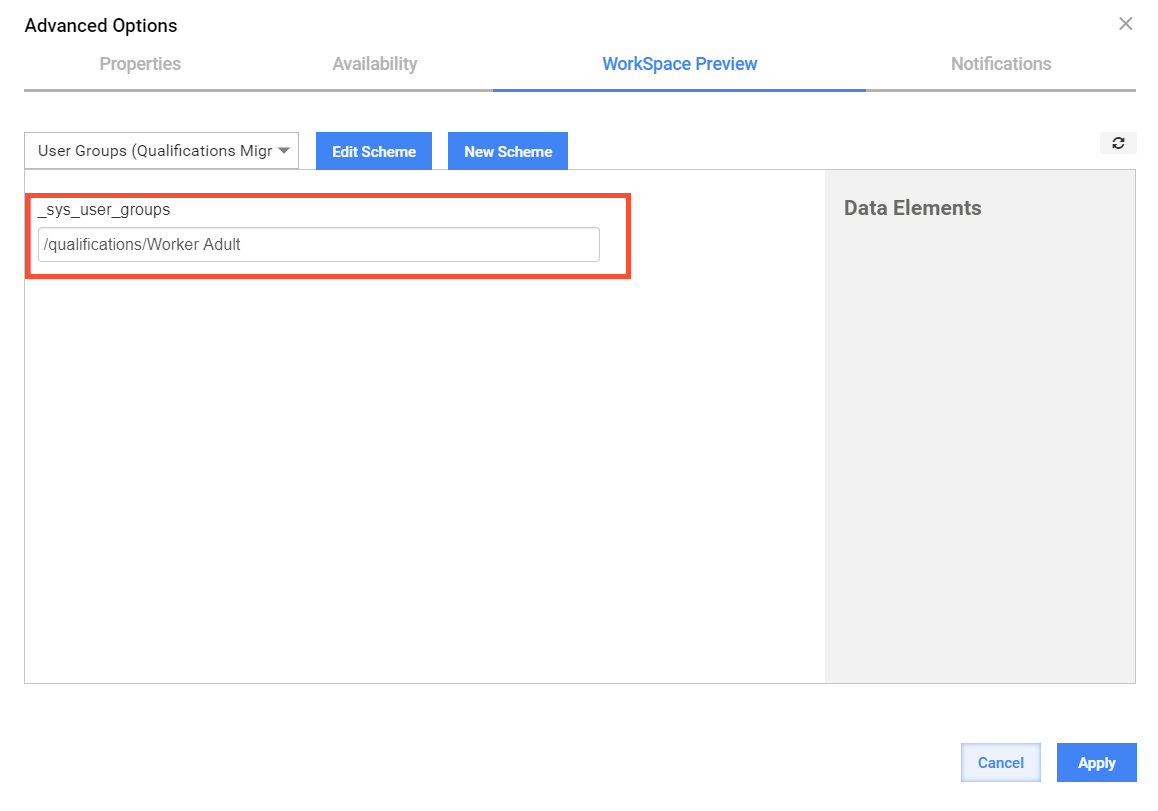
To migrate a BP with a qualified MT, create a BP package and deploy it to the upgraded IA Cloud. As a result, the BP is migrated with MT qualifications transformed into user groups. The names for the resulting groups match the pattern qualifications/<qualification_name>. The same names are added to the WorkSpace Preview Scheme as a default value for the _sys_user_groups attribute.
note
In WS 2.0, the Preview Scheme is used to create filter attributes and set access levels based on the _sys_user_groups attribute values. For details, refer to the guide on setting filter attributes.
The Workspace Preview Scheme for the qualified MT is modified and saved with the (Qualifications Migrated) postfix. If the MT doesn't have a Preview Scheme, it is created with the User Groups (Qualifications Migrated) name.
For example, a BP comprises a Manual Task with the Worker Adult qualification and a Preview Scheme named MT WS Scheme. After migration, the _sys_user_groups attribute is added to WS Preview Scheme with its default value set to /qualifications/Worker Adult. The Preview Scheme will have a new name—MT WS Scheme (Qualifications Migrated).