
Configure task to quit queue after its processing is over
Problem
When you work on a long task taking up to several hours, submit the results, and do not plan to work on another one, the task is automatically accepted and blocked so that no one can access it for a long period of time.
Solution
To resolve the issue in IA Cloud version 10.2.5, you can use the so-called dequeued tasks. After you submit such a task, the next one is not shown, and you are routed to the assignment list.
The Skip option works the same way as before. If you skip such a task, the next one from the queue is shown.
Configure preview scheme
To enable a dequeued task, use the field scheme functionality or columns in a CSV task data file. The name of the field or column is _sys_mt_hit_dequeued.
To create a field scheme, do as follows:
Go to Field Schemes and click Create scheme.
Add a Free text answer and name it _sys_mt_hit_dequeued. Set the default value to
true.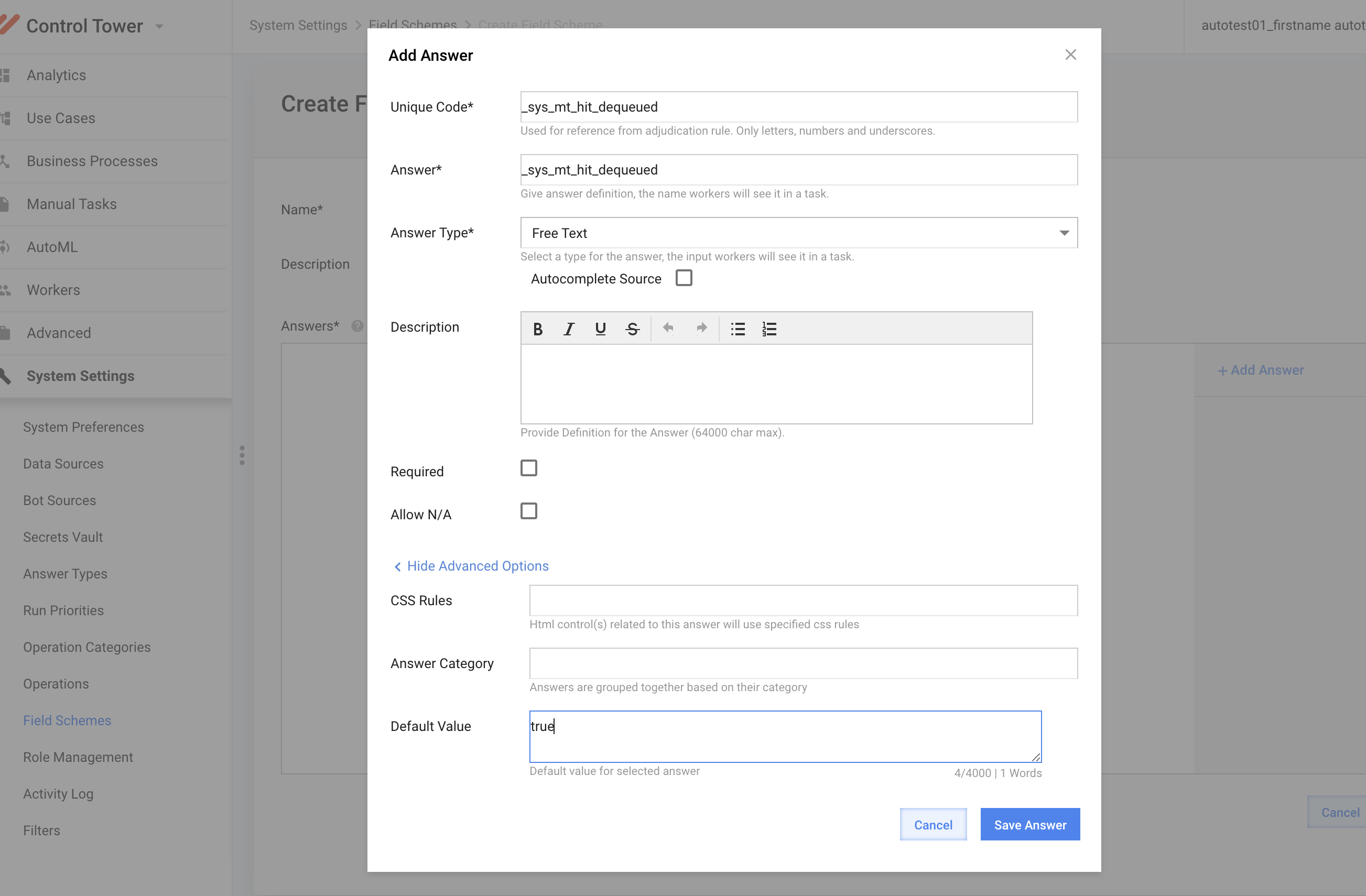
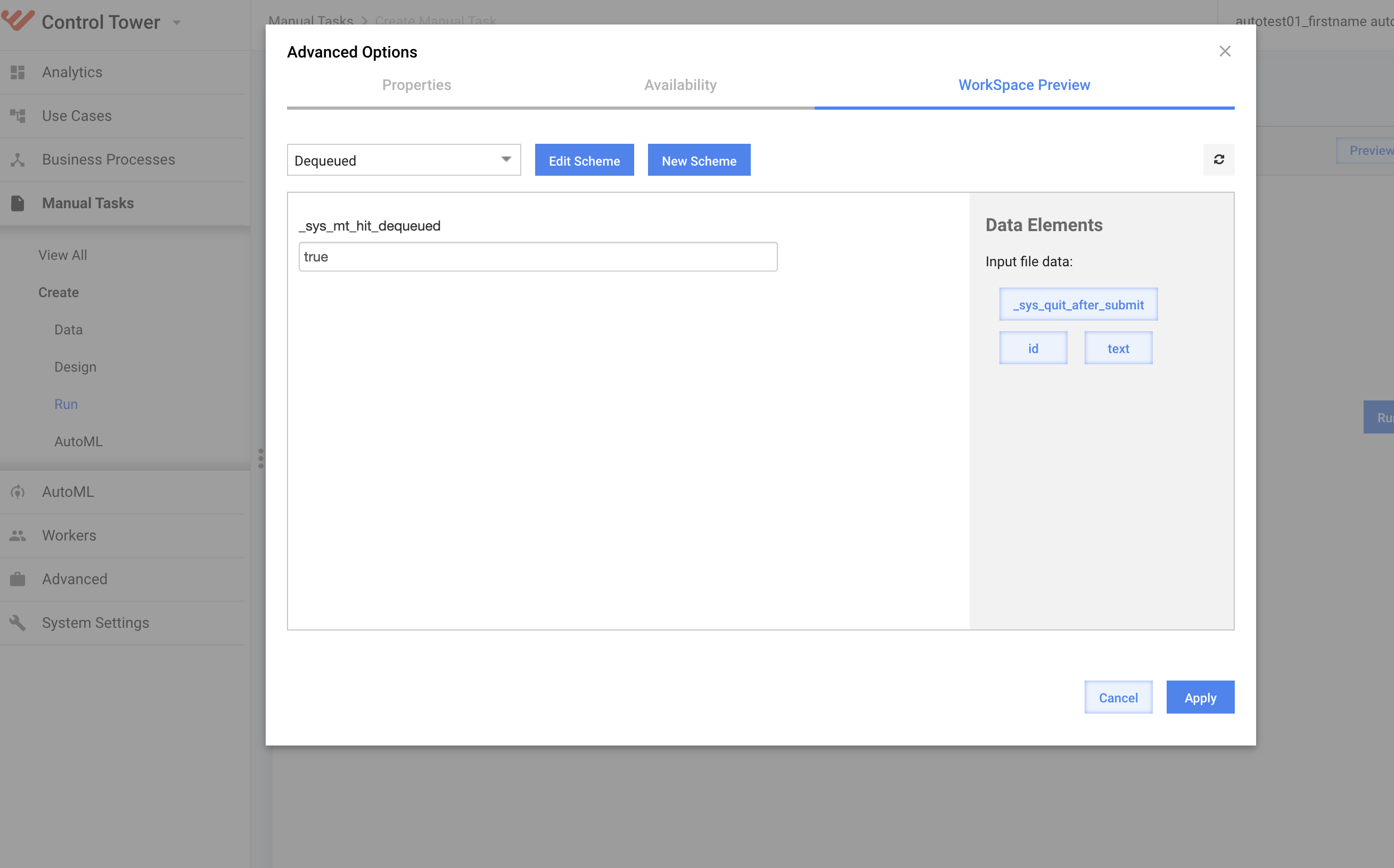
Go to your Manual Task's Advanced Options > the Workspace Preview tab and select the created scheme.
note
If you already use a Preview Scheme, add the _sys_mt_hit_dequeued answer to it.
Specify task data
You can also define if a task is dequeued or not. To do it, add the _sys_mt_hit_dequeued column to your CSV task data file and set its value to true, or pass it from the previous bot step.
If you define _sys_mt_hit_dequeued in both Preview Scheme and Task data, mind that the task data has a higher priority.
Customize task
To differentiate dequeued tasks, change the design or text of the Submit button. For example, to rename the Submit text to Submit and Quit, switch to Code editor and add the code below:
<script type="text/javascript">
  $(document).ready(function() {
    $('.submit-btn').text('Submit and Quit');
  });
</script>