
Troubleshoot WorkSpace issues
The issues described in the article refer to WorkSpace 2.0.
Authentication issues: failed login and logout
Details
Symptoms
The login or logout fails.
Cause
Find the details about the issue root case in the Keycloak or WorkSpace logs. By default, specific WorkSpace logs are disabled due to the high rate of false negative messages.
To enable these logs, go to ZooKeeper and set the following property for Workspace: org.keycloak.adapters.RefreshableKeycloakSecurityContext: INFO.
For more information on setting a logging level, refer to Change a component's log level.
Failed file upload in worker answers
Details
Symptoms
You try to upload a file in an answer requiring to do so, but the file is not uploaded.
Cause
Your file name is too long. The names of any uploaded files can be no more than 60 characters long.
Fix unique key constraint issue during WorkSpace upgrade or migration
Details
Only for Enterprise Edition v.10.2.5+
Symptoms
During the upgrade to v.10.2.5+, you can face an issue with Liquibase migrations for the 'ws' schema (see the example below). The error means the database has several assignments related to the same hit. And the issue can be met only in environments using Enterprise Edition versions older than 10.2.0.
See the error message
TASK [wf-migrate : Execute liquibase migrations for MSSQL db: "workfusion", schema: "ws"] ***
fatal: [wfct-dev.polaristransport.local -> localhost]: FAILED! => changed=true
  attempts: 5
  cmd: |-
    source /opt/workfusion/environment.sh
    liquibase --defaultsFile=liquibase.mssql.properties --password='R^Ie4MBT7^' update
  delta: '0:00:03.216760'
  end: '2022-07-29 07:56:24.239476'
  msg: non-zero return code
  rc: 255
  start: '2022-07-29 07:56:21.022716'
  stderr: |-
    SLF4J: Class path contains multiple SLF4J bindings.
    SLF4J: Found binding in [jar:file:/opt/workfusion/liquibase/lib/logback-classic-1.2.3.jar!/org/slf4j/impl/StaticLoggerBinder.class]
    SLF4J: Found binding in [jar:file:/opt/workfusion/liquibase/lib/slf4j-simple-1.6.99.jar!/org/slf4j/impl/StaticLoggerBinder.class]
    SLF4J: See http://www.slf4j.org/codes.html#multiple_bindings for an explanation.
    SLF4J: Actual binding is of type [ch.qos.logback.classic.util.ContextSelectorStaticBinder]
  stderr_lines: <omitted>
  stdout: |-
    Liquibase Community 3.8.7 by Datical
    Unexpected error running Liquibase: Violation of UNIQUE KEY constraint 'UQ__assignme__DA891815AC2F77DB'. Cannot insert duplicate key in object 'ws.assignment'. The duplicate key value is (4c88b1d3-f792-489e-8e7f-73ecc614b88a). [Failed SQL: (2627) UPDATE assignment
                SET
                    assignment.expiration_time = h.expiration_time,
                    assignment.assignment_status =
                        case
                            when h.hit_status = 'DISABLED'
                                then 'INACTIVE'
                            when h.hit_status = 'REVIEWABLE' and h.expired = 1
                                then 'EXPIRED'
                            when a.assignment_status IN ('SUBMITTED', 'APPROVED', 'REJECTED')
                                     or h.hit_status IN ('UNASSIGNABLE', 'REVIEWING', 'REVIEWABLE')
                                then 'COMPLETED'
                            when a.assignment_status = 'ACCEPTED' and h.hit_status = 'ASSIGNABLE'
                                then 'IN_PROGRESS'
                            when  a.assignment_status IN ('SKIPPED', 'RETURNED', 'ABANDONED')
                                      and h.hit_status = 'ASSIGNABLE'
                                then 'READY_TO_PROCESS'
                            when h.hit_status = 'DISPOSED'
                                then 'DELETED'
                            else 'INACTIVE'
                        end,
                    assignment.instance_id = h.instance_id,
Resolution
To check for duplicates, run the following script to get a list of copies that can be deleted:
select * from ws.assignment a1 where exists (select * from ws.assignment a2 where a2.hit_id = a1.hit_id and a2.id > a1.id);
To resolve the issue, do the following:
Back up found duplicates.
Run the script to delete the duplicates:
delete a1 from ws.assignment a1 where exists (select * from ws.assignment a2 where a2.hit_i
Overlapping header text while scrolling after migration to IA Cloud Enterprise v.10.2.6
Details
Symptoms
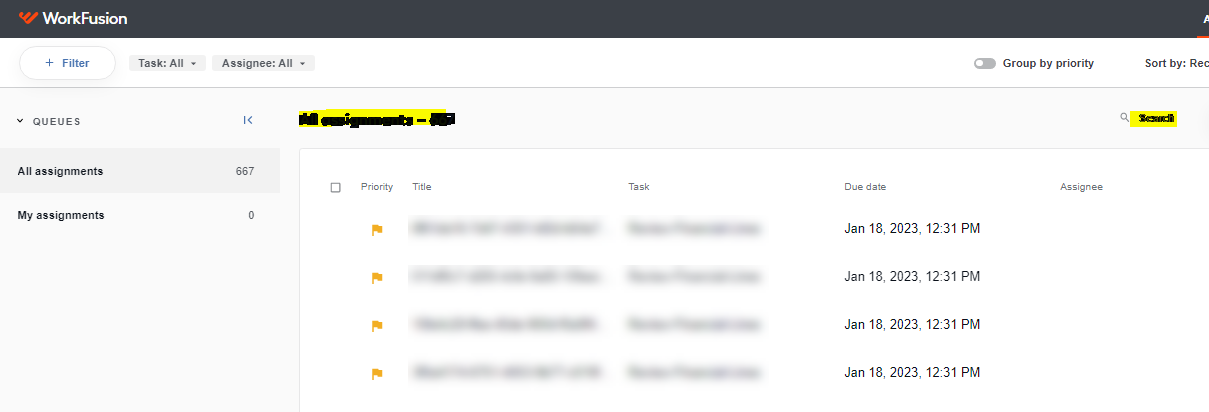
In Chrome and Edge, the Assignments header becomes unreadable when you scroll the assignment list.
Resolution
To resolve the issue, apply the workaround:
On your Windows machine, in the search box, type
ClearType. When you see Adjust ClearType Text, click it or press Enter.In the ClearType Text Tuner window, uncheck the box next to Turn on ClearType.
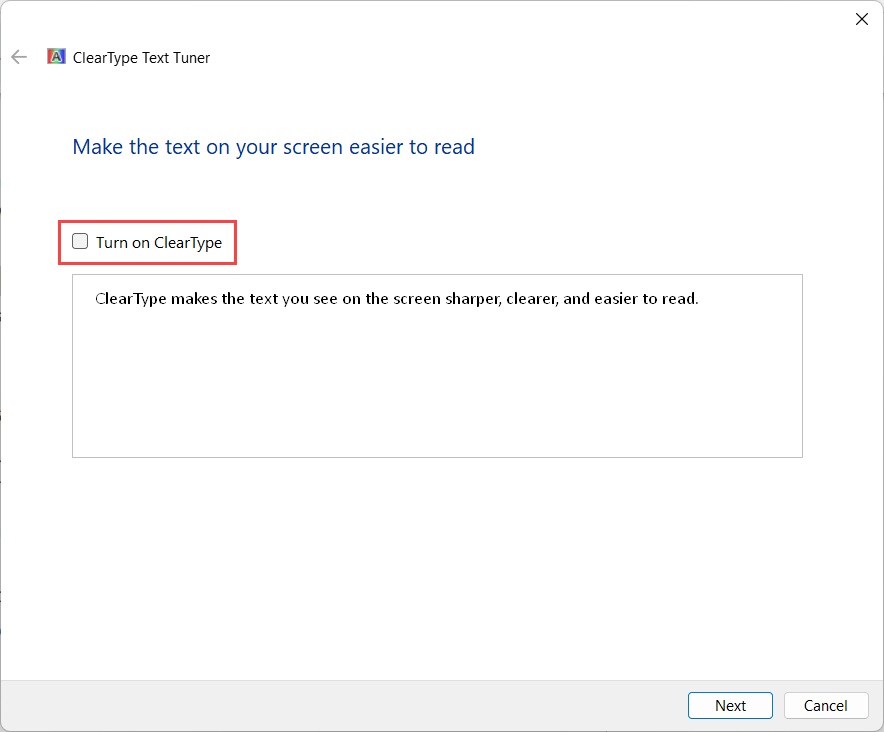
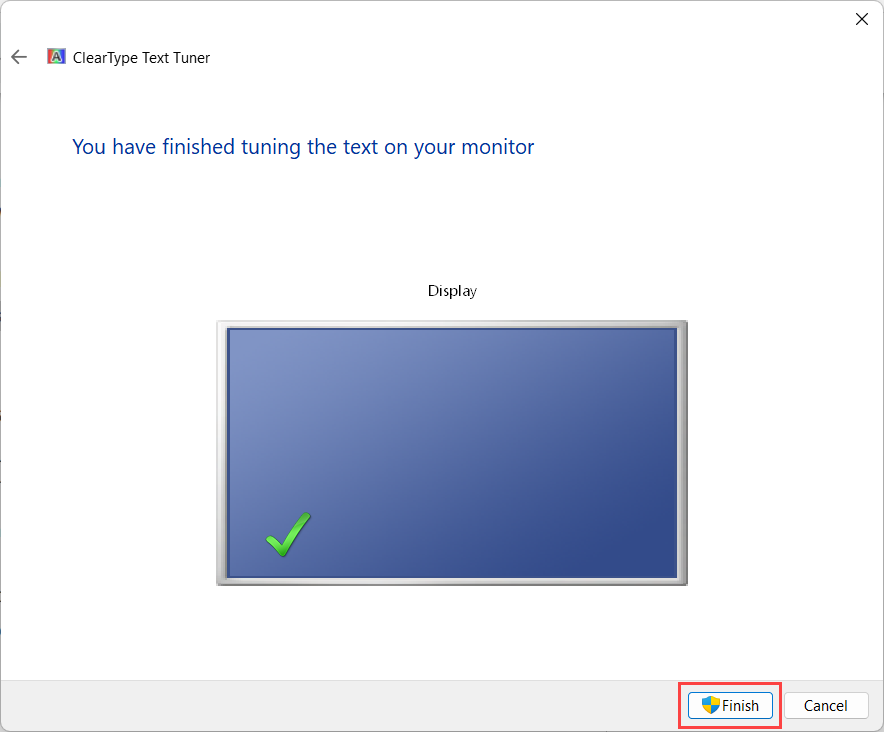
Click Next, complete the steps, and click Finish.
In the search box, type
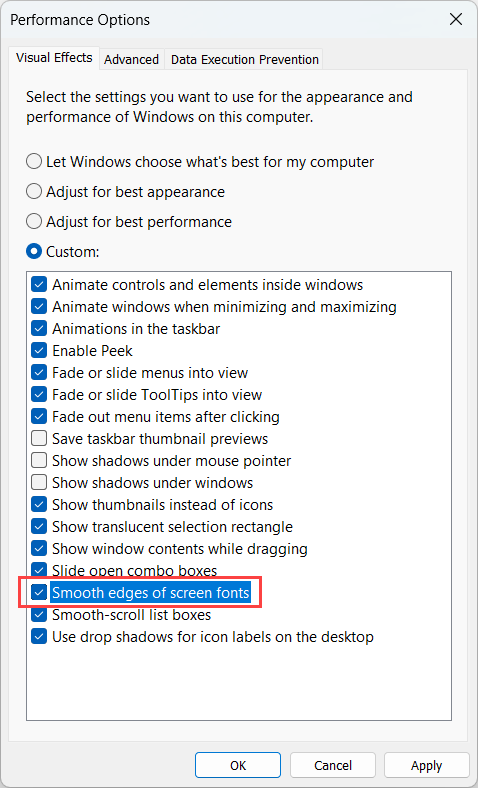
Appearance. When you see Adjust the appearance and performance of Windows, click it or press Enter.In the Performance Options window, select Smooth edges of screen fonts. Click Ok and then Apply.
Reopen your browser after the changes are applied.