
Keep BI servers identical on environment with high-availability architecture
To maintain high availability, synchronize the deployment across all BI servers on both A and B environments. For that, deploy reports and workbooks on each of them manually.
During the off-peak period, perform the following steps as downtime for dashboards and analytics is expected.
On environment A
Considering that one BI server is enough to keep all services running, publish the necessary reports and workbooks on the active BI server and check if the reports or workbooks are correctly deployed.
For instructions on publishing custom reports or workbooks to a BI server, refer to the Backup and restore custom Analytics dashboards guide.
Also, it is highly recommended to configure a schedule on the WorkFusion Analytics Server as described in the Install BI Windows Server guide.
Stop all services on the active BI server. Open Command Prompt and run the following commands:
cd c:\workfusion\WorkFusionAnalyticsServer\packages\bin.<version_code>
tsm stop
note
The path to WorkFusion Analytics Server binaries might be different in your case.
Connect the second BI server through RDP and start all BI services. Open Command Prompt and run the following commands:
cd c:\workfusion\WorkFusionAnalyticsServer\packages\bin.<version_code>
tsm start
When all services are up and running on the second BI server, make sure that the WorkFusion Analytics Server site is accessible in a browser. Open the following link in a browser on this server and type the credentials as shown in the screenshot below:

If it is accessible and everything works as expected, publish the necessary reports or workbooks to the second BI server as described in Step 1.
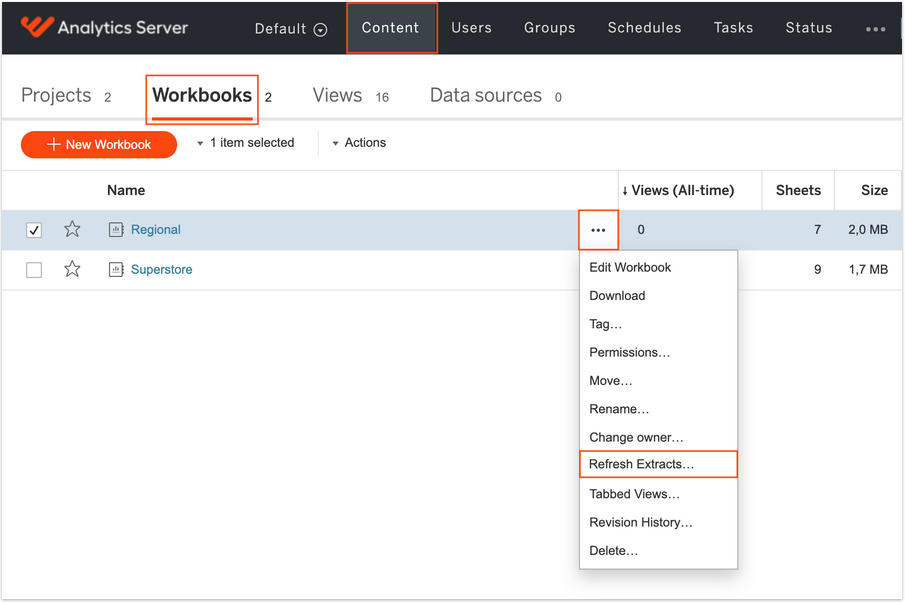
Perform the following steps to decrease the downtime in case of a failover:
- Go to Content > Workbooks.
- Select required workbooks one by one.
- Click More (...) > Refresh Extracts.
caution
It might take long in case there is a lot of data to extract from the database, and this step has never been performed before.
Stop all services on the second BI server as described in Step 2.
Connect to the third BI server through RDP and start all BI services as described in Step 3.
Steps 4 and 5 are applicable to the third BI server as well.
As soon as the reports or workbooks are deployed on the third BI server, stop all services on the server as described in Step 2.
On environment B
- Make sure no services are running on any BI servers in environment A.
- Connect to the first BI B server through RDP and start all BI services as described in Step 3 above.
- Publish the reports or workbooks, perform Step 5, and stop all BI services as described in Step 2.
- Connect to the second BI B server through RDP, start all services as described in Step 3, and perform the same actions as in the step above.
- Make sure there are no services running on any BI server on environment B and start all BI services on the first BI server on environment A as in Step 3 above.
- Make sure that all services are up and running on the first BI server on environment A, all dashboards are accessible in Control Tower, and all data is shown properly.