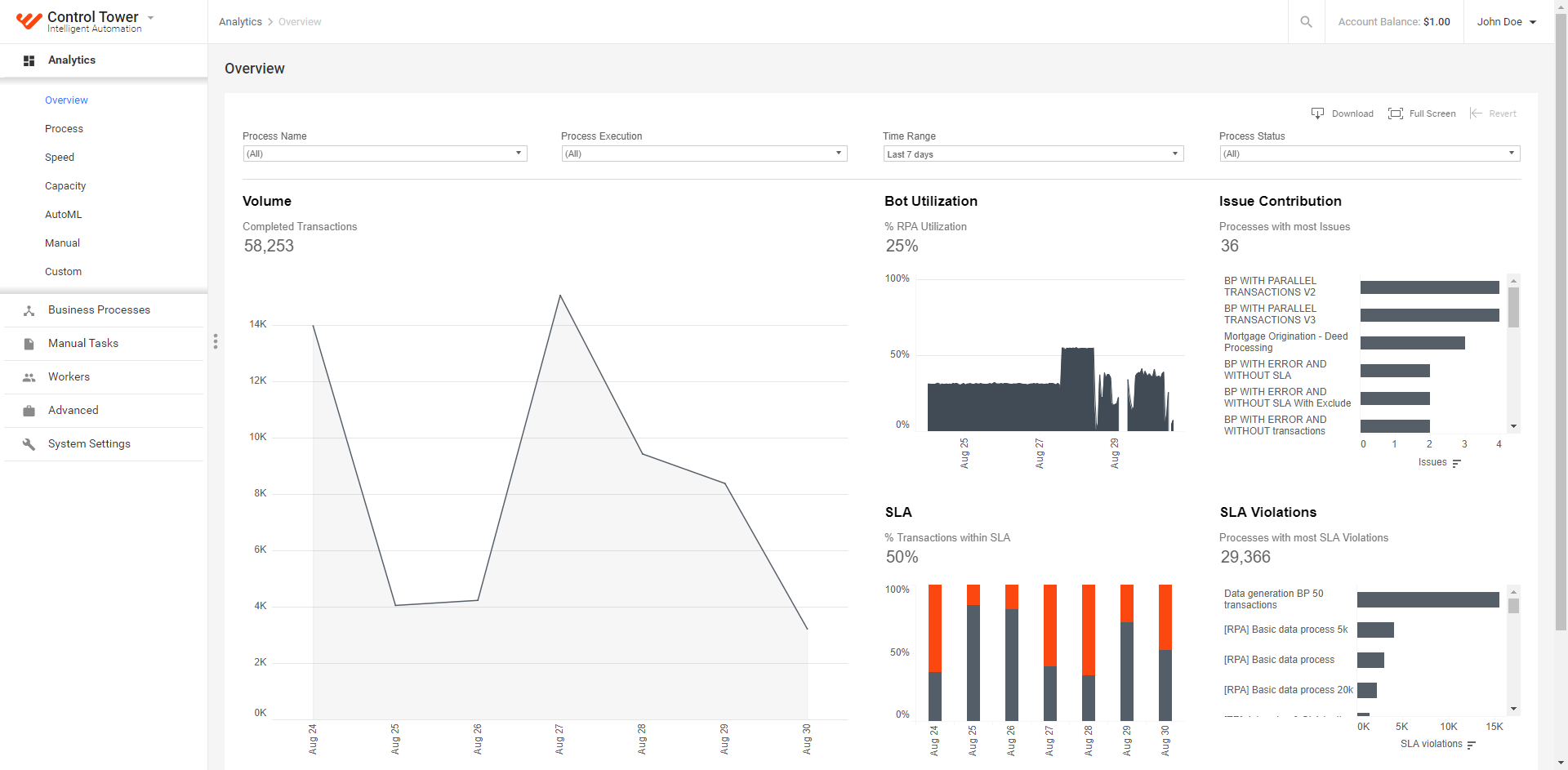
Install Analytics Windows Server
Install Analytics Server
To install the Analytics Server:
On the Master server, migrate the databases:
$ cd /opt/workfusion/wf_installer
$ ./install.sh migrate bi
You can also migrate the databases after the installation. In this case, after you finish the setup, run the preceding command and restart the Analytics server to apply the changes.
Generate configuration files required by the Analytics installer and make the installer and configuration files downloadable from the Master server over HTTP. For that, replace /opt/workfusion/wf_installer with correct
PACKAGE_DIRfor your environment, and execute the following commands on the Master server.$ cd /opt/workfusion/wf_installer $ ./install.sh generate_conf bi $ python -m SimpleHTTPServer 9999Here, port 9999 is used as an example. You can use any free Master server port accessible from the Analytics ones. If, for some reason, you are not allowed to open other ports, ignore the
python -m SimpleHTTPServer PORTcommand, and copy the files manually from Master to Analytics servers.The Analytics Installer is now temporarily downloadable from the Master server over HTTP. You can stop the HTTP server after copying.
Connect to the Analytics server via RDP as a Windows Administrator user.
Launch PowerShell ISE as Administrator. Copy the following script and execute it in PowerShell on the Analytics servers.
See the script...
Before the execution, remember to modify the lines in the section between# FILL IN THE PARAMETERS BELOWand# =========================================according to your configuration. Remember to change variable<bi1_hostname>to<bi2_hostname>, when installing to a second Analytics server in the high-availability mode.# INSTALL TABLEAU SERVER # FILL IN THE PARAMETERS BELOW $download_from = "<Master server hostname>:9999" # any port on the Master server accessbile from Analytics $install_dir = "c:\workfusion" # The value of "bi_install_dir" which you've set in config.yml during Linux servers installation. $bi1_hostname = "<bi1_hostname>" $env:lic_key="trial" $env:win_user="username" # The value of "bi_user" which you've set in config.yml during Linux servers installation. $env:win_pass='"password"' # Leave single and double quotes in place. Replace only word password. The value of "bi_pass" which you've set in config.yml during Linux servers installation. $env:TABLEAU_USER="username" # The value of "tableau_admin_user" which you've set in config.yml during Linux servers installation. $env:TABLEAU_PASS="password" # The value of "tableau_admin_pass" which you've set in config.yml during Linux servers installation. # IMPORTANT: do not use spaces in the below variables when separating values (should be comma-separated list, NOT comma-and-space-separated list) $env:TABLEAU_TRUSTED_HOSTS="<bi_lb_hostname>,<master1_hostname>,<master2_hostname>,<master3_hostname>" # Remove <master2_hostname> and <master3_hostname>if there is only one Master server in environment. $env:GATEWAY_PUBLIC_HOST="<bi_lb_hostname>,<bi1_hostname>,<bi2_hostname>" # Remove <bi2_hostname> if there is only one Analytics server in environment $env:GATEWAY_TRUSTED_IP_ADDRESSES="<bi_lb_ip_address>,<bi_server_ip_address>,<master1_ip_address>,<master2_ip_address>,<master3_ip_address>,127.0.0.1" # Remove <master2_ip_address> and <master3_ip_address> if there is only one Master server in environment $env:GATEWAY_PUBLIC_PORT=443 # Load balancer port $bi_installer = "<installer-name>.zip" #Specify manually. Find the name of the installer in INSTALL_DIR/sources. For example, /opt/workfusion/wf_installer/sources/WorkFusionAnalyticsInstaller-10.1.6.zip # ========================================= $package_dir = "${install_dir}\WorkFusionAnalyticsServer" Write-Host "Creating package_dir" New-Item -ItemType directory -Path ${package_dir} -Force Write-Host "Downloading Analytics installer" $wc = New-Object net.webclient $wc.Downloadfile("http://${download_from}/sources/${bi_installer}", "${install_dir}\${bi_installer}") $wc.Downloadfile("http://${download_from}/win_confs/bi_configs/${bi1_hostname}/bi.crt", "${package_dir}\bi.crt") $wc.Downloadfile("http://${download_from}/win_confs/bi_configs/${bi1_hostname}/bi.key", "${package_dir}\bi.key") $wc.Downloadfile("http://${download_from}/win_confs/bi_configs/${bi1_hostname}/ca.crt", "${package_dir}\ca.crt") Write-Host "Unpacking Analytics installer" Add-Type -assembly "system.io.compression.filesystem" [System.IO.Compression.ZipFile]::ExtractToDirectory("${install_dir}\${bi_installer}", "${install_dir}\WorkFusionAnalyticsInstaller") while(!$(Test-Path -Path "${package_dir}\bi.crt")) { Read-Host -Prompt "bi.crt not found. Confirm that you've placed it to ${package_dir} directory by pressing the Enter key" } while(!$(Test-Path -Path "${package_dir}\bi.key")) { Read-Host -Prompt "bi.key not found. Confirm that you've placed it to ${package_dir} directory by pressing the Enter key" } Read-Host -Prompt "Confirm that you have desired content of ${install_dir}\WorkFusionAnalyticsInstaller\WorkFusionAnalyticsServer\identity_store.json by pressing Enter key" Write-Host "Installing Tableau Server" cd "${install_dir}\WorkFusionAnalyticsInstaller\WorkFusionAnalyticsServer" cmd.exe /c "install_server.bat ${package_dir}"Close PowerShell ISE.
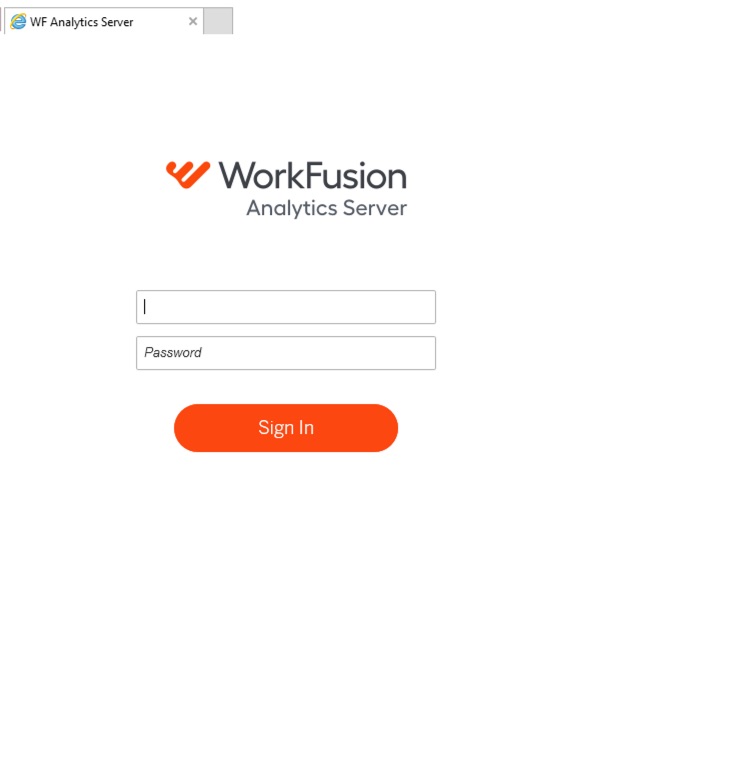
On the Analytics server, in a browser, go to https://localhost to check that the default page opens.
Install Analytics Desktop
important
If you are installing Analytics Desktop to a local PC, copy the Analytics installer from the Analytics server to your machine before performing the following steps.
To install the Analytics Desktop:
On your server or PC, start the Command Prompt (not PowerShell) and go to the WorkfusionAnalyticsDesktop directory in the unpacked installation package.
Run the installation batch file install_desktop.bat with the specified installation directory:
$ install_desktop.bat INSTALL_DIR
# For example: install_desktop.bat C:\workfusion\WorkFusionDesktop
Click the WorkFusion Analytics Desktop shortcut to start the application, and then enter the license key.
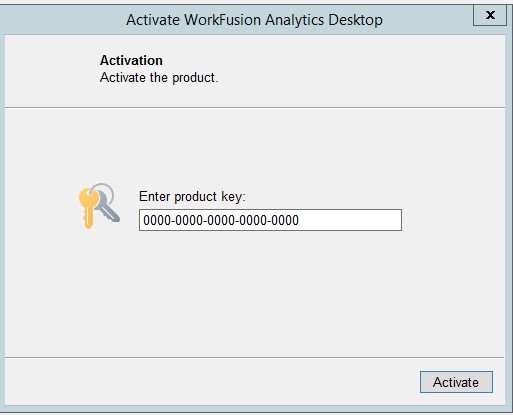
For more information on Activation options, see Manage the WorkFusion Analytics license.
Install Filebeat
To install Filebeat:
Launch the New PowerShell ISE as Administrator.
Copy the following script and execute it on the Analytics server(s) in PowerShell.
Before the execution, remember to modify the lines in the section between
# TO FILL IN BY CUSTOMERand# =========================================according to your configuration.# INSTALL FILEBEAT # TO FILL IN BY CUSTOMER $install_dir = "c:\workfusion" # The value of "bi_install_dir" which you've set in config.yml during Linux servers installation. $master_hostnames = "<Master1 HOSTNAME>:4567" # in HA mode "<Master1 HOSTNAME>:4567,<Master2 HOSTNAME>:4567,<Master3 HOSTNAME>:4567" $bi_hostname = "<CURRENT Analytics SERVER HOSTNAME>" # ========================================= $package_dir = "${install_dir}\WorkFusionAnalyticsServer" $filebeat_dir = "${install_dir}\filebeat" if(!$(Test-Path -Path "${install_dir}\WorkFusionAnalyticsInstaller\Filebeat\inputs.d\input-WorkfusionAnalyticsServer.yml")) { Copy-Item "${install_dir}\WorkFusionAnalyticsInstaller\Filebeat\inputs.d\input-workfusion-analytics-server.yml" -Destination "${install_dir}\WorkFusionAnalyticsInstaller\Filebeat\inputs.d\input-WorkfusionAnalyticsServer.yml" } Write-Host "Installing Filebeat" cd "${install_dir}\WorkFusionAnalyticsInstaller\Filebeat" cmd.exe /c "install_filebeat.bat ${filebeat_dir} ${package_dir} ${bi_hostname} ${master_hostnames}" if(!$(Test-Path -Path "${filebeat_dir}\ca.crt")) { Copy-Item "${package_dir}\ca.crt" -Destination "${filebeat_dir}\ca.crt" } while(!$(Test-Path -Path "${filebeat_dir}\ca.crt")) { Read-Host -Prompt "ca.crt not found. Confirm that you've placed it to ${filebeat_dir} directory by pressing Enter key" } Start-Service filebeat Get-Service filebeat
note
If Filebeat starts with the error "setting ‘filebeat.registry_file’ has been removed", in filebeat.yml, remove the line: registry_file: registry_in.
Install Metricbeat
To install Metricbeat:
Launch the New PowerShell ISE as Administrator.
Copy the following script and execute it on the Analytics server(s) in PowerShell.
Before the execution, remember to modify the lines in the section between
# TO FILL IN BY CUSTOMERand# =========================================according to your configuration.# INSTALL METRICBEAT # TO FILL IN BY CUSTOMER $install_dir = "c:\workfusion" # The value of "bi_install_dir" which you've set in config.yml during Linux servers installation. $master_hostnames = "<Master1 HOSTNAME>:4569" # in HA mode "<Master1 HOSTNAME>:4569,<Master2 HOSTNAME>:4569,<Master3 HOSTNAME>:4569" $bi_hostname = "<CURRENT Analytics SERVER HOSTNAME>" # ========================================= $package_dir = "${install_dir}\WorkFusionAnalyticsServer" $metricbeat_dir = "${install_dir}\metricbeat" Write-Host "Installing metricbeat" cd "${install_dir}\WorkFusionAnalyticsInstaller\metricbeat" cmd.exe /c "install_metricbeat.bat ${metricbeat_dir} ${package_dir} ${bi_hostname} ${master_hostnames}" if(!$(Test-Path -Path "${metricbeat_dir}\ca.crt")) { Copy-Item "${package_dir}\ca.crt" -Destination "${metricbeat_dir}\ca.crt" } while(!$(Test-Path -Path "${metricbeat_dir}\ca.crt")) { Read-Host -Prompt "ca.crt not found. Confirm that you've placed it to ${metricbeat_dir} directory by pressing Enter key" } Start-Service metricbeat Get-Service metricbeat
Deploy workbooks to Analytics Server
Prerequisites
- Microsoft Server 2008 R2 or newer is installed.
- WorkFusion Analytics Server 2018.3.2 or newer is installed. The WF Analytics version in the package is 2018.3.9.
- JScript execution from the command line (CMD) is allowed on the server.
note
JScript is required to execute workbook publishing scripts. If, for some reason (for example, due to security restrictions), JScript is disabled on the server, enable it temporarily during the installation, and then disable it again, if needed.
Deploy workbooks
To deploy workbooks:
Launch the New PowerShell ISE as Administrator.
Copy the following script and execute it on the Analytics servers in PowerShell.
See the script...
Before the execution, remember to modify the lines in the section between# TO FILL IN BY CUSTOMERand# =========================================according to your configuration.# INSTALL WORKBOOKS # TO FILL IN BY CUSTOMER $download_from = "<Master server hostname>:9999" $current_host = "<CURRENT Analytics SERVER HOSTNAME>" $current_site = "<SITE NAME>" # The first octet of workfusion_lb_hostname from hosts.yml # if workfusion_lb_hostname is "example-workfusion-lb1.workfusion.com", than $current_site = "example-workfusion-lb1" $install_dir = "c:\workfusion" # The value of "bi_install_dir" which you've set in config.yml during Linux servers installation. $workbooks_installer = "WorkFusionAnalyticsWorkbooks-<version>.zip" # Specify manually. Find the name of the installer in INSTALL_DIR/sources. For example, opt/workfusion/sources/WorkFusionAnalyticsWorkbooks-10.1.6.zip # ===================================== $tdeploy_home = "${install_dir}\tdeploy_home" $workbooks_config = "${tdeploy_home}\deploy\config" Write-Host "Creating tdeploy_home" New-Item -ItemType directory -Path $tdeploy_home -Force Write-Host "Downloading workbooks installer" $wc = New-Object net.webclient $wc.Downloadfile("http://${download_from}/sources/${workbooks_installer}", "${install_dir}\${workbooks_installer}") Write-Host "Unpacking Workbooks installer" Add-Type -assembly "system.io.compression.filesystem" [System.IO.Compression.ZipFile]::ExtractToDirectory("${install_dir}\${workbooks_installer}", "${install_dir}\WorkbooksInstaller") New-Item -ItemType directory -Path "${tdeploy_home}\install\" -Force Copy-Item "${install_dir}\WorkbooksInstaller\deploy-tools\*" -Destination "${tdeploy_home}\install\" -Recurse Write-Host "Executing install.cmd" cd "${tdeploy_home}\install" cmd.exe /c "install.cmd ${tdeploy_home}" Write-Host "Executing create_sitefolder.cmd" cd "${tdeploy_home}\deploy" cmd.exe /c "create_sitefolder.cmd ${current_site}" Write-Host "Downloading workbooks configs" $wc.Downloadfile("http://${download_from}/win_confs/bi_configs/${current_host}/config.${current_site}.cmd", "${workbooks_config}\config.${current_site}.cmd") $wc.Downloadfile("http://${download_from}/win_confs/bi_configs/${current_host}/import_users.csv", "${workbooks_config}\import_users.csv") Write-Host "Executing manage_server.cmd" cd "${tdeploy_home}\deploy" cmd.exe /c "manage_server.cmd ${current_site}" Write-Host "Copying dashboards and datasources" Copy-Item "${install_dir}\WorkbooksInstaller\dashboards\workbook\*" -Destination "${tdeploy_home}\deploy\to_deploy\${current_site}\dashboard\" -Recurse Copy-Item "${install_dir}\WorkbooksInstaller\dashboards\datasources\*" -Destination "${tdeploy_home}\deploy\to_deploy\${current_site}\datasource\" -Recurse Write-Host "Executing publish.cmd" cd "${tdeploy_home}\deploy" cmd.exe /c "publish.cmd ${current_site}"
Configure schedule
To configure schedules:
On the Analytics (Analytics) server, launch the New PowerShell ISE.
Copy and execute the following script in PowerShell ISE:
See the script...
Before the execution, remember to modify the lines in the section between# TO FILL IN BY CUSTOMERand# =========================================according to your configuration.Clear-Host [Net.ServicePointManager]::SecurityProtocol = [Net.SecurityProtocolType]::Tls12 # TO FILL IN BY CUSTOMER $bi_hostname = "" # hostname of current bi server from hosts.yml bi_hostnames $tableau_admin_user = "" # tableau_admin_user from config.yml $tableau_admin_pass = "" # tableau_admin_pass from config.yml $current_site = "" # The first octet of workfusion_lb_hostname from hosts.yml $tustAllcerts = $false # trust self signed certificates # ===================================== $tableau_api_version = "2.8" $signin_address = "https://${bi_hostname}/api/${tableau_api_version}/auth/signin" $schedules_address = "https://${bi_hostname}/api/${tableau_api_version}/schedules" $sites_address = "https://${bi_hostname}/api/${tableau_api_version}/sites" if($tustAllcerts) { add-type @" using System.Net; using System.Security.Cryptography.X509Certificates; public class TrustAllCertsPolicy : ICertificatePolicy { public bool CheckValidationResult( ServicePoint srvPoint, X509Certificate certificate, WebRequest request, int certificateProblem) { return true; } } "@ [System.Net.ServicePointManager]::CertificatePolicy = New-Object TrustAllCertsPolicy } $signin_body = @" <tsRequest> <credentials name="${tableau_admin_user}" password="${tableau_admin_pass}" > <site contentUrl="${current_site}" /> </credentials> </tsRequest> "@ $fifteen_min_schedule = @" <tsRequest> <schedule name="15min-schedule" priority="50" type="Extract" frequency="Hourly" executionOrder="Serial"> <frequencyDetails start="12:00:00" end="12:00:00"> <intervals> <interval minutes="15" /> </intervals> </frequencyDetails> </schedule> </tsRequest> "@ $aa_etl_fifteen_min_schedule = @" <tsRequest> <schedule name="aa-etl-15min-schedule" priority="10" type="Extract" frequency="Hourly" executionOrder="Serial"> <frequencyDetails start="12:00:00" end="12:00:00"> <intervals> <interval minutes="15" /> </intervals> </frequencyDetails> </schedule> </tsRequest> "@ $workbook_raw = @" <tsRequest> <task> <extractRefresh> <workbook id="{0}" /> </extractRefresh> </task> </tsRequest> "@ $datasource_raw = @" <tsRequest> <task> <extractRefresh> <datasource id="{0}" /> </extractRefresh> </task> </tsRequest> "@ Write-Host "Simulating TASK [bi_workbooks : Login into Tableau via api: POST ${signin_address}] ***" $signin_response = Invoke-WebRequest $signin_address -Body $signin_body -Method 'POST' -Headers @{'Accept' = 'application/json'} Write-Host "Simulating TASK [bi_workbooks : Save Tableau Access Token and Site id] ********************" $tableau_token = ($signin_response | ConvertFrom-Json).credentials.token $site_id = ($signin_response | ConvertFrom-Json).credentials.site.id Write-Host "Simulating TASK [bi_workbooks : List schedules: GET ${schedules_address}] ***" $list_schedules_response = Invoke-WebRequest $schedules_address ` -Method 'GET' ` -Headers @{'X-Tableau-Auth' = $tableau_token; 'Accept' = 'application/json'} Write-Host "Simulating TASK [bi_workbooks : Check if '15min-schedule' created] ************************" $schedule_exists = (($list_schedules_response | ConvertFrom-Json).schedules.schedule | where { $_.name -eq "15min-schedule" }) -ne $null Write-Host "Simulating TASK [bi_workbooks : Check if 'aa-etl-15min-schedule' created] ************************" $aa_etl_schedule_exists = (($list_schedules_response | ConvertFrom-Json).schedules.schedule | where { $_.name -eq "aa-etl-15min-schedule" }) -ne $null if(!$schedule_exists) { Write-Host "Simulating TASK [bi_workbooks : Create 15min Schedule named '15min-schedule': POST ${schedules_address}] ***" $create_schedule_response = Invoke-WebRequest $schedules_address ` -Body $fifteen_min_schedule ` -Method 'POST' ` -Headers @{'X-Tableau-Auth' = $tableau_token; 'Accept' = 'application/json'} } if(!$aa_etl_schedule_exists) { Write-Host "Simulating TASK [bi_workbooks : Create 15min Schedule named 'aa-etl-15min-schedule': POST ${schedules_address}] ***" $create_schedule_response = Invoke-WebRequest $schedules_address ` -Body $aa_etl_fifteen_min_schedule ` -Method 'POST' ` -Headers @{'X-Tableau-Auth' = $tableau_token; 'Accept' = 'application/json'} } Write-Host "Simulating List schedules: GET ${schedules_address}] ***" $list_schedules_response = Invoke-WebRequest $schedules_address ` -Method 'GET' ` -Headers @{'X-Tableau-Auth' = $tableau_token; 'Accept' = 'application/json'} Write-Host "Simulating TASK [bi_workbooks : set_fact: save '15min-schedule' schedule Id] **************" $schedule_id = (($list_schedules_response | ConvertFrom-Json).schedules.schedule | where { $_.name -eq "15min-schedule" }).id Write-Host "Simulating TASK [bi_workbooks : set_fact: save 'aa-etl-15min-schedule' schedule Id] **************" $aa_etl_schedule_id = (($list_schedules_response | ConvertFrom-Json).schedules.schedule | where { $_.name -eq "aa-etl-15min-schedule" }).id Write-Host "Simulating TASK [bi_workbooks : Query workbooks: GET ${sites_address}/${site_id}/workbooks] ***" $list_workbooks_response = Invoke-WebRequest "${sites_address}/${site_id}/workbooks" ` -Method 'GET' ` -Headers @{'X-Tableau-Auth' = $tableau_token; 'Accept' = 'application/json'} Write-Host "Simulating TASK [bi_workbooks : Assign 'aa-etl-15min-schedule' to workbooks: PUT ${sites_address}/${site_id}/schedules/${aa_etl_schedule_id}/workbooks] ***" ($list_workbooks_response | ConvertFrom-Json).workbooks.workbook | ForEach-Object -Process { if($_.project.name -eq $current_site) { $assign_schedule_response = Invoke-WebRequest "${sites_address}/${site_id}/schedules/${aa_etl_schedule_id}/workbooks" ` -Body ($workbook_raw -f $_.id) ` -Method 'PUT' ` -Headers @{'X-Tableau-Auth' = $tableau_token; 'Accept' = 'application/json'} } } Write-Host "Simulating TASK [bi_workbooks : Query datasources: GET ${sites_address}/${site_id}/datasources] ***" $list_datasources_response = Invoke-WebRequest "${sites_address}/${site_id}/datasources" ` -Method 'GET' ` -Headers @{'X-Tableau-Auth' = $tableau_token; 'Accept' = 'application/json'} Write-Host "Simulating TASK [bi_workbooks : Assign '15min-schedule' to datasources: PUT ${sites_address}/${site_id}/schedules/${schedule_id}/datasources] ***" ($list_datasources_response | ConvertFrom-Json).datasources.datasource | ForEach-Object -Process { if($_.project.name -eq $current_site) { $assign_schedule_response = Invoke-WebRequest "${sites_address}/${site_id}/schedules/${schedule_id}/datasources" ` -Body ($datasource_raw -f $_.id) ` -Method 'PUT' ` -Headers @{'X-Tableau-Auth' = $tableau_token; 'Accept' = 'application/json'} } }
Enable Analytics dashboard
To enable Analytics Server in Control Tower:
Install the Analytics server, as described earlier.
Deploy workbooks to the Analytics server, as described earlier.
Enable WorkFusion Analytics server on WorkFusion platform:
On the Master Server, check and configure the Vault secure properties file. The file must already be configured before the installation.
<!-- Set bi_lb_hostname of Analytics server -->
tableau.dashboard.host=https://bi-lb.example.com

<!-- Set login and password for connection to Analytics server -->
tableau.dashboard.username=tableau_user
tableau.dashboard.password=tableau_pass
Property Name Example Value Description Required for tableau.dashboard.hosthttps://bi-lb.example.com WorkFusion Analytics Server website URL for Dashboard WorkFusion Analytics Dashboard tableau.dashboard.usernametableau_user WorkFusion Analytics Server website username for Dashboard (was used in import_users.csv) WorkFusion Analytics Dashboard tableau.dashboard.passwordtableau_pass WorkFusion Analytics Server website password for Dashboard (was used in import_users.csv) WorkFusion Analytics Dashboard On the Master Server, restart the Workfusion service as the application user:
wfmanager restart workfusion
Stop standby Tableau server
important
For the high-availability installation only.
On the second Tableau server, run the following commands in Powershell as Administrator:
cd <bi_dir>\packages\bin.20183.19.0714.2346
.\tsm login -u .\<bi_user> -p <bi_pass>
.\tsm stop
Stopping service...
Job id is '4', timeout is 30 minutes.
Service stopped successfully.
Check installation
To check the installation:
In a browser, open URL https://host-workfusion-lb1.example-wf101.com to go to the Master instance. The following menu appears:
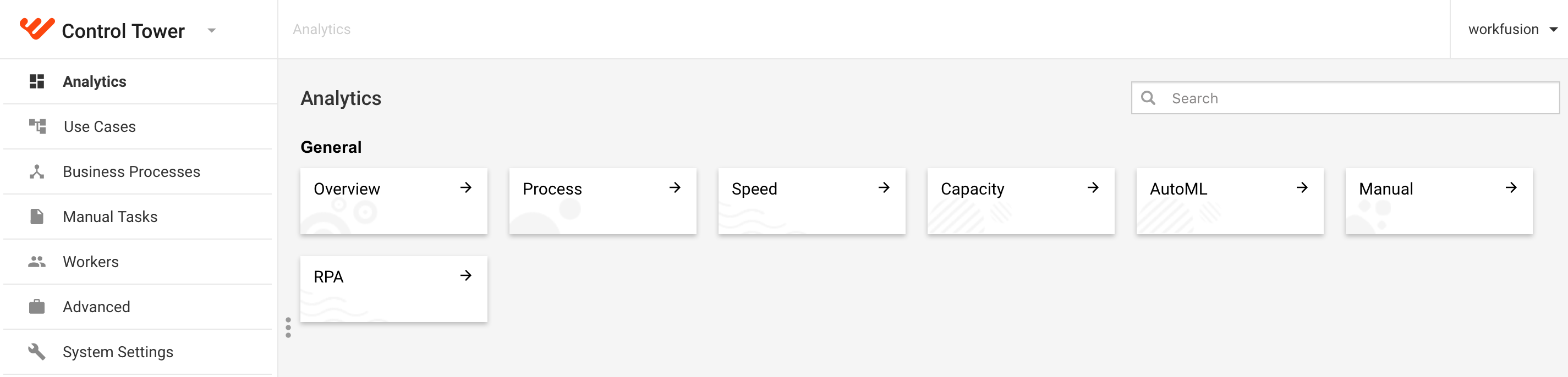
In the main menu, go to the Analytics group, then select Overview to check that the dashboard is displayed.