
RPA Builder
The section describes RPA Builder–form-based (ETL) Bot configs executing actions of a human Worker interacting with user interface of a computer system.
Create RPA Builder configuration
- Create a new Business Process (BP).
- To add a Bot Step to the BP, select a Use Case from the RPA Use Case category. These Use Cases can have different number of drivers available. Choose one that fits your task.
- Start editing this Bot step by selecting options and commands (see the next steps).
Configure Driver
Enter Driver Name. This name is used to distinguish a driver in case of multiple drivers in one config.
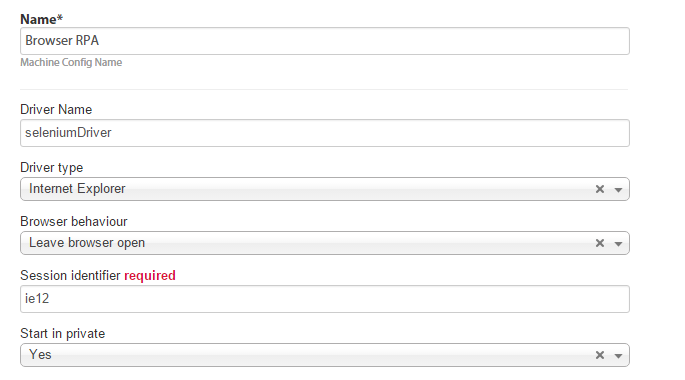
Select Driver Type:
- Browser (Internet Explorer, Firefox, or Chrome): Make sure that your external server has this browser installed and configured.
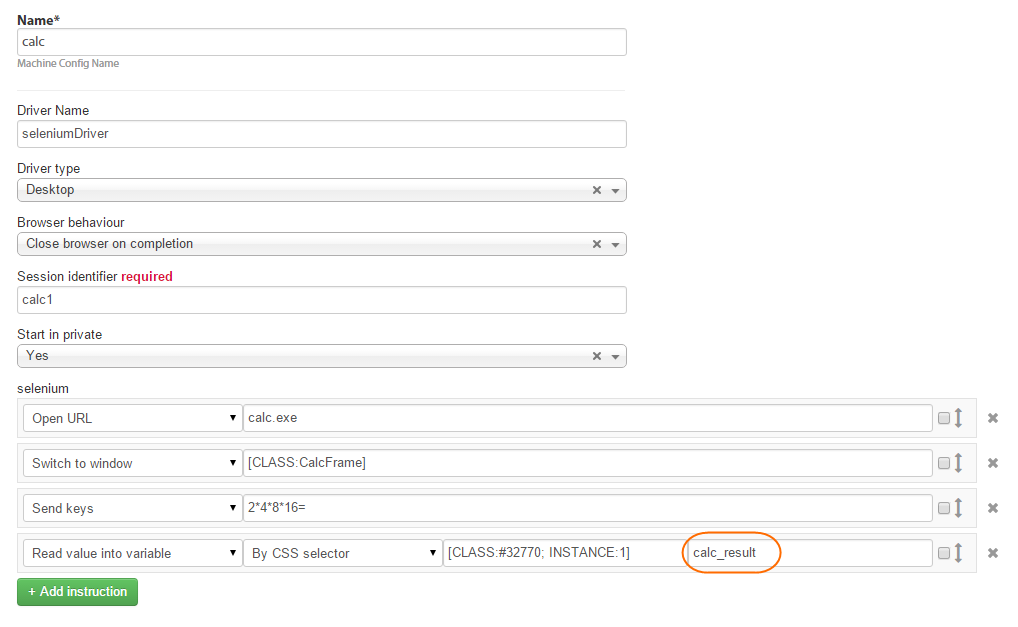
- Desktop: Select this option if you want to manipulate desktop applications.
Select Browser behaviour. This option is also valid for desktop apps:
- Close the browser on completion.
- Leave the browser open.
Enter Session Identifier.
Enable or disable the Start in private mode (for browsers only).
Select instructions (commands)
Click the Add instruction button.

Select instruction parameters:
- Instruction from dropdown. Here are some useful tips:
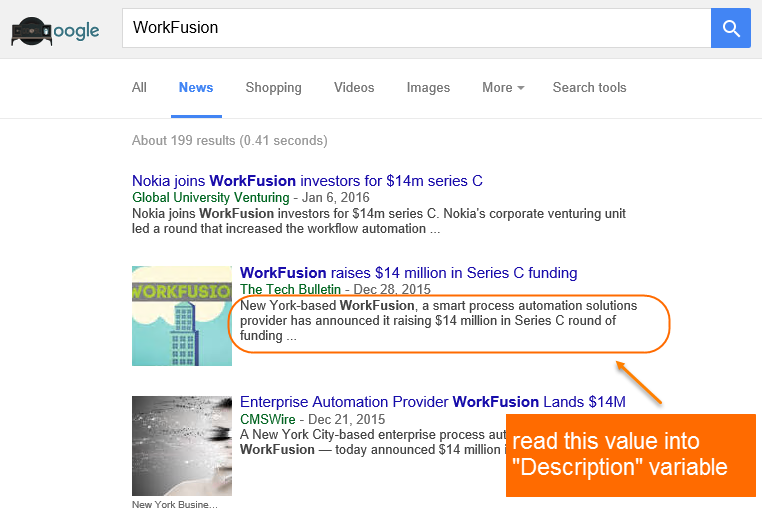
- To read some value and add it to the output scv file in a new column, use the Read value into variable instruction:

- To use a variable from the Input Data in RPA instruction, write its name with the
.toString()suffix, tick the Raw value checkbox, and add quotation marks to the query:

Query type (if available)
Query (a string)
(Optional) Tick the Raw value checkbox to enter a BeanShell code instead of a string in the Query field.
note
There are two variants how to set a value: static, like test@email.com, or take option from some variable, for example, you have a value in input data.
If it is static, it should be wrapped with quotation marks "" to generate a config correctly (used by default).
To use a variable like
customer_name.toString(), you do not need to wrap it with quotation marks. It will be replaced by variable value during the code execution.Add another instruction(s).
(Optional) Drag or delete instructions if needed.
Write queries
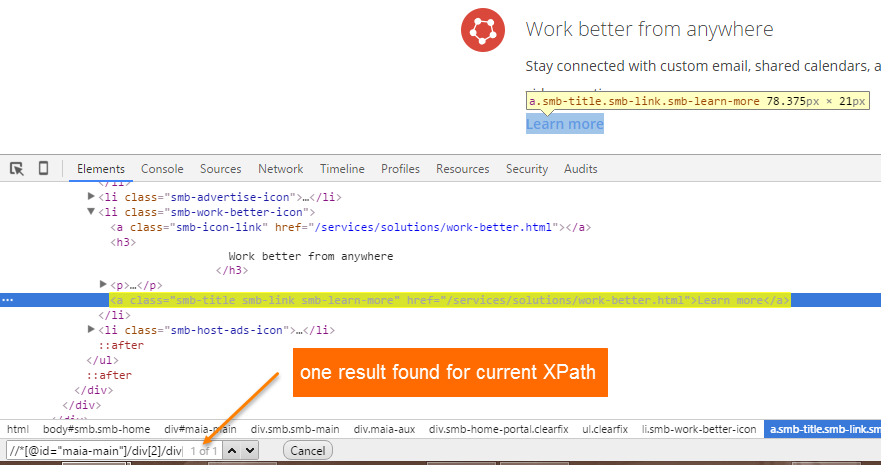
To write queries, you need to know XPath and CSS. To test queries, use the following tools:
- Selenium IDE, Chrome DevTools, or Firebug: for browsers.
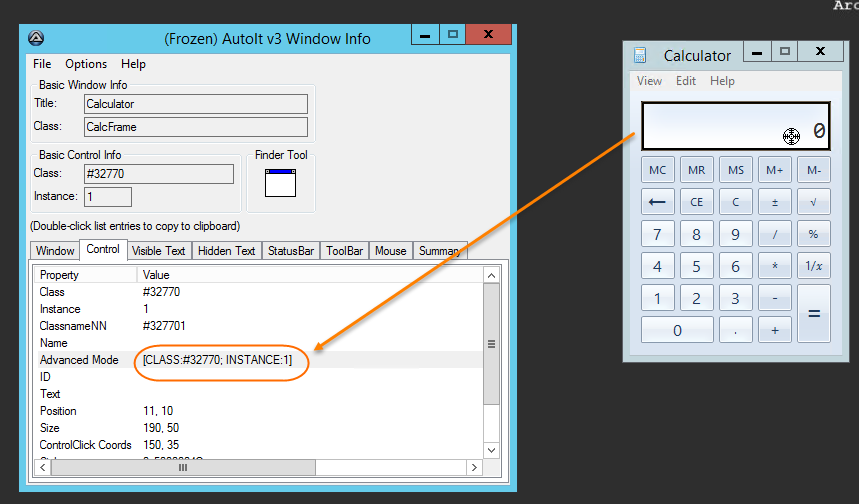
- AutoIT Window Info: for desktop apps.
Always test your queries to be unique. Only one page element should be found.
If you use the Find Elements command, it will return an array (list) of elements.
View generated code
A RPA Bot config generates Web-Harvest code that can be reviewed and edited if needed:
Click the Advanced Editor link.
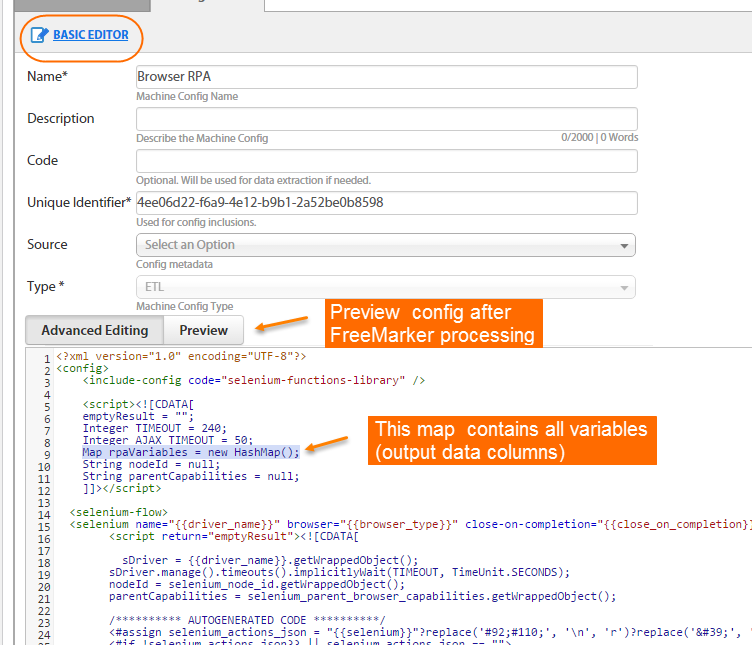
View the code to understand the context.
Edit code. Do not write anything inside the
****AUTOGENERATED CODE****section, for example, you can import a class.Click the Preview button to inspect the code after FreeMarker processing.
Execute RPA
- Save your RPA config.
- Make your BP valid.
- Run the BP.
- Log in to the appropriate external server and watch the execution of RPA instructions.
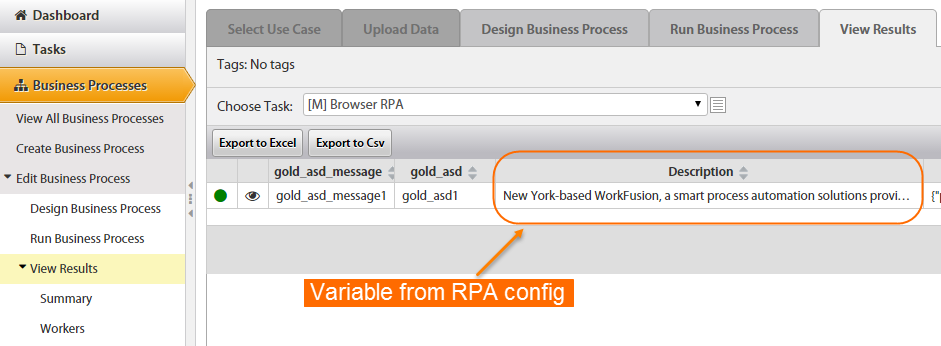
- Check BP results in WorkFusion platform.
- (optional) If the results are not valid, check BP errors and external server logs.
Examples
Browser
RPA config
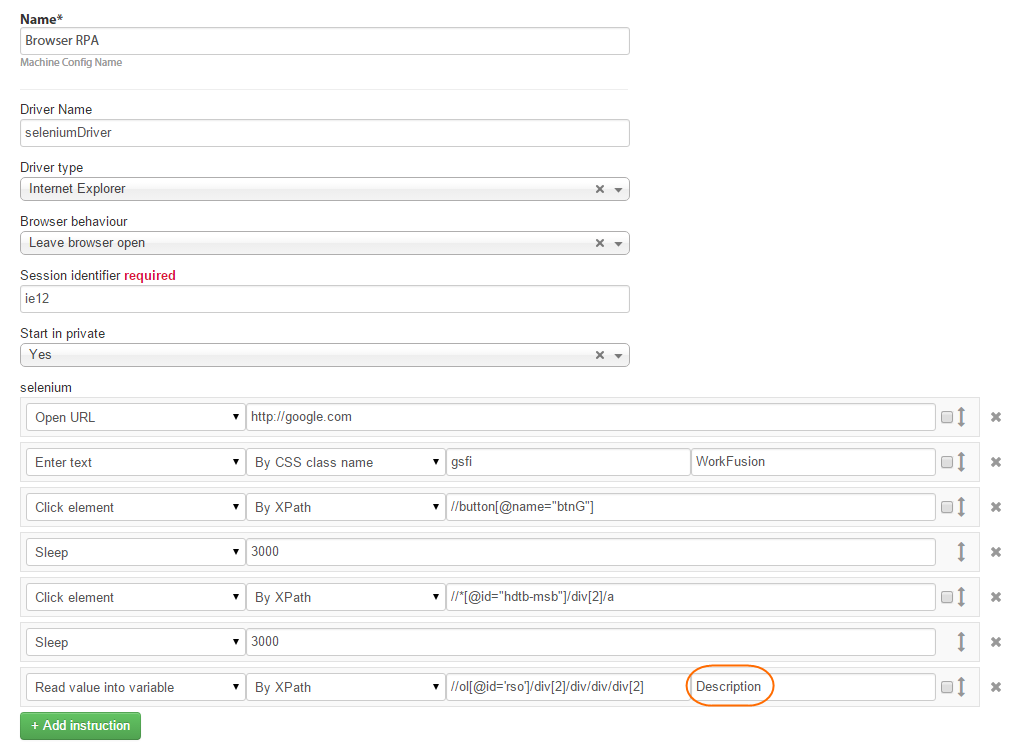
Execution
Result in WorkFusion
Desktop
RPA config
Execution
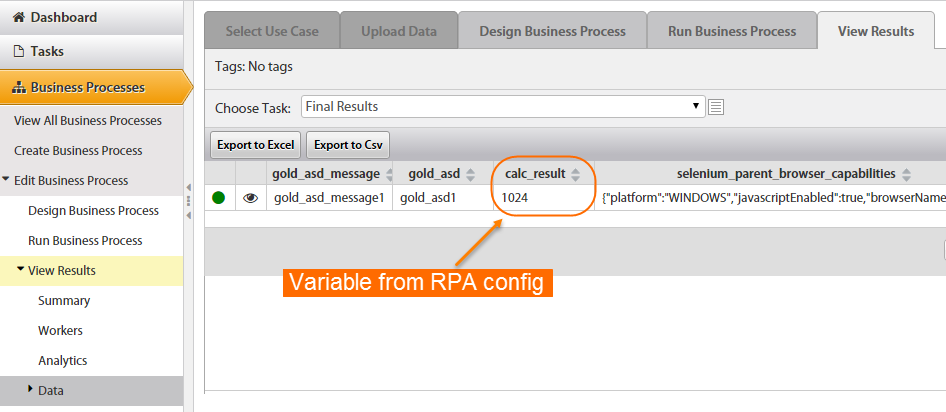
Result in WorkFusion
RPA Builder commands
| # | Command | Driver type (browser, desktop) |
Locator type |
Arguments (query,time, color, message, ...) |
Description |
|---|---|---|---|---|---|
| 1 | Open URL | BROWSER |
|
URL: String |
Opens a website with a specified URL. pages like "chrome://settings/", "about:blank" are not supported. |
| DESKTOP | path to .exe file: C:\Program Files (x86)\nodejs\node.exe |
Opens a desktop application with a specified .exe file path. | |||
| 2 | Switch to window | DESKTOP |
|
class of window or regexp: [CLASS:#32770; INSTANCE:1] |
Switches to a window with a specified class. |
| 3 | Click element | BROWSER |
|
Query: String |
Finds an element by a specified locator and clicks it. |
| DESKTOP | by CSS selector | window class: [CLASS:#32770; INSTANCE:1] AutoIt reference |
|||
| 4 | Enter text | BROWSER | any type |
|
Finds an element by a specified locator and enters a string. |
| DESKTOP | by CSS selector | ||||
| 5 | Send keys | any | Key name or unicode
|
Sends keyboard entries to the active window. Browser: Selenium keys reference (java plain code) Desktop: AutoIt keys reference (string) |
|
| 6 | Wait for element present | BROWSER | any type | Query: String | Waits until a specified element will be loaded on the web page. |
| 7 | Wait element become clickable | BROWSER | any type | Query: String | An expectation for checking an element is visible and enabled such that you can click it. |
| 8 | Wait for page load | BROWSER | Timeout: milliseconds | Waits until the page is fully loaded. | |
| 9 | Move cursor to element | BROWSER | any type | Query: String | Hover cursor over an element with a specified locator. Moves to left bottom corner of element |
| DESKTOP | by CSS selector | window class | |||
| 10 | Read value into variable | BROWSER | any type | variable_name: String | Reads element text to a new variable This variable is added to output file as a new column. |
| DESKTOP | by CSS selector | ||||
| 11 | Find elements | BROWSER | any type | local_var_name: String | Finds all elements with a specified locator and stores them in a local variable (Java list). This list is not written to the output file - it can be used in logic statements (IF) and loops (WHILE). local_var_name[0] - first list element local_var_name.size() - number of elements in list java list - (official documentation) |
| DESKTOP | by CSS selector | ||||
| 12 | Sleep | any | Time to wait: milliseconds | Process sleeps during a specified time period. | |
| 13 | Open new browser window | BROWSER | Opens a new window (tab) of the browser. | ||
| 14 | Highlight element | BROWSER | any | color | Finds element + adds a class for highlighting |
| 15 | Remove highlight | BROWSER | any | Finds element + remove class | |
| 16 | Show notification | BROWSER | notification text, style | Shows notification with text + adds bootstrap style | |
| 17 | Hide notification | BROWSER | Hides notification | ||
| 18 | Show alert | BROWSER | alert text | Shows alert message without styling | |
| 19 | Close alert | BROWSER | Closes alert. | ||
| 20 | Execute script | BROWSER | script code |
Executes a custom JavaScript code. | |
| DESKTOP | script code | Executes a custom AutoITcode. | |||
| 21 | Execute script asynch | BROWSER | script code | Executes a custom JavaScript code asynchronously. | |
| 22 | Plain Code Block | A piece of java code - local variables are available here. | |||
| 23 | IF | Java logic | |||
| 24 | ELSE | Java logic | |||
| 25 | ELSE IF | Java logic | |||
| 26 | END IF | Java logic | |||
| 27 | FOR | int i=0; i | Java loop | ||
| 28 | END FOR | Java loop | |||
| 29 | BREAK | exit loop | |||
| 30 | WHILE | local_var > 10 | Java loop | ||
| 31 | END WHILE | Java loop | |||
| 32 | Close current window | Close active window. | |||
| 33 | Get element attribute | BROWSER | any | Text: element attribute Examples: src, name, id, required |
Finds an element by locator and exports its attribute to a new output file column with the same name. |
| DESKTOP | by CSS selector | Text: ACTION_COPY_SELECTED_TEXT |
Finds an element by locator and exports its text (selected or all) to a new output file column with the same name. |