Create Automation Manual Task
WorkFusion AutoML provides automation by making ML models learn from human worker answers provided in Manual Tasks — web forms with data and input fields. Manual Tasks are designed in Control Tower, and then filled and submitted by human workers in WorkSpace. After a model is trained, WorkFusion creates a Cognitive Bot, and then routes work to it.
The document refers to WorkFusion platform version 9.2.0 or newer.
Select OOTB Use Case
Let's start by creating and configuring a Manual Task in Control Tower.
Click Manual Tasks > Create Manual Task.
Select the type of a Task (in other words, your use case) and click Select This Use Case.
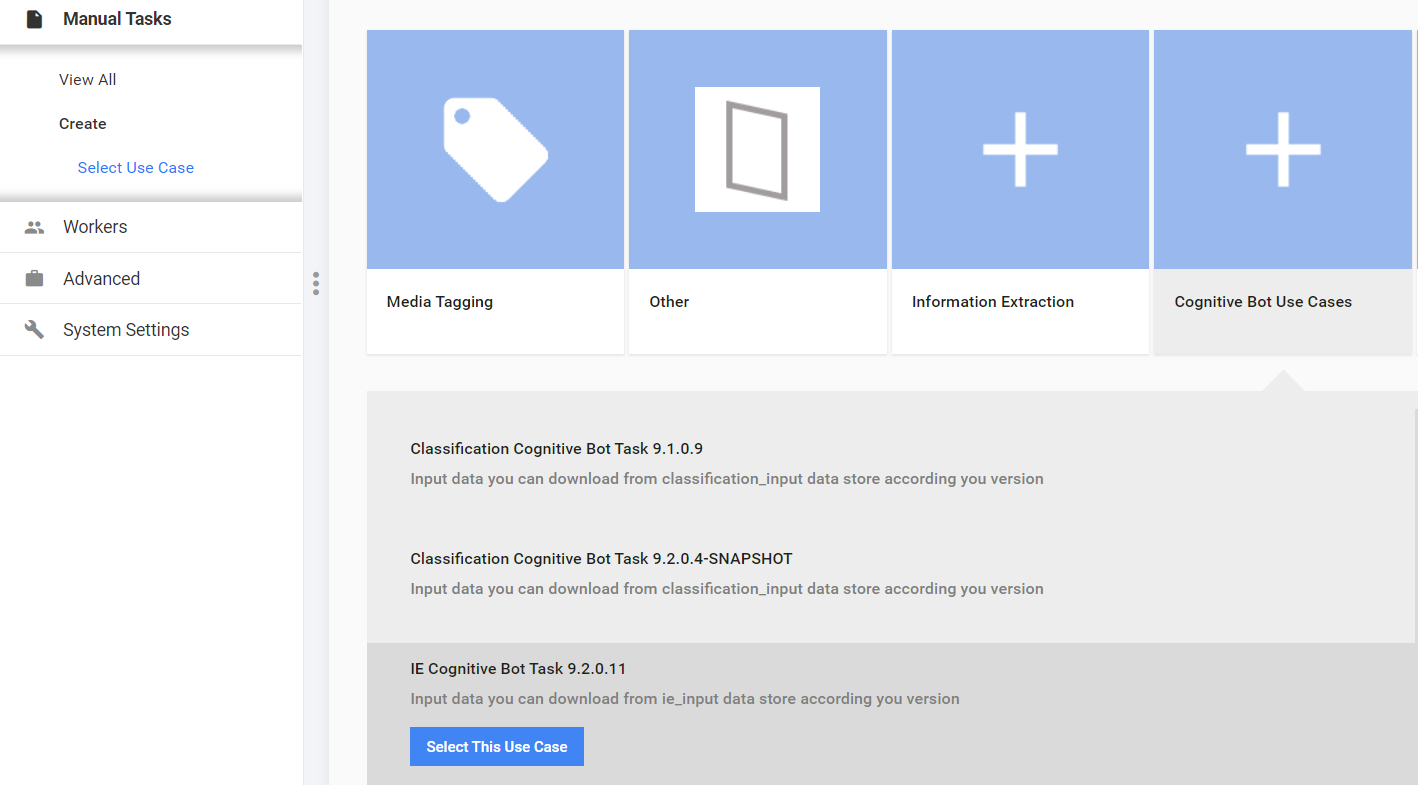
Your Manual Task for the use case has been created. Currently, the most wide-spread use cases are:
- Information Extraction
- Classification
caution
ALL fields that need to be automated by the model MUST be configured as required. Otherwise, the AutoQC process will fail to pick those fields.
Upload input data
Next, let's upload some data for a model to train on. Note, that your input file should contain at least 20 records (documents) or more.
To upload your data, follow these steps:
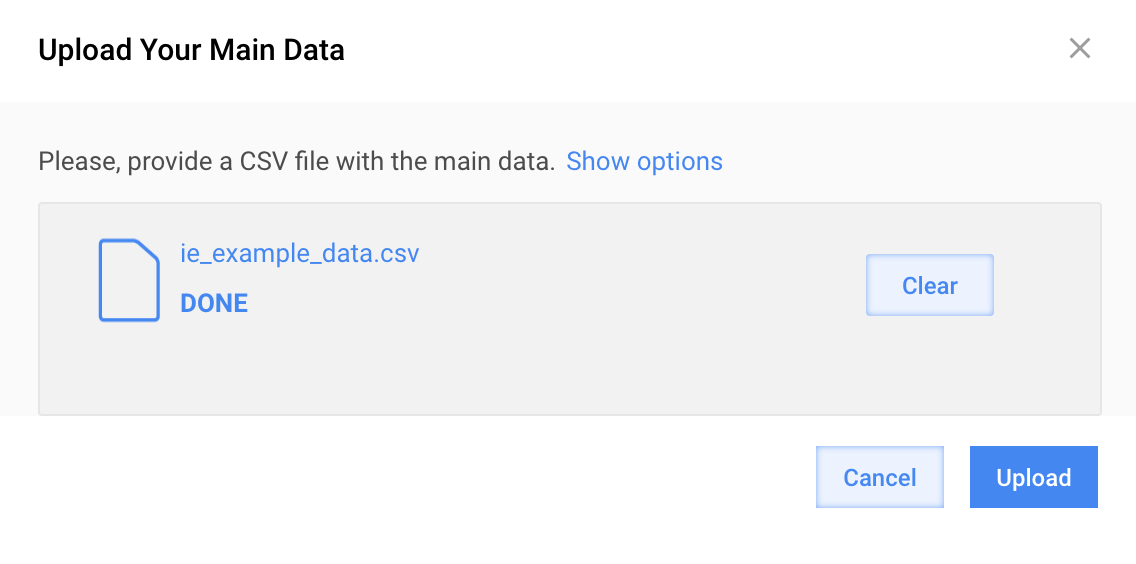
In your Manual Task, click the Data tab, and then Upload Data.
Click Add, and then locate your CSV file, and then click Open.
Wait till the file is processed, and then click Upload.
Now, that we have some data uploaded, let's configure the model.
Model Not Applied option
If you don't want to automate your Manual Task, select Model not applied on the Configure AutoML tab.
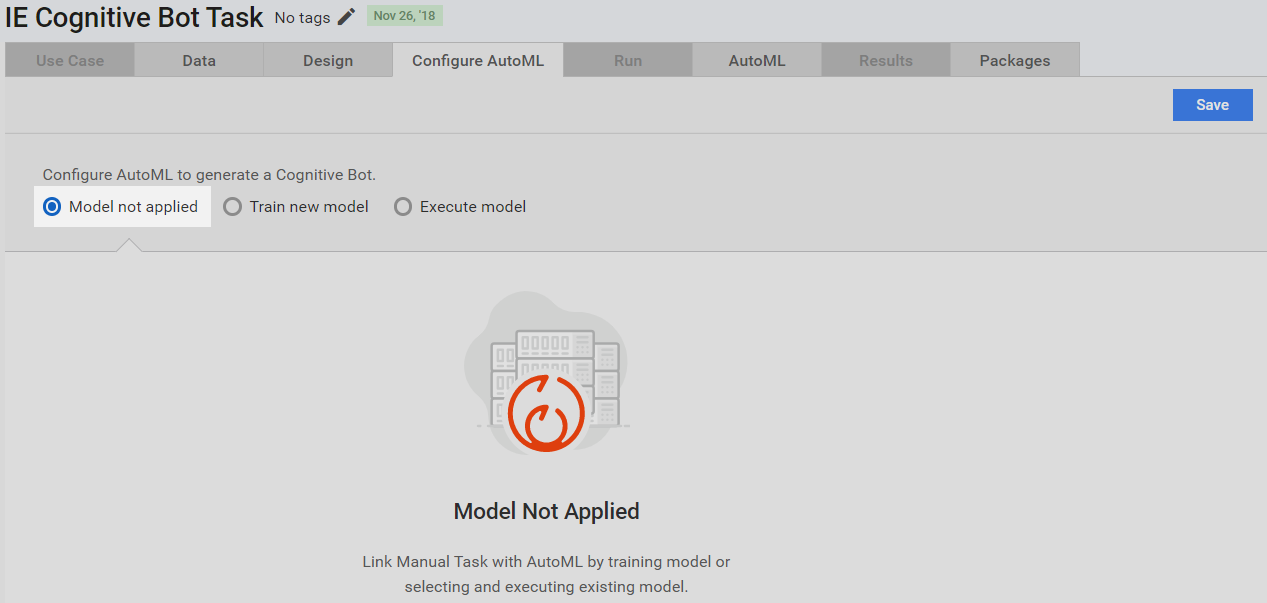
Configure AutoML
To train a model and eventually generate a Cognitive Bot, link your Manual Task to AutoML and configure it.
On the Configure AutoML tab, select Train New Model.
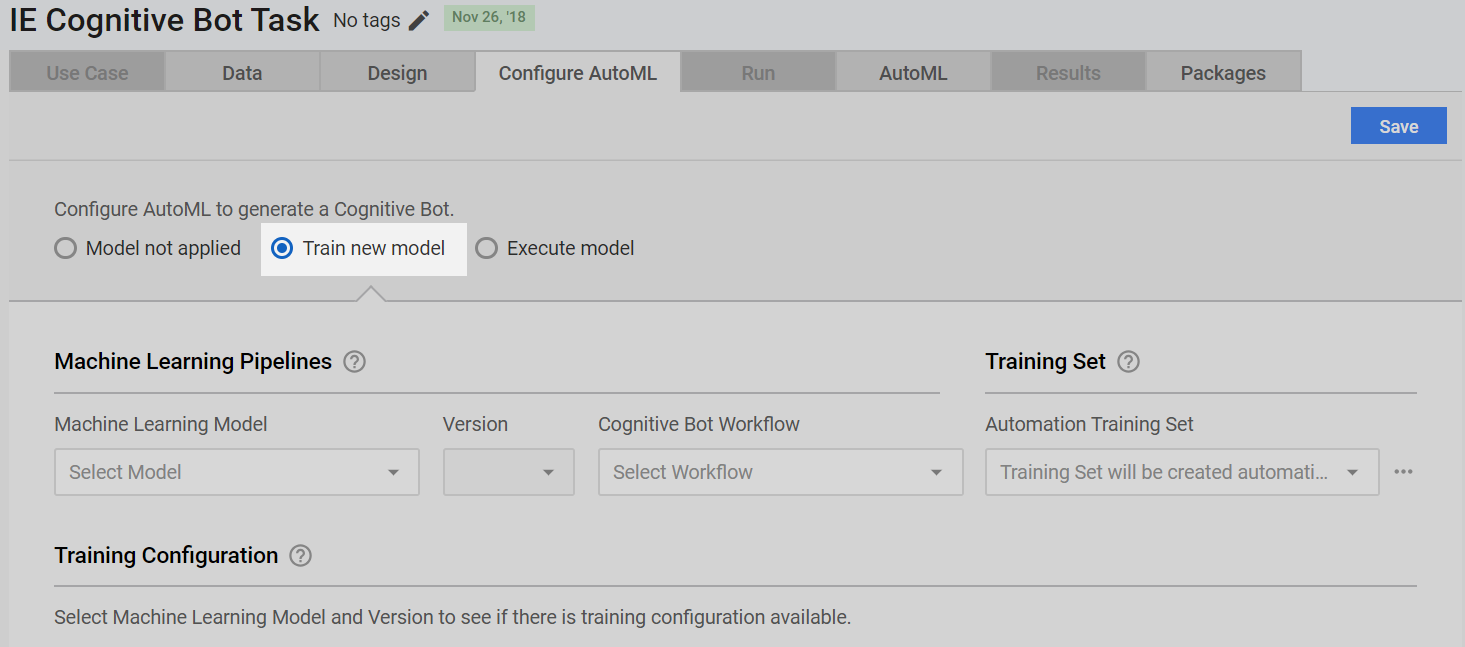
In the Machine Learning Pipelines section, select the Machine Learning Model that corresponds to your Task (for example, Information Extraction, Classification, Financial Reports Data Extraction, and so on). This model will learn from human answers and automate your Manual Task by creating a Cognitive Bot.
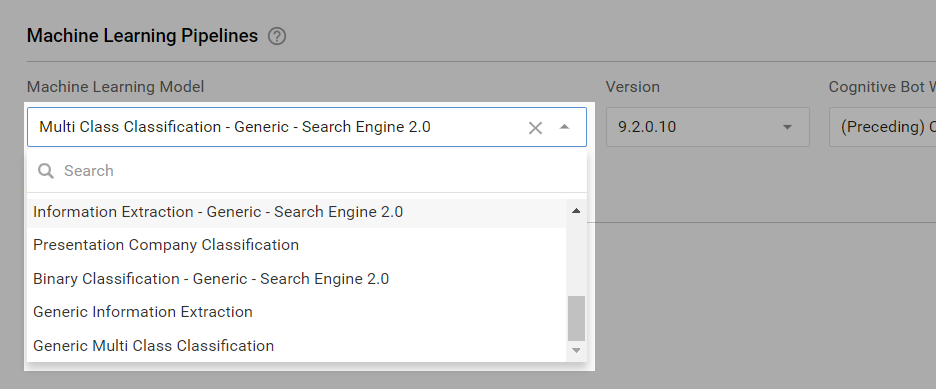
Select your Cognitive Bot Workflow.The Cognitive Bot will be created from this Cognitive Bot Workflow when your Manual Task is completed. You can edit the Cognitive Bot Workflow by selecting
 next to the Cognitive Bot Workflow drop-down menu.
Select the Automation Training Set.
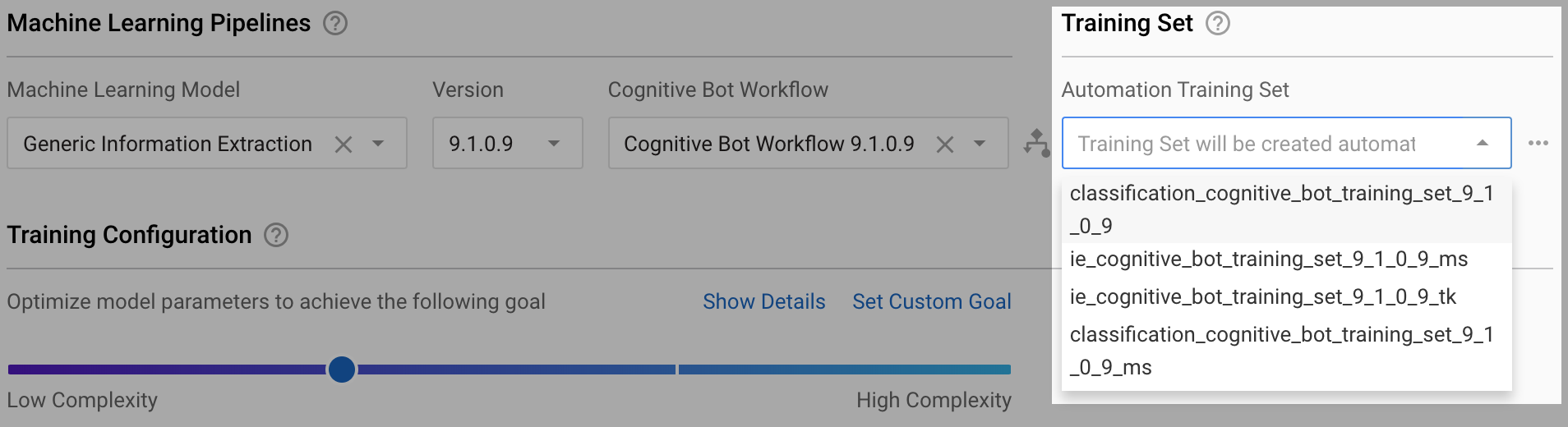
If you have some historical data for training the ML models, you can upload this data to the Automation Training Sets, and then use it for Manual Task automation. When assigning an existing Training Set to a new Manual Task or doing a quick assessment of data for ML purposes, you can see the Training Set answer availability and its percentage using the Show Data Completeness button.
If you do not have a Training Set, select the Create new Training Set automatically option. It is a default option, a new Training Set is created for storing Workers' answers and training ML models to automate your Task.
Optionally, select to perform the following actions:
- View
- Rename
- Copy
- Reset Data Status
The latter sets the train_status column for all records to
NEW. Used to include all records from a particular Training Set in an ML model training.
Search Engine 2.0 training configuration
Models with SE 2.0 are already optimized to produce best results, so you can adjust only the number of Fields Trained In Parallel. Maximum number of fields trained in parallel is calculated according to AutoML cluster capacity. Training Configuration tab also gives estimate of complete training time for the model.

Search Engine 1.0 Training Configuration
If the selected Machine Learning Model supports Search Engine 1.0, then the Training Configuration section is enabled. By default, you can see preset options for Training Configuration and time needed to complete the training for all fields of the initial Manual Task.

The Training Configuration section is not be available in the following cases:
- ML Model version is older than 9.1.
- ML Model is configured without Search Engine 1.0, even if the model version is 9.1, or newer.
Move the slider to set up your training configuration according to the complexity of the task. Moving the slider instantly re-calculates the estimated training time.
To have more control over the training setup, click Show Details. In the following picture, you can see an example of the Training Configuration section for the Information Extraction ML model.
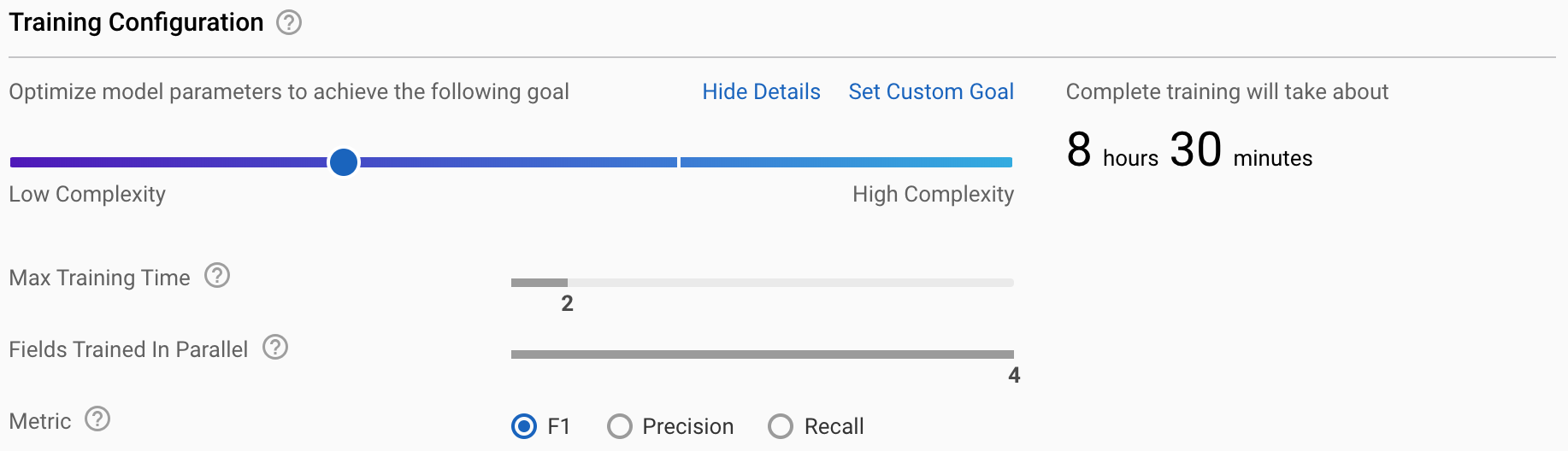
The following parameters are available:
Max Training Time: Maximum amount of time AutoML will use to find the best subset of components required for a single field.
Fields Trained in Parallel: Maximum number of fields (sub-models) that can be trained in parallel on an AutoML cluster. By default, this slider is set to the optimal value based on the available cluster capacity.
Metric: Metric used to compare the results of experiments and select the best one. Available metrics: F1, Precision, or Recall.
note
The Fields Trained in Parallel parameter is available only for Information Extraction models, and is not applicable to Classification models.
Values for the Max Training Time and Metric parameters are predefined and listed in the table below, while values for the Fields Trained In Parallel parameter are calculated according to the AutoML cluster capacity. There are four possible preset values ranged from High speed to High quality.
| Slider Position (Preset) | Max Training Time | Metric |
|---|---|---|
| 1 — Low Complexity | 1 hour | F1 |
| 2 | 2 hours | F1 |
| 3 | 4 hours | F1 |
| 4 — High Complexity | 10 hours | Precision |
You can select one of the preset options and it will be applied to all fields (sub-models) while training. If you cannot find an appropriate combination of parameters from the preset options, you can provide custom parameters by clicking the Set Custom Goal link.
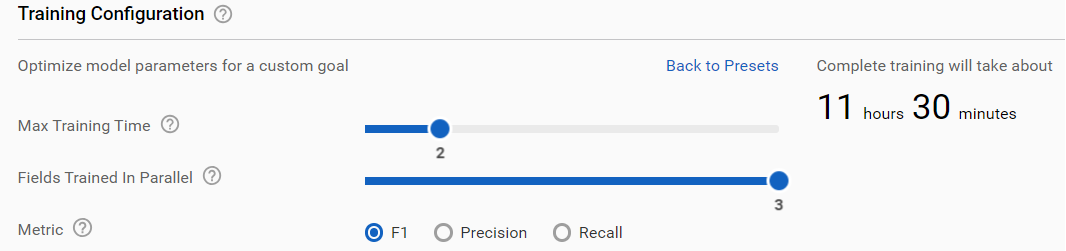
Using this mode you can set up all parameters manually. The parameters have the following restrictions:
- Max Training Time ranges from 1 hour to 10 hours.
- Fields Trained In Parallel is limited by the AutoML cluster capacity.
important
While calculating Fields Trained In Parallel and Complete Training Time, currently running model trainings on an AutoML cluster are not taken into account. If one or several models are trained on an AutoML cluster, values for Fields Trained In Parallel and Complete Training Time will remain the same and will not reflect the time in a queue. Before setting the Training Configuration parameters, check other models with HPO trained on the same cluster.
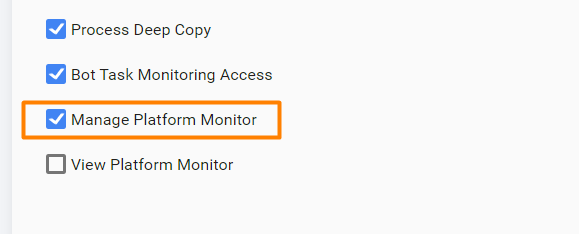
Mind that managing the Training Configuration section requires the Manage Platform Monitor permissions for an ML Engineer. It can be provided in System Settings > Role management > Select Role Permissions > check Platform Monitor.