
Create Tasks with ongoing Qualifications
Implement ongoing Qualification
In WorkFusion platform, you can mix regular Worker Tasks with Qualification Worker Tasks from a Gold file to drop Worker Qualification score after a certain amount of errors.
To implement an ongoing Qualification:
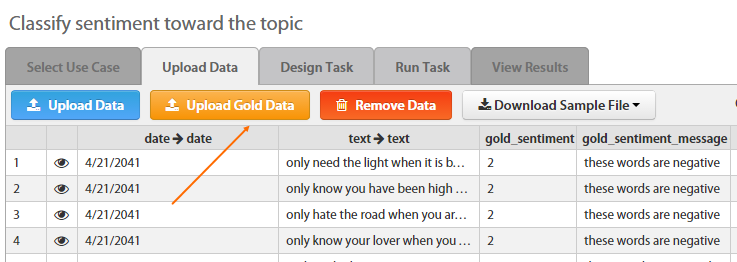
- Create a regular Task and provide a Gold Data file along with Input Data.
- In Advanced Options > Properties, set the Percentage of Gold Records parameter greater than zero.
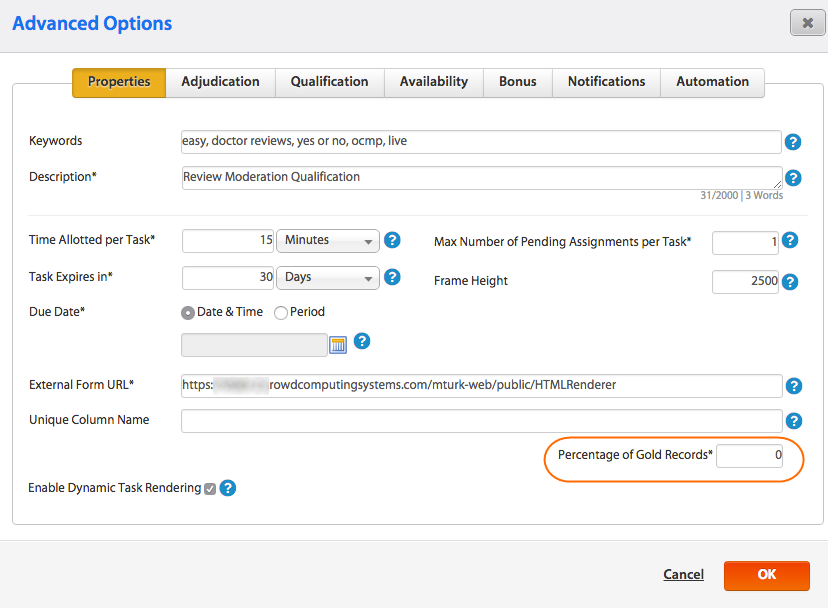
If you enter 10% and you have 1,000 records in your INPUT file, you will run 1,100 records: 1,000 input records and 100 gold data records.
Open Advanced Options > the Adjudication tab > Advanced View.
Under the Check every i-th gold question make this Number the number of gold records you would like a Worker to complete before their score is checked.
Save the Adjudication Rule.
If this is set at 10, once a Worker completes 10 gold records their score will be checked. If they have a percentage lower than 90% their score will be dropped. It will be checked again after they complete another 10 gold records (in any run you add gold records to).
We recommend a number at least as high as 10 to be sure there is enough of a sample set for the Worker, 5 may be too low, 10 or more would work well. Also, you will get emails from Workers once their score is dropped, so you may want to send the Workers a message before implementing this Gold Data, that their score may be dropped if the quality of their work diminishes, to preempt some blowback.
Monitor Worker Qualification Score
You can also monitor and update Worker Qualification Score for the Tasks in a BP:
- Open your BP > the Design Business Process tab.
- Enable the Edit Mode.
- Double-click the Manual Task in your BP.
- Navigate to the Upload Gold Data tab and click the appropriate button.
- Set all other options like for a separate Task.
- Save the Task and save your BP.