
Getting started with WorkFusion User Management
WorkFusion User Management is based on the Keycloak Identity Provider integrated into the out-of-the-box WorkFusion package to implement Access Control List (ACL).
WorkFusion User Management provides single sign-on and sign-out across WorkFusion applications (Control Tower, WorkSpace, Kibana) and customer-side systems (for example, LDAP) under predefined security policies.
Additional supported features include:
Identity Brokering enabling authentication with external SAML and OpenID Connect (OIDC) identity providers
User Federation allowing to import and sync users from LDAP/Active Directory
How User Management works
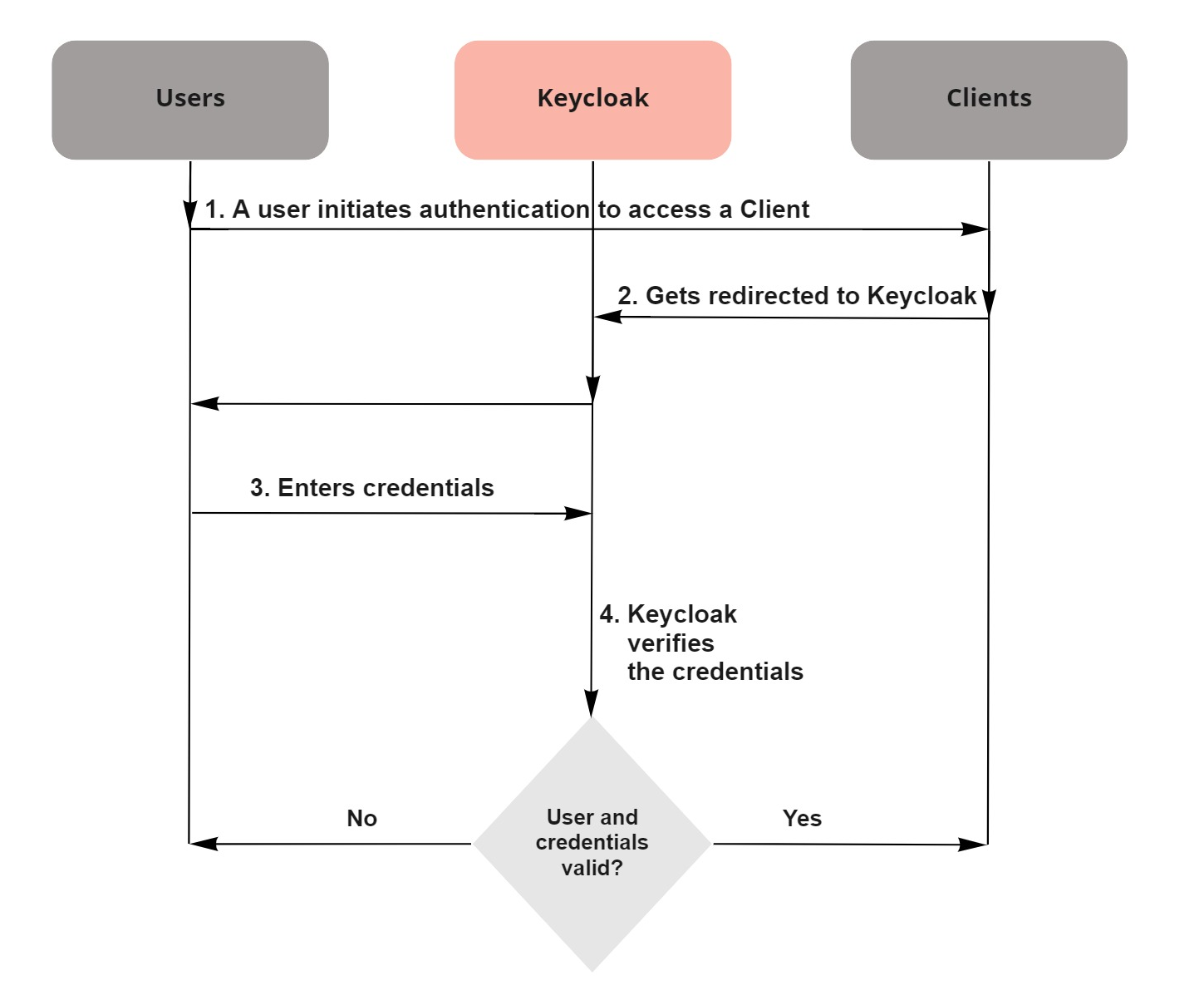
Whenever users attempt to sign into a WorkFusion application, they get redirected to the Keycloak authentication server where they are requested to enter credentials.
In this way, users are completely isolated from the applications, and the applications never see user credentials. Instead, the applications work with an identity token or a cryptographically signed assertion. These tokens can include identity information (for example, username, email) and permission data enabling the applications to make authorization decisions.
The general flow is illustrated in the figure below.
On the inside, User Management functions based on the total of preconfigured and user-defined realms, clients, groups, roles, users, and credentials.
- Realms are dedicated spaces to store and manage a particular set of clients, users, as well as user roles, groups, attributes, and credentials.
- Clients are entities that can request User Management to authenticate a user.
- Users are entities that can log into a system or application.
- Groups provide a single space to apply roles and attributes to a collection of users.
- Roles identify a type or category of a user (for example, admin, user, manager, employee) granted specific permissions to access and manage realms.
- Credentials are pieces of data based on which WorkFusion User Management verifies a user's identity (for example, passwords, digital certificates).
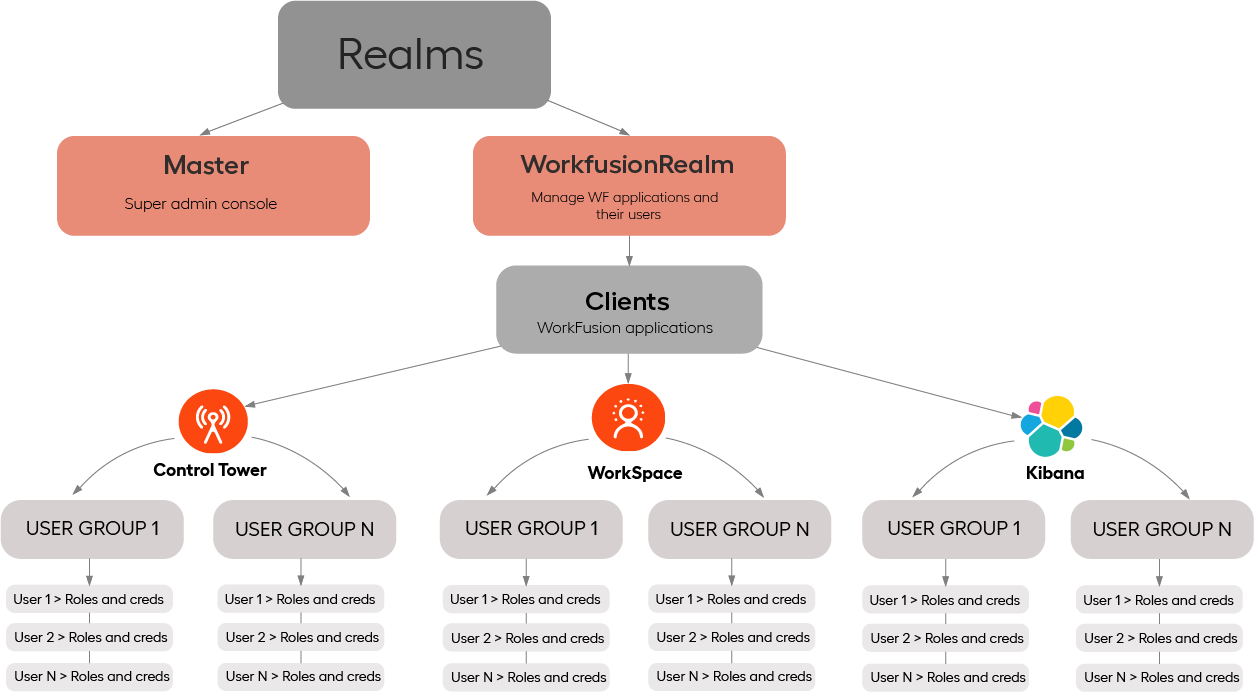
In WorkFusion User Management, realms and clients are preconfigured. Therefore, at first start, complete the initial setup steps as described in the Getting started with User Management section below.
Getting started with User Management
When starting with WorkFusion User Management, log in to its UI as a super admin. The role is created in the course of installation and is available by default as admin on the user list for the master realm.
To access the WorkFusion User Management for initial setup, use the link from the installation files. Once you are signed in, complete the following steps:
Configure the SMPT server and security lockouts for the existing realms. For details, refer to the Manage realm settings topic.
If needed, integrate with the customer's identity or storage provider. For details, refer to the following articles:
Create and configure security groups. For details, refer to the Create groups topic.
Set up user roles and map them to groups. For details, refer to Manage and assign realm and client roles.
Add users to the User Management UI in one of the following ways:
Import users from your previous IAC version. For details, refer to the migration guide.
Create users locally. For details, refer to Manage users | Create users.
Import users from an external identity or storage provider.
Configure the settings for created users or edit the settings for the imported ones. For details, refer to the instruction.
note
In case of migration from a previous IA Cloud version, all users, including LDAP and IDP ones, are migrated together with their roles and related mappings. For details, refer to the migration guide.