
Data Store REST API
The Data Store REST API service is used for remote Data Store management throughout the WorkFusion application. Generally, the Data Store REST API service works with JSON data.
Configuration
For working with Data Stores, use the following URL: /api/v1/datastores.
https://custom-name.workfusion.com/workfusion/api/v1/datastores
API security
All API postings are made over a Secure Sockets Layer (SSL) connection encrypting communications between the user and web server to ensure data remains private.
important
All requests must be preceded by https://.
The API employs form-based (login and password) authentication to ensure that it is only accessible to users with proper credentials.
Form-based authentication
To enable the form-based authentication, open the INSTALL_DIR/conf/workfusion.properties file on the WorkFusion server and set the following property:
rest.form.auth.enable=true
CSRF protection is added to REST endpoints. To make a REST call, add a CSRF token to the request header.
Before executing REST API requests, log in using the form URL:
POST method
POST /workfusion/api/dologin
Content-Type: application/x-www-form-urlencoded
j_username=username
j_password=password
where:
j_usernameis your username in Control Tower.j_passwordis your password in Control Tower.
A successful request body from the server looks like this:
<html>
    <head>
        <meta name="_csrf" content="<csrftoken>" />
        <meta name="_csrf_header" content="<csrftokenname>" />
        ...
    </head>
    <body>
        ...
    </body>
</html>
Get
JSESSIONIDfrom the Set-Cookie response header.When creating REST API requests:
- Set this
JSESSIONIDto the Cookie header. - Set
application/x-www-form-urlencodedas the Content-Type header. - Set received
<csrftoken>as the<csrftokenname>header.
- Set this
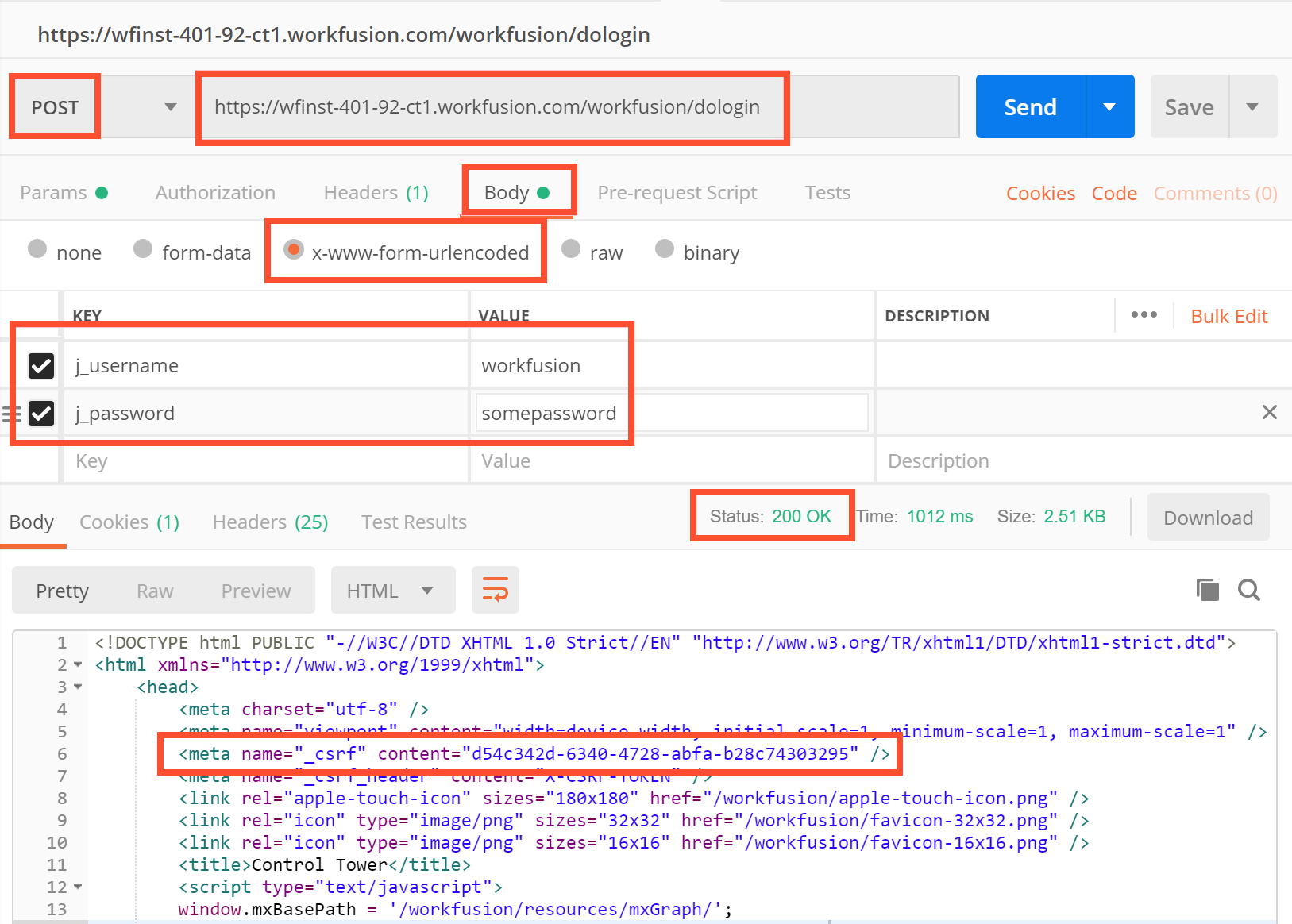
Here is a Postman login request example:
Sample login with HttpClient:
public String post(String addressURL, AbstractHttpEntity body) throws IOException {

    HttpPost httpPost = new HttpPost(addressURL);
    System.out.println("POST -> " + addressURL);
    httpPost.setEntity(body);

    HttpResponse response = httpClient.execute(httpPost);
    String stringResponse = convertStreamToString(response.getEntity().getContent());
    System.out.println(stringResponse);

    return stringResponse;
}

public void login() throws IOException {

    List<NameValuePair> nvp = new ArrayList<>();
    nvp.add(new BasicNameValuePair("j_username", USERNAME));
    nvp.add(new BasicNameValuePair("j_password", PASSWORD));

    //simply post the username and password to the server to login
    //re-use the httpClient instance to make sure the same JSESSIONID cookie is used

    //UrlEncodedFormEntity sets Content-Type=application/x-www-form-urlencoded
    String loginResponse = post(LOGIN_URL, new UrlEncodedFormEntity(nvp));

    Document htmlDocument = getDocument(loginResponse);

    XPathExpression exprToken = getXPathExpression("//meta[@name='_csrf']/@content");
    String csrfToken = exprToken.evaluate(document);

    XPathExpression exprHeader = getXPathExpression("//meta[@name='_csrf_header']/@content");
    String csrfHeader = expr.evaluate(document);

    // then use csrfHeader and csrfToken for REST API calls
}

private Document getDocument(String content) throws ParserConfigurationException, SAXException, IOException {
    DocumentBuilderFactory dbf = DocumentBuilderFactory.newInstance();
    DocumentBuilder db = dbf.newDocumentBuilder();
    return db.parse(IOUtils.toInputStream(content, "UTF-8"));
}

private XPathExpression getXPathExpression(String xPath) throws XPathExpressionException {
    XPathFactory xpf = XPathFactory.newInstance();
    XPath xpath = xpf.newXPath();
    return xpath.compile(xPath);
}
Use REST API with SSO
Starting from IA Cloud v10.2, you can authenticate REST requests with your Keycloak credentials without making Control Tower changes. Note that you must have the password assigned for your user. This condition is mandatory because, when using SSO, a user appears in Keycloak only after their first login via the interface, while Keycloak won't have the user's password.
For more information, read the Configure Identity Providers and REST API authentication with enabled IDP topics.
Use REST API with LDAP
Starting from IA Cloud v.10.2, LDAP access is configured via Keycloak. So, you can authenticate REST requests with your Keycloak credentials. For more information, read the Configure LDAP topic.
Operations
For Data Store queries, observe the following rules:
- Add the
ds_prefix to the Data Store name. - If a Data Store name includes UPPER-CASE characters, wrap the entire name in double quotes, for example:
"ds_01_WL_CL_HT_DD". - Use the Microsoft SQL syntax.
Request
| Resource path | HTTP method | Parameters | Permissions | Example URL |
|---|---|---|---|---|
/execute | POST | -query (any kind of SQL query to execute)—required, query param - drop\ query—restricted | - Manage Data Stores | /api/v1/datastores/execute?query=DELETE FROM "ds_testDataStore" |
/select | GET | - query (SQL select query)—required, query param - maxRows (fetch row count limit)—required, query param | - View Data Stores - Manage Data Stores | /api/v1/datastores/select?query=SELECT * FROM "ds_testDataStore"&maxRows=5 |
/{name}/createOrUpdate | POST | - {name} (Data Store name)—required, path param - dataStoreData—required, body param, consists of:- columns (Key-value map "name:type")—required- originalCampaignUuid (optional) - automationUseCaseId (optional) | isAuthenticated | /api/v1/datastores/testDataStore/createOrUpdate Body (Content-Type: application/json) { "columns": { "name":"TEXT" } } |
/{name}/insert | POST | - {name} (Data Store name)—required, path param - rowData—required, body param, consists of:- headers (array)—required- values (array)—required | - Manage Data Stores | /api/v1/datastores/testDataStore/insert |
/{name}/delete | DELETE | - {name} (Data Store name)—required, path param | - Manage Data Stores | /api/v1/datastores/testDataStore/delete |
For correct API work, when making requests, pay attention to the following recommendations:
The
selectrequest should contain the Content-Type header.httpGet.addHeader("Content-Type", "application/json")The
selectquery parameter should be encoded.URLEncoder.encode(raw, "UTF-8").replaceAll("\\+", "%20")The
executerequest should contain the emptyencodedFormEntitybody.httpPost.setEntity(new UrlEncodedFormEntity(new ArrayList<>()))
CreateOrUpdate
Path:
/api/v1/datastores/datastore_name/createOrUpdate
Body:
{
    "columns": {
        "name": "TEXT",
        "surname": "TEXT"
    }
}
Insert
Path:
/api/v1/datastores/datastore_name/insert
Body:
{
    "headers": [
        "name",
        "surname"
    ],
    "values": [
        "value1",
        "value2"
    ]
}
Response
The response consists of three parts:
responseStatus: Possible statuses areSUCCESS,FAILURE.body: Response data DTO.errors: A collection of business errors in case of a failed request.
Examples:
/api/v1/datastores/select?query=SELECT * FROM "ds_testDataStore"&maxRows=5
Success:
{
    "responseStatus": "SUCCESS",
    "body": {
        "rowData": [
            {
                "columnDescriptions": [
                    {
                        "type": 4,
                        "name": "ds_testDataStore_id"
                    },
                    {
                        "type": 12,
                        "name": "column1"
                    },
                    {
                        "type": 4,
                        "name": "column2"
                    }
                ],
                "rowData": [
                    1,
                    "value1",
                    5
                ]
            }
        ]
    },
    "errors": []
}
Failure:
{
    "responseStatus": "FAILURE",
    "body": null,
    "errors": [
        {
            "code": 0,
            "message": "StatementCallback; bad SQL grammar [SELECT COUNT(*) FROM [ds_country_risk_may_2018]]; nested exception is com.microsoft.sqlserver.jdbc.SQLServerException: Invalid object name 'ds_country_risk_may_2018'"
        }
    ]
}
Access Data Store service in Manual Tasks
You can insert Data Store REST API calls in Manual Tasks using AJAX. For more details, see Allowed Data Store queries.
In that case, the service URL is as follows:
/workfusion/public/datastores
Security is provided by:
hitIdtask parameter- Allowed Data Store queries set in the Manual Task designer
- Task status (works for active tasks only)