Install ODF 2 dependencies on-premises
Difference between ODF 2 and ODF in terms of installation
ODF components are available on the IA Cloud environment before the first deployment of the project that uses them. The deployment is completed automatically by the IA Cloud Enterprise installer.
ODF 2 is different in this aspect. There is no need to pre-install it because ODF 2 core libraries are part of any ODF 2-based project deployment.
Installing ODF 2 dependencies to on-premises Nexus
ODF 2 is not shipped with the IA Cloud Enterprise installer out of the box. To run automation projects in isolated corporate environments without access to the WorkFusion public Nexus, make the preparations described in the guide.
You can always use the WorkFusion public Nexus unless your company's policies prohibit doing so or you cannot access it.
Nexus Repository Manager OSS 2.14.12-01 is recommended. The latest Nexus versions use an internal database instead of a file system to store files. Thus, you cannot add some dependencies manually using a simple copy.
By default, ODF 2 Archetypes generate Maven projects pointing to the WorkFusion public Nexus. If you need to switch to your company's Nexus, follow the instructions below:
Download the archived WorkFusion dependencies.
Verify that your company's Nexus has the
dependencies/repository. If you don't have the repository, create it with the following configuration: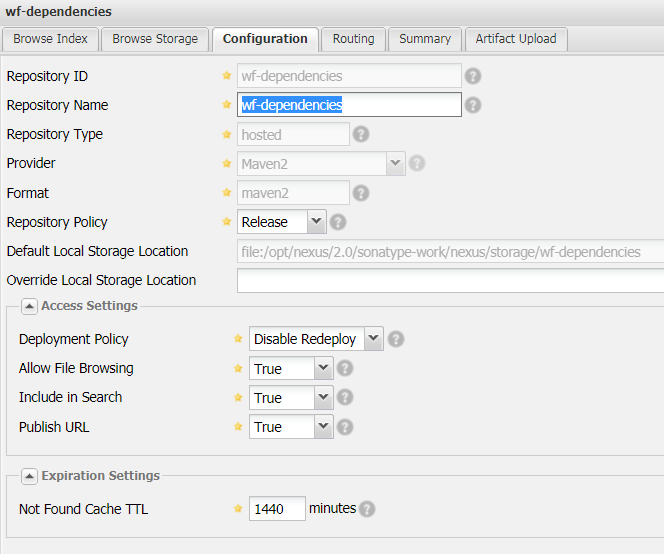
As a result, you get a repository with the following folder path on the database server (that hosts Nexus):
/opt/nexus/2.0/sonatype-work/nexus/storage/wf-dependencies.Upload
wf-dependencies.odf-X.X.X.X.zip(for the actual version of ODF 2, refer to the Compatibility matrix page) onto the server and unzip the archive into/opt/nexus/2.0/sonatype-work/nexus/storage/wf-dependencies.
To add dependencies manually, enable SSH access to the database server and root permissions:
Click to see helpful shell commands
Upload to the Nexus server.
scp -i id_rsa wf-dependencies-X.X.X.X.zip username@dbserver.company.com:/home/usernameid_rsais your public security key for SSH access. Request your company IT for proper commands if needed.Find the zip file in
/home/username/on the server.Enable an SSH connection to the Nexus server.
ssh -i id_rsa username@dbserver.company.comUnzip the directory.
unzip -r /home/username/dependencies-X.X.X.X.zip /opt/nexus/2.0/sonatype-work/nexus/storage/wf-dependenciesThe default server directory where Nexus stores JARs for repositories is
/opt/nexus/2.0/sonatype-work/nexus/storage. If needed, confirm that with your company IT.Copy to the repository directory.
cp -a /home/username/wf-dependencies/. /opt/nexus/2.0/sonatype-work/nexus/storage/wf-dependenciesChange all dependency permissions. For Nexus, to have full control over JARs copied manually, change the group and owner to
nexusfor all copied files.cd /opt/nexus/2.0/sonatype-work/nexus/storage/wf-dependencies
sudo chgrp -R nexus *
sudo chown -R nexus *
Perform the same manipulations with the dependencies archive on the on-premises Nexus to update the dependencies after a newer version of ODF 2 is released.
Configuring Maven and project settings
The configuration includes the following two steps:
To generate an ODF 2 project, configure a repository used to get Full Archetype. In the case of on-premises and a single
dependencies/repository containing an Archetype (that is different from the public Nexus where Archetypes are placed in the separatearchetypes/repository), you have the same repository URL for both<id>wf-dependencies</id>and<id>wf-archetypes</id>repository settings in your Maven settings.After the configuration is done, run a generation process from the command line on your workstation. For more details, refer to Start Maven project.
Having generated the ODF 2 project from Full Archetype, configure a remote profile in the root
pom.xmlfile. Specify the Control Tower user credentials to be used. For that, modify the Maven settings in theUSER_HOME/.m2/settings.xmlfile.For more details, refer to Deploy Asset Bundle | Configure access to Control Tower.
Build environment requirements
Local builds and continuous integration and continuous delivery pipelines require using Azul Zulu OpenJDK 8.x. For details, refer to the guide.