ODF archetypes
Before you continue with ODF archetypes, see Software Development Life Cycle in Intelligent Automation Cloud Enterprise.
The most important accelerator on the Start the project step is leveraging use case blueprints wrapped as Maven archetypes.
You can create a project in either of the two ways:
- In the WorkFusion Studio menu, select File > New > Start ODF project from Archetype.
- Right-click the WorkFusion Project Navigator pane and select New > Start ODF project from Archetype.
In the window that follows, perform several actions:
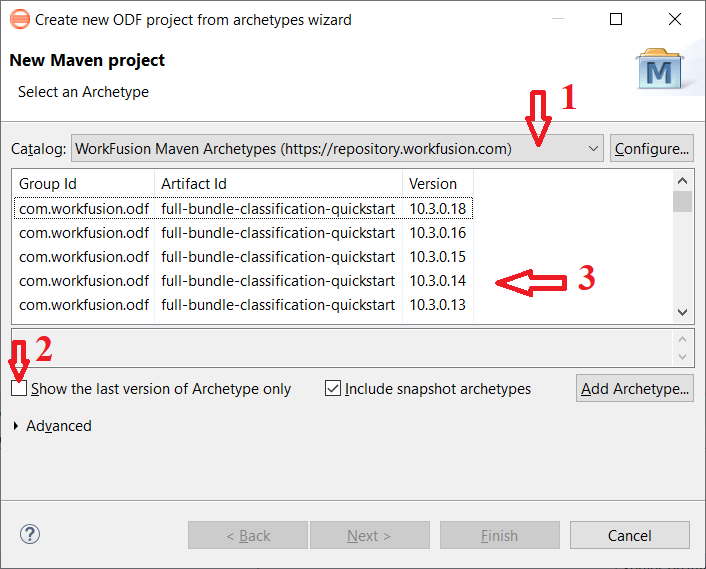
- Select the standard public repository with WorkFusion Maven archetypes (https://repository.workfusion.com).
- Uncheck Show the last version of Archetype only to see all archetype versions.
- Select the correct archetype.
View archetype options
| full-bundle-classification-quickstart | Generates a project with three modules:
|
| full-bundle-ie-quickstart | Generates a project with three modules:
|
| minimal-bundle-quickstart | Generates a project with Package module only (for Asset Bundle migration API) |
| rpa-bundle-quickstart | Generates a project with two modules:
|
Each archetype contains one or several Maven modules. Each module has its own POM file with the artifact name, versions, and dependencies.
- Select type 1 or 2 if your project contains Machine Learning models of an appropriate type (Classification or Information Extraction). Then, three modules are created:
- a BCB module for Java classes
- Machine Learning models
- a Package module for the Asset Bundle where static and dynamic resources are packed\ When referring to dynamic resources, keep in mind that when you add code in the BCB module, the Package module also contains it. You don't need to copy the JAR file manually.
- Use type 3 to quickly create an Asset Bundle as a zip file. It contains the resource structure only.
- Use type 4 to create an RPA project. It contains both the project catalog structure and Bot Task examples, including the InvoicePlane web application example made with the recommended PageObject design.
Choose archetype version
Consider an archetype version while creating a project. An automation is created to be ultimately deployed to server environments (DEV > UAT > PROD).
For example, you have v10.2.0 IA Cloud Enterprise on the server. To find out which archetype version to choose, use the compatibility matrix that contains the latest and recommended archetype version per each IA Cloud Enterprise version.
If you create a pure RPA automation, select v10.2.0.27 rpa-bundle-quickstart. Thus, the general rule is to choose a version based on the three digits of IA Cloud Enterprise (10.2.0) with the largest last digit (27).