Work with Transactions
To illustrate how user Transactions are created and processed, let's simulate a simple scenario for a Business Process (BP) consisting of two Bot Tasks:
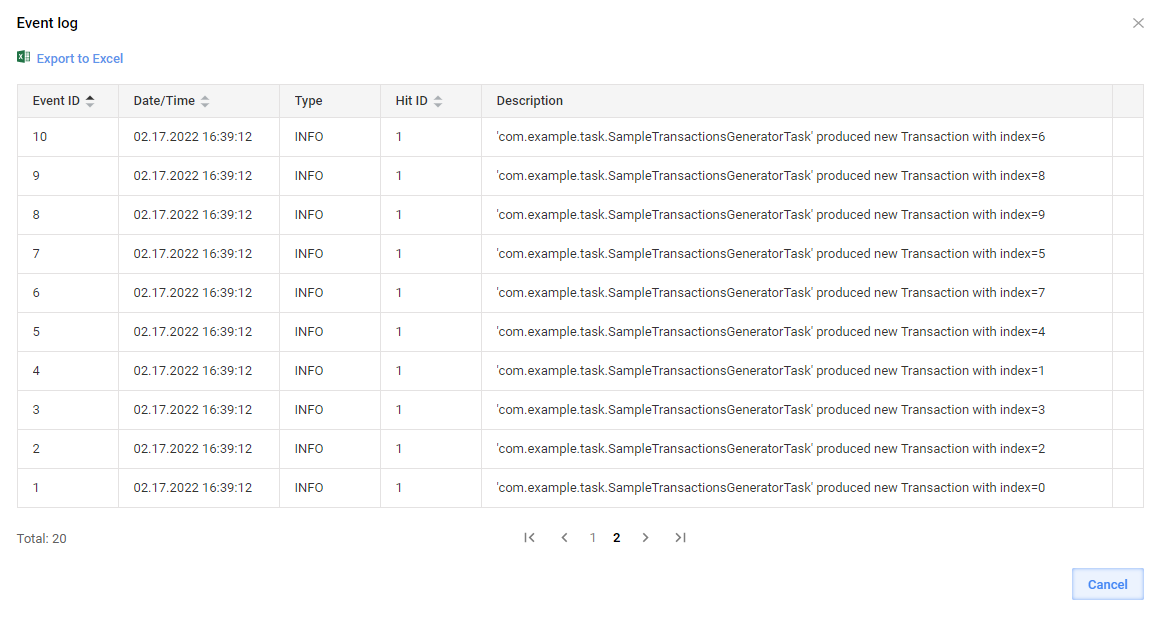
The first one generates ten dummy Transactions in a loop and splits data so that subsequent Bot Tasks are executed in parallel with the thread limits set in the Bot Source configuration. The trace of the Bot Task is visible via Events in Control Tower.
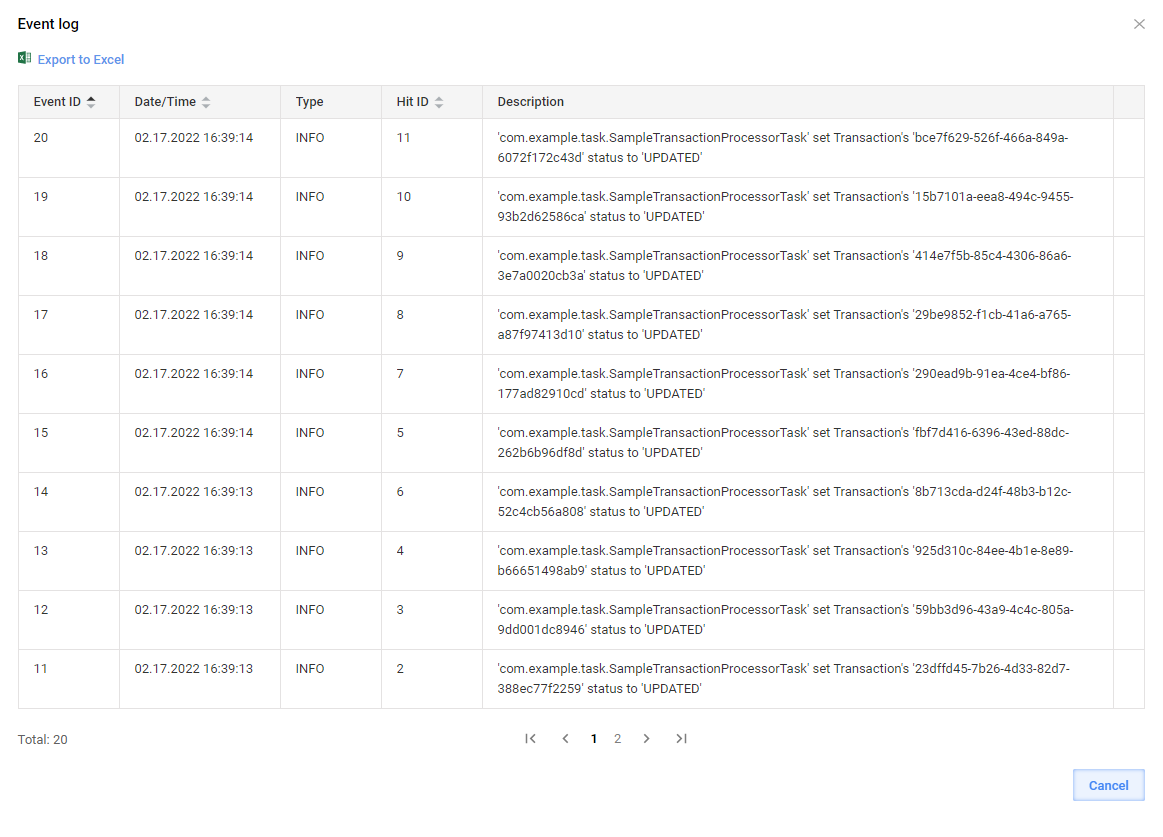
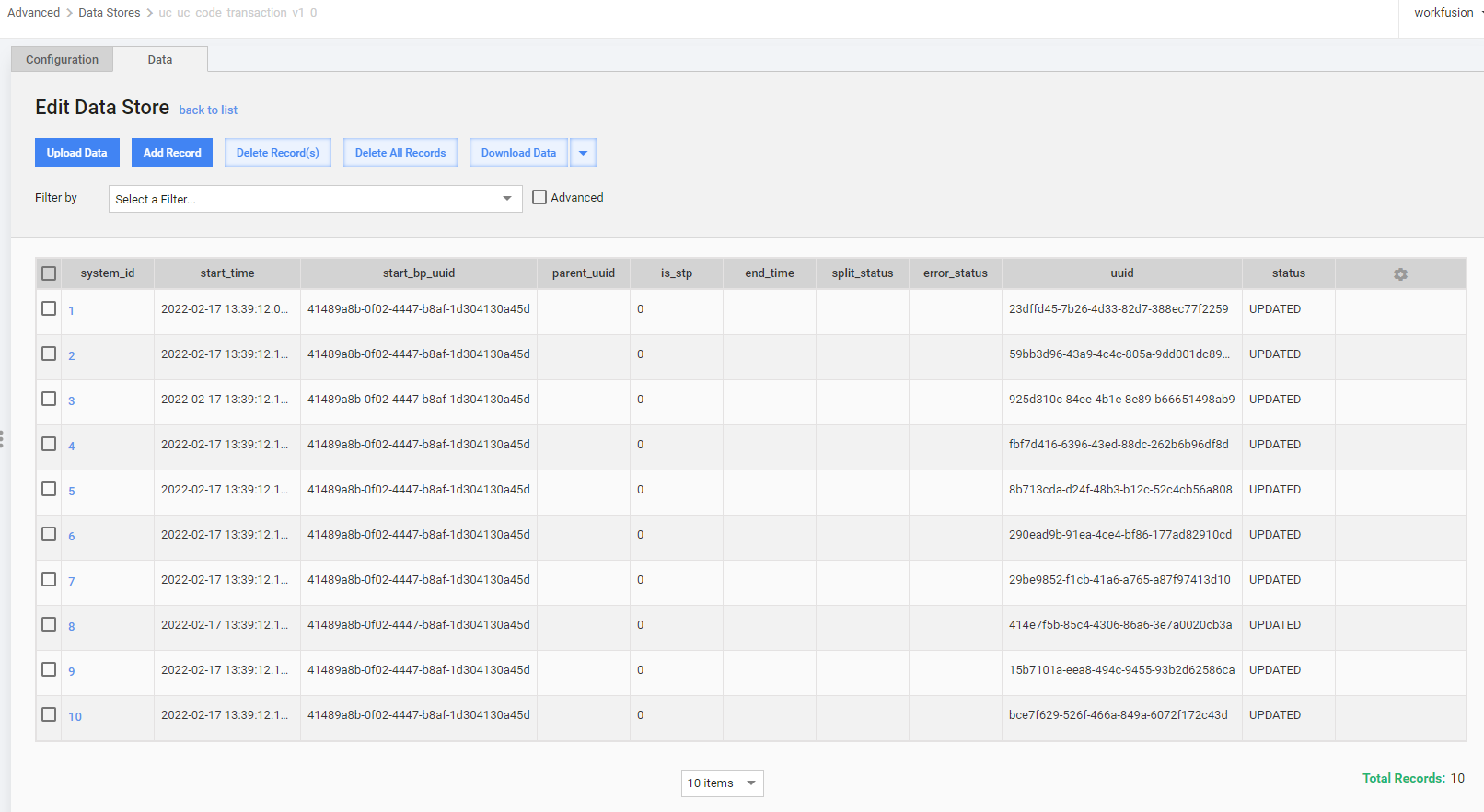
The second one contains the single Transaction code. For visibility, the Transaction status is set to a custom value. The trace of the Bot Task is visible via Events in Control Tower.
Design sample Transaction generator
To design a custom runner for the sample transaction generator, follow the steps below:
Define an interface for the Bot Task to generate multiple arrays of output data.
OdfTaskis extended as each ODF task should have a compatible runner class implementingOdfTaskRunner.public interface SampleTransactionGenerator extends OdfTask {
@Override
default Class<? extends OdfTaskRunner<?>> getRunnerClass() {
return SampleTransactionsGeneratorRunner.class;
}
MultipleResults run();
}Create a runner:
public class SampleTransactionsGeneratorRunner implements OdfTaskRunner<SampleTransactionGenerator> {

    @Override
    public TaskRunnerOutput run(SampleTransactionGenerator task) {
        return task.run();
    }

}
In the Bot Task, implement
SampleTransactionGenerator. Later, you can use it in Control Tower as the first step in a custom BP.@BotTask
@Requires(TransactionModule.class)
public class SampleTransactionsGeneratorTask implements SampleTransactionGenerator {
private final TransactionRepository transactionRepository;
private final TaskInput taskInput;
private final Logger logger;
@Inject
public SampleTransactionsGeneratorTask(TransactionRepository transactionRepository, TaskInput taskInput, Logger logger) {
this.transactionRepository = transactionRepository;
this.taskInput = taskInput;
this.logger = logger;
}
@Override
public MultipleResults run() {
final List<Transaction> transactions = new ArrayList<>();
for (int index = 0; index < 10; index++) {
final Transaction newTransaction = transactionRepository.startNewTransaction("STARTED");
logger.info("'{}' produced new Transaction with index={}", getClass().getName(), index);
transactions.add(newTransaction);
}
return transactions.stream()
.map(transaction -> new TransactionResult(taskInput, transaction))
.collect(MultipleResults.toMultipleResults());
}
}
Implement sample Transaction processor
To enable working with an existing Transaction, implement the TransactionProcessorTask interface designed specifically for this scenario:
@BotTask
public class SampleTransactionProcessorTask implements TransactionProcessorTask {

    private final Logger logger;

    @Inject
    public SampleTransactionProcessorTask(Logger logger) {
        this.logger = logger;
    }

    @Override
    public boolean shouldProcessTransaction(CurrentTransaction currentTransaction) {
        return currentTransaction.getStatus()
                .filter("STARTED"::equals)
                .isPresent();
    }

    @Override
    public void doWithTransaction(Transaction transaction) {
        transaction.setStatus("UPDATED");
        logger.info("'{}' set Transaction's '{}' status to '{}'", getClass().getName(), transaction.getUuid(), "UPDATED");
    }

}
Build, deploy, and verify sample results
For simplicity, you can add the classes described above to a project generated from ODF 2 Full Archetype using the BCB module. After building and deploying the project to Control Tower, proceed as follows:
Produce a simple two-step BP with two Bot Tasks generated from the classes annotated as
@BotTask: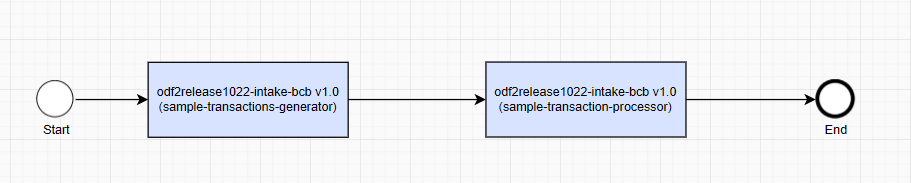
Execute the BP:

After successful completion, review the Event log popup and the Transaction Data Store for the test Use Case:
Operations with Transactions
Start new Transaction
To create a new Transaction object inside a Bot Task, inject TransactionRepository and call the startNewTransaction method. The method initializes a new Transaction entity with the provided status and persists it into the Use Case Data Store. To make the next steps in a Business Process aware of the newly created Transaction, pass it to the output data by creating a new TransactionResult object. TransactionResult is a special case of SingleResult that ensures that Transaction-specific columns are correctly populated and returned.
@BotTask
@Requires(TransactionModule.class)
public class TransactionGeneratorTask implements AdHocTask {

    private final TransactionRepository transactionRepository;

    @Inject
    public TransactionGeneratorTask(TransactionRepository transactionRepository) {
        this.transactionRepository = transactionRepository;
    }

    @Override
    public TaskRunnerOutput run(TaskInput taskInput) {
        Transaction transaction = transactionRepository.startNewTransaction("transaction_status");
        return new TransactionResult(taskInput, transaction);
    }

}
TransactionModule is required to get access to Transaction-related helpers, services, and repositories. Make sure to specify the module in the @Requires annotation.
Operate current Transaction
After the Transaction is created, in the next Bot Tasks in a Business Process, you can access it by injecting the com.workfusion.odf2.transaction.CurrentTransaction object. CurrentTransaction provides convenient access to attributes of the Transaction contained in the input record. This class also loads the whole Transaction entity from the Data Store if and when needed. Also, CurrentTransaction provides the toTaskOutput method to create TransactionResult from the transaction.
@BotTask
@Requires(TransactionModule.class)
public class TransactionProcessorTask implements AdHocTask {

    private final CurrentTransaction currentTransaction;

    @Inject
    public TransactionProcessorTask(CurrentTransaction currentTransaction) {
        this.currentTransaction = currentTransaction;
    }

    @Override
    public TaskRunnerOutput run(TaskInput taskInput) {
        if (currentTransaction.isPresent()) {

            currentTransaction.get().setStatus("SOME NEW STATUS");
            currentTransaction.updateIfLoaded(); // will save changed status to data store
        }

        return currentTransaction.toTaskOutput();
    }

}
CurrentTransaction provides the following practical methods:
Optional<UUID> getId()returns a Transaction ID if the task input contains a_sys_transaction_idrecord.Optional<UUID> getParentId()returns a parent Transaction ID if the task input contains a__sys_parent_transaction_uuidrecord.Optional<String> getStatus()returns a Transaction status if the Transaction is present and the task input contains a_sys_transaction_statusrecord.boolean hasStatus(String status)checks whether the current Transaction is present and has a specific status.Optional<String> getErrorStatus()returns a Transaction error status if the Transaction is present and the task input contains a__sys_error_statusrecord.boolean hasErrorStatus(String status)checks whether the current Transaction is present and has a specific error status.boolean isPresent()specifies that the Transaction is considered present when the task input contains both_sys_transaction_idand_sys_transaction_statusrecords.Transaction get()loads a Transaction object from the Data Store.TransactionResult toTaskOutput()creates aTransactionResultobject from the loaded Transaction.void updateIfLoaded()updates the Transaction state inside the Data Store if the Transaction was loaded previously.
You can perform an operation with a Transaction in a lazy manner: without reading and writing back actual Transaction data from a Data Store and initializing an object. In some scenarios, it's enough to know _sys_transaction_id and _sys_tansaction_status received by the Bot Task with input data.