Report generation and dissemination
Example overview
Problem statement
Many companies need to prepare and send out reports to stakeholders. Reports can range from customer usage for sales and marketing purposes to system uptimes for monitoring. This business case aims to grab details and generate Excel reports to send to internal stakeholders.
Existing manual process
Commonly, a worker must open an appropriate file, search for the data, and copy-paste the required information into an Excel document. Afterward, the worker has to open mail service, attach the needed file and send the email to internal stakeholders.
Automation solution
In this example, an RPA Bot Task grabs all data from five input log files in the JSON format, puts the data to the online JSON-to-CSV converter, transfers the result to a CSV file, and adjusts the file to a proper view with four result columns. After that modification, the file is saved in the Excel format and sent to ten people.
You have to start it, and a bot will do all the necessary actions. As a result, ten people receive a mail with the attached Excel file. One more option allows applying reusable script components in your scripts without modifications.
Reusable components
In this example, there are five reusable components:
- Copy files content into clipboard.
- Paste the content to the website and download the file from the web page.
- Fix the Excel file content.
- Send emails with attachments via Outlook to specified people.
- Close Outlook.
Example overview video
Preconditions
Before you start working, ensure all the requirements are met:
- Install:
- Work.AI Developer
- Any of these browsers: Google Chrome, Firefox, or Internet Explorer. Mind if your browser is managed by your organization, the script may require some changes and won't work out-of-the-box.
- MS Excel
- MS Outlook with an email account configured and logged in providing a bot with the option to send emails
- Download the example with an Excel template.
Getting started
To get started, perform the following actions:
- Add the example to Recorder.
- Copy the metrics in the JSON format to an appropriate folder, for example,
C:/Examples. - Change the path in the
path_to_foldervariable. - Change the mail addresses in the
mail_listvariable. - Make sure your Outlook account is configured to send emails.
Script overview
Environment
- Windows OS that meets System Requirements
- Any of these browsers: Google Chrome, Firefox, or Internet Explorer
- MS Excel
- MS Outlook with an email account configured and logged in for a bot to be able to send emails
Data and logic
Input data:
- List of email addresses (ten emails) stored in the
mail_listvariable - Metrics as the five JSON files (see the downloaded sample)
Output data:
- Excel file with log data
Common logic
- Open log files from a specific folder.
- Scrape details from the logs.
- Create a new Excel file and save the information.
- Send the file via Outlook to the list of specified persons.
The Excel file will have the following information from the JSON files.
| Host | Timestamp | Uptime | TaskProcessingTime |
|---|---|---|---|
| 127.0.0.1 | 2019-02-07T12:46:07.312Z | 267328 | 46285 |
| 127.0.0.1 | 2019-02-06T12:44:28.466Z | 133786 | 36970 |
| 127.0.0.1 | 2019-02-05T12:43:31.466Z | 265583 | 0 |
| 127.0.0.1 | 2019-02-04T12:52:11.256Z | 530193 | 137936 |
| 127.0.0.1 | 2019-02-01T12:43:42.456Z | 369786 | 39631 |
Script variables
| Variable name | Type | Description | Default value |
|---|---|---|---|
col1 | String | Column name in Excel file | Host |
col2 | String | Column name in Excel file | Timestamp |
col3 | String | Column name in Excel file | Uptime |
col4 | String | Column name in Excel file | TaskProcessingTime |
content | String | Stores data from input file | |
content_list | List | Stores data from input files in list format | |
empty_table | Table | Replaces the content of the Excel file | |
excel_file_name | String | Excel filename | report |
excel_table | Table | Replaces the content of the Excel file | |
file_names | List | Stores data from input files | |
files_numbers | Number | Stores the quantity of input file + 11 | |
format_file | String | Excel file type | XLSX |
full_path | String | Stores the path to Excel file | |
mail_list | List | List of mail addresses | tuk.tuk.rpa@gmail.com, .... . (any number you need) |
path_to_folder | String | Path to the folder with input files | C:/Samples |
subject | String | Mail subject | Log Report |
url | String | Website URL for conversion from JSON to CSV | https://toolslick.com/conversion/data/json-to-csv |
Script workflow
Copy files content into clipboard (reusable)
Description: The group of actions is required to copy the files content into clipboard. The whole group is reusable in other projects.
Actions 2-8 read the defined folder content, including files, subfolders, or both, and saves the results (full paths to the items) to a Recorder variable (List).
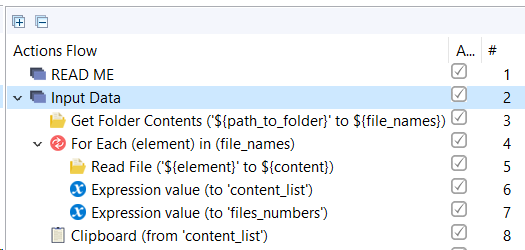
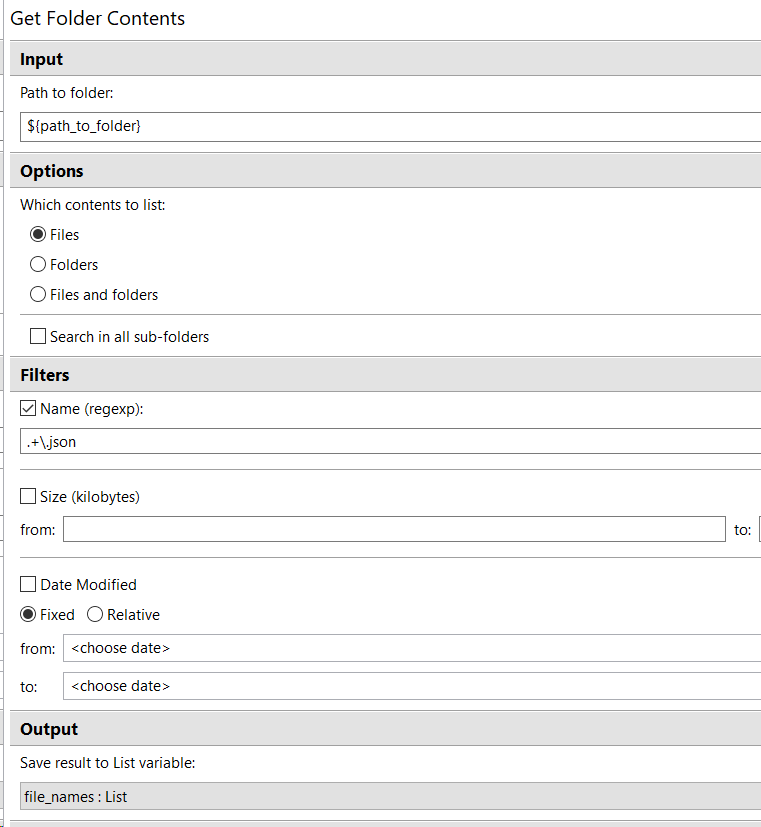
To reuse the script, change the value of the path_to_folder variable.
Open website (reusable)
Description: The group of actions is required to open a website, add data from clipboard to special area in the website, make the conversion from JSON to CSV, download a file from the website, and open the downloaded file.
Action 10 adds Exception Handling to open the script in a default browser installed on your machine (Google Chrome, Mozilla Firefox, or Internet Explorer).
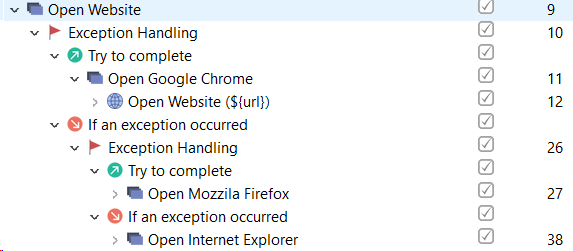
Action 12 opens the website from the
urlvariable.
Action 14 specifies the area on the website for pasting data using XPath.
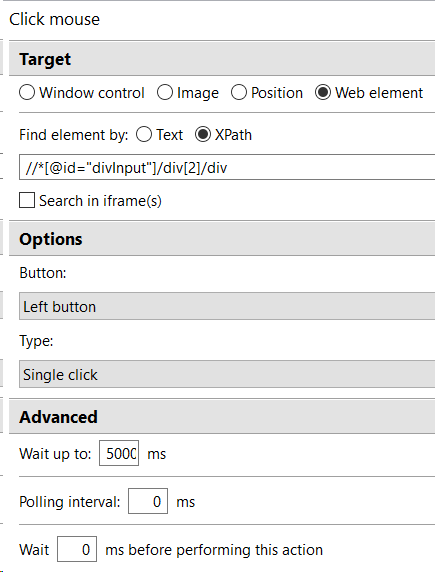
Action 22 specifies the button on the website for downloading the result CSV file using XPath.

Actions 13, 15, 38, 42, 52, 55 use the special Application group action such as Maximize Window and Window for different browsers to work correctly.
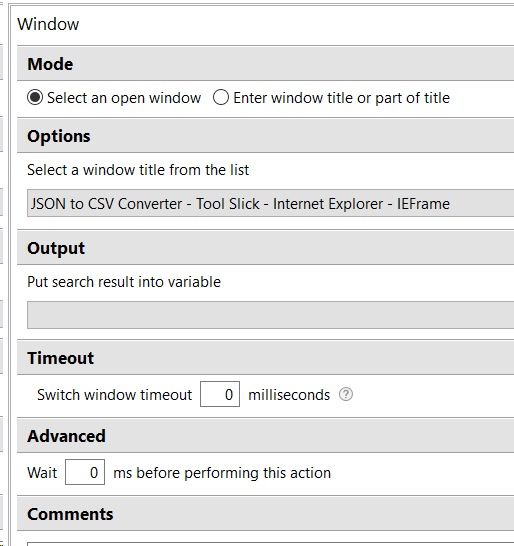
Action 27 allows waiting for the CSV file to open.

To reuse this group, change:
- Value of the
urlvariable–the website URL. - XPath values in actions 14 and 22.
- If your default browser is Internet Explorer, see the Window title in action 52. Open the website on a particular page and select the window title from the list.
Save open CSV file as Excel file
Description: The group of actions is required to save the already downloaded and open CSV file in the XLSX format.
Action 60 uses the standard key combination F12 to open the Save As Excel window. Actions 62-63 type the full filename. Action 67 provides the first type file option, which is XLSX. (Enter Keystrokes)

Actions 71-73 (Exception Handling) check the existence of an XLSX file in the destination folder. If the file exists, it is overwritten by Excel.

Adjust Excel file (reusable)
Description: The group of actions is required to make adjustments to the Excel file.
The downloaded file looks as follows:

In the end, the file should look like this:

Action 81 (Join Strings) creates a full path to the Excel file by joining three variables of the String type.

Action 82 (Open Spreadsheet) opens the Excel spreadsheet using the
full_pathvariable.
Action 83 (Set Range) copies data from f2 to g6, and action 84 pastes it to the range of a2:b6. Action 85 (Set Cell Value) copies data from j2 to k6, and action 86 pastes it to the range of c2:d6. Action 87 pastes empty cells from e1 to n6. Actions 88-91 set the column names (Get Range).
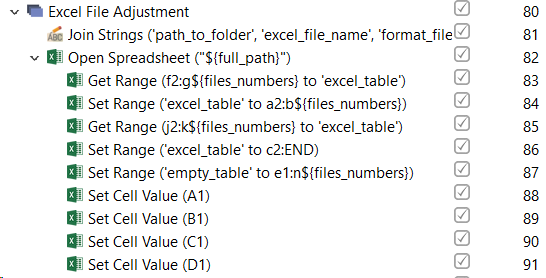
To reuse this group, perform the following steps.
- Provide the correct path to the Excel file in action 82.
- Specify the needed range in actions 83-87.
- Set the correct values for column names in the
col1-col4variables.
Send email with attachment via Outlook (reusable)
Description: The group of actions is required to open Outlook and send an email with the Excel attachment to the unlimited number of persons. The whole group is reusable in other projects.
Actions 92-101 open Outlook. The bot opens the Run window, types "Outlook" (Keyboard), and then opens Outlook. With the help of the Window action, the bot switches to the specified window and ignores any random popups.

Action 102 (For Each) specifies that the bot sends as many letters as many elements (email addresses) are there in the
mail_listvariable.
The actions send an email with the specific subject and the attached file to the email from the
mail_listvariable. To do that, you need the Enter Keystrokes, Click Mouse, and Window actions.The exception handlings are added as some window titles, and elements differ in various versions of Outlook. The script below works for Outlook from 2007 to 365.
- Action 104 adds Exception Handling due to the window title difference in Outlook versions.
- Action 111 adds Exception Handling due to the difference in the Subject selector in Outlook versions.
- Action 115 adds Exception Handling as the Attach file selector differs in Outlook versions.
- Action 120 adds Exception Handling as the flow for attaching a file differs depending on the Outlook version.
- Action 126 adds Exception Handling as the Send button selector varies depending on the Outlook version.
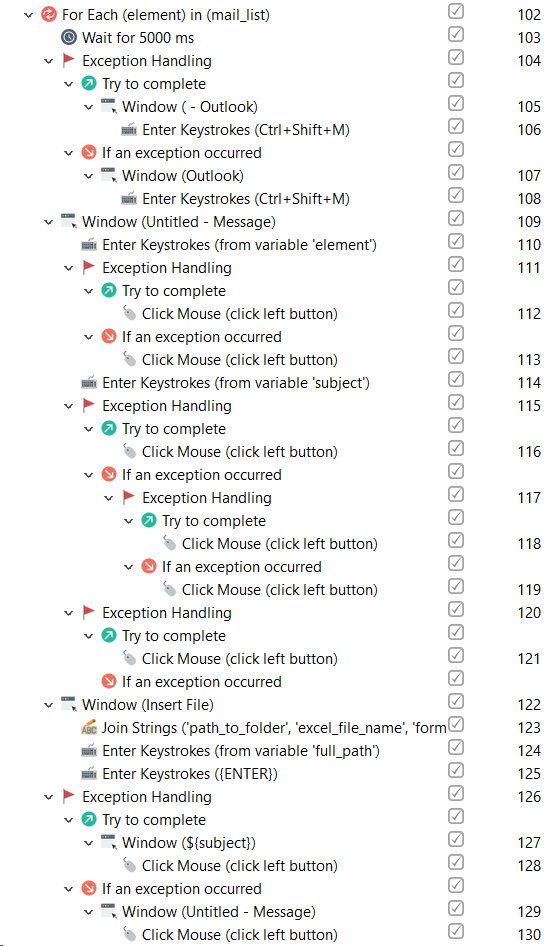
To reuse this group, change the variables values.
mail_list: Change the user's email to send to. Add any quantity you need in the list variable.subject: Choose the subject to set into the variable value.full_path: Set the right path for the file you want to attach, for example,C:/Samples/report.xlsxand unmark action 123. The alternative way is to provide this path in three variables:path_to_folder, for example,C:/Samplesexcel_file_name, for example, reportformat_file, for example, XLSX
Close Outlook (reusable)
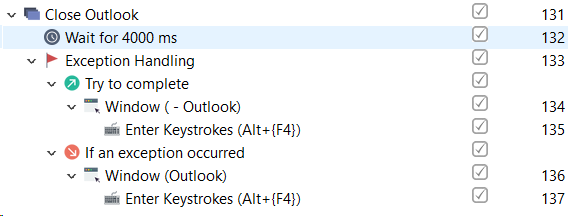
Description: The group of actions is required to close Outlook when the email is sent. The whole group is reusable without any changes in other projects.
Action 132 (Wait) provides time for the email to be sent.
Action 133 (Exception Handling) adds the exception handling due to the window title difference in various Outlook versions.
Action 135 (Enter Keystrokes) enters
Alt+F4to close Outlook.