Automate websites
Overview
Today, almost half the world's population uses the Internet. Using websites becomes an integral part of the work in virtually any area, from obvious spheres like banking and retail to education and healthcare. That's why there is a need to automate daily work, for example, downloading some reports from websites or just scrolling for some information. And here comes Work.AI, which will help you to automate this website work routine and focus on more significant tasks.
Common recommendations
Here are some common suggestions for web automation using the Work.AI platform.
Keep your browsers up-to-date.
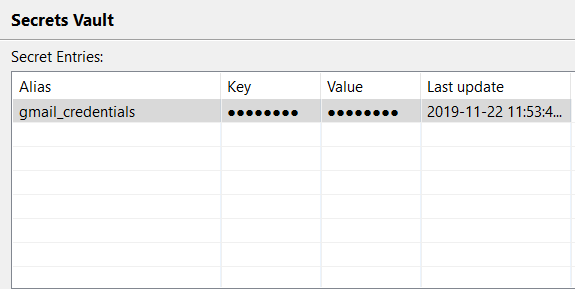
Store credentials in Secrets Vault.
Use the timeout option. There might be situations when a website or Internet works slowly. The timeout makes sure that your script won't fail in this situation.

Store all parameters (like URLs) in the variables. It makes it easier to edit your script in the future.

While performing web automation, try to finish it, and only then switch to another application or desktop automation.
We strongly recommend using Google Chrome or Mozilla Firefox. If you need to use Internet Explorer, you should configure it as described in this guide.
Web automation
There are two ways of automating websites with the help of our application.
- The first and recommended way is to use built-in Web actions. This way should be used commonly besides some exceptional cases.
- The second way is used in some specific cases when you cannot use Web actions for some reason. For example, the website recognizes that a bot is working on it.
Now, let's dig a little deeper into both these ways of automating websites.
Use built-in Web actions
Open website
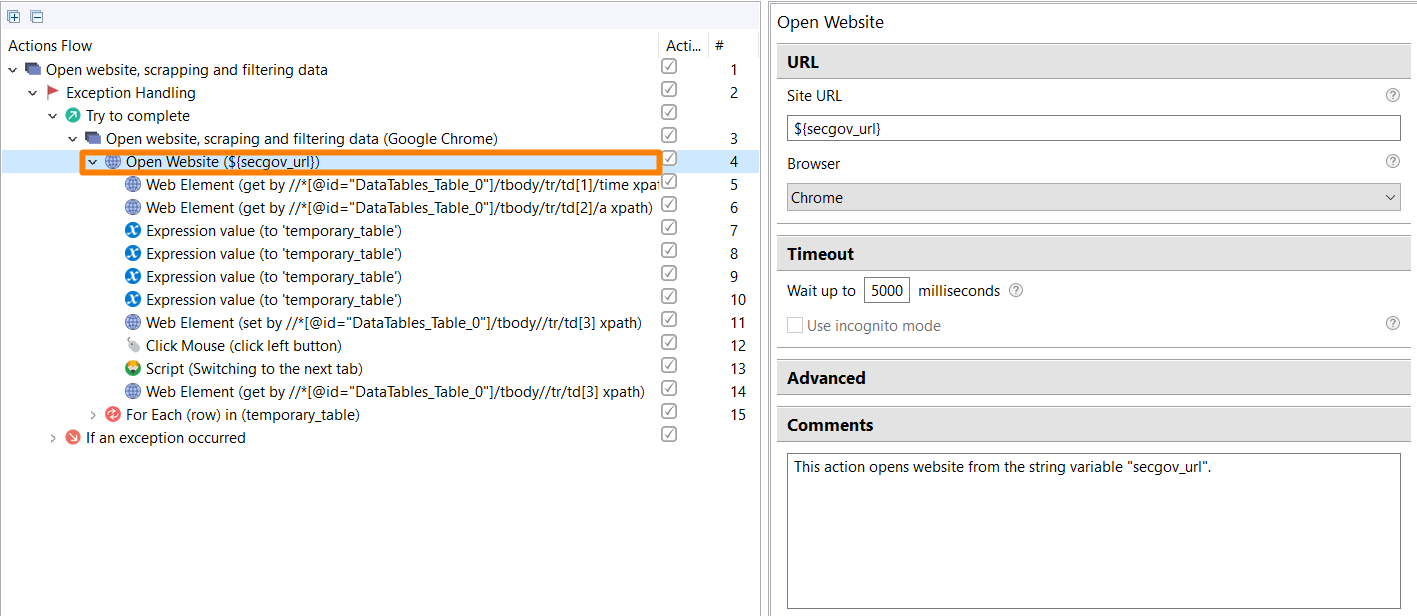
To start your work with a website, you need to use the Open Website action. All other actions should be nested under Open Website.
Work with website
After opening the website, you can start working with it.
Let's imagine you need to copy some value from a website or enter any information like a username. In this case, you should use the Web Element action. Using this action, you can:
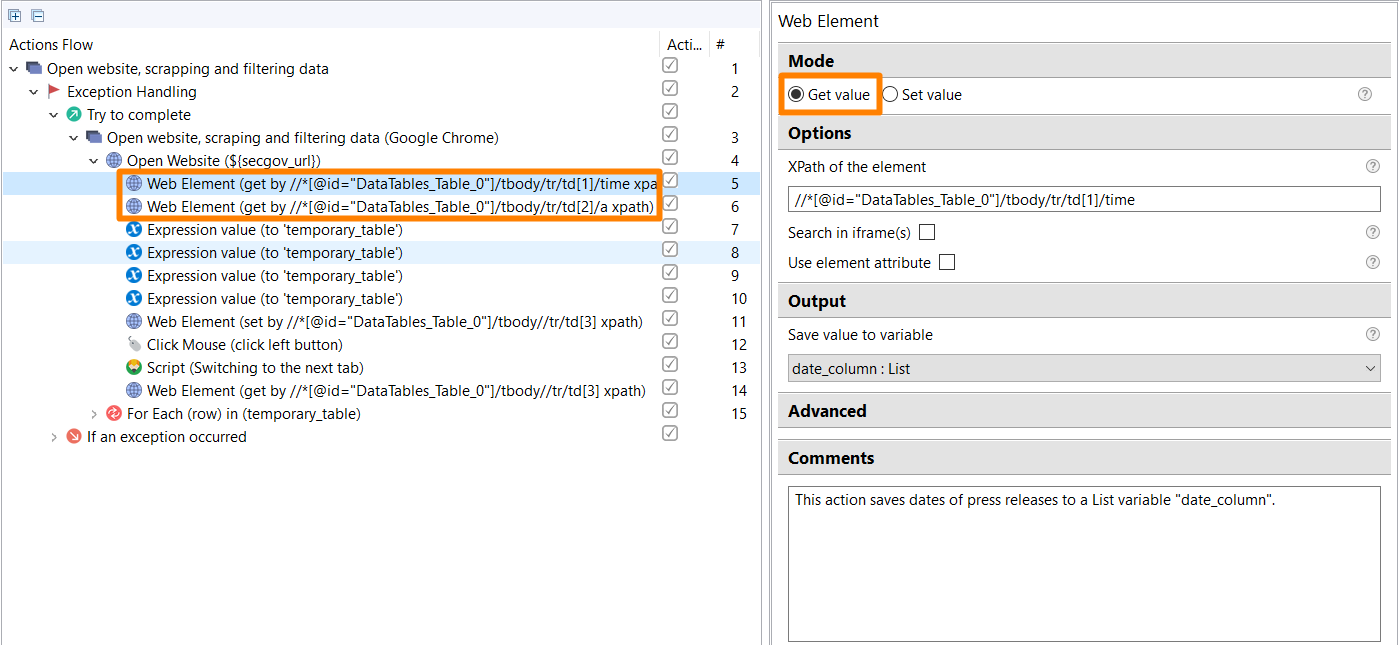
- Copy a value, table, etc., from a website and save it to a variable. For this purpose, use Get value.
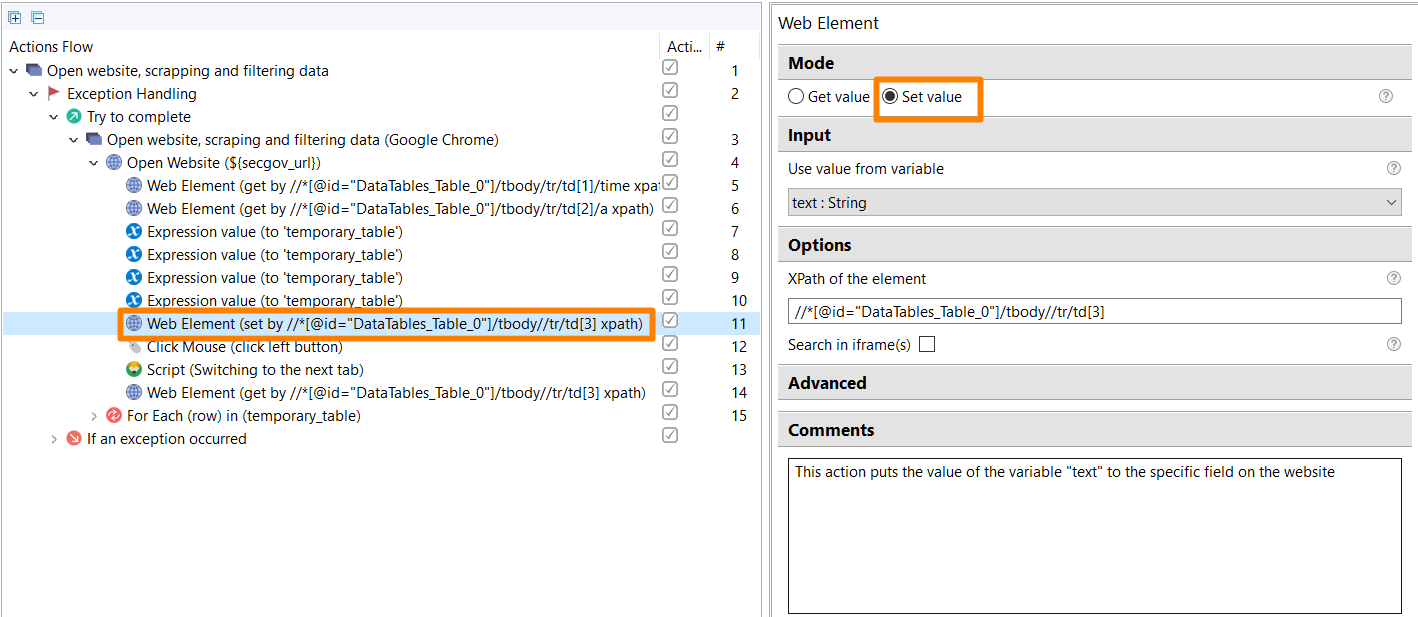
- Insert the data to the required field or place on a website, so you won't need to click on the field and then type the data. Set Value will help you with that.
 tip
tipTo use both these actions, you need to know how to get an XPath from a website. Understanding what XPath is can be pretty complicated for a new user, as every web page has a pretty tricky structure. Our XPath guide will help you with how to use XPaths.
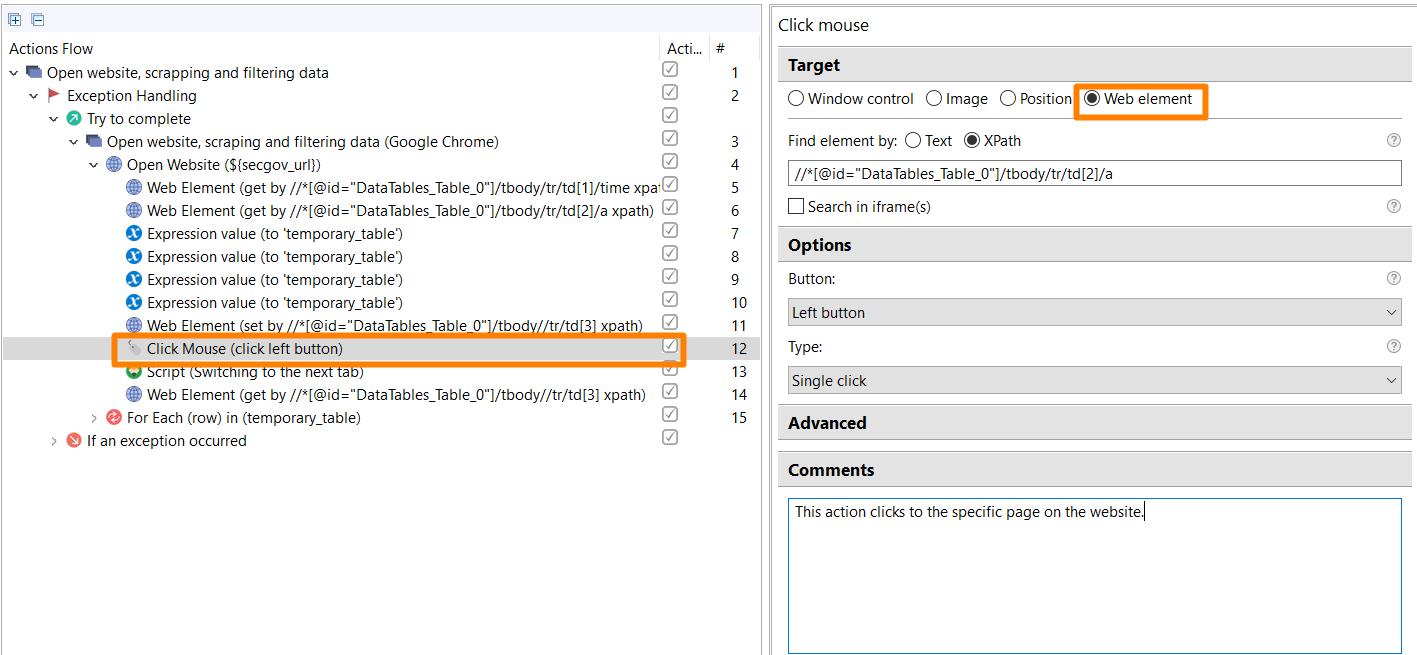
To click on an element on a web page, use Mouse Click by XPath. As this action also requires XPath knowledge, we strongly recommend studying the guide on how to work with XPath. Sometimes, there can be situations where you cannot use XPath because of the specific page structure. Use clicks by image instead.
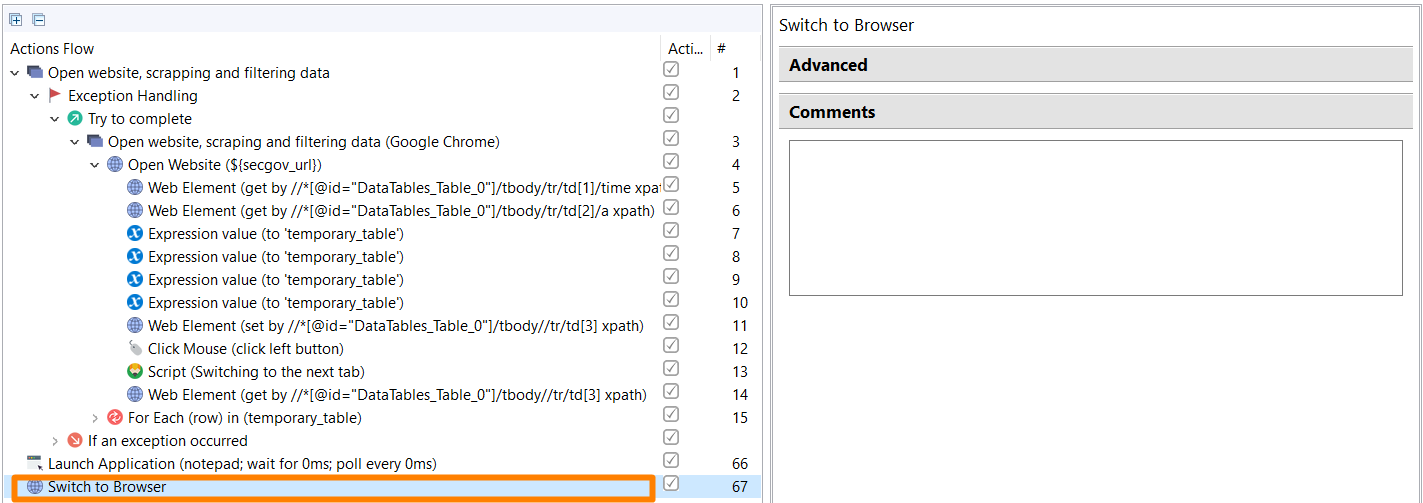
While we recommend to finish all web actions and then switch to another application, there might be situations when you need to switch to some application and then go back to the browser. In this case, you can use Switch to Browser.
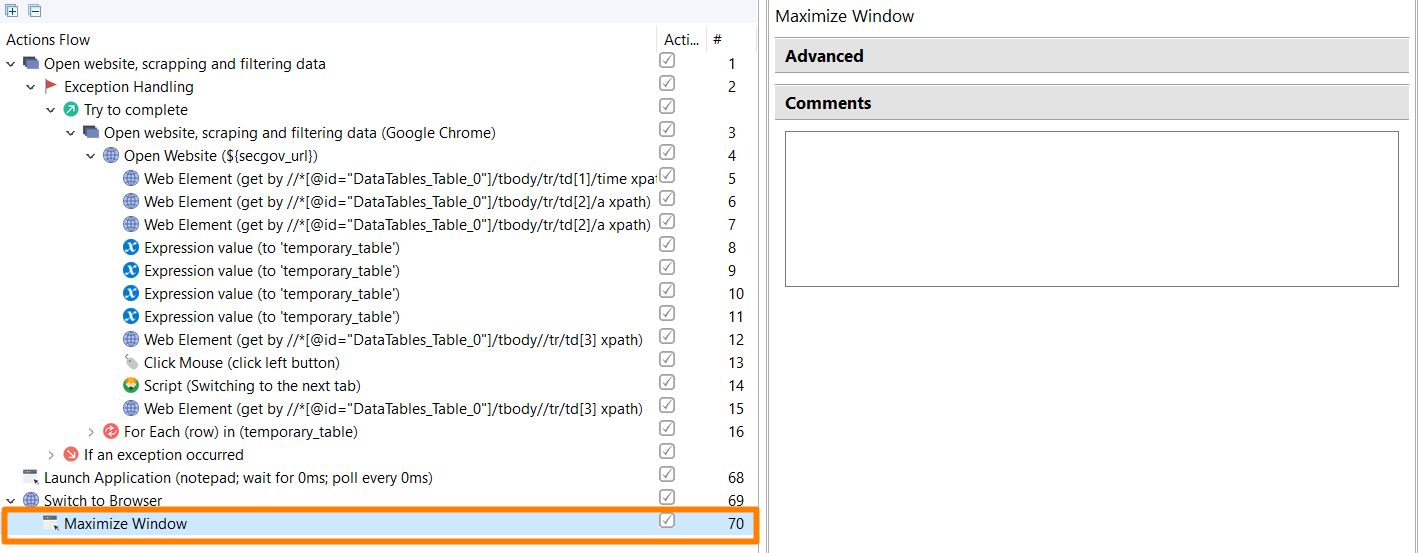
If you want to maximize the browser window, you can use Maximize Window action.
Use Custom action
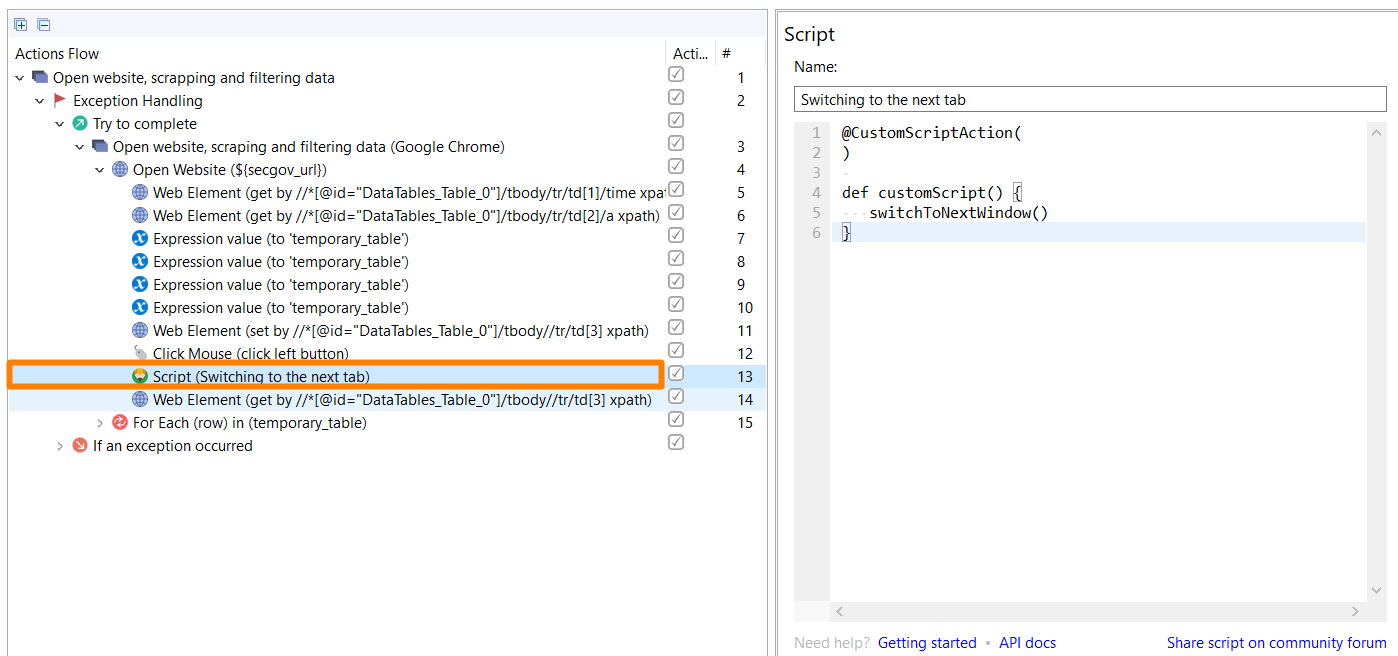
In some situations, the Web action functionality cannot be enough to automate websites. In these cases, you can use Custom Action to perform some specific steps like switching to the next tab or hovering over an element on the web page. Mind that creating a custom script requires Groovy knowledge.
We have some ready web automation code samples which may be useful for you.
Alternative way of web automation
This approach should be used only in specific cases when you cannot use Web actions.
In this case, you will open the website without using the Web actions. As an example, you can use Win+R Enter Keystrokes combination and type in, for example, chrome.
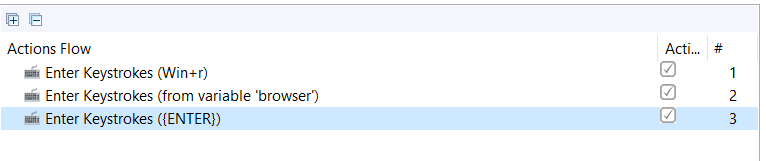
While using this approach, there will be very limited functionality for you to be able to use the Mouse and Keyboard actions only.
Web automation examples
You can find a lot of examples of web automation in our Examples library.