Set up AI Agent configuration wizard
The Work.AI platform provides a framework that allows users to configure an AI Agent (or AI Digital Worker, AI DW) without any additional knowledge about its implementation.
Form Builder is an interactive WYSIWYG editor. Since ODF 2 is the recommended approach for building automations, Form Builder paired with ODF 2 is considered the best way to design AI DW configuration interfaces.
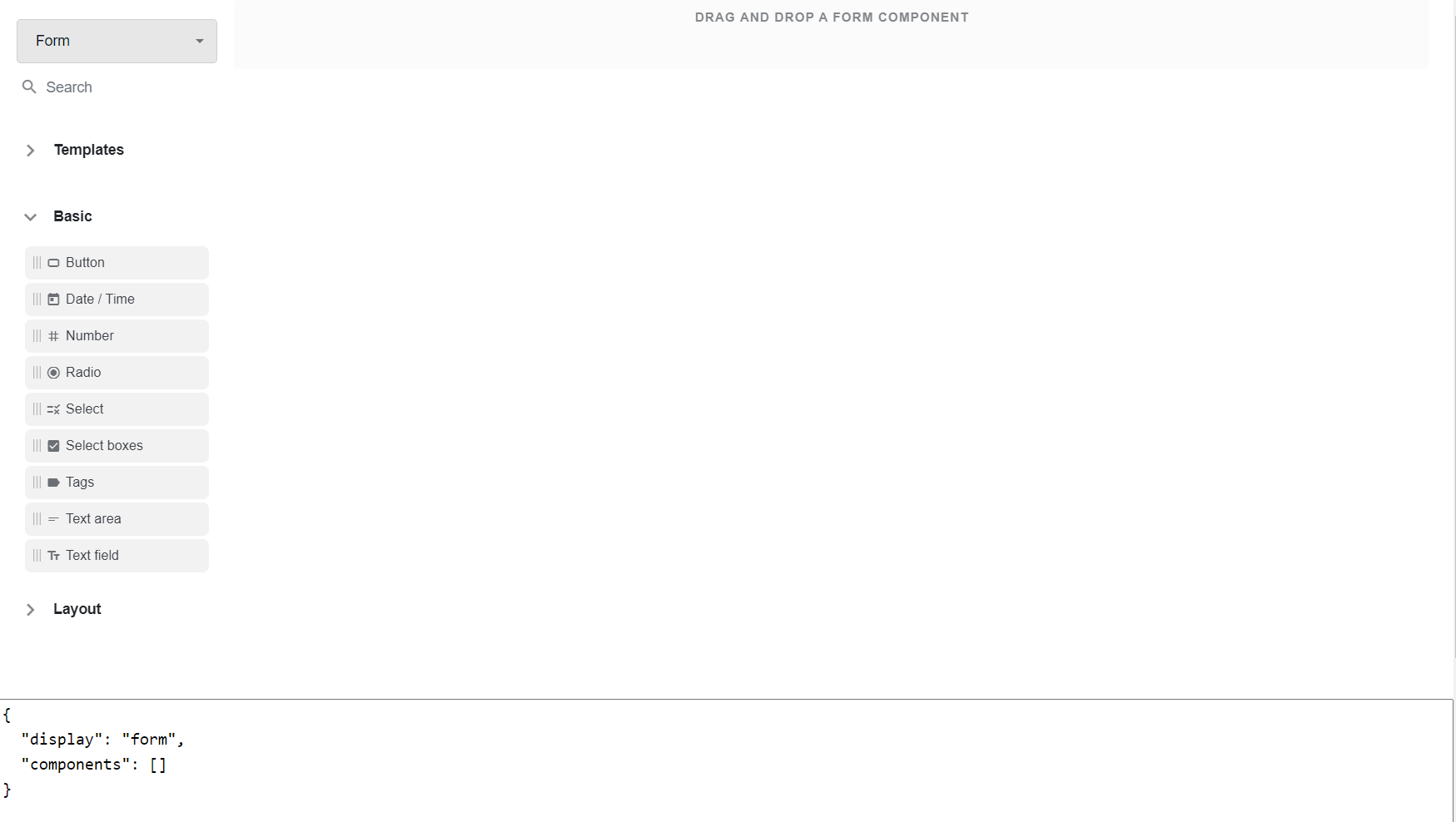
The development lifecycle looks as follows. For details on each stage, see the sections below.
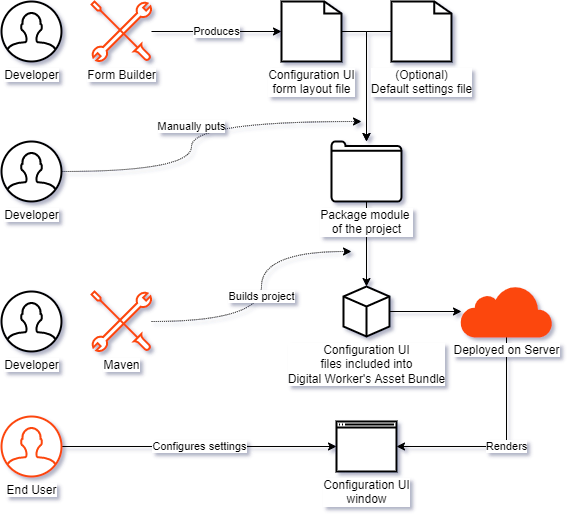
Build layout
To design configuration windows using Form Builder, go to <Control Tower URL>/task-designer/builder. The same functionality is used for Task Designer Operation. For more details, see the Form Builder documentation.
To build a configuration window layout, perform the following steps:
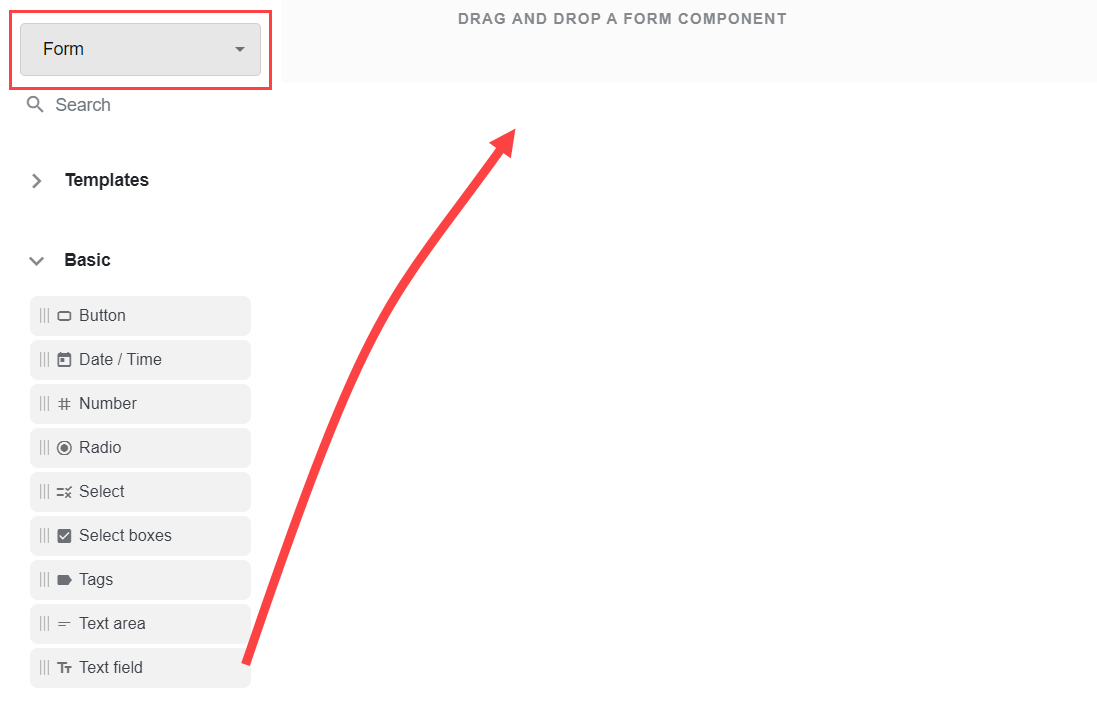
Select a layout type in the upper left corner. Form Builder can generate two types of layouts: Form and Wizard.
Drag components from the left pane to the appropriate place on the main canvas.
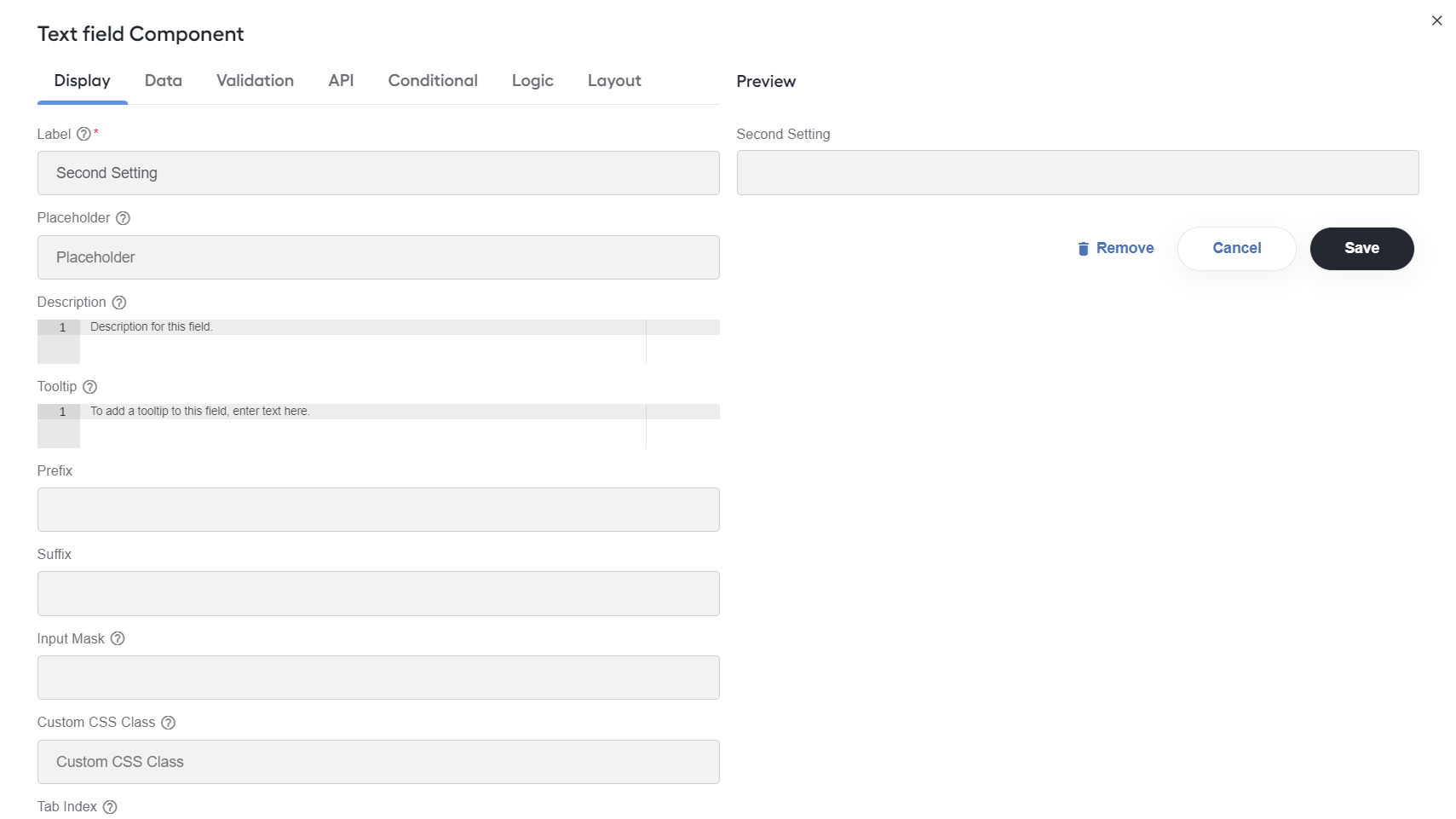
Specify component properties and click Save. Repeat for all components you need for your layout.
 tip
tipFor more details on the impact of certain settings on the configuration window layout, refer to the Form.io official documentation.
A result of operations is an actual form layout serialized as JSON and available at the bottom part of the screen.
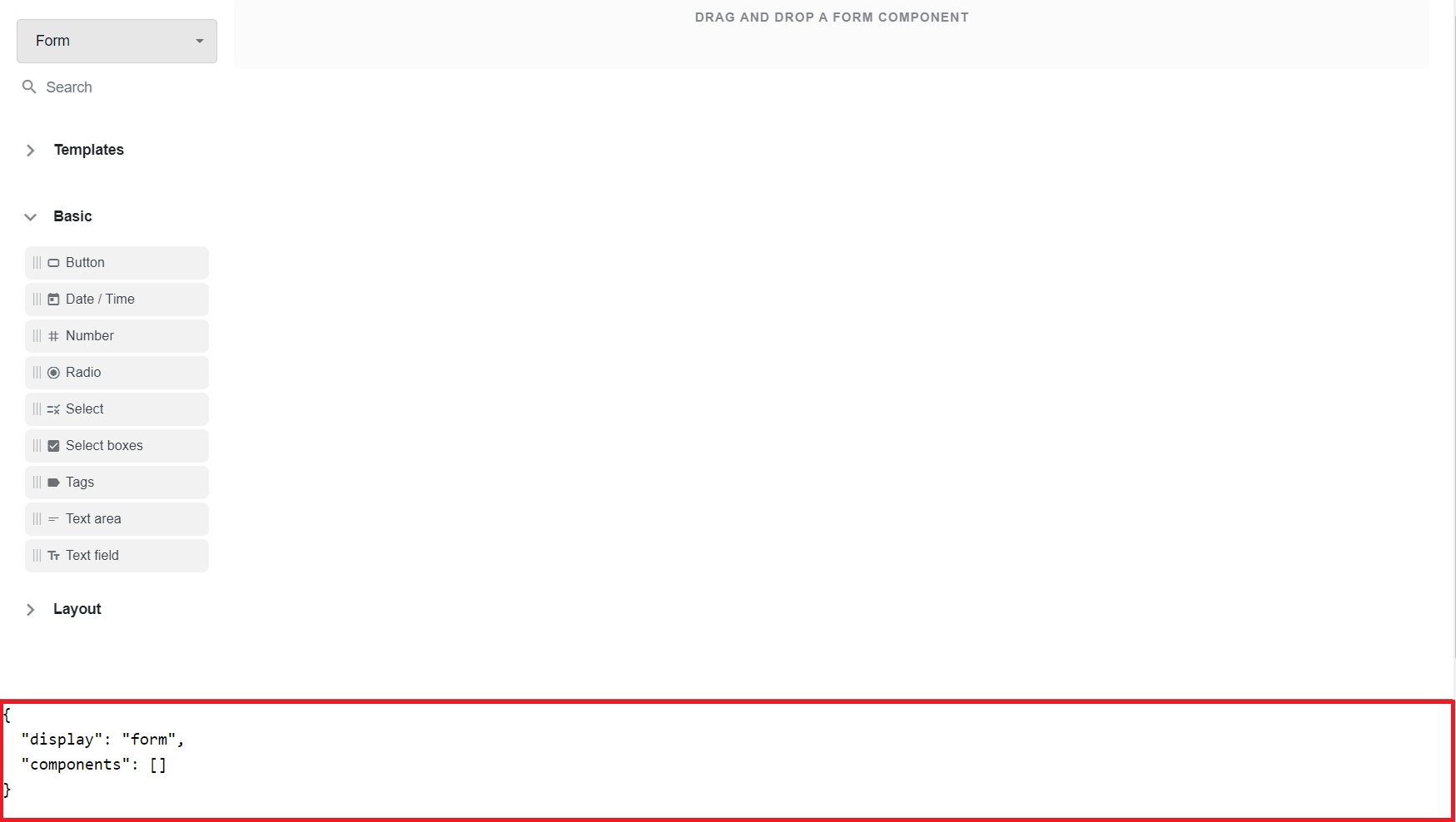
After you finish the working session, save your JSON-serialized layout as a configuration.json file. When you start a new session, paste the file's content to the bottom section, wait until the form builder de-serializes the data, and continue from that point.
Once you become familiar with the configuration window layout structure, you can make adjustments right in the file with no need to use the Form Builder interface.
Mind the following recommendations when designing your configuration window layout:
- Pay special attention to the API tab of a component as it defines how your settings object will look.
- Perform the best possible validation for the settings using the form builder capabilities. There is no platform-level data validation during a configuration form submission. Ideally, select controls with appropriate validation properties, for example, Number for numeric input and Select or Radio if settings can have a finite number of values.
- To find solutions for typical problems, see the View examples section.
Compared with traditional approaches, such as configuring AI DW settings in Data Stores, Form Builder offers a superior user experience powered by Form.io. For details on how to build forms, refer to Form Builder.
Package layout
To package a serialized configuration window layout, do as follows:
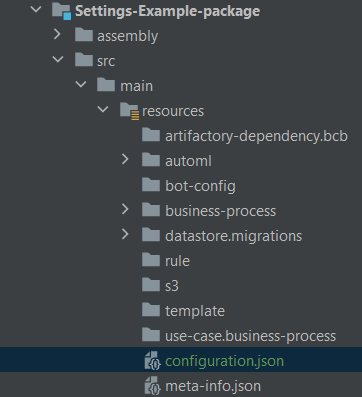
Copy the JSON-serialized layout from the bottom part of the form builder screen and save it as a
configuration.jsonfile.Put the file into the root
src/main/resourcesdirectory of your project's *-package module.
It's crucial to package your automation as an AI DW. For that, specify USE_CASE_CODE and USE_CASE_VERSION in the meta-info.json file.
You can also provide configuration_payload.json that mimics a data object from a desired submission request. It is the only way to introduce some defaults for structured items like Data Grid.
If configuration_payload.json is provided, the AI DW is considered configured after deployment, and an end-user will be able to start Business Processes right away. It's not validated if the schema of configuration_payload.json correlates with the actual submission request. Thus, if there are any errors, you will see them only at runtime.
Deploy layout
When you add a configuration.json file in the *-package module of your ODF 2 project, include it into an Asset Bundle along with other AI DW assets, and finally deploy it to the Work.AI platform environment.
As a result of deployment, your AI DW configuration looks as follows.
For details on asset packaging and the meta-info.json structure, see Package assets into AI Agent Asset Bundle. For information on how to build and deploy an AI DW, refer to Publish Asset Bundle with Maven.
Access settings from code
When you save AI DW settings, they are stored within the platform. When a Business Process of a configured AI DW Variation starts, its settings are embedded into the execution context and can be accessed from the code using instance_configuration.
<?xml version="1.0" encoding="UTF-8"?>
<config>

    <script><![CDATA[
        import com.freedomoss.crowdcontrol.webharvest.ConfigurationDto;

        ConfigurationDto configuration = (ConfigurationDto) instance_configuration.getWrappedObject();
        configurationJson = configuration.getConfigurationJsonData().toString();

    ]]></script>

    <export include-original-data="true">
        <single-column name="configurationJson" value="${configurationJson}"/>
    </export>

</config>
In ODF 2, the easiest way to work with this object is to use Configuration APIs to avoid manually parsing a JSON object.
View examples
Examples contain JSON files with configuration layouts that you can view in Form Builder. For some examples, you also have additional CSV files with serialized Data Stores for the samples to work correctly.
Source list of values from dictionary
Suppose you don't want to store the Select component values in the serialized configuration window layout and prefer to use a dictionary. In that case, it is possible to show Data Store entries instead.
Given you have a Data Store with the ID and NAME columns and need to show NAME values for all entries to let an end-user choose one to be used in a submission, you can leverage the workfusion/api/v2/datastores/autocomplete-data API.
To test the example, use:
configuration_ex1.json: a configuration JSON fileUc_STGS_XMPL_languages_v1.csv: a serialized Data Store
Submission request payload example:
{favourite-language: "C++"}
Source list of values from arbitrary Data Store query
If your data is stored in Data Stores in a more sophisticated fashion, use more general-purpose and more complex to parse api/v1/datastores/select.
To test the example, use:
configuration_ex2.json: a configuration JSON fileUc_STGS_XMPL_colors_v1.csv: a serialized Data Store
Submission request payload example:
{favourite-color: "#FF0000"}
Source list of Secrets Vault aliases
The common practice for the platform is to avoid providing credentials anywhere except Secrets Vault. It is also common for AI DWs to interact with third-party systems that require authentication.
You can have your configuration window contain the Select component that sources options from the list of Secrets Vault aliases, leveraging api/v1/secrets-vault/aliases API, which requires only access to Secrets Vault aliases, not the credentials themselves.
To test the example, use the configuration_ex3.json file.
Submission request payload example:
{connection-alias: "example-alias"}
Source list of trained models
For some AI DWs, it's beneficial to allow end-users re-train a model and start using a newly re-trained model instead of the old one for cognitive tasks. It's natural to let them select a model from available models, ideally filtered to include only models relevant to a particular task.
The AutoML model management service allows you to filter the list of all trained models by a hyper-model name and, if needed, version.
To test the example, use the configuration_ex4.json file.
Submission request payload example:
{connection-alias: "python-signature-detection-model-1.0.14"}
It is impossible to store static data in the platform's file storage and use it in the configuration form.