Connect to local MSSQL
It is good practice to verify changes to your processes, Bot Tasks, Manual Tasks, and even Data Stores in your local environment. Local development environment based on Work.AI Developer contains a workstation version of the WorkFusion database.
Here is a short guide on how to connect to your local SQL Server Express RDBMS. The prerequisite is to install Work.AI Developer.
RDMS client
You can install any client which supports MS SQL Server. We are using the following clients:
- DBeaver: free multi-platform database tool for developers, database administrators, analysts, and all people who need to work with databases. Supports all popular databases: MySQL, PostgreSQL, SQLite, Oracle, DB2, SQL Server, Sybase, MS Access, Teradata, Firebird, Apache Hive, Phoenix, Presto.
- SQL Server Management Studio: an MS-native integrated environment for managing any SQL infrastructure, from SQL Server to Azure SQL Database. SSMS provides tools to configure, monitor, and administer instances of SQL Server and databases. Use SSMS to deploy, monitor, and upgrade the data-tier components used by your applications and build queries and scripts.
In this guide, we will be using DBeaver.
Connection credentials
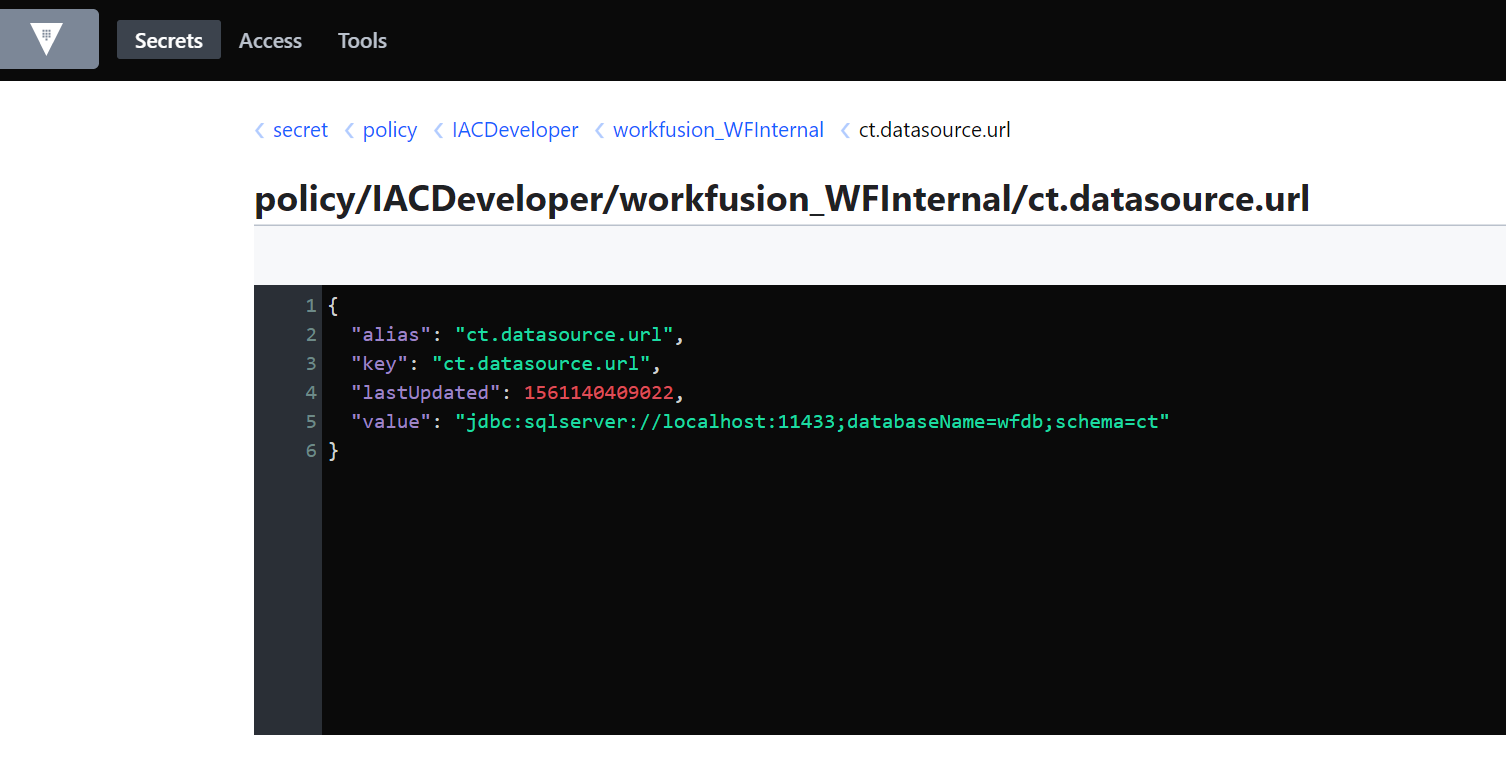
You can view all database connection details in the Secrets Vault management application installed by Work.AI Developer.
Start either the RPA Worker or Control Tower & Workspace group in Work.AI Developer to launch Secrets Vault on your workstation.
Once the group is up and running, access the Secrets Vault application from Launcher in the system tray or directly via the URL: https://localhost:18280/ui/.
Log in to Secrets Vault using the username/password you have set during the Work.AI Developer installation.
Using links in application, navigate to secret > policy > IACDeveloper > workfusion_WFInternal.
To connect, you can use either the credentials to Control Tower schema (ct) or Data Stores schema (ds).
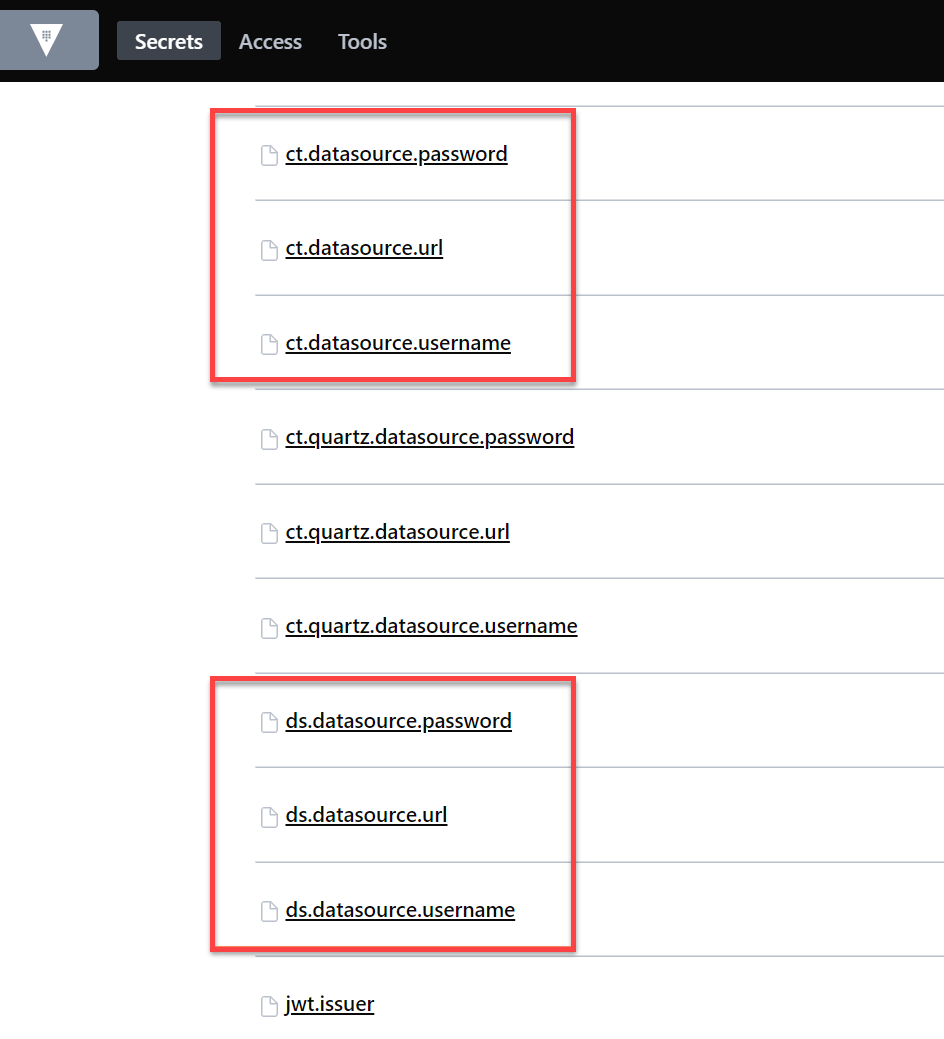
View values by clicking on each key.
Connect and explore
- DBeaver client installed and running.
- Data Stores credentials are obtained as described above.
To connect, perform the following actions.
Click on New Database Connection in the toolbar.
Choose the SQL Server database.
Enter connection details.
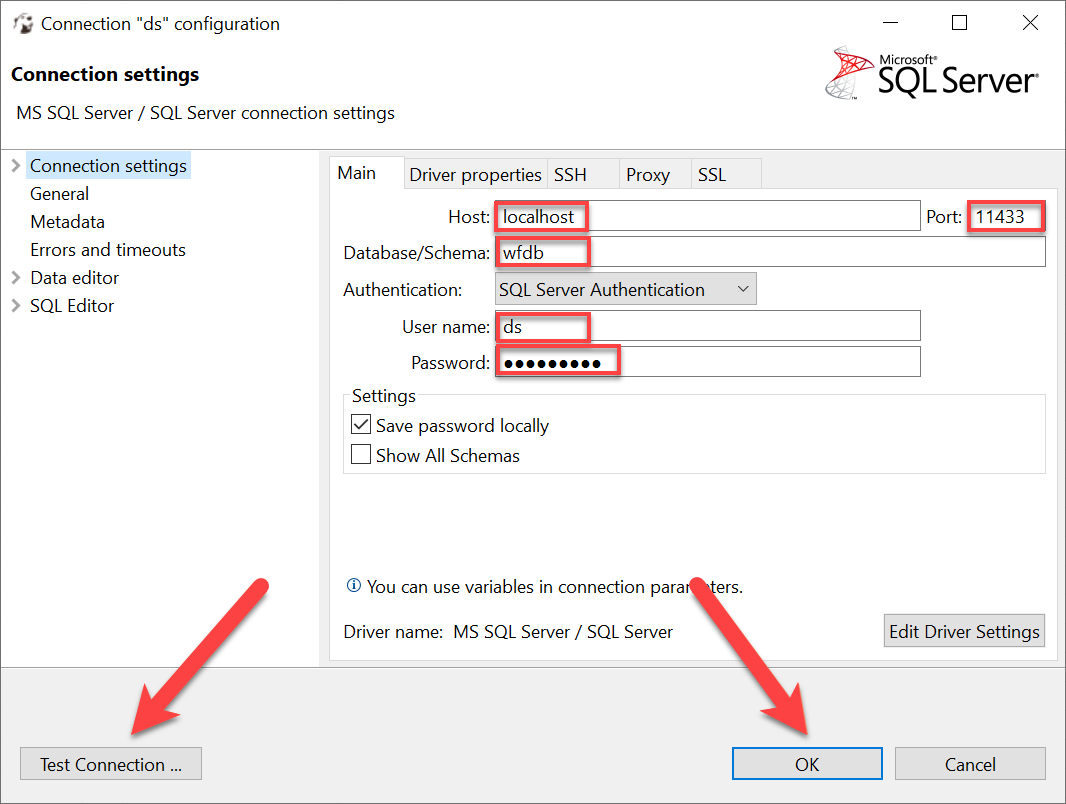
Click on Test Connection... and then OK. Now, you have full access to both schemas.
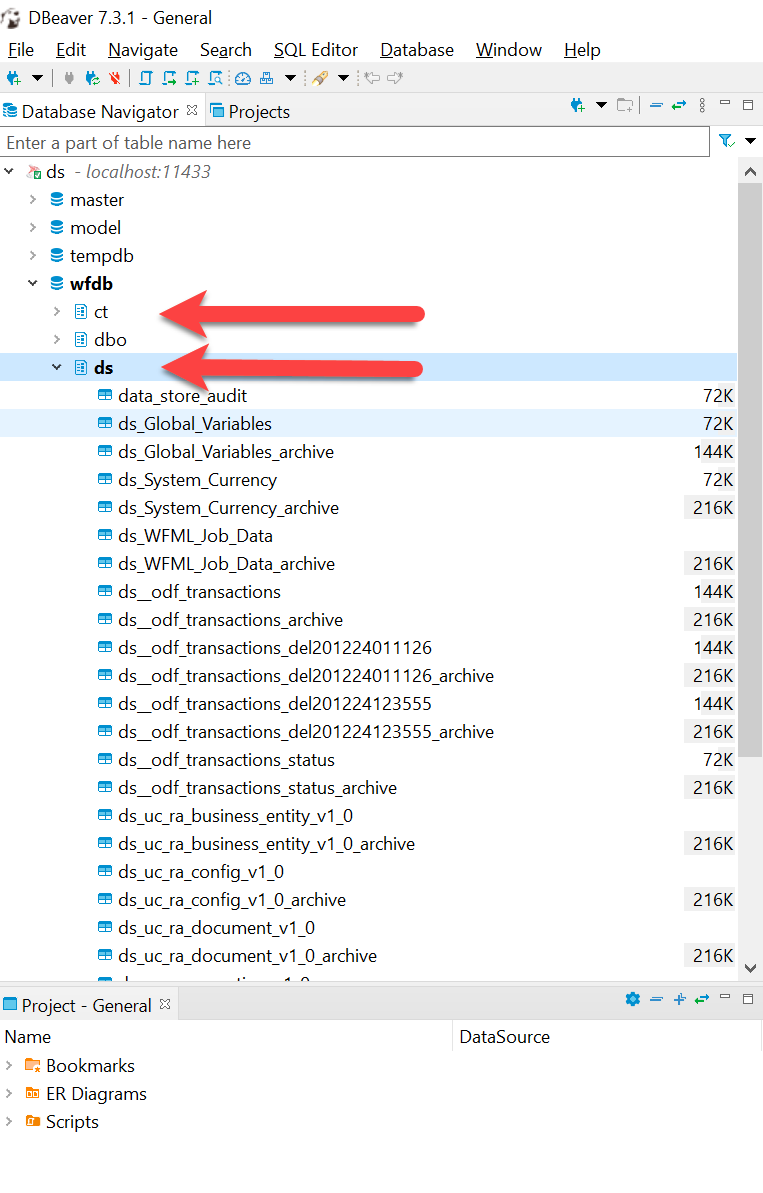
- ct, where all WorkFusion system tables are located
- ds, where Automation Engineer defined tables (Data Stores) are located
Make sure you do not modify or delete anything in the ct schema without 100% sure and a backup or rollback plan. Doing this may break your local Developer setup.