SAP tips
Navigate to hidden elements
If a UI control is not visible on the SAP GUI screen, you can easily activate it using the focus() method. To grab a selector of a hidden element, use Inspector.
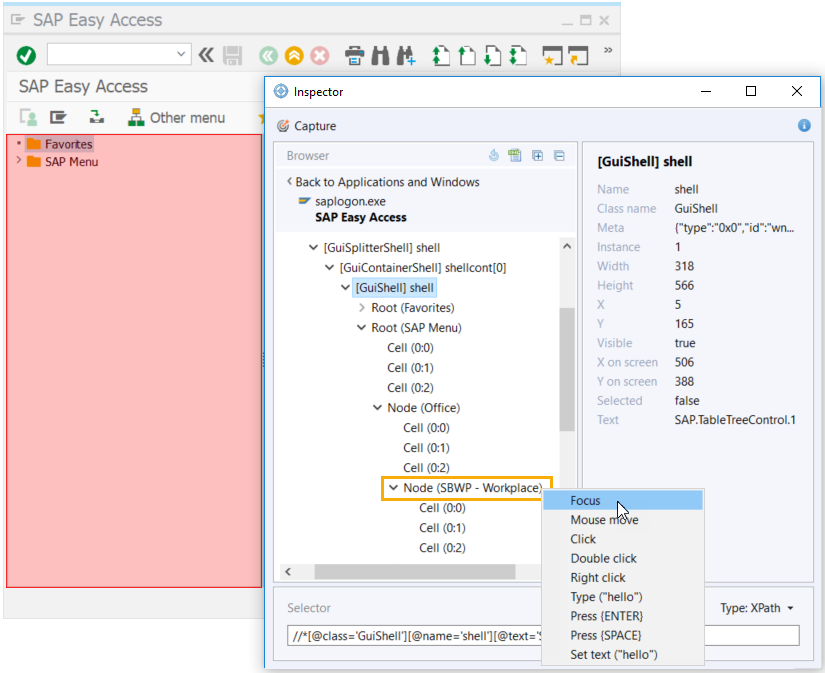
Focus on tree elements
Right click on any hidden element within the tree and select Focus.
On expanding the element, copy its selector to use in your script, for example,
$('tree_hidden_element_selector').focus().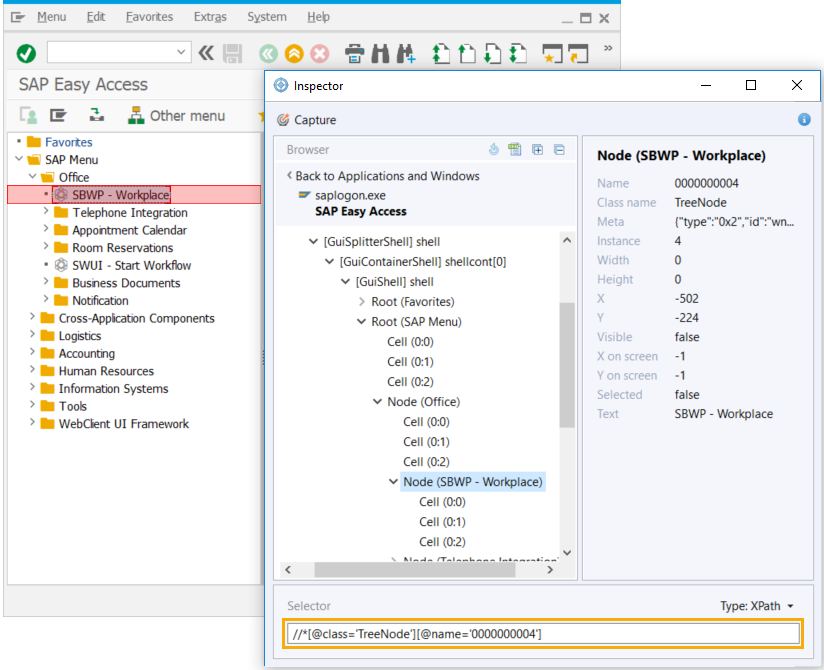
To be able to run the scripts available on this page, provide your own credentials to enter SAP, defined as <SAP-USER> and <SAP-PASSWORD>.
Focusing on tree hidden element code sample
<?xml version="1.0" encoding="UTF-8"?>
<config xmlns="http://web-harvest.sourceforge.net/schema/1.0/config"
        scriptlang="groovy">

    <robotics-flow>
        <robot name="sap_bot" driver="desktop">
            <capability name="CLOSE_ALL_WINDOWS" value="true"/>
            <script><![CDATA[

                log.info("******* LOGIN AND OPEN TRANSACTION *******")
                command = 'sapshcut -maxgui -user=<SAP-USER> -pw=<SAP-PASSWORD> -language=EN -system=ERD -client=100 -trace=0 -command=DWDM'
                open("C:/Program Files (x86)/SAP/FrontEnd/SAPgui/${command}")
                sleep(10000)


                log.info("******* CONTINUE WITHOUT ENDING ANY OTHER LOGONS *******")
                if (Window.windowHandles("[CLASS:#32770; TITLE:License Information for Multiple Logons]").isEmpty()) {
                    log.info("Window [License Information for Multiple Logons] not found")
                } else {
                    window("[CLASS:#32770; TITLE:License Information for Multiple Logons]")
                    $("[CLASS:GuiRadioButton; NAME:MULTI_LOGON_OPT2]").click()
                    $('[CLASS:GuiButton; NAME:btn[0];]').click()
                    log.info("Window [License Information for Multiple Logons] closed")
                }


                log.info("Go to the list tree element")
                window("[CLASS:SAP_FRONTEND_SESSION; TITLE:Enjoy Demo Center: Display]")
                $("[CLASS:TreeItem; TEXT:SAP List Tree]").doubleClick()


                log.info("Try to focus on hidden element of the tree")
                window("[CLASS:SAP_FRONTEND_SESSION; TITLE:SAP]")
                $("[CLASS:TreeNode;NAME:Child1]").focus()
                assert "true" == $("[CLASS:TreeNode;NAME:Child1]").getAttribute("Visible")


                log.info("******* KILL ALL SAPLOGON PROCESESS *******")
                open("TASKKILL /F /IM saplogon.exe /T")

            ]]></script>
        </robot>
    </robotics-flow>

    <export include-original-data="true"></export>

</config>
Focus on tabs
Right click on any hidden tab and select Focus.
On expanding the tab, copy its selector to use in your script, for example,
$('hidden_tab_selector').focus().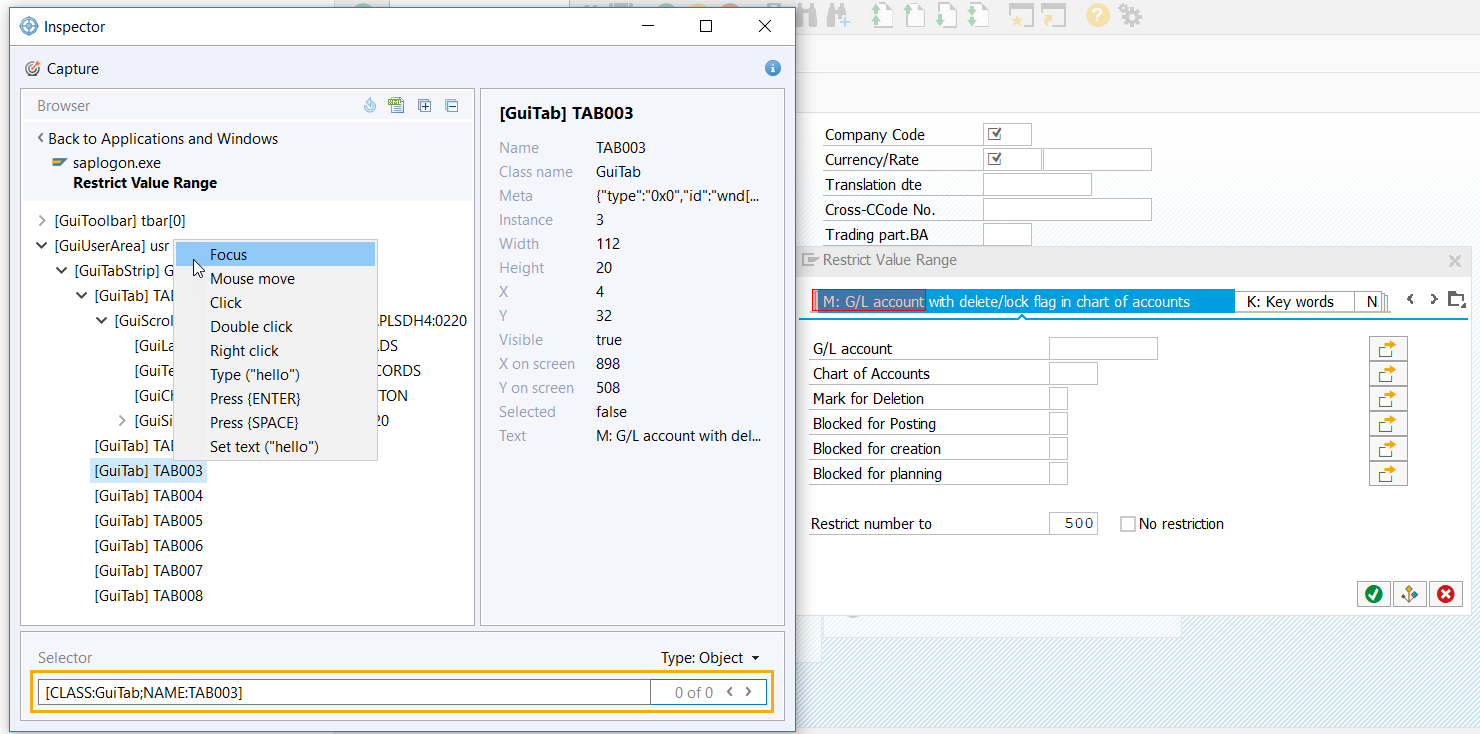
Focusing on hidden tab code sample
<?xml version="1.0" encoding="UTF-8"?>
<config xmlns="http://web-harvest.sourceforge.net/schema/1.0/config"
        scriptlang="groovy">

    <robotics-flow>
        <robot name="sap_bot" driver="desktop">
            <capability name="CLOSE_ALL_WINDOWS" value="true"/>
            <script><![CDATA[

                log.info("******* LOGIN AND OPEN TRANSACTION *******")
                command = 'sapshcut -maxgui -user=<SAP-USER> -pw=<SAP-PASSWORD> -language=EN -system=ERD -client=100 -trace=0 -command=SE38'
                open("C:/Program Files (x86)/SAP/FrontEnd/SAPgui/${command}")
                sleep(10000)


                log.info("******* CONTINUE WITHOUT ENDING ANY OTHER LOGONS *******")
                if (Window.windowHandles("[CLASS:#32770; TITLE:License Information for Multiple Logons]").isEmpty()) {
                    log.info("Window [License Information for Multiple Logons] not found")
                } else {
                    window("[CLASS:#32770; TITLE:License Information for Multiple Logons]")
                    $("[CLASS:GuiRadioButton; NAME:MULTI_LOGON_OPT2]").click()
                    $('[CLASS:GuiButton; NAME:btn[0];]').click()
                    log.info("Window [License Information for Multiple Logons] closed")
                }


                log.info("Go to the component with Tabs")
                window("[CLASS:SAP_FRONTEND_SESSION;TITLE:ABAP Editor: Initial Screen]")
                $("[CLASS:GuiCTextField]").setText("DEMO_DYNPRO")
                sendKeys("{F8}")


                log.info("Navigating to Tabs")
                window("[CLASS:SAP_FRONTEND_SESSION;TITLE:Elements of a Screen]")
                $("[CLASS:GuiTab;NAME:T5]").focus()
                assert "true" == $("[CLASS:GuiTab;NAME:T5]").getAttribute("Visible")


                log.info("******* KILL ALL SAPLOGON PROCESESS *******")
                open("TASKKILL /F /IM saplogon.exe /T")

            ]]></script>
        </robot>
    </robotics-flow>

    <export include-original-data="true"></export>

</config>
Click with offset
Clicking on elements with offset facilitates automating complex controls. The preferred way is to click not in the center of an element, but somewhere else, for example, the top-left corner or custom offset, as the offset is counted from the element itself, not the screen.

Apply clicking with offset for any mouse click action (double, triple, wheel) with offset counted from top left.
Clicking with offset code sample
<?xml version="1.0" encoding="UTF-8"?>
<config xmlns="http://web-harvest.sourceforge.net/schema/1.0/config"
        scriptlang="groovy">

    <robotics-flow>
        <robot name="sap_bot" driver="desktop">
            <capability name="CLOSE_ALL_WINDOWS" value="true"/>
            <script><![CDATA[

                log.info("******* LOGIN AND OPEN TRANSACTION *******")
                command = 'sapshcut -maxgui -user=<SAP-USER> -pw=<SAP-PASSWORD> -language=EN -system=ERD -client=100 -trace=0'
                open("C:/Program Files (x86)/SAP/FrontEnd/SAPgui/${command}")
                sleep(10000)


                log.info("******* CONTINUE WITHOUT ENDING ANY OTHER LOGONS *******")
                if (Window.windowHandles("[CLASS:#32770; TITLE:License Information for Multiple Logons]").isEmpty()) {
                    log.info("Window [License Information for Multiple Logons] not found")
                } else {
                    window("[CLASS:#32770; TITLE:License Information for Multiple Logons]")
                    $("[CLASS:GuiRadioButton; NAME:MULTI_LOGON_OPT2]").click()
                    $('[CLASS:GuiButton; NAME:btn[0];]').click()
                    log.info("Window [License Information for Multiple Logons] closed")
                }


                log.info("Clicking with Offset")
                window("[CLASS:SAP_FRONTEND_SESSION;TITLE:SAP Easy Access]")
                $("[CLASS:TreeItem;NAME:Root:2]").click()
                assert "true" == $("[CLASS:TreeItem;NAME:Root:2]").getAttribute("Selected")

                $("[CLASS:TreeItem;NAME:Root:2]").click(20,135)
                assert "true" == $("[CLASS:TreeItem;NAME:0000000052:2]").getAttribute("Selected")


                log.info("******* KILL ALL SAPLOGON PROCESESS *******")
                open("TASKKILL /F /IM saplogon.exe /T")

            ]]></script>
        </robot>
    </robotics-flow>

    <export include-original-data="true"></export>

</config>
Run SAP GUI from console
You can use sapshcut.exe to connect to the SAP system via the command line, as it is a faster method.
- Default path:
C:/Program Files (x86)/SAP/FrontEnd/SAPgui/sapshcut - Example:
sapshcut -user=<SAP-USER> -pw=<SAP-PASSWORD> -language=EN -system=A4H -client=001 -command=se38 -trace=0
Running SAP GUI from console code sample
<?xml version="1.0" encoding="UTF-8"?>
<config
    xmlns="http://web-harvest.sourceforge.net/schema/1.0/config"
    scriptlang="groovy">

    <robotics-flow>
        <robot name="sap_gui_robot" driver="desktop" close-on-completion="true">
            <capability name="SEARCH_ALL_WINDOWS" value="true" />
            <script><![CDATA[
                // ******* KILL ALL SAPLOGON PROCESESS *******
                open("TASKKILL /F /IM saplogon.exe /T")


                // ******* LOGIN AND OPEN TRANSACTION *******
                command = 'sapshcut -user=<SAP-USER> -pw=<SAP-PASSWORD> -language=EN -system=A4H -client=001 -command=se38 -trace=0'
                open("C:/Program Files (x86)/SAP/FrontEnd/SAPgui/${command}")
                sleep(5000)


                // ******* CONTINUE WITHOUT ENDING ANY OTHER LOGONS *******
                 if (Window.windowHandles("[CLASS:#32770; TITLE:License Information for Multiple Logons]").isEmpty()) {
                    log.info("Window [License Information for Multiple Logons] not found")
                } else {
                    window("[CLASS:#32770; TITLE:License Information for Multiple Logons]")
                     $("[CLASS:GuiRadioButton; NAME:MULTI_LOGON_OPT2]").click()
                     $('[CLASS:GuiButton; NAME:btn[0];]').click()
                     log.info("Window [License Information for Multiple Logons] closed")
                }


                // ******* WAIT FOR TRANSACTION *******
                sleep(3000)
            ]]></script>
        </robot>
    </robotics-flow>

    <export include-original-data="true"></export>

</config>
Close processes
There are several ways to close your open processes in the SAP GUI desktop client.
- Use the
taskkilloption in Command Prompt and wait until all the windows are closed. To do that, addopen("TASKKILL /F /IM saplogon.exe /T")to your script.
If the taskkill command is executed at the end of the script, with the driver closing all the processes, add the waiting period right after that, for example, sleep(3000).
- Iterate over all open windows and close each of them. Go to Program > Exit within each open window. To close all the running sessions, go to System > Log Off.
- Use specific commands in the OK Code field, for example,
/nendor/nex. See the table below for more information.
SAP GUI commands
The below mentioned commands are entered into the OK Code field, allowing to perform some actions quicker.
| Command | Description |
|---|---|
/n | used together with a transaction name, navigates to a transaction from the existing transaction window |
/o | displays a list of open SAP GUI sessions; all your sessions will be displayed in a dialog box with the options to create and end sessions |
/i | used together with a transaction name, closes the specified transaction |
window
/nend|logs out prompting to confirm that you want to close all the sessions
/nex|closes all the sessions and exits the SAP GUI desktop client without
prompting
SAP GUI shortcuts
Startup parameters
| Shortcut | Description |
|---|---|
-version | Display version information |
-edit | Edit the shortcut via a dialog |
-register | Register the shortcut class to integrate into Windows |
-maxgui | Display SAP GUI window maximized |
Logon parameters – user identification
| Shortcut | Description |
|---|---|
-user=userid | SAP system user identification |
-pw=password | Password for the SAP system user |
-language=EN | Language or logon to the SAP system |
Logon parameters – system identification
| Shortcut | Description |
|---|---|
-system=DEV | SID of the SAP system |
-client=032 | Client of the SAP system to log on to |
-sysname="DEV [PUBLIC]" | Connect via message server (load balancing) |
-quiparam="sapserver 10" | Connect via single application server |
Logon parameters – function identification
| Shortcut | Description |
|---|---|
-command="se38" | Transaction or function to be executed |
-type=Transaction | Type of command used (transaction/report/systemcommand) |
-title="ABAP/4 Editor" | Title displayed in shortcut logon dialog |