Run experiments
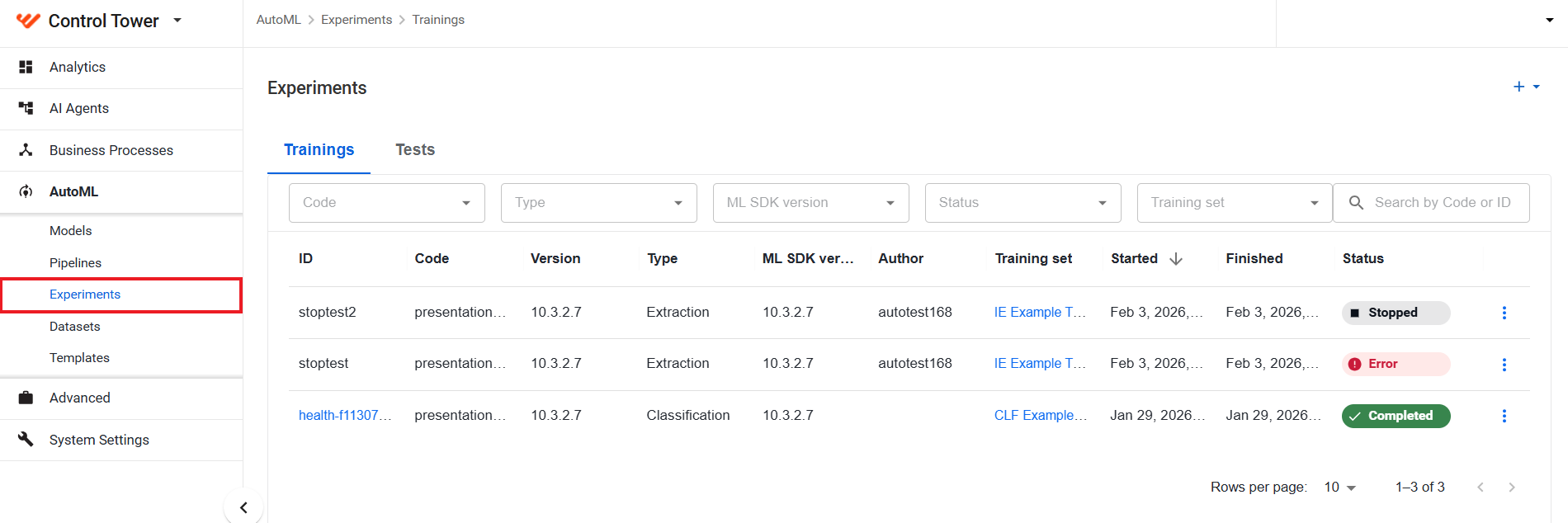
To access the lists of training and test runs and explore their details, select AutoML > Experiments. Control Tower updates the lists every time you start a training or a test accordingly.
Trainings
On the Trainings tab, you can get the information about the status of a training run or view related details.
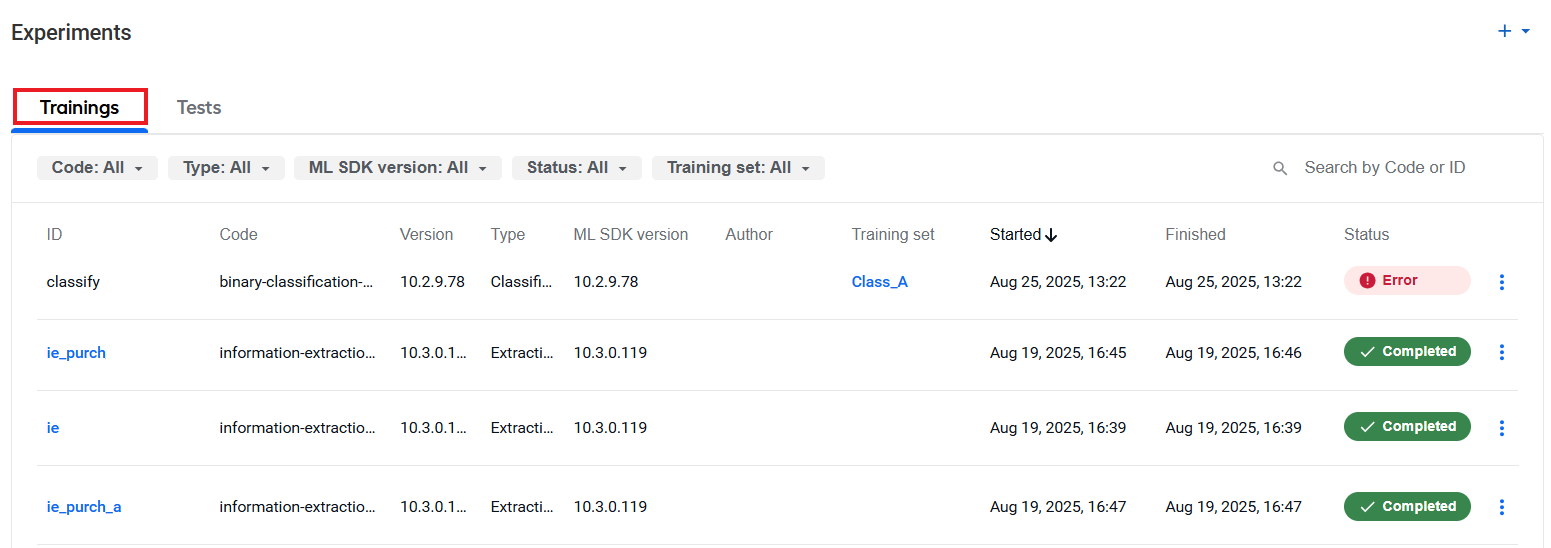
The Training tab contains the following information on training runs:
| Parameter | Description |
|---|---|
| ID | Model identifier assigned in the course of its training. Training IDs correspond to model IDs. Once trainings are completed successfully, the IDs become links to the details of associated models. |
| Code | Identifier of the associated pipeline specified in its source code description. |
| Version | Version of the associated pipeline specified in its source code description. |
| Type | Model type identifying its working principle, for instance, extraction. |
| ML SDK version | ML SDK version used to build the associated pipeline. |
| Author | Name of the user who initiated the model training. |
| Training set | Name of the dataset used for model training; clicking the link brings you to the page with the dataset details. |
| Started | Date and time when the training was started. |
| Finished | Date and time when the training was completed. |
| Status | Current training status: Completed (green), Stopped (grey), Failed (error icon). |
To update statuses during a session, switch to another page or refresh the Experiments page.
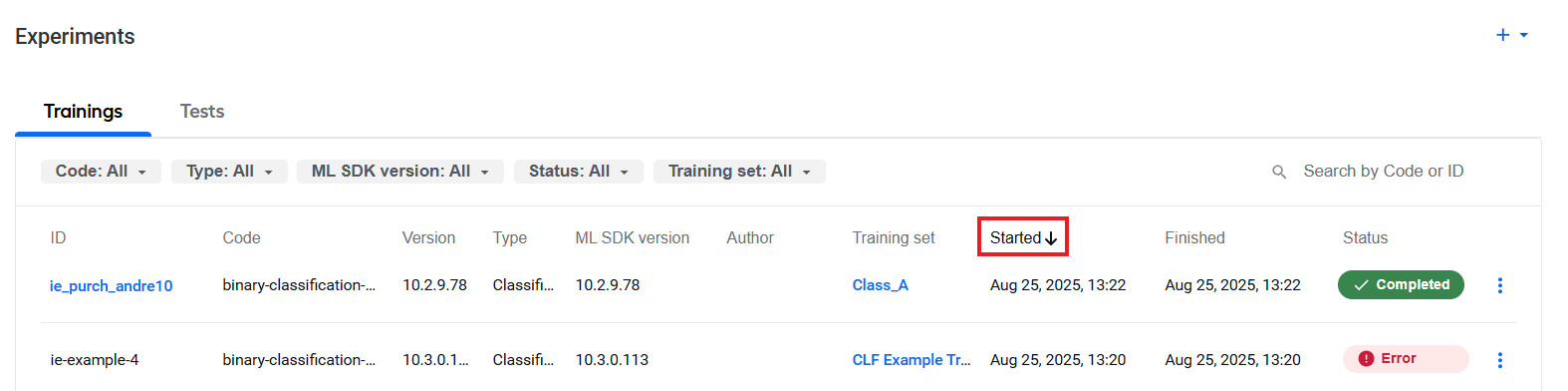
To view the data that interests you most, you can sort it by clicking a column header.
Filter and search
You can filter the list of displayed trainings based on any or all of the following criteria:
- Code: associated model code
- Type: model type
- ML SDK version: ML SDK version used for building the model
- Status: current training status
- Training set: dataset used for training
To apply the criteria, click one or more filter buttons at the top of the training list and select required items or find them using the search box. Filters turn blue as they become active, and the items in the training list change accordingly.
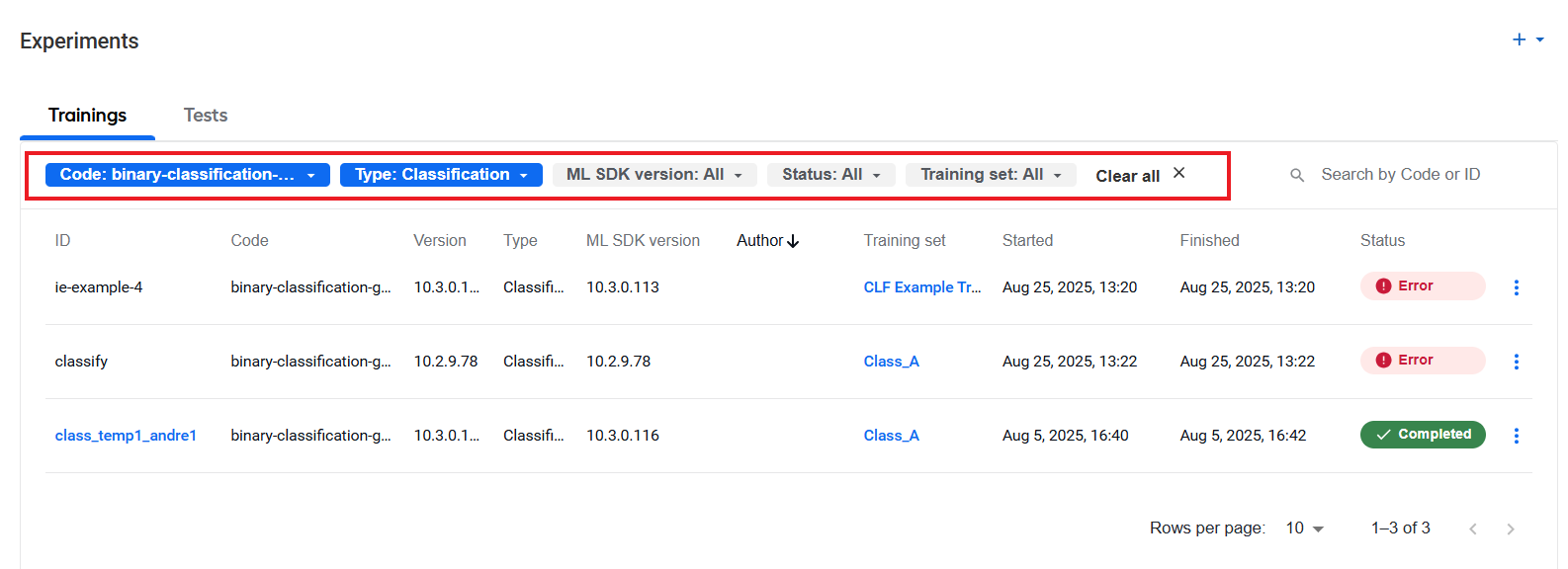
To turn off an active filter, click it again. To reset them all, click Clear all.
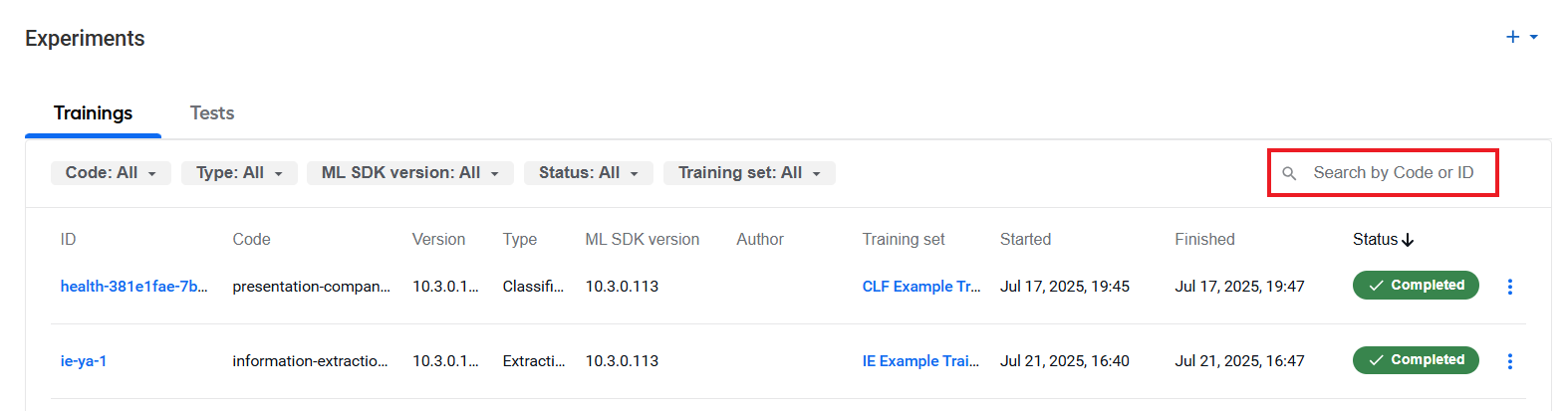
You can also search the list for a particular training by a model ID or a model code using the Search by Code or ID box in the top-right corner.
Start training
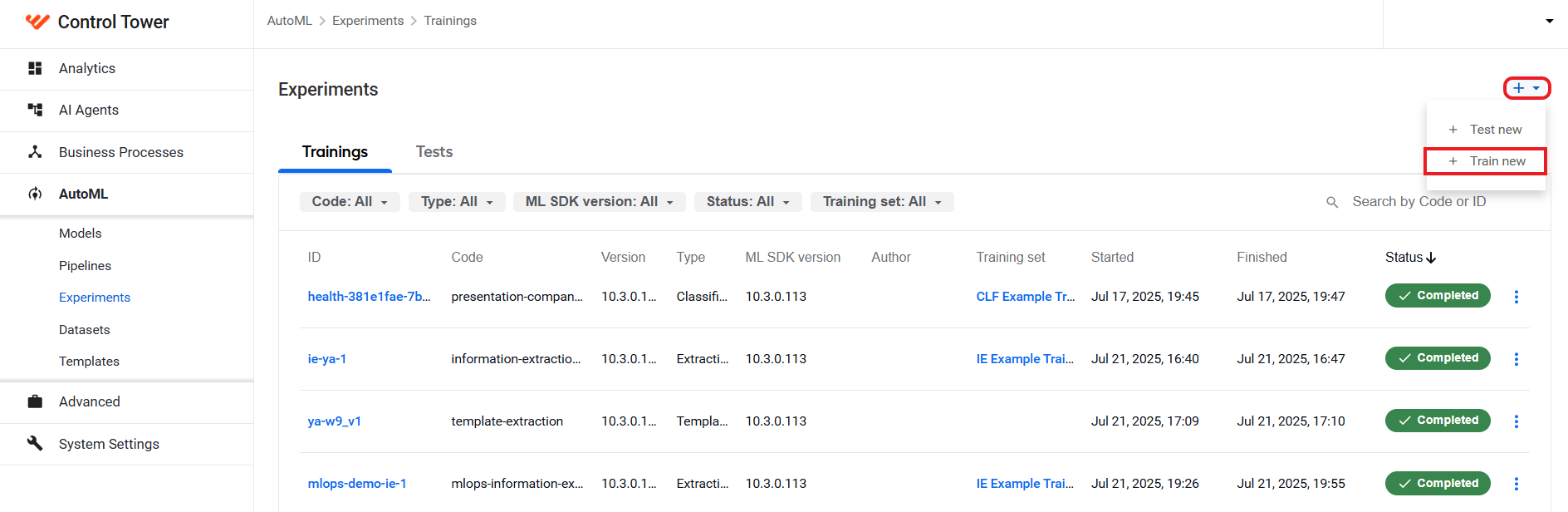
To train a new model, in the top-right corner of the Experiments page, click the plus (+) button to open the menu and select Train new.
This brings you to the model creation page:
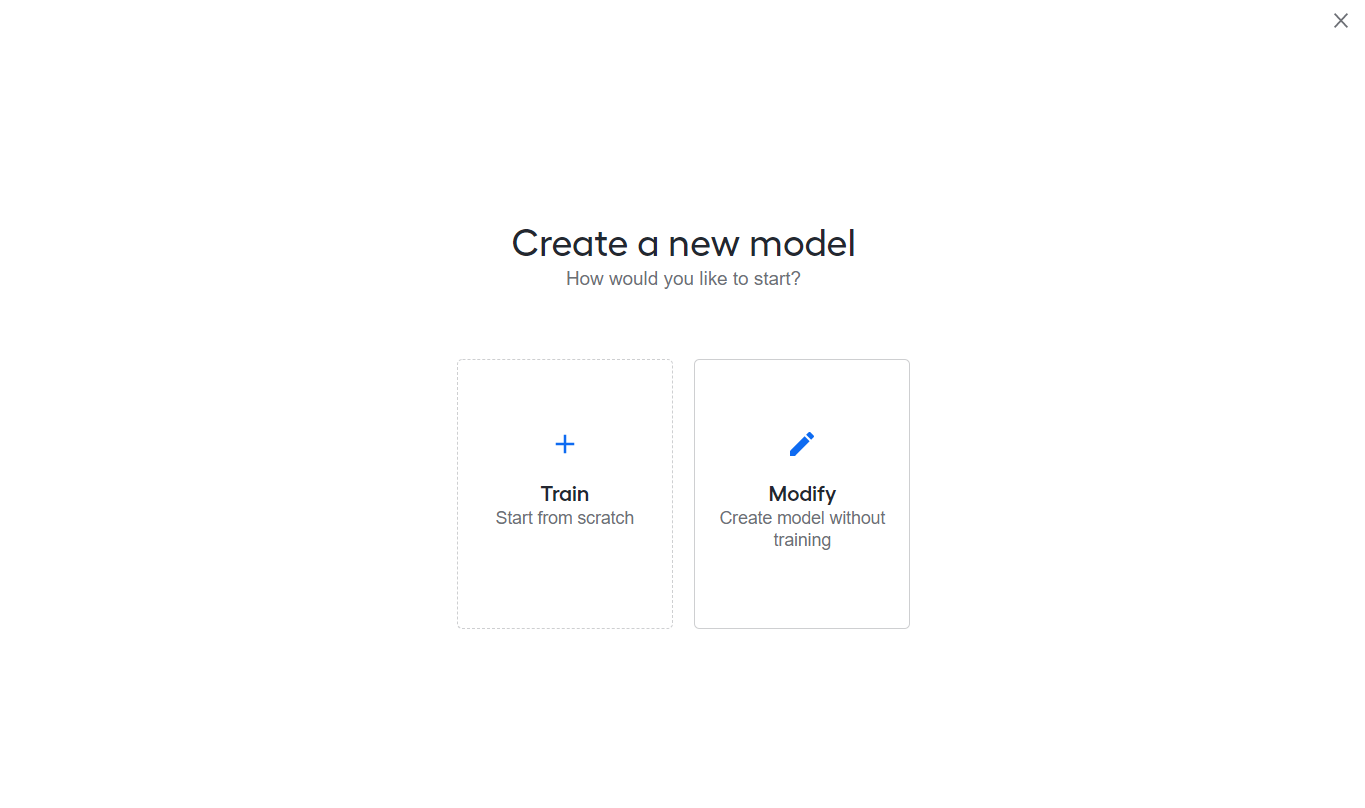
For further steps to configure a new model training, refer to Manage models | Train new model.
View error log
When a training fails, you can view the error log: in the Status column, click the Error indication.
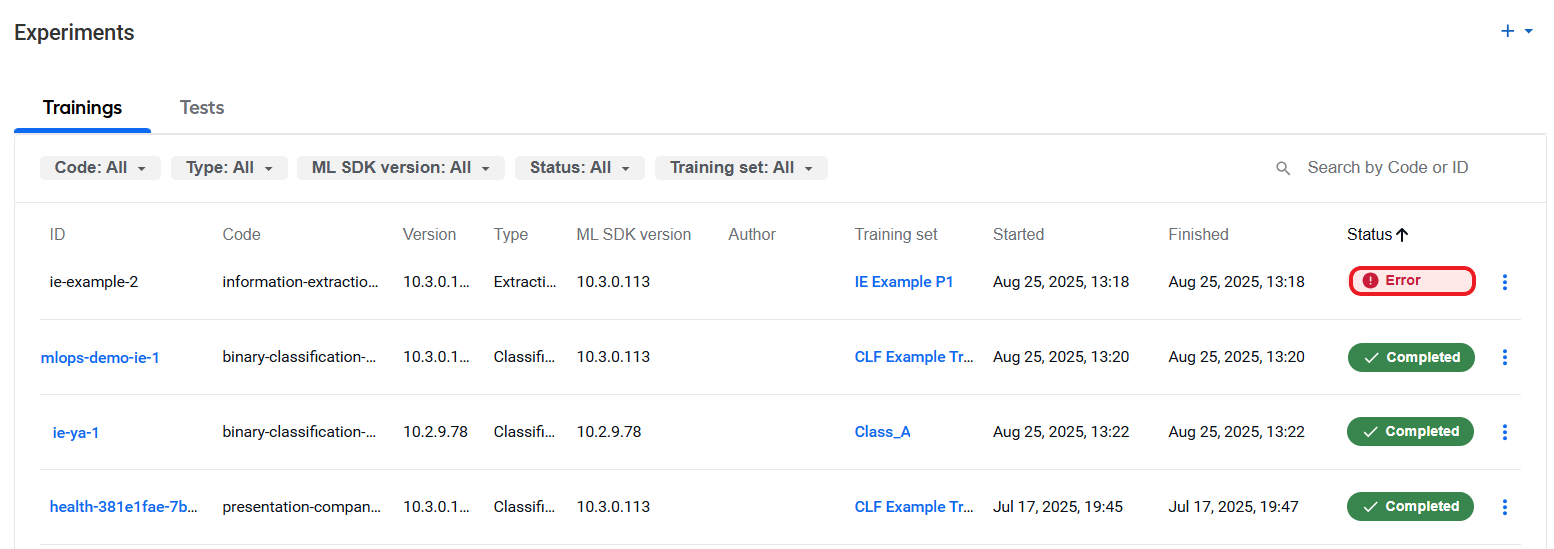
A dialog with the error details appears.
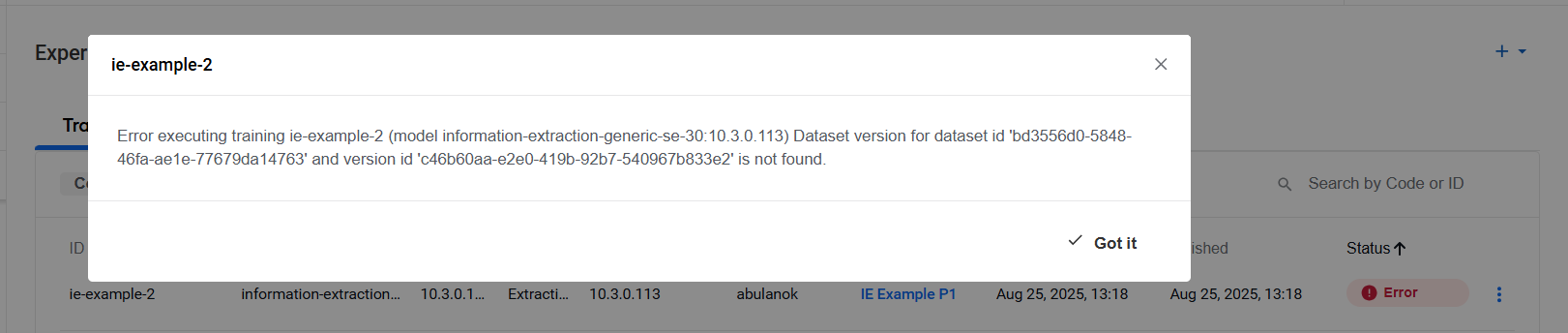
To close the log, click the Close (cross) or Got it button.
Tests
The model testing functionality makes it possible to apply existing models to a test set to get metrics without coding and complex Business Process development.
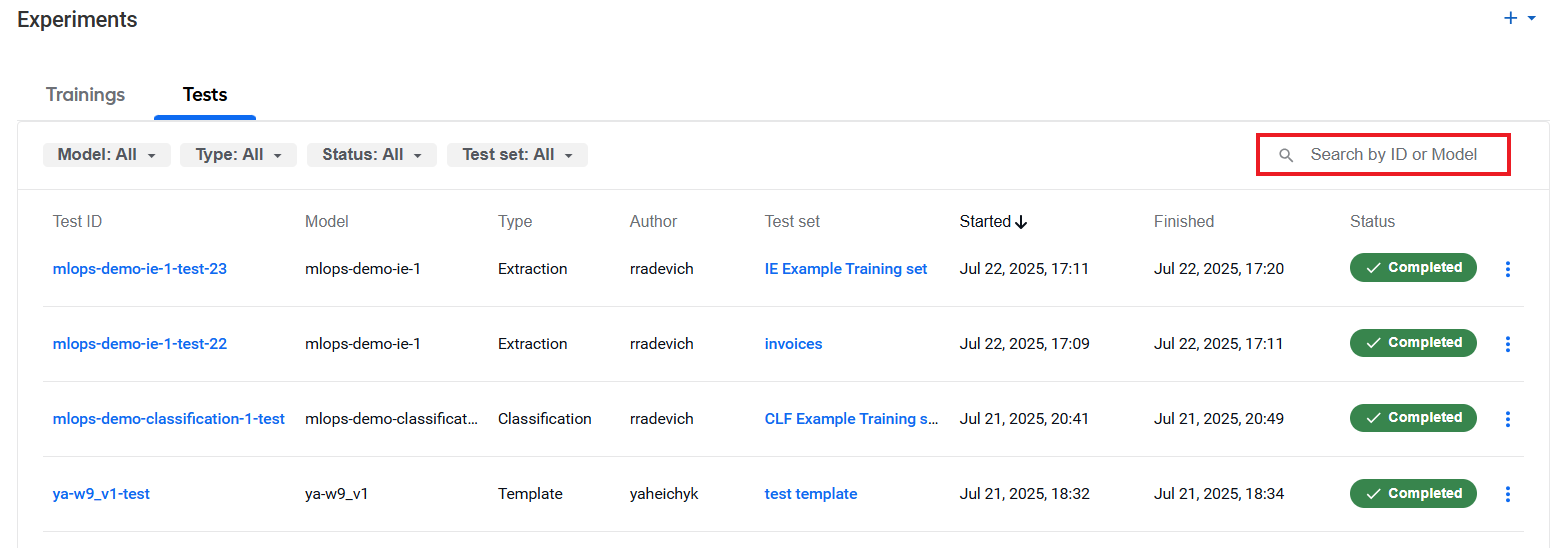
To access the functionality, go to Experiments > Tests:
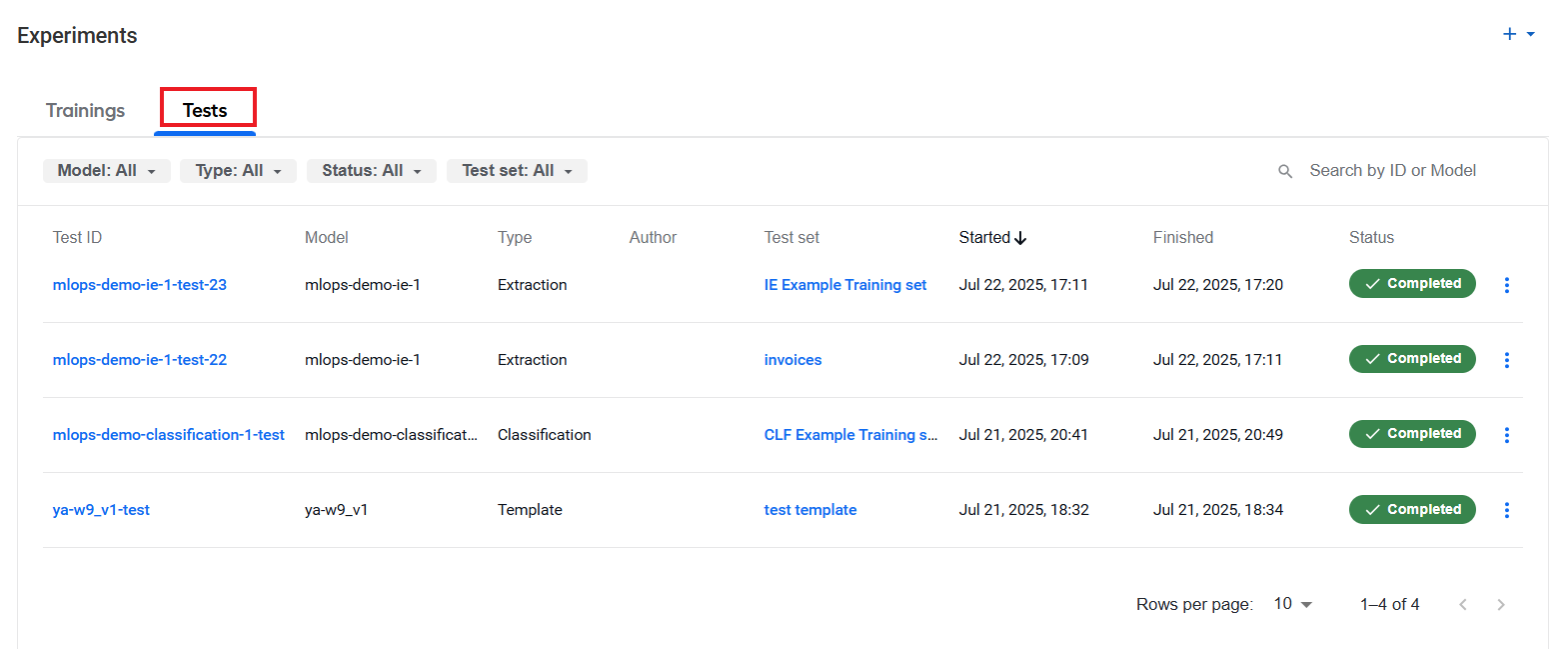
The Tests tab contains a list of test runs and the following data:
| Parameter | Description |
|---|---|
| Test ID | Test run identifier assigned in the course of its running. Once tests are completed successfully, the IDs become links to the test run details page. |
| Model | Identifier of the associated model. |
| Type | Model type identifying its working principle, for instance, extraction. |
| Author | Name of the user who initiated the test. |
| Test set | Dataset used for running the test. |
| Started | Date and time when the test was started. |
| Finished | Date and time when the test was completed. |
| Status | Current test status: Completed (green), Stopped (grey), Failed (error icon). |
To update statuses during a session, switch to another page or refresh the Experiments page.
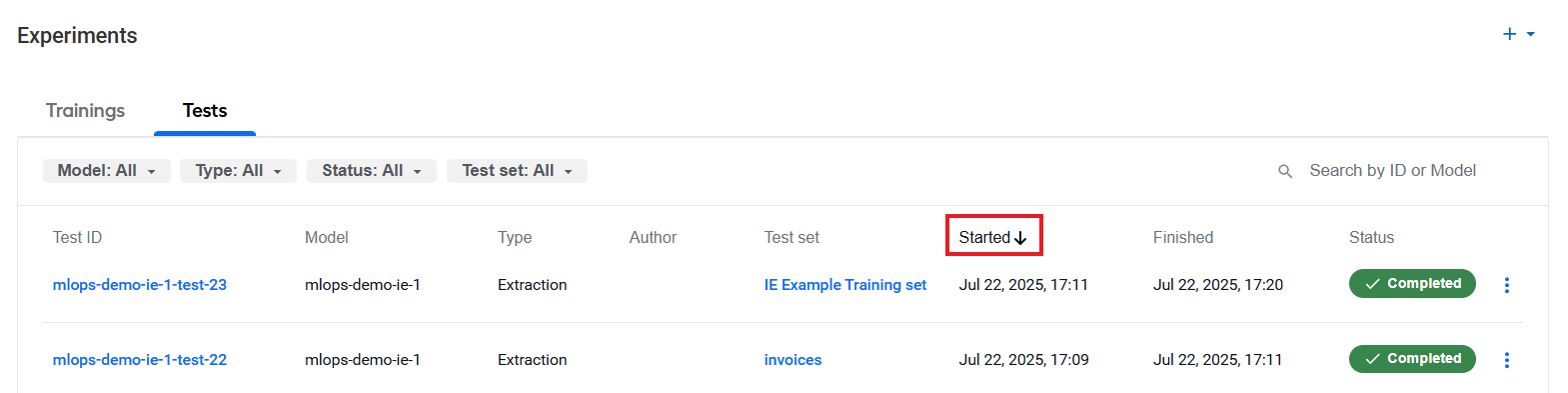
To view the data that interests you most, you can sort it by clicking the selected column header.
Filter and search
You can filter the list of displayed tests based on any or all of the following criteria:
- Model: tested model ID
- Type: model type identifying its working principle, for instance, extraction
- Status: current test status
- Test set: test set used to run the test
To apply the criteria, click one or more filter buttons at the top of the test list and select required items or find them using the search box. Filters turn blue as they become active, and the items in the test list change accordingly.
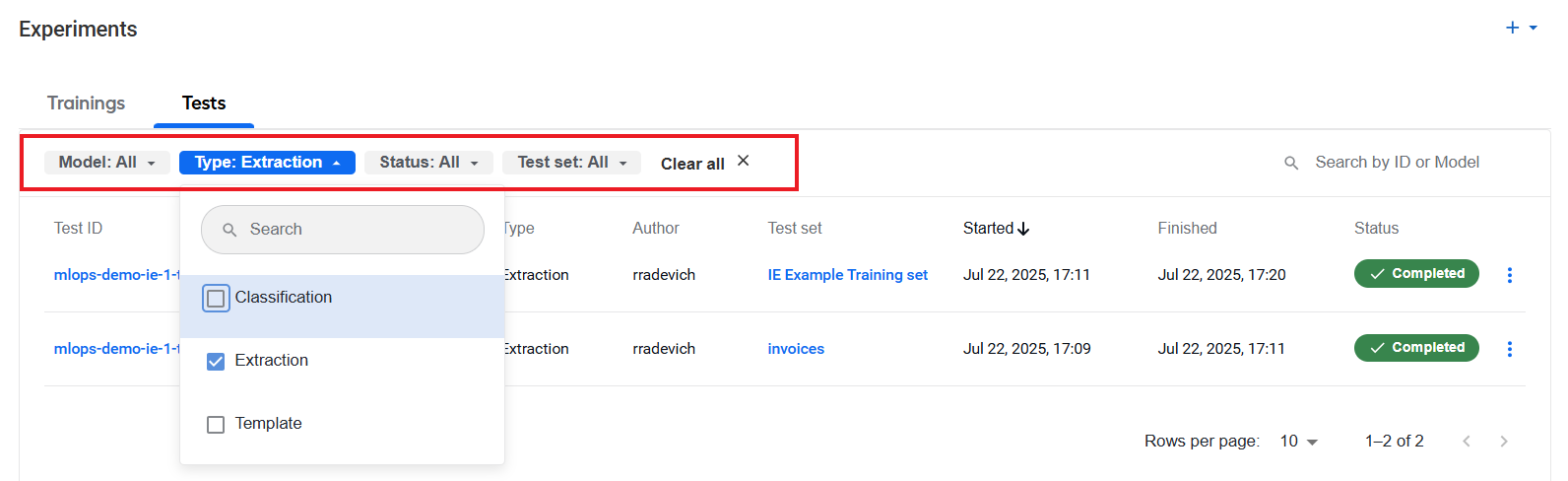
To turn off an active filter, click it again. To reset them all, click Clear all.
You can also search the list for a particular test by a test ID or a model ID using the Search by ID or Model box in the top-right corner.
Start test
To start a test, proceed in one of the following ways:
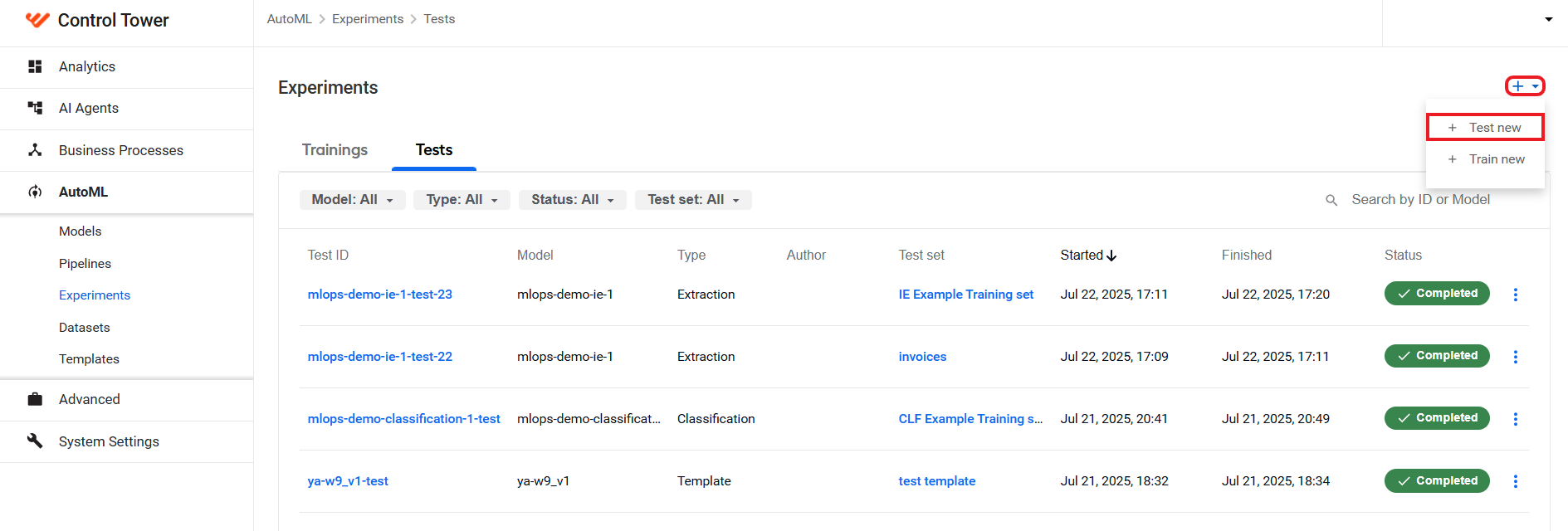
In the top-right corner of the Experiments page, click the plus (+) button > Test new.
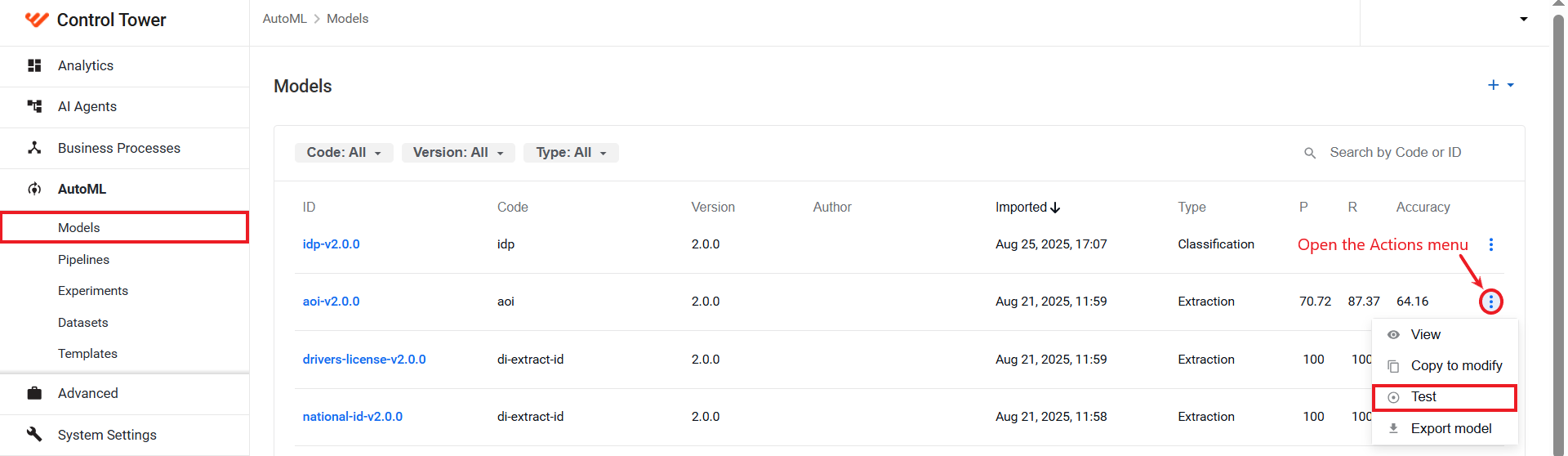
Navigate to Models > select a model you want to test > open the Actions menu > Test.
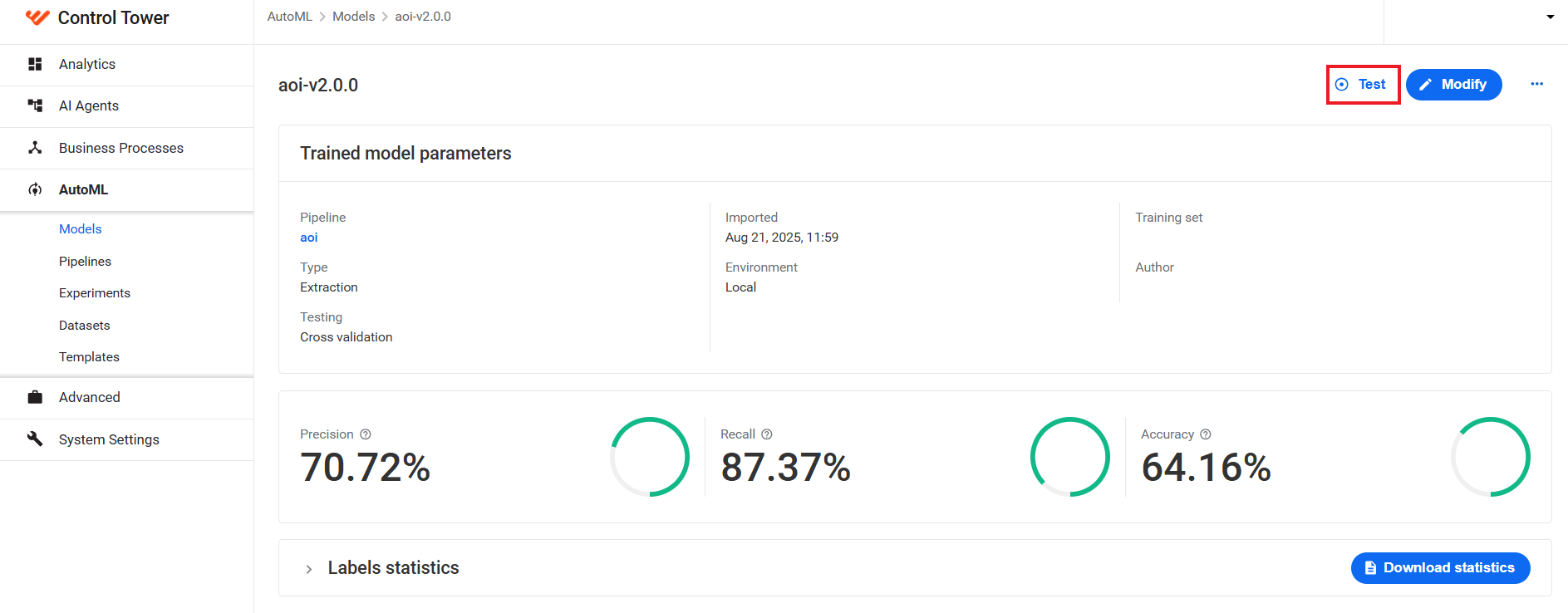
Navigate to Models > click the model you want to test in the list > on the model's details page, click the Test button:
Whichever method you choose to start a test, your next step is to set up the test parameters on the Model testing page as described below.
Set up test
On the Model testing page, proceed as follows:
In the Model ID drop-down list, select a model by ID. As soon as you specify the model ID, the pipeline and version are read from the model configuration and inserted automatically.
If you create a test from the Models list > Actions menu > Test, the model ID is already selected.
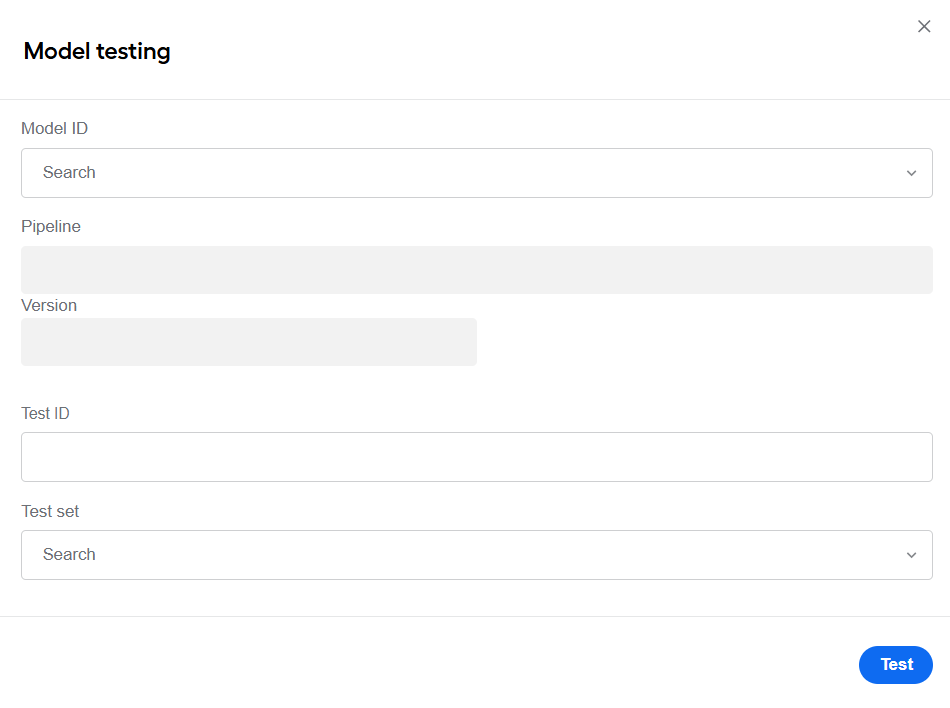
In the Test ID field, specify a unique name for the test run.
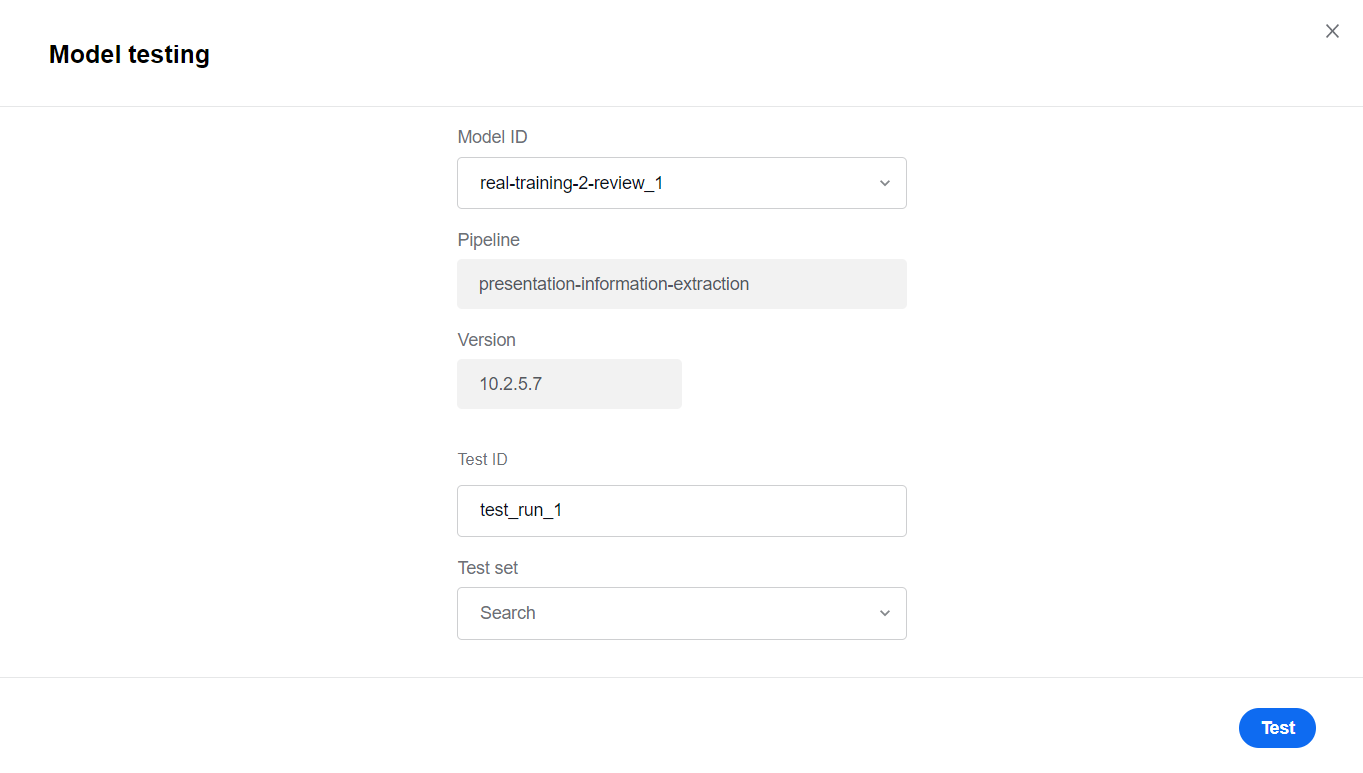
In the Test set list, select a test set.
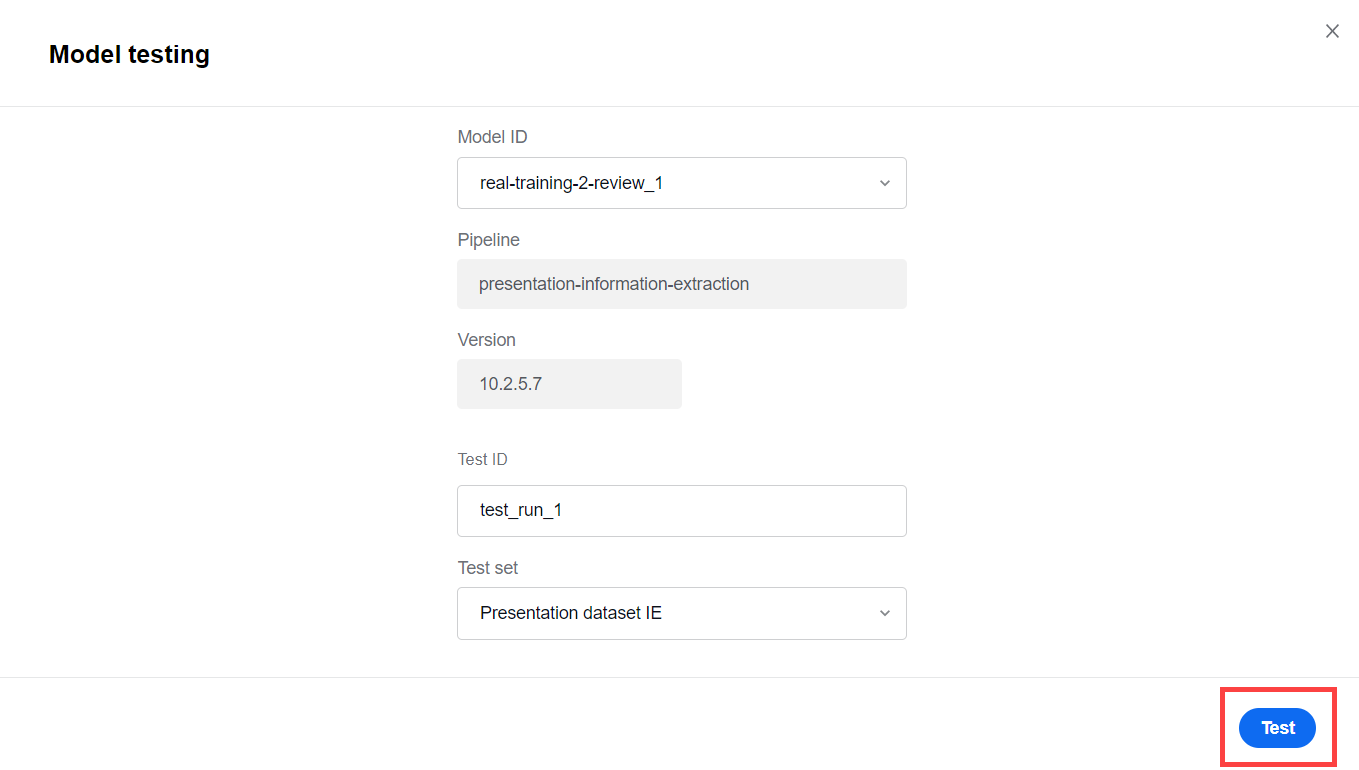
Click Test.
On AutoML > Experiments > Tests, find the new model test run: its status should be In progress.
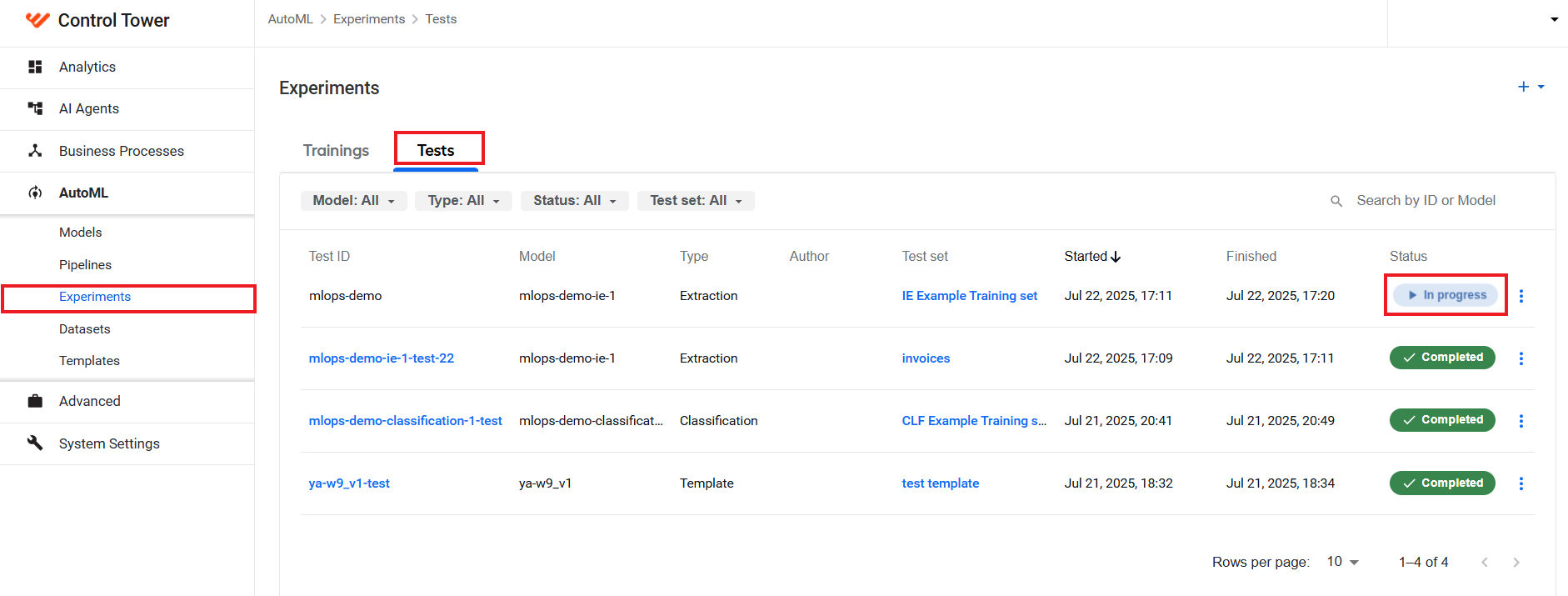
Wait till the status changes to Completed. Then, click the test ID and review the resulting test data.
View and export test details
To access details of successfully completed test runs, go to AutoML > Experiments > Tests and click a needed test ID.
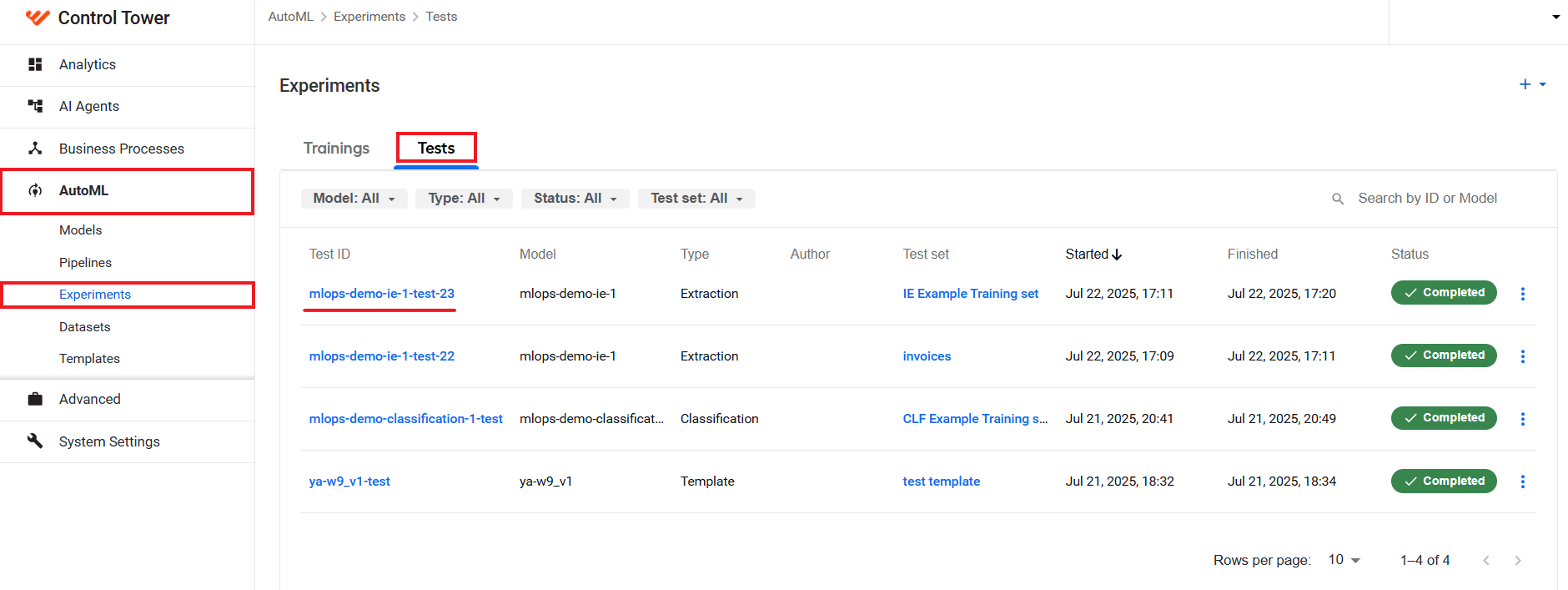
The test run details become available on a separate page:
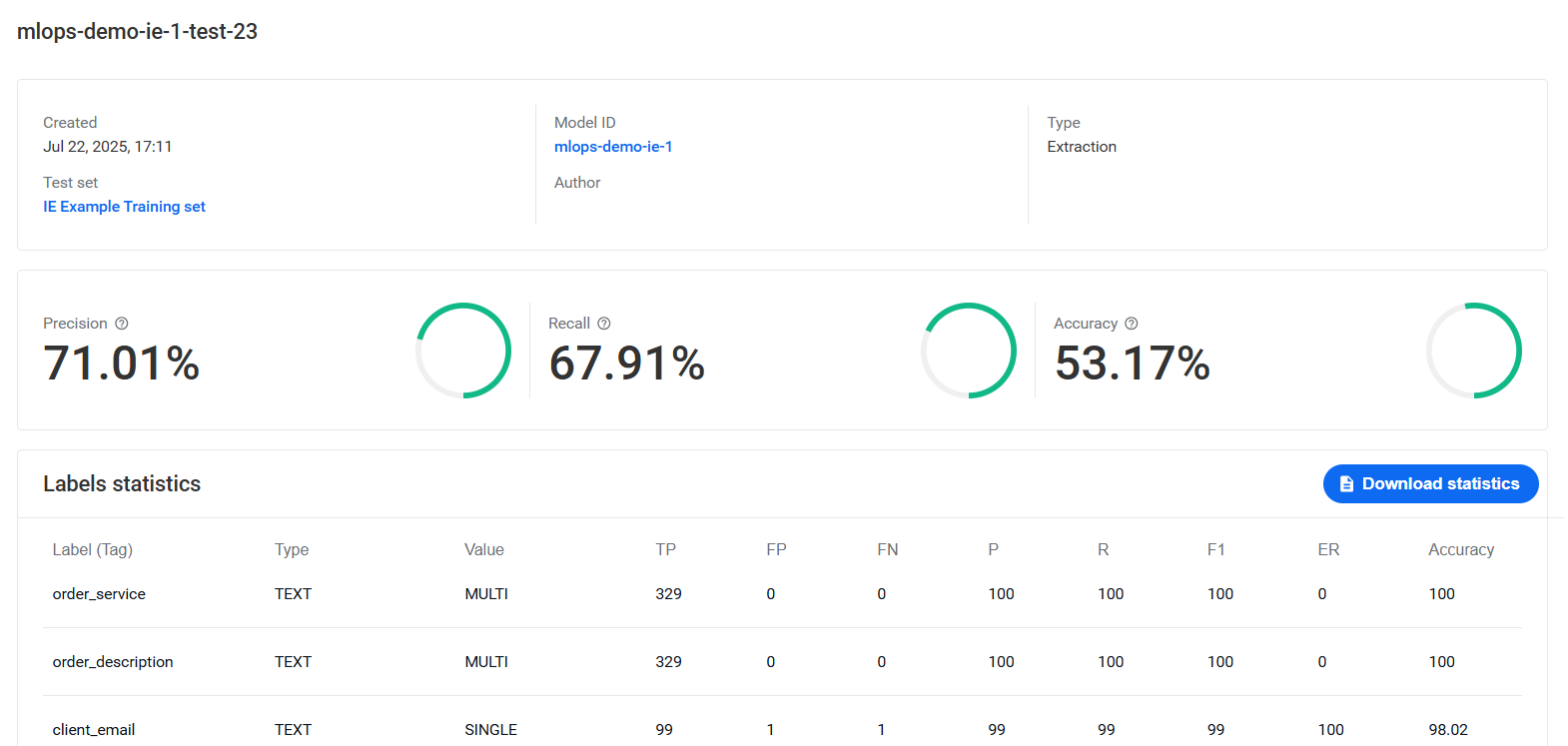
On the page, you can see the following test run data:
- Created: date and time when the test was created
- Test set: link to the test set used in the test
- Model ID: link to the tested model
- Author: name of the user who initiated the test
- Type: pipeline type identifying its working principle, for instance, extraction
- Average metrics for the total of labels (in %):
- Precision
- Recall
- Accuracy
- Detailed statistics per label:
- Label name
- Label type
- Label value
- Metrics per label:
- TP: number of true positives
- FP: number of false positives
- FN: number of false negatives
- TN: number of true negatives
- P: precision
- R: recall
- F1: F1 score
- ER: error rate = FP/(FP + TN)
- Accuracy
To get the detailed per label test statistics in a single file, click Download statistics.

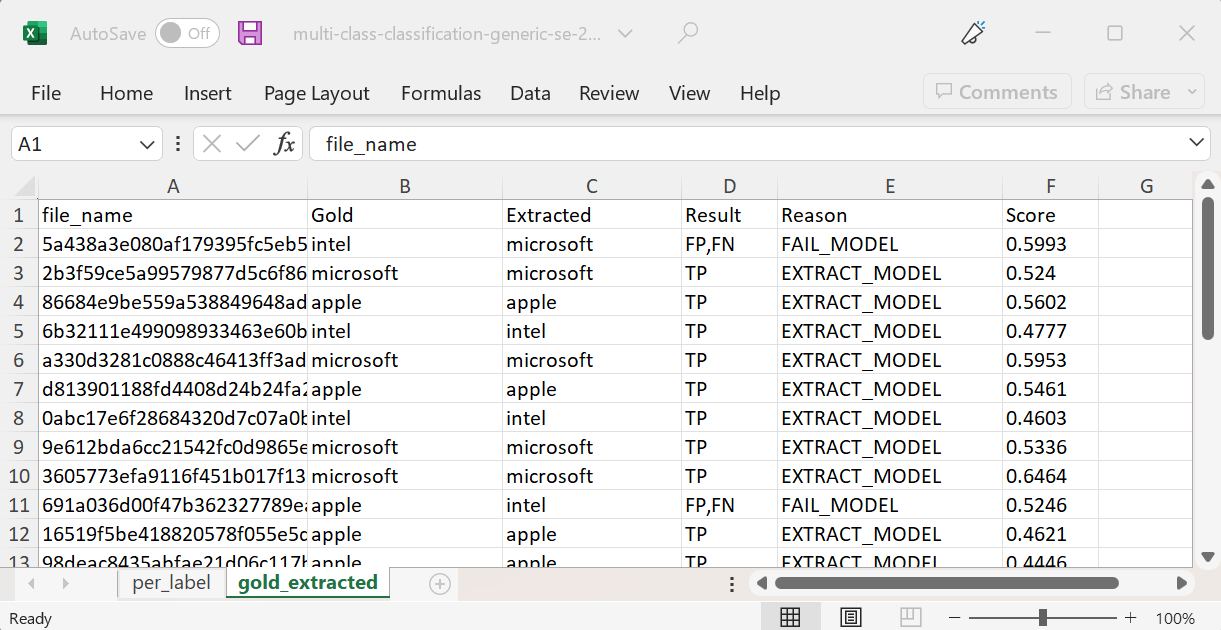
For models developed with AutoML SDK of version 10.2.6 and higher, the XLXS file also includes extended per document statistics:
View error log
If a test fails, you can view the error log: in the Status column, click the Error indication.
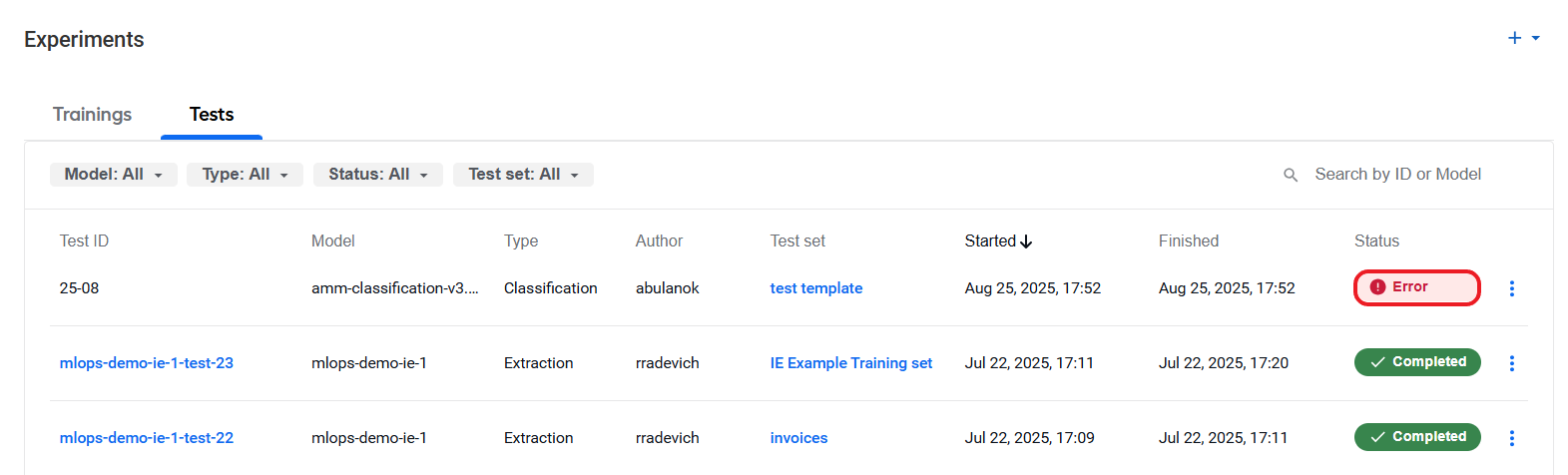
A dialog with the error details appears:
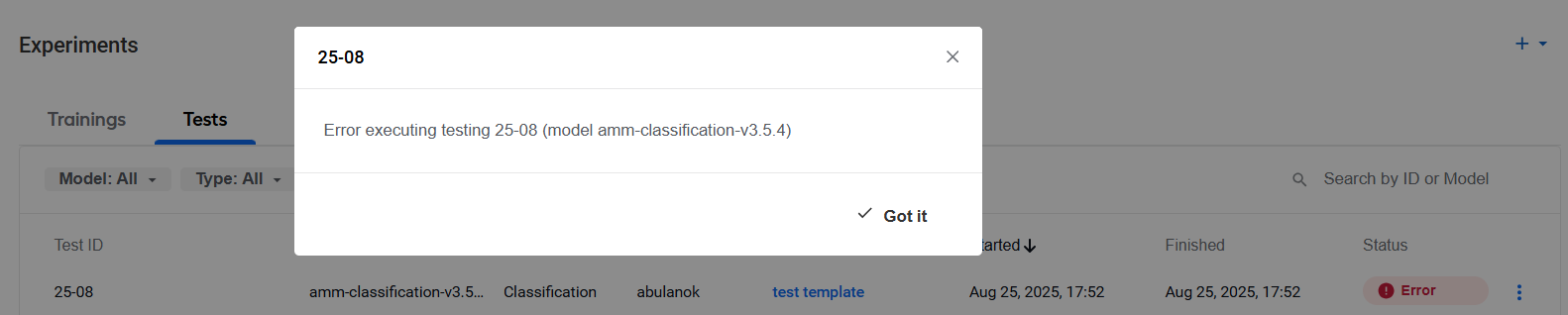
To close the log, click the Close (cross) or Got it button.