Automate checkbox and radio button operations
Apply selection methods
Checkboxes and radio buttons deal the same way, and you can perform the below-mentioned operations on either of them. For a sample web form, refer to the sample personal information form.
ID
If ID is given for a radio button or a checkbox and you need to click it irrespective of its value, the command is like this:
RPA.open("https://rpa-tutorial.s3.amazonaws.com/trainings/iframe/form.html");
$(By.id("sex-1")).click();
IsSelected
Apply the IsSelected method, if your choice is based on the pre-selection of the radio button or checkbox and you need to choose the deselected radio button or checkbox. Assume there are two radio buttons and checkboxes. One is selected by default, and you need to select the other one. With IsSelectedstatement, you can figure out whether the element is selected or not:
Expand to view the code
import com.workfusion.odf2.compiler.BotTask;
import com.workfusion.odf2.core.task.AdHocTask;
import com.workfusion.odf2.core.task.TaskInput;
import com.workfusion.odf2.core.task.output.TaskRunnerOutput;
import com.workfusion.odf2.core.webharvest.rpa.RpaDriver;
import com.workfusion.odf2.core.webharvest.rpa.RpaFactory;
import com.workfusion.odf2.core.webharvest.rpa.RpaRunner;
import com.workfusion.rpa.driver.Driver;
import com.workfusion.rpa.helpers.RPA;
import com.workfusion.rpa.helpers.UiElement;
import com.workfusion.rpa.helpers.UiElementCollection;
import org.openqa.selenium.By;
import org.openqa.selenium.WebElement;
import org.openqa.selenium.support.ui.Select;
import org.slf4j.Logger;

import javax.inject.Inject;
import java.util.ArrayList;
import java.util.Arrays;
import java.util.List;
import java.util.Set;

import static com.workfusion.rpa.helpers.RPA.*;
import static com.workfusion.rpa.helpers.UiSelectors.byImage;
import static com.workfusion.rpa.helpers.UiSelectors.byText;


@BotTask(requireRpa = true)
public class AutomateWebElements implements AdHocTask {

    private final RpaRunner rpaRunner;
    private final Logger logger;

    @Inject
    public AutomateWebElements(RpaFactory rpaFactory, Logger logger){
        this.rpaRunner = rpaFactory
                .builder(RpaDriver.UNIVERSAL)
                .closeOnCompletion(true)
                .build();
        this.logger = logger;
    }

    @Override
    public TaskRunnerOutput run(TaskInput taskInput) {

        rpaRunner.execute(driver->{
            this.applySelectionMethodsIsSelected(driver);
        });

        return taskInput.asResult()
                .withColumn("example_bot_task_output", "completed_successfully");
    }

    private void applySelectionMethodsIsSelected(Driver driver){
        RPA.timeouts(10 * 1000);
        RPA.openChrome("https://rpa-tutorial.s3.amazonaws.com/trainings/iframe/form.html");

        this.popAlert(driver,"About to select Female as Gender");

        // Store all the elements of the same category in the list of WebElements
        UiElementCollection oRadioButton = $$(By.name("sex"));

        // Create a Boolean variable that holds the value (True/False)
        boolean bValue = false;

        // This statement returns True, if the first radio button is selected
        bValue = oRadioButton.get(0).isSelected();

        // This checks that if the value is True, the first radio button is selected
        if(bValue){
            // This selects the second radio button, if the first radio button is selected by default
            oRadioButton.get(1).setSelected(true);
        } else {
            // If the first radio button is not selected by default, the first one is selected
            oRadioButton.get(0).click();
        }

        RPA.sleep(2000);
    }

    private void popAlert(Driver driver,String popupMessage){
        driver.switchDriver("chrome");
        //Switch to default content inorder to work with alert if already on a IFrame
        RPA.switchTo().defaultContent();String script = popupMessage;
        driver.executeScript("alert(arguments[0])",script);
        RPA.sleep(3000);
        RPA.switchTo().alert().accept();
    }

}
The name is always the same for the same group of radio buttons or checkboxes, but their values are different. If you find the element with the name attribute, it means that it can contain more than one element; hence you need to use the findElements ($$) method and store the list of WebElements.
Value
You can select radio buttons or checkboxes with their values.
Expand to view the code
import com.workfusion.odf2.compiler.BotTask;
import com.workfusion.odf2.core.task.AdHocTask;
import com.workfusion.odf2.core.task.TaskInput;
import com.workfusion.odf2.core.task.output.TaskRunnerOutput;
import com.workfusion.odf2.core.webharvest.rpa.RpaDriver;
import com.workfusion.odf2.core.webharvest.rpa.RpaFactory;
import com.workfusion.odf2.core.webharvest.rpa.RpaRunner;
import com.workfusion.rpa.driver.Driver;
import com.workfusion.rpa.helpers.RPA;
import com.workfusion.rpa.helpers.UiElement;
import com.workfusion.rpa.helpers.UiElementCollection;
import org.openqa.selenium.By;
import org.openqa.selenium.WebElement;
import org.openqa.selenium.support.ui.Select;
import org.slf4j.Logger;

import javax.inject.Inject;
import java.util.ArrayList;
import java.util.Arrays;
import java.util.List;
import java.util.Set;

import static com.workfusion.rpa.helpers.RPA.*;
import static com.workfusion.rpa.helpers.UiSelectors.byImage;
import static com.workfusion.rpa.helpers.UiSelectors.byText;


@BotTask(requireRpa = true)
public class AutomateWebElements implements AdHocTask {

    private final RpaRunner rpaRunner;
    private final Logger logger;

    @Inject
    public AutomateWebElements(RpaFactory rpaFactory, Logger logger){
        this.rpaRunner = rpaFactory
                .builder(RpaDriver.UNIVERSAL)
                .closeOnCompletion(true)
                .build();
        this.logger = logger;
    }

    @Override
    public TaskRunnerOutput run(TaskInput taskInput) {

        rpaRunner.execute(driver->{
            this.applySelectionMethodsValue(driver);
        });

        return taskInput.asResult()
                .withColumn("example_bot_task_output", "completed_successfully");
    }

    private void applySelectionMethodsValue(Driver driver){
        RPA.timeouts(10 * 1000);
        RPA.openChrome("https://rpa-tutorial.s3.amazonaws.com/trainings/iframe/form.html");
        this.popAlert(driver," Checkbox Selection - \"Selecting Robotics Webdriver as Automation Tool\" ");

        // Find the checkboxes
        UiElementCollection oCheckBox = $$(By.xpath("//div[@class='control-group'][14]/input"));
        RPA.sleep(2000);

        // This tells you the number of checkboxes are present
        int iSize = oCheckBox.size();

        // Start the loop from the first checkbox to the last one
        for(int i=0; i < iSize ; i++ ){

            // Store the checkbox name to a variable using the "value" attribute
            String sValue = oCheckBox.get(i).getAttribute("value")  ;                 // or oCheckBox.get(i).val()

            // Select the checkbox if the checkbox value is the same that you are looking for
            if (sValue.equalsIgnoreCase("Robotics Webdriver")) {
                oCheckBox.get(i).click();
                // This takes the execution out of the loop
                break;
            }
        }
        RPA.sleep(2000);
    }

    private void popAlert(Driver driver,String popupMessage){
        driver.switchDriver("chrome");
        //Switch to default content inorder to work with alert if already on a IFrame
        RPA.switchTo().defaultContent();String script = popupMessage;
        driver.executeScript("alert(arguments[0])",script);
        RPA.sleep(3000);
        RPA.switchTo().alert().accept();
    }

}
CssSelector
To select a checkbox or a radio button, use its value.
Expand to view the code
import com.workfusion.odf2.compiler.BotTask;
import com.workfusion.odf2.core.task.AdHocTask;
import com.workfusion.odf2.core.task.TaskInput;
import com.workfusion.odf2.core.task.output.TaskRunnerOutput;
import com.workfusion.odf2.core.webharvest.rpa.RpaDriver;
import com.workfusion.odf2.core.webharvest.rpa.RpaFactory;
import com.workfusion.odf2.core.webharvest.rpa.RpaRunner;
import com.workfusion.rpa.driver.Driver;
import com.workfusion.rpa.helpers.RPA;
import com.workfusion.rpa.helpers.UiElement;
import com.workfusion.rpa.helpers.UiElementCollection;
import org.openqa.selenium.By;
import org.openqa.selenium.WebElement;
import org.openqa.selenium.support.ui.Select;
import org.slf4j.Logger;

import javax.inject.Inject;
import java.util.ArrayList;
import java.util.Arrays;
import java.util.List;
import java.util.Set;

import static com.workfusion.rpa.helpers.RPA.*;
import static com.workfusion.rpa.helpers.UiSelectors.byImage;
import static com.workfusion.rpa.helpers.UiSelectors.byText;


@BotTask(requireRpa = true)
public class AutomateWebElements implements AdHocTask {

  private final RpaRunner rpaRunner;
  private final Logger logger;

  @Inject
  public AutomateWebElements(RpaFactory rpaFactory, Logger logger){
    this.rpaRunner = rpaFactory
            .builder(RpaDriver.UNIVERSAL)
            .closeOnCompletion(true)
            .build();
    this.logger = logger;
  }

  @Override
  public TaskRunnerOutput run(TaskInput taskInput) {

    rpaRunner.execute(driver->{
      this.applySelectionMethodsCssSelector(driver);
    });

    return taskInput.asResult()
            .withColumn("example_bot_task_output", "completed_successfully");
  }

  private void applySelectionMethodsCssSelector(Driver driver){

    RPA.openChrome("https://rpa-tutorial.s3.amazonaws.com/trainings/iframe/form.html");
    this.popAlert(driver," Slecting Checkbox using CssSelector value option  ");
    $("input[value='Robotics IDE']").click();
    RPA.sleep(2000);
    // or use the setSelected(true/false) method
    $("input[value='QTP']").setSelected(true);
  }

  private void popAlert(Driver driver,String popupMessage){
    driver.switchDriver("chrome");
    //Switch to default content inorder to work with alert if already on a IFrame
    RPA.switchTo().defaultContent();String script = popupMessage;
    driver.executeScript("alert(arguments[0])",script);
    RPA.sleep(3000);
    RPA.switchTo().alert().accept();
  }


}
Examples
Example 1
- Open https://rpa-tutorial.s3.amazonaws.com/trainings/iframe/form.html.
- To select the deselected radio button (female) for the Sex category, use the
IsSelectedmethod. - To select the third radio button for the Years of Exp category, use the
IDattribute. - To check the Automation Tester checkbox for the Profession category, use the
Valueattribute to match the selection. - To check the Robotics IDE checkbox for the Automation Tool category, use
cssSelector.
Expand to view the code
       import com.workfusion.odf2.compiler.BotTask;
       import com.workfusion.odf2.core.task.AdHocTask;
       import com.workfusion.odf2.core.task.TaskInput;
       import com.workfusion.odf2.core.task.output.TaskRunnerOutput;
       import com.workfusion.odf2.core.webharvest.rpa.RpaDriver;
       import com.workfusion.odf2.core.webharvest.rpa.RpaFactory;
       import com.workfusion.odf2.core.webharvest.rpa.RpaRunner;
       import com.workfusion.rpa.driver.Driver;
       import com.workfusion.rpa.helpers.RPA;
       import com.workfusion.rpa.helpers.UiElement;
       import com.workfusion.rpa.helpers.UiElementCollection;
       import org.openqa.selenium.By;
       import org.openqa.selenium.WebElement;
       import org.openqa.selenium.support.ui.Select;
       import org.slf4j.Logger;
       import javax.inject.Inject;
       import java.util.ArrayList;
       import java.util.Arrays;
       import java.util.List;
       import java.util.Set;
       import static com.workfusion.rpa.helpers.RPA.*;
       import static com.workfusion.rpa.helpers.UiSelectors.byImage;
       import static com.workfusion.rpa.helpers.UiSelectors.byText;
       @BotTask(requireRpa = true)
       public class AutomateWebElements implements AdHocTask {

          private final RpaRunner rpaRunner;
          private final Logger logger;

          @Inject
          public AutomateWebElements(RpaFactory rpaFactory, Logger logger){
               this.rpaRunner = rpaFactory
                   .builder(RpaDriver.UNIVERSAL)
                   .closeOnCompletion(true)
                   .build();
               this.logger = logger;
          }

          @Override
          public TaskRunnerOutput run(TaskInput taskInput) {

                 rpaRunner.execute(driver->{
                    this.automateCheckboxAndRadioButtonOperationsCombinedExample(driver);
                 });

                 return taskInput.asResult()
                    .withColumn("example_bot_task_output", "completed_successfully");
          }

          private void automateCheckboxAndRadioButtonOperationsCombinedExample(Driver driver){
                RPA.timeouts(15 * 1000);
                RPA.openChrome("https://rpa-tutorial.s3.amazonaws.com/trainings/iframe/form.html");
                this.popAlert(driver,"Combined example of different ways of dealing with Radio and Checkbox");

                // Step 3 : Select the deselected Radio button (female) for category Sex (Use IsSelected method)
                // Storing all the elements under category 'Sex' in the list of WebLements
                UiElementCollection rdBtn_Sex = $$(By.name("sex"));

                // This statement will return True, in case of first Radio button is selected
                boolean bValue = rdBtn_Sex.get(0).isSelected();
                RPA.sleep(200);

                // This will check that if the bValue is True means if the first radio button is selected
                if(bValue == true){
                    // This will select Second radio button, if the first radio button is selected by default
                    rdBtn_Sex.get(1).click();
                    RPA.sleep(200);
                } else {
                    // If the first radio button is not selected by default, the first will be selected
                    rdBtn_Sex.get(0).click();
                    RPA.sleep(200);
                }

                //Step 4: Select the Third radio button for category 'Years of Exp' (Use Id attribute to select Radio button)
                UiElement rdBtn_Exp = $(By.id("exp-2"));
                rdBtn_Exp.click();
                RPA.sleep(200);

                // STep 5: Check the Check Box 'Automation Tester' for category 'Profession'( Use Value attribute to match the selection)
                // Find the Check Box or radio button element by Name
                UiElementCollection chkBx_Profession = $$(By.name("profession"));

                // This will tell you the number of Check Boxes are present
                int iSize = chkBx_Profession.size();

                // Start the loop from first Check Box to last Check Boxe
                for(int i=0; i < iSize ; i++ ) {
                    // Store the Check Box name to the string variable, using 'Value' attribute
                    String sValue = chkBx_Profession.get(i).val();

                    // Select the Check Box it the value of the Check Box is same what you are looking for
                    if (sValue.equalsIgnoreCase("Automation Tester")){
                        chkBx_Profession.get(i).click();
                        RPA.sleep(200);
                        // This will take the execution out of for loop
                        break;
                    }
                }
                // Step 6: Check the Check Box 'Robotics IDE' for category 'Automation Tool' (Use cssSelector)
                $("input[value='Robotics IDE']").click();

                RPA.sleep(2000);
          }

          private void popAlert(Driver driver,String popupMessage){
            driver.switchDriver("chrome");
            //Switch to default content inorder to work with alert if already on a IFrame
            RPA.switchTo().defaultContent();String script = popupMessage;
            driver.executeScript("alert(arguments[0])",script);
            RPA.sleep(3000);
            RPA.switchTo().alert().accept();
          }
       }
Use drop-down and multiple select operations
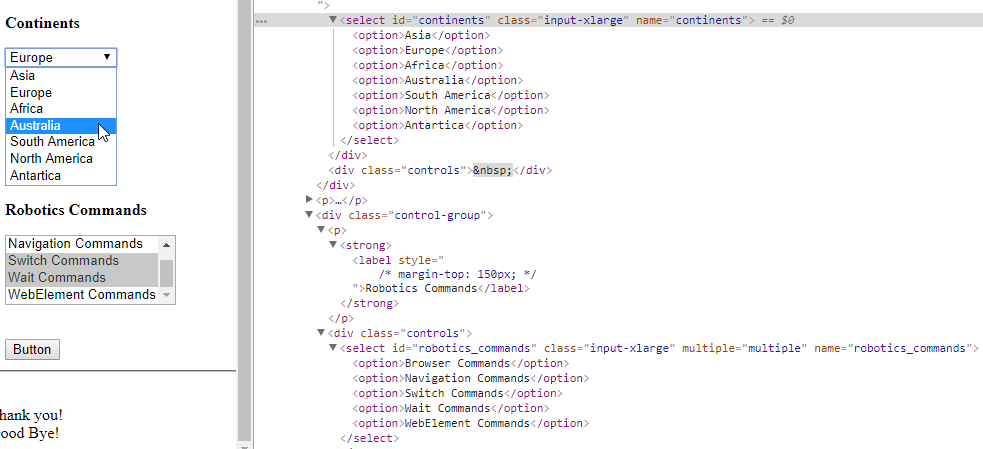
Like checkboxes and radio buttons, drop-down and multiple selection operations work together almost the same way. To perform any action, identify the element group, as a drop-down or multiple select is not a single element. They always have a single name containing one or more elements or options. The only difference is deselecting statement, and multiple selections are not allowed on a drop-down.
It is an ordinary operation like selecting any other element on a webpage. You can choose it by ID, Name, CSS, XPath, and so on.
Select class
The Select class models a <select> tag, providing helper methods to select and deselect options. It performs multiple operations on a DropDown object and Multiple Select object. As Select is an ordinary class, its object is also created by a new keyword with the regular class creation syntax.
import org.openqa.selenium.support.ui.Select;


RPA.open("https://rpa-tutorial.s3.amazonaws.com/trainings/iframe/form.html");

Select continents = new Select($(By.id("continents")));
List<WebElement> optionsList  =  continents.getOptions();
RPA.sleep(2000);
this.popAlert(driver,"options counts - " + optionsList.size());
for(WebElement option : optionsList){
    this.popAlert(driver,"options value - " + option.getText());
}
Select commands
You can access the following Select class methods:
| Type | Method | Simplified API method | Description |
|---|---|---|---|
void | selectByIndex(int index) | selectOption(int index) | Selects the option at the given index. |
void | selectByValue(String value) | selectOptionByValue(String value) | Selects all options that have a value matching the argument. |
void | selectByVisibleText(String text) | selectOption(String text) | Selects all options that display text matching the argument. |
List<WebElement> | getAllSelectedOptions() | - | Gets a list of all selected option elements. |
WebElement | getFirstSelectedOption() | getSelectedOption() | Gets the first selected option. |
| - | getSelectedText() | Gets text of a selected option in the select field | |
| - | getSelectedValue() | Gets a value of a selected option in the select field. If the value attribute does not exist, it returns the option text. | |
List<WebElement> | getOptions() | - | Gets a list of all option elements that are child elements of the <select> tag. |
boolean | isMultiple() | - | Checks whether the control supports multiple selection. |
void | deselectAll() | - | Clears all selected entries. The method works only for Multi Select elements. |
void | deselectByIndex(int index) | - | Deselects the option at the given index. The method works only for Multi Select elements. |
void | deselectByValue(String value) | - | Deselects all options that have a value matching the argument. The method works only for Multi Select elements. |
void | deselectByVisibleText(String text) | - | Deselects all options that display text matching the argument. The method works only for Multi Select elements. |
See the details on using the methods below:
selectByVisibleText(String text):voidIntended to choose or select an option given under any drop-downs and multiple selection boxes with the
selectByVisibleTextmethod. Takes a parameter of String that is one of the texts of theSelectelement and returns nothing.
Expand to view the code
    import com.workfusion.odf2.compiler.BotTask;
    import com.workfusion.odf2.core.task.AdHocTask;
    import com.workfusion.odf2.core.task.TaskInput;
    import com.workfusion.odf2.core.task.output.TaskRunnerOutput;
    import com.workfusion.odf2.core.webharvest.rpa.RpaDriver;
    import com.workfusion.odf2.core.webharvest.rpa.RpaFactory;
    import com.workfusion.odf2.core.webharvest.rpa.RpaRunner;
    import com.workfusion.rpa.driver.Driver;
    import com.workfusion.rpa.helpers.RPA;
    import com.workfusion.rpa.helpers.UiElement;
    import com.workfusion.rpa.helpers.UiElementCollection;
    import org.openqa.selenium.By;
    import org.openqa.selenium.WebElement;
    import org.openqa.selenium.support.ui.Select;
    import org.slf4j.Logger;

    import javax.inject.Inject;
    import java.util.ArrayList;
    import java.util.Arrays;
    import java.util.List;
    import java.util.Set;

    import static com.workfusion.rpa.helpers.RPA.*;
    import static com.workfusion.rpa.helpers.UiSelectors.byImage;
    import static com.workfusion.rpa.helpers.UiSelectors.byText;


    @BotTask(requireRpa = true)
    public class AutomateWebElements implements AdHocTask {

        private final RpaRunner rpaRunner;
        private final Logger logger;

        @Inject
        public AutomateWebElements(RpaFactory rpaFactory, Logger logger){
            this.rpaRunner = rpaFactory
                    .builder(RpaDriver.UNIVERSAL)
                    .closeOnCompletion(true)
                    .build();
            this.logger = logger;
        }

        @Override
        public TaskRunnerOutput run(TaskInput taskInput) {

            rpaRunner.execute(driver->{
                this.dropdownAndMultipleSelectOperationsSelectClassSelectByVisibleText(driver);
            });

            return taskInput.asResult()
                    .withColumn("example_bot_task_output", "completed_successfully");
        }

        private void dropdownAndMultipleSelectOperationsSelectClassSelectByVisibleText(Driver driver){

            driver.switchDriver("chrome");
            RPA.openLinkInNewWindow("https://rpa-tutorial.s3.amazonaws.com/trainings/iframe/form.html");
            this.popAlert(driver,"Working with dropdowns - Select By Visible Text Example  ");
            Select continents = new Select($(By.id("continents")));
            continents.selectByVisibleText("Africa");
            RPA.sleep(2000);

            // Simplified API method - selectOption(String text)
            $(By.id("continents")).selectOption("Antartica");
        }

        private void popAlert(Driver driver,String popupMessage){
            driver.switchDriver("chrome");
            //Switch to default content inorder to work with alert if already on a IFrame
            RPA.switchTo().defaultContent();String script = popupMessage;
            driver.executeScript("alert(arguments[0])",script);
            RPA.sleep(3000);
            RPA.switchTo().alert().accept();
        }
    }
selectByIndex(int arg0):voidIs almost the same as
selectByVisibleText. The only difference is that you provide the option's index number rather than the option text. Takes a parameter ofintthat is the index value of theSelectelement and returns nothing.
Expand to view the code
    import com.workfusion.odf2.compiler.BotTask;
    import com.workfusion.odf2.core.task.AdHocTask;
    import com.workfusion.odf2.core.task.TaskInput;
    import com.workfusion.odf2.core.task.output.TaskRunnerOutput;
    import com.workfusion.odf2.core.webharvest.rpa.RpaDriver;
    import com.workfusion.odf2.core.webharvest.rpa.RpaFactory;
    import com.workfusion.odf2.core.webharvest.rpa.RpaRunner;
    import com.workfusion.rpa.driver.Driver;
    import com.workfusion.rpa.helpers.RPA;
    import com.workfusion.rpa.helpers.UiElement;
    import com.workfusion.rpa.helpers.UiElementCollection;
    import org.openqa.selenium.By;
    import org.openqa.selenium.WebElement;
    import org.openqa.selenium.support.ui.Select;
    import org.slf4j.Logger;

    import javax.inject.Inject;
    import java.util.ArrayList;
    import java.util.Arrays;
    import java.util.List;
    import java.util.Set;

    import static com.workfusion.rpa.helpers.RPA.*;
    import static com.workfusion.rpa.helpers.UiSelectors.byImage;
    import static com.workfusion.rpa.helpers.UiSelectors.byText;


    @BotTask(requireRpa = true)
    public class AutomateWebElements implements AdHocTask {

        private final RpaRunner rpaRunner;
        private final Logger logger;

        @Inject
        public AutomateWebElements(RpaFactory rpaFactory, Logger logger){
            this.rpaRunner = rpaFactory
                    .builder(RpaDriver.UNIVERSAL)
                    .closeOnCompletion(true)
                    .build();
            this.logger = logger;
        }

        @Override
        public TaskRunnerOutput run(TaskInput taskInput) {

            rpaRunner.execute(driver->{
                this.dropdownAndMultipleSelectOperationsSelectClassSelectByIndex(driver);
            });

            return taskInput.asResult()
                    .withColumn("example_bot_task_output", "completed_successfully");
        }

        private void dropdownAndMultipleSelectOperationsSelectClassSelectByIndex(Driver driver){
            RPA.openChrome("https://rpa-tutorial.s3.amazonaws.com/trainings/iframe/form.html");
            this.popAlert(driver,"Working with dropdowns - Select By Index Example ");
            Select continents = new Select($(By.id("continents")));
            continents.selectByIndex(2);
            RPA.sleep(2000);
            // Simplified API method - selectOption(int index)
            $(By.id("continents")).selectOption(4);
        }

        private void popAlert(Driver driver,String popupMessage){
            driver.switchDriver("chrome");
            //Switch to default content inorder to work with alert if already on a IFrame
            RPA.switchTo().defaultContent();String script = popupMessage;
            driver.executeScript("alert(arguments[0])",script);
            RPA.sleep(3000);
            RPA.switchTo().alert().accept();
        }
    }
    ```

</details>

The index starts from zero, so the third position value ("Africa") is at index 2.

- `selectByValue(String arg0)`:`void`

    Is the same as above. The only difference is that it asks for the value of the option rather than the option text or index. Takes a parameter of String that is the value of the `Select` element and returns nothing.

<details><summary><font color="#FD4810">Expand to view the code</font></summary>

```java
    import com.workfusion.odf2.compiler.BotTask;
    import com.workfusion.odf2.core.task.AdHocTask;
    import com.workfusion.odf2.core.task.TaskInput;
    import com.workfusion.odf2.core.task.output.TaskRunnerOutput;
    import com.workfusion.odf2.core.webharvest.rpa.RpaDriver;
    import com.workfusion.odf2.core.webharvest.rpa.RpaFactory;
    import com.workfusion.odf2.core.webharvest.rpa.RpaRunner;
    import com.workfusion.rpa.driver.Driver;
    import com.workfusion.rpa.helpers.RPA;
    import com.workfusion.rpa.helpers.UiElement;
    import com.workfusion.rpa.helpers.UiElementCollection;
    import org.openqa.selenium.By;
    import org.openqa.selenium.WebElement;
    import org.openqa.selenium.support.ui.Select;
    import org.slf4j.Logger;
    import javax.inject.Inject;
    import java.util.ArrayList;
    import java.util.Arrays;
    import java.util.List;
    import java.util.Set;
    import static com.workfusion.rpa.helpers.RPA.*;
    import static com.workfusion.rpa.helpers.UiSelectors.byImage;
    import static com.workfusion.rpa.helpers.UiSelectors.byText;


    @BotTask(requireRpa = true)
    public class AutomateWebElements implements AdHocTask {

        private final RpaRunner rpaRunner;
        private final Logger logger;

        @Inject
        public AutomateWebElements(RpaFactory rpaFactory, Logger logger){
            this.rpaRunner = rpaFactory
                    .builder(RpaDriver.UNIVERSAL)
                    .closeOnCompletion(true)
                    .build();
            this.logger = logger;
        }

        @Override
        public TaskRunnerOutput run(TaskInput taskInput) {

            rpaRunner.execute(driver->{
                this.dropdownAndMultipleSelectOperationsSelectClassSelectByValue(driver);
            });

            return taskInput.asResult()
                    .withColumn("example_bot_task_output", "completed_successfully");
        }

        private void dropdownAndMultipleSelectOperationsSelectClassSelectByValue(Driver driver){
            RPA.openChrome("https://rpa-tutorial.s3.amazonaws.com/trainings/iframe/form.html");
            this.popAlert(driver,"Working with dropdowns - Select By Value Example ");
            Select continents = new Select($(By.id("continents")));
            continents.selectByValue("AFR");
            RPA.sleep(2000);
            // Simplified API method - selectOption(int index)
            $(By.id("continents")).selectOptionByValue("AFR");
        }

        private void popAlert(Driver driver,String popupMessage){
            driver.switchDriver("chrome");
            //Switch to default content inorder to work with alert if already on a IFrame
            RPA.switchTo().defaultContent();String script = popupMessage;
            driver.executeScript("alert(arguments[0])",script);
            RPA.sleep(3000);
            RPA.switchTo().alert().accept();
        }
    }
The value of an option and the text of the option might not be always the same. The value might not be assigned to the Select element.
getOptions( ):List<WebElement>Gets all options belonging to the
<select>tag. Takes no parameter and returnsList<WebElements>.Sometimes, you need to count the elements in the drop-down and multiple select box to use the loop on the
Selectelement.
Expand to view the code
    import com.workfusion.odf2.compiler.BotTask;
    import com.workfusion.odf2.core.task.AdHocTask;
    import com.workfusion.odf2.core.task.TaskInput;
    import com.workfusion.odf2.core.task.output.TaskRunnerOutput;
    import com.workfusion.odf2.core.webharvest.rpa.RpaDriver;
    import com.workfusion.odf2.core.webharvest.rpa.RpaFactory;
    import com.workfusion.odf2.core.webharvest.rpa.RpaRunner;
    import com.workfusion.rpa.driver.Driver;
    import com.workfusion.rpa.helpers.RPA;
    import com.workfusion.rpa.helpers.UiElement;
    import com.workfusion.rpa.helpers.UiElementCollection;
    import org.openqa.selenium.By;
    import org.openqa.selenium.WebElement;
    import org.openqa.selenium.support.ui.Select;
    import org.slf4j.Logger;
    import javax.inject.Inject;
    import java.util.ArrayList;
    import java.util.Arrays;
    import java.util.List;
    import java.util.Set;
    import static com.workfusion.rpa.helpers.RPA.*;
    import static com.workfusion.rpa.helpers.UiSelectors.byImage;
    import static com.workfusion.rpa.helpers.UiSelectors.byText;


    @BotTask(requireRpa = true)
    public class AutomateWebElements implements AdHocTask {

        private final RpaRunner rpaRunner;
        private final Logger logger;

        @Inject
        public AutomateWebElements(RpaFactory rpaFactory, Logger logger){
            this.rpaRunner = rpaFactory
                    .builder(RpaDriver.UNIVERSAL)
                    .closeOnCompletion(true)
                    .build();
            this.logger = logger;
        }

        @Override
        public TaskRunnerOutput run(TaskInput taskInput) {

            rpaRunner.execute(driver->{
                this.dropdownAndMultipleSelectOperationsSelectClassGetOptions(driver);
            });

            return taskInput.asResult()
                    .withColumn("example_bot_task_output", "completed_successfully");
        }

        private void dropdownAndMultipleSelectOperationsSelectClassGetOptions(Driver driver){
            RPA.openChrome("https://rpa-tutorial.s3.amazonaws.com/trainings/iframe/form.html");
            this.popAlert(driver,"Working with dropdowns - Get Options Example ");
            Select continents = new Select($(By.id("continents")));
            List<WebElement> optionsList  =  continents.getOptions();
            RPA.sleep(2000);
            this.popAlert(driver,"options counts - " + optionsList.size());
            for(WebElement option : optionsList){
                this.popAlert(driver,"options value - " + option.getText());
            }
        }

        private void popAlert(Driver driver,String popupMessage){
            driver.switchDriver("chrome");
            //Switch to default content inorder to work with alert if already on a IFrame
            RPA.switchTo().defaultContent();String script = popupMessage;
            driver.executeScript("alert(arguments[0])",script);
            RPA.sleep(3000);
            RPA.switchTo().alert().accept();
        }
    }
    ```

</details>

- `getSelected`

    You can get a selected option, its text, and value using the Simplified API:

<details><summary><font color="#FD4810">Expand to view the code</font></summary>

```java
    import com.workfusion.odf2.compiler.BotTask;
    import com.workfusion.odf2.core.task.AdHocTask;
    import com.workfusion.odf2.core.task.TaskInput;
    import com.workfusion.odf2.core.task.output.TaskRunnerOutput;
    import com.workfusion.odf2.core.webharvest.rpa.RpaDriver;
    import com.workfusion.odf2.core.webharvest.rpa.RpaFactory;
    import com.workfusion.odf2.core.webharvest.rpa.RpaRunner;
    import com.workfusion.rpa.driver.Driver;
    import com.workfusion.rpa.helpers.RPA;
    import com.workfusion.rpa.helpers.UiElement;
    import com.workfusion.rpa.helpers.UiElementCollection;
    import org.openqa.selenium.By;
    import org.openqa.selenium.WebElement;
    import org.openqa.selenium.support.ui.Select;
    import org.slf4j.Logger;
    import javax.inject.Inject;
    import java.util.ArrayList;
    import java.util.Arrays;
    import java.util.List;
    import java.util.Set;
    import static com.workfusion.rpa.helpers.RPA.*;
    import static com.workfusion.rpa.helpers.UiSelectors.byImage;
    import static com.workfusion.rpa.helpers.UiSelectors.byText;


    @BotTask(requireRpa = true)
    public class AutomateWebElements implements AdHocTask {

        private final RpaRunner rpaRunner;
        private final Logger logger;

        @Inject
        public AutomateWebElements(RpaFactory rpaFactory, Logger logger){
            this.rpaRunner = rpaFactory
                    .builder(RpaDriver.UNIVERSAL)
                    .closeOnCompletion(true)
                    .build();
            this.logger = logger;
        }

        @Override
        public TaskRunnerOutput run(TaskInput taskInput) {

            rpaRunner.execute(driver->{
                this.dropdownAndMultipleSelectOperationsSelectClassGetSelected(driver);
            });

            return taskInput.asResult()
                    .withColumn("example_bot_task_output", "completed_successfully");
        }

        private void dropdownAndMultipleSelectOperationsSelectClassGetSelected(Driver driver){
            RPA.openChrome("https://rpa-tutorial.s3.amazonaws.com/trainings/iframe/form.html");
            this.popAlert(driver,"Working with dropdowns - Get Selected Example ");
            UiElement continents = $(By.id("continents"));
            continents.selectOption(4);
            RPA.sleep(2000);
            this.popAlert(driver,"Selected option value using getSelectedText() Method - " + continents.getSelectedText());
            this.popAlert(driver,"Selected option value using getSelectedValue() Method - " + continents.getSelectedValue());
            this.popAlert(driver,"Selected option value using getSelectedOption().getText() Method - " + continents.getSelectedOption().getText());

        }

        private void popAlert(Driver driver,String popupMessage){
            driver.switchDriver("chrome");
            //Switch to default content inorder to work with alert if already on a IFrame
            RPA.switchTo().defaultContent();String script = popupMessage;
            driver.executeScript("alert(arguments[0])",script);
            RPA.sleep(3000);
            RPA.switchTo().alert().accept();
        }
    }
isMultiple( ):booleanDefines whether the
Selectelement supports multiple selecting options at the same time or not. Accepts nothing and returns a Boolean value:trueorfalse.This is done by checking the value of the
multipleattribute.
Expand to view the code
    import com.workfusion.odf2.compiler.BotTask;
    import com.workfusion.odf2.core.task.AdHocTask;
    import com.workfusion.odf2.core.task.TaskInput;
    import com.workfusion.odf2.core.task.output.TaskRunnerOutput;
    import com.workfusion.odf2.core.webharvest.rpa.RpaDriver;
    import com.workfusion.odf2.core.webharvest.rpa.RpaFactory;
    import com.workfusion.odf2.core.webharvest.rpa.RpaRunner;
    import com.workfusion.rpa.driver.Driver;
    import com.workfusion.rpa.helpers.RPA;
    import com.workfusion.rpa.helpers.UiElement;
    import com.workfusion.rpa.helpers.UiElementCollection;
    import org.openqa.selenium.By;
    import org.openqa.selenium.WebElement;
    import org.openqa.selenium.support.ui.Select;
    import org.slf4j.Logger;
    import javax.inject.Inject;
    import java.util.ArrayList;
    import java.util.Arrays;
    import java.util.List;
    import java.util.Set;
    import static com.workfusion.rpa.helpers.RPA.*;
    import static com.workfusion.rpa.helpers.UiSelectors.byImage;
    import static com.workfusion.rpa.helpers.UiSelectors.byText;


    @BotTask(requireRpa = true)
    public class AutomateWebElements implements AdHocTask {

        private final RpaRunner rpaRunner;
        private final Logger logger;

        @Inject
        public AutomateWebElements(RpaFactory rpaFactory, Logger logger){
            this.rpaRunner = rpaFactory
                    .builder(RpaDriver.UNIVERSAL)
                    .closeOnCompletion(true)
                    .build();
            this.logger = logger;
        }

        @Override
        public TaskRunnerOutput run(TaskInput taskInput) {

            rpaRunner.execute(driver->{
                this.dropdownAndMultipleSelectOperationsSelectClassIsMultiple(driver);
            });

            return taskInput.asResult()
                    .withColumn("example_bot_task_output", "completed_successfully");
        }

        private void dropdownAndMultipleSelectOperationsSelectClassIsMultiple(Driver driver){
            RPA.openChrome("https://rpa-tutorial.s3.amazonaws.com/trainings/iframe/form.html");
            this.popAlert(driver,"Working with dropdowns - Is Multiple Example ");
            Select continents = new Select($(By.id("continents")));
            Select commands = new Select($("#robotics_commands"));

            this.popAlert(driver,"Is the 1st select multiple? " + continents.isMultiple());
            this.popAlert(driver,"Is the 2nd select multiple? " + commands.isMultiple());

        }

        private void popAlert(Driver driver,String popupMessage){
            driver.switchDriver("chrome");
            //Switch to default content inorder to work with alert if already on a IFrame
            RPA.switchTo().defaultContent();String script = popupMessage;
            driver.executeScript("alert(arguments[0])",script);
            RPA.sleep(3000);
            RPA.switchTo().alert().accept();
        }
    }
Example 2: multiple selection box or list
- Open https://rpa-tutorial.s3.amazonaws.com/trainings/iframe/form.html.
- To select the Robotic Commands multiple selection box, use the Name locator.
- To select the Browser Commands option and then deselect it, use
selectByIndexanddeselectByIndex. - To select the Navigation Commands option and then deselect it, use
selectByVisibleTextanddeselectByVisibleText. - Print and select all the options for the selected multiple selection list.
- Deselect all options.
Expand to view the code
    import com.workfusion.odf2.compiler.BotTask;
    import com.workfusion.odf2.core.task.AdHocTask;
    import com.workfusion.odf2.core.task.TaskInput;
    import com.workfusion.odf2.core.task.output.TaskRunnerOutput;
    import com.workfusion.odf2.core.webharvest.rpa.RpaDriver;
    import com.workfusion.odf2.core.webharvest.rpa.RpaFactory;
    import com.workfusion.odf2.core.webharvest.rpa.RpaRunner;
    import com.workfusion.rpa.driver.Driver;
    import com.workfusion.rpa.helpers.RPA;
    import com.workfusion.rpa.helpers.UiElement;
    import com.workfusion.rpa.helpers.UiElementCollection;
    import org.openqa.selenium.By;
    import org.openqa.selenium.WebElement;
    import org.openqa.selenium.support.ui.Select;
    import org.slf4j.Logger;
    import javax.inject.Inject;
    import java.util.ArrayList;
    import java.util.Arrays;
    import java.util.List;
    import java.util.Set;
    import static com.workfusion.rpa.helpers.RPA.*;
    import static com.workfusion.rpa.helpers.UiSelectors.byImage;
    import static com.workfusion.rpa.helpers.UiSelectors.byText;


    @BotTask(requireRpa = true)
    public class AutomateWebElements implements AdHocTask {

        private final RpaRunner rpaRunner;
        private final Logger logger;

        @Inject
        public AutomateWebElements(RpaFactory rpaFactory, Logger logger){
            this.rpaRunner = rpaFactory
                    .builder(RpaDriver.UNIVERSAL)
                    .closeOnCompletion(true)
                    .build();
            this.logger = logger;
        }

        @Override
        public TaskRunnerOutput run(TaskInput taskInput) {

            rpaRunner.execute(driver->{
                this.example2MultipleSelectionBoxOrList(driver);
            });

            return taskInput.asResult()
                    .withColumn("example_bot_task_output", "completed_successfully");
        }

        private void example2MultipleSelectionBoxOrList(Driver driver){
            RPA.timeouts(15 * 1000);

            // Step 1: Open URL.
            RPA.openChrome("https://rpa-tutorial.s3.amazonaws.com/trainings/iframe/form.html");

            // Step 2: Multiple select box. Use the Name locator to identify the element.
            UiElement element = $(By.name("robotics_commands"));
            Select commands = new Select(element);
            element.scrollTo();

            // Step 3: Select the Browser Commands option and then deselect it. Use selectByIndex and deselectByIndex.
            commands.selectByIndex(0);
            RPA.sleep(1000);
            commands.deselectByIndex(0);

            // Step 4: Select the Navigation Commands option and then deselect it. Use selectByVisibleText and deselectByVisibleText.
            commands.selectByVisibleText("Navigation Commands");
            RPA.sleep(1000);
            commands.deselectByVisibleText("Navigation Commands");

            // Step 5: Print and select all the options for the selected multiple selection list.
            List<WebElement> oSize = commands.getOptions();
            int iListSize = oSize.size();
            List<String> optionList = new ArrayList<>();

            // Set up the loop to print all the options.
            for (int i = 0 ; i < iListSize; i++) {
                optionList.add(commands.getOptions().get(i).getText());
                commands.selectByIndex(i);
                RPA.sleep(1000);
            }
            //println "List of options: ${optionList.toString()}"
            this.popAlert(driver,"List of options: " + optionList.toString());

            // Step 6: Deselect all commands.
            commands.deselectAll();
        }

        private void popAlert(Driver driver,String popupMessage){
            driver.switchDriver("chrome");
            //Switch to default content inorder to work with alert if already on a IFrame
            RPA.switchTo().defaultContent();String script = popupMessage;
            driver.executeScript("alert(arguments[0])",script);
            RPA.sleep(3000);
            RPA.switchTo().alert().accept();
        }
    }