Configure custom attributes
Custom attributes are user-defined data fields that extend or customize task and process data. These attributes rely on Field Schemes to determine how data is stored and interpreted.
Custom attributes define parameters specific to a particular run of a Business Process (BP) or task.
For example, you can define the following custom attributes for two runs of the same BP:
- The first run:
node_id="10067",capabilities="MAC",host="192.168.101.100" - The second run:
node_id="10068",capabilities="WINDOWS",host="127.0.0.1"
To set values that are shared across multiple BPs, use global variables. To set custom variables, follow the steps below.
Create Field Scheme
A Field Scheme is a data schema in Control Tower that defines how information is organized in a Data Store, specifying tables, columns, and data types
To create a Field Scheme, do as follows:
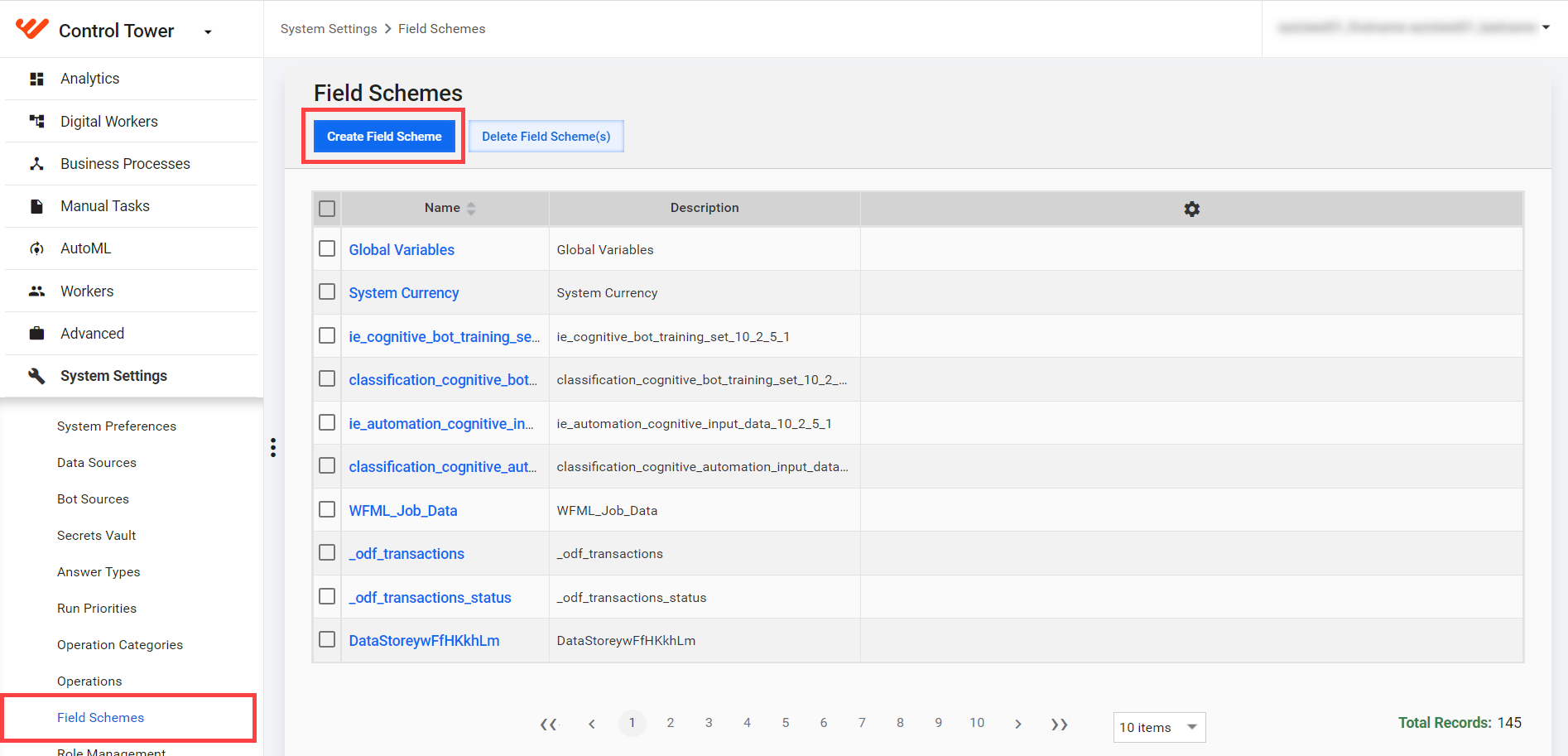
Go to System settings > Field Schemes and click Create Field Scheme.
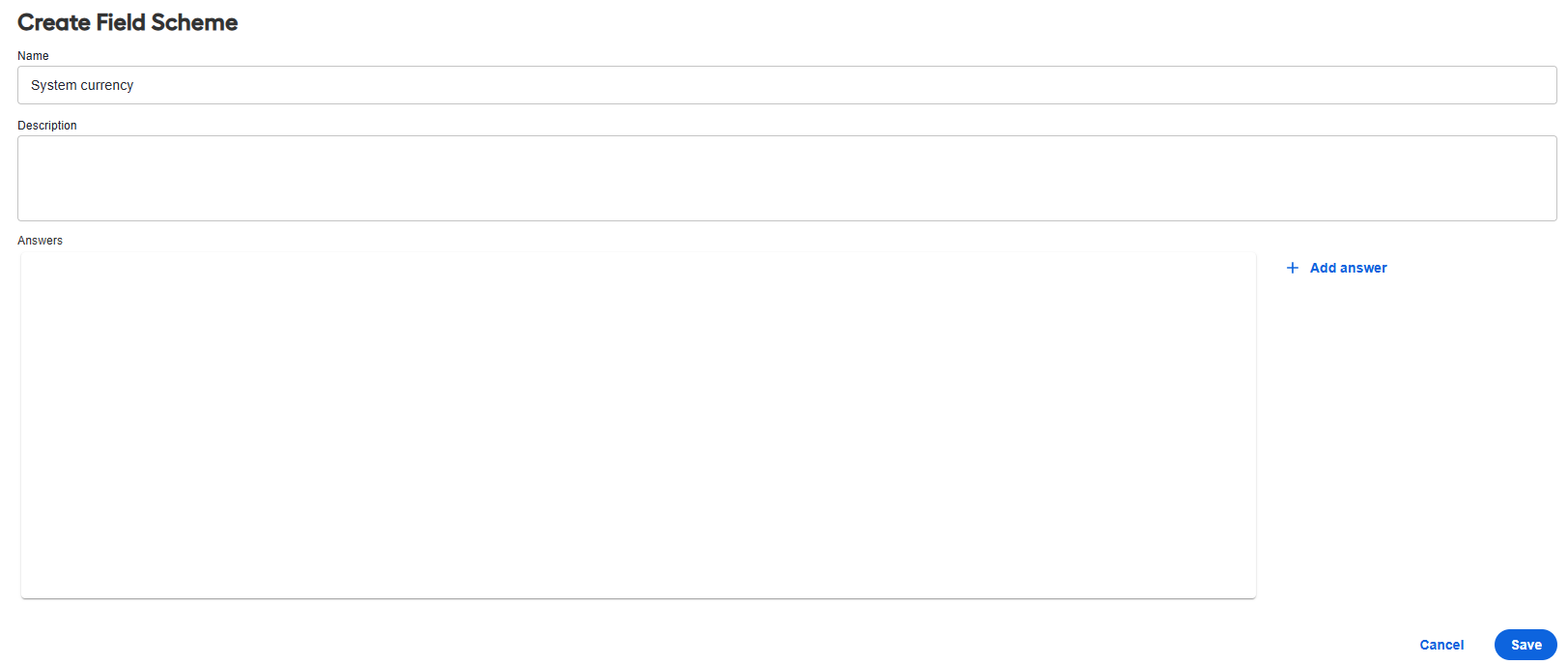
Enter the Name and Description values.
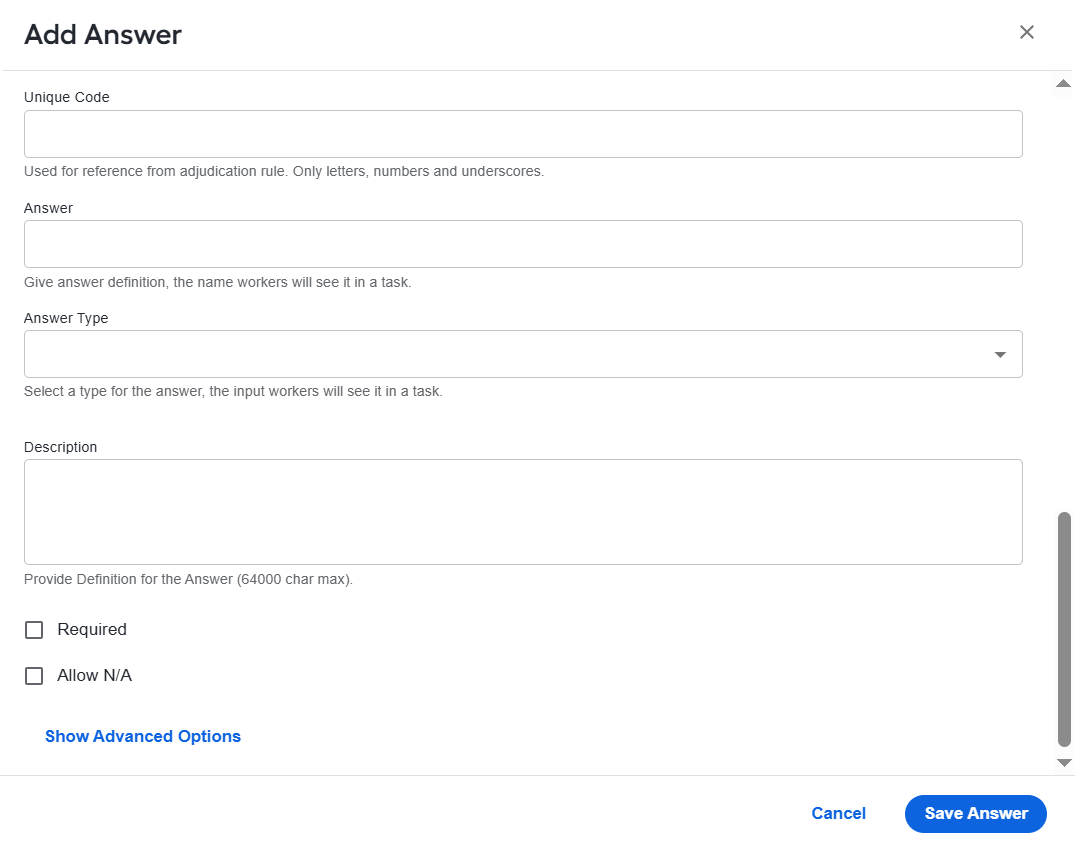
Click Add Answer, define the Unique Code and Answer Type values, and click Save Answer. Add as many answers as needed.
Return to the Create Field Scheme screen and click Save.
Select Field Scheme
To select a Field Scheme, follow the steps below:
Open the BP instance where you want to set custom attributes.
Go to the Run tab and click Advanced Options.
On the Properties tab, in the Custom Attributes dropdown, select the Field Scheme you created.
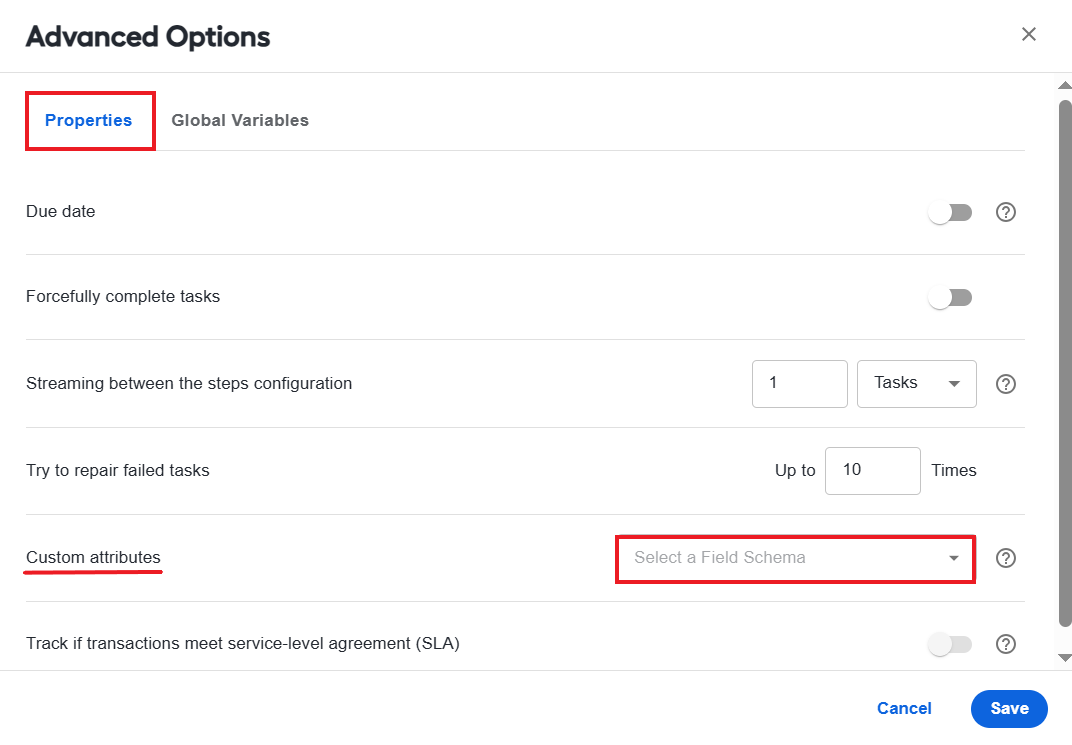
Click Save.
Define values
To define values for custom attributes, follow the steps below:
In the top left corner of the Run tab, hover over Attributes. Click the link next to the indication or the pencil icon.
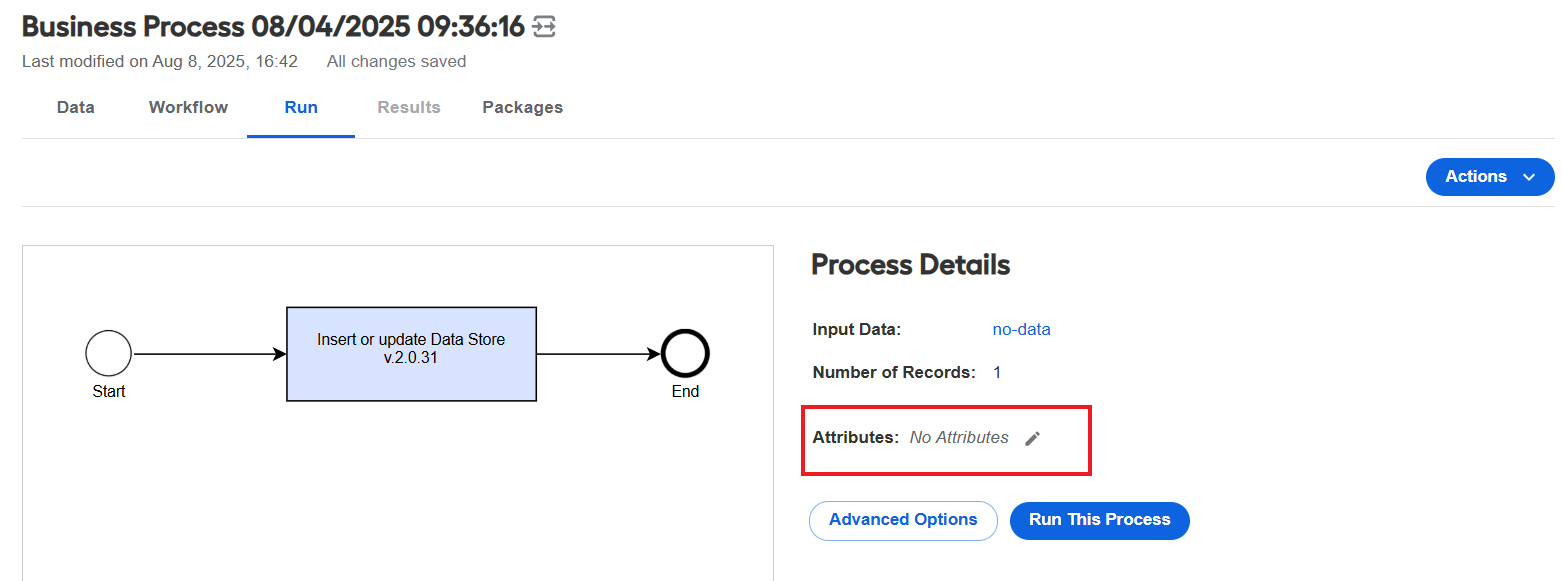
In the Custom Attributes popup, enter values for each field.

Click Save.
Save the BP.
You cannot run a task or BP if any required custom attributes are missing. A warning message appears.
Use custom attribute values
You can use custom attributes in bot steps by retrieving their values from item.getWrappedObject().getRun().getCustomAttrMap(). The sample code below shows how to reference custom attributes in Bot Configs.
See sample code
<?xml version="1.0" encoding="UTF-8"?>
<config charset="UTF-8">

<script><![CDATA[

  java.util.Map attrsMap = new java.util.HashMap();

  void extractMvelAttributes(Object mapValue, Map attrsMap) {
     java.util.List values = new java.util.ArrayList();
     String attrs = (String) mapValue;
     while(attrs.indexOf("'")>=0) {
         attrs = attrs.substring(attrs.indexOf("'")+1);
         values.add(attrs.substring(0, attrs.indexOf("'")));
         attrs = attrs.substring(attrs.indexOf("'")+1);
     }
     java.util.Iterator listIterator = values.iterator();
     while(listIterator.hasNext()) {
        attrsMap.put(listIterator.next(), listIterator.next());
     }
  }

  if (sys.isVariableDefined("item")) {
    java.util.Map customRunAttrMap = item.getWrappedObject().getRun().getCustomAttrMap();

    for (Object key: customRunAttrMap.keySet()) {
      if (key.toString().equals("mvel_attributes")) {
         extractMvelAttributes(customRunAttrMap.get(key), attrsMap);
      } else {
         attrsMap.put(key, customRunAttrMap.get(key));
      }
    }
  }
]]></script>


<case>
  <if condition='${attrsMap.containsKey("capabilities")}'>
     <var-def name="result">
         <template>${attrsMap.get("capabilities")}</template>
     </var-def>
  </if>
  <else>
     <var-def name="result">
          <template>Not Found</template>
     </var-def>
  </else>
</case>
    <export include-original-data="true">
        <single-column name="result" value="${result}"></single-column>
    </export>
</config>
Next, do as follows:
- Copy your BP.
- Set new custom attribute values if needed. The source BP run is not affected. By default, custom attribute values are copied from the previous run.