Configure OCR step and OCR providers
In Work.AI, the no-code OCR step lets you process documents in a Business Process (BP) and pass optical character recognition (OCR) results to the next step, such as a Model or labelling Manual Task step.
Use the OCR step to do the following:
- Process documents asynchronously without submitting redundant tasks to Bot Execution Platform (BEP) Workers
- Recognize documents and get output compatible with a labelling Manual Task
Add no-code OCR step to Business Process
To add a no-code OCR step to a BP, follow the steps below:
In an existing BP, navigate to the Workflow tab.
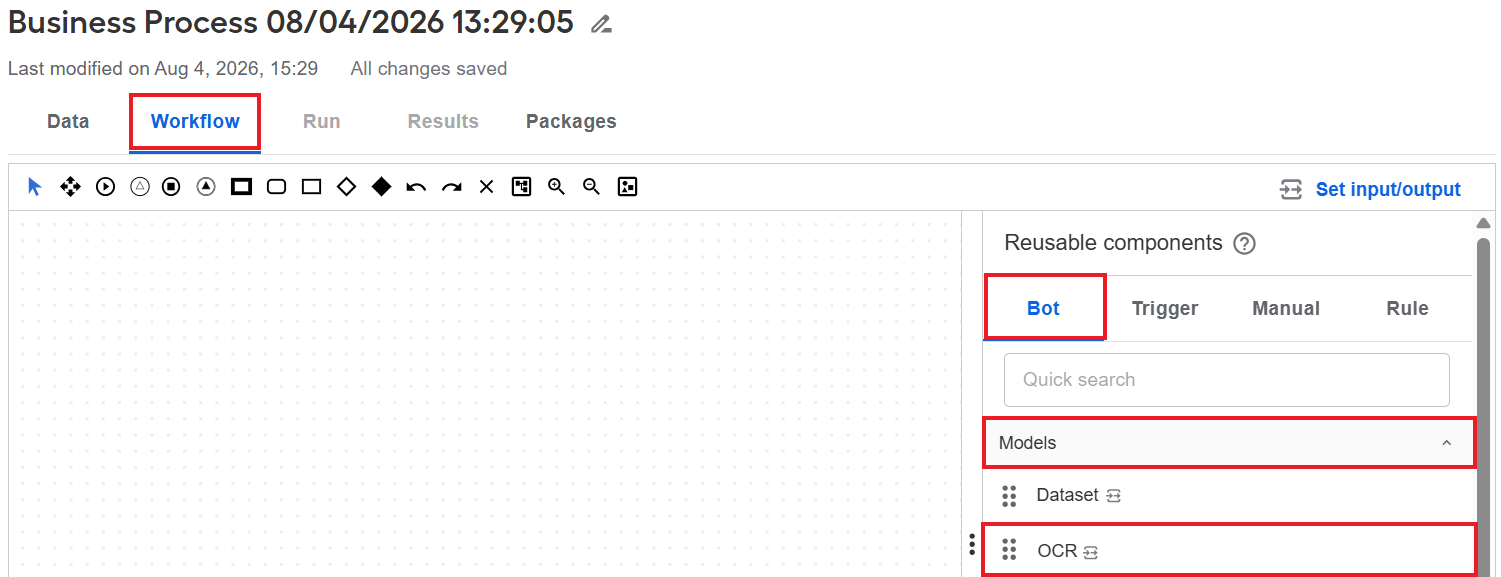
In the Reusable components panel on the right, go to the Bot tab and click Models to open the list of available no-code steps.
Add the OCR step to the Workflow Designer canvas in one of the following ways:
Copy an existing step. In the Reusable components panel, hover over the OCR step and click the displayed Copy button. As a result, you create an independent OCR step instance: the changes you make in the copy are not synchronized with the source.
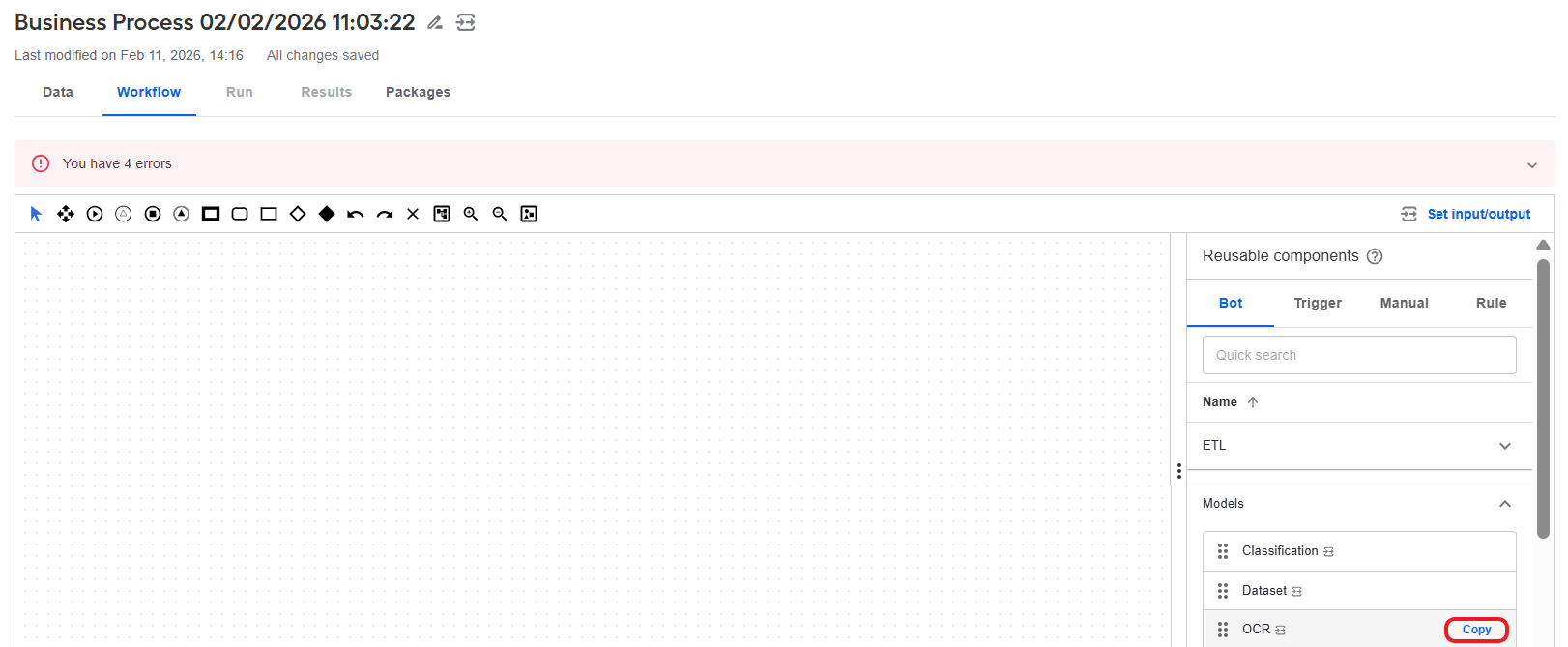
Reuse an existing step. Drag an existing OCR step from the Reusable components panel to the canvas. In this case, any changes you make to the step are applied across all BPs where the same step is included.
Double-click the step on the canvas and set a name for the step in the Bot step display name field.
Navigate to the Input / Output tab of the OCR step to set up the input and output contracts.
You do not need to set the step contracts if you set the contracts for the entire BP. For details, read the guide.
Go back to the Design tab and configure the OCR step parameters.
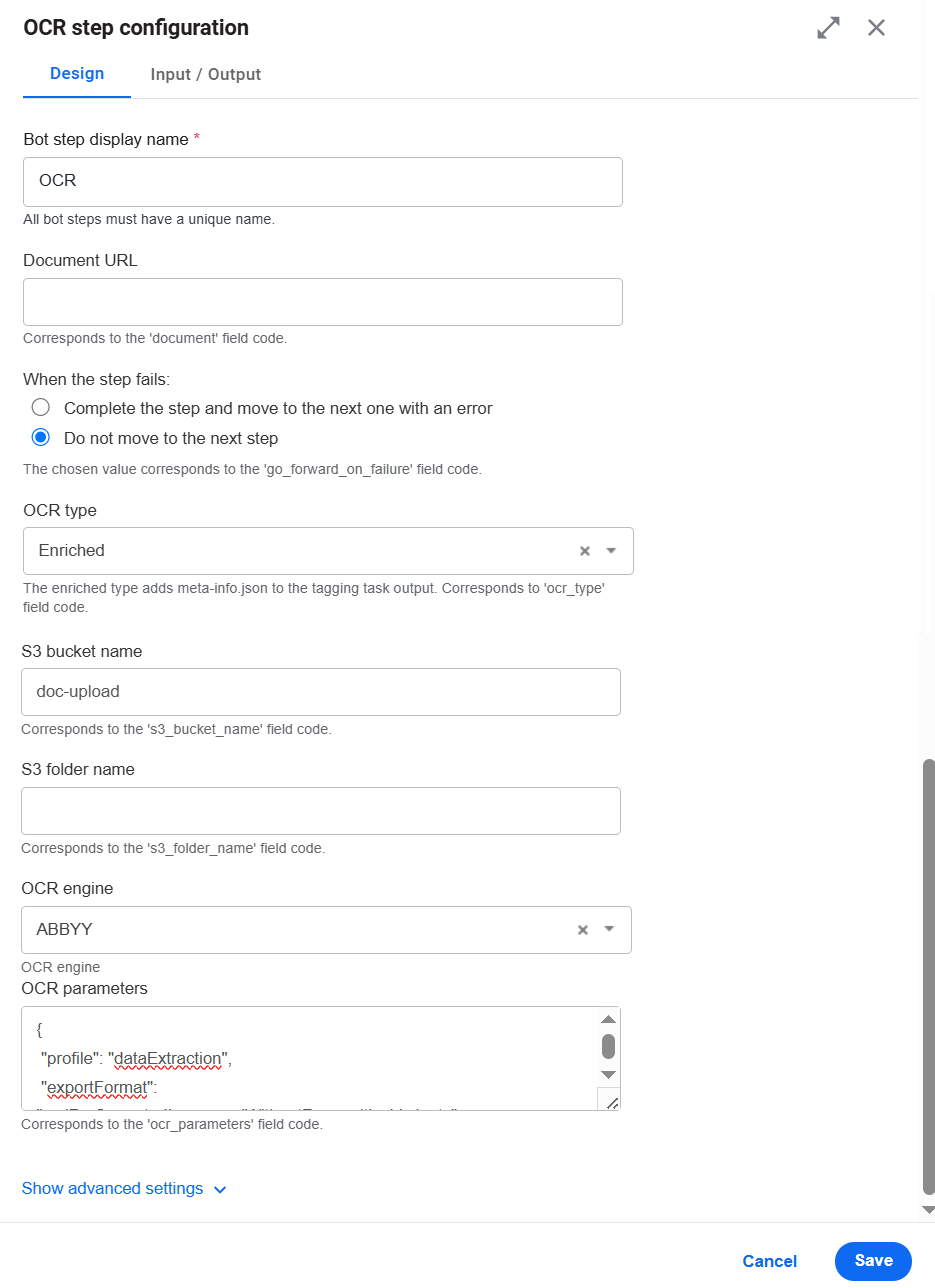
Click Save and Close to save the created OCR configuration.
For an end-to-end tutorial on creating a BP with no-code OCR, Model, and Manual Task steps, see the guide.
Configure OCR step
To configure an OCR step, double-click the step in the canvas to open the configuration window (if it is not open yet) and perform the following actions on the Design tab:
Set the OCR step input parameters.
Choose an OCR engine.
Set the OCR parameters corresponding to the chosen OCR engine.
Set step input parameters
| Parameter | Code | Default value | Description |
|---|---|---|---|
| Document URL | document_url | original_document_url | Specify the URL of the document to be processed by OCR. Typically, the data comes from the BP input. |
| When the step fails | go_forward_on_failure | Complete the step and move to the next one with an error (yes) | Specify the action to be done if the failure result is received. If you choose Complete the step and move to the next one with an error (set the code value to yes) and the failure answer is received, the step is completed, and an error message is sent to the next step. |
| OCR type | ocr_type | Enriched | Select Standard or Enriched. In the latter case, you enable preparing the OCR output for a labelling Manual Task. |
| S3 bucket name | s3_bucket_name | doc-upload | Specify the S3 bucket to store the OCR output. |
| S3 folder name | s3_folder_name | empty | Specify the S3 folder to store the OCR output. |
| OCR engine | ocr_provider | ABBYY | Select an OCR provider:
|
| OCR parameters | ocr_parameters | See OCR JSON sample | See the OCR parameters. |
Choose OCR provider
To configure an OCR provider, choose one from the OCR engine drop-down list and set the required paratemers. For details, read Set OCR parameters.
Work.AI supports the following OCR providers:
- ABBYY
- Azure AI Document Intelligence
- Google Vision
- Paddle OCR
Responses from Azure AI Document Intelligence, Google Vision, and Paddle OCR are converted to the ABBYY output format.
Azure AI Document Intelligence, Google Vision, and Paddle OCR are available only from the OCR step in the Control Tower user interface. ABBYY is available both from REST API and the OCR step.
For providers other than ABBYY, mind the following considerations:
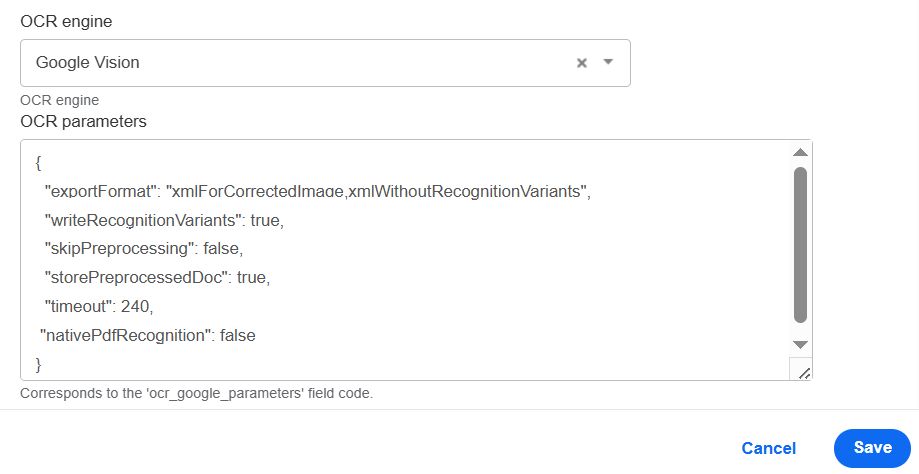
If you select Google Vision or Azure AI Document Intelligence, check that the default configuration includes the following parameters:
In the OCR type field, choose Enriched.
In the OCR parameters box, update the settings as follows:
exportFormat:xmlForCorrectedImage,xmlWithoutRecognitionVariantswriteRecognitionVariants:trueskipPreprocessing:falsestorePreprocessedDoc:truetimeout:60
Note: if any of these settings are not configured as listed, OCR throws an exception.
To use Google Vision or Azure AI Document Intelligence, set up additional Secrets Vault credentials.
If you select Paddle OCR, follow the instructions in the official PaddleOCR documentation to configure the parameters.
Note: The
ocr_versionparameter should be set toPP-OCRv5.
Set Secrets Vault credentials
The Work.AI platform does not manage Google secret keys and Azure credentials, so you must add them using one of the methods described below.
Method 1. New installation
As you install Work.AI, set the following properties in config.yml:
ocr_google_keyocr_azure_passwordocr_azure_endpoint
ocr_google_key must contain a Base64-encoded JSON Google key. Otherwise, escaping issues can occur in Ansible. If you pass the key as JSON or as separate properties, the private key can cause issues because it contains \n new lines and vault values with new lines.
Method 2. Existing installation
Set or create the same properties in config_overrides.yml in /opt/workfusion/wf_installer.
To override the parameters in the backup, run:
./install.sh install installer-backup -e @config_overrides.yml
To restart the OCR service with the parameters from config_overrides.yml, run:
./install.sh configure ocr -e @config_overrides.yml
If the steps above cause errors, make sure that the Ansible vault pass and key properties are set:
cd /opt/workfusion/wf_installer

export ANSIBLE_VAULT_PASS=$(cat config_overrides.yml | grep ansible_vault_password | cut -c 25- | tail -1)

export ANSIBLE_PRIVATE_KEY_FILE="id_rsa"
Set OCR parameters
The table below lists all available OCR provider parameters and their descriptions:
| Parameter | Values | Description |
|---|---|---|
profile | A scenario for fine-tuning the OCR engine to do a specific task. | |
documentConversion | Converts documents into editable formats. | |
textExtraction | Extracts text from documents. | |
barcodeRecognition | Extracts barcodes. | |
dataExtraction | The dataExtraction scenario is used to extract all possible data from a document and store it in a structured way. The result represents a document structure storing all document objects: printed and handwritten text, tables, barcodes, checkmarks, and images with their location and attributes. This format is optimal for further processing, storing data in a database, or integrating with another application. | |
exportFormat | xmlForCorrectedImage | Represents the OCR API export format. You can define multiple export formats using a comma as a separator: xml,xmlForCorrectedImage. For correct processing of a labelling MT, you cannot use more than three export formats. |
txt | It is the default export format. | |
xml | Contains characters or words along with their location in the original document (coordinates or frames). | |
xmlWithoutRecognitionVariants | The same as xml but does not contain character-related data. | |
xmlForCorrectedImage | The same as xml, except the location is taken from a processed or adjusted document. | |
pdfSearchable | ||
html | ||
language |
| Defines the default OCRed document language. You can also define multiple languages using a comma as a separator: English,German,Polish. |
correctOrientation | boolean | Detects the page orientation. If it differs from normal, the page is rotated automatically. |
writeRecognitionVariants | boolean | For the xml and xmlForCorrectedImage formats, provides variants of characters or words that OCR considers a possible recognition result. |
discardColorImage | boolean | Leaves only the black-and-white plane in a prepared image. |
skipPreprocessing | boolean | Disables all preprocessing steps for a document. The default value is false. If you set to true, the convertTo and changeDPI parameters are disabled. |
useDefaultPattern | boolean | If true, it requires applying the default pattern from the OCR application bundle. |
removeGarbageSize | integer | Removes garbage, such as excess dots smaller than a specific size. The setting is optional, and the valid values are > 0 and -1. |
lowResolutionMode | boolean | Improves the recognition of images with low resolution. |
enhanceLocalContrast | boolean | Specifies whether the local contrast of an image should be increased. |
convertTo | none | Automatically detects the file type and converts it to TIFF before processing. Accepts the PDF, PNG, JPG, JPEG formats. |
changeDPI | integer valid range from 50 to 3200 null or 0 for disable | Specifies the resolution value, for example, changeDPI=300. The recommended resolution for a source image is 300 DPI for typical texts (10 pt or larger) and 400-600 DPI for texts in smaller fonts (9 pt or smaller). |
storePreprocessedDoc | boolean | Specifies whether preprocessed documents should be saved in the data storage. |
textTypes |
| Specifies the type of the text in the document. You can define several text types using a comma as a separator: normal,matrix. |
timeout | integer | Sets the maximum allowed timeout in seconds for a single task execution by an OCR Worker. The timeout countdown starts when an OCR Worker begins executing a task. When the task execution exceeds the given timeout, the task is forcibly killed. If you do not set the value, the default value (0) is used, and your BP does not have time to process a task. |
detectLanguage | boolean | Specifies whether the OCR engine should automatically detect the recognition language of a text. Auto detection is intended to be used during the recognition of documents the language of which is not known to you. |
detectTextOnImage | boolean | Specifies whether the OCR engine should automatically detect text in images. |
detectHandwritten | boolean | Specifies whether the OCR engine should automatically detect handwritten text. |
detectCheckmarks | boolean | Specifies whether the OCR engine should automatically detect checkmarks. |
nativePdfRecognition | boolean | If set to true, all native PDFs are processed without OCR, which allows to save OCR license usage. If native_pdf_processing is set to true, the skipPreprocessing and convertTo parameters are disabled. Such parameters as changeDPI and storePreprocessedDoc take effect only after you save pages of an input PDF. |
In case of issues with input data, see the Issues related to input data support guide.
OCR JSON sample
Below is a JSON sample with default values you can find in the OCR parameters field:
{
    "profile": "dataExtraction",
    "exportFormat": "xmlForCorrectedImage,xmlWithoutRecognitionVariants",
    "language": "English",
    "correctOrientation": true,
    "writeRecognitionVariants": true,
    "discardColorImage": false,
    "skipPreprocessing": false,
    "removeGarbageSize": 0,
    "lowResolutionMode": false,
    "enhanceLocalContrast": false,
    "changeDPI": 0,
    "storePreprocessedDoc": true,
    "textTypes": [
        "normal",
        "handwritten"
    ],
    "timeout": 240,
    "detectLanguage": true,
    "detectTextOnImage": true,
    "detectHandwritten": true,
    "detectCheckmarks": true,
    "nativePdfRecognition": false
}
Review output
OCR result: document processing results in the JSON format
Code:
ocr_resultExample:
{
    "originalDocument": "https://HOSTNAME-s3-ui.cloud.workfusion.com/buckets/doc-upload/browse/1.pdf",
    "documents": {
        "xmlForCorrectedImage": "https://HOSTNAME-s3-ui.cloud.workfusion.com/buckets/doc-upload/browse/bp-id/task-id/1- xmlForCorrectedImage.xml",
        "xmlWithoutRecognitionVariants": "https://HOSTNAME-s3-ui.cloud.workfusion.com/buckets/doc-upload/browse/bp-id/task-id/1-xmlWithoutRecognitionVariants.xml"
    },
    "pageDetails": "https://HOSTNAME-s3-ui.cloud.workfusion.com/buckets/doc-upload/browse/bp-id/task-id/preprocessed/links.json"
}
Task ID: the ID of an OCR task
- Code:
task_id - Example:
066416ed-20e8-4e96-9df1-7f7e133f1211
- Code:
Meta info JSON: extended info for the labelling Manual Task
- Code:
meta_info_json - Example:
{
    "pages": "https://HOSTNAME-s3-ui.cloud.workfusion.com/buckets/doc-upload/browse/bp-id/task-id/preprocessed/links.json",
    "ocrXmlUrl": "https://HOSTNAME-s3-ui.cloud.workfusion.com/buckets/doc-upload/browse/bp-id/task-id/1-xmlWithoutRecognitionVariants.xml",
    "imageUrl": "https://HOSTNAME-s3-ui.cloud.workfusion.com/buckets/doc-upload/browse/1.pdf"
}- Code:
Process time: record process time in milliseconds
- Code:
_sys_ocr_process_time - Example:
24053
- Code:
See an output JSON sample for https://HOSTNAME-s3-ui.cloud.workfusion.com/buckets/doc-upload/browse/bp-id/task-id/preprocessed/links.json below:
[
    {
        "imgUrl": "https://HOSTNAME-s3-ui.cloud.workfusion.com/buckets/doc-upload/browse/bp-id/task-id/preprocessed/1.png",
        "charsUrl": "https://HOSTNAME-s3-ui.cloud.workfusion.com/buckets/doc-upload/browse/bp-id/task-id/preprocessed/1.json",
        "height": 3300,
        "width": 2550,
        "charsCount": 2216
    }
]
To set your Java Native Worker to work with the OCR step data, use the respective dependency from the WorkFusion's repository:
<groupId>com.workfusion.spa</groupId>
<artifactId>bridge-step-contracts</artifactId>
Using the library facilitates the implementation and reduces the time to production for such solutions.
Set up OCR REST configuration properties
The Azure, Google Vision, and Paddle OCR providers are available only from the OCR step. ABBYY is available both from REST API and the OCR step.
| Property | Default value | Description |
|---|---|---|
execution.bridge.task.queue | exec.<CT_HOST>.result.ocr | Name of the OCR step queue |
execution.bridge.prefetch.count | 100 | Prefetch count of the OCR step queue |
execution.bridge.thread.count | 20 | Count of threads for consuming messages of the OCR step queue |