Media Check API
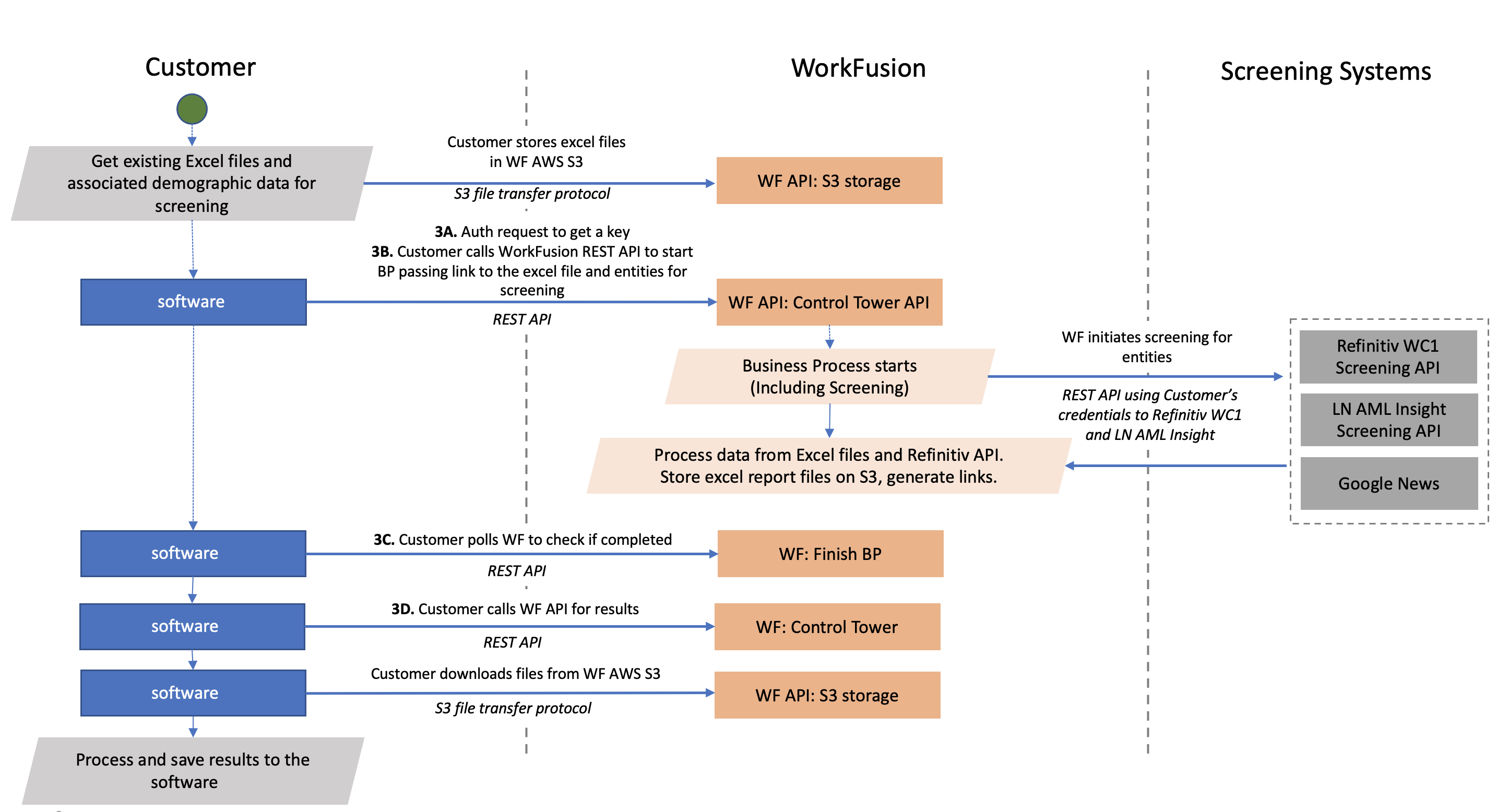
The page describes the process designed to enable the following:
Accept Excel files and associated elements with demographic data from a client's system.
Use the Excel files and associated elements for a Business Process (BP) hosted by WorkFusion.
As part of a BP, screen the names of customers, shareholders, and so on, using Refinitiv WorldCheck One, LexisNexis AML Insight, and Google News.
Dispose of all screening results with a false positive, escalation decision, or no decision.
Provide a human-readable justification for each disposition decision.
Send the process results to the client's software for eventual upload to downstream Case Management Systems.
Get data Excel files for screening
The input data is an Excel file with buyer or seller data used by WorkFusion Media Check Processing. See the example below:
You can get the data from a file storage:
S3 Manager associated with Work.AI
File storage outside of Work.AI
File storages outside Work.AI
A client's server can host input data files. However, Work.AI needs to access the files using traditionally accepted methods:
AWS S3
When using AWS S3, Work.AI can access the stored files with the client-provided credentials in the following format:
Access key: HHVDVFJFT3GHHJKJ43FG
Secret Key: KNJkljJHGJHgjhJGHKjgy666RryfrftFk6589890
HTTP
In the case of providing HTTP links, Work.AI can access the stored files with the client-provided credentials in the following format:
Username and password authentication:
headers: {
        username: USERNAME,
        password: PASSWORD
        }
Secret key in the HTTP headers:
headers: {
        secret-key: secretKey
        }
Secret key specified as a GET parameter in the link to the file:
https://client_domain.com/media_check_input_data/file1.xlsx?key=JKJH778sdfusdf678f678dfs78s^yjhhjwdkl754HMAC-based one-time password:
API_KEY = c3b290df-d560-493c-86ca-0ab552f24490a
SECRET = 06d9BLvnPwpj/DFKJ6iGb5oiFO7wZK+dl+C9aflIu/9DIXMXqEyR0Qi1y5BjFi8NcSJl4b62vpK9v3JB1223339g==

headers: {
        authorisation: Signature keyId="${API_KEY}",algorithm="hmac-sha256",headers="(request-target) host date",signature="${HMAC_GENERATED_SIGNATURE_VIA_SECRET}"
        }
FTP
If an FTP server is used for storing input files, Work.AI downloads these files with the credentials provided by the client:
Protocol: FTP / SFTP
Port: 21
host: ftp://client_domain.com
remote root: /www/media_check_input_data/
username: USERNAME
password: PASSWORD
At the end of execution, the BP saves the updated files to the S3 Manager application at https://HOSTNAME-s3-ui.cloud.workfusion.com.
The BP generates a final report with temporary links to these files. You can retrieve the report via API. See Check results for more details.
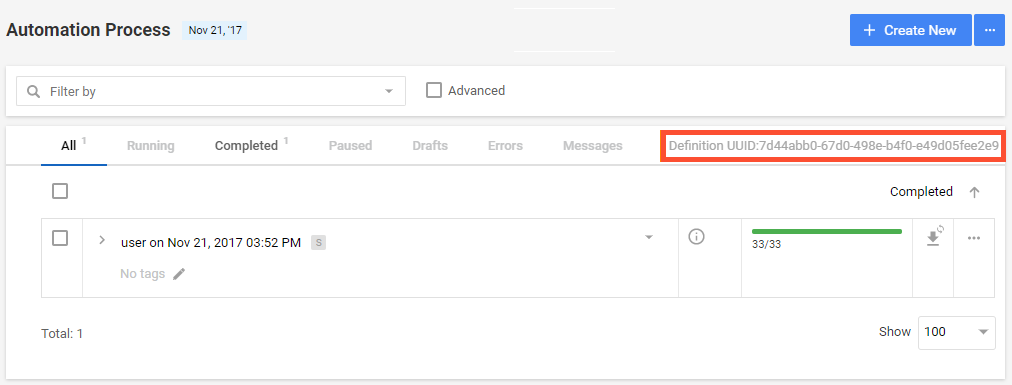
Obtain Business Process UUID
Each operation, such as an executed BP, has a unique identifier (UUID) that takes the following format: db1cf0a8-1be4-4342-aec9-4bb0197bc9f1. To obtain the UUID for a soecific BP, follow the steps below:
In Control Tower, go to Business Processes > View All and choose a BP.
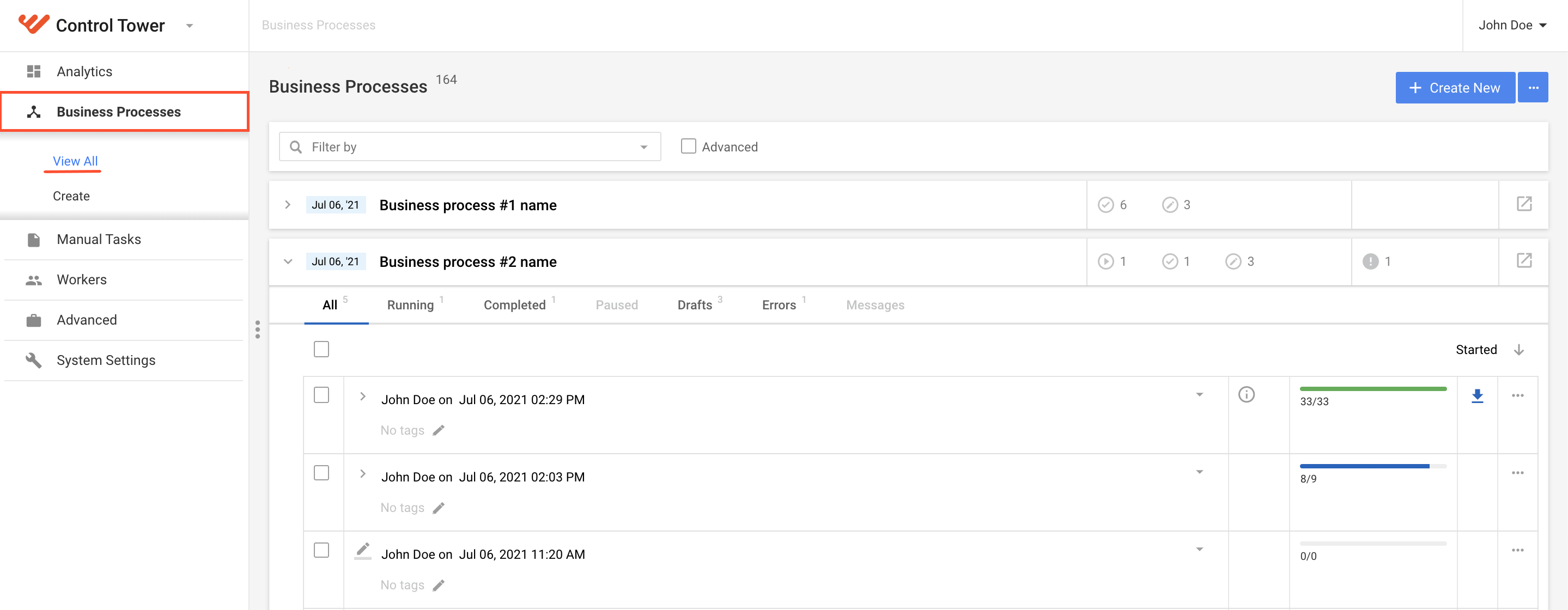
Click the button shown below to open its definition:
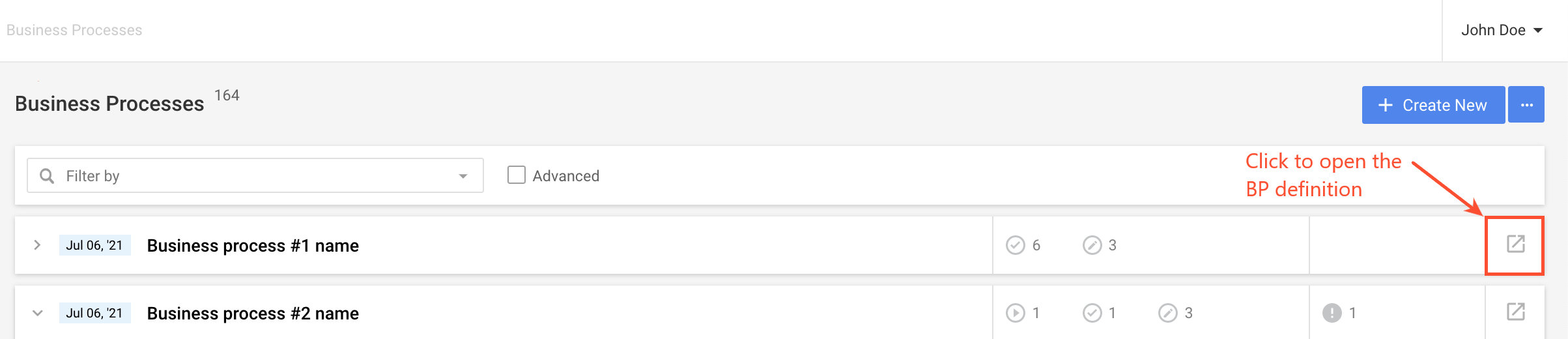
The BP Definition opens in a new tab, and the UUID is displayed. You can copy and later use the UUID to make API requests to a specific BP.
Use Business Process API
Always begin requests with HTTPS://.
Get authentication key
For authentication details, see WorkFusion REST API | API security.
Start Business Process
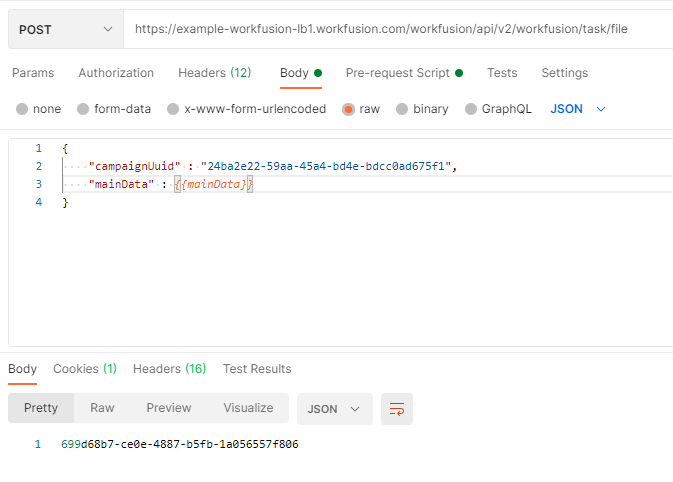
Once logged in, call WorkFusion REST API to start the BP while passing a link to the CSV file with associated entities for screening.
The command to start the BP takes the following form:
Method:
POSTURL:
https://HOSTNAME/workfusion/api/v2/workfusion/task/fileHeaders required:
JSESSIONIDfrom the Auth API responseX-CSRF-TOKENfrom the Auth API responseContent-Typein the following format: application/JSON; charset=utf-8
Body:
JSON object
{
    "campaignUuid" : "UUID of the combined UC campaign",
    "mainData" : "CSV file rendered as a text"
}

// Example of building a mainData string
var main_data_example = "wf_screening_input\n" + // column name
    "file_s3_path_1\n" +
    "file_s3_path_2";

var mainData = JSON.stringify(main_data_example ));
Response: UUID of the started BP
Postman example:
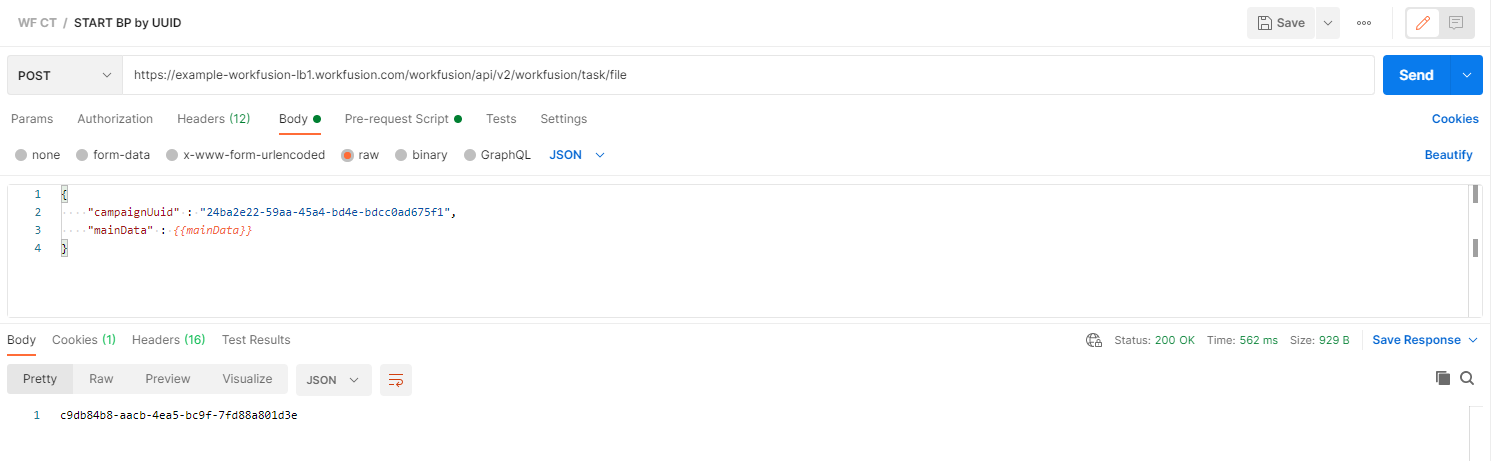
The return of a UUID indicates the successful start of the BP with the provided CSV file. For more details, refer to Start Business Process.
Check status
Once the BP is underway, it is necessary to continually check its status to determine when it is completed.
It is recommended to ping the endpoint using the following structure every 3-5 minutes based on the expected execution duration.
Method:
GETURL:
https://HOSTNAME/workfusion/api/v2/workfusion/task/{uuid}/stepsRequired headers:
JSESSIONIDfrom the Auth API responseX-CSRF-TOKENfrom the Auth API responseContent-Typein the following format: application/JSON; charset=utf-8
Response: an array of JSON objects that represent each step of the started BP.
[
    {
        "title": "Step 1",
        "stepIndex": 1,
        "runUuid": "uuid",
        "runStatus": "COMPLETED",
        "campaignUuid": "uuid",
        "type": "MACHINE",
        "finalStep": false,
        "stepPosition": "START",
        "componentUuid": "uuid",
        "versionUuid": "uuid"
    },
    ...,
    {
        "title": "Step 5",
        "stepIndex": 5,
        "runUuid": "uuid",
        "runStatus": "COMPLETED",
        "campaignUuid": "uuid",
        "type": "MACHINE",
        "finalStep": true,
        "stepPosition": "END",
        "componentUuid": "uuid",
        "versionUuid": "uuid"
    }
]
The BP indicates the completion when the final step is reached with the completed status.
"finalStep": true
"runStatus": "COMPLETED"
If you receive "runStatus": null in the response, it means the BP has failed with an error, and additional investigation is required. Log in to Control Tower and investigate the problem, including analyzing logs.
For more details, check process API.
Check results
To pull the BP results or look at a snapshot with a specific UUID in the CSV or XLSX format, use the following structure:
Method:
GETURL:
https://HOSTNAME/workfusion/api/v2/workfusion/task/{uuid}/snapshot/CSVRequired headers:
JSESSIONIDfrom the Auth API responseX-CSRF-TOKENfrom the Auth API responseContent-Typein the following format:application/JSON; charset=utf-8
Response: this operation returns a binary object that can be converted into an Excel table or a CSV file.
{
    "content": "...",
    "contentType": "text/csv"
}

// Example how you can do it in JS
function retrieveSnapshot(processUuid) {
   retriveSnapshotUrl= instanceBaseUrl + "/api/v2/workfusion/task/{uuid}/snapshot/CSV";
   var startProcessPromise = $.ajax({
     type: "GET",
     url: retriveSnapshotUrl.replace("{uuid}", processUuid),
     contentType: 'text',
     headers: {...},
     dataType: 'text',
     cache:false,
     async: true
   });
 startProcessPromise.then(snapshotRetrieveSuccess, snapshotRetrieveError);
};

function snapshotRetrieveSuccess (response){
   var decodedResponseString = atob(JSON.parse(response).content);
};
The resulting file contains links to the initial files updated with the resolutions and justifications for acceptance or rejection from WorkFusion Media Check BP processing.
Process results
The updated files have to be uploaded to the Client's system based on the business and process requirements so that relevant analysts can process alerts.
Follow-up on concerns
For assistance with understanding the Media Check API results or for diagnosing rejected requests, contact Customer Support.