Automate dynamic web tables
A table is a kind of HTML data displayed with the help of the <table> tag in conjunction with the <tr> and <td> tags. Although there are other tags for creating tables, these are the basics for creating a table in HTML:
<tr>defines a row.<td>specifies a column cell of a table. Each cell in the Excel sheet can be represented as<td>in the HTML table. The<td>elements are the data containers that can enclose all sorts of HTML elements like text, images, lists, other tables, and so on.
An Excel sheet is a simple example of table structures. Whenever you put some data to Excel, you add some heading as well. In HTML, the <th> tag is used for headings.
See the code for a table without a heading:
<table border="1" width="100%">
        <tbody>
                <tr>
                        <td>Automation Tool</td>
                        <td>Licensing</td>
                        <td>Notes</td>
                </tr>
                <tr>
                        <td>RPA Express</td>
                        <td>Free</td>
                        <td>Can be extended with multiple bots</td>
                </tr>
                <tr>
                        <td>WorkFusion SPA</td>
                        <td>Commercial</td>
                        <td>Contains Cognitive component</td>
                </tr>
        </tbody>
</table>
The <th> tag stands for a table cell heading and is used instead of <td> when the cell content is a heading instead of the actual cell data.
It is the obvious choice inside the <thead> element that can contain, for example, the first row of your table, but you can also use it for the first column to indicate table row headings.
The <tfoot> table footer is always displayed under the <tbody>, even if its code is before the table body. A table can have a name given using the <caption> tag.
See the code for a table with a heading:
<table border="1" width="100%">
        <caption>Sample Table</caption>
        <thead>
                <tr>
                        <th>Automation Tool</th>
                        <th>Licensing</th>
                        <th>Notes</th>
                </tr>
        </thead>
        <tfoot>
              <tr>
                <td colspan="3"><em>Public Info</em></td>
              </tr>
        </tfoot>
        <tbody>
                <tr>
                        <td>RPA Express</td>
                        <td>Free</td>
                        <td>Can be extended with multiple bots</td>
                </tr>
                <tr>
                        <td>WorkFusion SPA</td>
                        <td>Commercial</td>
                        <td>Contains Cognitive component</td>
                </tr>
        </tbody>
</table>
To handle dynamic web tables, first, inspect the table cell and get its HTML location. In most cases, tables contain text data, and you can extract the data given in each row or column of the table.
Sometimes, tables have links or images. You can perform any action on those elements if you find the HTML location of the containing cell. For a sample, refer to the automation practice table page.
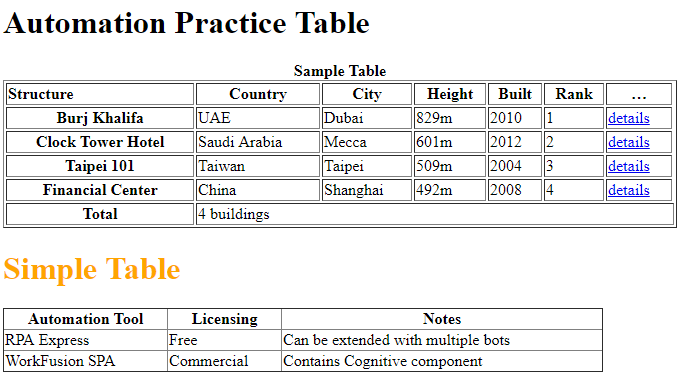
Example 1
Let’s take the above table and choose Row 2 Column 3 cell (Dubai):
//*[@id="content"]/table/tbody/tr[1]/td[2]
If you divide the XPath into three different parts, you have:
- Table location on the web page:
//*[@id="content"]/. - Table body (data):
table/tbody/. - Table row 1 and table column 2 (the first visible row is in
<thead>, and the first visible column is<th>):tr[1]/td[2]
If you use this XPath, you get the specified table cell. To get the "Selenium" text from the table cell, use the getText() method of the WebDriver element:
RPA.open("https://rpa-tutorial.s3.amazonaws.com/trainings/table-automation.html");
String cellText = $(By.xpath("//*[@id='content']/table/tbody/tr[1]/td[2]")).getText();
Example 2
Tables can contain a large amount of data, and you may need to pass rows and columns dynamically.
In that case, build your XPath using variables:
RPA.open("https://rpa-tutorial.s3.amazonaws.com/trainings/table-automation.html");
int sRow = 1;
int sCol = 2;
String cellText = $(By.xpath("//*[@id='content']/table/tbody/tr[" + sRow + "]/td[" + sCol + "]")).getText();
Example 3
If the row and columns are dynamic, and all you know is the Text value of any cell, take out the corresponding values of that particular cell.
For example, you have to record all possible values in the "Licensing" column from the above example.
import com.workfusion.odf2.compiler.BotTask;
import com.workfusion.odf2.core.task.AdHocTask;
import com.workfusion.odf2.core.task.TaskInput;
import com.workfusion.odf2.core.task.output.TaskRunnerOutput;
import com.workfusion.odf2.core.webharvest.rpa.RpaDriver;
import com.workfusion.odf2.core.webharvest.rpa.RpaFactory;
import com.workfusion.odf2.core.webharvest.rpa.RpaRunner;
import com.workfusion.rpa.driver.Driver;
import com.workfusion.rpa.helpers.RPA;
import com.workfusion.rpa.helpers.UiElement;
import com.workfusion.rpa.helpers.UiElementCollection;
import org.openqa.selenium.By;
import org.openqa.selenium.WebElement;
import org.openqa.selenium.support.ui.Select;
import org.slf4j.Logger;

import javax.inject.Inject;
import java.util.ArrayList;
import java.util.Arrays;
import java.util.List;
import java.util.Set;

import static com.workfusion.rpa.helpers.RPA.*;
import static com.workfusion.rpa.helpers.UiSelectors.byImage;
import static com.workfusion.rpa.helpers.UiSelectors.byText;


@BotTask(requireRpa = true)
public class AutomateWebElements implements AdHocTask {

  private final RpaRunner rpaRunner;
  private final Logger logger;

  @Inject
  public AutomateWebElements(RpaFactory rpaFactory, Logger logger){
    this.rpaRunner = rpaFactory
            .builder(RpaDriver.UNIVERSAL)
            .closeOnCompletion(true)
            .build();
    this.logger = logger;
  }

  @Override
  public TaskRunnerOutput run(TaskInput taskInput) {

    rpaRunner.execute(driver->{
      this.automateDynamicWebTablesExample3(driver);
    });

    return taskInput.asResult()
            .withColumn("example_bot_task_output", "completed_successfully");
  }

  private void automateDynamicWebTablesExample3(Driver driver){
    RPA.timeouts(15 * 1000);
    RPA.openChrome("https://rpa-tutorial.s3.amazonaws.com/trainings/table-automation.html");
    this.popAlert(driver," Dynamic Web Tables Example 3 ");
    String colHeading = "Licensing";
    List<String> columnValues = new ArrayList<>();
    String tBodyXpath = "//*[@id='main']/div[2]/div/div[2]/table/tbody";
    int totalRows = $$(By.xpath(tBodyXpath+"/tr")).size();

    for(int i=1;i<=3;i++) {

      String sValue = $(By.xpath(tBodyXpath+"/tr[1]/th[" + i + "]")).getText();

      if(sValue.equalsIgnoreCase(colHeading)) {
        // If the sValue match with the description, it will initiate one more inner loop for all the columns of 'i' row
        for(int j=2; j<=totalRows; j++){
          String tempVal = $(By.xpath(tBodyXpath+"/tr["+ j + "]/td["+ i+ "]")).getText();
          columnValues.add(tempVal);
        }
        break;
      }
    }
    this.popAlert(driver,columnValues.toString());
  }
  private void popAlert(Driver driver,String popupMessage){
    driver.switchDriver("chrome");
    //Switch to default content inorder to work with alert if already on a IFrame
    RPA.switchTo().defaultContent();String script = popupMessage;
    driver.executeScript("alert(arguments[0])",script);
    RPA.sleep(3000);
    RPA.switchTo().alert().accept();
  }

}
Example 4
Click the Detail link of the first row and the last column.
RPA.open("https://rpa-tutorial.s3.amazonaws.com/trainings/table-automation.html");
$(By.xpath("//*[@id='content']/table/tbody/tr[1]/td[6]/a")).click();
Example 5
Get the value from the Dubai cell using a dynamic XPath.
Print all the column values of the Clock Tower Hotel row.
import com.workfusion.odf2.compiler.BotTask;
import com.workfusion.odf2.core.task.AdHocTask;
import com.workfusion.odf2.core.task.TaskInput;
import com.workfusion.odf2.core.task.output.TaskRunnerOutput;
import com.workfusion.odf2.core.webharvest.rpa.RpaDriver;
import com.workfusion.odf2.core.webharvest.rpa.RpaFactory;
import com.workfusion.odf2.core.webharvest.rpa.RpaRunner;
import com.workfusion.rpa.driver.Driver;
import com.workfusion.rpa.helpers.RPA;
import com.workfusion.rpa.helpers.UiElement;
import com.workfusion.rpa.helpers.UiElementCollection;
import org.openqa.selenium.By;
import org.openqa.selenium.WebElement;
import org.openqa.selenium.support.ui.Select;
import org.slf4j.Logger;

import javax.inject.Inject;
import java.util.ArrayList;
import java.util.Arrays;
import java.util.List;
import java.util.Set;

import static com.workfusion.rpa.helpers.RPA.*;
import static com.workfusion.rpa.helpers.UiSelectors.byImage;
import static com.workfusion.rpa.helpers.UiSelectors.byText;
@BotTask(requireRpa = true)
public class AutomateWebElements implements AdHocTask {

    private final RpaRunner rpaRunner;
    private final Logger logger;

    @Inject
    public AutomateWebElements(RpaFactory rpaFactory, Logger logger){
        this.rpaRunner = rpaFactory
                .builder(RpaDriver.UNIVERSAL)
                .closeOnCompletion(true)
                .build();
        this.logger = logger;
    }

    @Override
    public TaskRunnerOutput run(TaskInput taskInput) {

        rpaRunner.execute(driver->{
            this.automateDynamicWebTablesExample5(driver);
        });

        return taskInput.asResult()
                .withColumn("example_bot_task_output", "completed_successfully");
    }

    private void automateDynamicWebTablesExample5(Driver driver){
        RPA.timeouts(15 * 1000);
        RPA.openChrome("https://rpa-tutorial.s3.amazonaws.com/trainings/table-automation.html");
        this.popAlert(driver," Dynamic Web Tables Example 5 ");
        int sRow = 1;
        int sCol = 2;
        List<String> sColumnValue = new ArrayList<>();

        //Here we are locating the xpath by passing variables in the xpath
        String sCellValue = $(By.xpath("//*[@id='content']/table/tbody/tr[" + sRow + "]/td[" + sCol + "]")).getText();
        this.popAlert(driver," Cell Value row 1 and col 2 " + sCellValue);
        String sRowValue = "Clock Tower Hotel";

        //First loop will find the 'ClOCK TOWER HOTEL' in the first column
        for (int i=1; i<=5; i++) {
            String sValue = "";
            sValue = $(By.xpath(".//*[@id='content']/table/tbody/tr[" + i + "]/th")).getText();
            if(sValue.equalsIgnoreCase(sRowValue)){
                // If the sValue match with the description, it will initiate one more inner loop for all the columns of 'i' row
                for (int j=1; j<=5; j++){
                    String temp = $(By.xpath(".//*[@id='content']/table/tbody/tr[" + i + "]/td["+ j +"]")).getText();
                    sColumnValue.add(temp);
                }
                break;
            }
        }
        this.popAlert(driver,sColumnValue.toString());
    }

    private void popAlert(Driver driver,String popupMessage){
        driver.switchDriver("chrome");
        //Switch to default content inorder to work with alert if already on a IFrame
        RPA.switchTo().defaultContent();String script = popupMessage;
        driver.executeScript("alert(arguments[0])",script);
        RPA.sleep(3000);
        RPA.switchTo().alert().accept();
    }
}
```
Example 6
Get the HTML Table Example table.
Put each table row into Export as a separate column (variable).
<?xml version="1.0" encoding="UTF-8"?>
<config xmlns="http://web-harvest.sourceforge.net/schema/1.0/config" scriptlang="groovy">

    <robotics-flow>
        <!-- Internet explorer driver -->
        <robot name="webDriver" driver="internet explorer" close-on-completion="true" start-in-private="true">
            <script><![CDATA[
                timeouts(15 * 1000)
                open("http://www.w3schools.com/html/html_tables.asp")
                pageSource = driver().getPageSource()
            ]]></script>
        </robot>
    </robotics-flow>

    <var-def name="xmlSource">
        <html-to-xml>
            <script return="pageSource" />
        </html-to-xml>
    </var-def>

    <var-def name="tableXml">
        <xpath expression="//table[@id='customers']">
            <script return="xmlSource" />
        </xpath>
    </var-def>

    <script><![CDATA[
        rpaVariables = new HashMap()
        rpaVariables.put("source", xmlSource.toString())
        rpaVariables.put("tableXml", tableXml.toString())
    ]]></script>

    <loop item="rowXml" index="idx">
        <list>
            <xpath expression="//tr">
                <script return="tableXml" />
            </xpath>
        </list>
        <body>
            <script><![CDATA[
                 values = new ArrayList()
            ]]></script>

            <loop item="valString">
                <list>
                    <xpath expression="//td/text()">
                        <var name="rowXml" />
                    </xpath>
                </list>
                <body>
                    <script><![CDATA[
                        values.add(valString.toString())
                    ]]></script>
                </body>
            </loop>

            <script><![CDATA[
                rpaVariables.put("column_" + idx.toString(), values.toString())
            ]]></script>
        </body>
    </loop>

    <!-- Export values to the output CSV file -->
    <export include-original-data="true">
        <loop item="rpaVar">
            <list>
                <script return="keys">
                    keys = new ArrayList(rpaVariables.keySet())
                </script>
            </list>
            <body>
                <single-column name="${rpaVar}">
                    <template>${rpaVariables.get(rpaVar.toString())}</template>
                </single-column>
            </body>
        </loop>
    </export>
</config>