Get started with Workspace
The guide is a quickstart instruction describing major Workspace features and its typical workflow.
Learn about Workspace features
Workspace is a multifunctional web application integrated into the WorkFusion's platform to implement its human-in-the-loop capability—perform the work that machines cannot do, such as decision-making.
Using Workspace, operations specialists can fulfill their daily assignments, such as handling various documents—invoices, IDs, claims, insurance applications, and so on. The application enables them to manage the assignments in the following ways:
In this application, all relevant information is brought together for you to analyze and verify a case in a few clicks. If the output of a bot contains new customer data or a document with a mistake requiring special care, Workspace allows you to review the output and approve or reject it in your assignment.
The application is also used to collect datasets for model training and compare the output with data stored in other systems—all in one place. Thus, it contributes to data collection, further model training, and improvement of the automatic data extraction quality.
Using Workspace, you can manipulate and adjust the workflow by prioritizing tasks, creating custom queues, and applying custom filters according to business needs, priority, or seasonal spikes.
Workspace operates based on the following principles:
- An intuitive user interface (UI) creates a new working environment where you can select and perform tasks and manage workflows.
- Workspace boasts integration with the WorkFusion platform and Analytics. It receives input from the platform and displays tasks for a human worker. The output is handled further by the platform and displayed in the analytics dashboards in Control Tower or directly from the Workspace interface.
- To access any Workspace functionality, each user must have a role and permissions assigned. The roles are assigned via the WorkFusion's user management system. Permissions are set in Workspace by users with the Administrator role. For details, refer to the Manage Workspace roles and permissions article.
- Workspace features a configurable navigation panel you can design yourself, depending on the data and type of documents you handle.
- Filtering assignments according to business attributes means that you can set filters to process tasks from particular customers, regions, or categories.
- The drag-and-drop approach for exceptions handling refers to the procedure of processing data that is not recognized automatically and can be entered by clicking or highlighting in a processed document.
- Workspace allows integration with other business applications, for example, customer databases, to collect all reference data to resolve a specific case in one place.
Explore typical workflow
Depending on assigned user roles and permissions, specific Workspace functionality and UI elements may or may not be available. For details, refer to the Manage Workspace roles and permissions article.
The typical workflow is as follows:
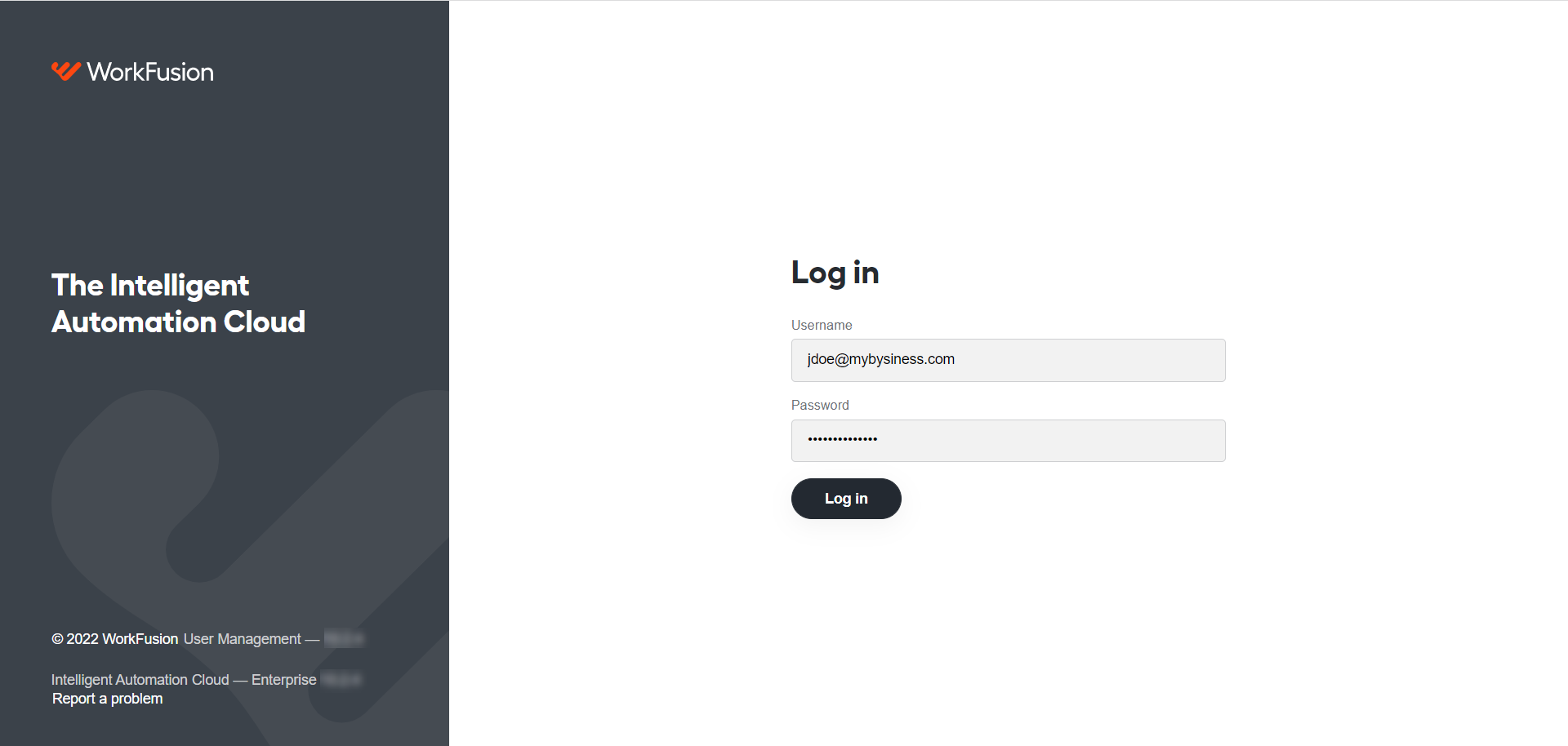
Log in to the Workspace application.
- Enter your username (either username or email).
- Click Log in.
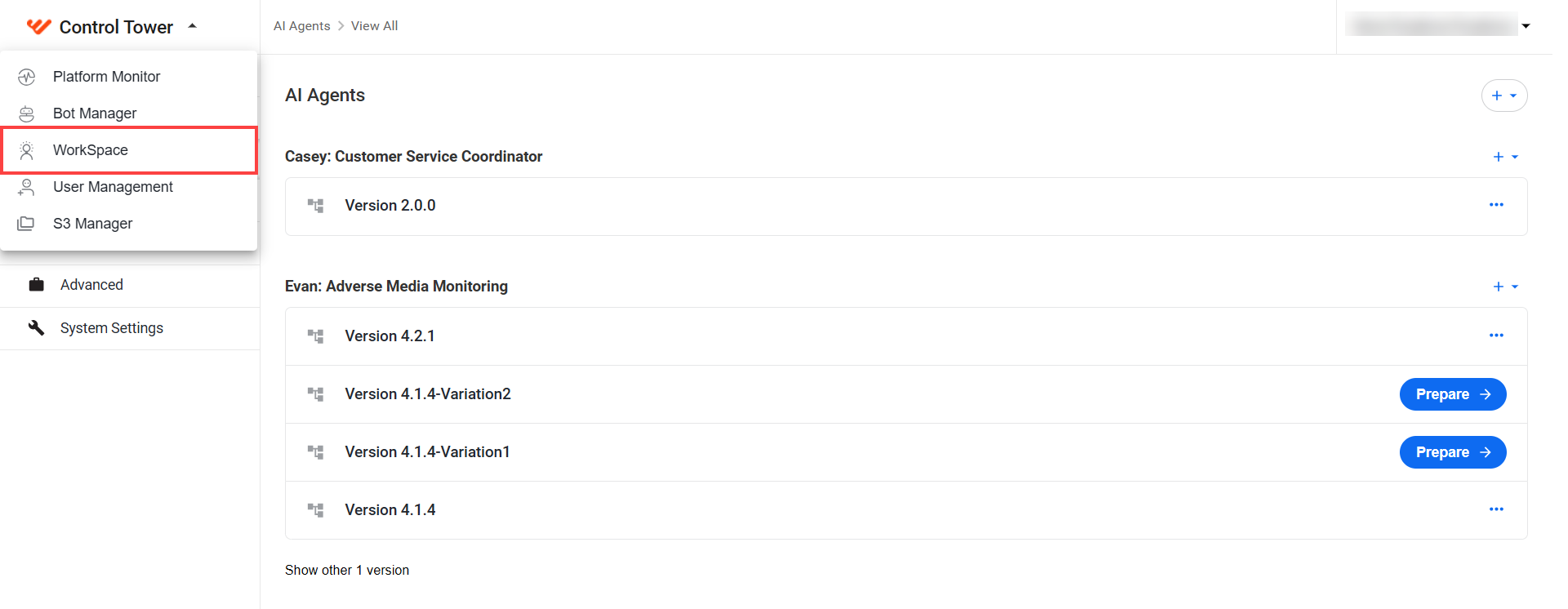
You can also access Workspace from the Control Tower application. Go to Control Tower, click the dropdown menu in the upper-left corner, and select Workspace.
View available assignments in the assignment list grouped under the All assignments tab.
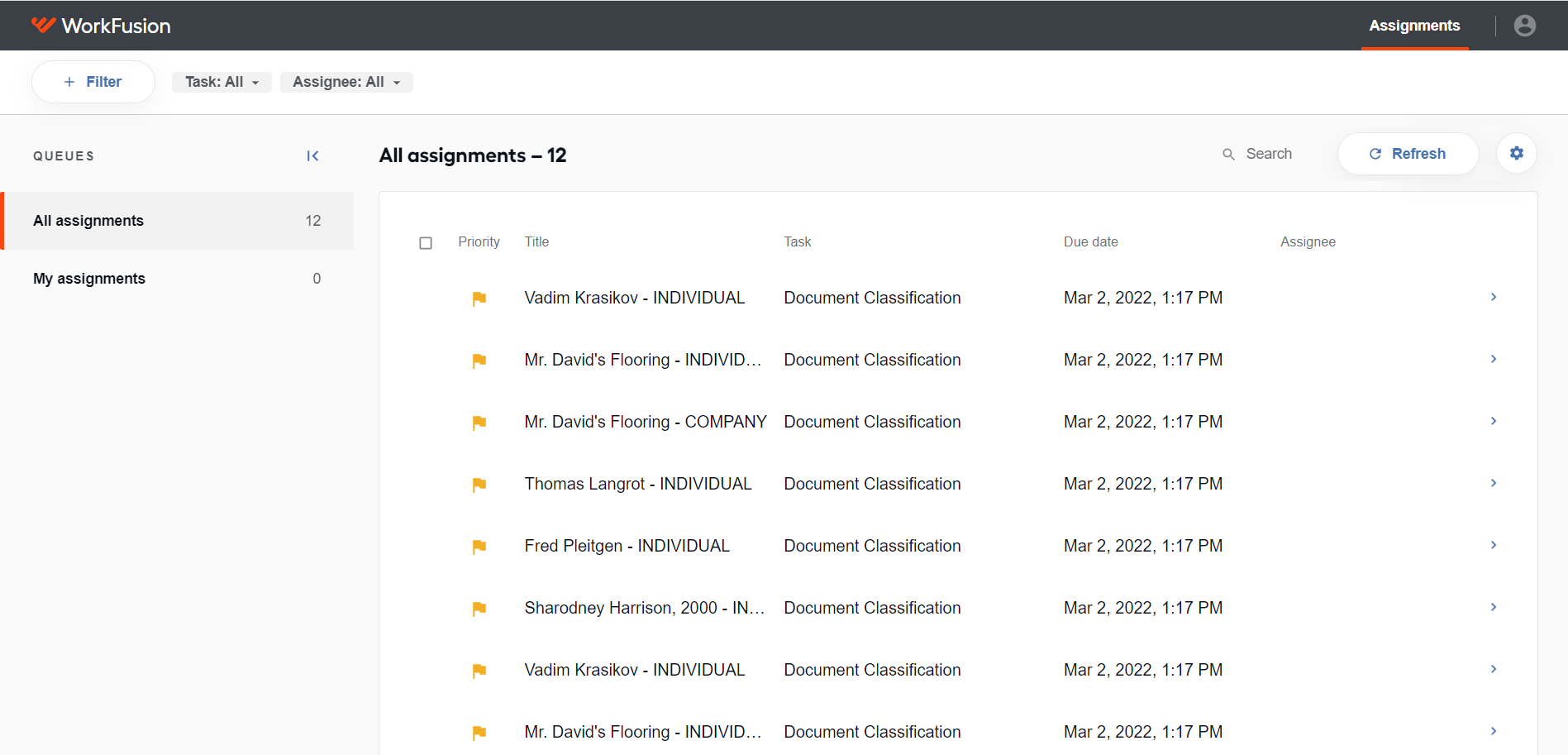
Select assignments to process and save your choice:
- Filter assignments by business attributes or configure the sorting options to adjust the order or type of assignments.

- Save your custom queue.
To process an assignment, select it in the queue. On the individual assignment screen, you have several available options:
- Proceed with the labeling of the document and submit the assignment.
- Return the assignment to the queue.
- Skip the assignment.
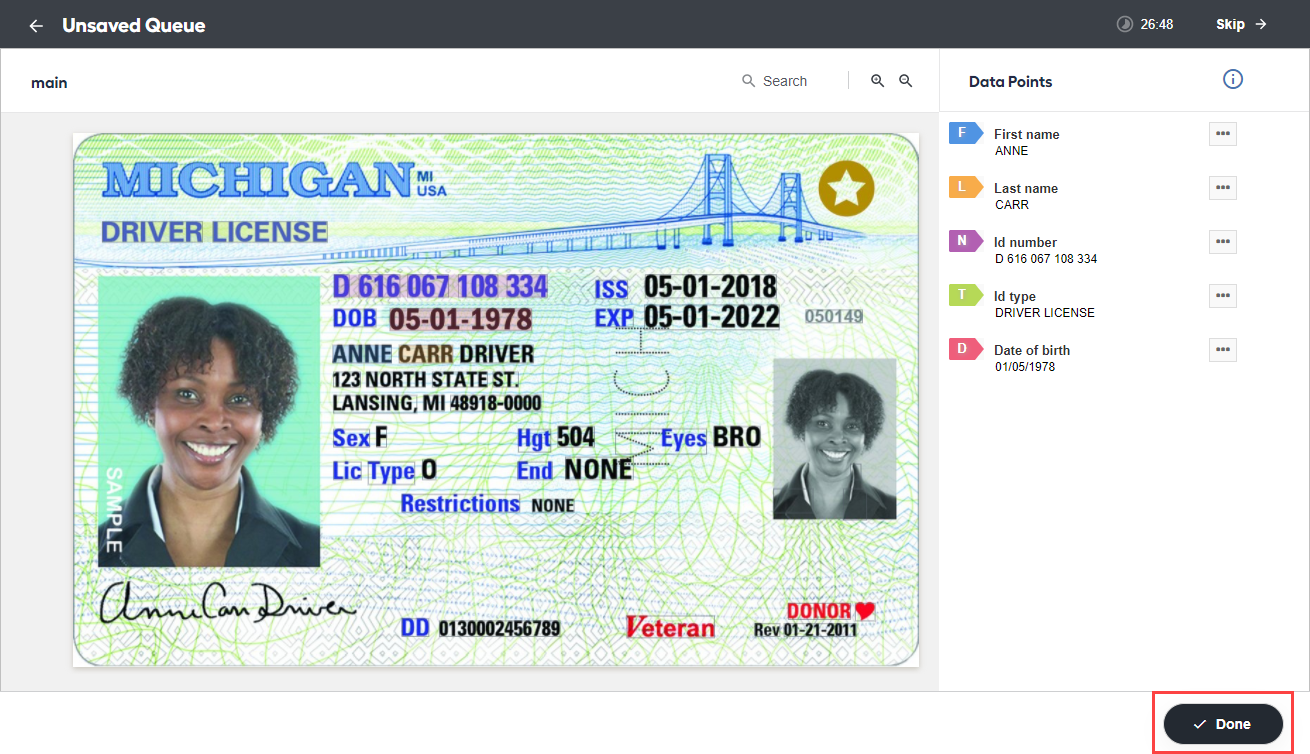
Once you submit your changes or skip the assignment, you are redirected to the next assignment in the queue.
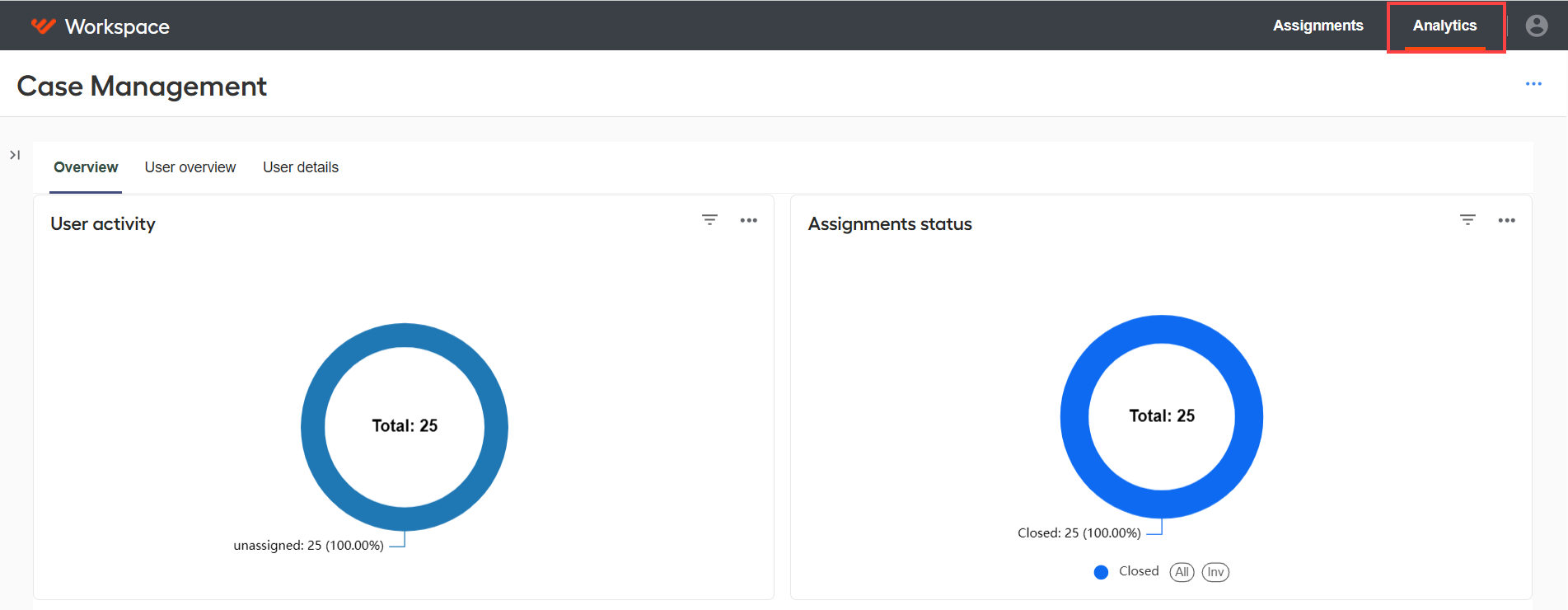
Navigate to Analytics to view insights filtered based on your role and permissions. The available tabs with metrics are Overview, User overview, and User details.
In case you have issues with the Workspace application or related Manual Task steps, review the following support guides:
For useful tips on working with the Workspace application, read the how-to guides.