Database
MS SQL server
MS SQL version:
- Recommended: Microsoft SQL Server 2022, 2019
- Also supported: MS SQL Server 2016
The activated instance of MS SQL server must be provided.
If a named SQL instance is used, it must listen for connections on a statically-assigned TCP port.
Required MS SQL Server features: DB Engine.
SQL Server and SQL Server Agent services must be up and running in the Automatic start mode.
The default server-level collation must be
SQL_Latin1_General_CP1_CI_AS. See Collation and Unicode support.Database-level collation must be set.
The separate database with the name "workfusion" must be created.
During the upgrade, the db_owner account must be active and running to perform the upgrade.
The following MS SQL login users must be created:
Parameter Default login Description mssql_dba_userwf_dbaName of the database owner that provides permissions for the database to other users and schemas mssql_ct_userworkfusionName of the MS SQL login and the corresponding MS SQL DB user for the Control Tower component mssql_ws_userworkspaceName of the MS SQL login and the corresponding MS SQL DB user for the Workspace component mssql_sqc_usersqcName of the MS SQL login and the corresponding MS SQL DB user for the SQC component mssql_ds_userdsName of the MS SQL login and the corresponding MS SQL DB user for the CT datasource connection mssql_rpa_userrpaName of the MS SQL login and the corresponding MS SQL DB user for the RPA component mssql_pm_userpmName of the MS SQL login and the corresponding MS SQL DB user for the monitoring tools mssql_dm_userdmName of the MS SQL login and the corresponding MS SQL DB user for the Analytics component mssql_rapi_userrapiName of the MS SQL login and the corresponding MS SQL DB user for the Analytics remote api mssql_ocr_userocrName of the MS SQL login and the corresponding MS SQL DB user for the OCR component mssql_automl_mms_userautoml_mmsName of the MS SQL login and the corresponding MS SQL DB user for the AutoML Model Management component mssql_keycloak_userkeycloakName of the MS SQL login and the corresponding MS SQL DB user for the Keycloak component mssql_labeling_service_userlabeling_serviceName of the MS SQL login and the corresponding MS SQL DB user for the labeling_service component mssql_db_analytics_ro_userdb_analytics_roName of the MS SQL login and the corresponding MS SQL DB user for the db_analytics_ro component mssql_dataset_management_userdataset_managementName of the MS SQL login and the corresponding MS SQL DB user for the Dataset Management component mssql_bpoe_userbpoeName of the MS SQL login and the corresponding MS SQL database user for distributed BP execution engine operations; used by the Control Tower component The following password policies are applied for the MS SQL logins:
- For passwords
mssql_dm_passandmssql_rapi_pass:- Permitted symbols:
#*@/\`+-=_$([]:,.;!? - Forbidden symbols:
{}'><"|^%&)
- Permitted symbols:
- For all other DB passwords:
- Permitted symbols:
%^#*@/\|`+-=_><&$(){}[]:,.;!? - Forbidden symbols:
"'
- Permitted symbols:
- For passwords
In the workfusion database, the user must be created for the
<mssql_dba_user>MS SQL login with the same name. This user must be granted the db_owner role in the database.Execute the following SQL script to apply the necessary database settings and enable snapshot isolation:
ALTER DATABASE  *mssql_db_name* SET single_user with rollback immediate;
GO

ALTER DATABASE *mssql_db_name* SET ALLOW_SNAPSHOT_ISOLATION ON
GO
ALTER DATABASE *mssql_db_name* SET READ_COMMITTED_SNAPSHOT ON
GO

ALTER DATABASE *mssql_db_name* set multi_user;
GO
- The database must be created and configured under the AlwaysOn Active-Active cluster with synchronous replication between primary MS SQL servers.
- The database must be configured with a static AG listener.
- When deploying MSSQL on the Disaster Recovery site, asynchronous replication must be set up between primary and secondary replicas.
Authentication
The Product supports Active Directory logins on the MS SQL server. When using AD logins in MS SQL, make sure to meet the following requirements:
- The MS SQL server must be joined to the domain.
- Server Principal Name (SPN) for the MS SQL server must exist within the Active Directory schema.
- SPN for the MS SQL server must correspond to the value provided in
hosts.ymlfor themssql_hostnameoption. - SPN for the MS SQL server must be registered for the account used to run the MS SQL service process.
- All servers within the environment must have network access to the Domain Controller ports.
- The username format must be
DOMAIN/username.
Prepare MS SQL server
To prepare an MS SQL server, complete the following steps:
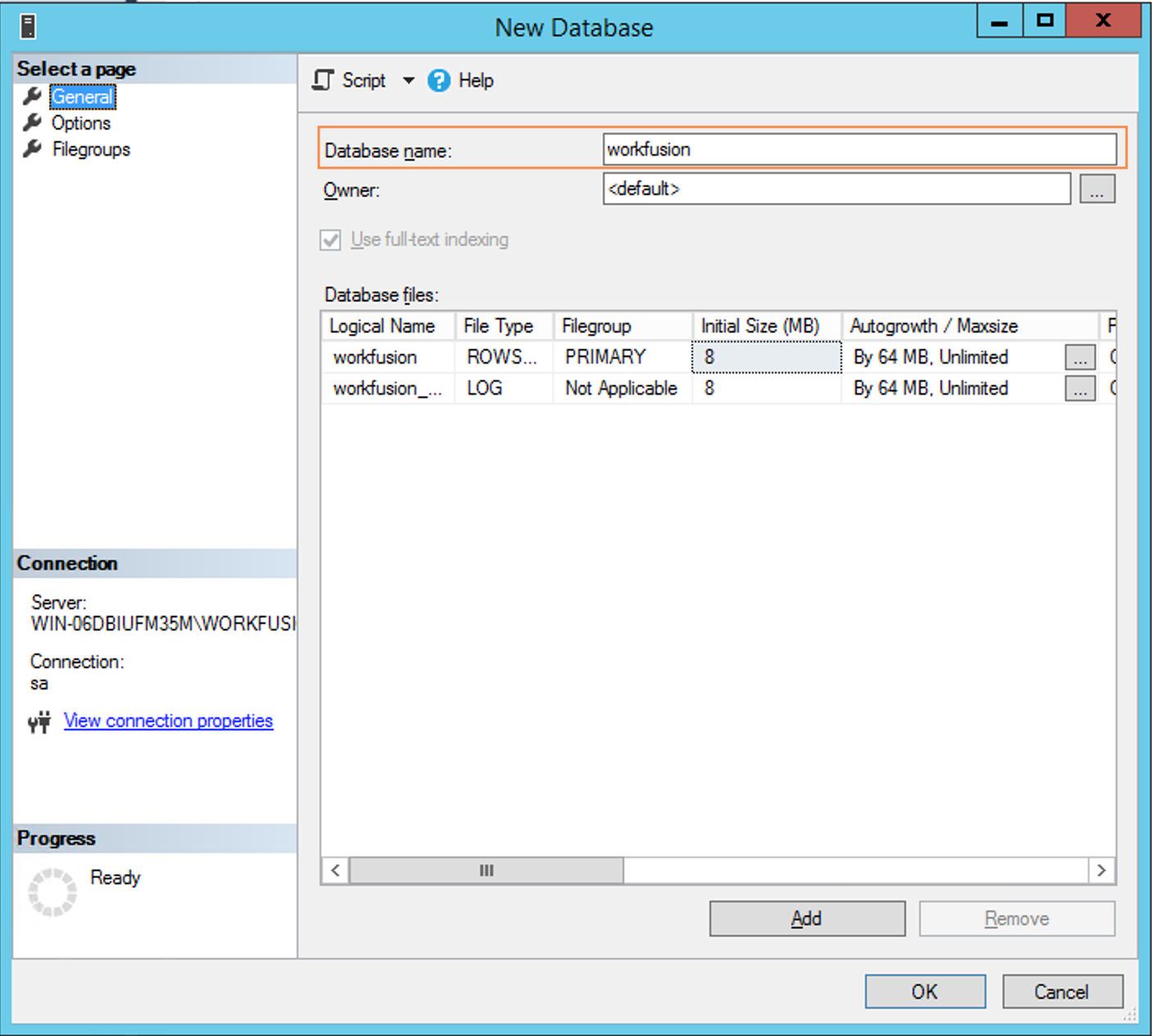
Create a new database and specify the database name: workfusion. For other options in this section, you may use the default values.
Create the
<mssql_dba_user>owner (wf_dba) with the full-access permissions for the workfusion database. This user must be later specified inconfig.yml.The following password policies are applied for the MS SQL logins:
For passwords
mssql_dm_passandmssql_rapi_pass:- Permitted symbols:
#*@/\`+-=_$([]:,.;!? - Forbidden symbols:
{}'><"|^%&)
- Permitted symbols:
For all other DB passwords:
- Permitted symbols:
%^#*@/\|`+-=_><&$(){}[]:,.;!? - Forbidden symbols:
"'
To create
<mssql_dba_user>, follow the steps below:On an MS SQL server, create the mssql login, specify the login name.
Make sure to clear the Enforce password policy checkbox.
In the Default database box, specify the
<mssql_db_name>database and then choose English as the Default language.In the Select a page group, click User mapping and select the
<mssql_dba_user>checkbox to map the user to the<mssql_db_name>database. Leave all other options unchanged.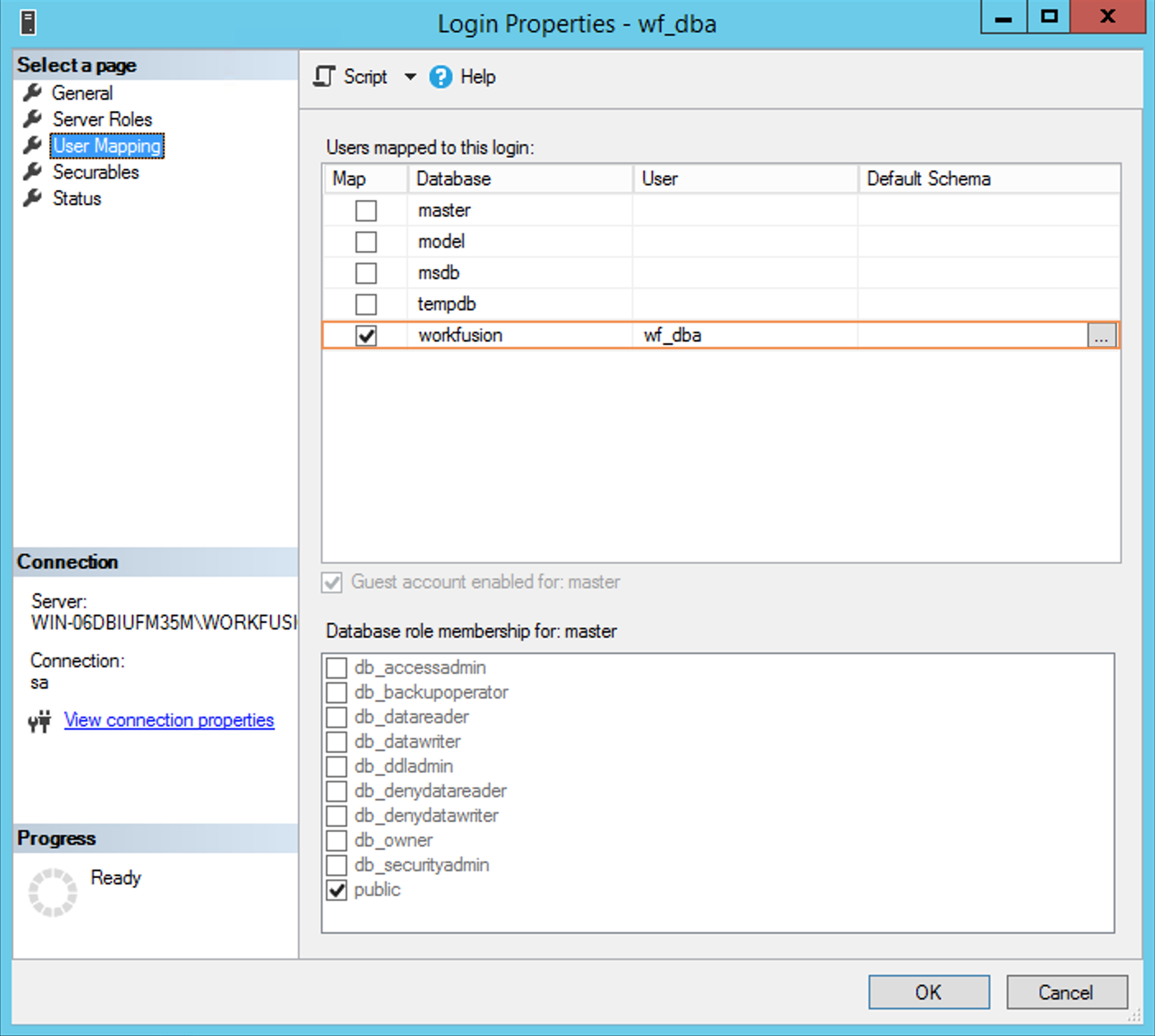
In the database Users, select the
db_ownercheckbox to assign<mssql_dba_user>to thedb_ownerrole.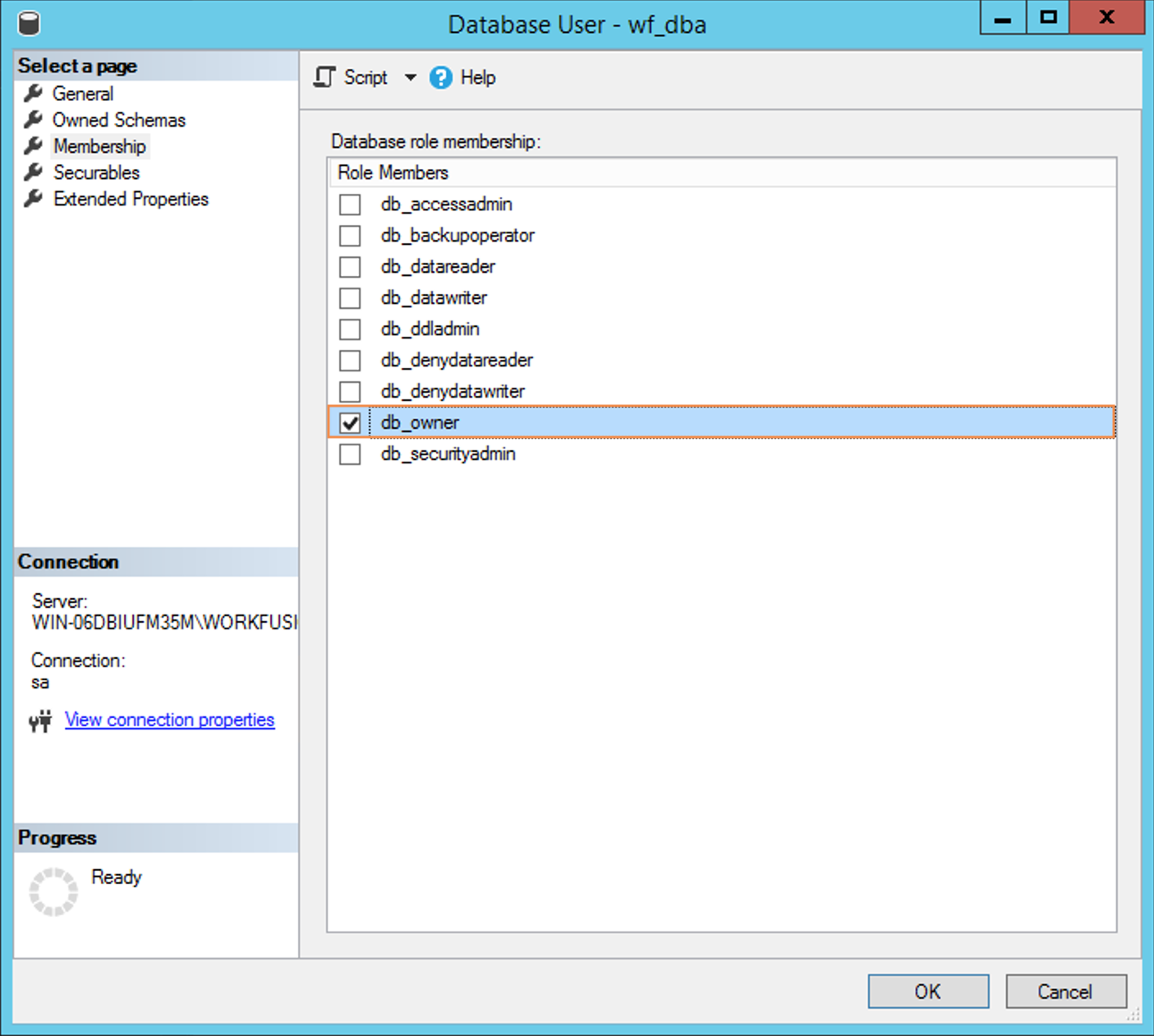
- Permitted symbols:
Create the following MS SQL logins for the WorkFusion components. Note that MS SQL logins are not the same as database users. See the parameters in
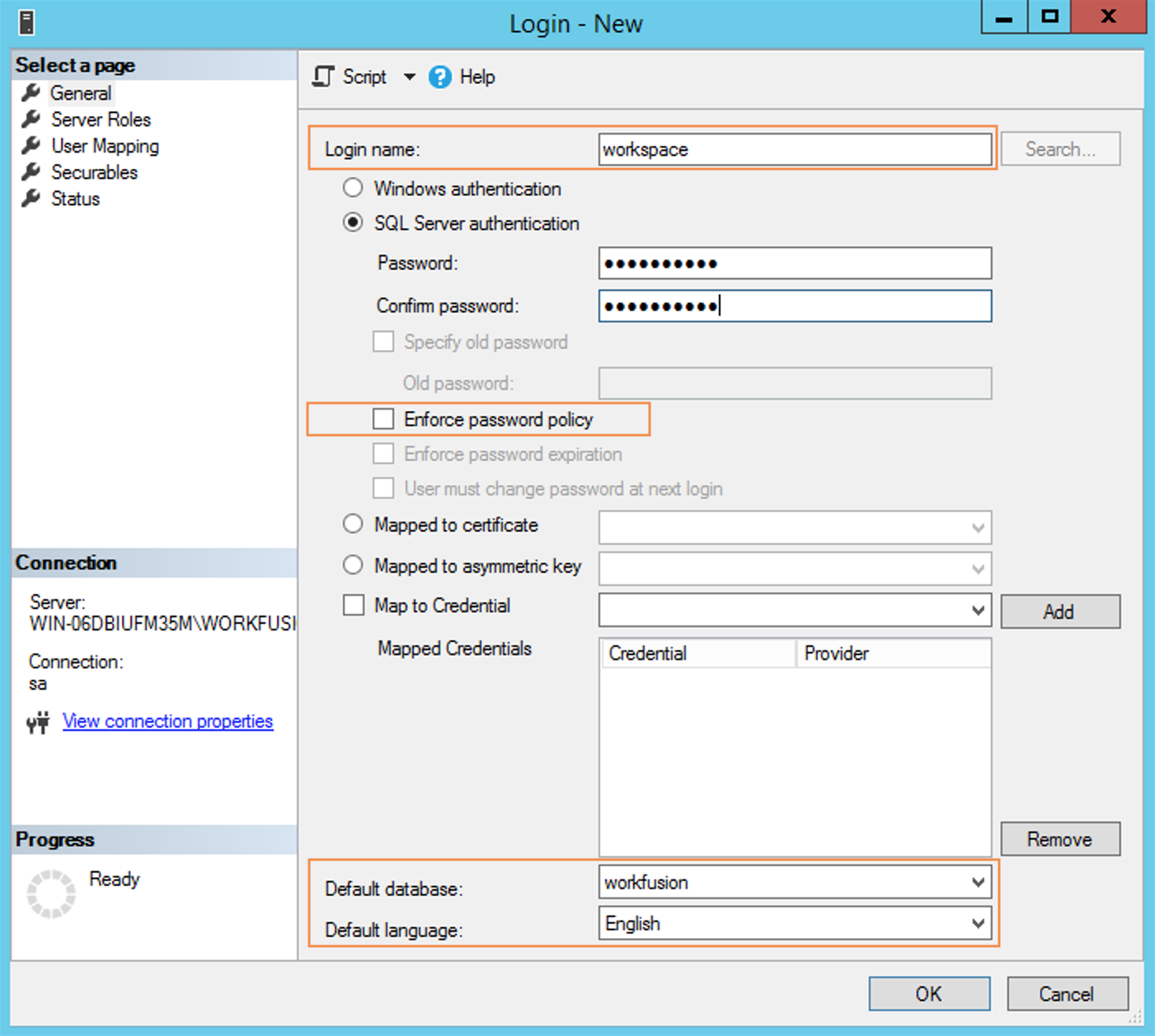
config.yml.Parameter Default value Description mssql_ct_userworkfusionName of the MS SQL login and the corresponding MS SQL DB user for the Control Tower component mssql_ws_userworkspaceName of the MS SQL login and the corresponding MS SQL DB user for the Workspace component mssql_sqc_usersqcName of the MS SQL login and the corresponding MS SQL DB user for the SQC component mssql_ds_userdsName of the MS SQL login and the corresponding MS SQL DB user for the CT datasource connection mssql_rpa_userrpaThe name of the MS SQL login and the corresponding MS SQL DB user for the RPA component mssql_pm_userpmName of the MS SQL login and the corresponding MS SQL DB user for the monitoring tools mssql_dm_userdmName of the MS SQL login and the corresponding MS SQL DB user for the Analytics component mssql_rapi_userrapiName of the MS SQL login and the corresponding MS SQL DB user for the Analytics remote api mssql_ocr_userocrName of the MS SQL login and the corresponding MS SQL DB user for the OCR component mssql_automl_mms_userautoml_mmsName the MS SQL login and of the corresponding MS SQL DB user for the AutoML Model Management component mssql_keycloak_userkeycloakName the MS SQL login and of the corresponding MSSQL DB user for the Keycloak component mssql_labeling_service_userlabeling_serviceName of the MS SQL login and the corresponding MS SQL DB user for the labeling_service component mssql_db_analytics_ro_userdb_analytics_roName of the MS SQL login and the corresponding MSSQL DB user for the db_analytics_ro component mssql_dataset_management_userdataset_managementName of the MS SQL login and the corresponding MS SQL DB user for the Dataset Management component mssql_bpoe_userbpoeName of the MS SQL login and the corresponding MS SQL database user for distributed BP execution engine operations; used by the Control Tower component For each login, specify the following parameters of the SQL Server authentication:
In the Login name field, specify the corresponding username.
Make sure to clear the Enforce password policy checkbox. See the passwords policies earlier.
In the Default database box, specify the
<mssql_db_name>database.Choose English as the Default language.
Execute the following SQL script to apply the necessary database settings and enable snapshot isolation:
ALTER DATABASE  *mssql_db_name* SET single_user with rollback immediate;
GO

ALTER DATABASE *mssql_db_name* SET ALLOW_SNAPSHOT_ISOLATION ON
GO
ALTER DATABASE *mssql_db_name* SET READ_COMMITTED_SNAPSHOT ON
GO

ALTER DATABASE *mssql_db_name* set multi_user;
GO
In the msdb database, create the
<mssql_pm_user>user. Make sure to replace<mssql_pm_user>with the actual username:USE msdb;
IF NOT EXISTS (SELECT name FROM sys.database_principals WHERE name = '<mssql_pm_user>')
CREATE user [<mssql_pm_user>] for login [<mssql_pm_user>] with default_schema = dbo;
GO
ALTER role SQLAgentUserRole add member [<mssql_pm_user>];
GOProvide
<mssql_pm_user>with permissions to view server state:use master;
GRANT view server state to [<mssql_pm_user>];When configuring the setup, on the Master server, in the
config.ymlfile, in the#MSSQLsection, remember to specify the corresponding usernames and passwords that you have created on the previous step.